Archive
Author Archive
How students can manage sidetone manually
2014/03/08
Leave a comment
Sidetone echoes your voice from the microphone back into your headphone speakers. It makes wearing the headphones feel more natural, and lets you evaluate your pronunication better.
Until it is configured properly out of the box, to enable it, you have to:
Open sound settings: 
Check and Increase the sidetone volume until you can hear yourself talking well: 
Categories: audience-is-students, digital-audio-lab, e-languages, Speaking
sanako-study-1200, sidetone

Watch how you can backup and restore your Windows speech-recognition training data
2014/03/07
Leave a comment

Categories: audience-is-students, Student-Computers
speech-recognition
Example 5: Watch how you can dictate to Windows speech-recognition (e.g. in English) and correct results in MS-Word
2014/03/07
Leave a comment

- Important: Listen carefully: I am not a native speaker, but have a reasonably low amount of errors, because it enunciate, speak clearly and slowly, and separate the words.
- Consider it part of the exercise that you will have to re-read and re-type some your output – use track changes in MS-Word:
- Make it a game: How good can you get?
- If you get really good at it, make a screencast like this one and include it in your Mahara ePortfolio as authentic evidence of your foreign language proficiency.
- Overall, it’s like how I refer to cycling: Beats walking. Anytime.

Categories: assignments, audience-is-students, audience-is-teachers, e-languages, English, French, German, Hindi, Japanese, Mandarin, multimedia-recording, Operating-system, Reading, Screencasts, service-is-applying-learning-tools, Spanish, Speaking, Student-Computers, training, Writing
ePortfolio, MS-Word, speech-recognition, track-changes
Use Getty Images’ free embed tool for culturally authentic imagery?
2014/03/07
Leave a comment
- Getty Images is trying a new approach for making some money of its widely pirated imagery online: a tool you can use to embed images from their database on your website
- Pros:
- Copyright permissible!
- Preserves through link to Getty Images full background metadata of image.
- Relatively sophisticated image database browsing tool – might be useful less for teachers directly, but for web quests that send students to learn by exploration.

- Cons:
- With the image embedder, you are enabling advertisements and user tracking on your page. Study the licensing agreements.
- Seems to me that Google Images’ scope and convenience will be impossible to beat.

Categories: Media, service-is-evaluating-learning-tools
copyright, photos
Protected: LRC old media inventory for spring cleaning
2014/03/07
Enter your password to view comments.
A first look at the Google Dictionary extension for Chrome
2014/03/06
Leave a comment
- We
- have not pre-installed in the LRC (for that the extension would need to be more manageable by the teacher during face-to-face classes, which include exams),
- but can (with some reservations) recommend the Google Dictionary extension (even though it is only available for Chrome). Here is why:
- Google dictionary extension provides an interface to Google define and translate
- that is convenient (as quickly accessed like glosses) for reading activities in many languages (Q: is the privileged word sense displayed here intelligently chosen?)
- while (for some languages more than for others) providing access to additional word senses, usage examples and historical background information
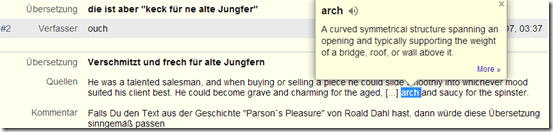
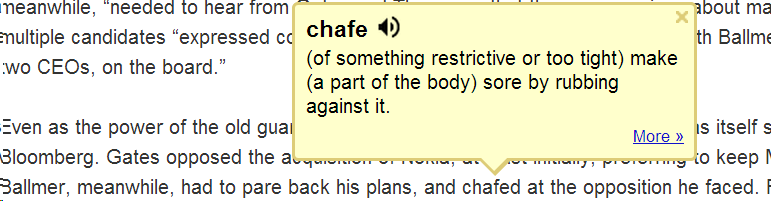
- Interface 1: Tooltip,
- for English with audio

- for other languages without audio (even though audio pronunciation may be available in Google translate for that language):

- convenient access (I have been loving the tooltip interface since Google toolbar days)
- limited, but useful information,
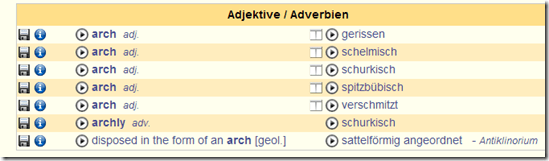
- a word sense – not that this is still not contextually intelligent (Cannot blame them here!) and hence more than one word sense should be offered (here I must blame them: Boo!!): E.g. here “arch” should at show more than the most common word sense:
- including pronunciation (not IPA, but audio)
- a word sense – not that this is still not contextually intelligent (Cannot blame them here!) and hence more than one word sense should be offered (here I must blame them: Boo!!): E.g. here “arch” should at show more than the most common word sense:
- Interface 2 (“more”)
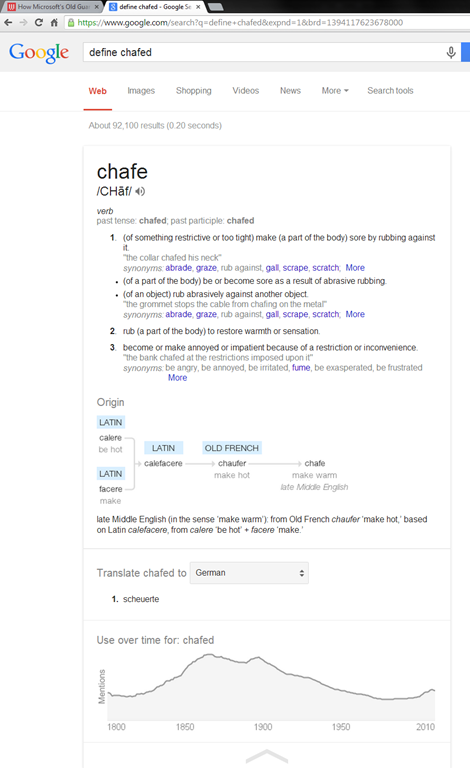
- For English, a click on “more” leads to the Google “define”search operator (the related etymology search operator has been reviewed here before):

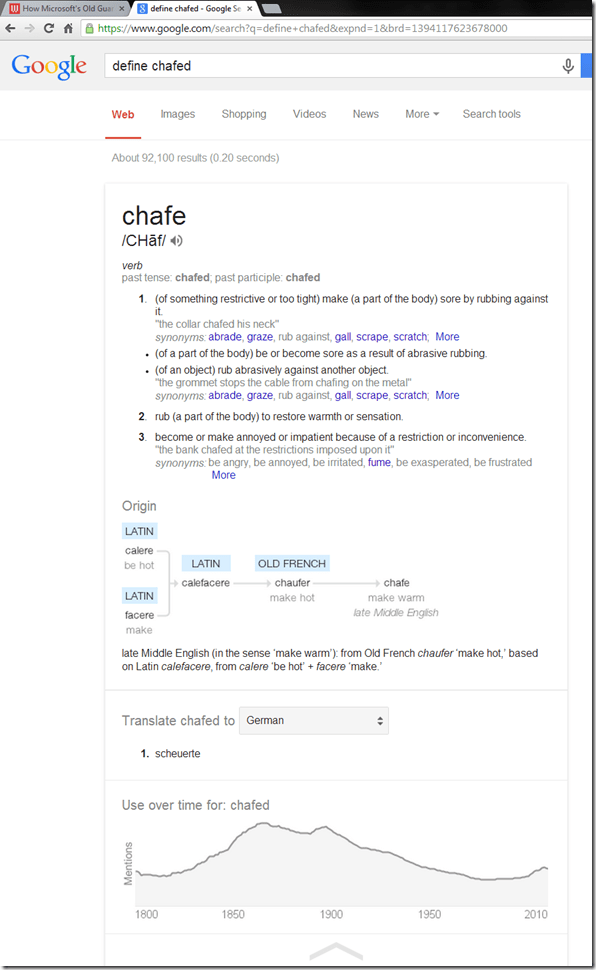
- Interface 3: unfold the search results by clicking on the down arrow at the bottom to access additional information:
 =
=
- additional word sense entries
- historical:
- etymology
- frequency data
- translation/dictionary entry:
- for our learners of languages other than English, the translation appears right in the tool tip, see above;
- for our ESL learners, this seems a few too many steps for accessing this information, although a monolingual dictionary is useful in many instances also.
- For English, a click on “more” leads to the Google “define”search operator (the related etymology search operator has been reviewed here before):
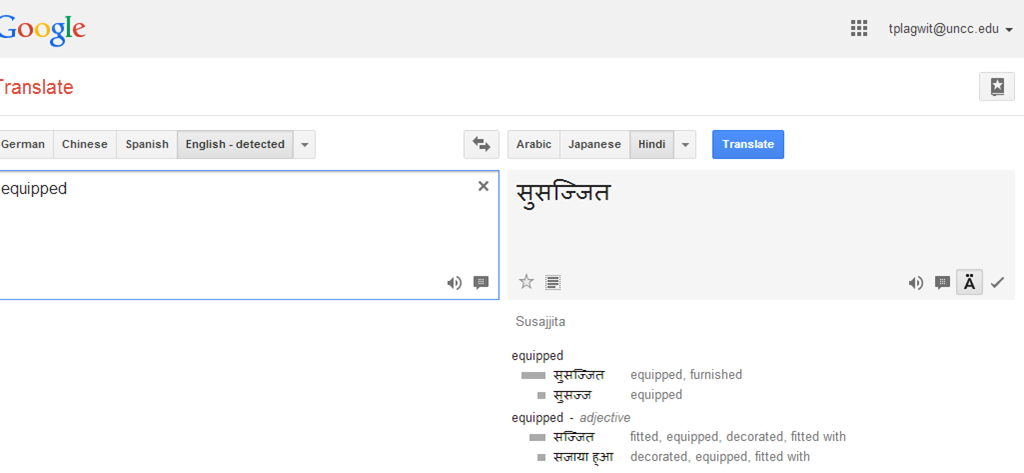
- For languages other than English, a click on more leads to Google translate, which (should get its own article, but for what it is worth) can be
- more limiting than “define”: While you are given multiple word senses for
- Spanish:
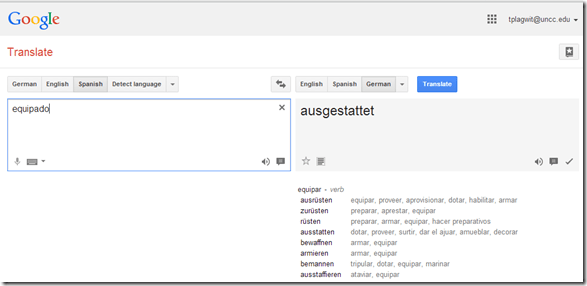
- and to a lesser extent, for
- Arabic:

- Hindi:

- Arabic:
- Spanish:
- for many languages the results are much more limiting:
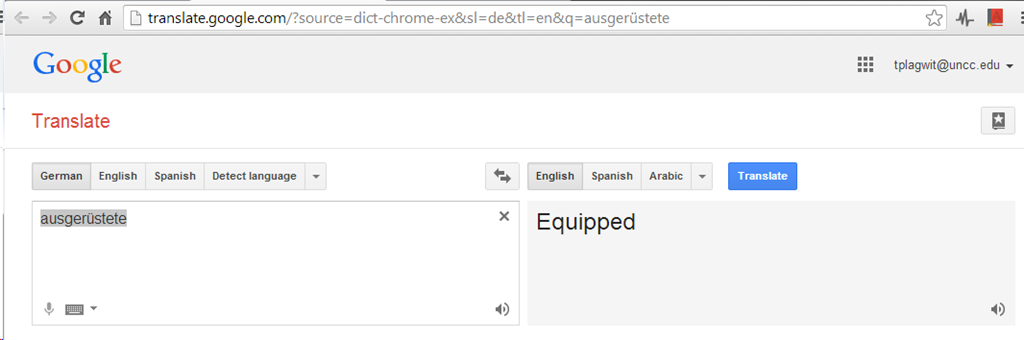
- Even if you look up German or French, you revert back to the (pedagogically terrible) single word-sense original “translation” interface )

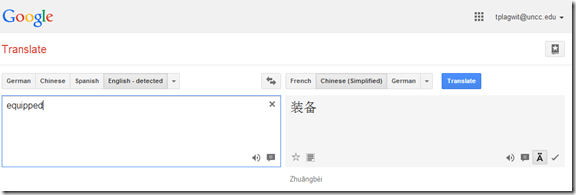
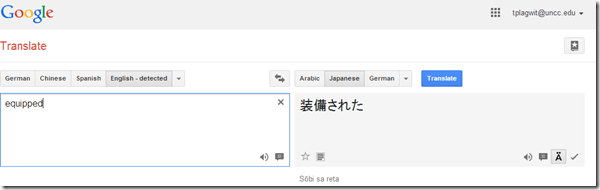
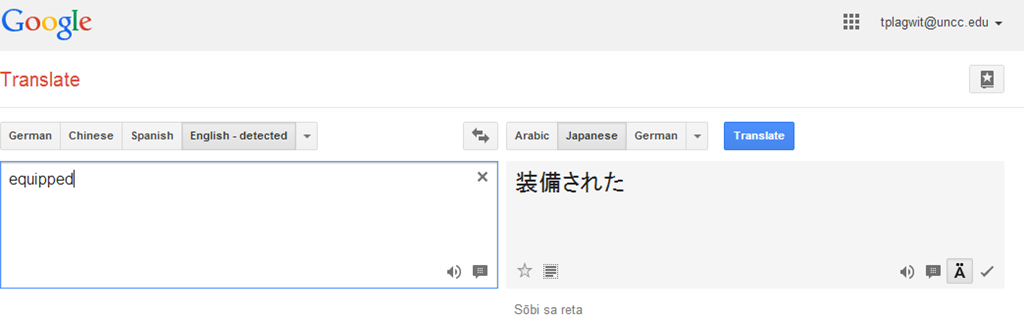
- For East Asian languages, you get Roman alphabet transcriptions
- e.g. Chinese with Pinyin:
- e.g. Japanese:
- e.g. Chinese with Pinyin:
- Even if you look up German or French, you revert back to the (pedagogically terrible) single word-sense original “translation” interface )
- more limiting than “define”: While you are given multiple word senses for
- for English with audio
- Still no per-user tracking? Here it would make sense for the user.





Categories: Arabic, audience-is-students, audience-is-teachers, Dictionaries, English, Farsi, French, German, Greek (modern), Hebrew, Hindi, Italian, Japanese, Korean, Latin, Mandarin, Polish, Portuguese, Reading, Russian, service-is-evaluating-learning-tools, Spanish, Swahili, websites, Yoruba
glossing, google, google-dictionary, google-translate


Questions? Read the About. Or just ask me a quick Our Databases: Resources with calendars -- Language learning material Moodle Sites, multimedia files -- films


FAQs for LRC student staff or for students or for teachers. To search our FAQs, in the browser addressbar, add after "https://plagwitz.wordpress.com/feed/?tag=faqs+/" "+TAG1" (from tag cloud below) OR "https://plagwitz.wordpress.com/feed/tag=faqs
&category_name=" "CAT1" (from category hierarchy below). OR search both categories and tags, and multiple TAGs/CATs (connect with "," for OR-search, with "+" for AND-search), like so: https://plagwitz.wordpress.com/feed/?tag=TAG1+TAG2+...TAGn&category_name=CAT1
+CAT2+...CATn"
Other ways to find help
If you cannot find it here, look there: 5,500 Language-Learning Links and Programs for learning or teaching 150 languages
Shortcuts:Our Lists, Our Maps, LRC Staff Moodle Site,LRC Project Moodle Site, 49erexpress, UNCC Moodle, Student Recordings: s:claslcslrcsanakostudent
Learning usage samples: Sanako oral exam, Kaltura webcam presentation, Dictation with speech recognition, Sanako written exam, Chinese and Japanese interactive stroke-order practice
Test the Sanako Installer, Webbrowser Popup Konfigurator for XP, or Windows7, faster LRC TeacherPC Log-in Let MS facilitate diacritics writing by installing for you US-International keyboard layout
This is my personal blog (Google+). The views expressed on these pages are mine alone and not those of my employer. The information in this weblog is provided “AS IS” with no warranties, and confers no rights.
 Thomas' Work Space
