Archive
How to get rid of “Questions completed” feedback in Hot Potatoes quizzes
- If you dig into the JavaScript in the HTML, looking for the default feedback t4ext (“Questions completed so far”), you see (as I have done here manually; this could be relatively easily done also for an entire batch of course quizzes with a global replacement) that you turn this option off:
- var CompletedSoFar = ‘Questions completed so far: ‘;
- var ShowCompletedSoFar = false;
- But that does not get rid of the #/# being displayed.
- There is an option to get rid of the Feedback text:
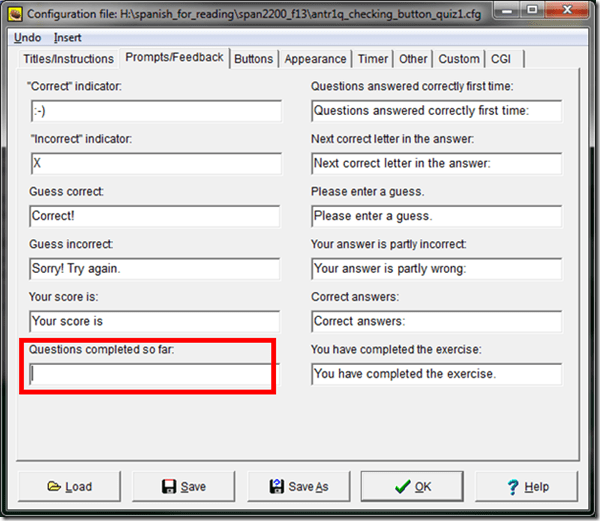
- If I read the options correctly, there is no such setting (we tried the obvious suspects here):

-
function CheckQuestionsCompleted(){ // trp: trying to disable showing to student QuestionsCompleted // (entire function even if somebody changes the variable ShowCompletedSoFar) // if i understand correctly, what users really do not want to show // is a misleading completed correctly for completed // (which leads to students not know that they have finished?) - \ // is there no better way? // was: if (ShowCompletedSoFar == false )){return '';} // trp: cannot find a gui to set ShowCompletedSoFar to false var QsCompleted = 0; for (var QNum=0; QNum<State.length; QNum++){ if (State[QNum] != null){ if (State[QNum][0] >= 0){ QsCompleted++; } } } //Fixes for 6.2.2.2 if (QsCompleted >= QArray.length){ return ExerciseCompleted; } else{ return ''; // trp: CompletedSoFar + ' ' + QsCompleted + '/' + QArray.length + '.'; } } - Since you can edit the sourcefiles of a HotPotatoes installation, you can turn it also off for a machine permanently:
- If this variable is there in the underlying code, shouldn’t there be also an option in the GUI (not necessarily, maybe was never implemented – or maybe I just have not found it…).
- For what the output will look like, see here.


Download for free Arabic diacritizer, romanized to Arabic script converter for Office 2013
- “The Arabic Authoring services help users read and write Arabic faster.
- Maren Reader helps users read Romanized Arabic by converting the Romanized script into Arabic script.
- Diacritizer restores the missing diacritics in the Arabic text, which allows users to write text without diacritics and have the service restore them.”
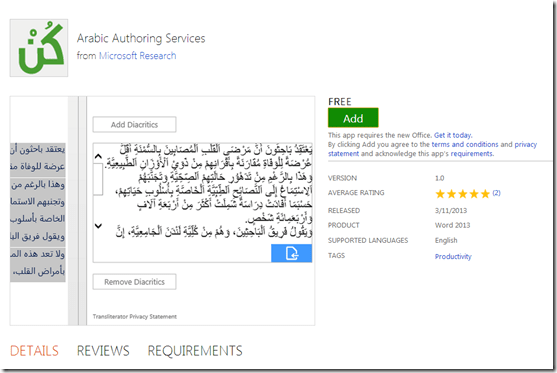
- These tools should be useful for fledgling learners of Arabic – but don’t solely rely on them, since computers processing human language still make errors.
- These tools were developed by Microsoft Research Labs Cairo, learn more about them.

How to change your button text in Hot Potatoes activities
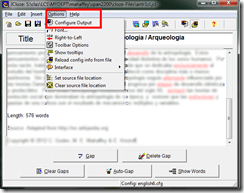
- In Hot Potatoes, use the “options”/ “configure output”:
- Tab: “Buttons”:

- Save and regenerate the html file:
- Voilà:


Firefox and Chrome – Enterprise version in computer lab image?
- The tension between having to update the platform while not leaving the ecosystem behind seems one of the oldest issues IT – does the web browser platform add something fundamentally new to the mix?
- My understanding has always been that campus computer labs should run the “enterprise versions” of the Chrome and Firefox web browser, especially if they advertise the non-default web browsers to students on the start menu right next to Internet Explorer (which IT, with the help of the Windows Update tools that allow to shut out forced Internet Explorer’s upgrade, upgrades very conservatively, in order to not break applications).
- Reason for installing enterprise versions in the (ahem!) enterprise is that – I believe to know this for Firefox ESR – the enterprise version:
- is kept up to date with security patches, but
- is feature-stable (as opposed to the consumer version which gets updated every few weeks) which allows our software vendors – textbook websites etc. – to make sure their software works on a mainstream, non-cutting edge version of the web browser. Case in point which would likely cause havoc when trying to use online language textbooks in the LRC over the next term: http://www.theregister.co.uk/2013/12/10/firefox_26_blocks_java/
- Running the enterprise version of the software should also relieve
- IT departments of constant updates and testing, and
- students using deep-frozen lab computers to – every time they log in on a computer – having to wait for the auto update of the web browser to go through.
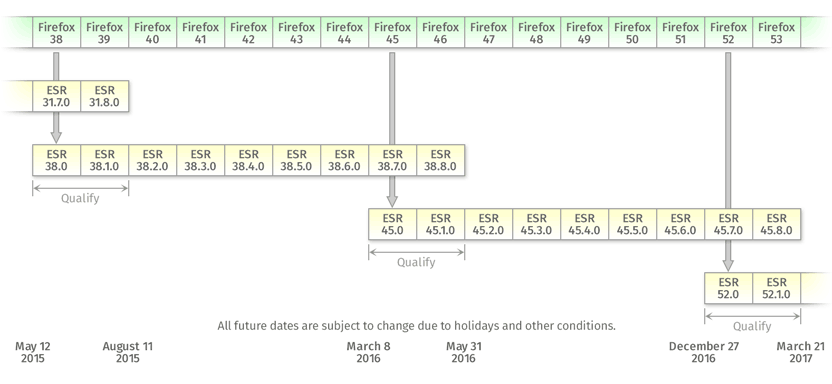
- E.g. you can see from this Firefox ESR version history graphic, that it has been on version 17 since November 2012, and that version 17, after an overlap of a few weeks, is now (December 3) deprecated, in favor of version 24.
- That means: with Firefox ESR, we were spared from having to deal with (test application software compatibility, like online textbooks) the 7 individual upgrades in between. If we upgrade to ESR version 24 now, we will likely for another full year receive security patches, but not have to deal with features that break instructional websites.
- Given this, I assume we should upgrade to Firefox ESR (and the Chrome equivalent, if it is one, i.e. works like Firefox ESR) in the LRC image
Mimicking the annual “All-Japan Phone-Answering Competition” in the digital audio lab?

One of my first endeavors in a digital audio lab was pairing distant students over the headphones to have them practice doing business over the phone in Spanish. Today’s New York Times article on the annual “All-Japan Phone-Answering Competition” made me wonder whether a digital audio lab could not mimic this also (especially since the digital audio lab is quite conducive to “drilling in” rules and – as the competition does, too – focusing on intonation and articulation).
“Formal phone answering is serious business in Japan, with many rules intended to head off offensive or awkward moments. A search on Amazon’s Japanese website found more than 60 books specifically on phone manners, and dozens more on business etiquette in general. Most appeared to be aimed at women, like “How to Talk Like a Workplace Beauty.”
A polite office worker picks up calls during the first or second rings; if, for unavoidable reasons, the caller is left waiting for three rings or more, an apology is in order. The conversation itself is carried out in a formal, honorific spoken form of language — peppered with exclamations like “I’m horrified to ask this request, but …” At the end of the call, the receptionist must listen for the caller to hang up before putting down the receiver. Hanging up first is a serious faux pas. (…)Each contestant runs through a three-minute conversation. Judges scrutinize the conversations for impeccable Japanese phone etiquette: good tone, volume, speed, pronunciation, articulation and use of words. A strong contestant takes appropriate pauses between phrases, and stays friendly, but not overly friendly. Throughout, proper exclamations to signal attention and empathy must be used.”
The latter scrutinization could possibly be conducted as a peer evaluation.
The Times article seems highly critical of the traditional, clerical role of women who still dominate these competitions. However, in the reader commentaries, there is an interesting backlash from people who have experienced, enjoyed and brought back Japanese culture to this country.
So the lesson plan sounds like it could quite easily transcend the above digital audio lab utilization into the intercultural realm and lead to interesting comparisons and discussions.
First steps with MS-Lync 2013 screen sharing and remote control during support calls
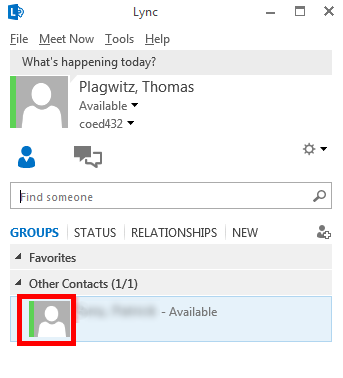
- Start a meeting, by double-clicking on somebody who shows as available in your contact list:

- If you then hover over the monitor item at the bottom, you get the option to “present”, i.e. show your screen to the other person your are meeting with. (Multi-monitor support seems good, if you have multiple monitors like we do):

- If you accept the sharing:

- Voilà, there is your colleague’s screen in a window on your desktop, watch her mouse actions:
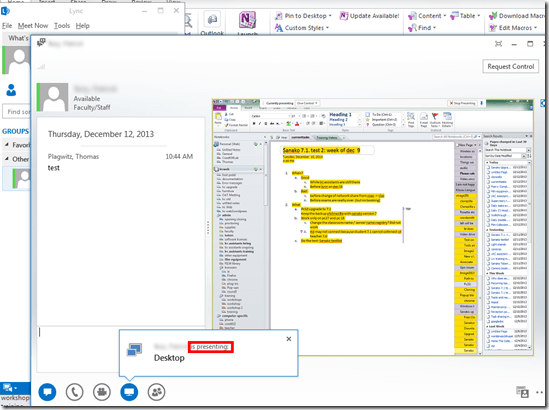
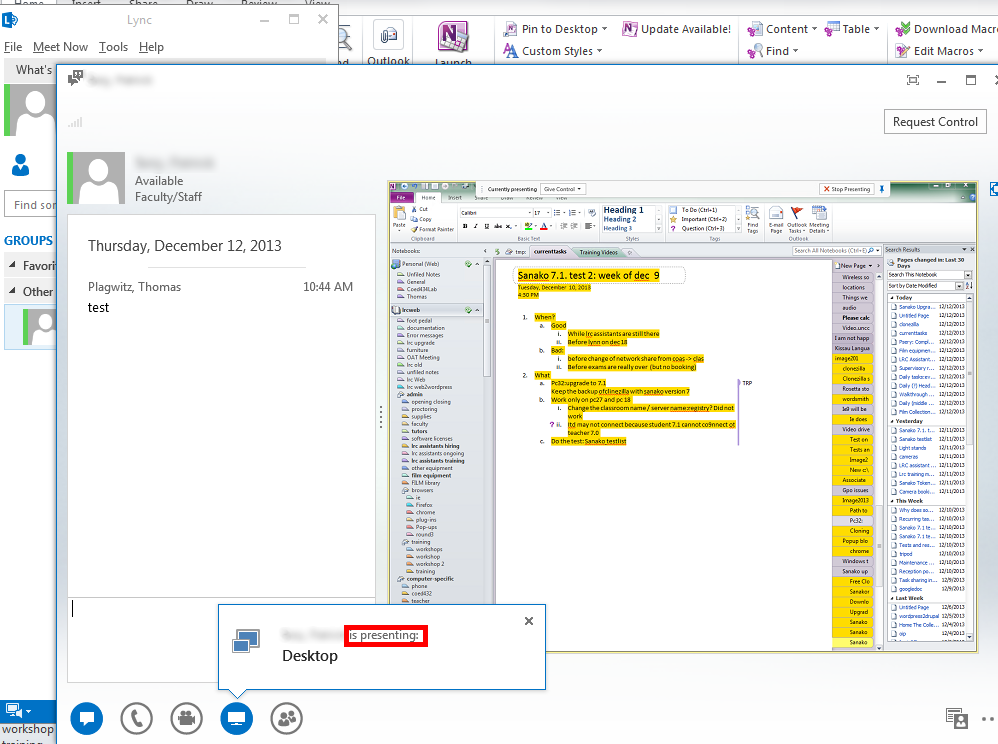
- The presenter
- receives a visual reminder:

- can also give you control to remote control her mouse:
 , the result of which looks like that: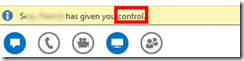
- can stop the presentation at any time.
- receives a visual reminder:
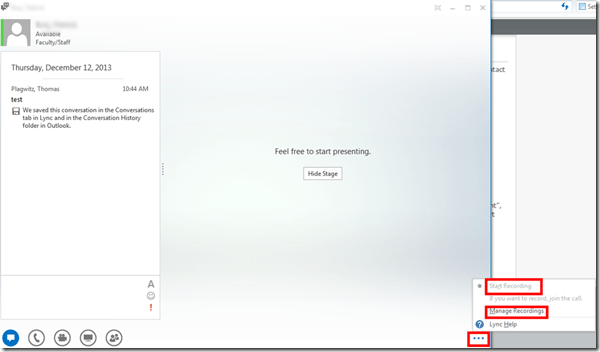
- Finally, the presentations can be recorded which could be extremely useful in a support call for later reuse/review either by the presenter or audience. Click on the 3 dots in the lower right of the “stage”window.
- It looks like a basic, easy workplace-wide screen sharing software that integrates with the local accounts could be extremely productive during daily collaboration. To make such a solution a system-wide service for calling support, one would probably need a queue and pool of supporters and call forwarding.






Questions? Read the About. Or just ask me a quick Our Databases: Resources with calendars -- Language learning material Moodle Sites, multimedia files -- films


FAQs for LRC student staff or for students or for teachers. To search our FAQs, in the browser addressbar, add after "https://plagwitz.wordpress.com/feed/?tag=faqs+/" "+TAG1" (from tag cloud below) OR "https://plagwitz.wordpress.com/feed/tag=faqs
&category_name=" "CAT1" (from category hierarchy below). OR search both categories and tags, and multiple TAGs/CATs (connect with "," for OR-search, with "+" for AND-search), like so: https://plagwitz.wordpress.com/feed/?tag=TAG1+TAG2+...TAGn&category_name=CAT1
+CAT2+...CATn"
Other ways to find help
If you cannot find it here, look there: 5,500 Language-Learning Links and Programs for learning or teaching 150 languages
Shortcuts:Our Lists, Our Maps, LRC Staff Moodle Site,LRC Project Moodle Site, 49erexpress, UNCC Moodle, Student Recordings: s:claslcslrcsanakostudent
Learning usage samples: Sanako oral exam, Kaltura webcam presentation, Dictation with speech recognition, Sanako written exam, Chinese and Japanese interactive stroke-order practice
Test the Sanako Installer, Webbrowser Popup Konfigurator for XP, or Windows7, faster LRC TeacherPC Log-in Let MS facilitate diacritics writing by installing for you US-International keyboard layout
This is my personal blog (Google+). The views expressed on these pages are mine alone and not those of my employer. The information in this weblog is provided “AS IS” with no warranties, and confers no rights.
 Thomas' Work Space