Archive
Archive for June, 2013
How to troubleshoot and get help with the LangLabEmailer
2013/06/07
Leave a comment
- LangLabEmailer logs its activities automatically.
- Please consult the log files which you can find
- if you search C:\Users\[your user name]\AppData\Local\Apps\2.0\Data
- for the files
- “trace-rolling.log” (contains activity log messages).
- and, should you run into an Exception, “exception-rolling.log”.
- Useful information about the LangLabEmailer working with your MS-Exchange configuration is automatically kept in the same folder: EwsResponseHttpHeaders.txt, AutodiscoverConfiguration.txt, AutodiscoverRequest.txt, AutodiscoverRequestHttpHeaders.txt, AutodiscoverResponse.txt, AutodiscoverResponseHttpHeaders.txt, EwsRequest.txt, EwsRequestHttpHeaders.txt, EwsResponse.txt.
- Next: Request features. Or up:Langlabemailer table of contents

What are the features of the LangLabEmailer?
2013/06/07
Leave a comment
- Ver 1.0.1.0
- emails as attachments new (hitherto unsent) audio recording or writing assessment or assignment files from the language lab student collection file share to originating student and teacher
- attempts to automatically
- skip sending small files created during microphone and similar systems tests
- reroute email address for files of late students that have been collected under teacher login (simple delimited list, manually editable), but renamed to valid address
- reroute files that have been sent under position number rather than student names (including at least to one student of a student pair or group recording)
- puts meaningful course name in the email subject to easily integrate with email workflow that teachers and students will already be familiar with
- provides options to
- exclude files from sending
- language lab manager: using file name patterns and extensions
- teacher:
- by marking individual files as _sent or, preferably, put them in the subfolder
- not sending or delay sending until after grading (with inserting feedback, written or voice-insert recorded aural feedback)
- send to students only
- and more…
- Not implemented yet:
- Full Support for Sanako ver 6 save files under “last name, first name”
- Send to teacher only
- Support of Exchange Online.
Which prerequisites you need for the LangLabEmailer
2013/06/07
Leave a comment
- MS-Exchange (2007 and up) email-server (on-premise; sorry, no Exchange online yet) with Active Directory;
- A login to an on-campus domain-joined office PC (tested on Windows 7);
- MS-.Net 4.5 (how to find out which);
- Preferably a digital audio lab file saving scheme that uses the username (more robust and flexible than always going via file ownership).
- Next: Download. Or Langlabemailer (table of contents).
How to install the LangLabEmailer
2013/06/07
Leave a comment
- After clicking the button:install,
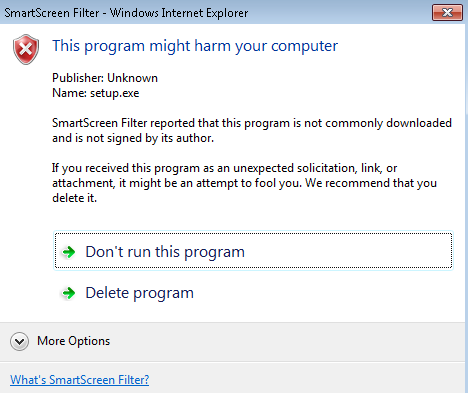
- On IE9 and up (on Windows 7 and reportedly even more so on Windows 8), you may have to bypass Smartscreenfilter warnings like so:
- (True, I do not intend to quit my day job, but maybe you know me from, at least from this blog I hope
 ,so:) click on “Actions”:
- Click on “more options”:
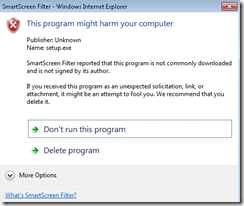
- Then click on: ”run anyway”:
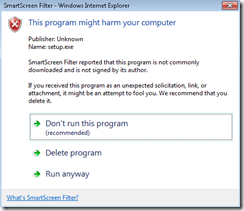
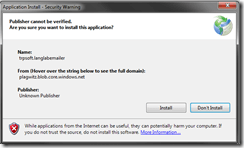
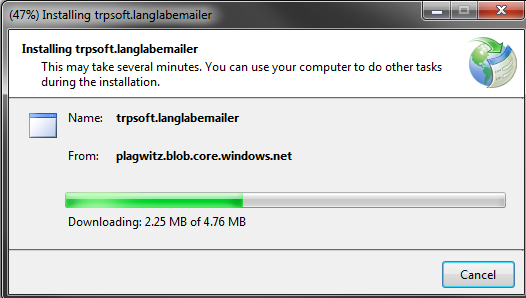
- Then follow the prompts like so:
-

-
-

-

-
Next: Configure. Or up:Langlabemailer table of contents.



Protected: How to configure the LangLabEmailer for your school, and share back
2013/06/07
Enter your password to view comments.
Categories: Arabic, assessments, assignments, audience-is-language-learning-center-manager, compiledcode, digital-audio-lab, e-languages, English, Farsi, French, German, Greek (modern), Hebrew, Hindi, Italian, Japanese, Latin, Mandarin, Polish, Portuguese, Russian, service-is-programming, Spanish, Speaking, Swahili, Writing, Yoruba
configuring, langlabemailer
How to use the Langlabemailer
2013/06/07
Leave a comment
- If teachers want to change the default action of the LangLabEmailer, they can add the following labels to the folder name when they save their assessments and assignments (normally an option in the digital language lab software; or simply rename the folder afterwards):
- _noemailing: as label says;
- [not implemented]: _nostudentemailing, as name says, but see Feature Request for the LangLabEmailer;
- _noteacheremailing: as label says.
-
Next: TBA:Troubleshooting. Or up Langlabemailer (table of contents)


Questions? Read the About. Or just ask me a quick Our Databases: Resources with calendars -- Language learning material Moodle Sites, multimedia files -- films


FAQs for LRC student staff or for students or for teachers. To search our FAQs, in the browser addressbar, add after "https://plagwitz.wordpress.com/feed/?tag=faqs+/" "+TAG1" (from tag cloud below) OR "https://plagwitz.wordpress.com/feed/tag=faqs
&category_name=" "CAT1" (from category hierarchy below). OR search both categories and tags, and multiple TAGs/CATs (connect with "," for OR-search, with "+" for AND-search), like so: https://plagwitz.wordpress.com/feed/?tag=TAG1+TAG2+...TAGn&category_name=CAT1
+CAT2+...CATn"
Other ways to find help
If you cannot find it here, look there: 5,500 Language-Learning Links and Programs for learning or teaching 150 languages
Shortcuts:Our Lists, Our Maps, LRC Staff Moodle Site,LRC Project Moodle Site, 49erexpress, UNCC Moodle, Student Recordings: s:claslcslrcsanakostudent
Learning usage samples: Sanako oral exam, Kaltura webcam presentation, Dictation with speech recognition, Sanako written exam, Chinese and Japanese interactive stroke-order practice
Test the Sanako Installer, Webbrowser Popup Konfigurator for XP, or Windows7, faster LRC TeacherPC Log-in Let MS facilitate diacritics writing by installing for you US-International keyboard layout
This is my personal blog (Google+). The views expressed on these pages are mine alone and not those of my employer. The information in this weblog is provided “AS IS” with no warranties, and confers no rights.
 Thomas' Work Space