Archive
How to rip an audio CD in MS-Windows with Windows Media Player
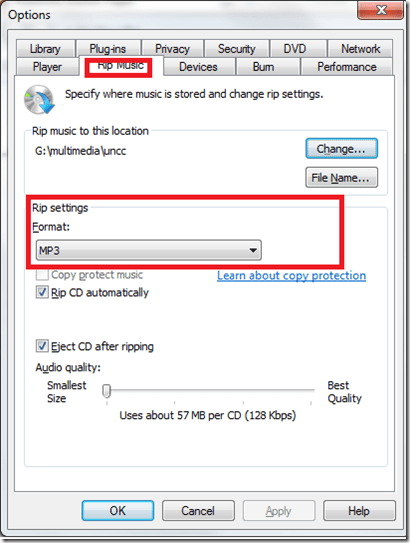
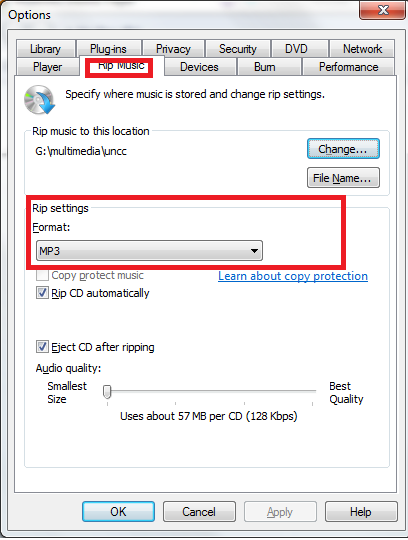
- Windows Media Player has CD-ripping capabilities built-in, WMA-format used to be the only option and is still the default in Windows 7, but can be changed under menu:”tools” / “options”/ tab:”rip music”
Subtitling Audio Files with Windows Media Player Enhanced Tag Editor
Working with (target language) subtitles is a common requirement in digital language labs.
While the method demonstrated in the following screencast requires some getting used to – remember to share and reuse the result -, the advantage over Sanako Media Assistant subtitling is that the subtitles get stored in the file and not only linked to in a separate file (links tend to/are bound to break if you try to manage your product in course management systems or erepositories): subtitling-with-windows-media-player-enhanced-tag-editor.wmv.
And then there is this very nice capability of YouTube.com: http://www.google.com/support/youtube/bin/answer.py?answer=100077, if you dare navigate the waters of copyright, data protection and privacy (FERPA).
Can’t play video?
It is unlikely that you may be missing Adobe-Flash. Not quite so unlikely: MS-Silverlight.
You may simply be missing a codec. Many of my videos use the H.264 codec.
Short of dealing with too many codecs or codec packs, try a better media player:
- VLC player or
- Windows Media Player Classic or
- Windows Media Player 12 (comes with Windows 7)).
Help with playing videos
- Some videos require special codecs to display properly/ at all.
- Here is info on the H.264 codec.
- Often, it is best to try, instead of Windows Media Player (which may be the default player that opens when you (double)click on a video, but not be able to display it without manual configuration),
- the free VLC player which you can download here, if you must, and install, if you are permitted. Then right-click video, “open with”, “VLC media player”, like here:




Questions? Read the About. Or just ask me a quick Our Databases: Resources with calendars -- Language learning material Moodle Sites, multimedia files -- films


FAQs for LRC student staff or for students or for teachers. To search our FAQs, in the browser addressbar, add after "https://plagwitz.wordpress.com/feed/?tag=faqs+/" "+TAG1" (from tag cloud below) OR "https://plagwitz.wordpress.com/feed/tag=faqs
&category_name=" "CAT1" (from category hierarchy below). OR search both categories and tags, and multiple TAGs/CATs (connect with "," for OR-search, with "+" for AND-search), like so: https://plagwitz.wordpress.com/feed/?tag=TAG1+TAG2+...TAGn&category_name=CAT1
+CAT2+...CATn"
Other ways to find help
If you cannot find it here, look there: 5,500 Language-Learning Links and Programs for learning or teaching 150 languages
Shortcuts:Our Lists, Our Maps, LRC Staff Moodle Site,LRC Project Moodle Site, 49erexpress, UNCC Moodle, Student Recordings: s:claslcslrcsanakostudent
Learning usage samples: Sanako oral exam, Kaltura webcam presentation, Dictation with speech recognition, Sanako written exam, Chinese and Japanese interactive stroke-order practice
Test the Sanako Installer, Webbrowser Popup Konfigurator for XP, or Windows7, faster LRC TeacherPC Log-in Let MS facilitate diacritics writing by installing for you US-International keyboard layout
This is my personal blog (Google+). The views expressed on these pages are mine alone and not those of my employer. The information in this weblog is provided “AS IS” with no warranties, and confers no rights.
 Thomas' Work Space