Archive
CAOS ereserves not compatible with Sanako Study1200 Webbrowser
- Last week I noticed in the LRC that I cannot open the ereserves with language learning audio files to my students by using the Study1200 Webbrowser’s “follow” feature .
- While sending the audio listing page still works, including the login page which the students get redirected to, and which, upon successful login, redirects them to the listing;
- Getting to the actual audio file launcher page fails, since this is a popup window which the Sanako Webbrowser first blocks, while redirecting the launcher of the popup to the home page
- No pressing of modifier keys seems to be able to bypass the popup blocker. Is there a setting in the Study1200 Webbrowser to modify this behavior.
How to launch a webpage to students from Sanako Study 1200
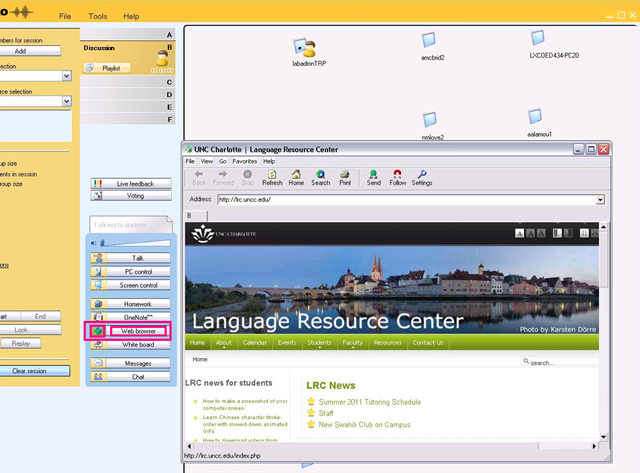
- On the center buttons “Web browser”, use
- either the large grey rectangular right area to launch to all students in class
- or the small square colored (here brown) left area, to launch only to students in the brown group, like so,
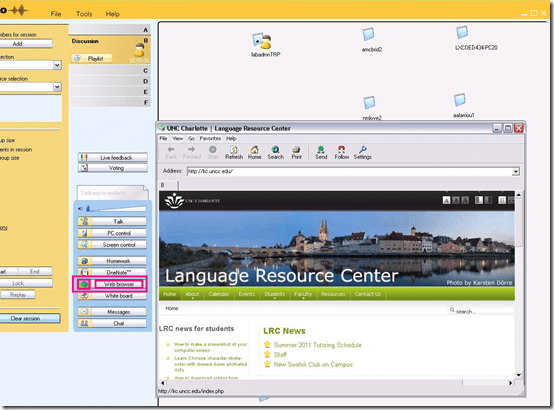
- unfortunately, you will have to click through number of errors on most web pages – the students do not see these

- eventually, the start page will show in your Sanako web browser

- then you can browse to a page from the address bar, click “send”, which will open it on the student computers
-

- clicking “follow”
 is like always clicking “send” after browsing to a new webpage. It allows you to guide the students through a number of web pages.


Moodle Https Warnings
This now appears in every page I load in Moodle (in Internet-Explorer-8). I realize that client-wise this warning should not be suppressed globally. If this cannot be updated server-side, is it possible to blacklist individual websites? 
How LRC assistants log into the reception desk computers
- Let the computer finish its startup tasks:
- Browsers: both internet Explorer and Firefox will open on relevant pages, since you and your client will have to work in different browsers, ensuring that both your and your client can be logged into different NINERNET accounts.
- Excel will load a checkin.xlsm. In Excel, under the ribbon, press button:"Enable content". Use this to generate codes that you can paste into users"’ meeting requests when they check in and out LRC equipment. The spreadsheet will not save the codes since your computer is frozen.
- A program called bginfo will analyze the computer settings and display the results on the desktop
- ZoomIt: press “ok” on the startup dialogue. You can now press CTRL-2 (thanks Ashley) and drag the left mouse button (ESC to stop) to paint on screen to communicate with client across mirrored screens, and vice versa.
- Do you have a client at the counter?
- yes: press CTRL-ALT-F10 to clone/mirror (= show the same screen on) both monitors. You can now collaborate with the client using a computer (e.g. in OWA or in a database)
- no client: press CTRL-ALT-F11 to extend the desktop. You can now display an informational window on the LRC-facing monitor, while working on your own monitor in privacy.
- The reception computers use Deepfreeze. You cannot save information on reception desk computers between reboots.
- All personal information you want to save needs to go to your H: drive.
- All information you want to share with LRC staff needs to go into LRC Moodle site, UNCC-LRC website or NINERMAIL.
How to set the home page in your web browser
E.g. if you want to update your email start page from http://unccmail.uncc.edu to http://mail.uncc.edu.
in Safari, go to menu: Safari / Preferences / home page: type your updated page address in here and click OK. Visual walkthrough is e.g. here: http://www.youtube.com/watch?v=VIGocolMtzU.
Similarly in the preferences of all other common web browsers.
How to disable or rather bypass the Popup Blocker in your Web browser
Try pressing the CTRL-key when clicking a link that tries to open a popup window.
This is a known problem with web-based learning applications like Moodle or library ereserves (like UNCCC’s Docutek ERes-based one) .
You can permanently disable popup blockers for certain sites if you study the documentation that comes with your browser (and possibly with the shared computer) you are working on.
Quia Audio Files in Internet Explorer
Quia.com contains “Play audio” links to mp3 audio.

You may experience this, when you first try to access the audio with Internet Explorer.

If you cannot read the instruction in the information bar, resize the window so that you can, like here:

After clicking “trust Microsoft” and “Run ActiveX” in the following dialog, the “Internet Explorer cannot display this webpage” may appear. Ignore this, close the window and reopen it by clicking again on the “Play” link in the parent window.
This time you will (hopefully) see this:

You need to do this only once – per PC? per user? Let me know in the comments.


Questions? Read the About. Or just ask me a quick Our Databases: Resources with calendars -- Language learning material Moodle Sites, multimedia files -- films


FAQs for LRC student staff or for students or for teachers. To search our FAQs, in the browser addressbar, add after "https://plagwitz.wordpress.com/feed/?tag=faqs+/" "+TAG1" (from tag cloud below) OR "https://plagwitz.wordpress.com/feed/tag=faqs
&category_name=" "CAT1" (from category hierarchy below). OR search both categories and tags, and multiple TAGs/CATs (connect with "," for OR-search, with "+" for AND-search), like so: https://plagwitz.wordpress.com/feed/?tag=TAG1+TAG2+...TAGn&category_name=CAT1
+CAT2+...CATn"
Other ways to find help
If you cannot find it here, look there: 5,500 Language-Learning Links and Programs for learning or teaching 150 languages
Shortcuts:Our Lists, Our Maps, LRC Staff Moodle Site,LRC Project Moodle Site, 49erexpress, UNCC Moodle, Student Recordings: s:claslcslrcsanakostudent
Learning usage samples: Sanako oral exam, Kaltura webcam presentation, Dictation with speech recognition, Sanako written exam, Chinese and Japanese interactive stroke-order practice
Test the Sanako Installer, Webbrowser Popup Konfigurator for XP, or Windows7, faster LRC TeacherPC Log-in Let MS facilitate diacritics writing by installing for you US-International keyboard layout
This is my personal blog (Google+). The views expressed on these pages are mine alone and not those of my employer. The information in this weblog is provided “AS IS” with no warranties, and confers no rights.
 Thomas' Work Space