Archive
Testing and semi-automatically changing the Sanako student audio configuration
- Problem
- We have had teacher complaints about too much background noise from neighboring students being recorded in our Sanako Study 1200, with SLH-07 headsets.
- In addition, upon looking through some recordings as samples for a workshop, I found cases of clipping audio, especially in pair recordings.
- We are using the default settings for the Sanako SLH-07 headset. However, the default recording level (67) seems high.
- Solution approach
- We need to test
- many other settings quickly for these recording levels. We use my sanakoaudioconfigonthefly utility for this
- in an acoustically realistic environment: 5 Lab assistants site in tight lab area and read out sample English text during a Sanako reading activity
- Reading practice
- Todo: Pairing
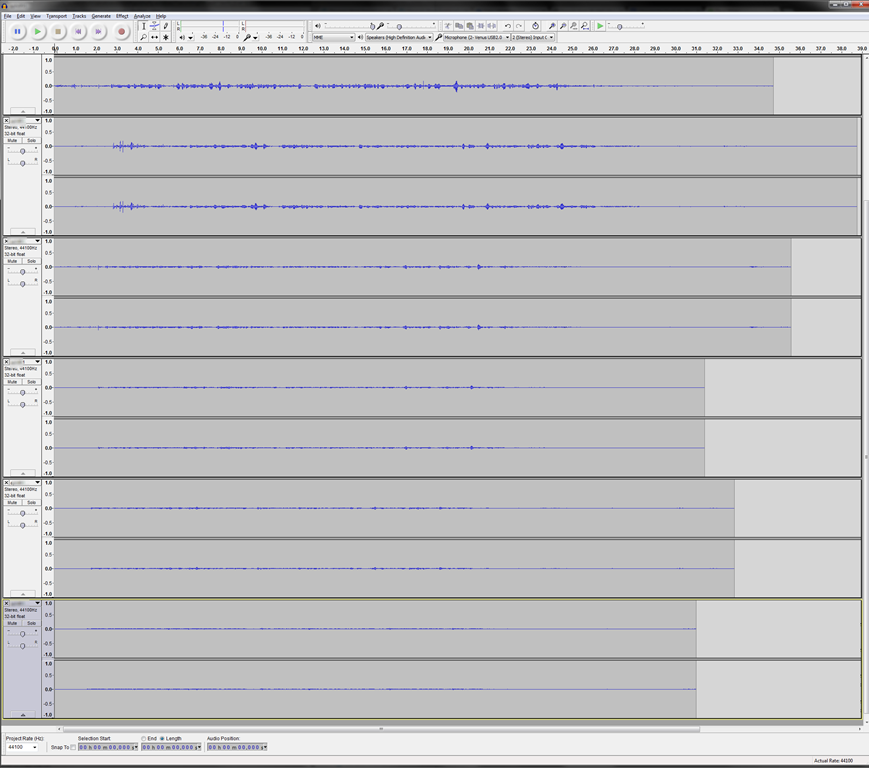
- Here is a “window” into the recorded results set, a student’s audio recording shown in Audacity at various (but all lowered) recording levels from (visible) 30 to 5, you can see the diminishing waveform amplitude.

- The waveform per se is not conclusive. You will have to listen in and compare, especially to evaluate background noise (the original complaint – we have no and will not be able to go back to language lab carrels). The Sanako SLH-07 headset microphones are supposed to be highly directional. However, our students to not always wear the headsets properly. And our acoustics is marred by large (almost 50%) window spaces and a tight positioning of the student seats.
- Any test recording is only as good as it can mimic the acoustics during an actual class session which we did as much as we could with only 6 concurrent LRC staff. This means unfortunately some more testing will have to spill into actual classes, but this test is a start.
- We need to test
How to fix “no audio” on the computers with black Sanako headsets
- First, show the Sanako student application (e.g. from button:Start / Student).
- Is the Volume Control slider set to 0? Move it up where it says “Adjust volume”:

- Still hear no audio playing on the black Sanako headsets? Then the volume slider was likely moved to 0 since the headset was not detected: On the rear of the computer, check the connection
- of the blue headset plug into the USB extension cord, and
- of the extension cord into the rear of the computer.

Digital language lab audio configuration
Issues (BSODs) have been reported with simultaneously running USB sound-card driven headsets and on board audio, which have been alleviated by either USB soundcard driver updates or disabling the onboard audio or both.
To be safe, we do the latter, on this screen of the Dell-Optiplex-760-bios: f12 / System Setup / Settings / Configuration / Miscellaneous Devices (you need to push button “Unlock”and issue the BIOS password to make changes):

Dual audio is also a potential source of confusion for the user. This is the reason why we prefer hiding the MS-Windows Volume control icon in the notification bar – a setting in the control panel / sound and audio devices:

We rather stir the user to the Sanako student player audio volume slider as the single point of entry – and one which can be easily seen by the teacher: see Study 1200 teacher / PC Control / Show the student player).
This comes with added responsibility for the teacher, as the Sanako student player audio volume slider does not control the WAVE volume level. Ensure proper setting of the WAVE volume level AND proper source audio levels – or use our TBA:teacher lab audio control extensions to control the WAVE levels on student computers.


Questions? Read the About. Or just ask me a quick Our Databases: Resources with calendars -- Language learning material Moodle Sites, multimedia files -- films


FAQs for LRC student staff or for students or for teachers. To search our FAQs, in the browser addressbar, add after "https://plagwitz.wordpress.com/feed/?tag=faqs+/" "+TAG1" (from tag cloud below) OR "https://plagwitz.wordpress.com/feed/tag=faqs
&category_name=" "CAT1" (from category hierarchy below). OR search both categories and tags, and multiple TAGs/CATs (connect with "," for OR-search, with "+" for AND-search), like so: https://plagwitz.wordpress.com/feed/?tag=TAG1+TAG2+...TAGn&category_name=CAT1
+CAT2+...CATn"
Other ways to find help
If you cannot find it here, look there: 5,500 Language-Learning Links and Programs for learning or teaching 150 languages
Shortcuts:Our Lists, Our Maps, LRC Staff Moodle Site,LRC Project Moodle Site, 49erexpress, UNCC Moodle, Student Recordings: s:claslcslrcsanakostudent
Learning usage samples: Sanako oral exam, Kaltura webcam presentation, Dictation with speech recognition, Sanako written exam, Chinese and Japanese interactive stroke-order practice
Test the Sanako Installer, Webbrowser Popup Konfigurator for XP, or Windows7, faster LRC TeacherPC Log-in Let MS facilitate diacritics writing by installing for you US-International keyboard layout
This is my personal blog (Google+). The views expressed on these pages are mine alone and not those of my employer. The information in this weblog is provided “AS IS” with no warranties, and confers no rights.
 Thomas' Work Space