Archive
How to download videos from YouTube.com, and other video sites
- Don’t know what this institution recommends – here is a list of software that I have accumulated over time – I stopped a while ago, since there is always something newer coming out - try googling what is currently most popular.
- http://www.viloader.net/addon.htm: You have to click on download, and save the file with the name you want and in the end you have to add .flv that its the video format. Then when the video has been saved to your PC you have to convert the video in a comercial format like wmv, mpg, etc. or download a flv player to be able to see the videos.
- Youtube Catcher can download videos from Youtube, Google Video, Myspace Video, Yahoo video Dailymotion Stage6 Veoh. The downloaded videos can be exported to various formats like MPG,AVI, MP4,3GP, 3G2, WMV, PSP, MOV, FLV with the quality you choose: http://www.teknobites.com/2007/08/23/youtube-catcher-youtube-and-other-video-downloader-tool/
- zamzar.com
- http://userscripts.org/scripts/show/25105,
- http://www.googlewatchblog.de/2008/04/13/youtube-video-als-mp4-herunterladen/
- MPEG Streamclip can download YouTube files. They are always opened or downloaded in MP4 (MPEG-4) format, so they can be used in MPEG Streamclip.
- this works well as of 8/17/2009 1.Go to http://edtech.nwresd.org/?q=node/157 . You will see the words ""download script"" (in blue – a hyperlink). Right click on that text and then on ""Bookmark this link"" (at least that’s what it says using Mozilla Firefox as a browser). You can move this bookmark within your Bookmarks or Favorites Folder wherever you want. 2.Go to YouTube and locate a video you want to save. While the video is actually playing, go to your Bookmarks Folder and click on the ""download script"" link you saved there.3.Next look in the right hand column on the screen – to the right of the video playing. Just below the section that says URL, and EMBED (right below URL) you will see a text that says download as MP4. 4.Right click on that text and then click on SAVE LINK AS. You can choose where you want the file to be saved and you can even rename the file (for me the default name is ""video""). Just to be sure I’d let the video play to the end before checking to see if it actually where you put it.
-
if (document.getElementById(‘download-youtube-video’)==null && !!(document.location.href.match(/http:\/\/[a-zA-Z\.]*youtube\.com\/watch/))) {var yt_mp4_path=’http://www.youtube.com/get_video?fmt=18&video_id=’+swfArgs%5B‘video_id’%5D+’&t=’+swfArgs%5B‘t’%5D; var div_embed=document.getElementById(‘watch-embed-div’);if(div_embed){var div_download=document.createElement(‘div’);div_download.innerHTML=’ <br /><span id="\’download-youtube-video\’"><a href="\”+yt_mp4_path+’\’">Download as MP4</a> ‘+ ((navigator.userAgent.indexOf(‘Safari’)!=-1)?'(control-click and select <i>Download linked file as</i>)’:(‘(right-click and select <i>Save ‘+ (navigator.appName==’Microsoft Internet Explorer’?’target’:’link’) +’ as)</i>’))+’</span>’;div_embed.appendChild(div_download);}}void(0)
-
- Updates for the the 2013/4 academic year:
- YouTube Center, includes download functionality, more on YouTube center here.
- Orbit downloader:
- Claims to be a generic downloader, and looks complicated enough to convince me of that
 .
. - However, I did not have any luck here, at least I did not find a practical (=automated) way to cobbling these clips together (are media outlets, even if they are under non-US legislation and trying so hard, still bound by the fair use legislation?):
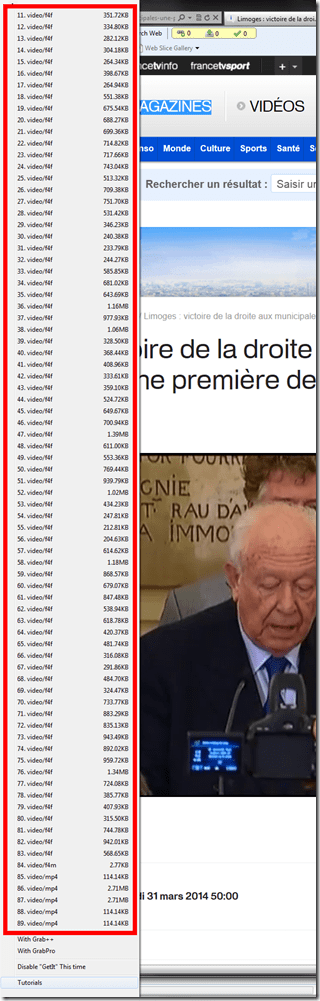
- Also changes your browser home page without asking – I can’t say I like the territory I get myself into with these teacher download requests.
- Claims to be a generic downloader, and looks complicated enough to convince me of that

The LRC International TV , stations, programs, channels, and subscriptions…
- … unfortunately have been discontinued during recent rounds of budget cuts.
- That’s why we list a few sources of free international TV that are available on the internet here.
News TV on the internet: Politics and Legislatures
http://en.wikipedia.org/wiki/Template:Parliamentary_broadcasters
http://en.wikipedia.org/wiki/Category:Legislature_broadcasters
http://ec.europa.eu/avservices/about/activities_en.cfm
”On-demand consultation of any event or subject during the week following its transmission on satellite. All products become accessible to any connected media or individual anywhere in the world through the Internet portal of the audiovisual service. On the site you will find EbS permanently updated transmission schedule, as well as shotlists detailing the content of pictures and links to complementary information sources and photos. Pictures and sound may be downloaded in broadcast quality formats: MPEG2 for video, MP3 for sound and JPEG for photos. This news material is published during or soon after the events, remains available *for at least one month* and is easy to download, process and file.”
German public TV on the internet
French TV on the internet
TV5 seems still in the satellite/per-per-view phase. But it offers free video learning resources: http://www.tv5.org/TV5Site/enseigner-apprendre-francais/accueil_enseigner.php
International TV on the Internet
http://wwitv.com/portal.htm, lists 2244 online TV stations, by topic and “country” (note that this does not equal “language”).
How to play unplayable DVDs with VideoLan VLC-Player
If you run into problems playing a DVD video – either since there is no (non-free up to Windows XP) DVD-decoder installed on your computer, or since the DVD was not mastered properly for your DVD-playing software – and if you have VideoLan VLC-Player installed – like on the teacher computer in the LRC main classroom–, you can work around these issues by right-clicking on the Video_TS.vob file – which you will presumably find in the Video_TS subfolder if you browse your DVD as a disk with Windows Explorer (usually drive D: – you may haveto bypass your default DVDS playing software to get in there– and choose from the context menu either directly to “Play with VLC” or via “Open with”, like in this screenshot:
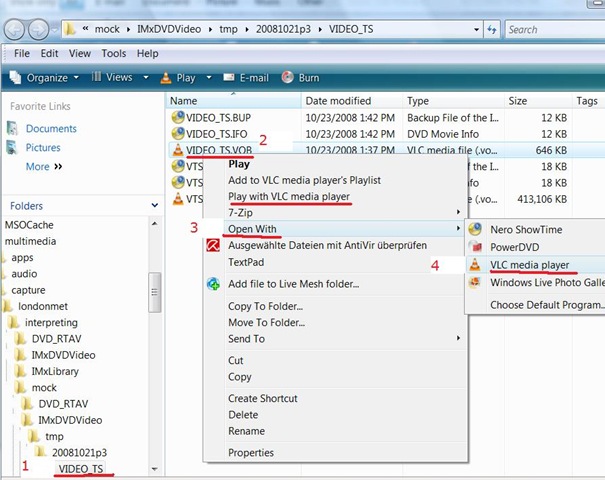 (Updated from 2009/04/07).
How a Student takes a Moodle Video Assignment in the LRC
- On one of the LRC iMacs, in the Safari web browser (open new window with COMMAND-key+n),
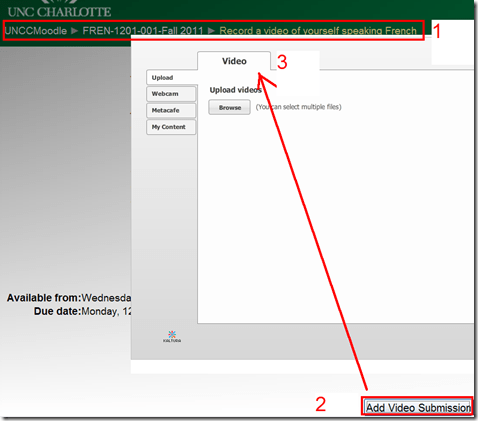
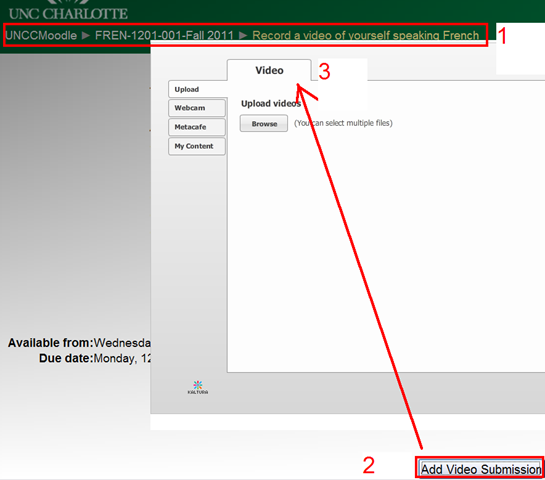
- go to your Moodle course, (1) find the video Assignment, read the assignment instructions (what your teacher wants you to record). Then click underneath the (2) button: “Add video Assignment”, to open the (3) submission window:
- Note that she will also have to allow the flash player to interact with her webcam first.
 If you see no web cam video window, only a black frame, read in.
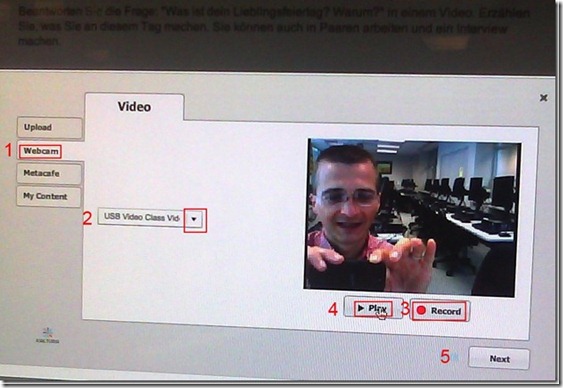
- In the submission window, choose the tab “Webcam” (1), use the dropdown to select the camera hardware (2).

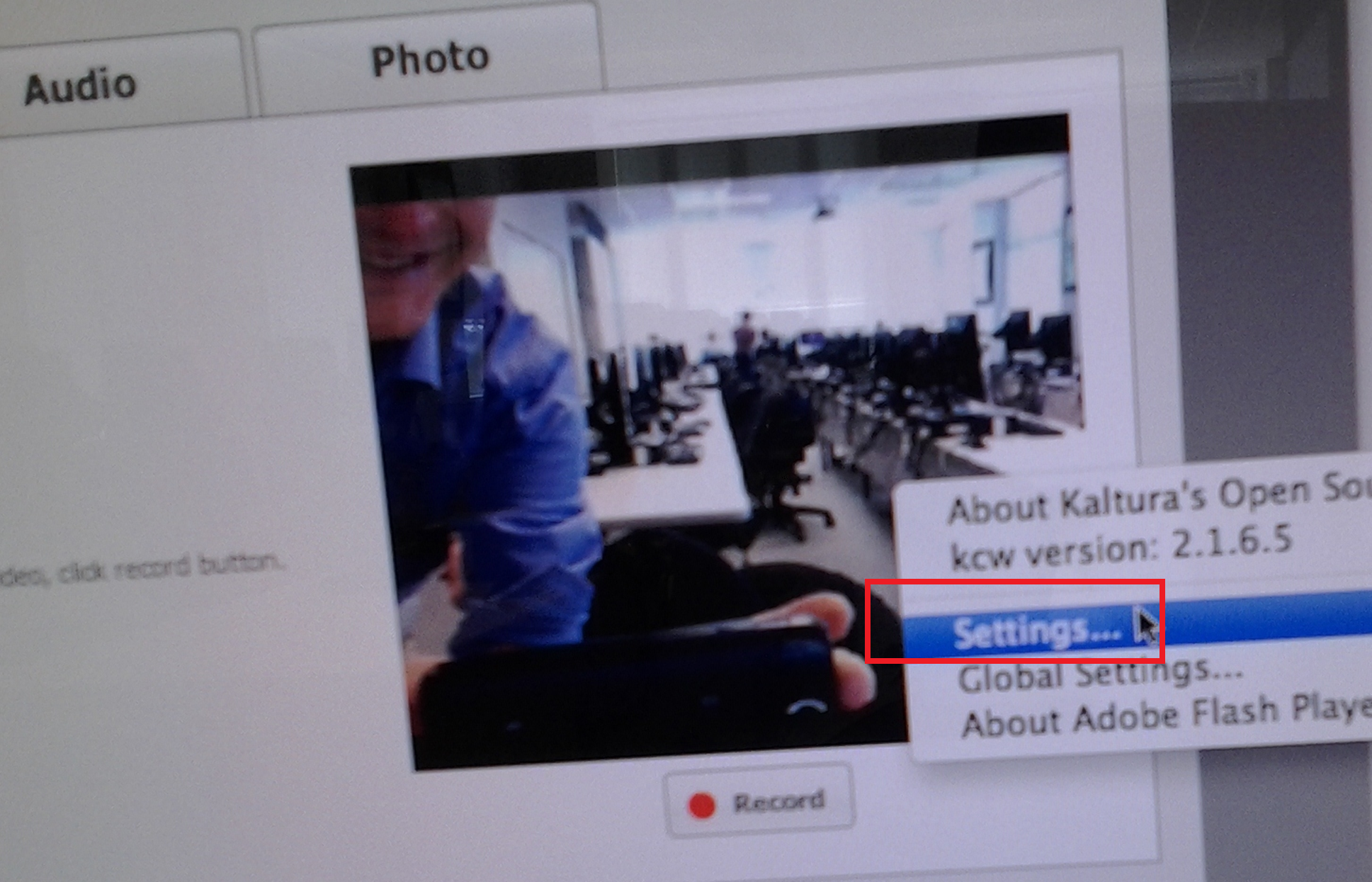
- Check the headset microphone audio: The external headset microphone on the iMacs did not work., but now it does, provided you do this: control-click on Flash’s a video preview window (= the window where you see yourself like in a mirror) for the web camera, and click on “settings”.
-

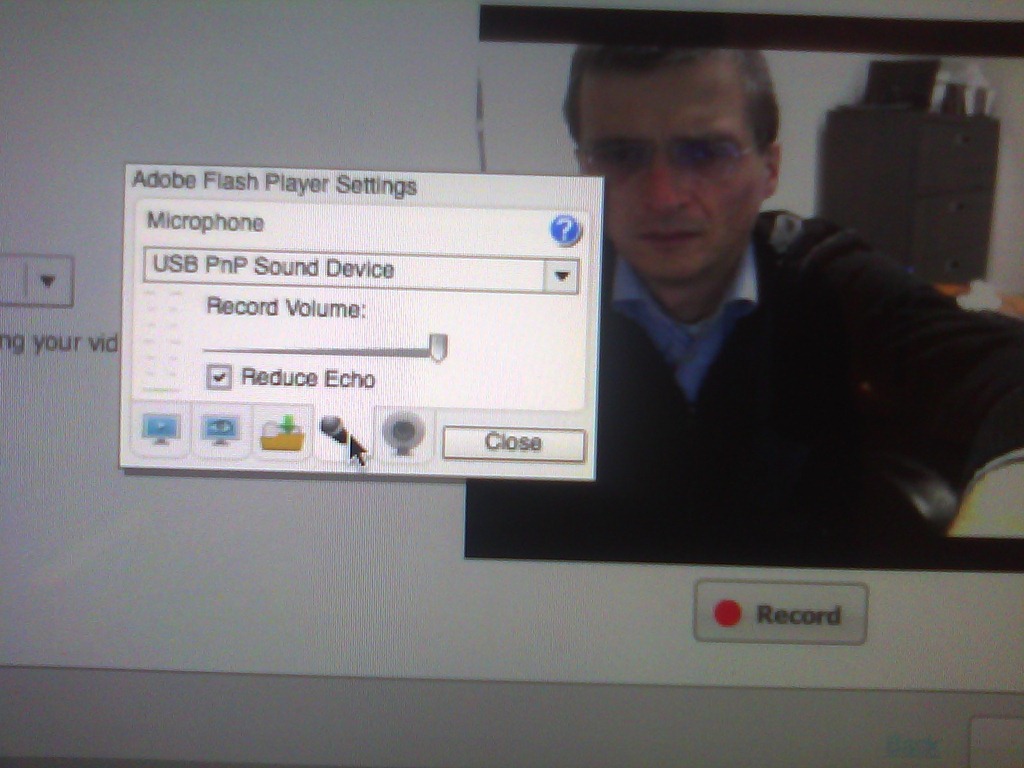
- Click on the microphone icon :

- Make sure the USB PnP device is selected.

- You can bring up the settings dialogue, make sure the USB PnP device is chosen for audio and CRANK up the microphone input sensitivity! Then, by tabbing (don’t speak yet) on the headset microphone, test the volume levels with the built-in volume meter (should show lots of green bars when you tab). Unlike in the picture, do not choose “reduce echo ”.
-
- Start (3) the video recording.
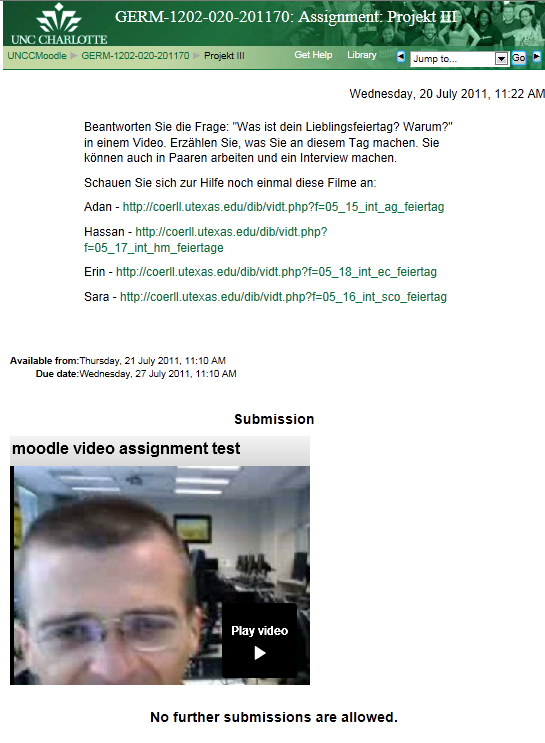
- Afterwards, the student can review (4) her submission.
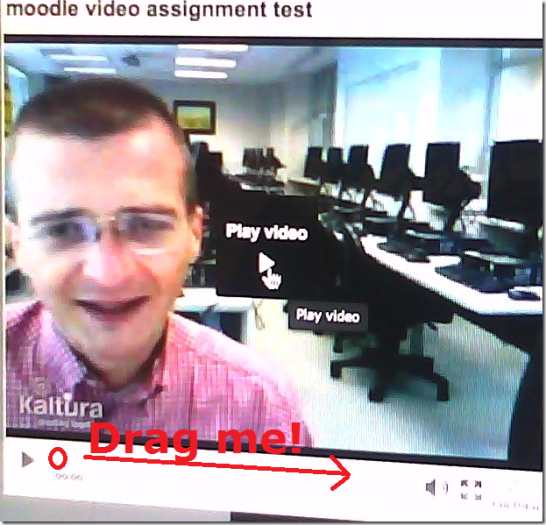
- If you don’t like your first recording, (3) “record” over it and review again with (4) “Play”. If you do this and the video appears frozen, drag the timeline cursor forward to get the re-recorded video to play. If this does not seem to work, you are likely still able to submit your 2nd attempt, just not review it again.
- Click through all the “Next”etc. buttons:
-


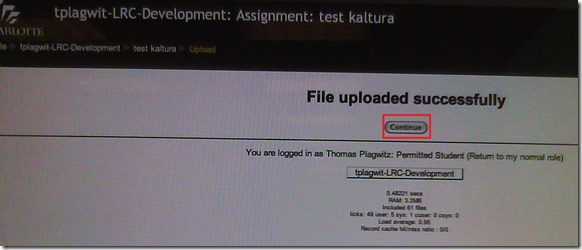
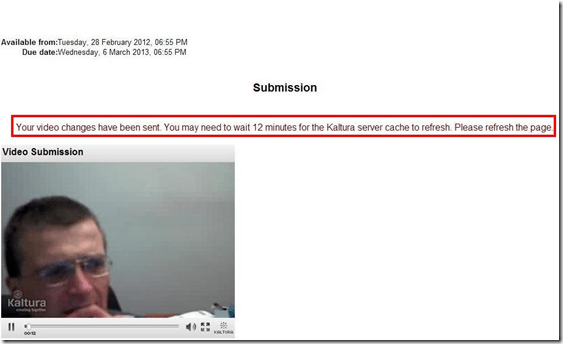
- until you get to the feedback page for the student (caveat: in IE9, the video does not fit into the frame provided on the page).

- Note, it warns you to be patient now:
-
- LRC support:
- Depending on your hardware (webcam), software and network support, you can record your language speaking video assignments on any device that has a webcam and a browser that supports flash – and even more devices, if you are willing to post process and upload the video clip.
- If you run into problems or want to use a tested setup, we recommend using the LRC. Since our PCs have no built-in or added webcam (proposed), we can currently only use our 5 8 iMacs (see LRC Layout, see Classroom Calendar and iMacs Calendar for availability). Our (limited) tests worked better in Safari than Firefox.







Questions? Read the About. Or just ask me a quick Our Databases: Resources with calendars -- Language learning material Moodle Sites, multimedia files -- films


FAQs for LRC student staff or for students or for teachers. To search our FAQs, in the browser addressbar, add after "https://plagwitz.wordpress.com/feed/?tag=faqs+/" "+TAG1" (from tag cloud below) OR "https://plagwitz.wordpress.com/feed/tag=faqs
&category_name=" "CAT1" (from category hierarchy below). OR search both categories and tags, and multiple TAGs/CATs (connect with "," for OR-search, with "+" for AND-search), like so: https://plagwitz.wordpress.com/feed/?tag=TAG1+TAG2+...TAGn&category_name=CAT1
+CAT2+...CATn"
Other ways to find help
If you cannot find it here, look there: 5,500 Language-Learning Links and Programs for learning or teaching 150 languages
Shortcuts:Our Lists, Our Maps, LRC Staff Moodle Site,LRC Project Moodle Site, 49erexpress, UNCC Moodle, Student Recordings: s:claslcslrcsanakostudent
Learning usage samples: Sanako oral exam, Kaltura webcam presentation, Dictation with speech recognition, Sanako written exam, Chinese and Japanese interactive stroke-order practice
Test the Sanako Installer, Webbrowser Popup Konfigurator for XP, or Windows7, faster LRC TeacherPC Log-in Let MS facilitate diacritics writing by installing for you US-International keyboard layout
This is my personal blog (Google+). The views expressed on these pages are mine alone and not those of my employer. The information in this weblog is provided “AS IS” with no warranties, and confers no rights.
 Thomas' Work Space