Archive
Manage some of your teacher computer settings per logged in user
- Another day, another hack, and inconsequential, unless of course you are in my situation:
- If you need a simple way to change some of your Sanako settings per logged in user
- but cannot use the logged-in user system built into Sanako Study 1200:
$path = "C:\ProgramData\Sanako\Study\Tutor\"If (@UserName = "PRTOTECTTHEINNOCENT") Then; change the sanako default save to dual track supporting mff; prereq: customized settings files in the folder ready to renameFileCopy($path & "mffTutor.Settings", $path & "Tutor.Settings", 1)ElseIf (@UserName = "tplagwit") Then; change the sanako default save to dual track supporting wma, for testingFileCopy($path & "wmaTutor.Settings", $path & "Tutor.Settings", 1)Else; keep the default mp3, but we may have to reset the tutorsettings on this unfrozen computerFileCopy($path & "mp3Tutor.Settings", $path & "Tutor.Settings", 1)EndIf; tutor.exe could be hardcoded to (re)load hereIf ProcessExists("Tutor.exe") Then; determine: we could kill tutor to reload it, but that could be disruptive of a classElseRun("C:\Program Files (x86)\SANAKO\Study\Tutor\Tutor.exe")EndIfExit
More disruptive recommendations to downgrade to colorscheme basic on lab PCs despite Themeswitcher?
- Is this maybe what happens when Themeswitcher crashes: While the desktop background still gets changed, the Colorscheme does not get set to Basic? How to avoid the crashing FileIOException? What fileIO may a colorscheme change require?

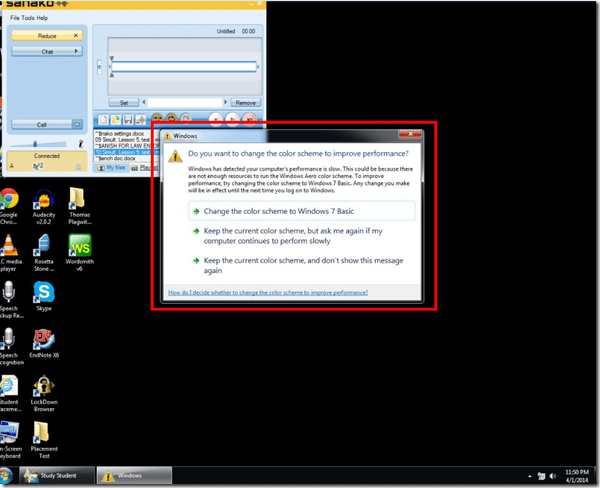
- Disruption is the least of the problem: The warning comes up when computers become dangerously slow. In the past, they have become disfunctional during these episodues and needed to be power-cycled. This has resulted in loss of assignment and assessment materials.

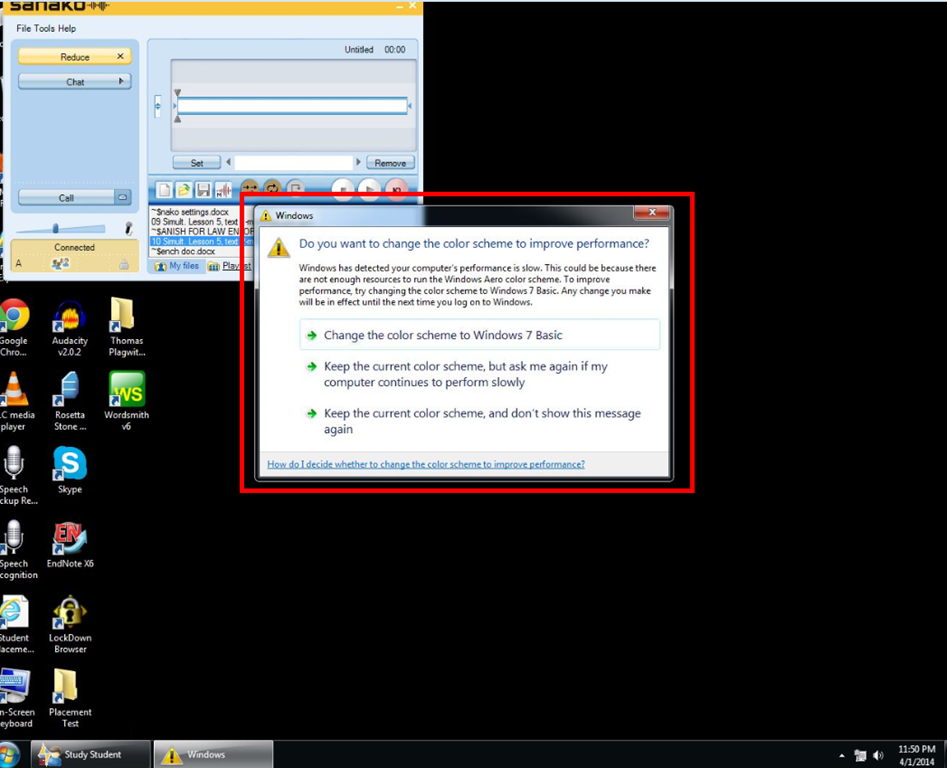
Protected: Sanako Student Recorder Appcrash
You need to click the Sanako Student Recorder Playlist and Homework tab to refresh changes
The Playlist does not sync automatically:

The playlist syncs (reflects what is actually there) when you click “Playlist”:
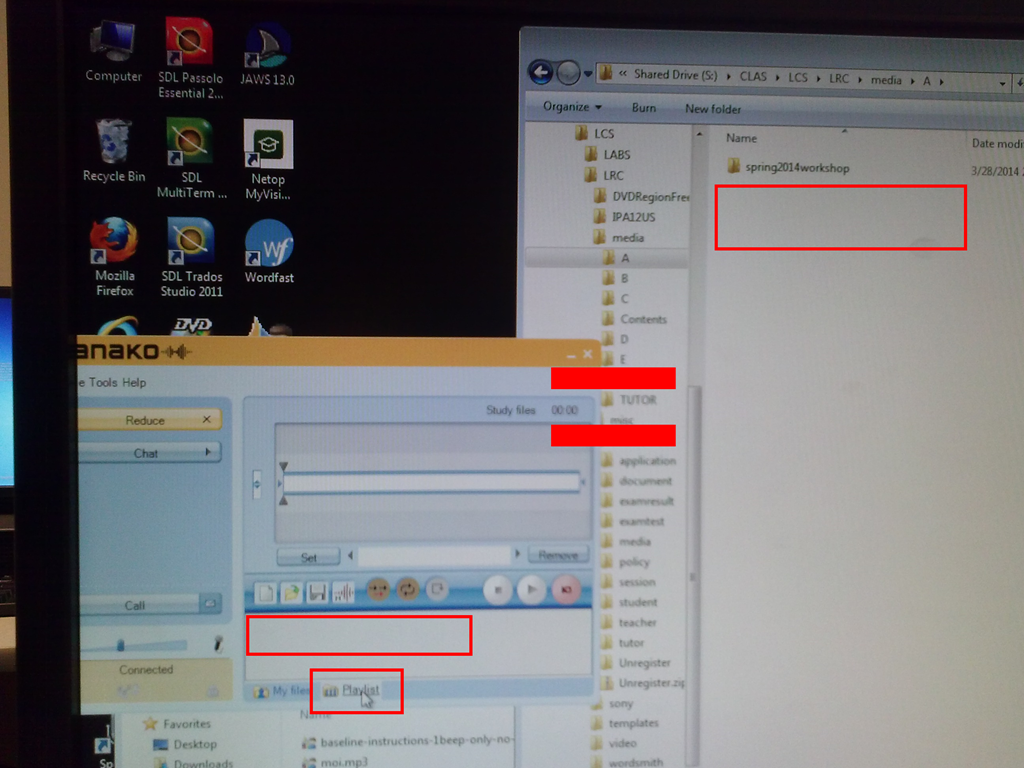
Why Sanako error Study files does not exist?
Well, it does, as the lower window proves. What gives? 
The Sanako student recorder play list always shows hidden files…
… not honoring the folder options in windows Explorer. Those and to manage (delete to remove from list) hidden files in the playlist window, you have to disable the hide in windows Explorer first.
Before unhiding os files:

After unhiding:

How to use the Sanako dual-track audio recorder
The Sanako Student Recorder (available for free here) allows you to listen on the source track while speaking/recording on the student track. Useful e.g. for interpreter practicing shadowing or simultaneous interpretation. It is as simple as pressing the red record and green play button:

After recording and reviewing, click file/save, and choose your output format.
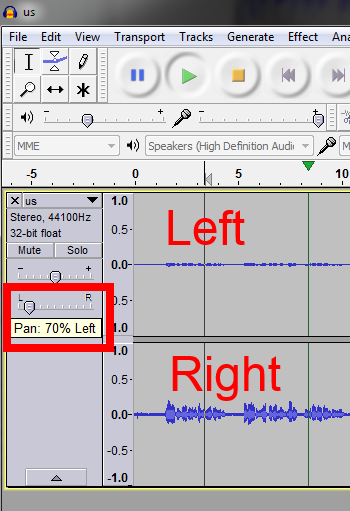
How to manage balance on stereo audio using Audacity, Sanako student recorder, or any audio player on Windows
- For language lab use, stereo is more important than usual, since the channels may carry source versus translation/interpretation, L1 versus L2, teacher versus student, model versus imitation and so forth.
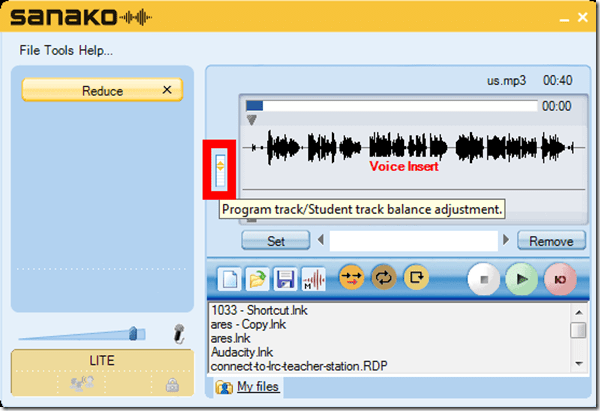
- You can choose which channel to listen to by adjusting the balance for stereo playback.
- In the Sanako Student recorder (free for all), click here:
- In Audacity, click here::

- From any other player on Windows, hold Win-key and press R, type mmsys.cpl, on tab playback, double click the speaker you are outputting to, and on tab levels, change “Balance”:





Questions? Read the About. Or just ask me a quick Our Databases: Resources with calendars -- Language learning material Moodle Sites, multimedia files -- films


FAQs for LRC student staff or for students or for teachers. To search our FAQs, in the browser addressbar, add after "https://plagwitz.wordpress.com/feed/?tag=faqs+/" "+TAG1" (from tag cloud below) OR "https://plagwitz.wordpress.com/feed/tag=faqs
&category_name=" "CAT1" (from category hierarchy below). OR search both categories and tags, and multiple TAGs/CATs (connect with "," for OR-search, with "+" for AND-search), like so: https://plagwitz.wordpress.com/feed/?tag=TAG1+TAG2+...TAGn&category_name=CAT1
+CAT2+...CATn"
Other ways to find help
If you cannot find it here, look there: 5,500 Language-Learning Links and Programs for learning or teaching 150 languages
Shortcuts:Our Lists, Our Maps, LRC Staff Moodle Site,LRC Project Moodle Site, 49erexpress, UNCC Moodle, Student Recordings: s:claslcslrcsanakostudent
Learning usage samples: Sanako oral exam, Kaltura webcam presentation, Dictation with speech recognition, Sanako written exam, Chinese and Japanese interactive stroke-order practice
Test the Sanako Installer, Webbrowser Popup Konfigurator for XP, or Windows7, faster LRC TeacherPC Log-in Let MS facilitate diacritics writing by installing for you US-International keyboard layout
This is my personal blog (Google+). The views expressed on these pages are mine alone and not those of my employer. The information in this weblog is provided “AS IS” with no warranties, and confers no rights.
 Thomas' Work Space