Archive
Have I reserved the LRC? 10 safety nets for you, plus a bonus
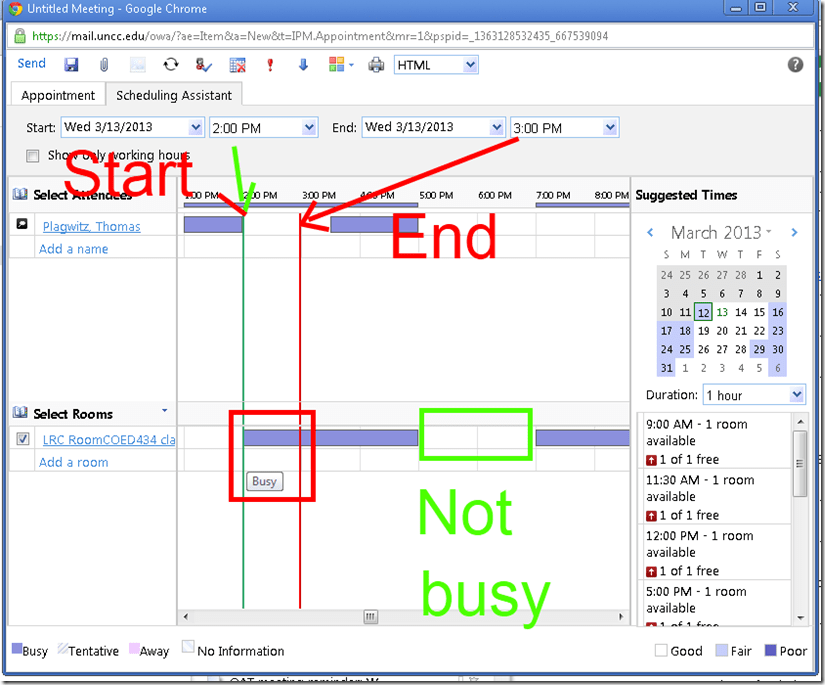
- No need to use them all: The first one you notice suffices. But we hope 1 of the 10 will work for you. Starting (that is why it is in explained in How to book LRC resources – explained in one screenshot: “Book me!”versus “Leave me alone!”) with the tab: “scheduling assistant” in your “meeting request” itself before you try to book the room: It tells you when the room is free (white or blank along the timeline). Don’t try to book the room when the room’s timeline is not blank and the hovering tool tip tells you “Busy”: It is futile.
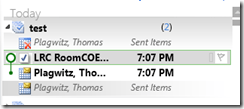
- But if you do, there will be more alerts: Immediately after you send the meeting request, a so-called “toast” (think of a slice of bread jumping out of a toaster – depending on email client you are using for NINERMAIL in the lower or upper right of the screen) flashes briefly with the automatic response from the room attendant. The response has in the subject : “Accepted or Denied” (you will not get “Tentative” from the room like in the example – UPDATE: only faculty and staff used to receive such toasts, but with the next upgrade of NINERMAIL, students will also!):

- Never mind if you miss the toast: it just notified you that the automatic response from the room attendant went into your inbox. You can see it on top there (here I unfolded it).
 It tells you in the subject and in bold in the body whether your booking was accepted or denied. If you have questions about these messages, you can forward them with your comment like any other email (no point in responding though).
 This does NOT remove the appointment from your own NINERRMAIL calendar (makes sense if you think about it: You still have your appointment (exam etc.), just the room can not be part of it).
 - If you miss that also, go to the LRC homepage and click on “Hours&Events” under the Quick links in the upper left (How to view ?)

- You do not even need to visit the LRC home page: you have privileged access to the the LRC hours end events calendar from your NINERMAIL, if you subscribe to it there (shortcut: start @ #3 armed with this link:http://mail.uncc.edu/owa/calendar/LRCRoomCOED434@uncc.edu/Calendar/calendar.ics).
- You can do all this under guidance at the LRC reception desk: We try to have 1-3 name-tagged student assistants there at all times during LRC opening hours, 8 eyes see more than 2.
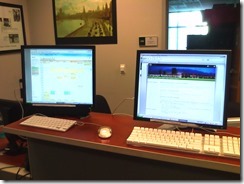
- One day after your booking, you will also be able to see your reservation (if successful!) on the
 : .
: . - If in doubt, do all this well before your class takes place.
- Take a training: ITS supports NINERMAIL and CTL teaches Taming your inbox.
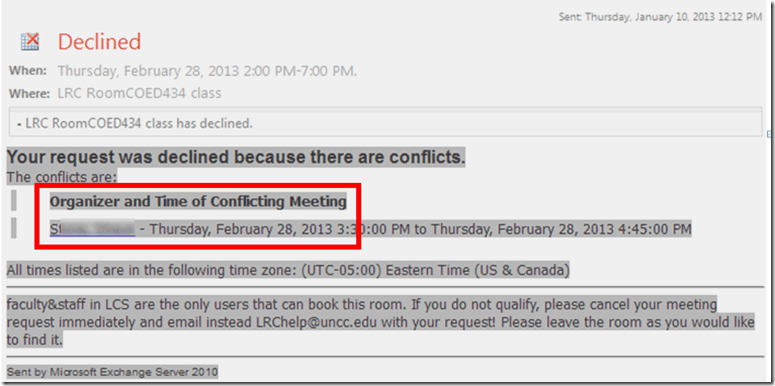
- Bonus: In the unfortunate event of a “Denied” response to your booking request, if it is not just an AM/PM error or similar which you can easily correct, the response includes information on the prior reservation, organizer, and email address.
- Why not email the colleague (click on the underlined name of the colleague that booked the LRC before you) from right here and see whether you both can rearrange? Remember: Sharing is caring.
- There is a departmental initiative to reschedule entire classes that might conflict over the use of the LRC. Talk to the departmental office well before the the prior term ends (i.e. before next term’s class schedules are finalized).
- Still confused? At this point, talk to LRC permanent staff who will go through above list with you. Please understand that the LRC staff cannot cancel other faculty’s bookings, we only extended the availability and bookability of the LRC which is readily available and easily bookable at many times during each term.
- Why not email the colleague (click on the underlined name of the colleague that booked the LRC before you) from right here and see whether you both can rearrange? Remember: Sharing is caring.


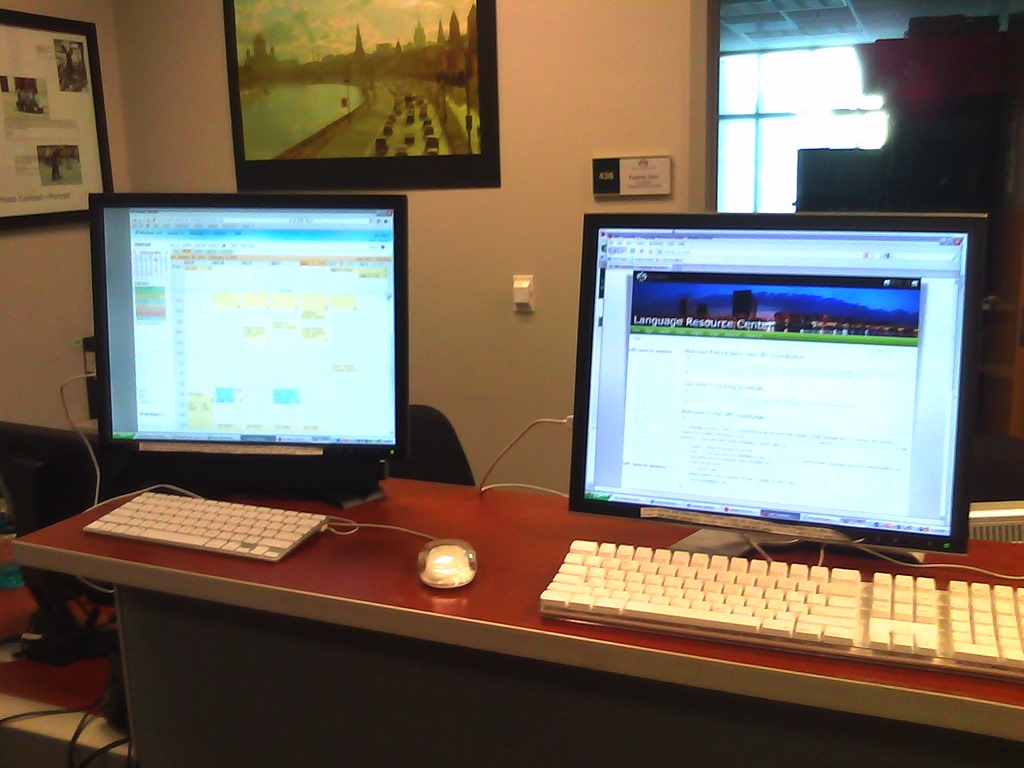

OWA Calendar collaboration is spreading on campus…
… in Spring 2013 to Student Advising and Central Tutoring, from the LRC tutoring, staffing and room and equipment booking since Fall 2011. Glad to see that we get more benefit out of this new tool. 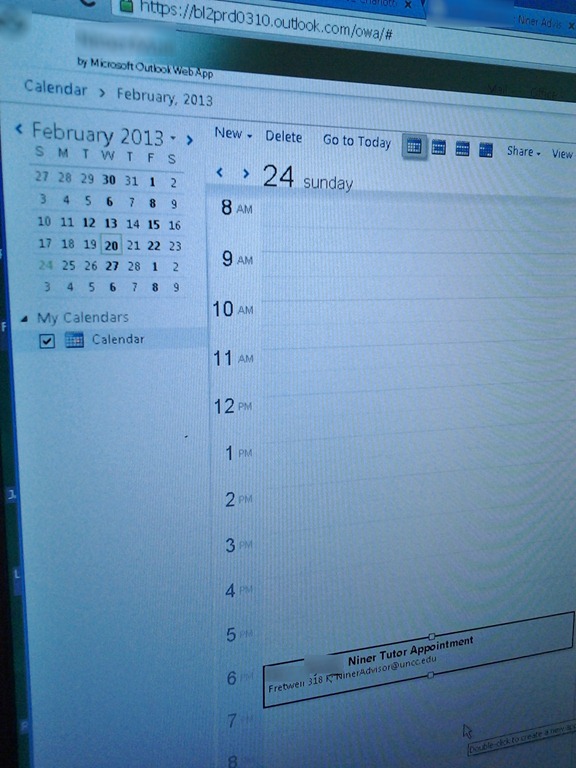
How users can change their time zone in OWA

Or as screenshot: 
You know: You just have to know what to look for – considerably easier than knowing *when* to look for pretty much anything once you have been put in the wrong time zone… 
How to access most important LRC calendars from quick links on LRC home page
- Go to http://lrc.uncc.edu
- access like so:


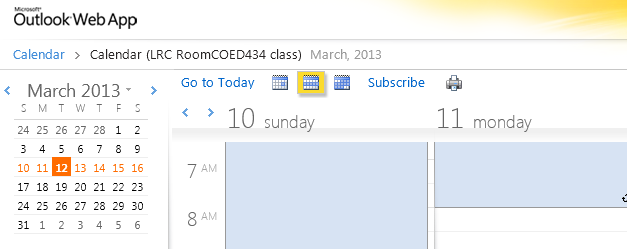
- The default calendar view in OWA is monthly:
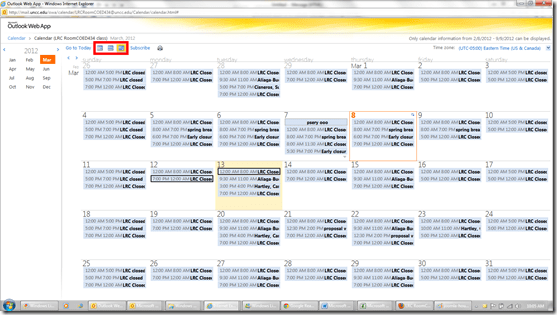
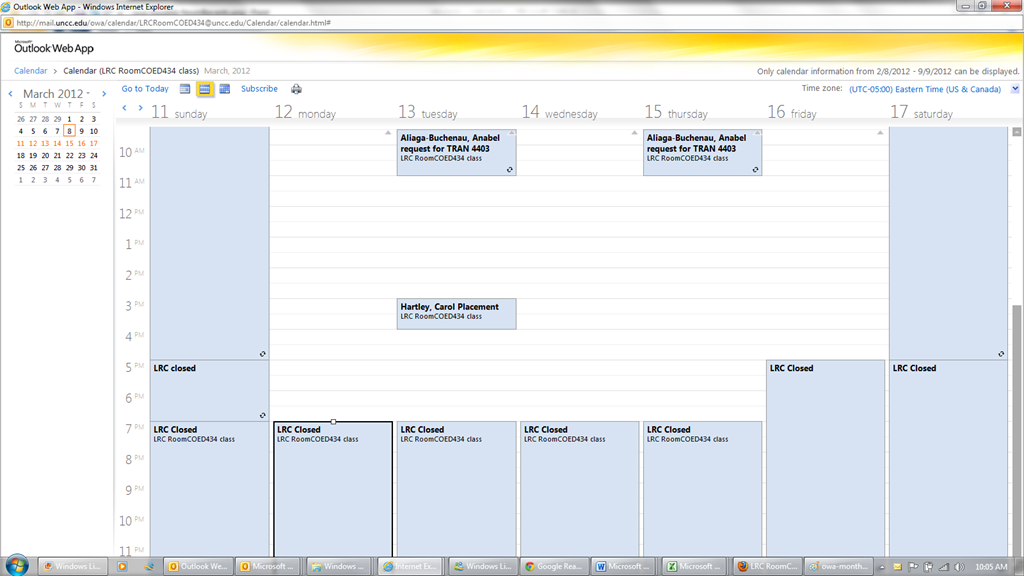
- From the top menu icons, you can easily change to weekly and daily views:

- The calendars are edited directly by the service-providing party, to stay up to date with the frequent changes in tutor availability (see #1 on Seven ways to think like the web; #4, getting them to stick to our “disciplined naming conventions” remains a work in progress).
- Thanks to Joomla’s Publish/Unpublish feature, we also stand a chance keeping up with the frequent changes in tutors being sent to the LRC or not, by entirely hiding non-applicable calendars (so that students do not have to think about what we mean by “no time slots = sorry, currently no tutor”):



ProofPoint Email archiving
- UPDATE: location (http://mail.uncc.edu/archive) and availability (all) have changed.
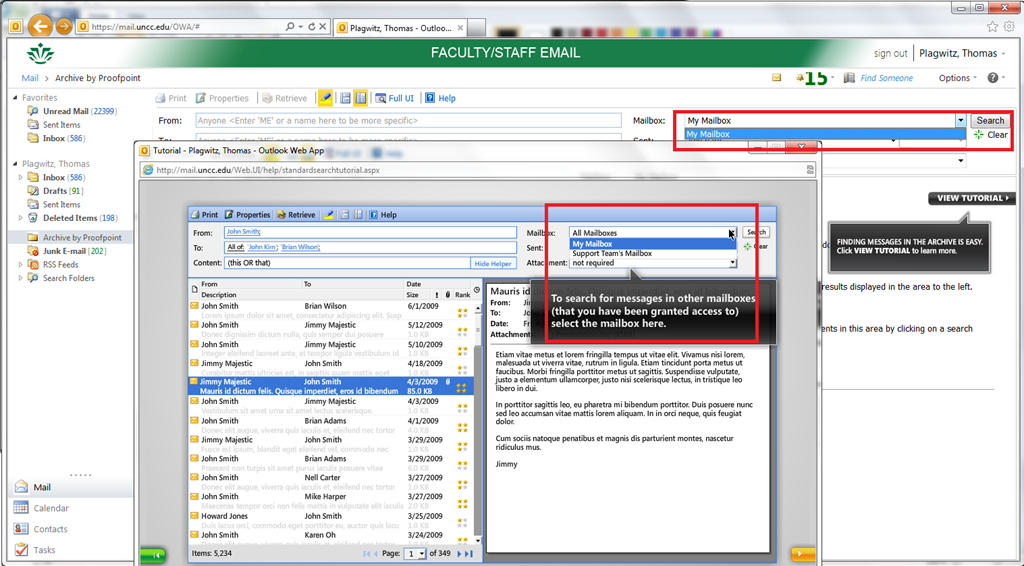
- This email archive search
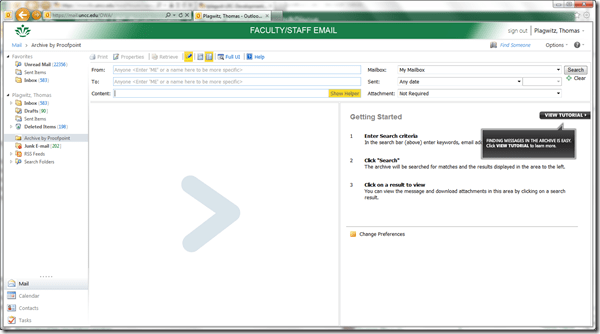

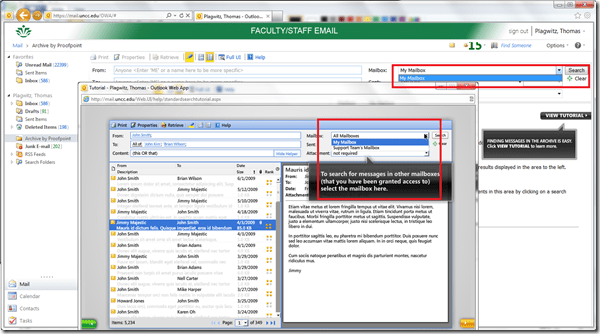
- includes the capability to search other mailboxes, if you have been granted access, like archived institutional knowledge. The following screenshot shows both what options you see if you have been granted access, and what if not:


Using WebParts syntax to navigate OWA?
When you train in OWA, you can take advantage of sending your students directly to certain interfaces of OWA, for doing specific hands-on tasks. If they are not alreay logged in, they seem to get redirected to the desired view in the end Working example:
https://mail.uncc.edu/owa/?cmd=contents&fpath=Calendar&view=Weekly&archivestub=1
Limitations seem to be in the browsers: IE> Firefox > Safari.
However, I could not find a way to send a user to a specific view of an OWA published calendar (seems to default always to monthly). Non-working eexamples:
bad request http://mail.uncc.edu/owa/calendar/LRCtutor11@uncc.edu/Calendar/calendar.html?view=Weekly 404 http://mail.uncc.edu/owa/calendar/LRCtutor11@uncc.edu/Calendar/Weekly/calendar.html#
See documentation here: http://technet.microsoft.com/en-us/library/bb232199.aspx
Can you use webbparts to save your users to have to change the view  when they open up a calendar like http://mail.uncc.edu/owa/calendar/LRCRoomCOED434@uncc.edu/Calendar/calendar.html#, or another way to open this calendar not in its (monthly) default view?
Sharing vs. subscribing to Calendars in OWA/Ninermail
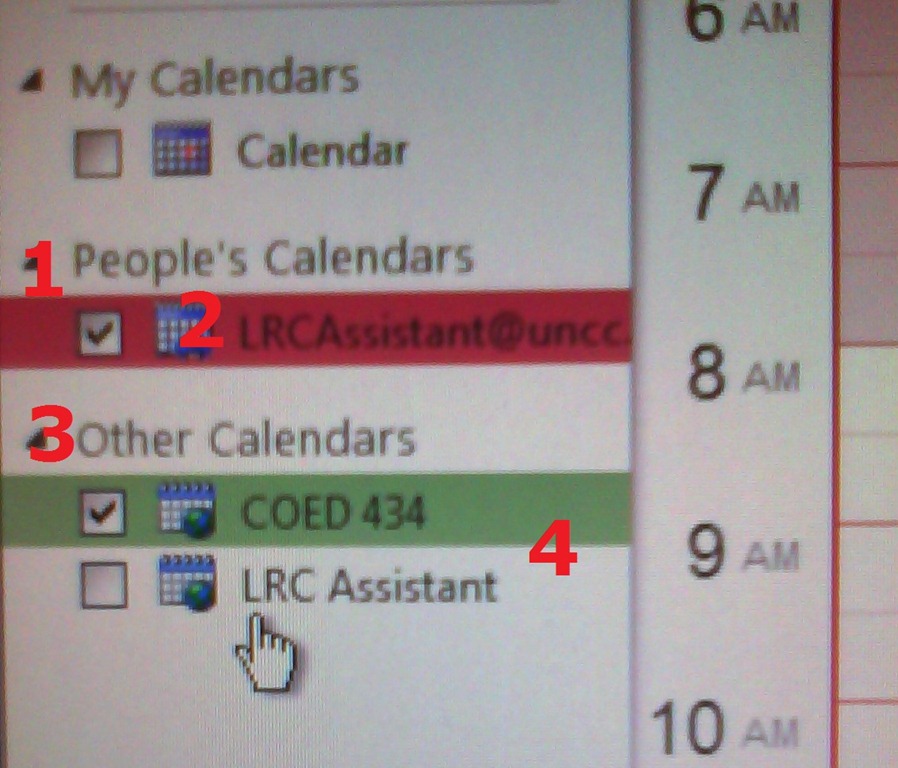
- Why does this matter? Different information may be visible to you, especially shared calendars can display more sensitive information than internet published calendars.
- How can I tell the difference? Apart from the amount of information that gets displayed to you, different calendar types appear :
- in a different place:
- Shared calendars appear under (1) heading “people” (even if it is a room or other resource),
- subscribed calendars under (3) heading “Other Calendars”
- with a different type of name:
- Shared calendars have as name the email address (2) “@uncc.edu”
- subscribed calendars have as default name only “calendar”. Only if you rename the calendar, it has a meaningful identifier, like was done here (4)
- in a different place:

Calendaring: How to view all your Moodle course assignments in Ninermail, OWA or MS-Outlook – Shortest



Questions? Read the About. Or just ask me a quick Our Databases: Resources with calendars -- Language learning material Moodle Sites, multimedia files -- films


FAQs for LRC student staff or for students or for teachers. To search our FAQs, in the browser addressbar, add after "https://plagwitz.wordpress.com/feed/?tag=faqs+/" "+TAG1" (from tag cloud below) OR "https://plagwitz.wordpress.com/feed/tag=faqs
&category_name=" "CAT1" (from category hierarchy below). OR search both categories and tags, and multiple TAGs/CATs (connect with "," for OR-search, with "+" for AND-search), like so: https://plagwitz.wordpress.com/feed/?tag=TAG1+TAG2+...TAGn&category_name=CAT1
+CAT2+...CATn"
Other ways to find help
If you cannot find it here, look there: 5,500 Language-Learning Links and Programs for learning or teaching 150 languages
Shortcuts:Our Lists, Our Maps, LRC Staff Moodle Site,LRC Project Moodle Site, 49erexpress, UNCC Moodle, Student Recordings: s:claslcslrcsanakostudent
Learning usage samples: Sanako oral exam, Kaltura webcam presentation, Dictation with speech recognition, Sanako written exam, Chinese and Japanese interactive stroke-order practice
Test the Sanako Installer, Webbrowser Popup Konfigurator for XP, or Windows7, faster LRC TeacherPC Log-in Let MS facilitate diacritics writing by installing for you US-International keyboard layout
This is my personal blog (Google+). The views expressed on these pages are mine alone and not those of my employer. The information in this weblog is provided “AS IS” with no warranties, and confers no rights.
 Thomas' Work Space