Archive
How we provide more computer support for walk-up clients at the LRC reception desk
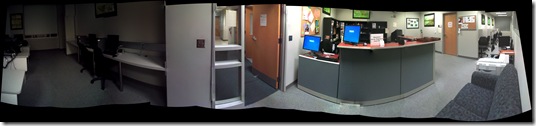
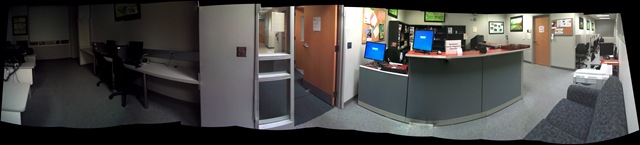
- We have set up 3 PCs at the reception desk. They all contain an exactly identical software configuration (based on Symantec Ghost imaging and Faronics Deepfreeze).
- Except that two (we could not get hold of another monitor) have a secondary screen connected that can extend the Windows Desktop, or mirror it (use CTRL-ALT-F11 and CTRL-ALT-F10 to switch between the modes of the )

- To aid in this communication over the counter, press CTRL-2 to freeze and on the screen (uses MS-ZoomIt) which helps when pointing out screen elements.
- So that LRC staff and clients can both use the university’s most important web applications, the computers have been configured to automatically launch a number of web browsers on startup, and within each browser, open a number of home pages with(LRC website, Moodle, NINERNET, faculty&staff Mail, WordPress, Excel Web App with he LRC databases for hardware, software, media and learning materials inventories). (When done, instead of closing the browser, use the “sign out” link of each web application).
- As a reminder, the most basic instructions (with keyboard shortcuts) have been posted on both primary and secondary monitor.
- Can we also implement a screen sharing solution allowing for MS-remote assistance, to enable reception desk LRC staff to escalate client questions they cannot resolve, like our IT department?

Blackboard: Content System: Ancillary digital textbook material reuse (publish to course participants, roll-over between terms)
If you have a well administered language program, your admin should have uploaded all digital (text, audio, textbook and table of contents) materials that come with your textbook for convenient reuse between sections and terms into the Blackboard content system.
As a Blackboard course administrator, you can easily give all course participants access in 1 step (as course administrator, you can also access the audio materials during classes from the Blackboard content system directly).
Here is a video recording of a real-world walkthrough of this process – voice-over is in German, but Blackboard interface is in English: blackboard-content-system-finding-adding-existing-content-item-to-course-access-play.wmv
|
Start Time |
Topic |
|
0,0 |
overview of teaching and learning procedure |
|
0,1 |
course add item / content collection link |
|
1,30 |
how to search for content. Remember: Search is your friend, if you have a consistent metadata system for your content (start with meaningful file names): |
|
3,15 |
hot to add permissions for other users |
|
5,3 |
add to course for for students |
|
5,4 |
listen to an example audio from course |
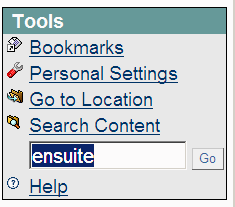
Once you have given course participants access to the audio materials, and you teach the course again next term, it is even easier to roll over the access: Just use the Copy link in the Blackboard Control Panel.


Questions? Read the About. Or just ask me a quick Our Databases: Resources with calendars -- Language learning material Moodle Sites, multimedia files -- films


FAQs for LRC student staff or for students or for teachers. To search our FAQs, in the browser addressbar, add after "https://plagwitz.wordpress.com/feed/?tag=faqs+/" "+TAG1" (from tag cloud below) OR "https://plagwitz.wordpress.com/feed/tag=faqs
&category_name=" "CAT1" (from category hierarchy below). OR search both categories and tags, and multiple TAGs/CATs (connect with "," for OR-search, with "+" for AND-search), like so: https://plagwitz.wordpress.com/feed/?tag=TAG1+TAG2+...TAGn&category_name=CAT1
+CAT2+...CATn"
Other ways to find help
If you cannot find it here, look there: 5,500 Language-Learning Links and Programs for learning or teaching 150 languages
Shortcuts:Our Lists, Our Maps, LRC Staff Moodle Site,LRC Project Moodle Site, 49erexpress, UNCC Moodle, Student Recordings: s:claslcslrcsanakostudent
Learning usage samples: Sanako oral exam, Kaltura webcam presentation, Dictation with speech recognition, Sanako written exam, Chinese and Japanese interactive stroke-order practice
Test the Sanako Installer, Webbrowser Popup Konfigurator for XP, or Windows7, faster LRC TeacherPC Log-in Let MS facilitate diacritics writing by installing for you US-International keyboard layout
This is my personal blog (Google+). The views expressed on these pages are mine alone and not those of my employer. The information in this weblog is provided “AS IS” with no warranties, and confers no rights.
 Thomas' Work Space