Archive
Posts Tagged ‘MS-Word’
Unicode conversion keyboard shortcut in Microsoft Word
2017/09/26
Leave a comment
A visitor asked me about the whereabouts of the uniqoder website that I recommended here – I am afraid I have lost track. But if you have Microsoft Word, at least you can always easily type Unicode using the conversion ALT-X keyboard shortcut
Inserting Word Building Blocks from Template using Ribbon or QAT
2016/06/22
Leave a comment
Either insert from Ribbon / Insert / Quickparts: 
Or for extra speed and convenience, you can have your template store access to your building from the Quick Access Toolbar: 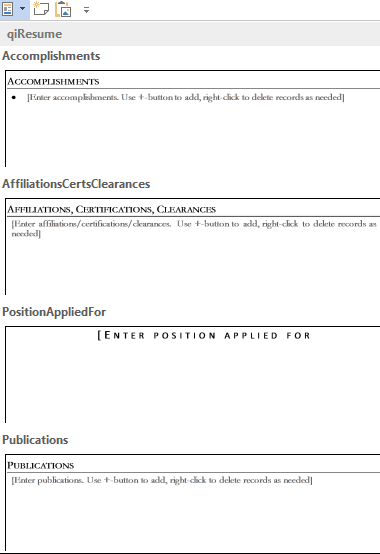
Demo video is here.
Categories: office-software, training
building-blocks, MS-Word, qat, quickparts
PowerShell script to save all .pdf’s as .docx in and underneath a folder failing on Word 2016, working on Word 2010.
2016/04/02
Leave a comment
- Problem: Word 2016 shows erratic behavior when trying to save (admittedly: complex) .PDF as .DOCX – whether
- using automation
- “The object invoked has disconnected from its clients. (Exception from HRESULT: 0x80010108 (RPC_E_DISCONNECTED))”
- “The RPC server is unavailable. (Exception from HRESULT: 0x800706BA)”
- or trying manually.
- “There is a problem saving the file.”
- “A file error has occurred.”
- Or Word crashes.
- using automation
- Workaround: My age-old Word 2010 installation on Windows Vista with PowerShell 2 (gasp!
 ) manages this automation script (inspired by The Scripting Guy) just fine:
$Word = NEW-OBJECT –COMOBJECT WORD.APPLICATION
# Acquire a list of DOCX files in a folder
$Files = GET-CHILDITEM -include *.pdf -exclude *_converted.pdf -recurse -path 'G:\bookz\office\excel' # 'G:\bookz\lang\vba' # 'G:\bookz\office\access' #

Foreach ($File in $Files) {
    try{
        write-host "Trying  " $File.fullname
        # open a Word document, filename from the directory
        $Doc1=$Word.Documents.Open($File.fullname)
        write-host "Opening " $File.fullname ". RESULT=" + $?
        # Swap out PDF with DOCX in the Filename
        $Name=($File.Fullname).replace("pdf",“docx”) # $Name=($Doc1.Fullname).replace("pdf",“docx”)
        # Save this File as a PDF in Word 2010/2013 - hm, and 2016 fails?
        $Doc1.saveas([ref] $Name, [ref] 16) # see WdSaveFormat enumeration : 16 is word default,
    }
    catch
    {
        $ErrorMessage = $_.Exception.Message
        $FailedItem = $_.Exception.ItemName
        write-host "Caught error saving " $FailedItem ". Msg: " $ErrorMessage
    }
    finally {
        $Doc1.close()
        [GC]::Collect() # watch me trying a number of things to get this to work with Word 2016... 🙂
        move-item -path $file.FullName -destination ($file.Directory.ToString() + "\" + $file.BaseName + "_converted" + $file.Extension)
    }
}
Categories: service-is-programming, sourcecode
converting, ms-powershell, MS-Word, pdf
How to easily rearrange your sections via the headings in MS-Word’s Navigation Pane
2015/07/19
Leave a comment
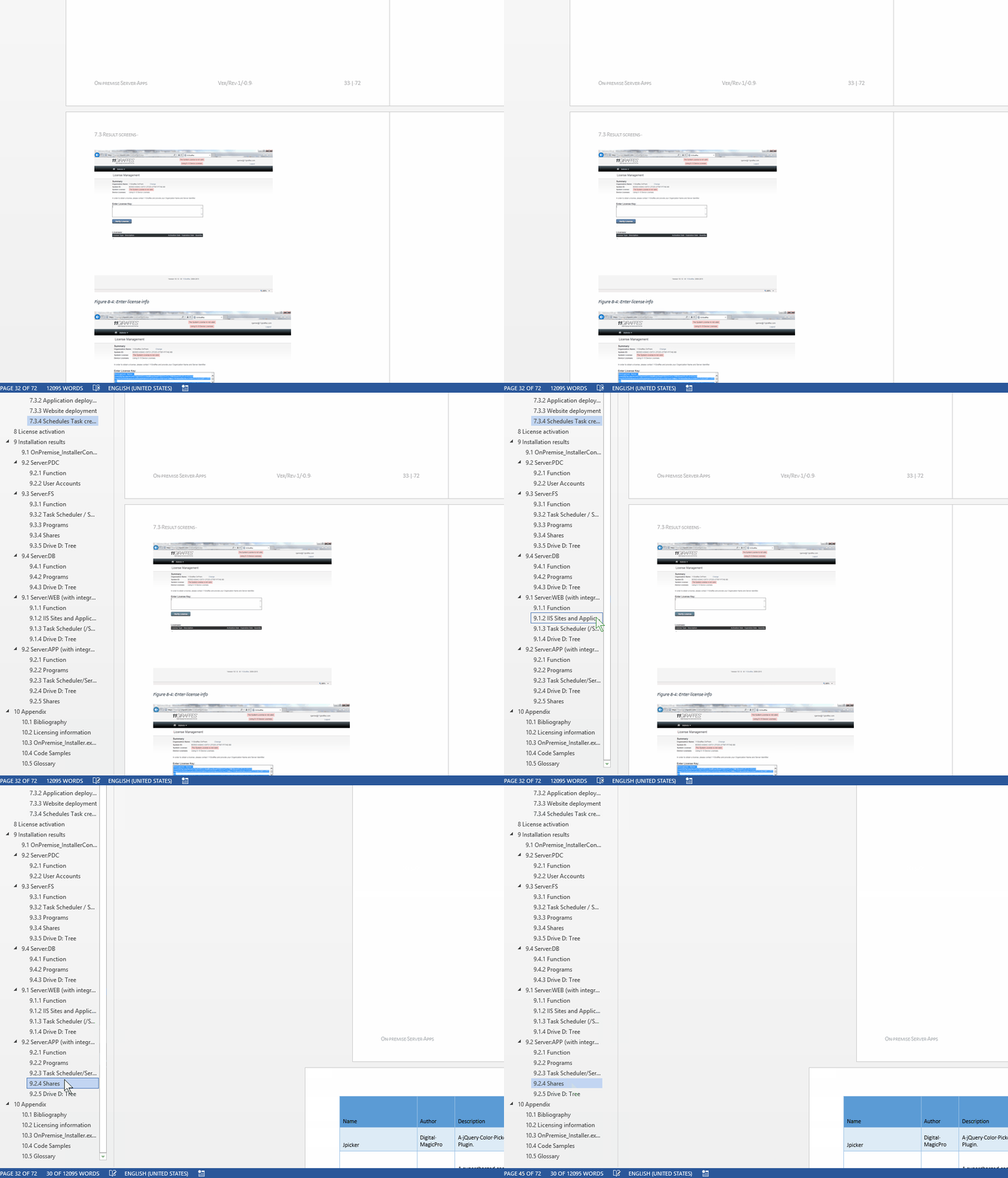
- Short answer Show Navigation (from ribbon ./ View), then Drag&drop/

- Maybe obvious, but had escaped me so far – I thought such ease would only come only with outline view – what a great feature!
Categories: service-is-documenting
2013, headings, MS-Word, navigation-pane
How to ease editing work in MS-Word by automating search/replace operations
2015/05/08
Leave a comment
- If you frequently have to edit documents according to a large number of editorial rules and regulations
- and if you can partially automate these edit operations (or at least highlight suspicious passages for human review) with Word’s search/replace,
- I can recommend an add-in that can automate even the repeated search/replace operations (like the 57 in the video below)
- and even help you manage your search/replace strings and regular expressions in a spreadsheet which it can load from:
- Greg Maxey’s VBA Find & Replace Word Add-in. See it in action (click for full size):

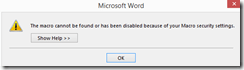
TwoThree Caveats: :- At this point, I cannot get the add-in to work only in Word 2010. Even if I lower Macro security and allow programmatic access to the VBA project, when trying to launch the add-in from the ribbon, Word 2013 complains: “The macro cannot be found or has been disabled due to your macro security settings”:
 .
. - The automation is only as good as your underlying search/replace operations. (Hint: “Some people, when confronted with a problem, think ‘I know, I’ll use regular expressions.’ Now they have two problems.”)
- I think I will refrain from search/replace during “Tracking changes” – as in the video – , and rather use “Compare documents” after the replace operations – too many quirks otherwise…
- At this point, I cannot get the add-in to work only in Word 2010. Even if I lower Macro security and allow programmatic access to the VBA project, when trying to launch the add-in from the ribbon, Word 2013 complains: “The macro cannot be found or has been disabled due to your macro security settings”:


Categories: service-is-documenting
2010, 2013, add-ins, automation, MS-Excel, MS-Word, regular-expressions, replacing, VBA
Fun with .docx to .html transforms by means of HtmlConverter from PowerTools for Open XML
2014/12/15
Leave a comment
- The transform is FOSS and platform-independent:
- It neither requires Office nor Windows (The OpenXML SDK runs on Linux via Mono on the server.
- However, the most recent installment of Powertools for OpenXML, a high-level API to the OpenXML SDK, comes with a PowerShell interface (benefit: no Visual studio requirement).
- Valuable features of the transform, among many other things, are:
- HtmlConverter is able to translate MS-Word styles into CSS (insofar needed – my code style has “No proofing” set, however, this cannot be implemented on the WWW), so the layout is preserved as designed, but w/o need for inline formatting:
        span.pt-StrongEmphasis-000052 {
            font-family: Calibri;
            font-size: 11pt;
            font-style: italic;
            font-weight: bold;
            margin: 0in;
            padding: 0in;
        }

        span.pt-lowCodeConsoleChar0 {
            color: #FFFFFF;
            background: #000000;
            font-family: Consolas;
            font-size: 10pt;
            font-weight: normal;
            margin: 0in;
            padding: 0in;
        }
<h3 dir="ltr" class="pt-000040">
<span class="pt-000041">2.2.1</span><span class="pt-000042"><span class="pt-000043">&nbsp;</span></span><span class="pt-Heading2Char"><b>References</b></span>
</h3>
<p dir="ltr" class="pt-BodyText">
<span class="pt-DefaultParagraphFont-000003"><br />
&lrm;</span><span class="pt-000000">&nbsp;</span>
</p>
<h1 dir="ltr" class="pt-000006">
<span class="pt-000007"><b>3</b></span><span class="pt-000008"><b><span class="pt-000009">&nbsp;</span></b></span><span class="pt-Heading1Char"><b>Introduction</b></span>
</h1>
<h2 dir="ltr" class="pt-000018">
<span class="pt-000019">3.1</span><span class="pt-000020"><span class="pt-000021">&nbsp;</span></span><span class="pt-Heading2Char"><b>Purpose of Document</b></span>
</h2>
- There are many more options that I have not yet tried:
            SimplifyMarkupSettings simplifyMarkupSettings = new SimplifyMarkupSettings
            {
                RemoveComments = true,
                RemoveContentControls = true,
                RemoveEndAndFootNotes = true,
                RemoveFieldCodes = false,
                RemoveLastRenderedPageBreak = true,
                RemovePermissions = true,
                RemoveProof = true,
                RemoveRsidInfo = true,
                RemoveSmartTags = true,
                RemoveSoftHyphens = true,
                RemoveGoBackBookmark = true,
                ReplaceTabsWithSpaces = false,
            };
            MarkupSimplifier.SimplifyMarkup(wordDoc, simplifyMarkupSettings);

            FormattingAssemblerSettings formattingAssemblerSettings = new FormattingAssemblerSettings
            {
                RemoveStyleNamesFromParagraphAndRunProperties = false,
                ClearStyles = false,
                RestrictToSupportedLanguages = htmlConverterSettings.RestrictToSupportedLanguages,
                RestrictToSupportedNumberingFormats = htmlConverterSettings.RestrictToSupportedNumberingFormats,
                CreateHtmlConverterAnnotationAttributes = true,
                OrderElementsPerStandard = false,
                ListItemRetrieverSettings = new ListItemRetrieverSettings()
                {
                    ListItemTextImplementations = htmlConverterSettings.ListItemImplementations,
                },
            };
- One would really wish there was a way to get such HTML cleaned up automatically (ouch!):
<span class="pt-DefaultParagraphFont-000006">M</span>
<span class="pt-DefaultParagraphFont-000006">anaged requirements for system integration&nbsp;</span>
<span class="pt-DefaultParagraphFont-000006">of Center</span>
<span class="pt-DefaultParagraphFont-000006">&nbsp;</span>
<span class="pt-DefaultParagraphFont-000006">software&nbsp;</span>
<span class="pt-DefaultParagraphFont-000006">with&nbsp;</span>
<span class="pt-DefaultParagraphFont-000006">iLearning</span>
<span class="pt-DefaultParagraphFont-000006">&nbsp;and with content production and management (BPD). To mitigate lack of integration of $50k LMS software investment into departmental workflow</span>
<span class="pt-DefaultParagraphFont-000006">,</span>
<span class="pt-DefaultParagraphFont-000006">&nbsp;</span>
<span class="pt-DefaultParagraphFont-000006">developed&nbsp;</span>
<span class="pt-DefaultParagraphFont-000006">and documented&nbsp;</span>
<span class="pt-DefaultParagraphFont-000006">software to automate</span>
<span class="pt-DefaultParagraphFont-000006">&nbsp;creation of 4K+ user accounts p.a., 30K+ learning documents and 100K+ interactive content paths in LMS.</span>
- There are also much more serious conversion errors:
- MS-Word displays a plain text content control and a repeating section content control within a table, containing one Combobox and one plain text content control per row, perfectly:
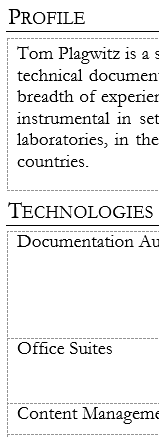
- Convert-DocxToHtml gobbles the content completely (and so does Google Docs Preview):
 The underlying HTML has just a blank table under each heading:
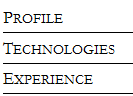
<div class="pt-000001"> <p dir="ltr" class="pt-qiCVHeading1"> <span class="pt-DefaultParagraphFont-000002">Profile</span> </p> </div> <div align="left"> <table border="1" cellspacing="0" cellpadding="0" dir="ltr" class="pt-000003" /> </div> <div class="pt-000001"> <p dir="ltr" class="pt-qiCVHeading1"> <span class="pt-DefaultParagraphFont-000002">Technologies</span> </p> </div> <div align="left"> <table border="1" cellspacing="0" cellpadding="0" dir="ltr" class="pt-000003" /> </div> - MS-Word shows:
 Yet need to look in to the underlying XML to see whether the .docx is to blame for that…
 - But HtmlConverter output in IE or Firefox:
 The underlying HTML reveals that the css does not get applied in the right place:
- MS-Word displays a plain text content control and a repeating section content control within a table, containing one Combobox and one plain text content control per row, perfectly:



<tr>
<td class="pt-000079">
<p dir="ltr" class="pt-BodyTextSmall">
<span class="pt-BodyTextSmallChar-000081">AD</span>
</p>
</td>
<td colspan="2" class="pt-000079">
<p dir="ltr" class="pt-BodyTextSmall">
<span class="pt-BodyTextSmallChar-000081">Active Driector, Microsfot&rsquo;s directory implementation.</span>
</p>
</td>
</tr>
<tr>
<td class="pt-000086">
<p dir="ltr" class="pt-BodyTextSmall">
<span class="pt-000085">&nbsp;</span>
</p>
</td>
<td colspan="2" class="pt-000086">
<p dir="ltr" class="pt-BodyTextSmall">
<span class="pt-000085">&nbsp;</span>
</p>
</td>
</tr>
- One could imagine MS-Word acting less strictly than OpenXML PowerTools:Convert-DocxToHtml, like a web-browser’s parser tolerates and displays bad HTML. However, not only would need to be justified how MS-Word can also serve as the originating HTML WYSIWYG editor. The OpenXML PowerTools:Get-OpenXmlValidationErrors for both of the above documents does not seem to find any OpenXML errors that could explain the bad conversion (other than dozens of Sch_UndeclaredAttribute errors (Version-related? Not sure how this could be) , there is only a Pkg_PartIsNotAllowed relating to a glossary).
- Also yet to do:
- When (not always!) does my page title end up as empty?
<title></title>
- Defaults to doctype xhtml, not html(5).
- When (not always!) does my page title end up as empty?
- Done:
- Pretty-printing. The HtmlConverter output defaults to all content (not css ) on 1 line (e.g. in the example from which above code is taken, 90000chars long). For human readability, and also possibly git tracking, pretty-printing would be better. Can be enforced like so (is there a better way? cannot see a user-configurable option for the SaveOptions enumeration):
openXml\OxPt\OxPtCmdlets\OxPtHelper.cs:var htmlString = html.ToString(SaveOptions.None); // trp: requesting pretty-printing, was:html.ToString(SaveOptions.DisableFormatting);
Customized Quick Access Toolbar
2014/11/18
Leave a comment

Easing access to some important tools for serious writing – and configuration that can not be done in a template,but is per machine…
Categories: animated-GIFs, office-software, training
MS-Word, quick-access-toolbar
Fun with Zotero inserting citations and bibliographies
2014/11/17
Leave a comment
- If you can install Zotero’s word processor add-ins (for LibreOffice Writer or MS-Word).:
- Here are the self-explanatory tool tips of the command buttons for the MS-Word add-in:

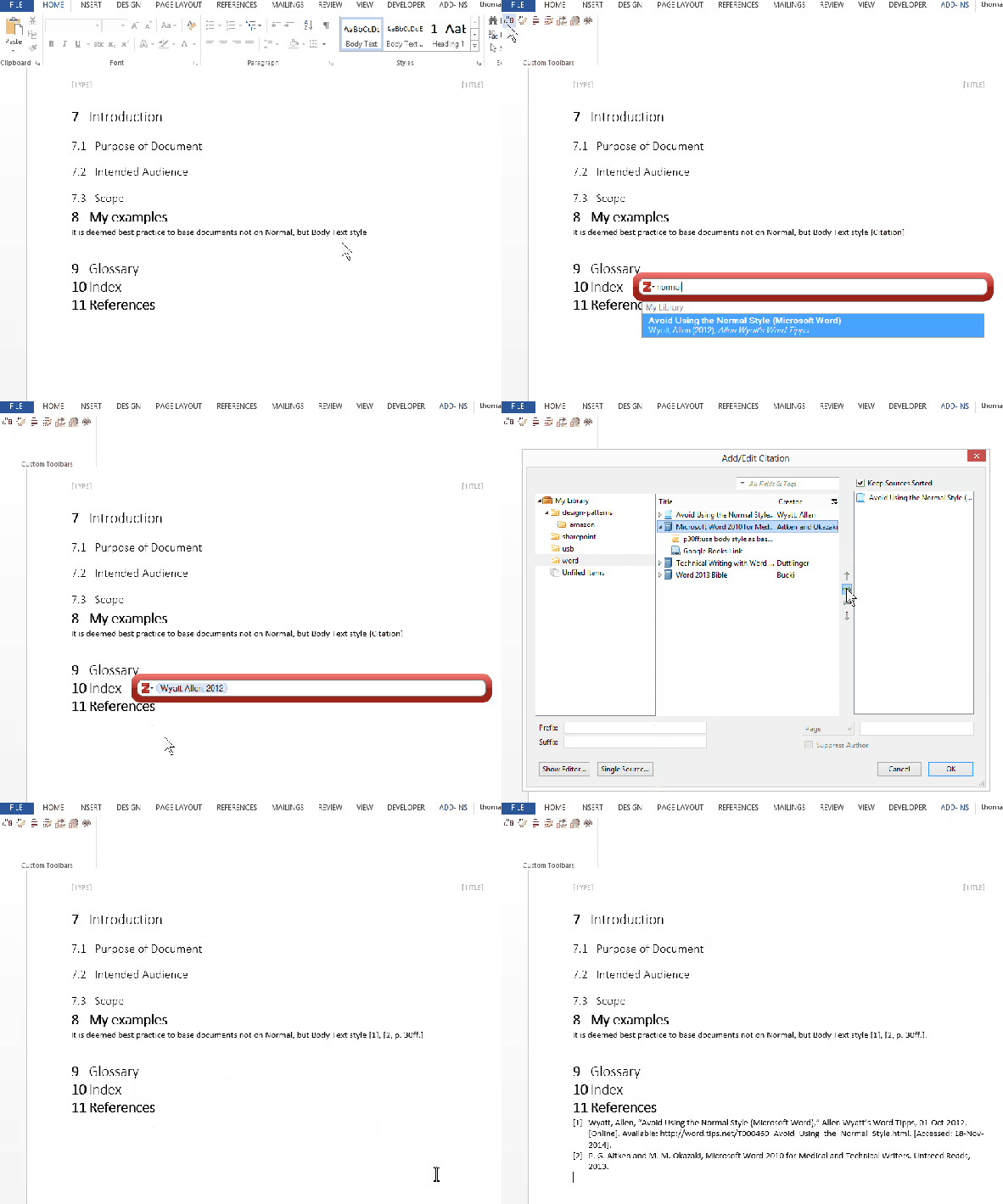
- Here is the add-in in action, inserting first one, than multiple citations, followed by generation of a bibliography:
- Here are the self-explanatory tool tips of the command buttons for the MS-Word add-in:
- If you cannot, you can still use the “create bibliography from items” of Zotero (which itself can be run under portable Firefox from a USB stick – no install needed at all). Here is a brief example and insert those into your writing;




Categories: animated-GIFs, service-is-library, training
bibliographies, MS-Word, zotero


Questions? Read the About. Or just ask me a quick Our Databases: Resources with calendars -- Language learning material Moodle Sites, multimedia files -- films


FAQs for LRC student staff or for students or for teachers. To search our FAQs, in the browser addressbar, add after "https://plagwitz.wordpress.com/feed/?tag=faqs+/" "+TAG1" (from tag cloud below) OR "https://plagwitz.wordpress.com/feed/tag=faqs
&category_name=" "CAT1" (from category hierarchy below). OR search both categories and tags, and multiple TAGs/CATs (connect with "," for OR-search, with "+" for AND-search), like so: https://plagwitz.wordpress.com/feed/?tag=TAG1+TAG2+...TAGn&category_name=CAT1
+CAT2+...CATn"
Other ways to find help
If you cannot find it here, look there: 5,500 Language-Learning Links and Programs for learning or teaching 150 languages
Shortcuts:Our Lists, Our Maps, LRC Staff Moodle Site,LRC Project Moodle Site, 49erexpress, UNCC Moodle, Student Recordings: s:claslcslrcsanakostudent
Learning usage samples: Sanako oral exam, Kaltura webcam presentation, Dictation with speech recognition, Sanako written exam, Chinese and Japanese interactive stroke-order practice
Test the Sanako Installer, Webbrowser Popup Konfigurator for XP, or Windows7, faster LRC TeacherPC Log-in Let MS facilitate diacritics writing by installing for you US-International keyboard layout
This is my personal blog (Google+). The views expressed on these pages are mine alone and not those of my employer. The information in this weblog is provided “AS IS” with no warranties, and confers no rights.
 Thomas' Work Space