Archive
Posts Tagged ‘ms-windows’
MS-Surface RT unboxing
2014/01/29
Leave a comment


Categories: e-infrastructure, hardware, os, tablets
8.1, ms-surface, ms-windows, rt
How to connect an MS-Surface RT to the secure campus wireless
2014/01/29
Leave a comment
- This worked on a 1st generation Surface, but with Windows 8.1.
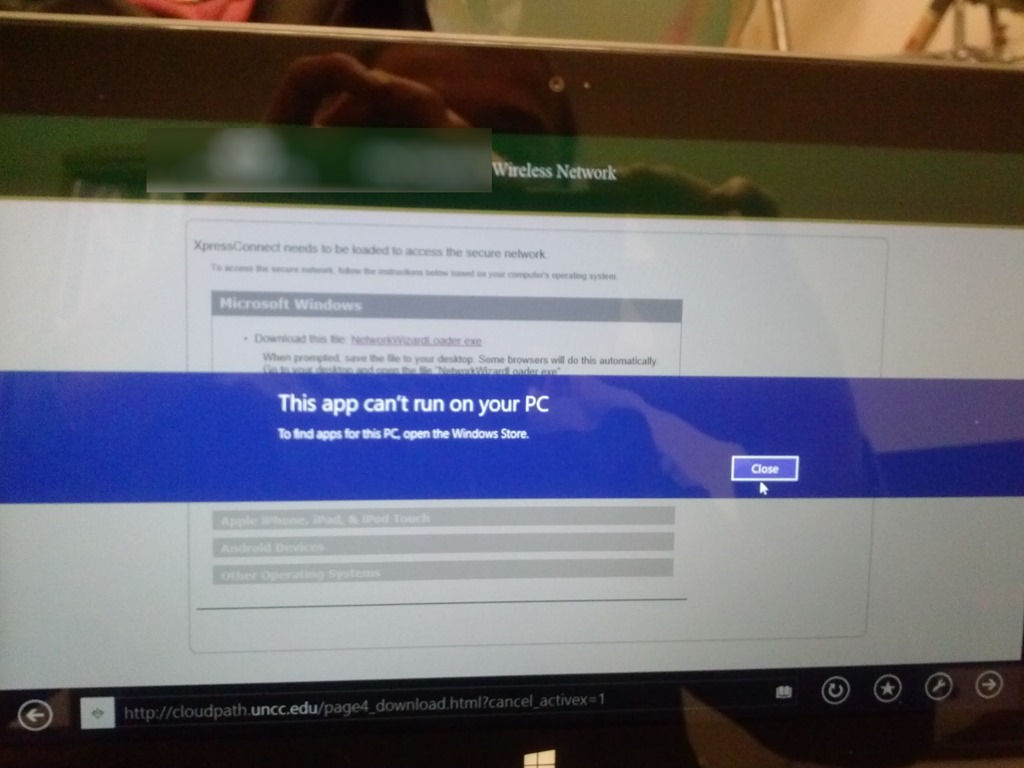
- No problem getting onto the UNCC49er network, but the Surface/Windows 8 is not supported on the NINERWifi-secure yet. Specifically, loading the automated configuration tools provided when first trying to access the NINERWifi-secure, fails on the RT platform.


- I received seemingly conflicting instructions:
- The campus website
- has for devices that are not supported manual configuration settings.
- Another campus that uses the same secure wireless provider has these instructions for Windows 8.
- I could piece it together from there,
- including any translation to (there is none needed that I could see which BTW actually amazes me) Windows 8 RT.
- Maybe the following would have worked also, but I did not try it since I was already in the middle of the above steps:
- Swipe in from the right-edge of the screen, and tap Settings. (If you’re using a mouse, point to upper-right corner of screen, move the mouse pointer down, and then click Settings.)
- Tap or click the wireless network icon Wireless network icon. A list of available wireless networks should appear.
- Look for the “Hidden Network” option and then choose it.
- When it prompts for a SSID, type in exactly: NinerWiFi-Secure
- It should then prompt for username/password (NinerNET credentials).
- Say yes to any certificates warnings that pop up.
- The campus website

Overview over speech recognition assignment possibilities in the LRC–from beginning to end
2014/01/21
1 comment
- UPDATE: now with more videos to watch.
- First switch languages, once you are in the right language:
- The speech recognition loads at startup with this window:

- or can be started from the desktop shortcut:

- To activate = make it start/stop listening, click on the microphone

- create and save individualized voice training data (only the first time you use speech recognition in the LRC),
- Watch how to train (for English, short 5 minutes);
- Watch how to back up/restore;
- beginner voice training example (long, before/after effect in speech recognition),
- homework assignment exercise design,
- Watch how (for English, with correction in MS-Word)
- dictation example.



Categories: assignments, e-languages, English, French, German, Japanese, Mandarin, os, Spanish, Speaking
7, ms-windows, speech-recognition
Sanakoaudioconfigonthefly software utilities updated for Vista/Windows7
2013/12/09
Leave a comment
- (Shortcut to download – now fixed) The reason why a colleague’s signature reads: “Worrying about a large institution, especially when it has computers, is like worrying about a large gorilla, especially when it’s on fire" (Bruce Sterling) might just be that a multimedia-capable fully computerized classroom – think 30 PCs and 30 students trying not only to listen to, but record responses to exam audio – is a notoriously difficult beast to control, and all too easily spins out of the same (a classroom humming in an endless audio feedback loop is neither a pleasant nor an unfamiliar sight).
- The Sanako Study 1200 is a digital audio lab software that facilitates the use of personal computers in face-to-face class settings. However, while the Sanako Study 1200 features many ways for the teacher to control and manage the student PCs, the students’ audio settings cannot be controlled on the fly.
- Enter these little sanakoaudioconfigonthefly utilities (written in AutoIt) for Windows 7 and Vista (old Windows PX version still available here) that extend the Sanako Study 1200.
- We now use (as it is completely adequate and actually superior to to the seemingly more applicable PC control / Launch programs features which is requires the program executable to reside under the same path on student and tutor computer) Playlist / copy and launch (folder icon) and the Sanako grouping feature to send a program with your choice of action to the student PCs of your choice. In this example,
- click playlist,

- and in the window that opens, click (1) to send to “all”, then click (2) to select which program to send:
![image_thumb[3]](https://thomasplagwitz.com/wp-content/uploads/2013/12/image_thumb3_thumb.png?w=341&h=244 "image_thumb[3]")
- Files included in this release (each for 64-bit, and as source code, so that you can compile your own if you are still on MS-Vista/MS-Windows-732-bit platform):
- Change student recording levels (microphone sensitivity).
- Toggle student sidetone ( in Sanako = “listen” to this device in Windows)
- Control student playback level (headphone volume).
- Likely these programs can be adapted beyond Sanako Study 1200, but I do not remember (helpful comments appreciated)
-
- whether other digital audio lab platforms (Sony Virtuoso, Robotel SmartClass) allow for changing the student audio config on the fly
- and what mechanism (if any – but likely) they (and Sanako Lab300) provide to launch programs on the students’ computers
- Prerequisites:
- None other than your digital audio lab software and the utilities you can download below. In particular, it is not required to install AutoIt on teacher or student computers.
- However, there should be only 1 microphone/speaker per student computer in the digital audio lab. If you have more, you likely have bigger problems to solve first, but you also need to alter the source code (included) to select the microphone you want to work with (should be easy; note however, that I have not tested this scenario, for: “There should be only 1 microphone/speaker per student computer in the digital audio lab”

- Request here to download these utilities.

![image_thumb[3]](https://thomasplagwitz.com/wp-content/uploads/2013/12/image_thumb31.png "image_thumb[3]")
Finding a balance between speed of log-in and readiness on help desk computers
2013/11/11
Leave a comment
- Problem:
- The LRC reception desk has 3 computers, each with 2 screens, one client-facing, that, when not shared during collaboration for clerical tasks, display (LRC assistants have been instructed which screen has to show which information) LRC-related information (LRC calendar, home page with news and FAQs, slide show with signs).
- However, when a teacher was bringing student to Spanish tutor after tutoring hours, I noticed, that no LRC calendar was visible at reception desk (SAFARI on rightmost computer), nor could be loaded easily.
- Upon my asking, LRC assistant reported, Firefox never comes up correctly on her computer.
- What I could observe: Firefox came up with 2 windows w/o preconfigured tabs.
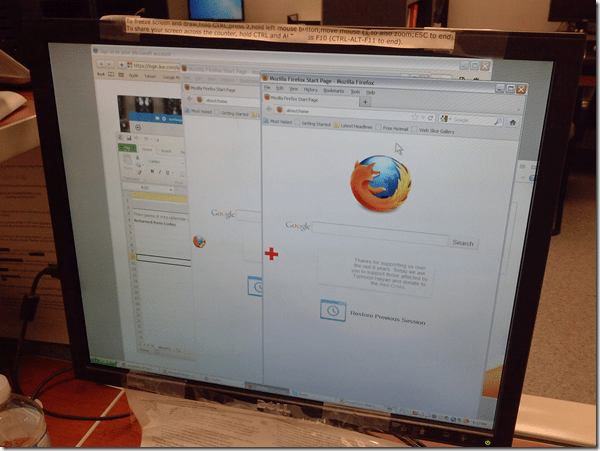
- Safari came up with 2 windows , also empty.

- Root cause:
- It turned out that other students did not have this issue when logging in on the computers.
-
It also turned out that the offending student’s profile had been frozen prematurely (in an obsolete state not incorporating changes we had to do during the term to maintain functionality of the reception desk computers in a changing campus IT environment).
- Workaround: Unfreeze the computer, delete the prematurely frozen profiles, have the student log in to recreate it using current default user settings, freeze the computer, to make the computer, 3 weeks before classes end…
- Solution: not sure I have one.
- Trying to have everything set up stably at term start is not the solution, but the problem.
- How can agility be increased?
- LRC assistants need to report problems. They may need better training to be aware of problems, and need an incentive to report problems, and a culture where reporting problems is not considered a problem in itself, but an achievement.
- The LRC lost its Symantec-Ghost imaging infrastructure which it could not only use for the lab PCs, but also to maintain 3 identical computers at its reception desk. This requirement for imaging was not considered during the recent upgrade of the labs imaging infrastructure, and we do not know how to get this capability back.


Categories: e-infrastructure, Reception-desk
ms-windows, profiles, symantec-ghos, t, xp
Switch to Color Scheme Basic not working for students
2013/10/25
Leave a comment
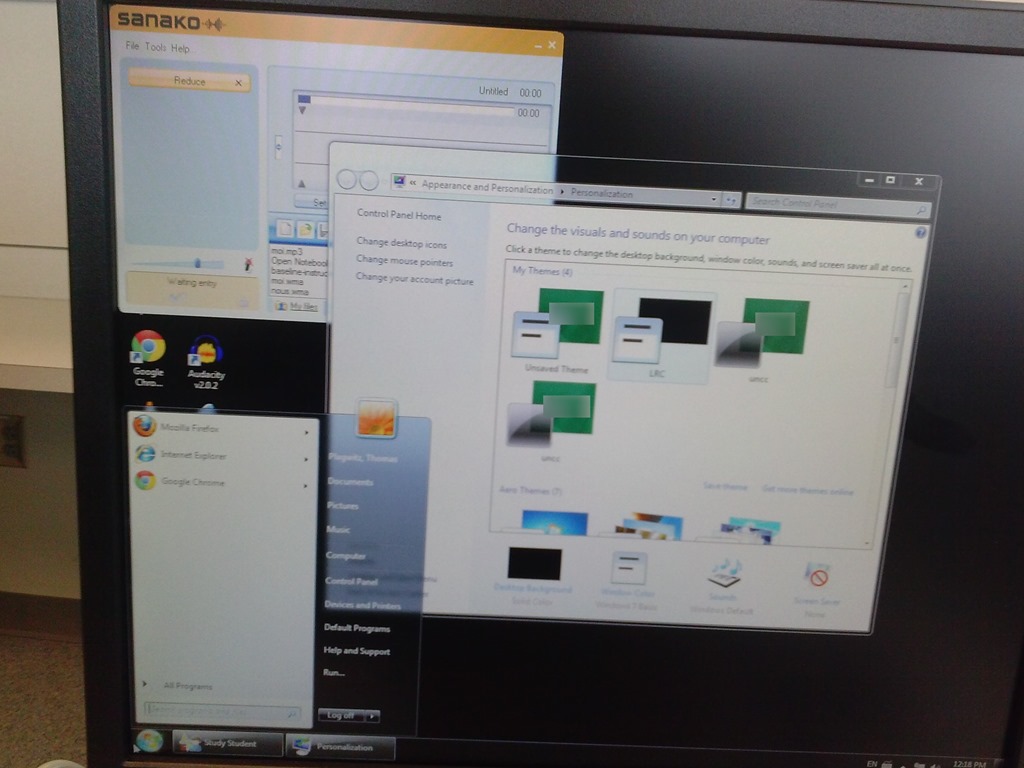
- Works for me:

- Does not work for students for whom it primarily has to work:

- Strangely, student seems to be not stuck on the original, but on an unsaved theme:


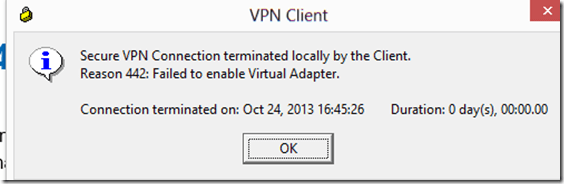
How to bypass error 442 when trying to connect to your office network with Cisco VPN Client 5 from Windows 8
2013/10/25
Leave a comment
- Problem:
- Solution:
- in [HKEY_LOCAL_MACHINE\SYSTEM\CurrentControlSet\Services\CVirtA]
"DisplayName"="@oem25.inf,%CVirtA_Desc%;Cisco Systems VPN Adapter for 64-bit Windows" - remove: “@oem25.inf,%CVirtA_Desc%;”.

Categories: e-infrastructure
8, cisco, ms-windows, vpn


Questions? Read the About. Or just ask me a quick Our Databases: Resources with calendars -- Language learning material Moodle Sites, multimedia files -- films


FAQs for LRC student staff or for students or for teachers. To search our FAQs, in the browser addressbar, add after "https://plagwitz.wordpress.com/feed/?tag=faqs+/" "+TAG1" (from tag cloud below) OR "https://plagwitz.wordpress.com/feed/tag=faqs
&category_name=" "CAT1" (from category hierarchy below). OR search both categories and tags, and multiple TAGs/CATs (connect with "," for OR-search, with "+" for AND-search), like so: https://plagwitz.wordpress.com/feed/?tag=TAG1+TAG2+...TAGn&category_name=CAT1
+CAT2+...CATn"
Other ways to find help
If you cannot find it here, look there: 5,500 Language-Learning Links and Programs for learning or teaching 150 languages
Shortcuts:Our Lists, Our Maps, LRC Staff Moodle Site,LRC Project Moodle Site, 49erexpress, UNCC Moodle, Student Recordings: s:claslcslrcsanakostudent
Learning usage samples: Sanako oral exam, Kaltura webcam presentation, Dictation with speech recognition, Sanako written exam, Chinese and Japanese interactive stroke-order practice
Test the Sanako Installer, Webbrowser Popup Konfigurator for XP, or Windows7, faster LRC TeacherPC Log-in Let MS facilitate diacritics writing by installing for you US-International keyboard layout
This is my personal blog (Google+). The views expressed on these pages are mine alone and not those of my employer. The information in this weblog is provided “AS IS” with no warranties, and confers no rights.
 Thomas' Work Space