Archive
Remember to switch to a 32-bit web browser if your SkyDrive online documents fail to open in MS-Office 2010.
- I would have thought that in this day and age, usage metrics data would have prompted MS to put that problem root and resolution – open the web page and the “Open in [Excel/Word/PowerPoint]" in a 32-bit browser - more prominently in the error messages .
- Instead, if using a 64-bit browser, you may be seeing
- this:
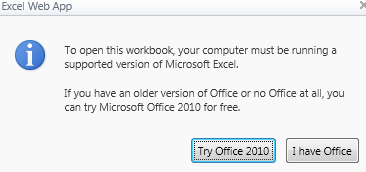
 (“To open this workbook, your computer must be running a supported version of Microsoft Excel. If you have an older version of Office or no Office at all, you can try Microsoft Office 2010 for free")
 - or this
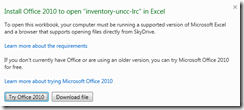 (“Install Office 2010 to open [your filename] in Excel. To open this workbook your computer must be running a supported version of Microsoft Excel and a browser that supports opening files directly from SkyDrive. Learn more about the requirements If you don’t currently have Office or are using an older version, you can try Microsoft Office 2010 for free. Learn more about trying Microsoft Office 2010. ”)
 - or this
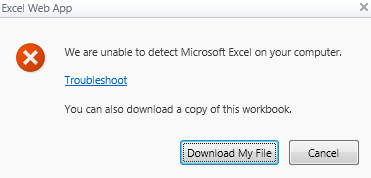
 ("We are unable to detect Microsoft Excel on your computer. Troubleshoot You can also download a copy of this workbook).
 - If e.g. you `run this browser:
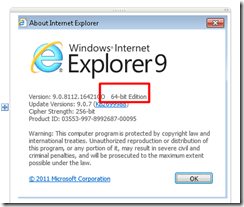
- Only if you follow the troubleshoot link, you find the 64-bitness of the browser mentioned.


Supporting Swahili – A running log
- Learned today that we will begin offering Swahili in the Fall. Here is the place to plan how the LRC can better support it.
- For starters, I am thinking of adding to the list of our custom configured languages for
- Windows 7
- Office 2010
- Learning materials?
- Existing?
- FSI, naturally.
- There should be more need for producing learning materials in this LCTL.
- automated?
- Note that the Stuttgart TreeTagger has a Swahili parameter file (gzip compressed, Latin1). The Swahili parameter file was trained on the Helsinki Corpus of Swahili (HCS) and uses a simplified version of the HCS tagset. The HCS was created by Prof. Arvi Hurskainen by means of his Swahili Language Manager (SALAMA) which uses Lingsoft’s TWOL compiler for constructing morphological analysers and Connexor’s CG2 parser for syntactic disambiguation.
- automated?
- Existing?
- Keep an eye on the Swahili Category.
How to prevent accidental deletion of files
Hard drives tend to fail occasionally. We recommend working with the institution-provided personal network shares which are regularly backed up by IT.
However, backups can only ever be run so often (normally overnight), and if you create a file during the day and accidentally delete it, there is no Windows Recycle Bin like functionality for network shares.
I am not making recommendations, especially not to bypass institutionally provided services, but I have worked with these additional (free and MS-backed) tools to extend these services:
1. Microsoft Synctoy 2.1: You can create folder pairs (between local and network drives and portable drives). You can have these folder pairs synchronized on the click of a button. This implies that this is not tool does not completely automate synchronization, but you could e.g. do this every morning and evening when you start/stop working. You will have to wait for the synchronization to finish. You could work on the local drive during the day – being able to benefit form the existence of the Recucle bin – and synchronize with your personal network drive at night.
2. Microsoft Live Mesh Beta: You can sign up with a Windows Live ID and designate a folder on your (multiple) PC(s) to be synchronized via a web folder. This happens automatically. Space is limited (5GB?).
3. There are also some settings in MS-Word you may want to consider, which you can access by clicking the Office button / Word options / Advanced:
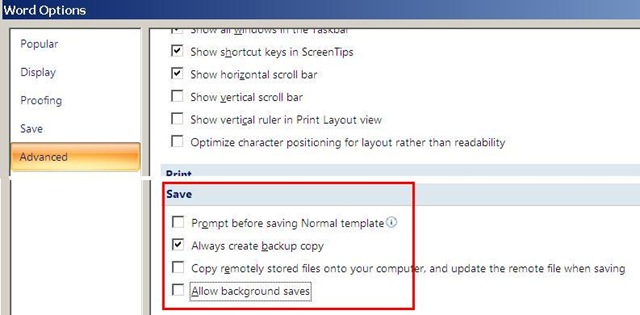
I always have a backup file created on save (in the same folder) and do not allow background saves which helps against file corruptions. I have not tested working with the option of keeping local copies of network share files.
Be aware that you are on your own with this, and that your mileage may vary.
Collaboration using MS-Office and Network Shares
Accessing: We set up collaborative editing on a number of MS-Office files (Word, Excel, PowerPoint for starters) on network shares.
These files function like files on your computer’s C: or D: (cd) drive. C: (and H:, S:) you can write to, while D: (and M:) you can only read from. Details, including students’ access, below:
|
Mapped as for |
Staff (including LLC staff) can |
Student can |
Language services use |
NetworkPath |
|||
|
Staff |
Student |
read |
write |
read |
write |
|
|
|
H:\LLC |
|
Yes |
Yes |
No |
No |
sensitive exam files; internal documentation & management (hallway.ppt, channel55.ppt, Sign_In_Sheet.xls) |
\\adfileprod01\shared\LLC |
|
M: |
|
Yes |
No (admin only) |
Yes |
No |
LLC: (large) multimedia files (to be moved into Blackboard content system) |
\\resman\media |
|
S: |
|
Yes |
Yes |
Yes |
Yes |
Student audio recordings |
\\resman\Student Saved Work\ |
|
G: |
G: |
Only current user |
Only current user |
Only current user |
Only current user |
Personal home drive |
\\adfileprod01\users\[yourusername] |
If you do not see the M: and S: click drive  , click
  , paste “\\resman\Student Saved Work\Admin\conf\ms.vbs”, click
  .
.
To access the files quickly, you can click , click , paste the path to the file, click . Alternatively, browse to the folder with the file like to any other folder on your PC, starting from “My Computer”. Repeat access from the office computer is easiest if you create a shortcut to the file, by right-click-dragging the file onto your desktop (do not create a copy, it will get out of synch and be useless for collaboration).
You can also access the files from home if you follow the instructions here. I have not thoroughly tested this, but my installation on MS-Vista, after the initial setup, defaults to a web-interface view which allows reading the files, but, unlike VPN connections I have used, not editing.
Searching: Search files like you do on your computer.
Editing: Files are unlike those on your C: or D: drive insofar as other people can open them also. If somebody has a file open and thus locks you out of writing to it, simply come back later when she has closed it.
The Excel Sign_In_Sheet.xls is a “shared” spreadsheet, in the sense that you will not be locked out while lab assistants have it open (which is always during LLC opening hours). However, you may get conflict messages if you try to save edits (which you normally would do not need to do, just viewing), like demonstrated here: excel_shared.wmv.

If you use regular (non-shared Excel) MS-Office Files, you may see such a warning message:

If you clicked “Notify”, you will eventually be prompted to open the file in read-write mode, and your changes will be saved, if you colleague did not update the file (otherwise you will have to save under a different file name and later can use tool “compare and merge” to merge changes). 
For PowerPoint, you may see this:

If you clicked “open” ”read-only”, you will see a reminder:
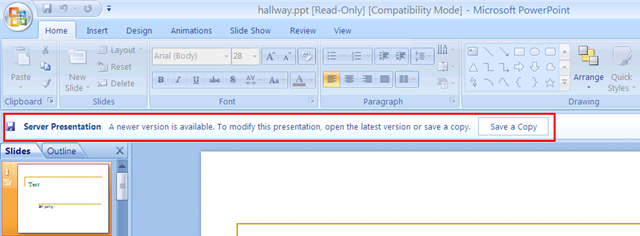
It is probably easier to close the file and try again later, to see whether your colleague is finished with it.
Live a little: Get standard software
You make not only your own, but everybody’s life easier if you upgrade to standardized software. The University is now on Win XP Service-Pack 2, with Office 2003 and Internet Explorer 7 and Firefox 3. At work, call x4444 to get upgraded. At home, you can download Internet Explorer 7 or Firefox 3 (also available for MAC OS-X) for free. Plus, as University employee, you can get other Microsoft software “for cheap”, as I explained here.


Questions? Read the About. Or just ask me a quick Our Databases: Resources with calendars -- Language learning material Moodle Sites, multimedia files -- films


FAQs for LRC student staff or for students or for teachers. To search our FAQs, in the browser addressbar, add after "https://plagwitz.wordpress.com/feed/?tag=faqs+/" "+TAG1" (from tag cloud below) OR "https://plagwitz.wordpress.com/feed/tag=faqs
&category_name=" "CAT1" (from category hierarchy below). OR search both categories and tags, and multiple TAGs/CATs (connect with "," for OR-search, with "+" for AND-search), like so: https://plagwitz.wordpress.com/feed/?tag=TAG1+TAG2+...TAGn&category_name=CAT1
+CAT2+...CATn"
Other ways to find help
If you cannot find it here, look there: 5,500 Language-Learning Links and Programs for learning or teaching 150 languages
Shortcuts:Our Lists, Our Maps, LRC Staff Moodle Site,LRC Project Moodle Site, 49erexpress, UNCC Moodle, Student Recordings: s:claslcslrcsanakostudent
Learning usage samples: Sanako oral exam, Kaltura webcam presentation, Dictation with speech recognition, Sanako written exam, Chinese and Japanese interactive stroke-order practice
Test the Sanako Installer, Webbrowser Popup Konfigurator for XP, or Windows7, faster LRC TeacherPC Log-in Let MS facilitate diacritics writing by installing for you US-International keyboard layout
This is my personal blog (Google+). The views expressed on these pages are mine alone and not those of my employer. The information in this weblog is provided “AS IS” with no warranties, and confers no rights.
 Thomas' Work Space