Archive
Calendaring: How to use your Moodle course calendars to keep your students up to date
- UPDATE: this now stopped working here. Clicking on the link from IE9, using “open with”: MS-Outlook 2010 fails with “the requested information store could not be found in the active profile”. I have not found a way to feed the Moodle ical link manually into MS-Outlook 2010 (Shared Calendars / Add Calendar / From Internet) or OWA different problem). Stay tuned…
- Easy if you use standard Moodle assignments: “Adding closing dates to course activities — assignments, quizzes etc. will cause them to show up in the calendar block as course events. “
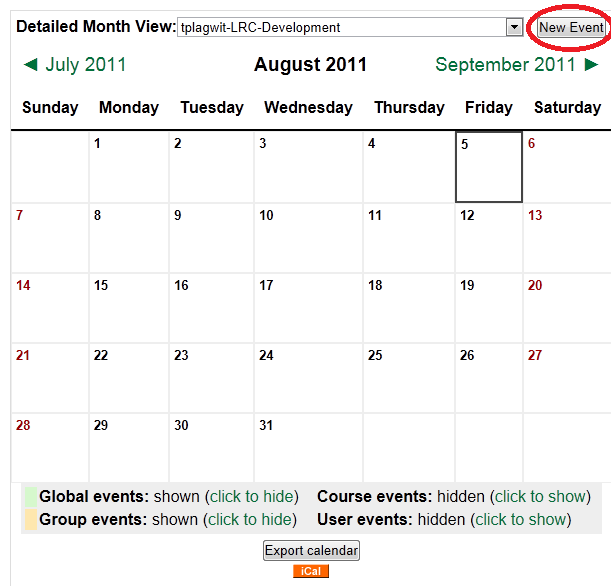
- Other assignments you have to add manually, like so:
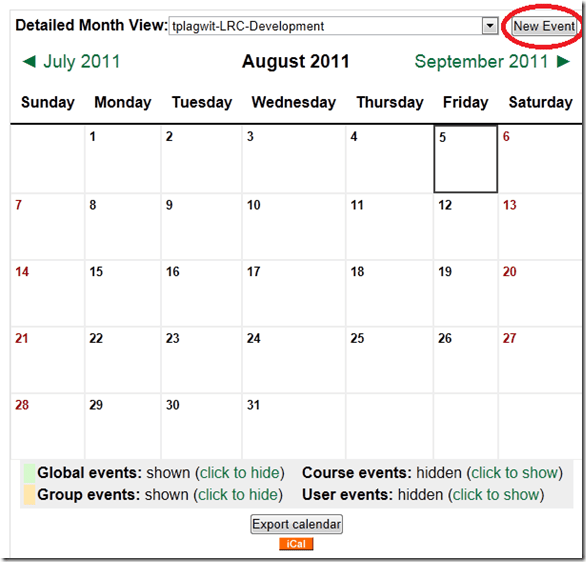

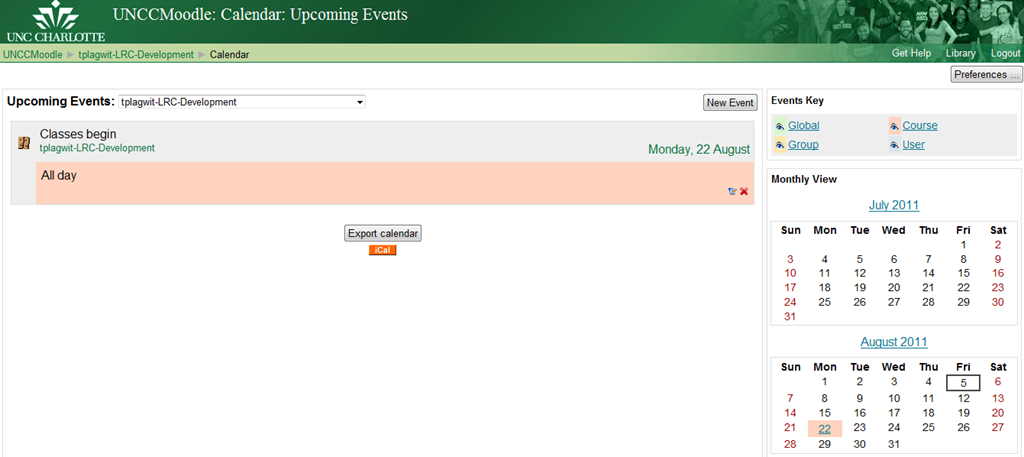
- Resulting in this:
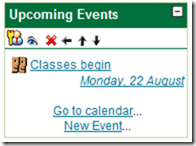 or this:
- Editing your calendar in other applications and importing, even synching it with Moodle is not currently (2.1) supported.
- More on Calendar you can find in the official 1.9 Moodle calendar doc and FAQ.


Moodle Streaming Video Recording Assignment Glitch
Environment: Mac OS 10.6.6, Moodle 1.9, Kaltura TBA, Firefox 3, Flash TBA.
Symptom: As pictured below, when student tries to redo a video assignment submitted previously, by pressing button “resubmit …”, Flash security window pops up, asking for her permission to access the webcam, but won’t accept any input (“pizza of death” spins).

Workaround: Use Safari instead of Firefox.
Lesson to learn: Not only, but especially with computers, be resilient (“Try something else”: modify the sequence of steps, browser version, browser make, operating system, hardware…).
How teachers can more quickly open/update/save their Moodle files from MS-Office
MS-Education Labs has published a plugin that speeds up editing MS-Office Files in Moodle.
To use the plugin, download (for 32-bit Office) , run, and from (2007) Office Button or (2010/2003) Menu: “File”, use menu item “Open from Moodle” (and later “Save to Moodle”).

You have to (once) let MS-Office (e.g. MS-Word or Excel) know the URL of Moodle (e.g. http://moodle.uncc.edu),  , then your login credentials:
  .
.
Note that your categorization of Moodle courses (in the tree menu on the left, all courses are filed away in folders called “Training”) prevents an instant load:  .
.
Instead, search for (part of) your course title:  .
.
Select the results you want to add and click button: “Add”: 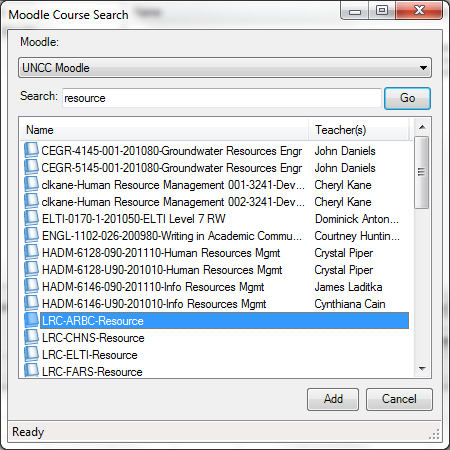 .
.
Wait for the courses to be loaded:  .
.
You can then use the left course tree to browse for matching MS-office files within each of your loaded courses: 
MS-Office files are likely involved in the majority of Moodle edits, so this promises to be a great timesaver.
For more information, see also the CTL’s step-by-step instruction Using the Office Add-in for Moodle.
Successful test of the new streaming video recording assignment for language proficiency assessment in Moodle.
- Video recordings allow for a more authentic assessment of spoken language proficiency. Today, we could test a new Moodle video assignment type for Almut’s Summer II Elementary German II class: Preparing a natural sounding statement on one’s favorite holiday. This Moodle assignment type is an extension to students of the teacher video upload tool using a service Kaltura – we hinted at that earlier.
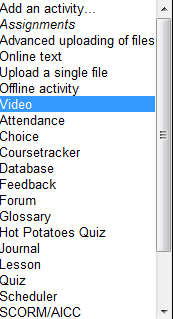
- Teachers, when editing their Moodle course, can find this assignment type in the dropdown: Activity as “Video”.

- The assignment options: Note that creating a video assignment is pretty much the same as creating other assignments in Moodle, and so is grading, except instead of reading, you view the submission, right within the web page.

- An example of guiding questions for a recording assignment is here (topic: holiday, language: German):

- Here is how the teacher sees the student submission in the gradebook.


- Caveat: in Safari, we were not able to close the video popup, after viewing it from the class roster, and could only back out of the entire gradebook. Instead, from the roster, first open the page with the individual student submission, and review the video there on that page:

- For the student experience, see here.
- Further reading: The CTL has a number of step-by-step instructions which we recommend for further reading: Student Video Assignment, and specifically for students: Upload a Video for a Video Assignment; for instructors: Grading Video Assignment Submissions.
- The LRC had originally prepared to record the students with our old, handheld mini-DV cameras, import the movie into iMovie or Windows Movie Maker, then find a way to get the files (with easily identifiable submitter names) to the teachers. Hitherto, our best option was compression of the video to to fit into the Moodle 64MB file upload size limit (which, even if you decide to shoot and produce your video elsewhere and bring it as an uploadable file to the assignment , does not apply to the Video assignment either).
- Preliminary testing seems to indicate that video recording of pairs/dialogues is also possible with the LRC’s webcam setup . However, because of the angle restrictions, capturing such sessions will be less natural.
- Overall, the new Moodle video assignment seems a major improvement for all parties – students, teachers and support –, and can help with more authentic assessment of


Learning Materials eRepositories: Thoughts & Considerations
Cost- and time-saving benefits of learning material eRepositories include:
- sharing and reuse of content for the teacher ad learner
- de-duplication for the IT support
Typical issues I have encountered with learning materials repositories:
- questionable applicability of the software-object-oriented-design (OOD)-derived concept of encapsulated and reusable learning “objects” to highly progressive subjects like language arts;
- also, a not uncommon problem of OOD gone wrong: having a “God-object” vs. SOLID-principled object-design, is even more of a risk with “learning objects”: Don’t they not always tend to be too complex to truly reap the benefits of having a design based on many small encapsulated and reusable objects in software programming?
- licensing & copyright or privacy FERPA restrictions preventing uploads and specialization of interest prevents the network effects which have made the open internet so pervasive (and disruptive to some businesses);
 curation using metadata implementing controlled vocabularies and ontologies , even if crowd-sourced, remains a daunting task for domain specialists for non-librarians, while it has been said to be the secret of librarians:

“als ob er jetzt das Geheimnis dieser Wände aussprechen müßte: ‘Herr General,’ sagt er ‘Sie wollen wissen, wieso ich jedes Buch kenne? Das kann ich Ihnen nun allerdings sagen: Weil ich keines lese!” Weißt du, das war mir nun beinahe wirklich zuviel! Aber er hat es mir, wie er meine Bestürzung gesehen hat, auseinandergesetzt. Es ist das Geheimnis aller guten Bibliothekare, daß sie von der ihnen anvertrauten Literatur niemals mehr als die Büchertitel und das Inhaltsverzeichnis lesen. ‘Wer sich auf den Inhalt einläßt, ist als Bibliothekar verloren!’ hat er mich belehrt. ‘Er wird niemals einen Überblick gewinnen!’” (Robert Musil, Der Mann ohne Eigenschaften)
eRepository implementations I have used:
- Our Moodle instance is still looking for an erepository system to integrate. We are getting some eRepository benefits (easy reuse across courses without need for term-wise recycling/re-upload; de-duplication) by implementing [your language here] metacourses in which we enroll all [your language here] “child courses”
- The equella eRepository is used by NC-LOR, and TBA:I have managed learning materials in it earlier, in conjunction with Blackboard – most recommended (at least then) among educational technologists, but not for the faint of heart, which seems to have limited the faculty adoption (and for which NC-LOR may have been a reference implementation, if I remember correctly). One of the things I did not like about equella when I used it (2006-2008) was the seemingly endless point-and-click-and-WWWait.
- The Blackboard content-system was WebDAV based and therefore, once you had established the connection of your client to the WebDAV share (which MS-VISTA WebDAV updates unfortunately temporarily broke ), featured an extremely user-friendly integration with the MS-Windows shell that allowed for batch-handling of files in a familiar, fast “fat client” interface.
- I was, when it was first released, and its metadata-tagging features advertised by Jon Udell, highly impressed by – and consequently have become an avid proponent of, and much more active photographer itself – MS-Windows Vista (now also in: Live) PhotoGallery which combines intuitive use with great speed . However, requirements for managing and sharing a personal photo and video collection are not nearly as complex as for shared learning materials (although I have also used it managing my personal work ePortfolio).
How to self-enroll in a Moodle course
If a Moodle course is set to allow for self-enrolment (both regular and Project courses here can be), if you go for the first time to this such a course – e.g. by clicking on a link to the course (which we don’t show you here, since we want to give only a select user group to self-enroll in our course) – you will be taken to a logon page (if not already logged into Moodle), and, upon successful login, be immediately offered to self-enroll. Click the “Yes” button and you are taken to your course, like is done in this screencast on self-enrolling in Moodle.
Moodle metacourses, part II: The technology
One of the most missed business requirements for a LMS in version 1 of Moodle has been lack of support for sharing files across courses. This has been addressed by the e-Repository API in version 2 of Moodle, which, however, we will not have in the foreseeable future. In version 1, metacourses have been the most widely used workaround.
The technical concept behind a metacourse in Moodle seems to be best described like so: “A child course gives its [student - TBA:teachers need to be added manually, but fortunately do not change as frequently as students] enrolments [= access to] to the parent course” or meta course, which has no enrolment of its own. In practice, this can go either way: Using metacourses, one can “populate many [meta]courses [= building blocks of content (e.g. chapters, weeks, can even be separate, but required courses with different teachers – TBA: then exclude the teacher role from being added with enrolments, in Admin/Users/User Policies , flexibly combinable to make up a specific version of your regular course] from one enrollment or one [meta]course from many enrollments [= many sectional regular courses that need access to the same content]”. Either assign to many metacourses [= building blocks] 1 child course each, or vice versa assign 1 metacourse many child courses [=sectional regular courses].
For base Moodle version 1.9 administration information, simply watch the first half-minute of this screencast, or read this extract from the Moodle documentation:
“To change a course to a meta course, set "Is this a meta course?" question to yes in the course settings.”

(Note that this option will disappear as soon as the course has an enrolment!)

In your metacourse “you can link [=”associate”] to or unlink from (add or delete) "child" courses by the course Administration menu. This icon and link only appears in meta courses: “

How to make a metacourse visible: “Making a metacourse visible before the metacourse is properly setup can cause Moodle to return ‘This course does not allow public access'(…) Verify that the linked "child" course(s) exists. “
Note: Metacourses may be set to inactive and unavailable to enrolled students until the teacher activates the metacourse.
Note: It takes some time for the meta-enrollment to apply (time depends on the setting for the cron-job).
How to handle metacourse teacher role enrollments: Certain roles can be excluded from being passed on as enrollment from child courses to metacourses. For our shared resource courses, this does not make sense (in the contrary, since any teacher from the child course may want to manage resources contained in the metacourses – this does not to be coordinated between teachers of similar child courses.).
TBA: How to handle metacourse enrollments across terms: Our metacourse shells will stay across the term, while enrollment will be automatically dropped with the child courses “going out of scope”.


Questions? Read the About. Or just ask me a quick Our Databases: Resources with calendars -- Language learning material Moodle Sites, multimedia files -- films


FAQs for LRC student staff or for students or for teachers. To search our FAQs, in the browser addressbar, add after "https://plagwitz.wordpress.com/feed/?tag=faqs+/" "+TAG1" (from tag cloud below) OR "https://plagwitz.wordpress.com/feed/tag=faqs
&category_name=" "CAT1" (from category hierarchy below). OR search both categories and tags, and multiple TAGs/CATs (connect with "," for OR-search, with "+" for AND-search), like so: https://plagwitz.wordpress.com/feed/?tag=TAG1+TAG2+...TAGn&category_name=CAT1
+CAT2+...CATn"
Other ways to find help
If you cannot find it here, look there: 5,500 Language-Learning Links and Programs for learning or teaching 150 languages
Shortcuts:Our Lists, Our Maps, LRC Staff Moodle Site,LRC Project Moodle Site, 49erexpress, UNCC Moodle, Student Recordings: s:claslcslrcsanakostudent
Learning usage samples: Sanako oral exam, Kaltura webcam presentation, Dictation with speech recognition, Sanako written exam, Chinese and Japanese interactive stroke-order practice
Test the Sanako Installer, Webbrowser Popup Konfigurator for XP, or Windows7, faster LRC TeacherPC Log-in Let MS facilitate diacritics writing by installing for you US-International keyboard layout
This is my personal blog (Google+). The views expressed on these pages are mine alone and not those of my employer. The information in this weblog is provided “AS IS” with no warranties, and confers no rights.
 Thomas' Work Space