Archive
Posts Tagged ‘kaltura’
Protected: Mock exam for Spanish combines various learning technologies in the LRC
2012/03/01
Enter your password to view comments.
Categories: audience-is-teachers, classroom-management-system, e-languages, iMacs, learning-usage-samples, Listening, Listening-Stations, lms, LRCRoomCoed434, marketing, multimedia-recording, Photos, Practice&Demos, Reading, service-is-assessing, Spanish, Speaking, Vocabulary
kaltura, moodle, sanako-study-1200, web-browsing-activity
Protected: Moodle streaming video recording assignment glitches 3, 4, 5, 6, 7 & 8: A running log
2012/02/21
Enter your password to view comments.
Protected: Moodle-Kaltura webcam recording assignment results
2012/02/20
Enter your password to view comments.
Categories: assessments, assignments, audience-is-teachers, Beginner, e-languages, German, iMacs, lms, multimedia-recording, Practice&Demos, Speaking, Videos
kaltura, moodle
How to allow resubmitting of Moodle Kaltura video assignments
2011/12/12
Leave a comment
- Students may need a number of tries to complete a Kaltura video recording assignments, especially if they do not take advice to do it in the LRC, with the provided support structure, but overly confident, prefer to try “relying on their own metal”.
- To allow them to learn from their mistakes, one is best advised to allow for resubmission of their assignment.
- If you have not enabled the assignment, click on the assignment on the Moodle course home page – apparently no need to “turn editing on” prior –, and in the upper right corner of the assignment page, click button: “update this assignment”, like so:

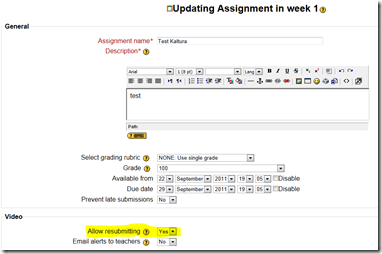
- On the assignment settings page, make sure, “allow resubmitting” is set to “yes”, like highlighted below:


Categories: audience-is-teachers, e-learning, lms
kaltura, moodle
More Moodle Kaltura video assignments here: French
2011/11/30
Leave a comment
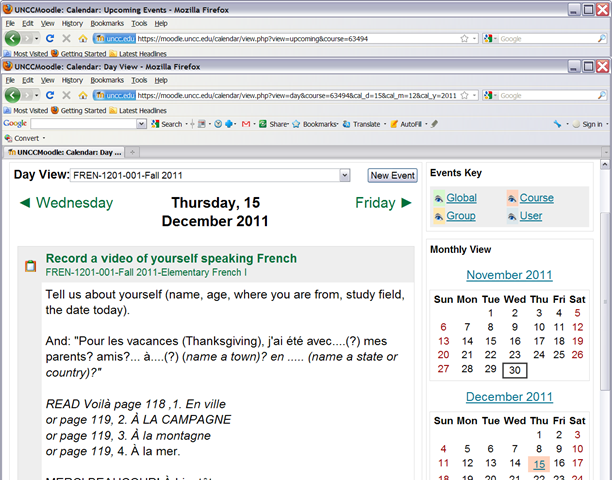
- Yay! You can find the assignment right on your course home page:


- Provided you do not miss the deadline – visit your calendar
 , better load your deadlines into NINERMAIL at term start
 - Come to the LRC to record your Moodle video assignment and practice speaking with our webcams.


Categories: audience-is-teachers, e-languages, French, learning-usage-samples, lms, marketing, multimedia-recording, Speaking
kaltura, moodle, video
How a teacher creates and grades a Moodle streaming video assignment.
2011/11/02
Leave a comment
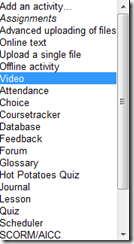
- Click button: “Turn editing on”, from the “add an activity dropdown, choose: “video”, like so:
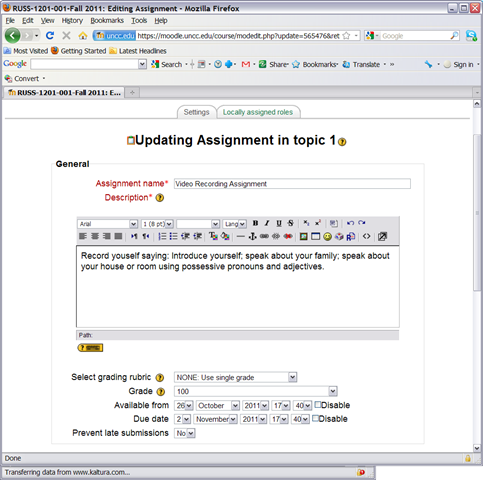
- Edit your assignment, like so:

- using the following options (or else expect problems)
- Due date: not DISABLED (is the default)
- Prevent late submissions: YES (is not the default)
- Allow resubmitting: NO (is the default)
- using the following options (or else expect problems)
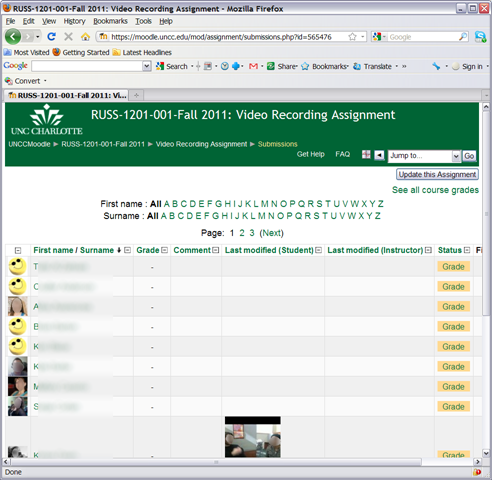
- after you post your assignment and your students took it, like so,
- and if you turned notifications (not recommended; rather grade the assignment well after the deadline, or else expect problems) on (if you get already enough email, remember you can turn notifications off, rather send a deadline to the assignments which the students can see in their calendar, and until they get used to it, tell them there will be more video assignments, best: make it a routine and leave 2 for extra credit could be enough to get everybody to catch), you will get an email like this:

- where you click either on the link (1) to go to the assignment, then click through to the submissions (3)

- or on (2) to go directly to the grade book:

- where you are best advised to click on the button: “grade” to view the video submission, , or else you might run into this bug.
- In the grading window,
 play the video, add helpful comments, if any, add final Grade and click “save and next” (but click “next” if no video submitted yet and you grade before the submission deadline. Better: do not grade before the submission deadline).
 - If video seems unwilling to play (frozen frame), drag the play cursor forward on the timeline underneath the video.
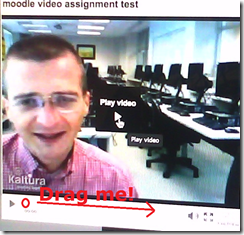 If this does not unfreeze the video, let the timeline run to the end (both workarounds have helped with Kaltura issues we encountered here).





Categories: all-languages, audience-is-teachers, e-languages, lms, Speaking, step-by-step-guides
1.9, kaltura, moodle, video
Moodle Streaming Video Recording Assignment Glitch 2
2011/11/02
Leave a comment
- environment: win xp sp3, firefox 3.6
- If you view the Moodle video assignment from the grade book table, inline, in Firefox 3.6, how do you close the popup window?
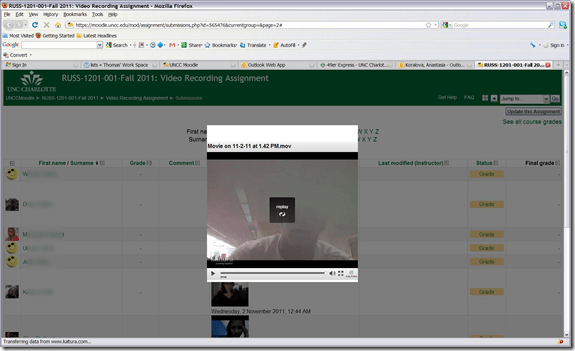
- no hovering around revelaed a close control to us, escape did not help eithe, nor the brwoser back button.
- workarounds:
- copy the url from the address bar, open a new tab, paste the url, close the old tab
- do not view the video in the grade book overview chart, but after opening the individual submission form the grade button.
- try a differnet browser than firefox. on the mac, safari solved a similar problem with firefox and kaltura.

Categories: audience-is-teachers, Glitches&Errors, lms, websites
kaltura, moodle, video
How a Student takes a Moodle Video Assignment in the LRC
2011/09/22
2 comments
- On one of the LRC iMacs, in the Safari web browser (open new window with COMMAND-key+n),
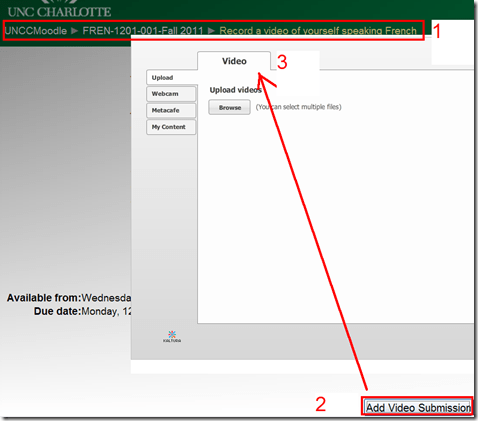
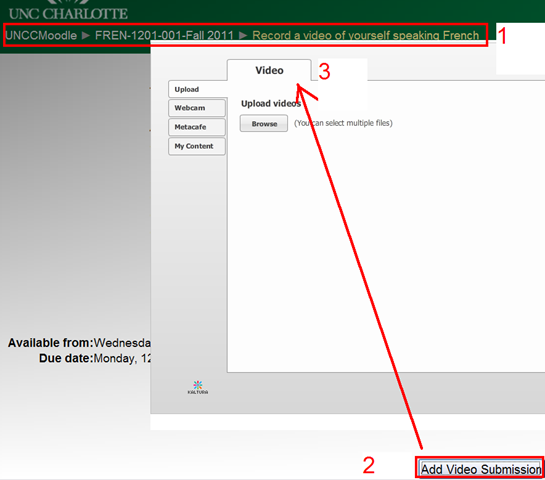
- go to your Moodle course, (1) find the video Assignment, read the assignment instructions (what your teacher wants you to record). Then click underneath the (2) button: “Add video Assignment”, to open the (3) submission window:
- Note that she will also have to allow the flash player to interact with her webcam first.
 If you see no web cam video window, only a black frame, read in.
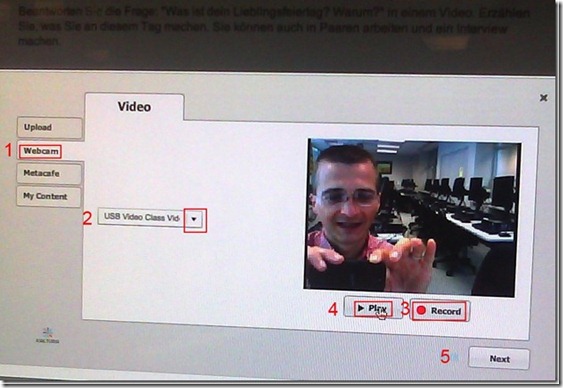
- In the submission window, choose the tab “Webcam” (1), use the dropdown to select the camera hardware (2).

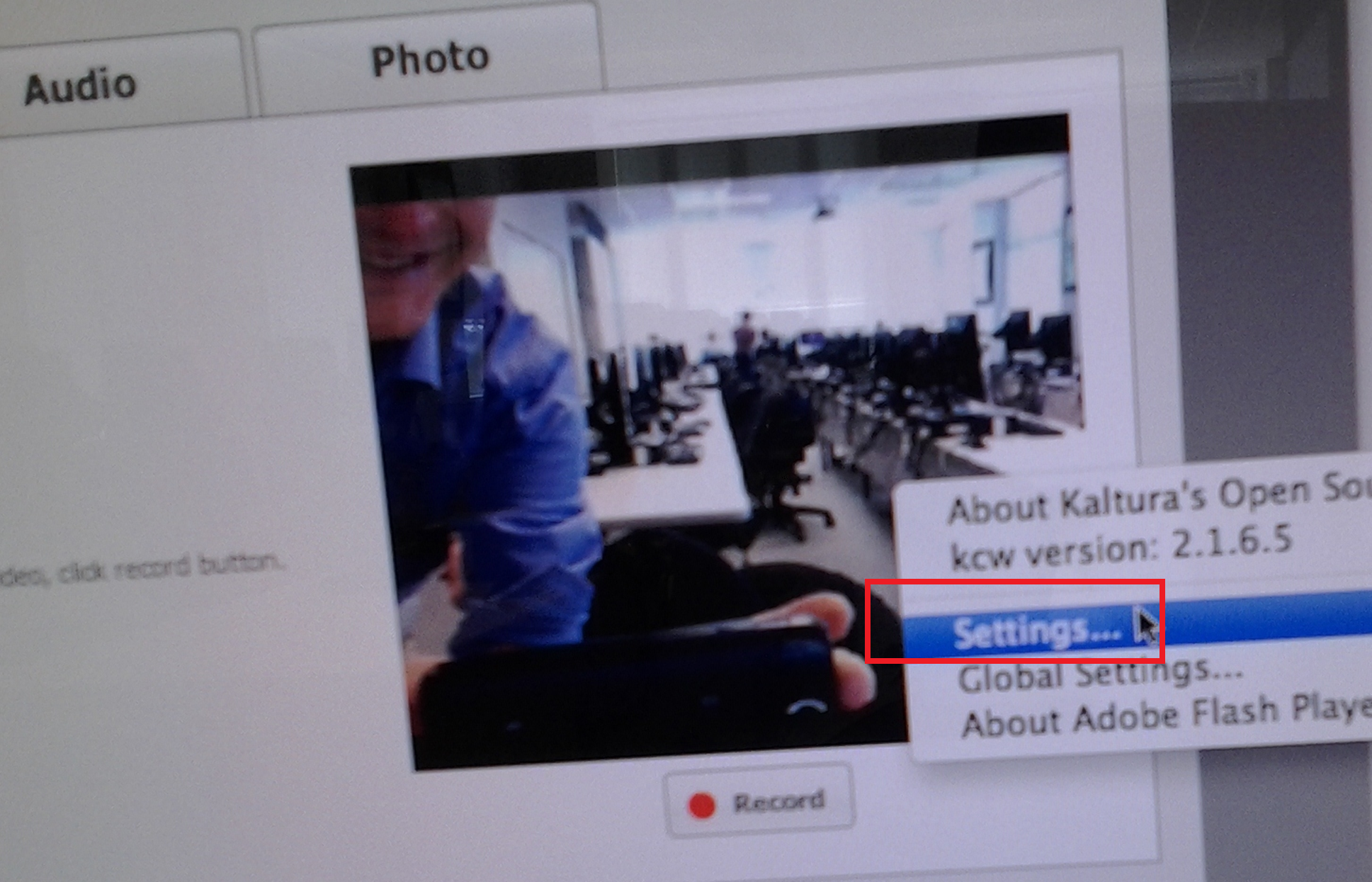
- Check the headset microphone audio: The external headset microphone on the iMacs did not work., but now it does, provided you do this: control-click on Flash’s a video preview window (= the window where you see yourself like in a mirror) for the web camera, and click on “settings”.
-

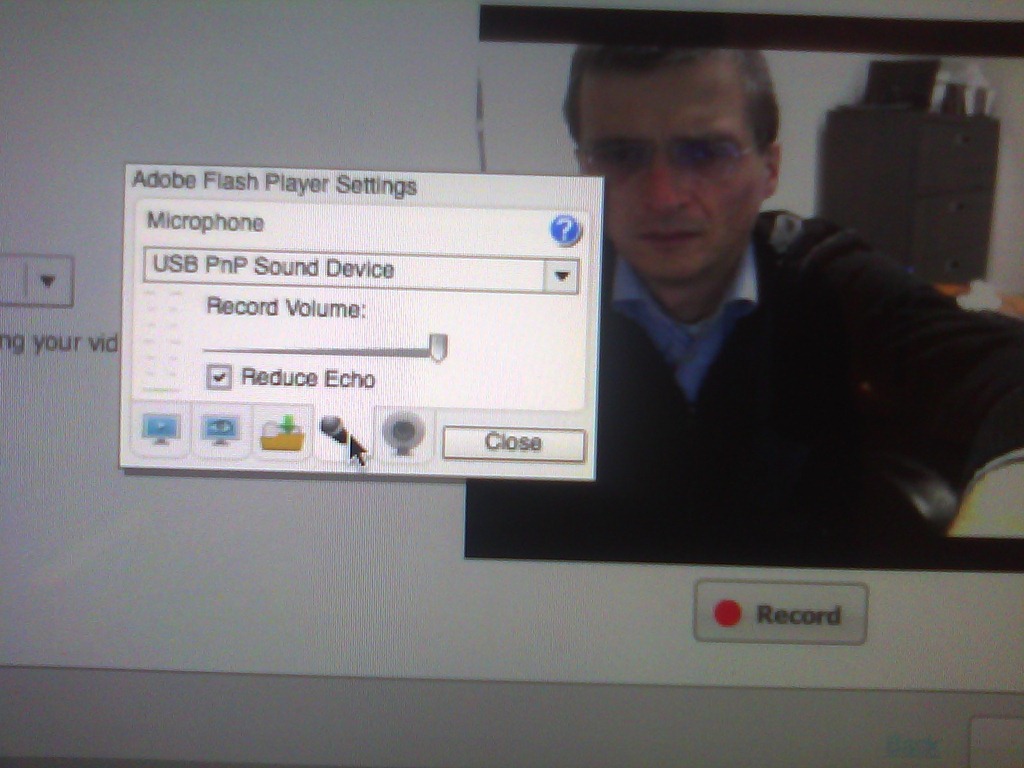
- Click on the microphone icon :

- Make sure the USB PnP device is selected.

- You can bring up the settings dialogue, make sure the USB PnP device is chosen for audio and CRANK up the microphone input sensitivity! Then, by tabbing (don’t speak yet) on the headset microphone, test the volume levels with the built-in volume meter (should show lots of green bars when you tab). Unlike in the picture, do not choose “reduce echo ”.
-
- Start (3) the video recording.
- Afterwards, the student can review (4) her submission.
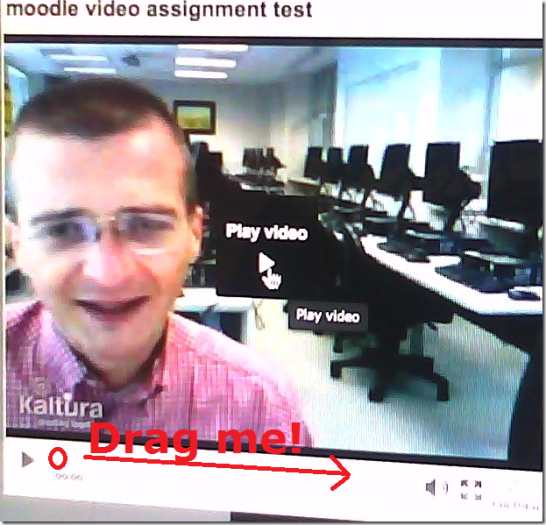
- If you don’t like your first recording, (3) “record” over it and review again with (4) “Play”. If you do this and the video appears frozen, drag the timeline cursor forward to get the re-recorded video to play. If this does not seem to work, you are likely still able to submit your 2nd attempt, just not review it again.
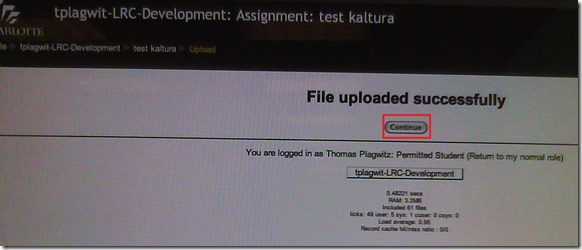
- Click through all the “Next”etc. buttons:
-


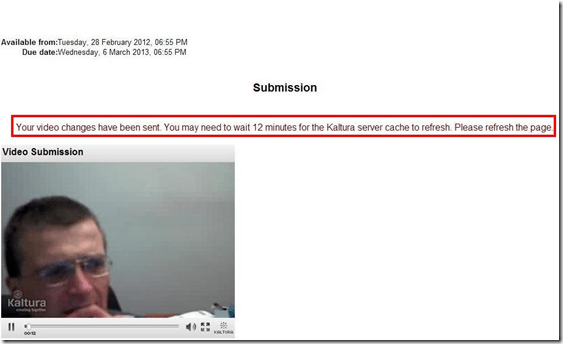
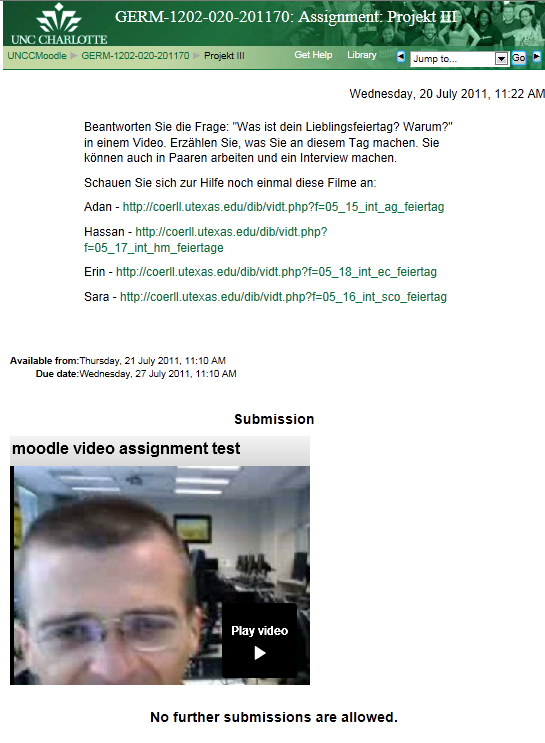
- until you get to the feedback page for the student (caveat: in IE9, the video does not fit into the frame provided on the page).

- Note, it warns you to be patient now:
-
- LRC support:
- Depending on your hardware (webcam), software and network support, you can record your language speaking video assignments on any device that has a webcam and a browser that supports flash – and even more devices, if you are willing to post process and upload the video clip.
- If you run into problems or want to use a tested setup, we recommend using the LRC. Since our PCs have no built-in or added webcam (proposed), we can currently only use our 5 8 iMacs (see LRC Layout, see Classroom Calendar and iMacs Calendar for availability). Our (limited) tests worked better in Safari than Firefox.





Categories: Arabic, assessments, audience-is-students, e-languages, English, Farsi, French, German, Greek (modern), Italian, Japanese, Korean, Latin, Mandarin, Polish, Portuguese, Russian, Spanish, Speaking, step-by-step-guides
audio, kaltura, moodle, recording, video


Questions? Read the About. Or just ask me a quick Our Databases: Resources with calendars -- Language learning material Moodle Sites, multimedia files -- films


FAQs for LRC student staff or for students or for teachers. To search our FAQs, in the browser addressbar, add after "https://plagwitz.wordpress.com/feed/?tag=faqs+/" "+TAG1" (from tag cloud below) OR "https://plagwitz.wordpress.com/feed/tag=faqs
&category_name=" "CAT1" (from category hierarchy below). OR search both categories and tags, and multiple TAGs/CATs (connect with "," for OR-search, with "+" for AND-search), like so: https://plagwitz.wordpress.com/feed/?tag=TAG1+TAG2+...TAGn&category_name=CAT1
+CAT2+...CATn"
Other ways to find help
If you cannot find it here, look there: 5,500 Language-Learning Links and Programs for learning or teaching 150 languages
Shortcuts:Our Lists, Our Maps, LRC Staff Moodle Site,LRC Project Moodle Site, 49erexpress, UNCC Moodle, Student Recordings: s:claslcslrcsanakostudent
Learning usage samples: Sanako oral exam, Kaltura webcam presentation, Dictation with speech recognition, Sanako written exam, Chinese and Japanese interactive stroke-order practice
Test the Sanako Installer, Webbrowser Popup Konfigurator for XP, or Windows7, faster LRC TeacherPC Log-in Let MS facilitate diacritics writing by installing for you US-International keyboard layout
This is my personal blog (Google+). The views expressed on these pages are mine alone and not those of my employer. The information in this weblog is provided “AS IS” with no warranties, and confers no rights.
 Thomas' Work Space