Archive
Posts Tagged ‘gradebook’
How a teacher can easily grade a NanoGong audio recording assignment in Moodle
2013/10/17
Leave a comment
- Similar to grading video recording assignments with Moodle Kaltura, You can enter in 2 ways:
- By clicking on the assignment like your students:
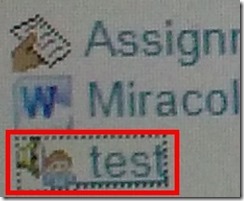
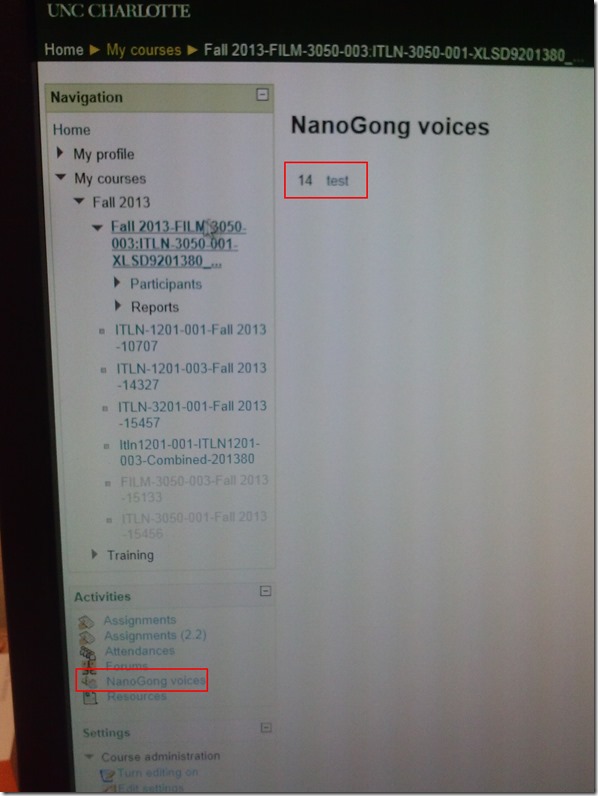
- Or by clicking on Activities: NanoGong Voices
- By clicking on the assignment like your students:
- Before you make it to the assignment page and can see the NanoGong plugin, you may have to bypass some Java warning dialogues.
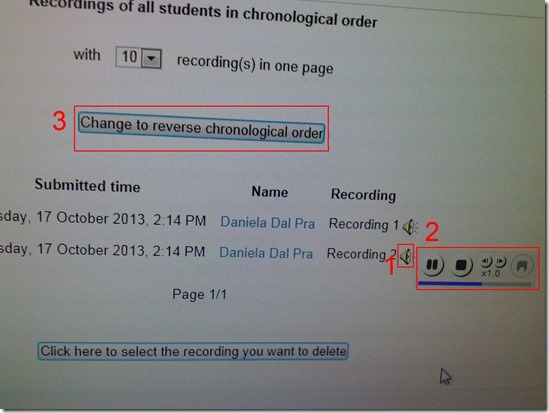
- On the assignment page:
- Click (1) speaker symbol for the recorder control to show up.
- You can also
- enter (1) feedback
- or (2) re-sort the submissions – we had to click this once for the recordings to actually shows up (seems to refresh the page).

- I have not had the chance to see the results in the Gradebook, but here are some screenshots from blogs of users that have:

- Click (1) speaker symbol for the recorder control to show up.


Categories: assignments, audience-is-teachers, grading, lms, multimedia-recording, recording-software
audio, gradebook, moodle, nanogong
How to batch download all submissions as a zip file from a Moodle: Gradebook File-upload assignment column.
2013/03/01
Leave a comment
- I have no file upload assignment with submissions handy in my own Moodle course, so I am patching this together from other universities (thanks, umass.edu, cotc.edu).
- “ Another time saver you can use is the Download all assignments as a zip link. This will package all uploaded documents from any submissions in the assignment into
a zipped folder that you can download. Once downloaded, you can unzip the file and access each paper. This can be a real time saver!”. Image: 
- Extra: This procedure will add the student’s name to the file. No more wading through submitted audio files named by students trying to identify submitters.
Categories: e-learning, grading, lms
automation, batches, file-upload, files, gradebook, moodle
How to navigate your Moodle gradebook more easily by hiding columns
2012/02/09
Leave a comment
- Clicking on the minus-icon next to aggregate columns will hide the assignments in this category; clicking the plus-icon will unhide:

- before (wide)

- after (narrow, better overview)


Categories: audience-is-teachers, documentation, e-learning, lms
gradebook, moodle
How to do writing assignments in Moodle with deadlines, file and response file upload and MS-Word tracked changes
2012/01/20
Leave a comment
- Benefits
- Keep the cohort in shape and focus it on studying by enforcing deadlines.
- You can have students automatically receive reminders of the upcoming deadlines from their calendar (in NINERMAIL, no need to even look at the Moodle Calendar)
- You can save time managing the assignment.
- Moodle does it for you; you will save even more time once you begin recycling your assignment across terms) and rather provide more timely feedback, and improve changes that your feedback arrives during a teachable moment.
- Automatic email notifications, which are available in Moodle for teachers (if you do not prefer to grade student submissions in a batch) and students to (automatic correction and grading is not ready for prime-time when it comes to essay writing; you may however consider teaching some more basic writing skills using it with close-exercises in Moodle).
- Costs
- You need to TBA:create a Moodle file upload assignment for writing (once)
- You need to grade a Moodle file upload assignment for writing (any time you assign; depending on your preference as submissions arrive or conveniently as a batch from the gradebook past the deadline)
- I prefer the MS-Word reviewing features for grading writing assignments,
- but other tools have other affordances, e.g. like recently described here for Adobe Acrobat Professional.
- Moodle does not automatically add unique usernames to student submitted files like Blackboard. It also does not afford the TBA:convenience of a shared network storage that the WebDAV-based Blackboard Content system provides. However, as long as you do not need to maintain a local archive of student submissions, you can rely on the Moodle gradebook managing the archive of assignment files (student submissions and teacher response files).
- How? These 4 posts guide you through the entire workflow from teacher to student back to teacher to student:
Categories: assignments, audience-is-teachers, e-languages, lms, office-software, Writing
1.9, gradebook, moodle, MS-Word, reviewing, simple-file-upload
How to view all assignments per student in a Moodle course
2012/01/18
Leave a comment
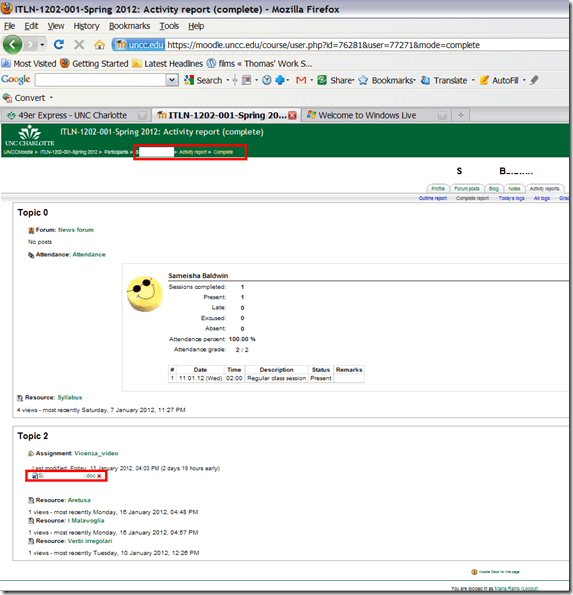
- follow the screencast from the gradebook, clicking on a student name in the row headers, “ activity reports”, “complete report” (plays in Windows media player on Windows).
- to get this (note the breadcrumbs on top pointing to “ Reports” / “ Complete” )):

Categories: audience-is-teachers, lms
1.9, gradebook, moodle
A better way to do student homework audio recordings in the Sanako LAB 300, using Blackboard:Assignment
2010/03/08
Leave a comment
-
More robust than the more common way using the default network shares of a Sanako Lab 300 – to my knowledge, up to this day Sanako Labs lack any integration with the LMS/VLE regarding the upload of student output – is using the assignment tool of the VLE which provides integration with the Student Information System and an entire infrastructure for assessment purposes (gradebook and beyond).
-
I know that some teachers use Blackboard email with attachments for assignments, others the blackboard drop-box. Some, including me, use the assignment tool which, since it appears to be far superior to the older tools, this post would like to advertise.
-
The assignment tool automatically creates a grade center column.
-
You can batch download student file submission (papers or recordings) and blackboard assignment tool puts the assignment name and the username in the file name for easier management,
-
and you can upload a graded version to return assignments to the student and include comments.
-
You can also create comments for the instructors only to view.
-
Faculty can also use track changes and insert more fine-grained comments and corrections within MS-Word.
-
-
Here are the parts of this series:
-
How the student reviews a grade Blackboard audio recording assignments: TBA.
Categories: assignments, digital-audio-lab, e-learning, lms, multimedia-recording
blackboard, gradebook, sanako-lab-300


Questions? Read the About. Or just ask me a quick Our Databases: Resources with calendars -- Language learning material Moodle Sites, multimedia files -- films


FAQs for LRC student staff or for students or for teachers. To search our FAQs, in the browser addressbar, add after "https://plagwitz.wordpress.com/feed/?tag=faqs+/" "+TAG1" (from tag cloud below) OR "https://plagwitz.wordpress.com/feed/tag=faqs
&category_name=" "CAT1" (from category hierarchy below). OR search both categories and tags, and multiple TAGs/CATs (connect with "," for OR-search, with "+" for AND-search), like so: https://plagwitz.wordpress.com/feed/?tag=TAG1+TAG2+...TAGn&category_name=CAT1
+CAT2+...CATn"
Other ways to find help
If you cannot find it here, look there: 5,500 Language-Learning Links and Programs for learning or teaching 150 languages
Shortcuts:Our Lists, Our Maps, LRC Staff Moodle Site,LRC Project Moodle Site, 49erexpress, UNCC Moodle, Student Recordings: s:claslcslrcsanakostudent
Learning usage samples: Sanako oral exam, Kaltura webcam presentation, Dictation with speech recognition, Sanako written exam, Chinese and Japanese interactive stroke-order practice
Test the Sanako Installer, Webbrowser Popup Konfigurator for XP, or Windows7, faster LRC TeacherPC Log-in Let MS facilitate diacritics writing by installing for you US-International keyboard layout
This is my personal blog (Google+). The views expressed on these pages are mine alone and not those of my employer. The information in this weblog is provided “AS IS” with no warranties, and confers no rights.
 Thomas' Work Space