Archive
Location of the Language Resource Center (LRC) on the UNCC Campus Map

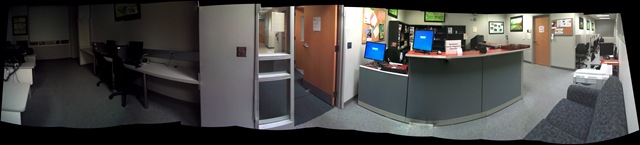
We are across from Student Union, in the COED building with Languages and Culture Studies (LCS), top floor – look for the banners on the wall.
How to power on iMacs
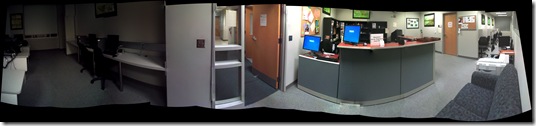
- How to turn on: look for the power-button which has been placed on on the rear. Can’t jump on the table? Here is a photo:


How to download videos from YouTube.com, and other video sites
- Don’t know what this institution recommends – here is a list of software that I have accumulated over time – I stopped a while ago, since there is always something newer coming out - try googling what is currently most popular.
- http://www.viloader.net/addon.htm: You have to click on download, and save the file with the name you want and in the end you have to add .flv that its the video format. Then when the video has been saved to your PC you have to convert the video in a comercial format like wmv, mpg, etc. or download a flv player to be able to see the videos.
- Youtube Catcher can download videos from Youtube, Google Video, Myspace Video, Yahoo video Dailymotion Stage6 Veoh. The downloaded videos can be exported to various formats like MPG,AVI, MP4,3GP, 3G2, WMV, PSP, MOV, FLV with the quality you choose: http://www.teknobites.com/2007/08/23/youtube-catcher-youtube-and-other-video-downloader-tool/
- zamzar.com
- http://userscripts.org/scripts/show/25105,
- http://www.googlewatchblog.de/2008/04/13/youtube-video-als-mp4-herunterladen/
- MPEG Streamclip can download YouTube files. They are always opened or downloaded in MP4 (MPEG-4) format, so they can be used in MPEG Streamclip.
- this works well as of 8/17/2009 1.Go to http://edtech.nwresd.org/?q=node/157 . You will see the words ""download script"" (in blue – a hyperlink). Right click on that text and then on ""Bookmark this link"" (at least that’s what it says using Mozilla Firefox as a browser). You can move this bookmark within your Bookmarks or Favorites Folder wherever you want. 2.Go to YouTube and locate a video you want to save. While the video is actually playing, go to your Bookmarks Folder and click on the ""download script"" link you saved there.3.Next look in the right hand column on the screen – to the right of the video playing. Just below the section that says URL, and EMBED (right below URL) you will see a text that says download as MP4. 4.Right click on that text and then click on SAVE LINK AS. You can choose where you want the file to be saved and you can even rename the file (for me the default name is ""video""). Just to be sure I’d let the video play to the end before checking to see if it actually where you put it.
-
if (document.getElementById(‘download-youtube-video’)==null && !!(document.location.href.match(/http:\/\/[a-zA-Z\.]*youtube\.com\/watch/))) {var yt_mp4_path=’http://www.youtube.com/get_video?fmt=18&video_id=’+swfArgs%5B‘video_id’%5D+’&t=’+swfArgs%5B‘t’%5D; var div_embed=document.getElementById(‘watch-embed-div’);if(div_embed){var div_download=document.createElement(‘div’);div_download.innerHTML=’ <br /><span id="\’download-youtube-video\’"><a href="\”+yt_mp4_path+’\’">Download as MP4</a> ‘+ ((navigator.userAgent.indexOf(‘Safari’)!=-1)?'(control-click and select <i>Download linked file as</i>)’:(‘(right-click and select <i>Save ‘+ (navigator.appName==’Microsoft Internet Explorer’?’target’:’link’) +’ as)</i>’))+’</span>’;div_embed.appendChild(div_download);}}void(0)
-
- Updates for the the 2013/4 academic year:
- YouTube Center, includes download functionality, more on YouTube center here.
- Orbit downloader:
- Claims to be a generic downloader, and looks complicated enough to convince me of that
 .
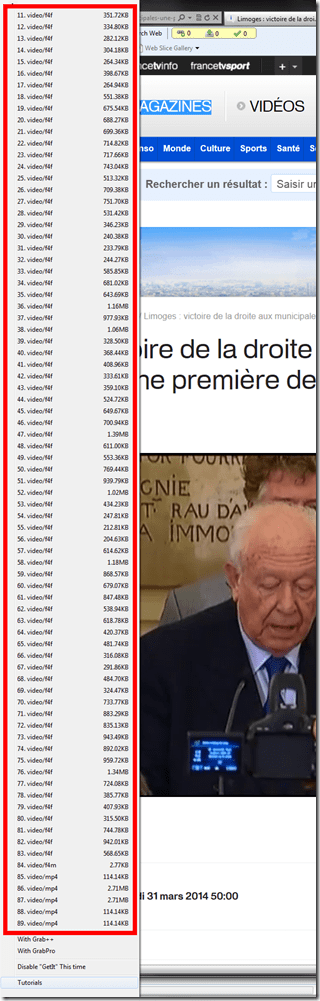
. - However, I did not have any luck here, at least I did not find a practical (=automated) way to cobbling these clips together (are media outlets, even if they are under non-US legislation and trying so hard, still bound by the fair use legislation?):
- Also changes your browser home page without asking – I can’t say I like the territory I get myself into with these teacher download requests.
- Claims to be a generic downloader, and looks complicated enough to convince me of that

How we provide more computer support for walk-up clients at the LRC reception desk
- We have set up 3 PCs at the reception desk. They all contain an exactly identical software configuration (based on Symantec Ghost imaging and Faronics Deepfreeze).
- Except that two (we could not get hold of another monitor) have a secondary screen connected that can extend the Windows Desktop, or mirror it (use CTRL-ALT-F11 and CTRL-ALT-F10 to switch between the modes of the )

- To aid in this communication over the counter, press CTRL-2 to freeze and on the screen (uses MS-ZoomIt) which helps when pointing out screen elements.
- So that LRC staff and clients can both use the university’s most important web applications, the computers have been configured to automatically launch a number of web browsers on startup, and within each browser, open a number of home pages with(LRC website, Moodle, NINERNET, faculty&staff Mail, WordPress, Excel Web App with he LRC databases for hardware, software, media and learning materials inventories). (When done, instead of closing the browser, use the “sign out” link of each web application).
- As a reminder, the most basic instructions (with keyboard shortcuts) have been posted on both primary and secondary monitor.
- Can we also implement a screen sharing solution allowing for MS-remote assistance, to enable reception desk LRC staff to escalate client questions they cannot resolve, like our IT department?

How to use the LRC Room Coed 434 Teacher Computer
- Teacher podium
- Even though the teacher computer may have 2 screens, log in as normal: Follow the instructions on the screen (press CTRL-ALT-DEL and enter your credentials).

- Also check our instructions for using the dual screen on the teacher computer.
- Even though the teacher computer may have 2 screens, log in as normal: Follow the instructions on the screen (press CTRL-ALT-DEL and enter your credentials).
- Connected computer to the right of the podium
- If you see this “Computer has been Locked” message, try and get hold of the person whose account name appears as the last logged in user when you press CTRL-ALT-DEL, to unlock the computer. If you cannot get hold off the person, or of somebody with an administrator account, you have to restart (power cycle) that computer.
- If the screens are black and do not come on when you move the mouse and type on the keyboard, turn that computer on using the Power button in front.
- If you want to use a CD, DVD, thumb drive, insert it into that computer.
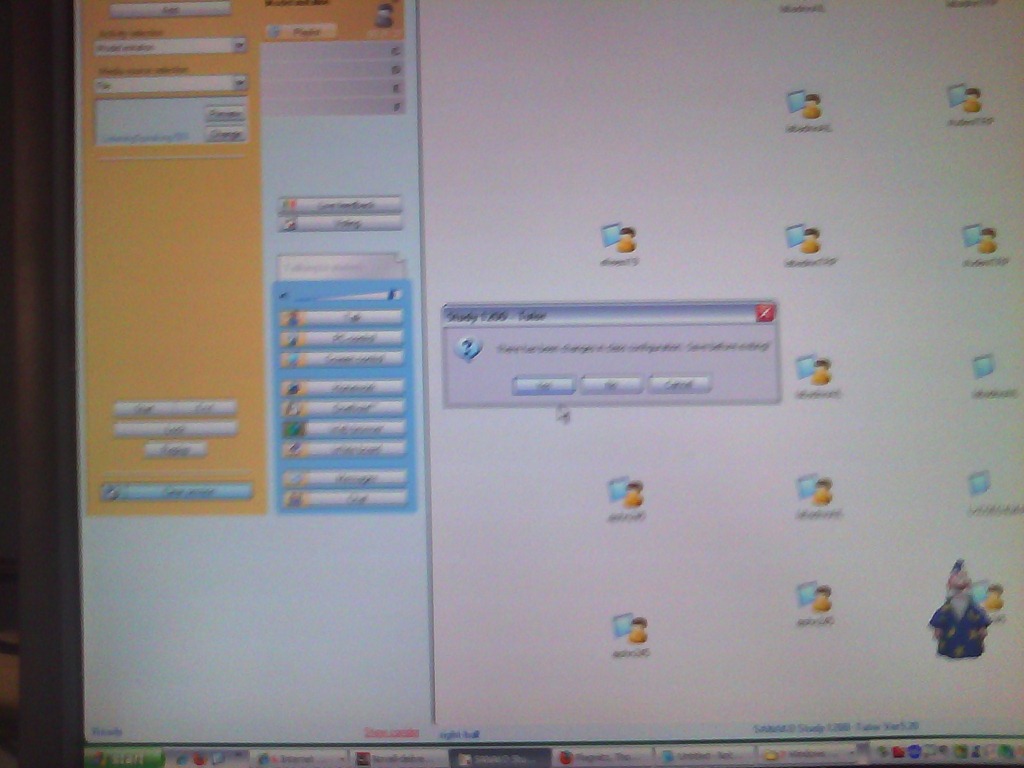
- If you get this message when closing the Sanako Study1200, say “no”.

Protected: Exchange 2010 Resource Mailboxes: Running Log
Printing Problems in the LRC
- One problem
- Printer printing garbage like this?
_thumb.jpg "CIMG0002 (2)")
- To fix it, try power-cycling the printer
- Another problem
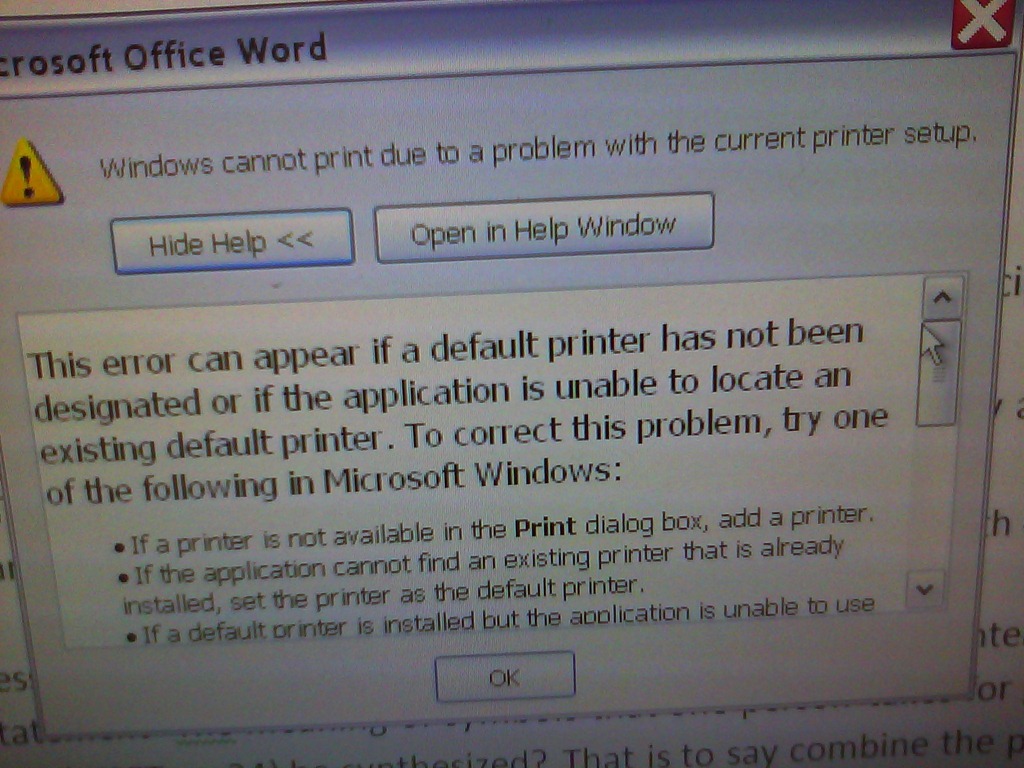
- Received this error, repeatedly with students trying from different LC computers.

- Until I told her to save the document (I thought she was authoring it), log out and log in on a different computer. Then miraculously she could print.
- Now I am left wondering: Did she open the document, maybe from Moodle, in her web browser, and the MS-Word browser plugin is not set up to print too our printer. Would be not a solution, but a workaround for this situation.
[3].jpg "CIMG0002 (2)")
How to allow students to reply to News Forum posts in Moodle
- E.g. with this: “I have seen this post. I have followed the instructions. It worked for me.”

- Answered here: http://moodle.bath.ac.uk/faq/content/12/182/en/can-students-reply-to-news-forum-posts.html
- Does not work in our installation which is being investigated – maybe with good reason: I every study is forced to subscribe and can respond, their tend to be email floods which rather hide than surface important information.
- Workaround:
- Hide the news forum;
- create a regular Moodle Forum, where students can respond by default
- ask your users to read it and maybe monitor reading with tracking
- do not force them to subscribe = receive email
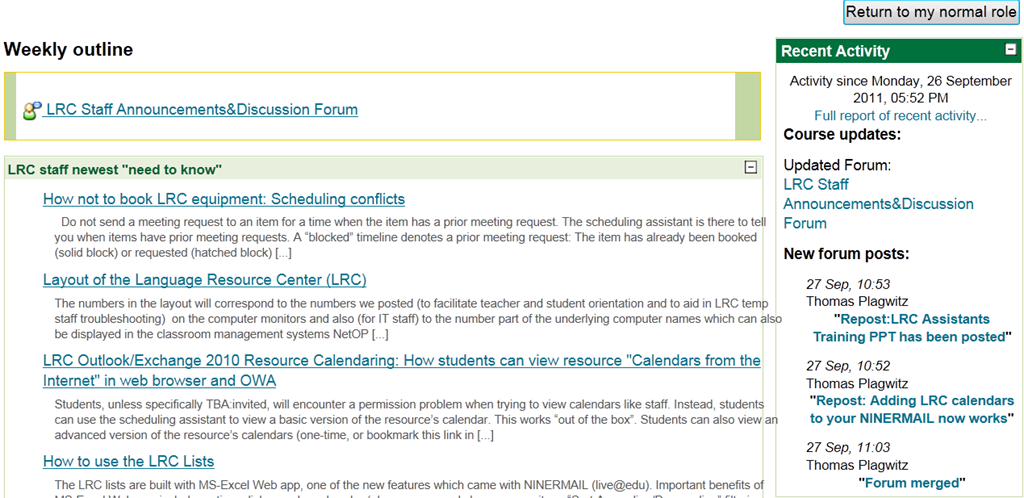
- I also hid the “Latest News” block, in the hope that the “Recent Activity” block can replace it:



Questions? Read the About. Or just ask me a quick Our Databases: Resources with calendars -- Language learning material Moodle Sites, multimedia files -- films


FAQs for LRC student staff or for students or for teachers. To search our FAQs, in the browser addressbar, add after "https://plagwitz.wordpress.com/feed/?tag=faqs+/" "+TAG1" (from tag cloud below) OR "https://plagwitz.wordpress.com/feed/tag=faqs
&category_name=" "CAT1" (from category hierarchy below). OR search both categories and tags, and multiple TAGs/CATs (connect with "," for OR-search, with "+" for AND-search), like so: https://plagwitz.wordpress.com/feed/?tag=TAG1+TAG2+...TAGn&category_name=CAT1
+CAT2+...CATn"
Other ways to find help
If you cannot find it here, look there: 5,500 Language-Learning Links and Programs for learning or teaching 150 languages
Shortcuts:Our Lists, Our Maps, LRC Staff Moodle Site,LRC Project Moodle Site, 49erexpress, UNCC Moodle, Student Recordings: s:claslcslrcsanakostudent
Learning usage samples: Sanako oral exam, Kaltura webcam presentation, Dictation with speech recognition, Sanako written exam, Chinese and Japanese interactive stroke-order practice
Test the Sanako Installer, Webbrowser Popup Konfigurator for XP, or Windows7, faster LRC TeacherPC Log-in Let MS facilitate diacritics writing by installing for you US-International keyboard layout
This is my personal blog (Google+). The views expressed on these pages are mine alone and not those of my employer. The information in this weblog is provided “AS IS” with no warranties, and confers no rights.
 Thomas' Work Space