Archive
Posts Tagged ‘calendaring’
LRC Fall 2013 announcements
2013/08/16
Leave a comment
- The LRC has upgraded to Windows 7 and Office 2010.
- Benefits:
- Your students can use the computer interface from the default English to about 20 languages, including non-Western.
- Your students can also use speech recognition (in English, French, German, Japanese, Mandarin, and Spanish), e.g. for dictation exercises (Example videos: very bad French, decent German). Students can train the computers to their voice and take their training data with them. I’d love to explore with you possibilities for pronunciation practice with automated intelligent feedback .
- Your students can use old and new MS-Office Proofing tools.
- Caveat: W are still trying to restore some former functionality (e.g. no Google Arabic, Farsi and Russian IME etc.). Please bear with us while we deal with the new college tech infrastructure.
- Benefits:
- The LRC has upgraded its Sanako digital audio lab software.
- Because of budgetary constraints, our software agreement had to end with version 5 . This summer, the vendor presented us with a free upgrade to version 7, with compliments for my blog posts about using the Sanako.
- Benefits: We decided to implement the upgrade lest you and your students need relearn in the middle of the academic year and since Version 7 adds valuable language learning : which I would love to explore with you: Vocabulary exercises and Pronunciation exercises which make use of the computerized text-to-speech capabilities we just implemented with windows 7
- Caveats:
- We are still trying to restore the old Sanako configuration. E.g. Pairing recording is not working currently.
- I hope to upgrade my LanglabEmailer software to support the new version after the term is underway.
- For students attending distance classes with Saba Centra in the LRC, microphone audio on listening stations fixed, no more 30 minute delay when joining class.
- UNCC is upgrading to Moodle 2. The CTL is investigating how the LRC Metacourses for audio materials I created can be converted to Moodle 2. If you need the audio materials from the metacourses, we can help you upload them into your individual courses temporarily.
- Classroom AV: We found a temporary workaround for the projector image quality and are investigating permanent solutions. Currently no VHS video and doc cam display during classes (we would love to scan your text anyway and distribute them digitally).
- LRC Calendars and Booking:
- In the LRC Room and Equipment List, your will notice some new film studies equipment (calendars requested from ITS).
- We added new calendars to the Quicklinks on LRC home page : Tutors and LRC assistants. Please keep checking how we fill these open positions over the next few weeks, and use the help they can offer you.
- When booking, you can
- get help at the LRC reception desk;
- book yourself from anywhere,
- or have your “delegate” book (planned; setup requested from ITS).
- I will continue next week with the biweekly Sanako Clinic to aid teachers with their LRC class preparation. Please consult the LRC calendar if you want to drop in, or reschedule one with me for your needs.
- I am also offering LRC introductions for your class during the week 2 and 3 on a “first-come, first-served” basis, and à la carte (I suggest consulting a one-sheet menu with an overview of LRC facilities that I am preparing.) Please let me know if you are interested.
How to share your calendar from Outlook (desktop)
2013/08/15
Leave a comment
- Click “Share Calendar”:

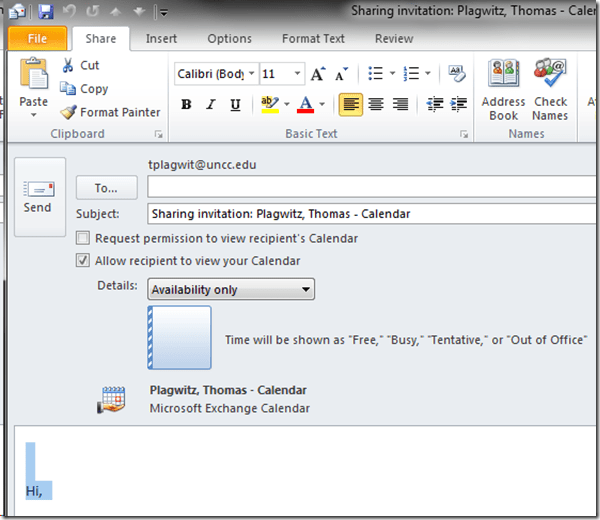
- Choose your settings, then click “Send”:
- Or you could just rely on the campus default and have colleagues use the “scheduling assistant” in the “meeting request”,
- After adding participants

- their calendars can be seen – in timeline format, good for comparing availability of multiple meeting participants –after you click on ribbon item: “scheduling assistant”.

- In current OWA., “meeting request” and “scheduling assistant” look a bit different from/reduced (including permissions) compared to Outlook, as you can see here e.g..


Categories: audience-is-teachers, e-infrastructure, office-software
calendaring, ms-exchange, outlook, scheduling, sharing
How to publish an OWA calendar to the internet
2013/07/31
Leave a comment
- For lack of PowerShell access, we have to:
- sign in as the resource :

- “click on publish” in the calendar’s context menu:

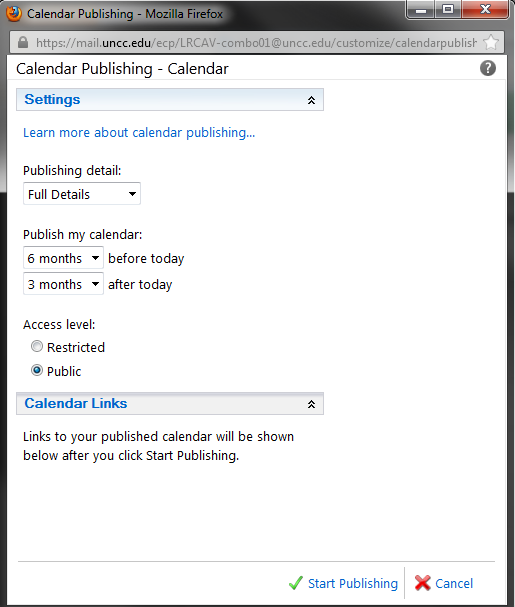
- choose these settings
 ”
”
- we do a lot of forensics and statistics, looking back throuhg the term, which is longer back than 3 months
- students do not need to book ahead at the beginning of the term for end-of-term projects, so we do not need 6 months forward;
- Result:
 .
.



Summary of the LRC main classroom use in year 2012/3
2013/06/22
Leave a comment

(Tentative while experimenting with Calendaranalytics).
Summary of my work calendar in year 2012/13
2013/06/22
Leave a comment

(Tentative while experimenting with Calendaranalytics).
Categories: Analytics, Charts, Metrics, reports, Visualizations
calendaring, ms-calendaranalytics
First results with MS-Calendar Analytics for learning center management
2013/06/22
Leave a comment
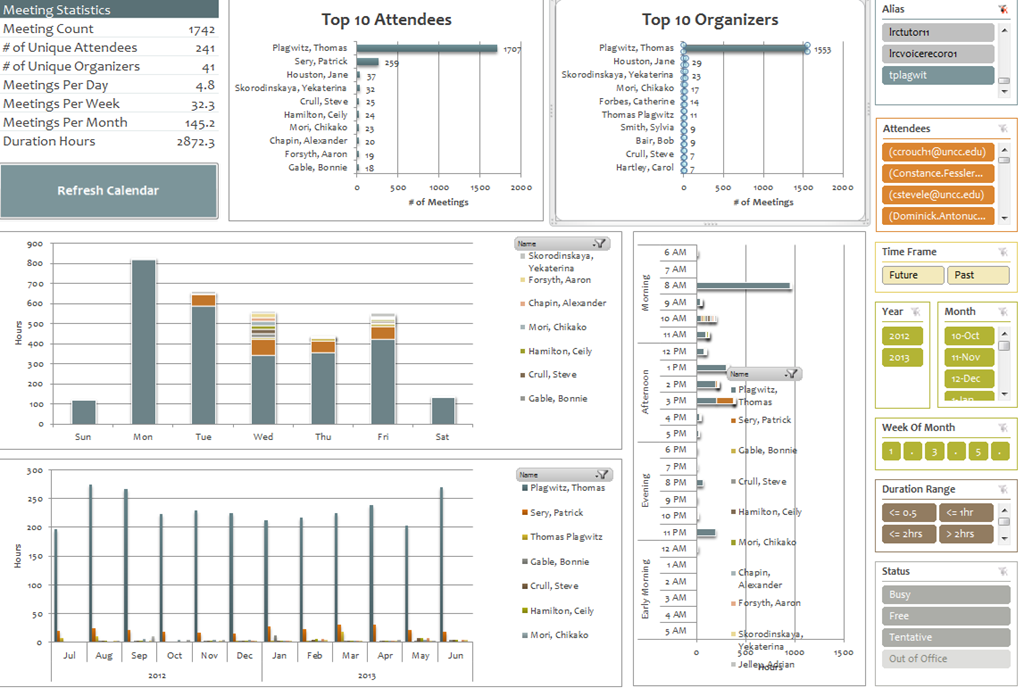
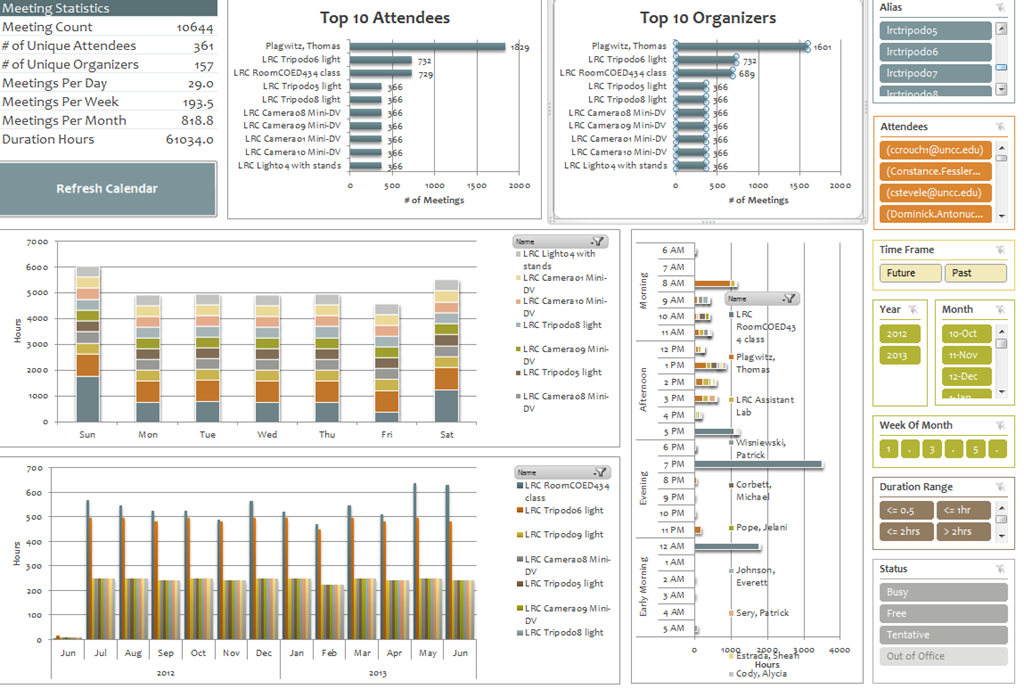
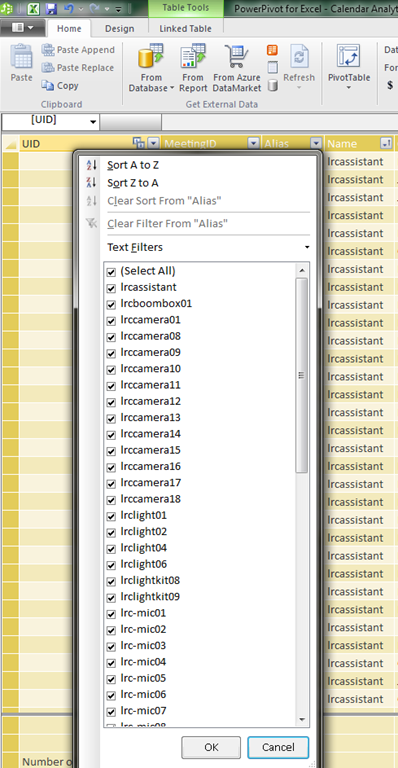
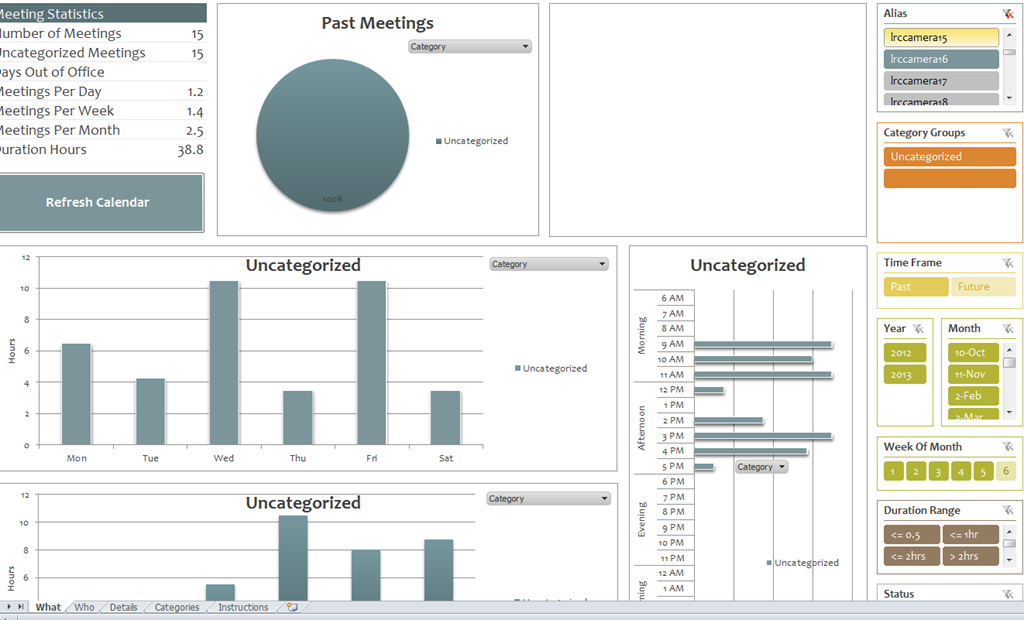
- You can use the controls on the right to drill into the detail by selecting one or more
- Aliases,
- Attendees,
- Time periods
- Status.
- The graphs on the left and in the center will automatically reflect your selection on the right.
- These results lead to more questions. E.g. why is this tripod so popular?

-
Lesson learnt: Now it comes back to haunt us that we block broken or MIA equipment from users attempting to book it by making it look “busy” with an 24/7 “Appointment“. However, It should however be possible to filter out such appointments, versus “meeting requests”.
-

First steps with MS-Calendar Analytics
2013/06/22
2 comments
- After installing Calendar analytics (and, if you do not already have it, PowerPivot), open the Calendaranalytics spreadsheet from your desktop and click on “Refresh Calendar”.
- “Enter your full email address. Users with more than 1 email address may need to try each of them.”


- “Enter a start date and end date for the timeframes for the Dashboard to reflect”/
- “The interface will prompt you for the user’s aliases to add. You can add multiple.”
- “Type in users’ aliases of whom you have permission (i.e. “Full details”) to access their Outlook calendar and click Add”
-

- Do not use the fully qualified email address for the alias, or else:

- You cannot comma delimit (so AutoIt to the rescue).

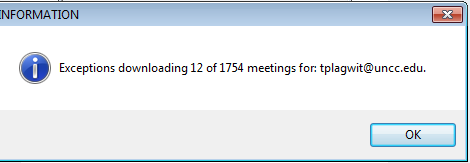
- You can continue after such a non-fatal error:


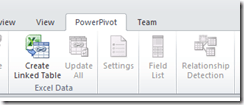
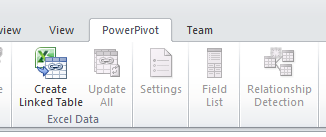
- Is your “Update all” greyed out ? Restart Excel.

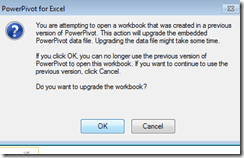
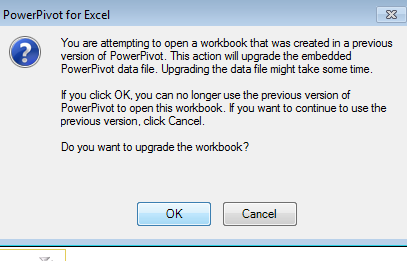
- Accept the offer to upconvert:
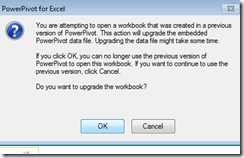


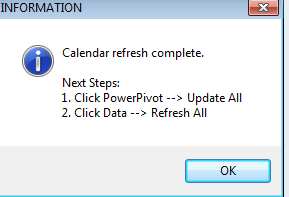
- Update all becoame available after restart of excel, even with download exceptions – maybe the unsaved update of the spreadsheet form powerpivot 1 was the root cause ?
- Not that here upconversion to the new powerpivot version does not “take”:

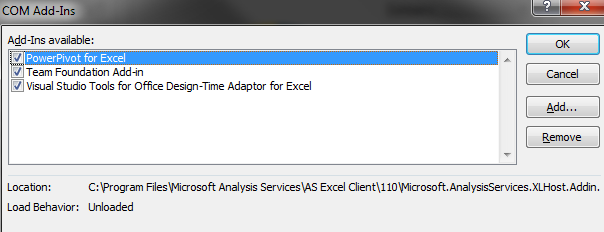
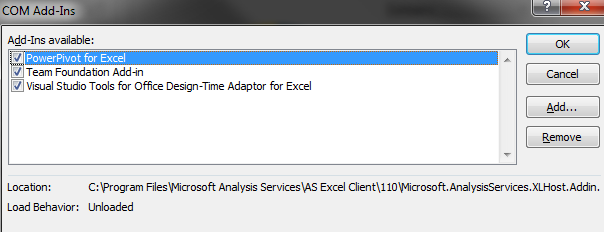
- If after a restart of excel your powerpivot tab on the ribbon does not show, reenable the powerpivot addin.
- How to reenable: excel file/ options / select dropwdown: addins, button:go, check the Checkbox in front of powerpivot:
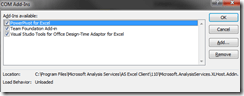
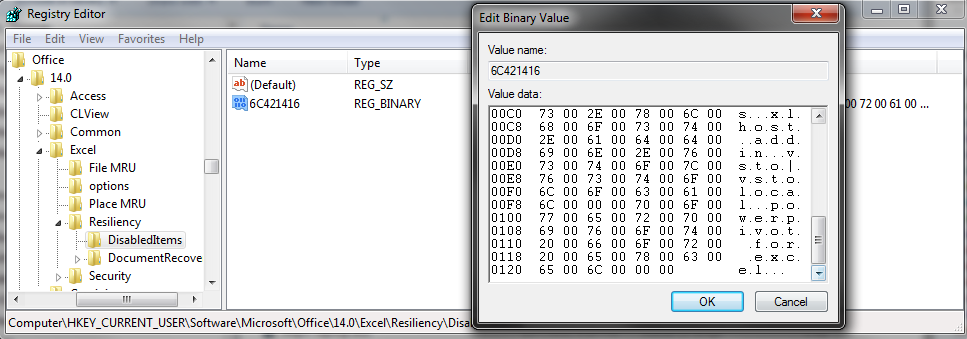
- What if even after a restart of excel, this does not “take”? See whether in the registry the key CURRENT_USER\Software\Microsoft\Office\14.0\Excel\Resiliency\DisabledItems contains the path to your powerpivot add-in,like here:
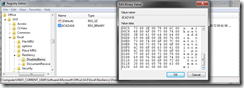
- Delete the key and restart excel, your powerpivot ribbon tab =should be back. Hope this will last?

- Now updating does something:

- This opens the powerpivot window with the meeting data collected fro mms-exchange:
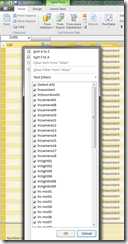
- Which can be interactively: visualized in the calendaranalytics sheet
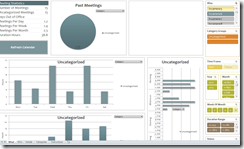
- More results here.











Questions? Read the About. Or just ask me a quick Our Databases: Resources with calendars -- Language learning material Moodle Sites, multimedia files -- films


FAQs for LRC student staff or for students or for teachers. To search our FAQs, in the browser addressbar, add after "https://plagwitz.wordpress.com/feed/?tag=faqs+/" "+TAG1" (from tag cloud below) OR "https://plagwitz.wordpress.com/feed/tag=faqs
&category_name=" "CAT1" (from category hierarchy below). OR search both categories and tags, and multiple TAGs/CATs (connect with "," for OR-search, with "+" for AND-search), like so: https://plagwitz.wordpress.com/feed/?tag=TAG1+TAG2+...TAGn&category_name=CAT1
+CAT2+...CATn"
Other ways to find help
If you cannot find it here, look there: 5,500 Language-Learning Links and Programs for learning or teaching 150 languages
Shortcuts:Our Lists, Our Maps, LRC Staff Moodle Site,LRC Project Moodle Site, 49erexpress, UNCC Moodle, Student Recordings: s:claslcslrcsanakostudent
Learning usage samples: Sanako oral exam, Kaltura webcam presentation, Dictation with speech recognition, Sanako written exam, Chinese and Japanese interactive stroke-order practice
Test the Sanako Installer, Webbrowser Popup Konfigurator for XP, or Windows7, faster LRC TeacherPC Log-in Let MS facilitate diacritics writing by installing for you US-International keyboard layout
This is my personal blog (Google+). The views expressed on these pages are mine alone and not those of my employer. The information in this weblog is provided “AS IS” with no warranties, and confers no rights.
 Thomas' Work Space