Archive
Screencasts for Fall 2011 Workshop: Computer classroom management in the LRC using Sanako Study 1200
- The workshop stayed “this side of the digital audio lab”, i.e. focused on those generic teaching tasks that the Sanako Study 1200 can facilitate which have the widest teaching application (including in, but also beyond language-skill-courses):
- remote controlling student computers,
- screen sharing, collaborating with students,
- launching applications on students computers,
- sending students to webpages,
- launching handout files to students and collecting their input back
- locking their computers, screens or keyboards,
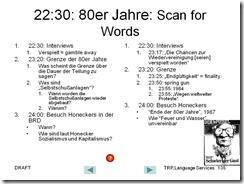
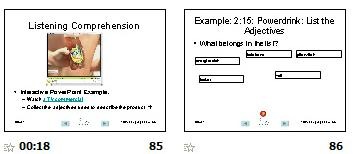
- “clicker” classroom polls, for which I have written a PowerPoint Template you can base your own clicker-like face-to-face class exercises on.
- and more…
- Here are two screencasts of my presentation:
- one for the right screen/participant screen (using the Study1200 teacher to student screen casting). Requires Windows Media Player on PC, like in the LRC: download from MS-SkyDrive.
- one for the left screen/projector, where I displayed mostly a PowerPoint. You can watch this in parallel using another player, e.g. the VLC player, like in the LRC. However, it can also stream from MS-SkyDrive.
A PowerPoint Template to base your clicker-like face-to-face class exercises on
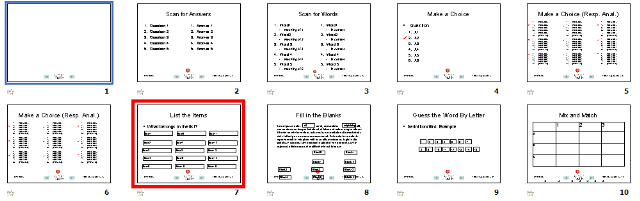
- Enables easy exercise creation:
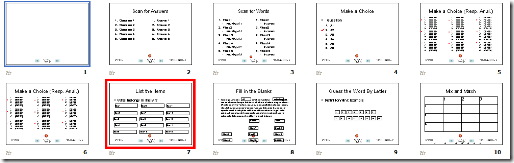
- Resides on S:\coas\lcs\labs\lrctest\templates\Teacher.pot;
- Requires MS-PowerPoint 2010, as installed on the teacher computer in LRCRoomCoed434.
- Training videos are available for download here (requires Windows Media Player on Windows, as installed in the LRCRoomCoed434).
- powerpoint_template_overview_default_slide.wmv
- powerpoint_template_sequential_slides.wmv
- powerpoint_template_interactive_slides.wmv
- Usage samples available on request from
- German Beginners,

- Intermediate

- and Advanced Classes.


PowerPoint 2010 upgrade from 2007 disables setup show display on secondary screen
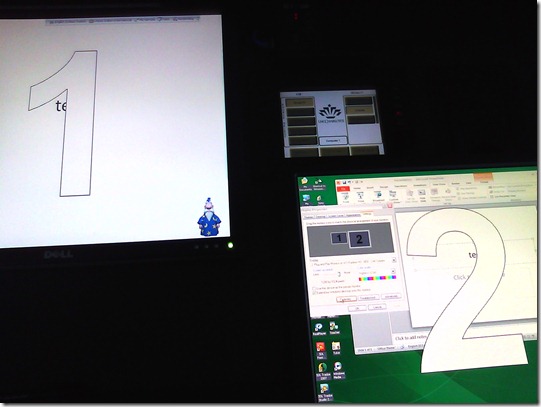
- Symptom: Without hardware changes (a visualizer that seemed to enter into the equation as an AV source seems to have been ruled out as culprit), PowerPoint cannot display show from primary right screen to secondary left screen.
- Cause: Upgrade to PowerPoint 2010 from 2007, but seems really an underlying video driver limitation that has given us grieve in our – admittedly uncommon: 1024*768 on secondary, projector-connected screen, dictated by the projector – setup before.
- Workaround: Make the 1024*768 left screen the primary screen.
- Upside: this allows to project the show to the class, but teacher can still move the underlying PowerPoint presentation onto the right screen (for previewing answers. The PowerPoint 2010 upgrade did fix the PowerPoint 2007 bug that interactive animations from PowerPoint 2003 where briefly revealed on slide load before they went into the default hidden state).
- Downsides:
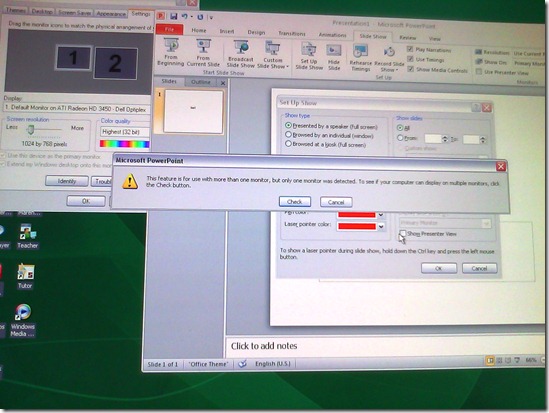
- Presenter view is still not possible, complains about seeing only one screen connected, even though “Check” button brings up the windows screen properties dual screen.
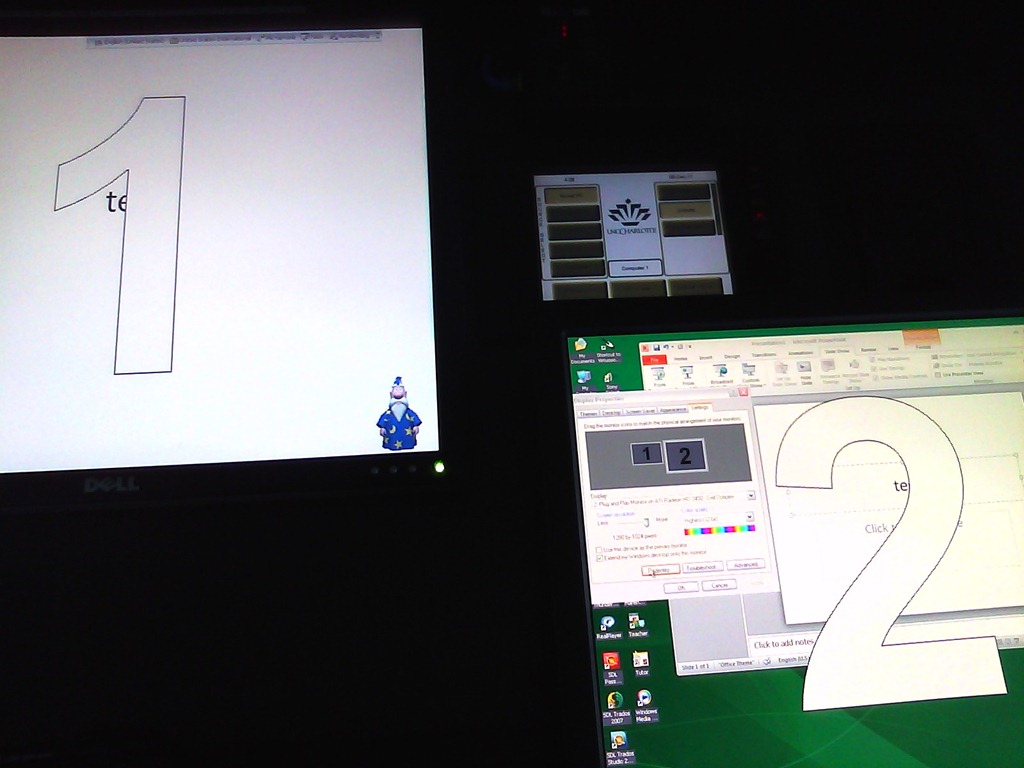
- The Windows taskbar displays on the left screen, so teacher staging is visible to the class when projector is on (as it always was with a single screen. Only the secondary right screen added a staging area for the teacher).
- Presenter view is still not possible, complains about seeing only one screen connected, even though “Check” button brings up the windows screen properties dual screen.
- Upside: this allows to project the show to the class, but teacher can still move the underlying PowerPoint presentation onto the right screen (for previewing answers. The PowerPoint 2010 upgrade did fix the PowerPoint 2007 bug that interactive animations from PowerPoint 2003 where briefly revealed on slide load before they went into the default hidden state).

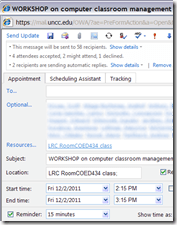
How to book LRC resources – explained in one screenshot
You can come to the LRC reception desk to book an item (you will still need to log into your NINERMAIL). But you can also self-help, and get immediate confirmation, from any device with access to your NINERMAIL:
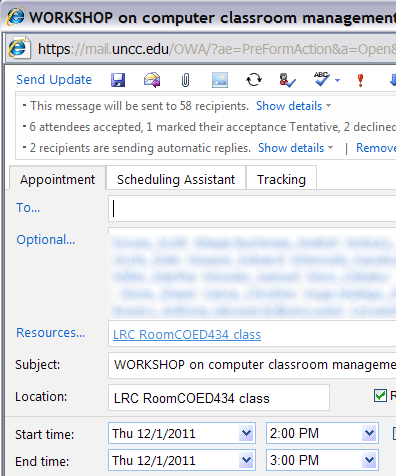
If you have a basic LRC classroom booking scenario, send to the room lrcroomcoed434@uncc.edu what looks like “an email that includes times”: Go to your Ninermail inbox. Using the little triangle icon, unfold the “New” menu. Click menu item “Meeting request”. In the window, that opens, in the “Resources:” field, put lrcroomcoed434@uncc.edu. In the “Subject:”, put your course number. Enter start and end times of your classes visit. In the upper left, Click “Send”. Within a few seconds you receive a response email from the room in OWA: If you did not check the “Scheduling Assistant” tab, you may be asked to reschedule because of a conflict. If you fail to get a response, something went wrong, did you mistype the address? OWA remembers and suggests it after first use, but the first time you need to get it right.
For more advanced scenarios (beyond #3 below), first find the email address of our bookable resources, then book it like so:

More on repeating/recurrence here.
How to poll for the best meeting time using Meeting Requests
- Please also see the follow-up user-perspective video here: How to respond to a poll for the best meeting time using Meeting Requests.
- A traditional issue around the LRC is getting busy teachers to agree on a common workshop time. Ideally, the scheduling assistant would automate this by allowing you to see the common free time slot in their busy timelines. However, this requires that the university calendaring system has already been widely adopted. In the meantime, meeting requests can still greatly facilitate finding this most common free time, by serving as a poll.
- To find the most popular time slot, send a number of alternative meeting requests with the instruction: “If interested in the workshop, please accept those times during which you could attend. I will only not cancel the most popular meeting time”. (Make sure that respondents know that they can “Edit response before sending” to include a message, or else this will skew the tally).
- At the end, you can easily tally the response in your calendar, and, as the meeting organizer, cancel the unpopular ones:


- And you can spare everybody one final summary email: “ Mark your calendars!” . The interested parties’ calendar has already be marked.


Outlook secondary accounts error: “Cannot display folder”

Does your OWA look different from others’, but you do not want the low vision version?
- If you log in on http://mail.uncc.edu and see this:
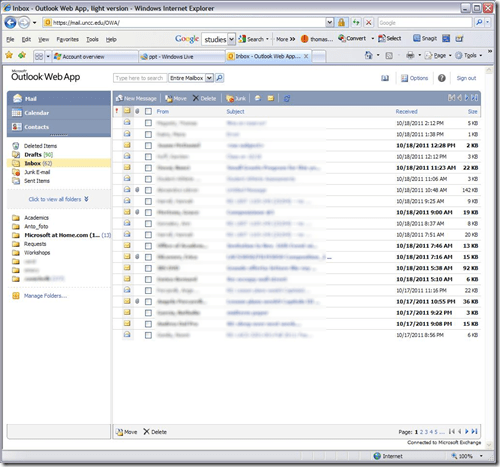
- do this
- Click on Options in the upper right corner
- Click on Accessibility on the left side of the screen
- Uncheck the box for ‘Use the blind and low vision experience’
- Click Save at the top of the screen
- Sign out in the upper right hand corner
- Go back to mail.uncc.edu and login normally without checking the ‘light version’ box, and you will see this:

- Not sure how you managed to inadvertently set it to “low vision”, but this is how to fix it, per our helpdesk.


How not to book LRC equipment: Avoid scheduling conflicts by not using “Show times as free”
- Appointments and Meeting requests default to “Show time as busy”.
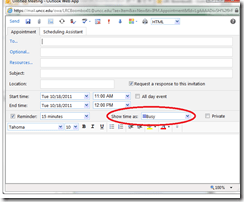
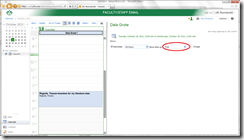
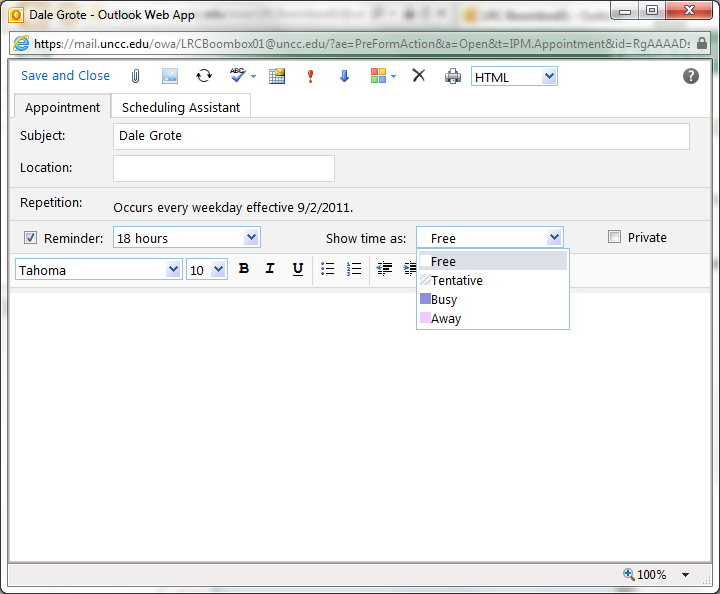
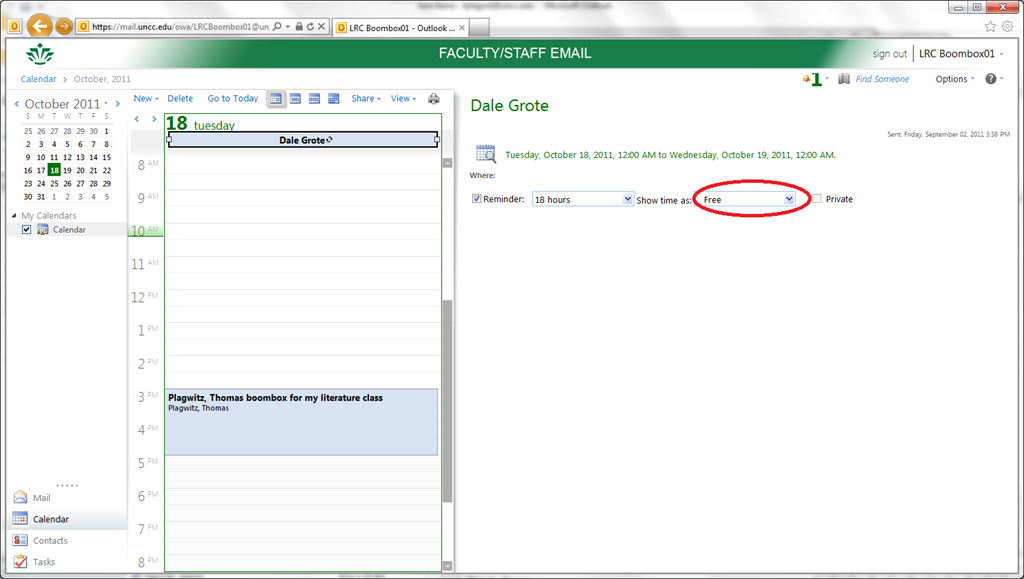
- Before you change this, like so:
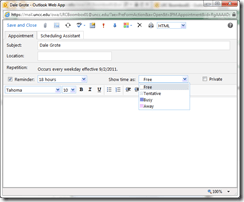 . Note this “Gotcha”: “If you have already specified that this is an all day event, Save As is set automatically to Free “.
 - consider this: a scheduling conflict can easily result, if people coming after you cannot see the resource as “busy”, they might inadvertently book over your booking:
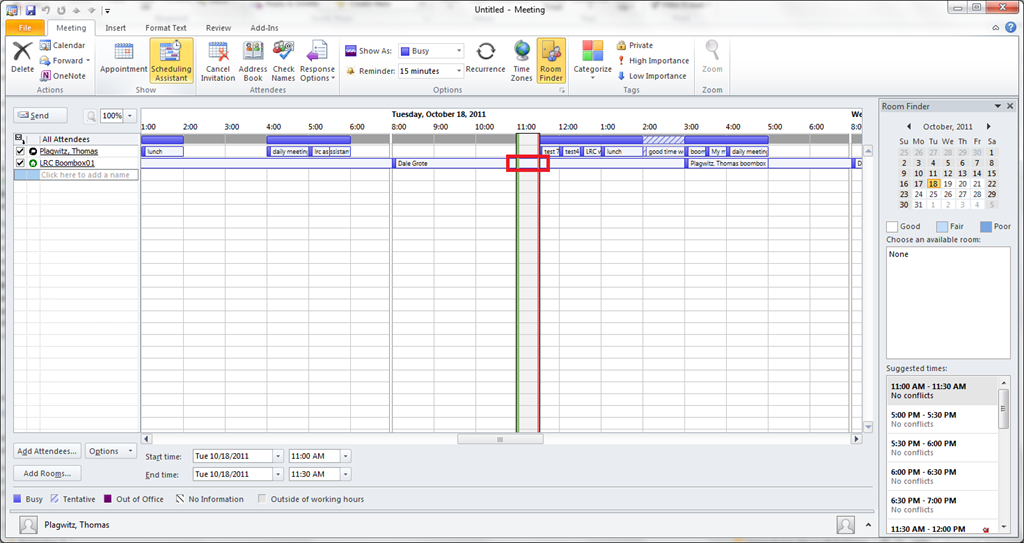
- Remember this is a platform for collaboration, not for spreading confusion: If you leave your appointment as “busy”, per the default, voilà, others can see that the resource is busy, and work around it:




Questions? Read the About. Or just ask me a quick Our Databases: Resources with calendars -- Language learning material Moodle Sites, multimedia files -- films


FAQs for LRC student staff or for students or for teachers. To search our FAQs, in the browser addressbar, add after "https://plagwitz.wordpress.com/feed/?tag=faqs+/" "+TAG1" (from tag cloud below) OR "https://plagwitz.wordpress.com/feed/tag=faqs
&category_name=" "CAT1" (from category hierarchy below). OR search both categories and tags, and multiple TAGs/CATs (connect with "," for OR-search, with "+" for AND-search), like so: https://plagwitz.wordpress.com/feed/?tag=TAG1+TAG2+...TAGn&category_name=CAT1
+CAT2+...CATn"
Other ways to find help
If you cannot find it here, look there: 5,500 Language-Learning Links and Programs for learning or teaching 150 languages
Shortcuts:Our Lists, Our Maps, LRC Staff Moodle Site,LRC Project Moodle Site, 49erexpress, UNCC Moodle, Student Recordings: s:claslcslrcsanakostudent
Learning usage samples: Sanako oral exam, Kaltura webcam presentation, Dictation with speech recognition, Sanako written exam, Chinese and Japanese interactive stroke-order practice
Test the Sanako Installer, Webbrowser Popup Konfigurator for XP, or Windows7, faster LRC TeacherPC Log-in Let MS facilitate diacritics writing by installing for you US-International keyboard layout
This is my personal blog (Google+). The views expressed on these pages are mine alone and not those of my employer. The information in this weblog is provided “AS IS” with no warranties, and confers no rights.
 Thomas' Work Space