Archive
Presentation on Time-stretched Audio and Personalized Provision in Instructor-led Digital Audio Labs @ Nerallt/Neallt 2009, Yale University, New Haven, CT
The pervasiveness of networked digital media – new delivery forms for digital TV and radio by the traditional media industry, as well as new content providers using pod- and tube-casts -, owing to an ever more powerful, robust and – partially as an overhang of the bubble – abundant technical hard- and software infrastructure, has also revitalized – and poured substantial new resources into the modernization of – the older concept of the language lab. Computerized classrooms with network and multimedia facilities, basic classroom management systems and centralized databases, with some interfacing to serve as learning material repositories or portfolios demonstrating learning outcomes, have become a common underlying fabric for many of the constituents’ learning environments. The recent freezing up of the resource flow can serve as a wakeup call to remind us both of the critical “What is the benefit, or return on investment?” and of the original promise of e-learning: increased efficiency. On the one hand, scaling through crowd-sourced or automated sourcing and reuse of materials has become a pressing need in rapidly expanding second language programs like English and Spanish that new technologies can help meet. On the other hand, widely differing learner proficiency is increasingly a problem when trying to form classes in the shrinking programs of other languages, and personalization of learning provision is increasingly expected in an environment shaped by “long tail”-economies. This paper will evaluate common practices in SLA that have served as workaround, recapitulate a number of different time-stretching algorithms, summarize existing software solutions and introduce a new option which is based on MS-Windows Media Encoder’s time-stretching and pause detection capabilities. Finally, the presentation will exemplify instructor-led utilization of this simplified and/or automated time-stretching of authentic materials, with more teacher-control and a more realistic output than that built into current media players, as a – not exclusive, but valuable – step towards more comprehensible input of level “i+1” in a more personalized language learning provision.
Slide Deck: plagwitz_timestretching_audio_nerallt09.pdf
Sanako Lab 300: Pairing and some basics
In the spirit of ‘Better improvised instruction and information distribution than failing classes in the lab”, I recorded a 1-on-1 instruction on how to pair students, including some other basic Lab300 features into a 5-minute screencast with voice over (open with Windows Media Player): sanako-lab300_pairing-and-basics.wmv
For an overview, see the following table of contents (when reviewing the video before starting your class in the Lab, search your webmail for the link to this instruction.)
- Not shown: teach students once and for all: always log in first;
- Grouping setup pane (all into L, then into A, excluding unused seats);
- Pair discussion setup pane (button: select for manual pair select mode);
- Not shown: teacher should use button: duo launch to facilitate student control of audio;
- Within group A pane , teacher uses button:transfer, changes program source to audio cassette:
Pair discussion setup pane : “re-pair”, using button:cancel all, button:random to have Lab 300 software choose pairs; - Within group A pane , teacher uses button:headphone for talking to group (not shown: remember to undo when finished!)
- From classroom layout: teachers clicks student icon to bring up student pane;
- From student pane, teacher views student screen, listens to student (or pair), uses student button:intercom for talking to student (or pair);
- From top menu: Other / thumbnail view of group: teacher brings up Mosaic window, to monitor (“police”) entire group screens; translates what you see to individual student, and uses button:lock (keyboard, screen or both) to prevent students from not staying on task [Demo this in first lab class to your students, using the screen projector , and hopefully they will hopefully stay on task];
- From menu: Other/ thumbnail view of group, teacher brings up Mosaic window and double clicks student screen to control individual student computer (e.g. to close a web browser – another way to police, less effective, but possible; better used for collaboration) . [Better policing options can be set up in the using the Lab300 web browser).
How Teachers grade Student recordings from the Sanako Lab 300
-
Teacher on their office PC (MAC users talk to OTS at loyola.edu) can press
 windows-key+e, and in the window, that opens,
 -
browse to the student mp3 recordings in the “studentcollect” folder or in “their” folder on S:\[put teacher name here] (no S: drive on office PC? read the “Shortcuts” section on http://plagwitz1.spaces.live.com, right hand side, under my portrait),
-
open the student recording file, either by doubleclicking to, presumably, open it in Windows Media Player, or, preferably, by selecting multiple files, right-clicking and chosing “Open with” to open them for comparative grading in Audacity).

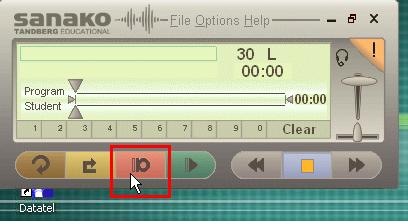
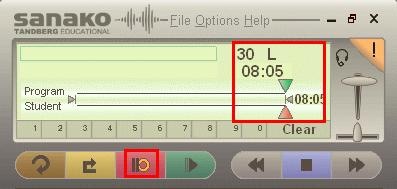
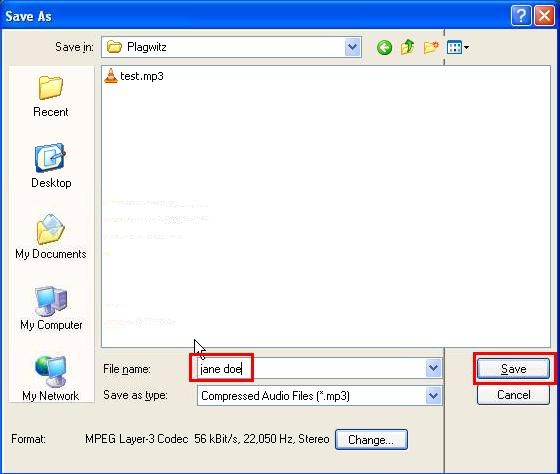
How students make audio recordings using Sanako Lab300 Media Assistant






MS-Office Communicator: Getting Started
https://thomasplagwitz.com/2009/11/13/collaboration-using-ms-office-and-network-shares/Click  , click
  , type “communicator”, click
  .
.
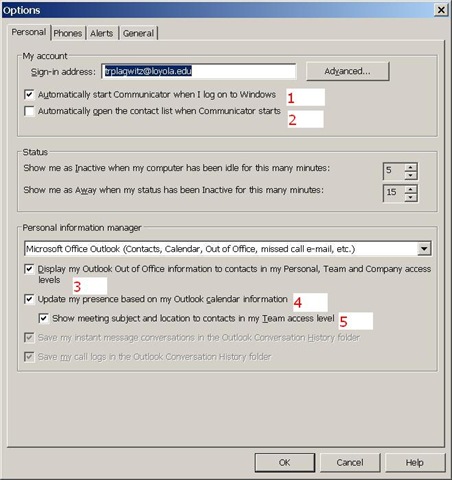
To adjust options, click (1), (2) and (3) here:

To start communicator with Windows, select (1).
To have Outlook automatically show you as busy during calendar appointments (e.g. your classes), select (4).
To get your contact list up to speed, select all the contacts in the to-address line of a mass email and drag them to your communicator window, see this screencast here: communicator-email-contact-drag.wmv.
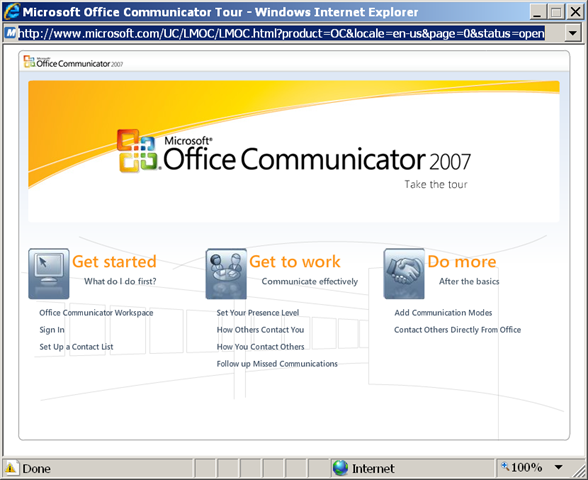
Microsoft has a useful “Getting Started” web-based training here:
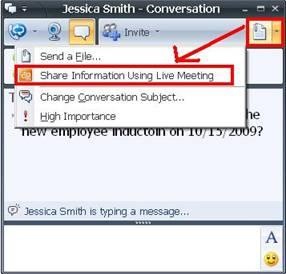
To use the advanced features of Live Meeting, you can either use the context menu of the contact, or within an existing messaging session, escalate to Live Meeting by using the upper right hand corner menu, like in these 2 screnshots:

How to use your office computer in the classroom
How-to:
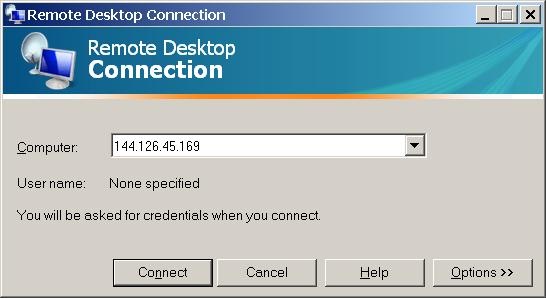
- Click , click , type “mstsc”, click .
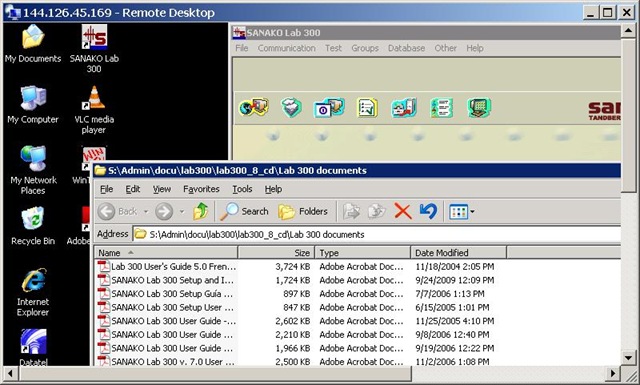
- In the field of the upcoming window, enter your office computer’s IP number (you have to do this only once, the teacher computer will remember the number).

- This will connect you to your office PC, and if you run mstsc (Microsoft Terminal Services Client) in full-screen, it appears pretty much like working on your office computer.
- To find out your office IP number, on your office pc, Click , click , type “cmd”, click . cmd. On the command line, type “ipconfig”, your “IP address” appears .
- Problems? Tell OTS with a link to this post.
Benefits:
- use your local configuration with which you are most familiar also in class (e.g. US-international keyboard);
- prepare windows for classes in your office at leisure (windows will show in the state you left them in the office), saving class time;
- use the computer in class more, saving class time.
Risks:
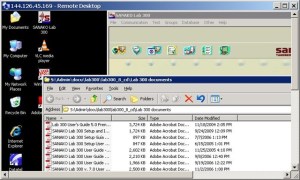
- does not work well with multimedia. Workaround: switch mstsc to window mode and play multimedia from the local desktop of the classroom PC:
- make sure you do not have any windows open in the office which you do not want to display in the classroom
- set your online status to “busy” in Office Communicator and other instant messaging applications, or else others might send disrupting text message pop-ups while you teach
- possible screen size incompatibilities (mstsc can automatically accommodate for differences, within limits)
- always test before going live.
How to distribute learning materials using the Blackboard Content System
I needed to make a large set of textbook mp3 files accessible to myself in the classroom, as well as to students and myself from dorm/home.
The Blackboard Content System makes this easy, while observing copyright restrictions.
Below is a 6-minute narrated screencast on how to set up and use the Blackboard Content System to easily (work on batches of files on the web, just like on your computer, access from office, classrooms or home office) and securely (allow access only to qualified students) handle multimedia files
The example involves numerous mp3 files from a Textbook Audio CD previously only accessible from the LLC computers)).
This would work as well with your self-created teaching materials, from text handouts to video recordings.
If you need better management (many files, reuse across terms) than the standard course document upload can provide.
See the video file name for a brief table of contents:
If the teaching material item is already in the content collection, to publish it to a new course:
- add a new item to a content area of the course,
- follow the numbered steps 1-4 in this screenshot:

- then click submit twice: first close the content system window with
 , to automatically give your students access to the files:
  , then finish adding





Questions? Read the About. Or just ask me a quick Our Databases: Resources with calendars -- Language learning material Moodle Sites, multimedia files -- films


FAQs for LRC student staff or for students or for teachers. To search our FAQs, in the browser addressbar, add after "https://plagwitz.wordpress.com/feed/?tag=faqs+/" "+TAG1" (from tag cloud below) OR "https://plagwitz.wordpress.com/feed/tag=faqs
&category_name=" "CAT1" (from category hierarchy below). OR search both categories and tags, and multiple TAGs/CATs (connect with "," for OR-search, with "+" for AND-search), like so: https://plagwitz.wordpress.com/feed/?tag=TAG1+TAG2+...TAGn&category_name=CAT1
+CAT2+...CATn"
Other ways to find help
If you cannot find it here, look there: 5,500 Language-Learning Links and Programs for learning or teaching 150 languages
Shortcuts:Our Lists, Our Maps, LRC Staff Moodle Site,LRC Project Moodle Site, 49erexpress, UNCC Moodle, Student Recordings: s:claslcslrcsanakostudent
Learning usage samples: Sanako oral exam, Kaltura webcam presentation, Dictation with speech recognition, Sanako written exam, Chinese and Japanese interactive stroke-order practice
Test the Sanako Installer, Webbrowser Popup Konfigurator for XP, or Windows7, faster LRC TeacherPC Log-in Let MS facilitate diacritics writing by installing for you US-International keyboard layout
This is my personal blog (Google+). The views expressed on these pages are mine alone and not those of my employer. The information in this weblog is provided “AS IS” with no warranties, and confers no rights.
 Thomas' Work Space