Archive
Potential Moodle-compatible replacements for Wimba Voice
With the demise of Wimba Voice on campus, Languages and Culture Studies lost some of their online learning acitivities and are still looking for a replacement, perferably within Moodle.
I have looked through some options and would recommend the following applications for a test install:
1. NanoGong, free (as in kittens). More info here:
2. WebSwami, a language learning platform, not free, and can also record video, and do much more. More info here:
Introduction of NanoGong, free open source voice recorder for Moodle
- This is a brief summary outline of NanoGong (which has just been upgraded to version 4.1, which includes an installation file for our current Moodle version 1.9.8), would be a good audio recording add-on for language learning to install in our Moodle learning system. What follows is compiled from various online sources:
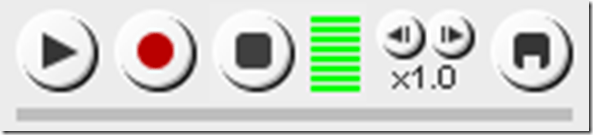
- “NanoGong is an applet that can be used by someone to record, playback and save their voice, in a web page. When the recording is played back the user can speed up or slow down the sound without changing it. The speeded up or slowed down version of the recorded sound can be saved to the user’s hard disk, if he/she wishes
- There are special features for programmers, such as the ability to show or hide parts of the NanoGong interface or to completely control what the applet does.
- The NanoGong applet has been released as an open source project since version 3. The picture below shows the NanoGong applet with all components shown. “
- “NanoGong provides a very simple and transparent voice support for Moodle. Using a NanoGong activity and a NanoGong filter NanoGong provides two different types of voice support for Moodle”:
- “An extended HTML editor which supports voice-enriched content”, “ enabling a voice recording option for virtually any Moodle activity entry that uses the wysiwyg toolbar”, as you can see here:

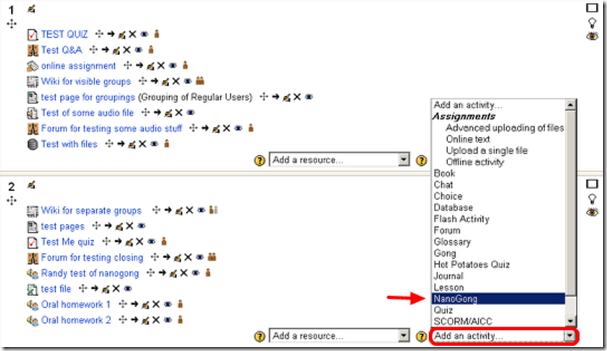
- ”A NanoGong activity which allows students to submit voice messages to their teachers”:
- Questions remain:
- You can customize the recorder applet: Need to check whether this includes the timestretching capability, given that language teachers can be averse to student-controlled,
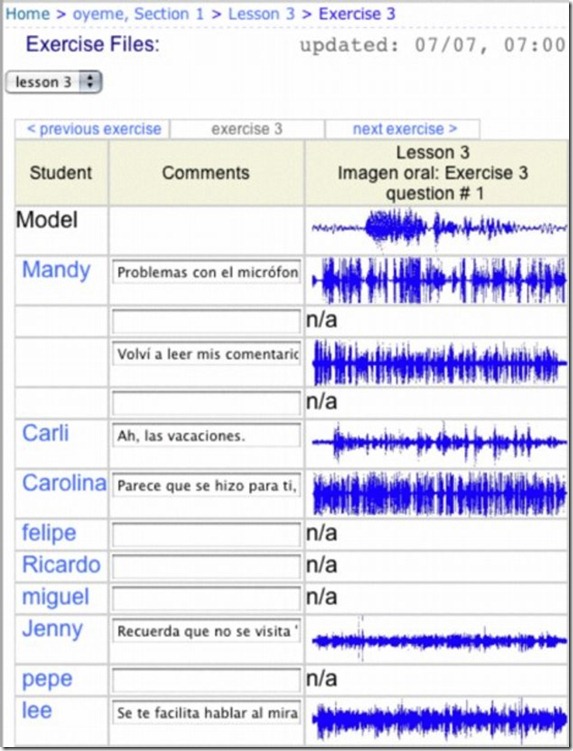
- Need to check for capability of downloading batches of submissions from the student class and grade it with time-saving techniques, like described here using Audacity. A more sophisticated example that testifies to the same features required to get graders adopt increasing audio student submissions was Web Audio Lab, an authoring system for developing interactive audio-based language courses (Language Resource Center, Cornell University. 2003-2007):

- How could one implement a dual-track recorder using NanoGong, with the program track providing aural cues for a more natural oral interaction?
- Requires JAVA (test compatibility).
- There is no Moodle 2.0 version yet.
- NanoGong seems “a derivative of the Gong standalone voice board” – without similar requirements and issues? Gong can also be integrated into Moodle, seems more advanced, but also much more difficult to implement (requires a tomkat server; problems have been reported with losing course deletion functionality in Moodle, the authentication pass-through not working from Moodle and the audio graph not working in Moodle).
- As with any open source project, there are some move Ifs.
- However, Nanogong seems the free audio recording plug-in for Moodle which is currently most favored.


Moodle: Video Assignment
Kaltura has been integrated into our Moodle system to enable video upload as an assignment type. Teachers can upload videos already now. It seems that students will be able to upload videos starting with the fall term.
Video source can be a webcam which could be interesting for language proficiency assessment, including – if the pieces can be gotten out of Moodle and into an ePortfolio system – to demonstrate longitudinal progression in proficiency.
The videos get stored on the Kaltura servers and redelivered in form of a Flash plug-in – in between happens a transcoding so that results are not available immediately. You can see us waiting for it at the end of this Kaltura video assignment upload screencast demo:
UNCC showed off our use of Kaltura at Educause 2011. You can see example applications quoted in the attached Kaltura use slide deck.
Finally, here is a test and walk-through of an elementary language course homework assignment using Kaltura.
Sanako Study 1200
Study 1200 is the top of the line Sanako language learning product which comes in a number of lesser versions (Study 700, Study 500). You can get a feel for what this product does from this raw video from footage, shot during a vendor demonstration at EUROCALL 2009: Sanako-study-1200-version45-demo-eurocall.AVI. Or search this blog for other examples of using the Study 1200.
LCR Calendars and Scheduling
Obsolete since FALL 2011, instead see here.
LRC scheduling Crunch-time:
Faculty need to schedule exams in the LRC, communicate this to students in a timely manner and avoid conflicts with other LRC events.
While the LRC staff lost editing access to the LRC Website, including its calendar (they underlying software is being upgraded from Joomla to Drupal).
That’s why we roll out our new LRC scheduling service early.
It takes advantage of Outlook Desktop edition (2007 for the PC, 2011 for the MAC) and Outlook Web Access for MS-Exchange 2010 (for faculty/staff), and of the calendar web app of live@edu (for students).
live@edu and Outlook 2011 (MAC) are being introduced by the university over the summer.
Outlook 2007 (PC) faculty and any student who uses a web calendar are already ready to roll.
Faculty/Staff, including LRC permanent staff, can view, add and change LRC bookings directly, and coordinate them with their personal and Moodle class calendars: Read more in “Calendaring: How teachers can reserve and schedule classes in the LRC” (includes path in your Outlook to get to the LRC calendars).
Students, including LRC student staff, can view the LRC bookings from their web calendar. Read more in “Calendaring: How students can view the LRC schedules” (includes web links to LRC calendars)
Here is what you get:

Calendaring: How teachers can reserve the LRC for classes and schedule tutors in the LRC
- This is obsolete from Fall 2011, please view instead https://plagwitz.wordpress.com/2011/08/31/the-new-way-of-booking-lrc-rooms-and-equipment-from-fall-2011/.
- You may already collect calendars in one place to stay on top of your course calendars in Moodle and of your non-teaching-related university or departmental activities.
- Now you can do the same with the schedules of LRC rooms and “human resources” (tutors, LRC assistants, the director free/busy schedule is also available – equipment checkout remains to be solved!): We have added new calendars to the LRC public information and moved them into our newly upgraded MS-Exchange infrastructure.
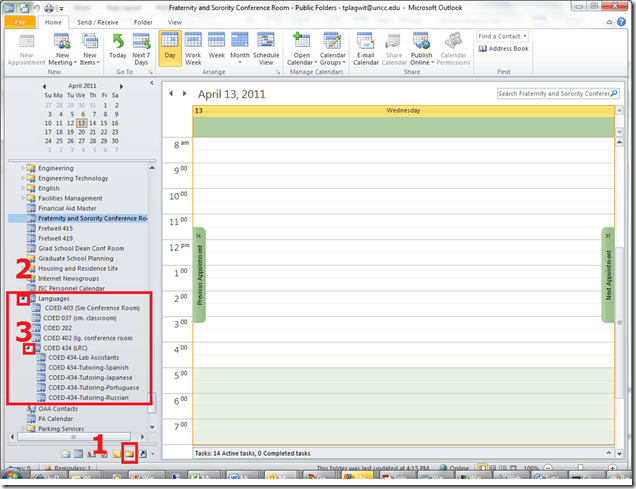
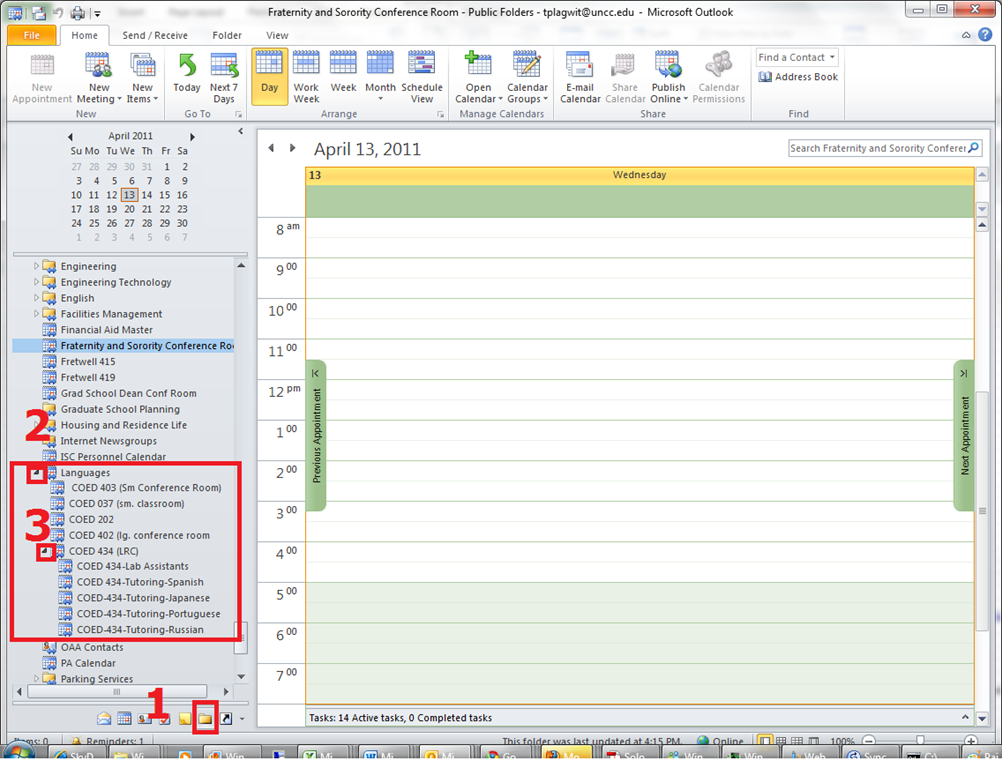
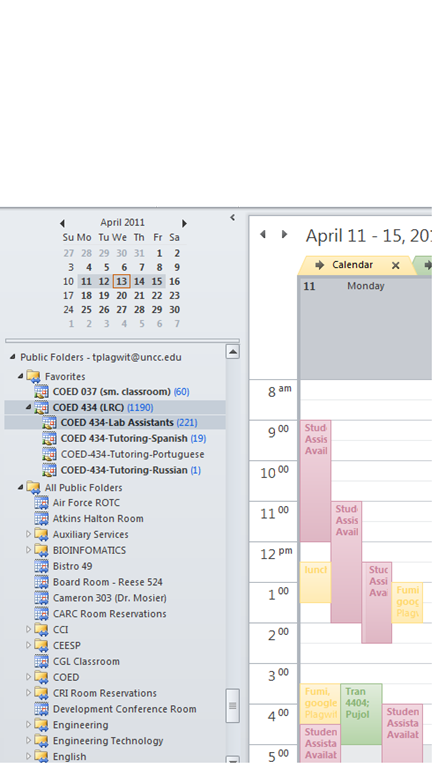
- Short answer: In Outlook (desktop, OWA may vary), go to Folder view / Public Folders / Languages / Coed 037 and Coed 434, with sub-calendars. Make any calendar you need a favorite (or in the dialogue (show below) “Add favorites” for Coed434, check “Add all subfolders”) . In Calendar view, show the calendar by adding a check to the checkbox in front of it. Add and edit your (recurring) appointments as on your personal calendar.
- For class reservation, put class number and activity in the Subject field. Put in the notes field sensitive information which you do not want to put on the WWW, as well as, if you need our support, details of technology activities planned and student numbers that need computers and headsets.
- For tutor scheduling, we have one schedule per language being tutored. Protect the tutor privacy by using the notes field for personal information. Use the Outlook recurrence options as a time-saver (just delete individual exceptions instead of the entire series).
- More detail: You can access the calendar from 1. Folder view, 1a (not shown) Public Folders, 2. Languages and 3: Coed434, like you see here:
- I recommend adding them to your calendar favorites for easier management, like so:


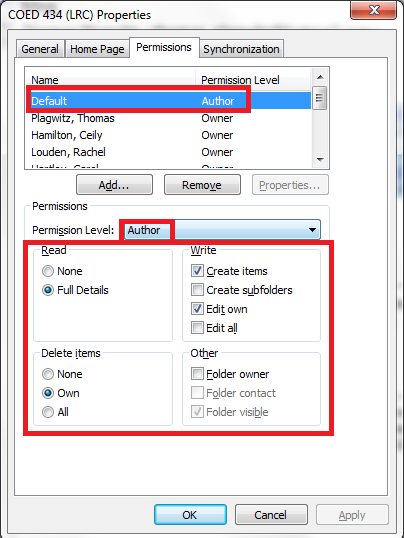
- Per default, you can see and edit (problems? request access) the LRC calendars in the Outlook "Public Folders" under "LRC", as the permissions dialogue below shows:


How to conduct an easy oral exam with Sanako Study-1200 (Model imitation/Question Response) – Part I: The exam administrator’s perspective
This 7-minute screencast explains how to operate the Study-1200 software interface to administer an oral exam, using as audio source the teacher, providing cues live:
- 0:00: from selecting the activity and program source,
- 1:50: over start and use of the autoscan screen control feature to monitor both audio and screen of the examined students
- 3:45: to ending the exam and automatic collection of the exam files.
For an implementation during an actual class-wide oral exam, see Part II of the Study-1200 oral exam.
Protected: How to conduct an easy oral exam with Sanako1200 (Model imitation/Question Response) – Part II: Implementation/instruction of examined students


Questions? Read the About. Or just ask me a quick Our Databases: Resources with calendars -- Language learning material Moodle Sites, multimedia files -- films


FAQs for LRC student staff or for students or for teachers. To search our FAQs, in the browser addressbar, add after "https://plagwitz.wordpress.com/feed/?tag=faqs+/" "+TAG1" (from tag cloud below) OR "https://plagwitz.wordpress.com/feed/tag=faqs
&category_name=" "CAT1" (from category hierarchy below). OR search both categories and tags, and multiple TAGs/CATs (connect with "," for OR-search, with "+" for AND-search), like so: https://plagwitz.wordpress.com/feed/?tag=TAG1+TAG2+...TAGn&category_name=CAT1
+CAT2+...CATn"
Other ways to find help
If you cannot find it here, look there: 5,500 Language-Learning Links and Programs for learning or teaching 150 languages
Shortcuts:Our Lists, Our Maps, LRC Staff Moodle Site,LRC Project Moodle Site, 49erexpress, UNCC Moodle, Student Recordings: s:claslcslrcsanakostudent
Learning usage samples: Sanako oral exam, Kaltura webcam presentation, Dictation with speech recognition, Sanako written exam, Chinese and Japanese interactive stroke-order practice
Test the Sanako Installer, Webbrowser Popup Konfigurator for XP, or Windows7, faster LRC TeacherPC Log-in Let MS facilitate diacritics writing by installing for you US-International keyboard layout
This is my personal blog (Google+). The views expressed on these pages are mine alone and not those of my employer. The information in this weblog is provided “AS IS” with no warranties, and confers no rights.
 Thomas' Work Space