Archive
How to duplicate assignments in Moodle course sections by importing
- Limitation: You cannot use other users’content. Use the backup/restore content procedure instead.
- Benefits are:
- You can save the time it would take to redo the assignment from scratch.
- plus avoid breaking things when you try and copy the assignment over manually: this built –in way does not break links.
- But have to jump through these hoops:
- Start here:
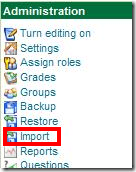
- Choose your source course which has the assignment:
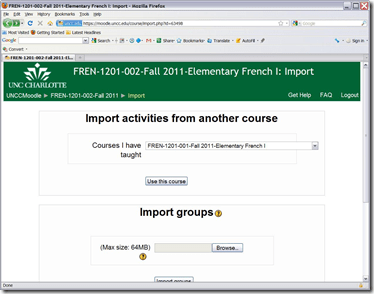
- Then choose what assignment you want to import:
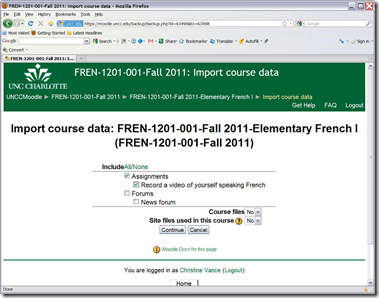
- Jump

- through
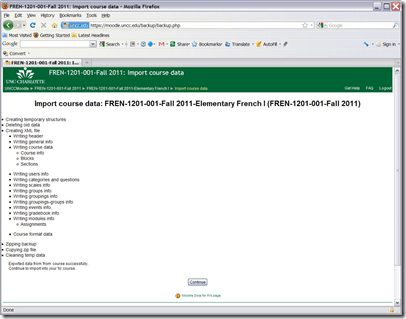
- the

- hoops

- done:
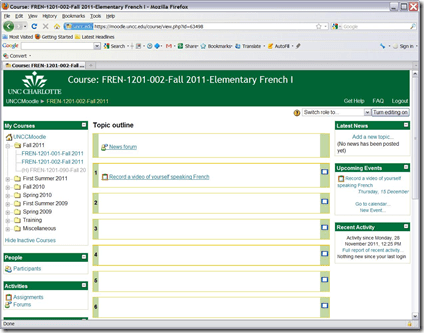
- Choose your source course which has the assignment:
- Start here:


LRC assistant responsibilities: A checklist (on reception desk next to your screen)
For larger view, click “Full screen”windows in lower right corner. Mote that the sheet with LRC assistant responsibilities is handily posted right under your screen at your work station – refer to it as needed,

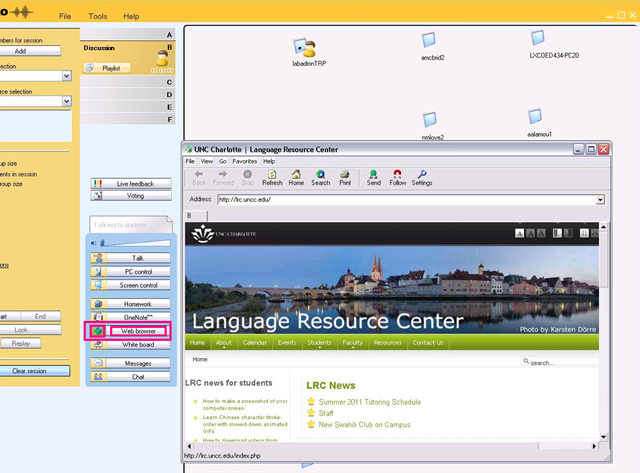
How to launch a webpage to students from Sanako Study 1200
- On the center buttons “Web browser”, use
- either the large grey rectangular right area to launch to all students in class
- or the small square colored (here brown) left area, to launch only to students in the brown group, like so,
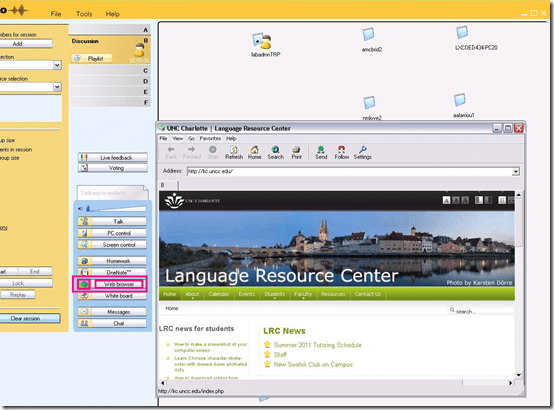
- unfortunately, you will have to click through number of errors on most web pages – the students do not see these

- eventually, the start page will show in your Sanako web browser

- then you can browse to a page from the address bar, click “send”, which will open it on the student computers
-

- clicking “follow”
 is like always clicking “send” after browsing to a new webpage. It allows you to guide the students through a number of web pages.


Moodle Https Warnings
This now appears in every page I load in Moodle (in Internet-Explorer-8). I realize that client-wise this warning should not be suppressed globally. If this cannot be updated server-side, is it possible to blacklist individual websites? 
Trying out the new Moodle layout options by integrating my blog via an RSS block
- Running a blog? Feeding a twitter account? It could be worthwhile narrowcasting your (teaching-related) postings (presumably more substantial than tweets about tardiness for class) by integrating it with your Moodle course, via RSS.
- As of today, UNCC-Moodle offers new layout options, including putting blocks into the content (center) column, as a “sticky” post underneath the header.
- This is timely, since I have created a Moodle site for the LRC staff and have been wondering how I can use it to quickly update the LRC staff on new technological opportunities or issues and solutions around the LRC.
- Moodle’s RSS block – linking to the feeds that my blog feed/Twitter hash tag for LRC staff emit – makes that easy.
- Except that up until now, outside the center column, there has not been enough space to display also the teaser of blog posts – an area I invest some thought in, in accordance with age old publishing principles transferred into the internet age.
- The layout options upgrade allows me to fix that – here is how:
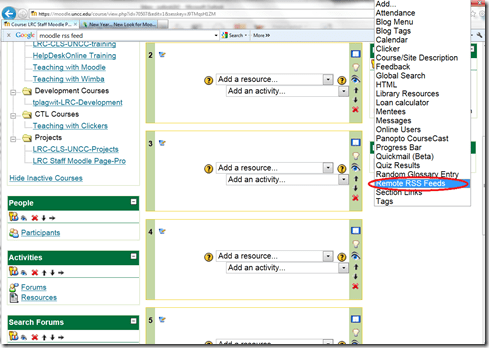
- After pressing button: editing on, choose from the dropdown “blocks”: remote RSS feeds

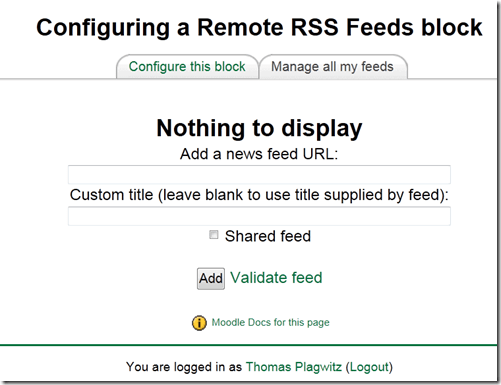
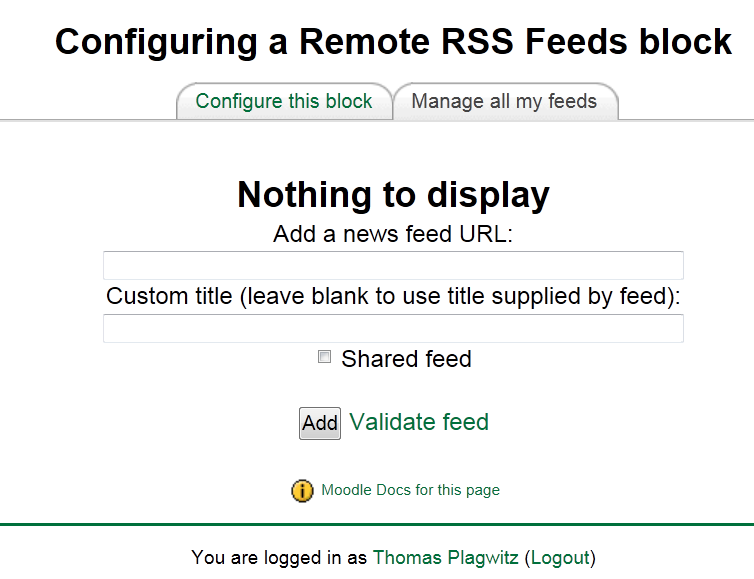
- Don’t be confused by the inability to add your feed source – you need to change to the tab: “manage my feeds” first:
- if you make your feed a “share feed”, it becomes an option for all institutional Moodle sites.
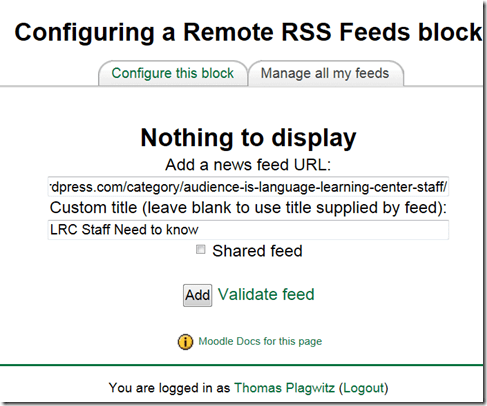
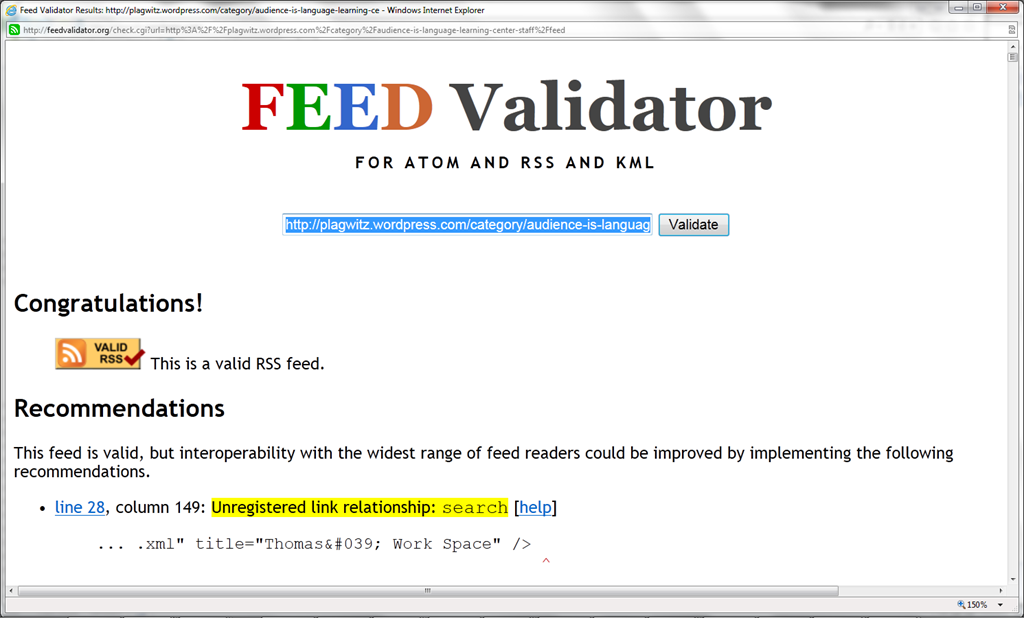
- Validate your feed so that Moodle doe not outright refuse to display (the linked validator will give you error information that can help you fix your feed).

- After moving your feed to the center with the “left arrow”, you can

- You can see more of the Moodle RSS block results here.

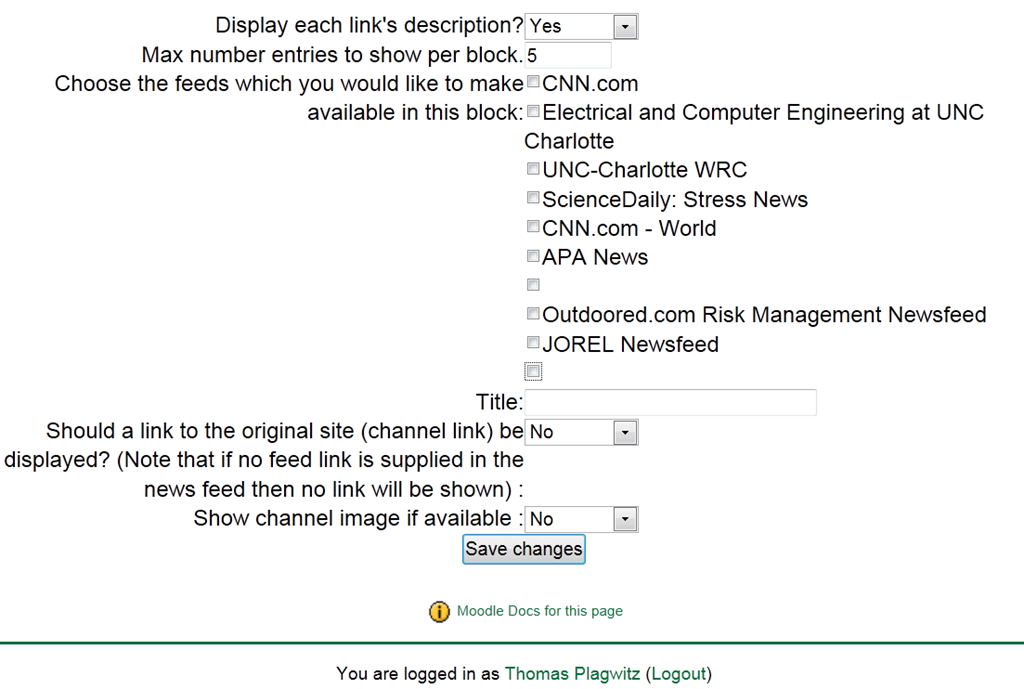
Adjust the settings: for me it is important to display descriptions.


Moodle Metacourses, part III: The support workflow: File-renaming
We discussed file renaming utilities in an earlier post. Here are some more practical tips:
Limitations: While both utilities can accept Windows Search Result sets, drag-drop seems limited to fewer than 256 files at a time (on my Vista 64-bit – but that is not an OS limitation, since MS Expression Encoder can accept a drag-and-drop of all over 3.5k files that need reencoding).
Workaround: both utilities have a folder-select, and Renamer in addition accepts file masks, which can mimic some basic searches:
![image_thumb[2]](/Users/trp/AppData/Local/Temp/WindowsLiveWriter1286139640/supfilesB79F19A/image[6].png "image_thumb[2]")
Bulk Rename Issue: While it allows for “Select from Clipboard” which you can use with the Windows “Copy as Path”/”Send to Clipboard as Name” feature which works with search result sets. However, I could not get this feature to work (neither with the default “” around the path nor, after removing them manually, without).
Renamer, Issue: rule, clean up, strip-out-content-of-brackets-does-not-what-it-should:
Renamer-translit-anglicize-foreign-language-diacritics: unfortunately still recommended for technical reasons; Renamer has presets, e.g. German here: TBA
Only one preset can be inserted add a time (overwrites previous) – but you can build your list with copy/paste from/to this text box and persist it to disk to load it later, just like the search rules – an extremely handy feature.
How best to fit your class into the Sanako Study1200 Classroom Layout
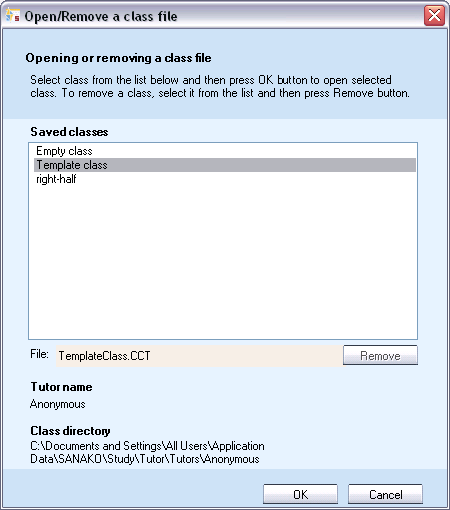
- When started, the Study1200 Tutor will prompt for the classroom layout (computer and student icons in the right part of the Sanako window) that you want to load, like so:
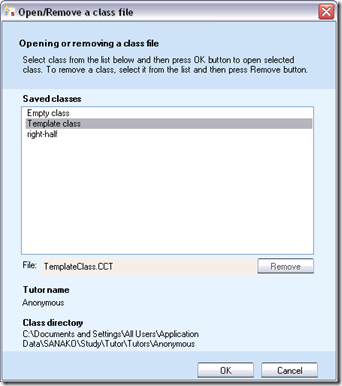
- We have 2 classroom layouts preconfigured for common uses of the LRC
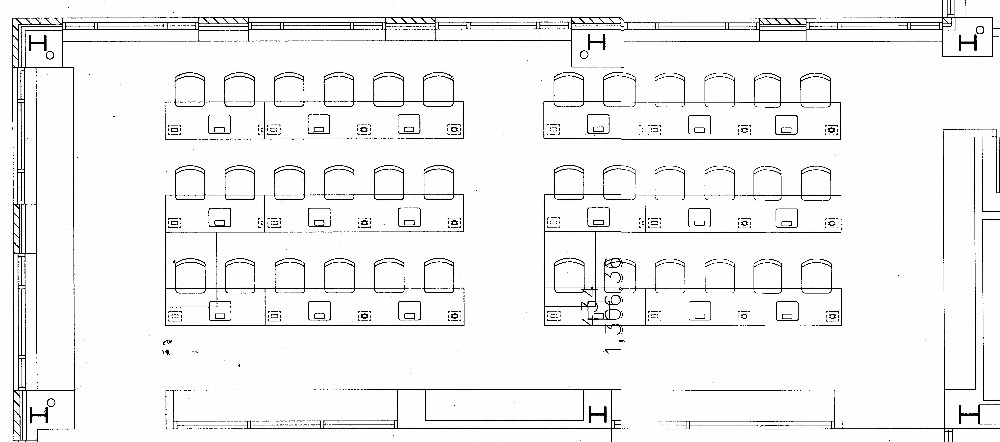
- “right-half”: only the right half, as viewed by the teacher, of the coed434 main classroom. If you come with smaller classes (<16), this will fit relatively nicely onto the screen.
- “template class” = all that can fit onto the screen which means:To fit students (and, more importantly, the reasonably sized thumbnails of their desktops) onto the screen (Sanako Tutor will not span both screens, at least not if they have different resolutions), we had to
- take the main classroom COED434

- break out the front 2 rows, break them apart in the middle, and turn them counterclockwise, like so:
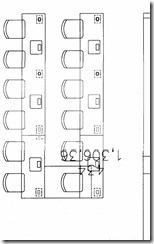
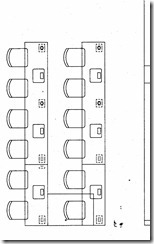
- to achieve the following result in the Study 1200 classroom layout:
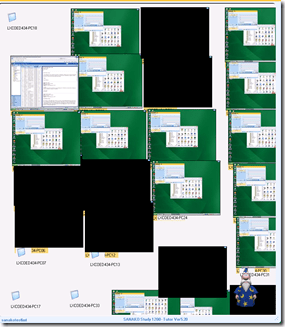 thumbnails of the 2 front rows barely fit the layout, remaining computers from the rear row are cluttering the bottom of the classroom layout. This severely limits the usefulness of this great feature, and is counter-intuitive, which is twice as bad when standing in front of (or here rather: behind) a class. We are working on getting a bigger secondary screen on the teacher podium. Since we will also eventually need more Sanako licenses to equip the whole classroom. So the secondary screen should be as big as we can possibly get for the podium: 1900*1200 would be 1.75 times what we have now.
 - To simplify this while we wait, we have numbered the seats (rather: the monitors) in the LRC according to the computer numbers. In the Study-1200 classroom layout, you can show the computer (names which end in these) numbers instead of the the student login names, by going to menu: tools / admin / change student names.
- if you classroom configuration changes,
- you can change the layout by reloading a preconfigured classroom layout file, like so:

- you can alter the layout on the right on the fly, by CTRL-SHIFT dragging student/computer icons
- If you have done this, on exiting, the study1200 tutor will ask you whether you want to save your changes to the layout. Feel free to do this, as longs as you save them in your personal tutor folder. Please do not overwrite existing layouts for all teachers.
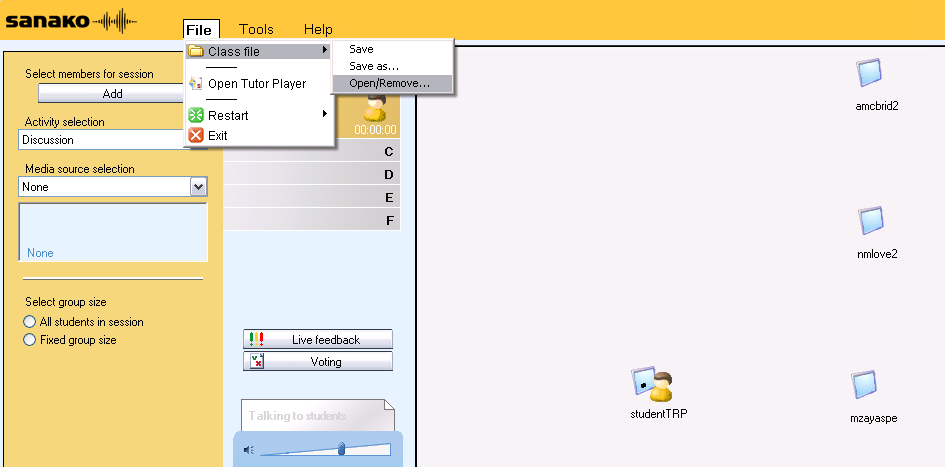
- Classroom layouts are stored with the extension CCF, but are simply XML files. To preview or even edit them, You can open them in your preferred XML editor, like so in MS-Excel:






Questions? Read the About. Or just ask me a quick Our Databases: Resources with calendars -- Language learning material Moodle Sites, multimedia files -- films


FAQs for LRC student staff or for students or for teachers. To search our FAQs, in the browser addressbar, add after "https://plagwitz.wordpress.com/feed/?tag=faqs+/" "+TAG1" (from tag cloud below) OR "https://plagwitz.wordpress.com/feed/tag=faqs
&category_name=" "CAT1" (from category hierarchy below). OR search both categories and tags, and multiple TAGs/CATs (connect with "," for OR-search, with "+" for AND-search), like so: https://plagwitz.wordpress.com/feed/?tag=TAG1+TAG2+...TAGn&category_name=CAT1
+CAT2+...CATn"
Other ways to find help
If you cannot find it here, look there: 5,500 Language-Learning Links and Programs for learning or teaching 150 languages
Shortcuts:Our Lists, Our Maps, LRC Staff Moodle Site,LRC Project Moodle Site, 49erexpress, UNCC Moodle, Student Recordings: s:claslcslrcsanakostudent
Learning usage samples: Sanako oral exam, Kaltura webcam presentation, Dictation with speech recognition, Sanako written exam, Chinese and Japanese interactive stroke-order practice
Test the Sanako Installer, Webbrowser Popup Konfigurator for XP, or Windows7, faster LRC TeacherPC Log-in Let MS facilitate diacritics writing by installing for you US-International keyboard layout
This is my personal blog (Google+). The views expressed on these pages are mine alone and not those of my employer. The information in this weblog is provided “AS IS” with no warranties, and confers no rights.
 Thomas' Work Space
