Archive
Archive for the ‘e-learning’ Category
How not to have to join a Saba Centra online class from the LRC late, for lack of speaking capabilities
2013/05/06
Leave a comment
- Problem: We continue getting reports from teachers that students who try to participate in a Saba Centra online class from the LRC listening station computers (with analogue headphones) experience a considerable delay in joining and cause disruption to online classes since they have to troubleshoot their microphones, for lack of being audible online.
- Root cause: Saba Centra on startup automatically selects the “microphone” as recording device…
- Workaround:
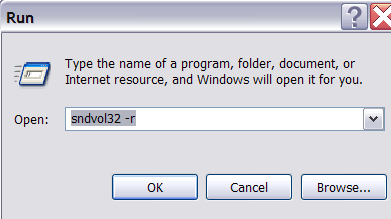
- On XP, click “Start”, click “Run”, type (without quotes) “SndVol32 –R” (meaning: “SoundVolume for Recording”), click “OK” which opens the volume mixer for recording devices. The radio button selected will be “Rear input”.

- Start Saba Centra.
- Switch back to the volume mixer you opened in step 1. Note that the radio button now selected is “Microphone”. This is wrong for the listening stations (and the teacher station) in the LRC. Switch it back to “Rear input” (you know that your headset is supposed to be plugged into the rear).

- And off you go… Plus note: There is no need for “expensive” workarounds like:
- haphazardly trying to replug headphones,
- purchasing your own USB headphones,
- hogging the main classroom with its USB headphones.
- On XP, click “Start”, click “Run”, type (without quotes) “SndVol32 –R” (meaning: “SoundVolume for Recording”), click “OK” which opens the volume mixer for recording devices. The radio button selected will be “Rear input”.

Categories: audience-is-language-learning-center-staff, audience-is-language-learning-center-temp-staff, audience-is-students, audience-is-teachers, Distance-education-format-is-Synchronous, e-learning, Listening-Stations, Presenter-Computer, presenter-computer, service-is-configuring-learning-tools, service-is-testing-troubleshooting-debugging, Speaking
audio, FAQs, saba-centra
Saba Centra on startup automatically selects the "microphone" as recording device…
2013/05/03
Leave a comment
- … But we in the language lab use the (dual function microphone/line-in) "rear input" for our headsets (for ergonomic, health&safety and security reasons). Workaround here.
- Apparently this startup behavior cannot be changed within Saba Centra:
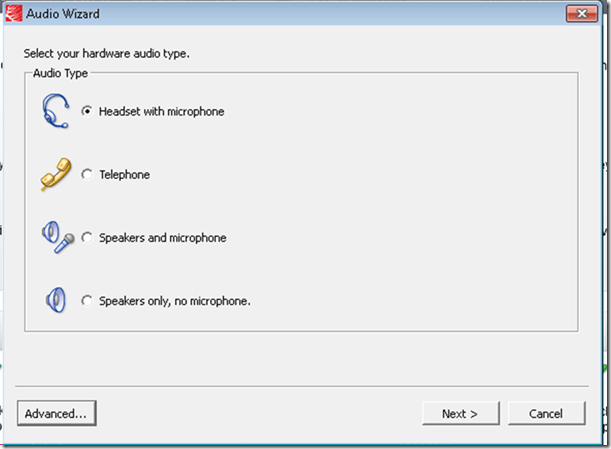
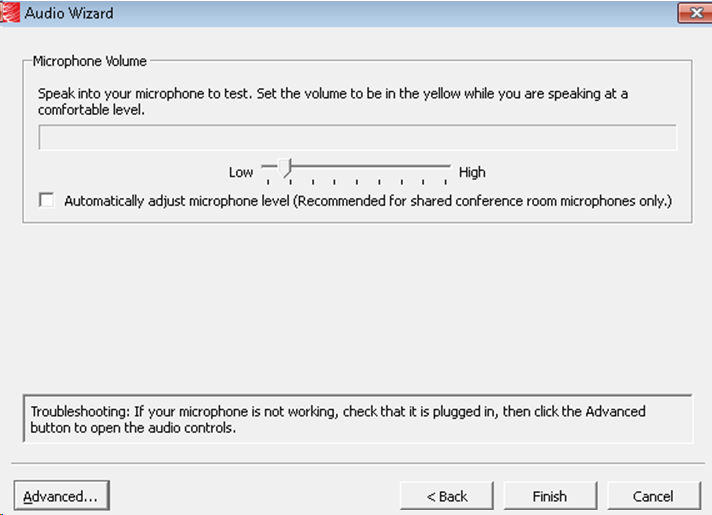
- Any startup will bring up the “Audio Wizard” asking users, even in a controlled lab environment, to configure their audio devices,
- and if users do (and choose what they have: headset), make wrong assumptions which audio plug to enable (“Microphone” front panel, even if your headset is plugged into the rear panel dual “line-in/microphone”)
- The workaround according to these easily Googled instructions is using the “Advanced” audio wizard options to override this “Audio Wizard” error, like so:
- “Re-open the Audio Wizard, go to the third screen and change your recording device in your “Recording Device” menu. Advance two slides and determine if you can hear your recorded voice. ”
- 1st screen:
- 3rd screen:
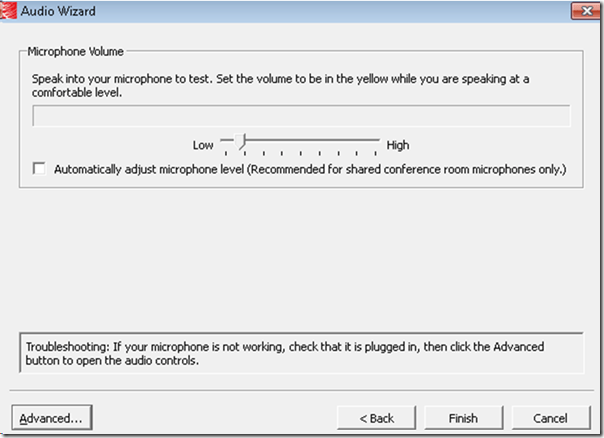
- note the instructions – Click “Advanced”. But it is easier to just use from the start our Workaround here.
- 1st screen:
- “Re-open the Audio Wizard, go to the third screen and change your recording device in your “Recording Device” menu. Advance two slides and determine if you can hear your recorded voice. ”
- The long-term solution is reconfigure your hardware and disable the front panel audio – but will Saba Centra understand you? Stay tuned…
Text messaging in class using Sanako Study 1200
2013/04/04
Leave a comment
Students click:  – Tutors click:
  . Stop endless spelling out of URL’s or queuing with raised hands during class. Your students will
  .
.
How a teacher can see student computer screens in Sanako Study 1200–the ultimate training summary
2013/04/04
Leave a comment


LRC training animated-gifs
2013/03/18
Leave a comment
- This link gives you a nice overview list of the LRC animated gif’s for training.
- Chrome users need to install this first, still can view get only a subset.
- Neither Chrome nor Firefox offer a search-within like Internet Explorer.
- They are meant for display on the left lrc teacher station screen.
- whether you display them as student training material on the projector
- or display them as guidance for yourself
- Did you miss something?
- The animated gif’s cycle in an infinite loop. Just wait for the next round.
- If you want to restart the video now, press F5 or click the Refresh button
 in your browser address bar.
 - Or use one of the slower speed videos I made.
- I also made clickable versions that you can hand-browse (more control. More effort also).

How to batch download all submissions as a zip file from a Moodle: Gradebook File-upload assignment column.
2013/03/01
Leave a comment
- I have no file upload assignment with submissions handy in my own Moodle course, so I am patching this together from other universities (thanks, umass.edu, cotc.edu).
- “ Another time saver you can use is the Download all assignments as a zip link. This will package all uploaded documents from any submissions in the assignment into
a zipped folder that you can download. Once downloaded, you can unzip the file and access each paper. This can be a real time saver!”. Image: 
- Extra: This procedure will add the student’s name to the file. No more wading through submitted audio files named by students trying to identify submitters.
Categories: e-learning, grading, lms
automation, batches, file-upload, files, gradebook, moodle
Protected: Block common translator, webmail and/or social web sites during LRC class by loading a RUL file in Sanako Study 1200
2013/01/29
Enter your password to view comments.


Questions? Read the About. Or just ask me a quick Our Databases: Resources with calendars -- Language learning material Moodle Sites, multimedia files -- films


FAQs for LRC student staff or for students or for teachers. To search our FAQs, in the browser addressbar, add after "https://plagwitz.wordpress.com/feed/?tag=faqs+/" "+TAG1" (from tag cloud below) OR "https://plagwitz.wordpress.com/feed/tag=faqs
&category_name=" "CAT1" (from category hierarchy below). OR search both categories and tags, and multiple TAGs/CATs (connect with "," for OR-search, with "+" for AND-search), like so: https://plagwitz.wordpress.com/feed/?tag=TAG1+TAG2+...TAGn&category_name=CAT1
+CAT2+...CATn"
Other ways to find help
If you cannot find it here, look there: 5,500 Language-Learning Links and Programs for learning or teaching 150 languages
Shortcuts:Our Lists, Our Maps, LRC Staff Moodle Site,LRC Project Moodle Site, 49erexpress, UNCC Moodle, Student Recordings: s:claslcslrcsanakostudent
Learning usage samples: Sanako oral exam, Kaltura webcam presentation, Dictation with speech recognition, Sanako written exam, Chinese and Japanese interactive stroke-order practice
Test the Sanako Installer, Webbrowser Popup Konfigurator for XP, or Windows7, faster LRC TeacherPC Log-in Let MS facilitate diacritics writing by installing for you US-International keyboard layout
This is my personal blog (Google+). The views expressed on these pages are mine alone and not those of my employer. The information in this weblog is provided “AS IS” with no warranties, and confers no rights.
 Thomas' Work Space