Archive
Testing Ribbon Hero 2 as a training resource for MS-Office
“A game fit for playing at work”? I am game!
Easy to tell after a couple of rounds that this constitutes a nice effort, but…
I wish the Excel Ribbon Hero game would remember – after all, Office 2010 still does, thank you! – the Office 2003 keyboard shortcuts, like for Data / Sort.
Or do you really think I needed a hint to sort a table in Excel?
“Right, but is the game called Excel Keyboard Shortcut Hero?”. Oh well, I earned my points via the context menu, that is not a Ribbon feature either, is it?

Digital language lab audio configuration: Using the Sanako Study 1200 Sound Device Wizard on student computers
Watch a screencast of operating the Sanako Study 1200 Student Sound Wizard from menu: Tools / Sound Settings – using an analog headset. However, “If you are using Sanako SLH07 USB headsets, Study has inbuilt default audio settings that you can easily apply. Simply click on Set Sanako Headset defaults to employ audio settings that have been preconfigured for use with a Sanako headset“, like shown here:
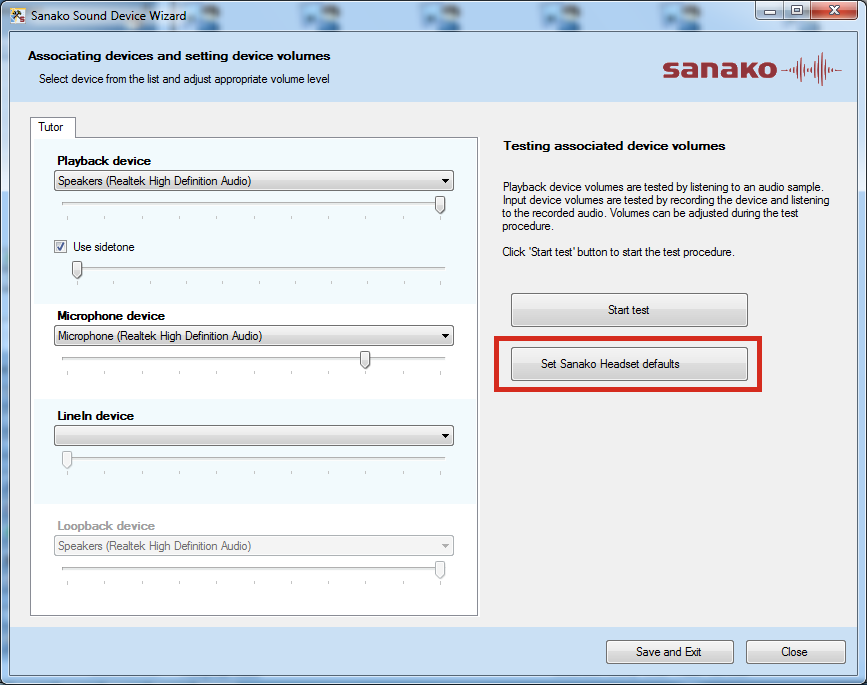
Digital language lab audio configuration
Issues (BSODs) have been reported with simultaneously running USB sound-card driven headsets and on board audio, which have been alleviated by either USB soundcard driver updates or disabling the onboard audio or both.
To be safe, we do the latter, on this screen of the Dell-Optiplex-760-bios: f12 / System Setup / Settings / Configuration / Miscellaneous Devices (you need to push button “Unlock”and issue the BIOS password to make changes):

Dual audio is also a potential source of confusion for the user. This is the reason why we prefer hiding the MS-Windows Volume control icon in the notification bar – a setting in the control panel / sound and audio devices:

We rather stir the user to the Sanako student player audio volume slider as the single point of entry – and one which can be easily seen by the teacher: see Study 1200 teacher / PC Control / Show the student player).
This comes with added responsibility for the teacher, as the Sanako student player audio volume slider does not control the WAVE volume level. Ensure proper setting of the WAVE volume level AND proper source audio levels – or use our TBA:teacher lab audio control extensions to control the WAVE levels on student computers.
How to map your MS-Windows Live Skydrive/Office online storage as a network share to work natively with cloud storage
This allows you access cloud storage files (Note: works only for MS-Office files) as easily as within MS-Windows, and without having to deal with web browser incompatibilities.
Setup:
- If you know the URL of your MS-Office online Skydrive (how?),
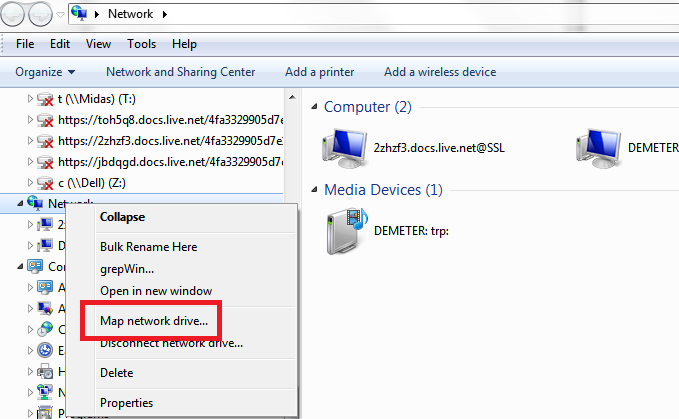
- in Windows 7, go to Network / Map network drive:
- Enter the URL that SkyDrive gives you, make sure to change “https:”to “http:”, select a drive letter:
- And voilà: An MS-Skydrive WebDAV location as a drive in your Windows Explorer:
Troubleshooting:
- if you have try this over the (restrictive) university wireless, you seem to get errors (“The file cannot be accessed by the system”):
- Interestingly after successfully receiving the authentication challenge from the resource
- If you have successfully mapped the drive over the non-wireless and then try to access it over the wireless, you may get this (0x80070035: ”The network path was not found”):


How to reveal your Skydrive/Office online cloud storage URL with SkyDrive Simple Viewer
A useful tool is SkydriveViewer which can reveal the URL of your MS-Office online Skydrive if you provide your Windows Live online credentials:
![skydrivesimpleviewer-url_thumb[1]](https://thomasplagwitz.com/wp-content/uploads/2011/05/skydrivesimpleviewer-url_thumb1.png "skydrivesimpleviewer-url_thumb[1]")
Download it from the SkyDrive Simple Viewer Codeplex site.
How to rip an audio CD in MS-Windows with Windows Media Player
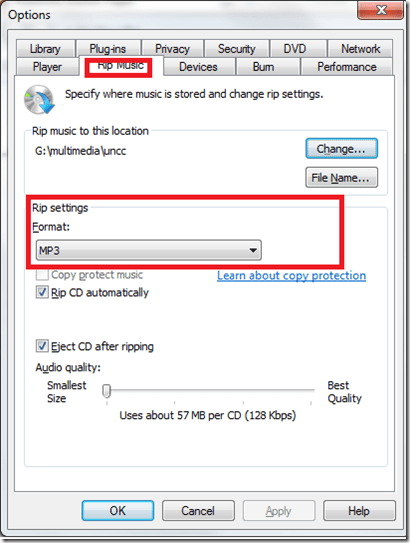
- Windows Media Player has CD-ripping capabilities built-in, WMA-format used to be the only option and is still the default in Windows 7, but can be changed under menu:”tools” / “options”/ tab:”rip music”
LCR Calendars and Scheduling
Obsolete since FALL 2011, instead see here.
LRC scheduling Crunch-time:
Faculty need to schedule exams in the LRC, communicate this to students in a timely manner and avoid conflicts with other LRC events.
While the LRC staff lost editing access to the LRC Website, including its calendar (they underlying software is being upgraded from Joomla to Drupal).
That’s why we roll out our new LRC scheduling service early.
It takes advantage of Outlook Desktop edition (2007 for the PC, 2011 for the MAC) and Outlook Web Access for MS-Exchange 2010 (for faculty/staff), and of the calendar web app of live@edu (for students).
live@edu and Outlook 2011 (MAC) are being introduced by the university over the summer.
Outlook 2007 (PC) faculty and any student who uses a web calendar are already ready to roll.
Faculty/Staff, including LRC permanent staff, can view, add and change LRC bookings directly, and coordinate them with their personal and Moodle class calendars: Read more in “Calendaring: How teachers can reserve and schedule classes in the LRC” (includes path in your Outlook to get to the LRC calendars).
Students, including LRC student staff, can view the LRC bookings from their web calendar. Read more in “Calendaring: How students can view the LRC schedules” (includes web links to LRC calendars)
Here is what you get:

Calendaring: How teachers can reserve the LRC for classes and schedule tutors in the LRC
- This is obsolete from Fall 2011, please view instead https://plagwitz.wordpress.com/2011/08/31/the-new-way-of-booking-lrc-rooms-and-equipment-from-fall-2011/.
- You may already collect calendars in one place to stay on top of your course calendars in Moodle and of your non-teaching-related university or departmental activities.
- Now you can do the same with the schedules of LRC rooms and “human resources” (tutors, LRC assistants, the director free/busy schedule is also available – equipment checkout remains to be solved!): We have added new calendars to the LRC public information and moved them into our newly upgraded MS-Exchange infrastructure.
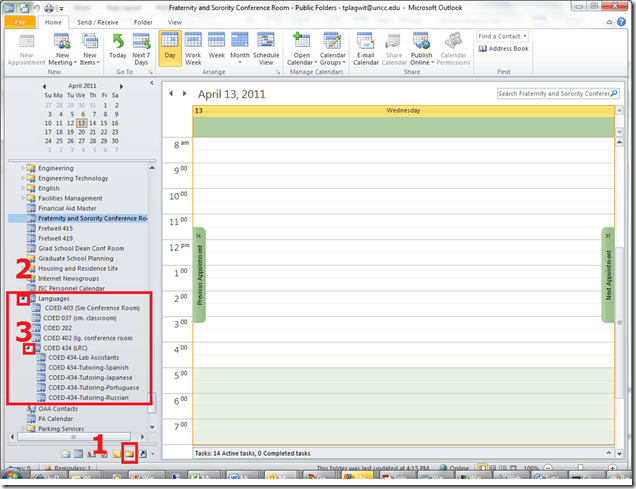
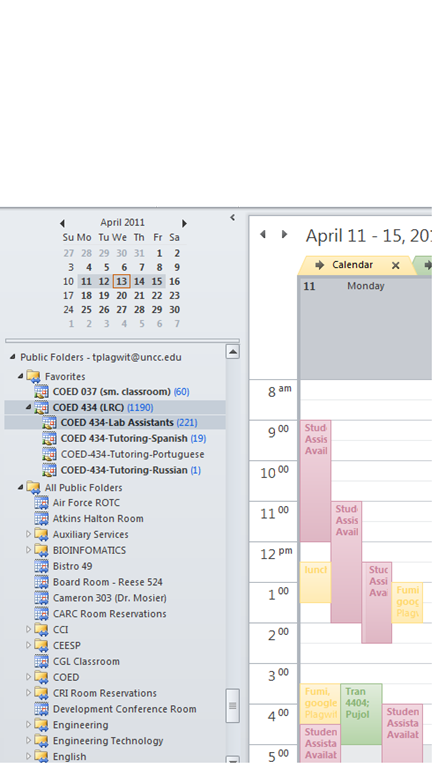
- Short answer: In Outlook (desktop, OWA may vary), go to Folder view / Public Folders / Languages / Coed 037 and Coed 434, with sub-calendars. Make any calendar you need a favorite (or in the dialogue (show below) “Add favorites” for Coed434, check “Add all subfolders”) . In Calendar view, show the calendar by adding a check to the checkbox in front of it. Add and edit your (recurring) appointments as on your personal calendar.
- For class reservation, put class number and activity in the Subject field. Put in the notes field sensitive information which you do not want to put on the WWW, as well as, if you need our support, details of technology activities planned and student numbers that need computers and headsets.
- For tutor scheduling, we have one schedule per language being tutored. Protect the tutor privacy by using the notes field for personal information. Use the Outlook recurrence options as a time-saver (just delete individual exceptions instead of the entire series).
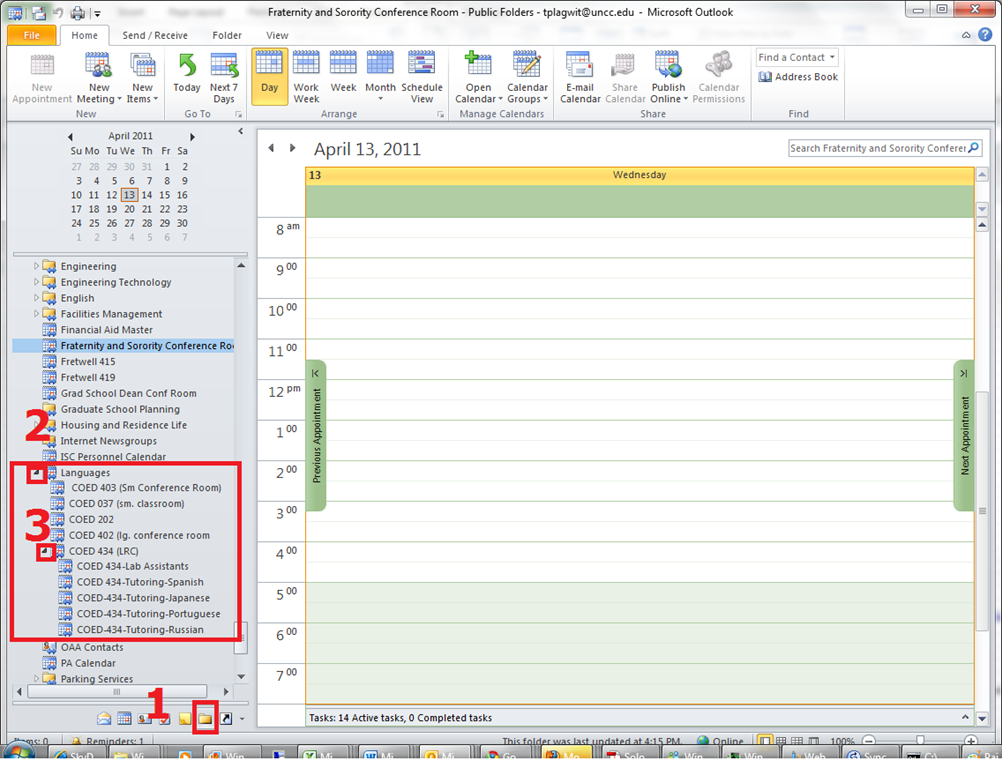
- More detail: You can access the calendar from 1. Folder view, 1a (not shown) Public Folders, 2. Languages and 3: Coed434, like you see here:
- I recommend adding them to your calendar favorites for easier management, like so:


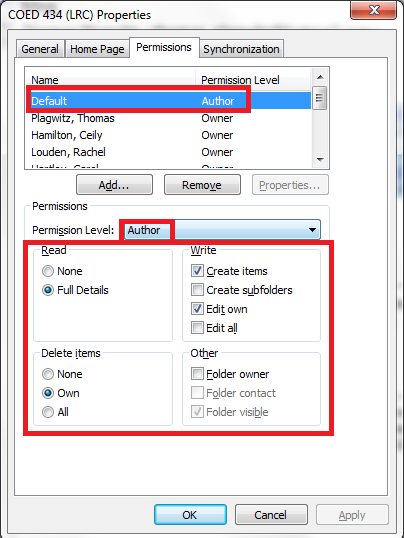
- Per default, you can see and edit (problems? request access) the LRC calendars in the Outlook "Public Folders" under "LRC", as the permissions dialogue below shows:




Questions? Read the About. Or just ask me a quick Our Databases: Resources with calendars -- Language learning material Moodle Sites, multimedia files -- films


FAQs for LRC student staff or for students or for teachers. To search our FAQs, in the browser addressbar, add after "https://plagwitz.wordpress.com/feed/?tag=faqs+/" "+TAG1" (from tag cloud below) OR "https://plagwitz.wordpress.com/feed/tag=faqs
&category_name=" "CAT1" (from category hierarchy below). OR search both categories and tags, and multiple TAGs/CATs (connect with "," for OR-search, with "+" for AND-search), like so: https://plagwitz.wordpress.com/feed/?tag=TAG1+TAG2+...TAGn&category_name=CAT1
+CAT2+...CATn"
Other ways to find help
If you cannot find it here, look there: 5,500 Language-Learning Links and Programs for learning or teaching 150 languages
Shortcuts:Our Lists, Our Maps, LRC Staff Moodle Site,LRC Project Moodle Site, 49erexpress, UNCC Moodle, Student Recordings: s:claslcslrcsanakostudent
Learning usage samples: Sanako oral exam, Kaltura webcam presentation, Dictation with speech recognition, Sanako written exam, Chinese and Japanese interactive stroke-order practice
Test the Sanako Installer, Webbrowser Popup Konfigurator for XP, or Windows7, faster LRC TeacherPC Log-in Let MS facilitate diacritics writing by installing for you US-International keyboard layout
This is my personal blog (Google+). The views expressed on these pages are mine alone and not those of my employer. The information in this weblog is provided “AS IS” with no warranties, and confers no rights.
 Thomas' Work Space