Archive
How a student can easily complete an audio recording assignment in Moodle, using the new NanoGong plugin
- Open your assignment (note the loudspeaker/dummy icon for NanoGong assignments/) from the Moodle landing page.
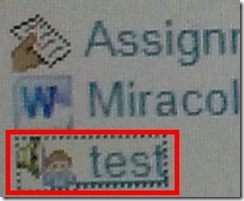
- Unfortunately, there are a considerable number JAVA warning dialogues to bypass during NanoGong activities before you can even see the recorder plugin on the page, and may be more when you try to submit.
- Once you are on the NanoGong assignment page: click red button to record,
![image_thumb[10]](https://thomasplagwitz.com/wp-content/uploads/2013/10/image_thumb10_thumb.png?w=400&h=278 "image_thumb[10]")
- Make sure the volume meter shows input when speaking (loud enough) or playing back:
![image_thumb[13]](https://thomasplagwitz.com/wp-content/uploads/2013/10/image_thumb13_thumb1.png?w=506&h=364 "image_thumb[13]")
- After recording, submit:

- After submitting,
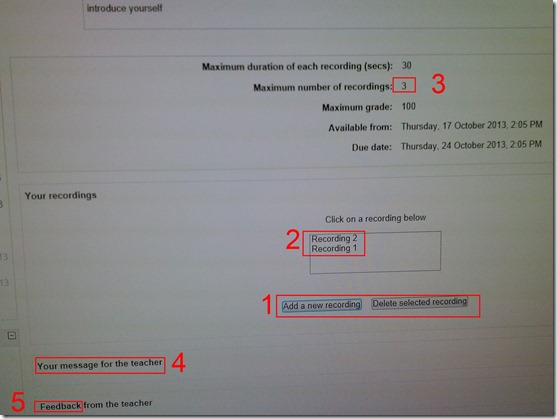
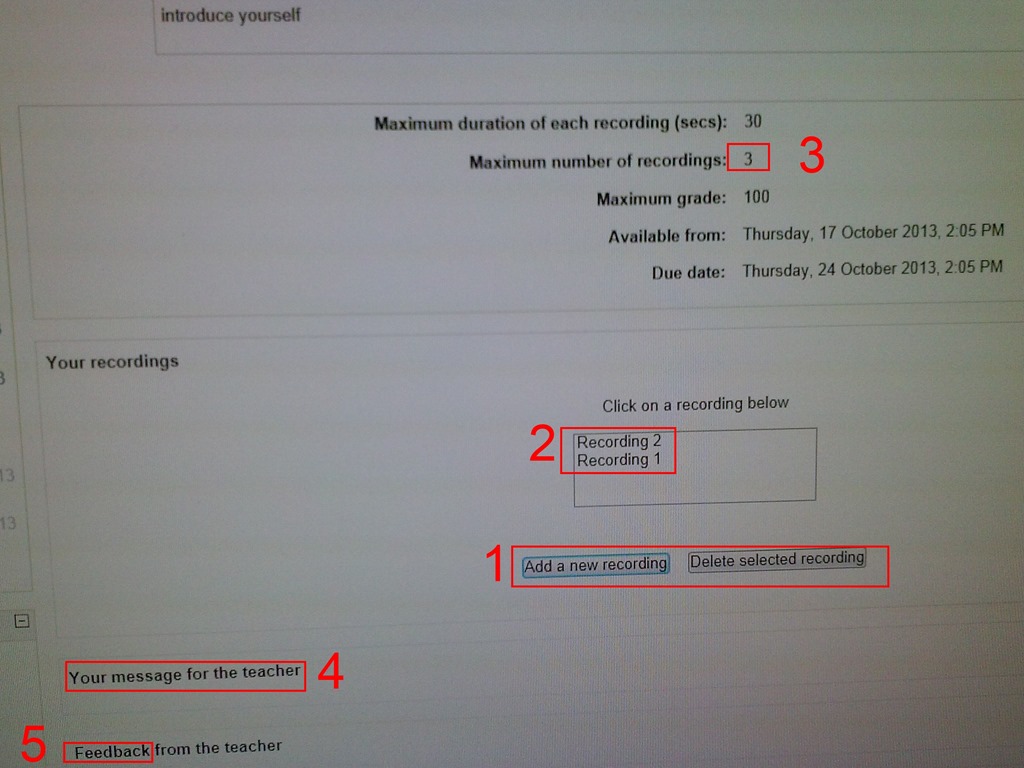
- You can still edit your submission, by
- (1) deleting your recording or
- re-adding – or (provided your teacher’s assignment allows for (3) multiple recordings) just adding – (2) your recordings
- or adding a (4) message to the teacher
- you can also revisit this page to read (5) feedback the teacher gives you about your recording:
- You can still edit your submission, by
- Experiencing issues? Check troubleshooting page here.
![image_thumb[10]](https://thomasplagwitz.com/wp-content/uploads/2013/10/image_thumb101.png "image_thumb[10]")
![image_thumb[13]](https://thomasplagwitz.com/wp-content/uploads/2013/10/image_thumb132.png "image_thumb[13]")

How a teacher can easily assign an audio recording in Moodle, using the new NanoGong plugin
- We are back in business with easy audio recording assignments in the LMS, thanks to NanoGong – the free recorder I recommended when first starting here – now being available in MOODLE (presumably with the Upgrade to Moodle 2, I almost missed that….)
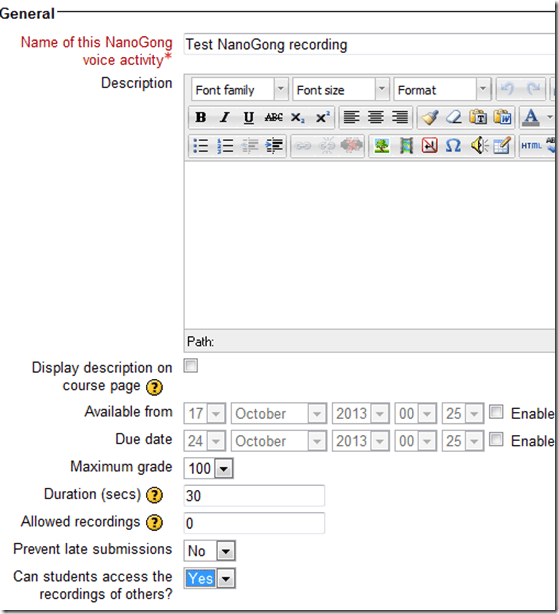
- To assign, click “turn editing on”, “Add activity or resource”, select “NanoGong voice activity”, as pictured below:

- There are a few interesting options:
- you can limit the duration
- you can limit the number of recordings (attempts?) allowed (0 is unlimited)
- You can let students listen to each other recordings. (Is there a rating feature that can be combined with this?)
- And this is what
- you will see (TBA:read on for how to listen to student submissions, give feedback and grade.)

- you will see (TBA:read on for how to listen to student submissions, give feedback and grade.)
- your students will see…


Courseworld.org offers foreign language learning video clips
- Over a 100 videos currently available:
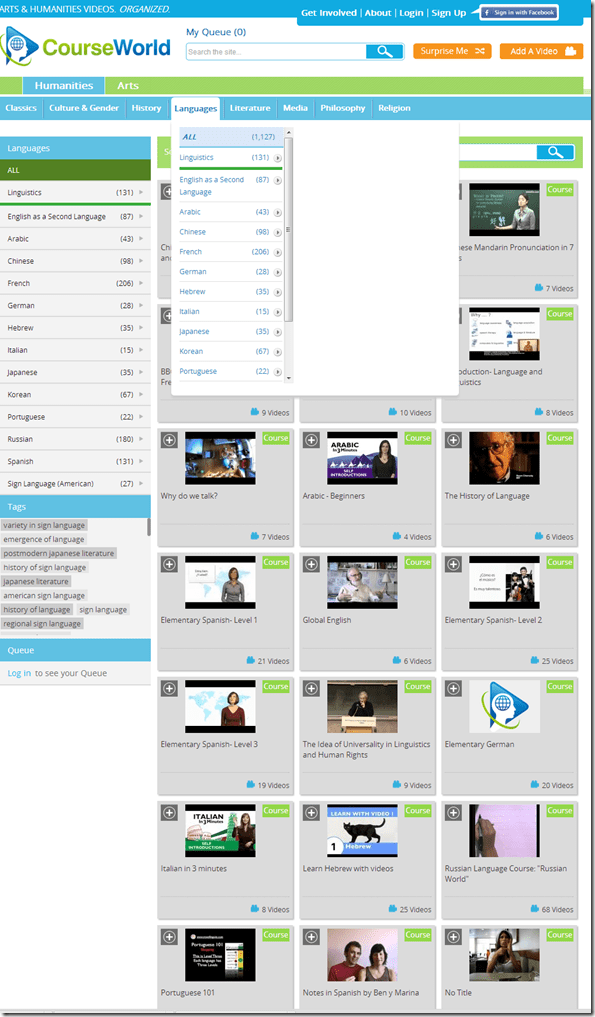
- Summaries show when you hover over a video tile:

- Can it beat YouTube.com for scope? Can it beat textbook-integrated videos for applicability? Likely not, but you may find an add-on for your course, and even more for self-study.


Setting up tutor support for Hybrid Spanish in the LRC, from 1-on-1 to Emporium
- The LRC can answer the Hybrid Spanish need to move tutoring into the LRC in a variety of ways, depending on scale of need:
- immediately on a small scale, using its small group rooms:
- 1-2 seats next to the tutor (lrcroomcoed433d) plus space for 1-2 students to wait in line (lrcroomcoed433). Group room 2 is the one along the wall next to the door. Not more than 2 students will fit there – on the sofa – at a time, with the tutor sitting at the desk. Since there is no space, other students cannot crowd the space/hog the tutor, but will be forced to move.
- Other Hybrid Spanish students can line up in lrcroomcoed433 (what we made into the “iMacs Faculty” room for you), and work in the online textbook while they wait online even when the other tutors (which we are going to move in there for you, see room calendar) use up the iMacs next to the door.
- The group rooms are merely my personal “hack” to make the LRC fit the changing departmental needs better. Our renovation proposal asked for more standard facilities, but we could secure only a couple of man hours to move our existing furniture. The hacked group rooms are small (photo included here), not (unlike proposed) sound proof and that the area in front of the reception desk with 3 customer lines can get rather busy when assistants help students, faculty and tutors. The LRC help desk constantly has students and teachers asking for help and checking out equipment, media, and starting proctored quizzes, sometimes in lines.
- Whiteboard: the department has installed the whiteboard in lrcroomcoed434 last year. Hybrid Spanish can use it there, or if the department has the funds, they could buy another and install it in group room 2. In the group room, for 1 on 1 tutoring, Hybrid Spanish could use the computer instead. Would it help at all Hybrid Spanish if we installed a 2nd screen, keyboard and mouse on this computer?
- “in person sign-in“: I’d be more than happy to help Hybrid Spanish look into how the LRC calendars could be used for students signing up for time slots with tutors, in a location easily readable and writable to all students – I have been meaning to do this for a long time for our tutors that are in only for a few hours per week. However, the need for setting up a restrictive sign-in could be alleviated by having a line where students at least can continue working on online Puntos at a a computer by themselves (=lrcroomcoed433), or, even better, can flexibly work on online Puntos , get help from a tutor, continue working on online Puntos, ask more help from a tutor.
- on a medium scale:
- If Hybrid Spanish need to accommodate more than 4-5 students – combined tutoring and lining up – at a time, I’d recommend using up the right half of the main classroom lrcroomcoed434 for this, even if not for a supervised/blended human/online homework session using the Sanako.
- Hybrid Spanish tutors could just move between the computers pedestrian-wise, manage the queue of students manually etc. At least Hybrid Spanish would have plenty of space to accommodate all students that show up, including the pile-ups we have experience.
- Large scale via “hybrid tutoring” using Sanako:
- On a larger scale (which we may encourage tutor-seeking students to create once they see we are able to scale this way), I could show Hybrid Spanish tutors how they could use the SANAKO to monitor and help students via screensharing, manage a queue of students “calling” for help (including the students seeing how they progress in the queue), send text messages and webpages to students, or fully remote control their computers to help or collaborate with them. Tutors can also form groups to address more than 1 student at a time, address all students present via the Sanako, or simply use the projector to demonstrate to them all. Or, as said, use the lrcroomcoed434 whiteboard (it is at the other end of the classroom from the teacher podium, we should change that, lots of teachers want to rather see their student’s faces when lecturing, they can see the students’ screen now through the Sanako).
- Hybrid Spanish students would not have to leave and with the SANAKO (or without, but not as easily) could queue up to ask questions, when they need to, or even be proactively monitored and helped by the tutors, I realize that our tutor are students also and that we do not want to overtax them. I do not know why Hybrid Spanish students hang around. However, the emporium at other universities was introduced as a go-to area for students that feel lost. The LRC would love to be that go-to area for language students here, provided we have the tools to help the students find their way – I think we have some, and would love to show Hybrid Spanish how Hybrid Spanish can take advantage of them. Of course everything that involves 1600 students per term needs to be carefully planned, especially with our limited seats in the LRC.
- When we last tried to share the classroom with Spanish tutoring, we had incidents with teachers no wanting the tutors there, while the tutors were unwilling to move. This is why the LRC set up the group rooms in the first place. In addition, the LRC online calendars now allows the teachers to book, or cancel booking, the room on the fly, and the tutors can see this calendar on the fly. Improved communication on sharing should allow for increase in actual usage of Lrcroomcoed434, without stepping on each other’s feet: they can be prepared to move back out to their group room, when the teacher moves in (and the SANAKO allows the tutors to also force the log out of their students form the lrcroomcoed434 computers for the class moving in). We would then not formally book the classroom for Hybrid Spanish, but rather still the group room, and rely on Hybrid Spanish students moving to the group room for the time slots that classes are scheduled in the classroom (easy enough to see in the LRC calendars, either from the calendar links on the LRC homepage, or by subscribing from NINERMAIL).
Protected: McGraw-Hill Connect Online Textbook Teacher Links
Demo of Puntos de partida on the McGraw-Hill Connect online platform for Hybrid Spanish teachers
- For your review:

- Highlights:
-
Learnsmart: adaptive learning content that asks for and tracks for the teacher and adapts for the student to students metacognitive confidence about her knowledge before testing it
-
In a flipped classroom setting, highest failure areas in the online learning results can be easily seen by the teacher to adapt the next class meeting.
-
Protected: How to configure the LangLabEmailer for your school, and share back
Cheatsheet for typing phonetic symbols with the IPA Keyboard Layout on Windows 7 – the ultimate training…
…using animated .gifs. Slower? Compact: 0.25sec, 0.5sec, 0.75sec, 1sec, 1.5sec, 2sec, 3sec, 4sec, 5sec, 6sec, 7sec, 8sec, 9sec, 10sec. 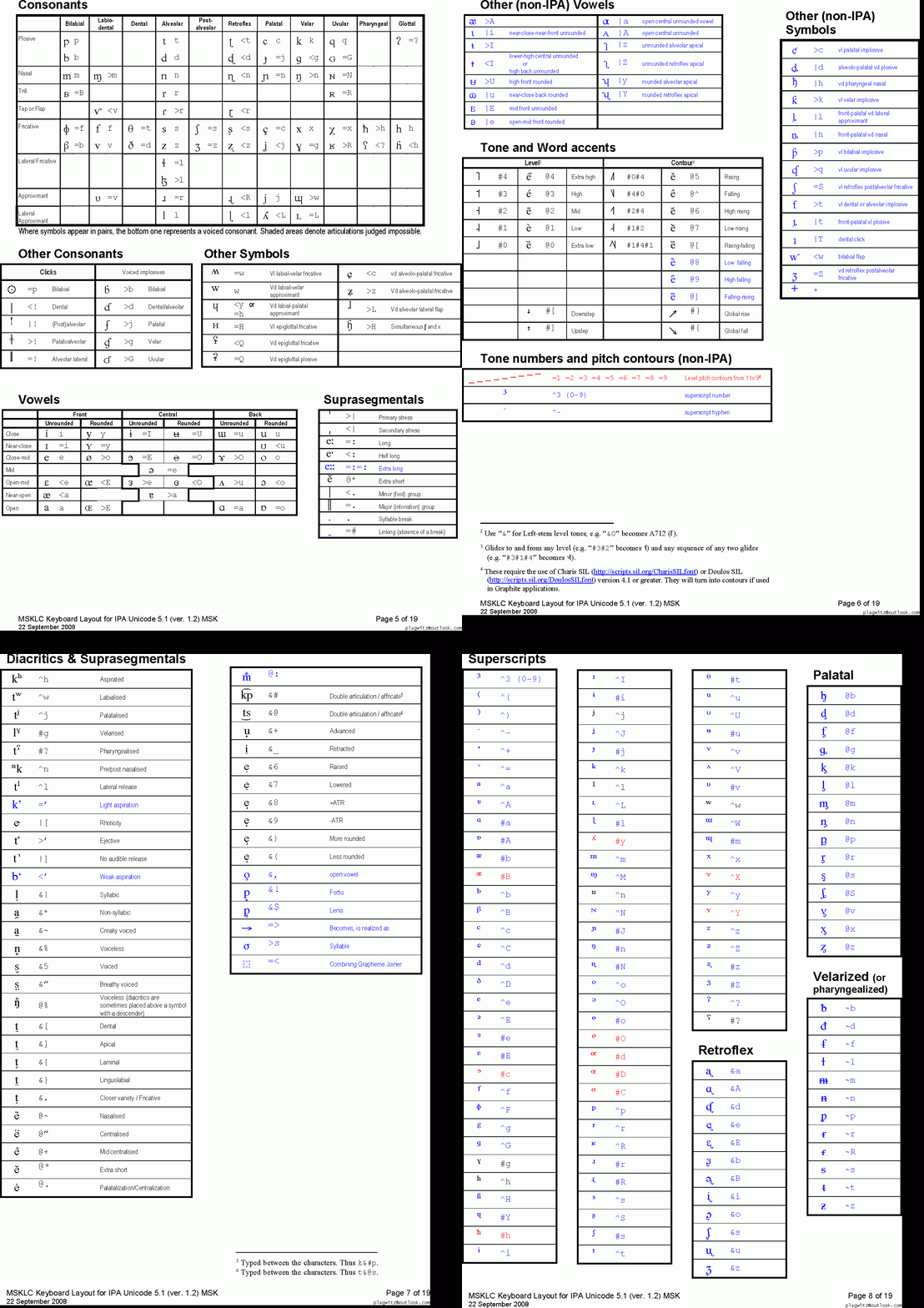
This is taken straight from the great documentation of this great Phonetic symbols Windows keyboard layout by SILS international, but needed a bit of massaging to support hands-free lookup via display on one screen of your dual screen system, while you learn or demo the keyboard to the class). Users without dual screen (including students) are better off with the slideshow below in which they can stop the images on any page:


The IPA MSKLC can produce both regular Roman characters and transcriptions with phonetic symbols by employing certain “dead keys” that can be combined with regular keys. Just and like our default LRC keyboard us-international .
Your first must select the keyboard like so. 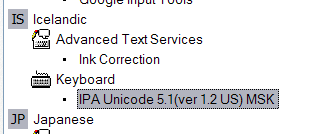 (Icelandic is suitable since it is not used for other purposes much). In the LRC, you must wait until we upgrade to Windows7.


Questions? Read the About. Or just ask me a quick Our Databases: Resources with calendars -- Language learning material Moodle Sites, multimedia files -- films


FAQs for LRC student staff or for students or for teachers. To search our FAQs, in the browser addressbar, add after "https://plagwitz.wordpress.com/feed/?tag=faqs+/" "+TAG1" (from tag cloud below) OR "https://plagwitz.wordpress.com/feed/tag=faqs
&category_name=" "CAT1" (from category hierarchy below). OR search both categories and tags, and multiple TAGs/CATs (connect with "," for OR-search, with "+" for AND-search), like so: https://plagwitz.wordpress.com/feed/?tag=TAG1+TAG2+...TAGn&category_name=CAT1
+CAT2+...CATn"
Other ways to find help
If you cannot find it here, look there: 5,500 Language-Learning Links and Programs for learning or teaching 150 languages
Shortcuts:Our Lists, Our Maps, LRC Staff Moodle Site,LRC Project Moodle Site, 49erexpress, UNCC Moodle, Student Recordings: s:claslcslrcsanakostudent
Learning usage samples: Sanako oral exam, Kaltura webcam presentation, Dictation with speech recognition, Sanako written exam, Chinese and Japanese interactive stroke-order practice
Test the Sanako Installer, Webbrowser Popup Konfigurator for XP, or Windows7, faster LRC TeacherPC Log-in Let MS facilitate diacritics writing by installing for you US-International keyboard layout
This is my personal blog (Google+). The views expressed on these pages are mine alone and not those of my employer. The information in this weblog is provided “AS IS” with no warranties, and confers no rights.
 Thomas' Work Space