Archive
Multilingual WordNet search interface
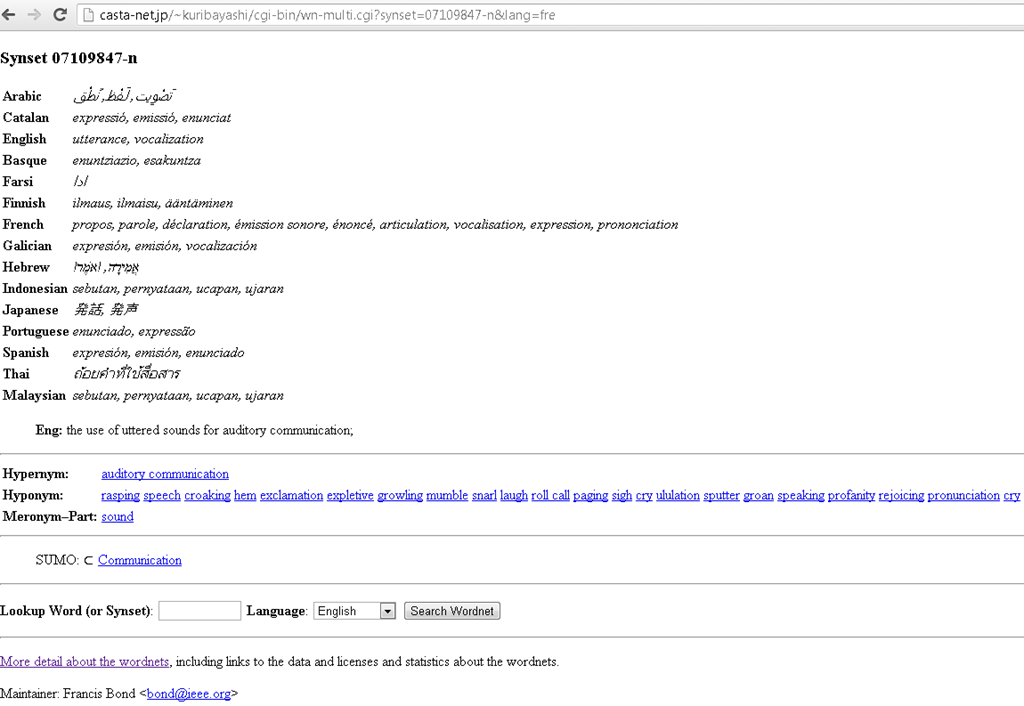
Covers a subset of the languages supported by the LRC. Based on Wordnet which is rather than a dictionary for human consumption, a machine-readable semantic network, but here is one of its machine-generated applications.
New keyboard shortcuts for diacritics on LRC Teacher PC
- The US international keyboard layout that has come with MS-Windows for many years (though – except in the LRC – not set as default, you need to enable it in the control panel) greatly facilitates typing of characters for most languages that use Roman script with common diacritical marks, but does not cover Pinyin and similar diacritical marks.
- Carly from Carleton, as avid a language teacher as a technologist, had the great idea to extend Microsoft’s US-international keyboard so as to include all the Pinyin tone marks (and other accents useful for linguists). Here is the upshot, extracted from her instructions, but excluding what (either shortcut or (use of common accents within Pinyin is now covered also below) purpose) has not changed from the shortcuts of the non-extended US-international keyboard that used to be the default in the LRC:
-
What you want Which keys you press (before comma is “dead” key = no result until after next key) Example acute accent, pinyin 2nd tone
‘(=apostrophe), vowel
á é í ó ú
grave accent, pinyin 4th tone
`(=grave), vowel
à è ì ò ù
macron accent, pinyin 1st tone
hyphen, vowel
ā ē ī ō ū
pinyin 3rd tone
%(=shift+5), vowel
e.g. ǎ ě ǐ ǒ ǔ
ü with pinyin tones
Accent, double-quote
e.g. ǖ ǘ ǚ ǜ
letter with dot below
; (=shift+period), letter
e.g.

letter with double acute
: (=shift+;) , o or u
ő, ű, Ő, Ű
- We are offering the extended US-international keyboard this as an optional keyboard on the teacher and student PCs with Windows 7.
- To select the new keyboard layout, use the language toolbar, click on 2nd option:
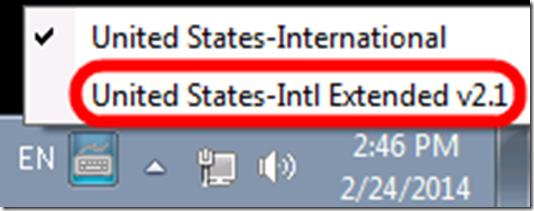
- To explore the new keyboard layout use the Windows On-screen keyboard which will let you peek ahead after your pressed a dead key.
- To bypass a special dead key (= get the normal behavior of the key), press SPACE after it.

LRC learning resources Moodle metacourses: Our list
UPDATE: The LRC Metacourses are being rolled over to MOODLE2. Metacourses having only an OldID are currently still unavailable in Moodle2. And the student enrollment needs to be updated manually until the end of add/drop. On the upside, teachers do not need to make course available to students anymore. The LRC can do this (Metacourses for languages saying #Ref are waiting to be rolled over, tell me if you need them)..
The following LRC Moodle metacourses for teaching materials are available to LCS and ELTI (including LRC-Resource with training materials for using language learning technology in and outside of the LRC, as well as for independent study languages).
The naming scheme follows the course abbreviations taught in the departments that the LRC supports:
These courses appear in the Training branch of the Moodle-courses tree-menu on the left (for all study programs you teach in):

The metacourse for a language (or field of study) is accessible to all students studying this language during the term of their study.
How students can record their picture or photo presentations with PowerPoint 2010
- The screencast shows the necessary steps:

- inserting a photo album,
- presenting while recording the presentation with narration
- saving as a show (.ppsx) – make sure you have ribbon:”Slide show”/ “Play narrations” checked:

- to prepare an assignment for a Moodle single-file-upload (How a student takes a Moodle Simple file upload assignment).

How to re-enroll in MyLanguageLab/MyGermanLab in a new term in the LRC
- Bring:
- Valid Email Address
- Student Access Code – packaged with your text or available standalone at the bookstore.
- Your Instructor’s Section/Course ID ___________ (Note: The Course ID must be entered exactly as it is provided to you including typing the hyphen “-“ and using all capital letters.)
- Open Internet Explorer, go to goo.gl/JUSUC.
Ø Click Sign in under “Sign in” 
Ø Enter the username and password you created as part of registration.
Ø In the new window, under Your Courses and Products select the link with the title of your required text.
Ø Click Enroll in Course
Ø Enter Course ID (provided by your instructor) (Note: The Course ID must be entered exactly as it is provided to you including typing the hyphen “-“ and using all capital letters.)
Done!
Or not: IMPORTANT NOTICE for Returning Users who:
· used a MyLanguageLabs course with your textbook in a previous semester
· purchased 24-month access
· received the following error after entering the Course ID you received from your instructor
If you get this error  , go to www.mylanguagelabs.com and under Sign In click “Problems with your Course ID? Click here.”
(adapted for the LRC from How to Enroll in a New Semester Handout )


Questions? Read the About. Or just ask me a quick Our Databases: Resources with calendars -- Language learning material Moodle Sites, multimedia files -- films


FAQs for LRC student staff or for students or for teachers. To search our FAQs, in the browser addressbar, add after "https://plagwitz.wordpress.com/feed/?tag=faqs+/" "+TAG1" (from tag cloud below) OR "https://plagwitz.wordpress.com/feed/tag=faqs
&category_name=" "CAT1" (from category hierarchy below). OR search both categories and tags, and multiple TAGs/CATs (connect with "," for OR-search, with "+" for AND-search), like so: https://plagwitz.wordpress.com/feed/?tag=TAG1+TAG2+...TAGn&category_name=CAT1
+CAT2+...CATn"
Other ways to find help
If you cannot find it here, look there: 5,500 Language-Learning Links and Programs for learning or teaching 150 languages
Shortcuts:Our Lists, Our Maps, LRC Staff Moodle Site,LRC Project Moodle Site, 49erexpress, UNCC Moodle, Student Recordings: s:claslcslrcsanakostudent
Learning usage samples: Sanako oral exam, Kaltura webcam presentation, Dictation with speech recognition, Sanako written exam, Chinese and Japanese interactive stroke-order practice
Test the Sanako Installer, Webbrowser Popup Konfigurator for XP, or Windows7, faster LRC TeacherPC Log-in Let MS facilitate diacritics writing by installing for you US-International keyboard layout
This is my personal blog (Google+). The views expressed on these pages are mine alone and not those of my employer. The information in this weblog is provided “AS IS” with no warranties, and confers no rights.
 Thomas' Work Space