Archive
Sanako Study-1200 Oral Exams: More result examples
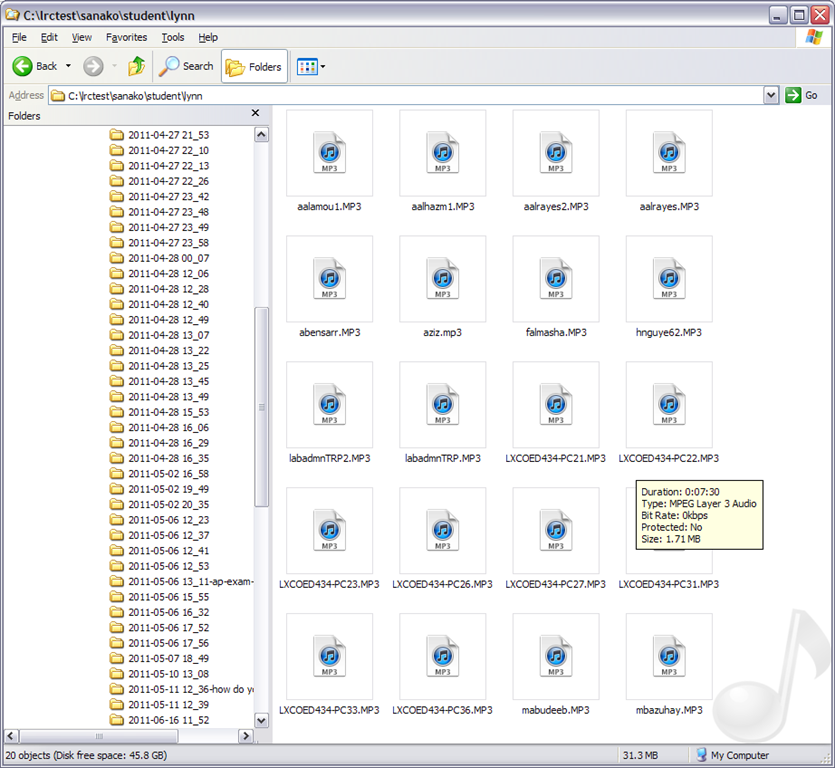
- Study 1200 will automatically save the exam recordings of each of your students under a distinct name (you can choose student email name or seat number) in a location which you can access from your office desktop:

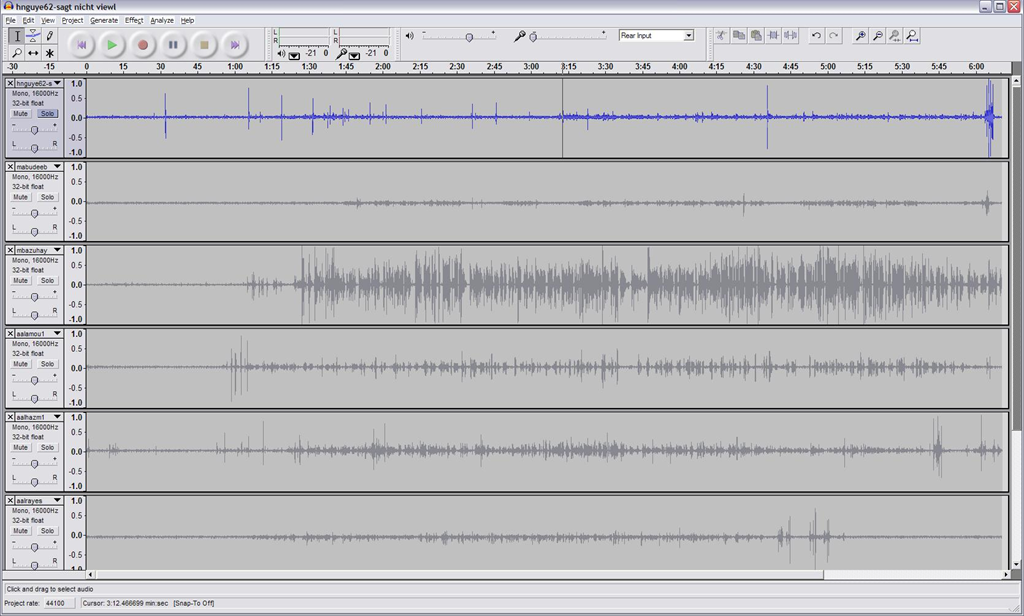
- You can load this recordings in Audacity to grade them, including skipping past the questions and increasing the play speed, but not the pitch, and easy comparison of students like in the picture below:
-


How to do Sanako Oral Exams with large classes, but few licenses: A workaround using partial classroom layouts
When you open the Study1200 tutor, a dialogue comes up which lets you select you the “classroom layout’. What this actually means – since the physical classroom (LRC layout) is obviously immutable –, is: which computers do you want the Study1200 to connect.
The “template classroom” (this happens to be just the default name within Sanako) tries to connect all students logged in on computer in COED434 to the teacher from the “corridor” (= where Study1200 leaves all computers that it knows of, but that you do “into” want to let into the classroom; the corridor has link in the bottom center of the Study1200 teacher window, and it flashes if there is a change “in “ the corridor Stuy1200 wants to make you aware of) that the Study1200.
However, beyond the 20th client (first come, first serve), this will fail because of licensing restrictions, and a grey exclamation mark will appear in the classroom layout in the Study1200 window for these student icons.
The “left-half”and “right-half” layouts that I created load only the computers in either the left or right half of the COED434 classroom (each without the wall/window-facing computers at the very edges) into the classroom layout (other logged-in students will remain in the “corridor”, linked in the bottom center of the tutor interface, if you want to add select students – note that the student icon will not appear on screen in their approximate physical position in the classroom.
You can also bring up the dialogue from which you can choose classroom layout after the initial startup of the tutor: Go to top menu: file / classroom layout. A 45-second screencast of this switching our classroom layouts in Sanako Study 1200 is available for download (requires Windows Media player).
In the screencast, you can see how the visual layout on screen reflects the physical layout in the classroom (the number labels on top of our computer monitors appear (optionally) in seat numbers): rotate by 90% clock- or counterclockwise (I wish we would have not only more licenses, but also a higher screen resolution. Stay tuned).
This technique of splitting the classroom, unloading and loading half of it at a time, you can exploit for administering oral exams consecutively with class sizes (current maximum is 25/30, depending on level) that exceed the number of licenses we have (currently 20 + teacher).
This technique of excluding computers from connecting to the teacher we could also use to merge the listening station computers, even though they have a different audio hardware configuration (analog headsets only, no Sanako headsets with built-in sound card and disabled on board sound) into the main software image without consuming valuable licenses – not without other problems.
Sanako Study 1200 Workshop Fall 2011
Those who wanted to, but did not make it to the vendor training by Sanako’s David Golden (who gave us a basic orientation displaying functions of teacher screen and student screen and demonstrated basic activity functions and what happens at the student screen), might want to have a look at the unedited screencast footage (for Windows Media Player on Windows, if necessary, resort to LRC) I recorded during the entire 2 1/4-hour session:
- the first one recording the screen of a sample student station
- with an explanation of the student player at the beginning,
- the second one recording the screen of the teacher computer
- have a look at the end around 2:10:00 where we connect a group of students via screensharing and audio (headsets), so that a group, dispersed across the classroom, can orally collaborate on an MS-Word document that one student types into but all students see.
- The Sanako features used for this are from the dropdown: activity: discussion, and from the button: pc control:model student. Both can be combined with each other, and with a third feature, the capability to subdivide the class in multiple groups.
- This application I found useful when, before reviewing materials with one half of the class, I sent my more advanced learners off to a more independent and applied group writing task. I allows any member of the class to join the advanced group, no matter where they are located. It also forces the group members to communicate all the target language aurally to the model student. Finally, it affords them access (though not individually) to the language learning tools of a computer while working on their tasks
Sanako Study 1200 Teacher Guide

Taken directly from the Sanako documentation and posted here for your convenience (click on image for larger version), this practical cheat sheet is also available on the teacher podium.
Sanako Study 1200 Workshop Spring 2011
Those who wanted to, but did not make it to my introductory training for the newly installed Sanako Study-1200 in LRC COED434 might want to have a look at the unedited screencast footage of the teacher computer that I recorded during this session (for Windows Media Player on Windows, if necessary, resort to LRC PCs).
QuickNotes: For ELTI 201/202/501 Student Recordings with Sanako Study1200
- This is 20 students class doing a model imitation for English phonetics and grammar – use right half of classroom plus 2 rightmost columns of left half.
- Have a couple of spare student computers logged in as labadmn (not as presenter: has no permissions to s-drive to save recordings) for emergencies.
- Your students will log in, then take their break. Wait until entire class shows up in the Sanako Classroom layout. Then you can lock their keyboard and mouse – but remember when computers go into locked mode, Sanako cannot control them
- See http://plagwitz.org, upper right corner “Quick links” for the path to copy/paste. Or, on the teacher computer in LRC 434, in folder C:\Temp, you can find a shortcut to the Sanako folders
- “media” with teacher audio (to be prepared with pauses and beeps once it has been recorded and sent; you can easily prepare it yourself: download and view how with Windows Media Player);
- “student” with student recordings
- You can download and view with Windows Media Player the (unedited) screencast of our summative walkthrough here.
Summary: Foreign language character input in LRC and on your own Windows PC
On popular request, I am posting a summary on this topic:
https://plagwitz.wordpress.com/2011/04/14/foreign-language-character-input-on-windows-xp-in-the-lrc/
DO try this on your PC at home: https://plagwitz.wordpress.com/2009/09/04/character-input-methods-for-sla-western/, includes an Interactive Demo of installation procedure (personal computers outside of the LLC) here: keyboard_usinternational.swf.


Questions? Read the About. Or just ask me a quick Our Databases: Resources with calendars -- Language learning material Moodle Sites, multimedia files -- films


FAQs for LRC student staff or for students or for teachers. To search our FAQs, in the browser addressbar, add after "https://plagwitz.wordpress.com/feed/?tag=faqs+/" "+TAG1" (from tag cloud below) OR "https://plagwitz.wordpress.com/feed/tag=faqs
&category_name=" "CAT1" (from category hierarchy below). OR search both categories and tags, and multiple TAGs/CATs (connect with "," for OR-search, with "+" for AND-search), like so: https://plagwitz.wordpress.com/feed/?tag=TAG1+TAG2+...TAGn&category_name=CAT1
+CAT2+...CATn"
Other ways to find help
If you cannot find it here, look there: 5,500 Language-Learning Links and Programs for learning or teaching 150 languages
Shortcuts:Our Lists, Our Maps, LRC Staff Moodle Site,LRC Project Moodle Site, 49erexpress, UNCC Moodle, Student Recordings: s:claslcslrcsanakostudent
Learning usage samples: Sanako oral exam, Kaltura webcam presentation, Dictation with speech recognition, Sanako written exam, Chinese and Japanese interactive stroke-order practice
Test the Sanako Installer, Webbrowser Popup Konfigurator for XP, or Windows7, faster LRC TeacherPC Log-in Let MS facilitate diacritics writing by installing for you US-International keyboard layout
This is my personal blog (Google+). The views expressed on these pages are mine alone and not those of my employer. The information in this weblog is provided “AS IS” with no warranties, and confers no rights.
 Thomas' Work Space