Archive
How a teacher can easily assign an audio recording in Moodle, using the new NanoGong plugin
- We are back in business with easy audio recording assignments in the LMS, thanks to NanoGong – the free recorder I recommended when first starting here – now being available in MOODLE (presumably with the Upgrade to Moodle 2, I almost missed that….)
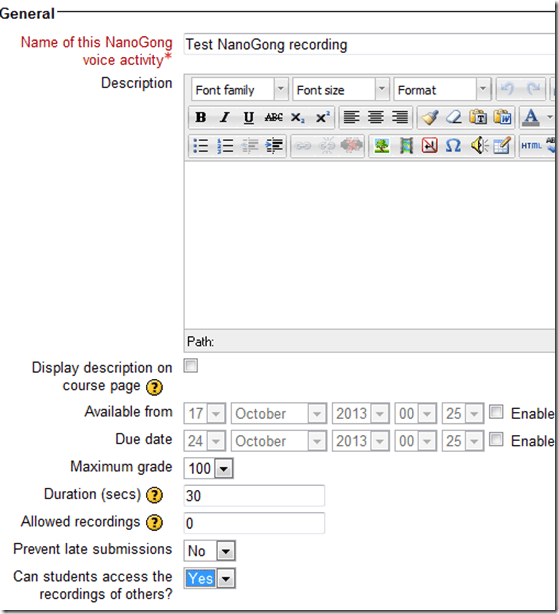
- To assign, click “turn editing on”, “Add activity or resource”, select “NanoGong voice activity”, as pictured below:

- There are a few interesting options:
- you can limit the duration
- you can limit the number of recordings (attempts?) allowed (0 is unlimited)
- You can let students listen to each other recordings. (Is there a rating feature that can be combined with this?)
- And this is what
- you will see (TBA:read on for how to listen to student submissions, give feedback and grade.)

- you will see (TBA:read on for how to listen to student submissions, give feedback and grade.)
- your students will see…


Courseworld.org offers foreign language learning video clips
- Over a 100 videos currently available:
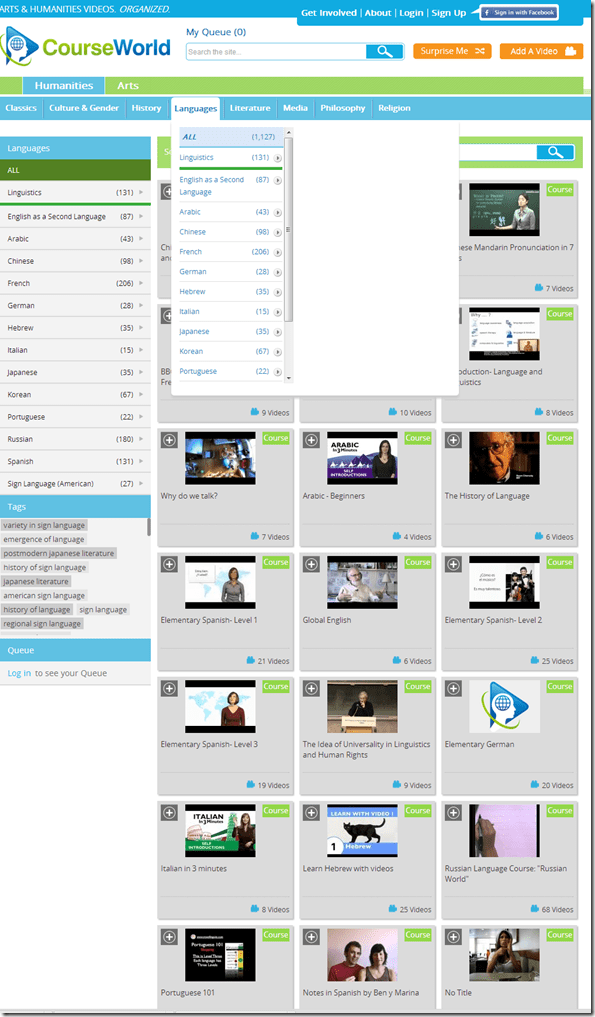
- Summaries show when you hover over a video tile:

- Can it beat YouTube.com for scope? Can it beat textbook-integrated videos for applicability? Likely not, but you may find an add-on for your course, and even more for self-study.


Freely downloadable samples from the IPA Phonetics Handbook
- This handbook provides audio pronunciation samples (in WAV) for many different languages. While they are more useful in conjunction with the book, they also can be searched by filename (= the pronounced word in English translation).
- We make these file accessible in the LRC on the Sanako share (S:\COAS\LCS\LRC\media\TUTOR\phonetics\ipa-phonetics-handbook\). Here are the languages included:.
- American-English
- Amharic
- Arabic
- Bulgarian
- Cantonese
- Catalan
- Croatian
- Czech
- Dutch
- French
- Galician
- German
- Hausa
- Hebrew
- Hindi
- Hungarian
- Igbo
- Irish
- Japanese
- Korean
- Persian
- Portuguese
- Sindhi
- Slovene
- Swedish
- Thai
- Turkish
Protected: How to configure the LangLabEmailer for your school, and share back
Cheatsheet for typing phonetic symbols with the IPA Keyboard Layout on Windows 7 – the ultimate training…
…using animated .gifs. Slower? Compact: 0.25sec, 0.5sec, 0.75sec, 1sec, 1.5sec, 2sec, 3sec, 4sec, 5sec, 6sec, 7sec, 8sec, 9sec, 10sec. 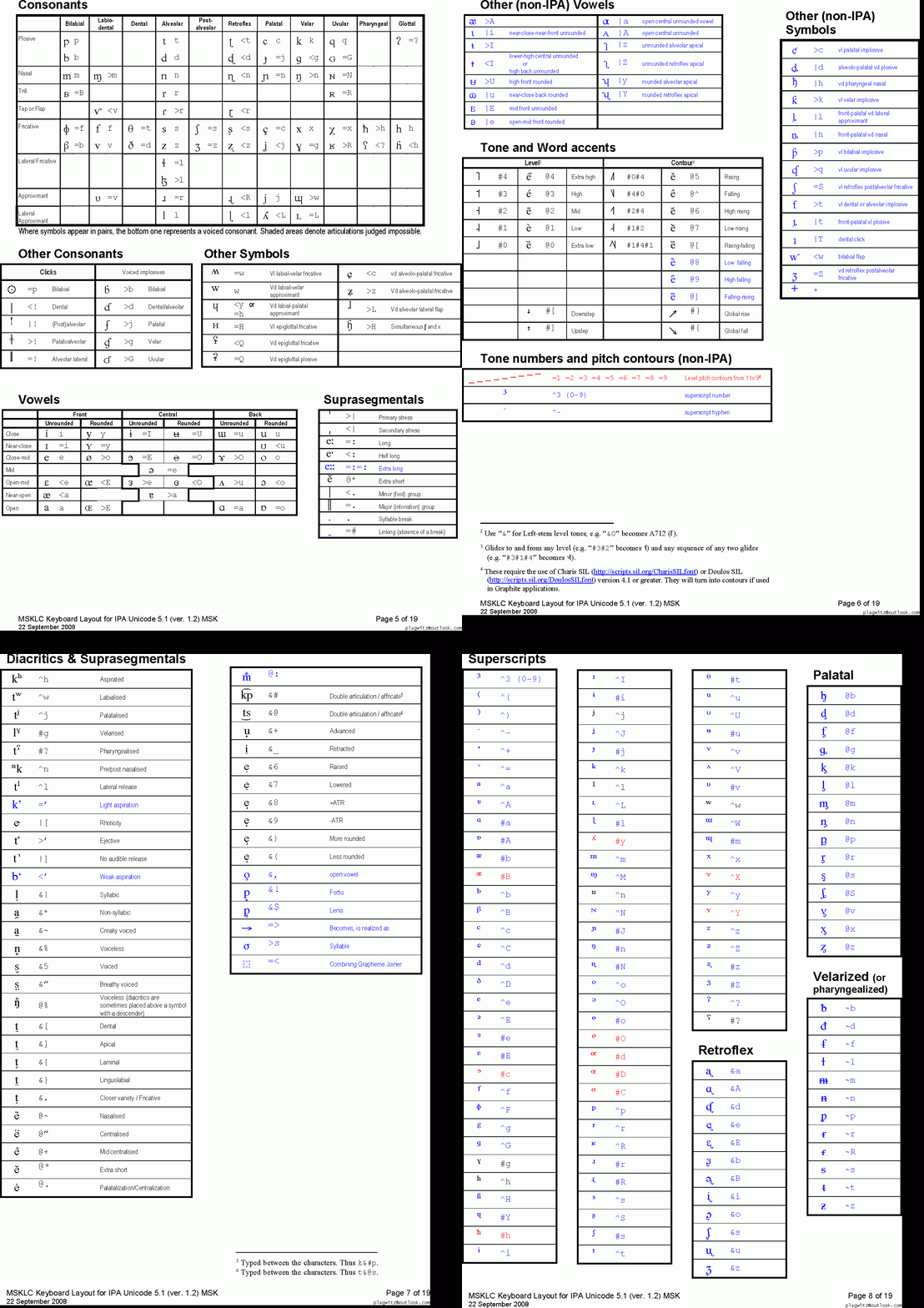
This is taken straight from the great documentation of this great Phonetic symbols Windows keyboard layout by SILS international, but needed a bit of massaging to support hands-free lookup via display on one screen of your dual screen system, while you learn or demo the keyboard to the class). Users without dual screen (including students) are better off with the slideshow below in which they can stop the images on any page:


The IPA MSKLC can produce both regular Roman characters and transcriptions with phonetic symbols by employing certain “dead keys” that can be combined with regular keys. Just and like our default LRC keyboard us-international .
Your first must select the keyboard like so. 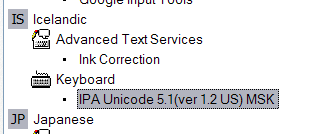 (Icelandic is suitable since it is not used for other purposes much). In the LRC, you must wait until we upgrade to Windows7.
How a teacher can adapt a Sanako teacher-controlled class recording activity for individual student recordings
- Pedagogical need:
- A teacher wants her students to record a presentation,
- but allow the students to move around freely in their recording afterwards, when evaluating it, and submit the best out of 3 tries:
- Technical implementation:
- Using Sanako activity:model imitation of differing for multiple groups
- offers maximum control, least flexibility: students have to speak their presentation linearly
- if you anticipate presentations of considerably different lengths
- first try asking your students – might be useful to them anyway to realize if theirs turns out to be much shorter than others,
- if students are unsure about the length of their presentation,
- conduct the first recording with the entire class and
- have students note what time their recorder time counter is at when they finish, and send you the time as text via the button:envelope
- group your students (grouping step-by-step) into Sessions A-F by incrementing time according to what the student icon bubble shows
- then differentiate class into as many groups as necessary (if <= the 6 “sessions”A-F Sanako Study 1200 offers) end the recording at a different time for each group
- for each group (one or more up to 6),
- choose from dropdown activity: model imitation recording
- and from dropdown: source: none) with more than one group at a time,
- and (optionally) for not more than one group at a time (suggest choosing the biggest group for that) from (dropdown: source: file ) the background noise to play
- and after each group’s allocated time (+ buffer) is up,
- press button:end to end the recording
- after collection of the recordings from students is finished, you can
- press button:replay
 , to let each student listen to her recording (linearly, without control), and
 - press button:free
 , to let students freely move back and forth on the timeline)
 - eventually, press button: clear, to be ready:
- choose from dropdown activity: model imitation recording
- for tries 2 and 3: repeat above steps.
- using Sanako activity: self access:
- provides
- the teacher some control (none over this turning into more of an editing than coherent language practice exercise),
- and students more flexibility (hence requiring prior recording training for students);
- students individually
- record
- move around freely in the file
- replay
- record over prior footage and/or start completely over (menu: File / new)
- press button:envelope to text message the teacher that they are finished and want their (final ) recording to be collected by the teacher
- teacher
- moves signaling students into a group (grouping step-by-step) that is
- dedicated for collecting recordings (TBA:does this not empty their buffer?)
- and button:pc control: locked (= no further or accidental changes)
- once an appropriate (compromise between finished students wanting to leave and teacher not having to collect each recording individually) number of students have been added to this group, presses
- button: end to collect and
- button: clear session to clear the button
- assesses the recordings in the folder that opens with audacity;
- in case of problems, moves students back to the group dedicated to recording
- else lets students leave
- moves signaling students into a group (grouping step-by-step) that is
- provides


Keyboarding game and Typing tutor for ESL students unfamiliar with Roman letters keyboards
- For ESL learners unfamiliar with Roman letters keyboards, the LRC features only a few keyboards with non-Roman character overlays, and otherwise software transliterators integrated into Windows that, while allowing typing in L1 for dictionary lookup and note taking, still require familiarity with the Roman letters keyboards. To help ESL learners getting started, here are a 2 websites I found:
- A typing tutor:
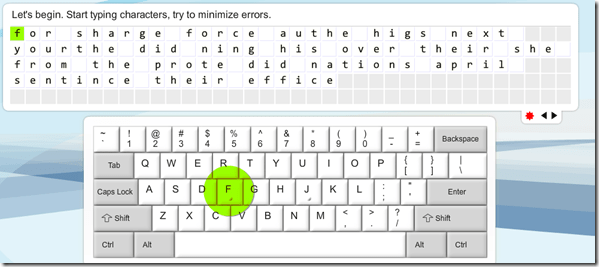
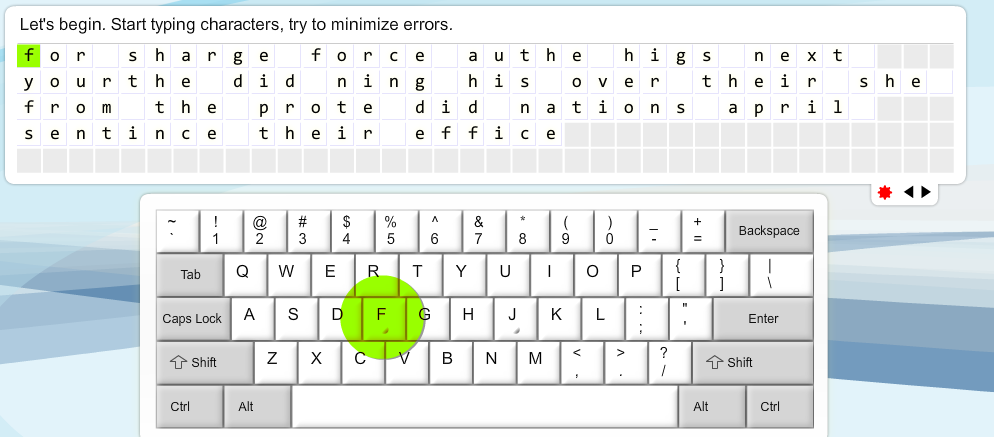
- pros: pedagogically sound: English words are given as cues, and an on screen keyboard that can be operated from the hardware keyboard, but gives hints when needed by highlighting the next letter on the keyboard after a waiting period
- cons: a bit drab.
- An arcade-like keyboarding game (Missile command/Tetris):
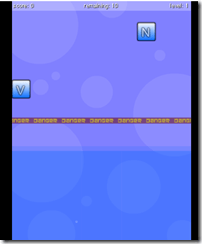
- cons:
- bit too much sound,
- not advertisement free
- letters only, not practice of English words
- pros:
- autostarts and thus can be directly launched for students from the teacher station as a divertissement during slow times in the LRC ,
- reasonably entertaining,
- Levels that start slow, but adaptive.
- cons:

Bab.la.com: Arabic–English Online Dictionary
Bab.la features: easy lookup (1,2,3), and for each lemma: grammar information (4), synonyms (5, with lookup (6)), usage samples (7), pronunciation help (8: audio, but not IPA), reverse lookup (9).

And an example for the reverse lookup:  .
.
In short, this is a real dictionary, unlike Google Translate, which is amazing in itself, but often misused by language learners. Unlike Google Translate, Bab.la helps with lookup by Arabic letter, but does not come with a phonetic transliteration to make it usable with a Roman letters keyboard. Fortunately, the LRC features to phonetic transliterators integrated into Windows: MS-Maren and Google Arabic Input.


Questions? Read the About. Or just ask me a quick Our Databases: Resources with calendars -- Language learning material Moodle Sites, multimedia files -- films


FAQs for LRC student staff or for students or for teachers. To search our FAQs, in the browser addressbar, add after "https://plagwitz.wordpress.com/feed/?tag=faqs+/" "+TAG1" (from tag cloud below) OR "https://plagwitz.wordpress.com/feed/tag=faqs
&category_name=" "CAT1" (from category hierarchy below). OR search both categories and tags, and multiple TAGs/CATs (connect with "," for OR-search, with "+" for AND-search), like so: https://plagwitz.wordpress.com/feed/?tag=TAG1+TAG2+...TAGn&category_name=CAT1
+CAT2+...CATn"
Other ways to find help
If you cannot find it here, look there: 5,500 Language-Learning Links and Programs for learning or teaching 150 languages
Shortcuts:Our Lists, Our Maps, LRC Staff Moodle Site,LRC Project Moodle Site, 49erexpress, UNCC Moodle, Student Recordings: s:claslcslrcsanakostudent
Learning usage samples: Sanako oral exam, Kaltura webcam presentation, Dictation with speech recognition, Sanako written exam, Chinese and Japanese interactive stroke-order practice
Test the Sanako Installer, Webbrowser Popup Konfigurator for XP, or Windows7, faster LRC TeacherPC Log-in Let MS facilitate diacritics writing by installing for you US-International keyboard layout
This is my personal blog (Google+). The views expressed on these pages are mine alone and not those of my employer. The information in this weblog is provided “AS IS” with no warranties, and confers no rights.
 Thomas' Work Space