Archive
Archive for the ‘service-is-programming’ Category
How to split an Excel workbook into one file per sheet with VBA (reworked)
2015/09/24
1 comment
- There are other code snippets on stackoverflow.com, but I went with the top match in the Google search.
- Couldn’t get it to work (error # 424 Object required on xWS.copy in Excel 2013, with the VBA run from a separate utilities workbook) until I made these changes:
'TRP reworked http://www.extendoffice.com/documents/excel/628-excel-split-workbook.html
Sub Workbook_Split() 'Updated by TRP 20150924

    Dim xPath As String
    Dim myWorkSheet As Worksheet
    xPath = Application.ActiveWorkbook.Path 'the source workbook needs be saved first
    Application.ScreenUpdating = False
    Application.DisplayAlerts = False

    For Each xWS In ActiveWorkbook.Sheets    'trp: replaced ThisWorkbook.Sheets
        'trp: replaced xWS.Copy 'toask: this fails with 424: object required
        Set myWorkSheet = xWS
        myWorkSheet.Copy 'If you don't specify either Before or After, Microsoft Excel creates a new workbook that contains the copied sheet.
        Application.ActiveWorkbook.SaveAs FileName:=xPath & "\" & myWorkSheet.Name & ".xlsx"
        'trp: replaced xWS.Name & ".xls"
        Application.ActiveWorkbook.Close False    'trp:savechanges:=False
    Next
    Application.DisplayAlerts = True
    Application.ScreenUpdating = True
End Sub
Categories: service-is-programming
MS-Excel, VBA, worksheets
Bringing method documentation back into synch by using Textpad command line to jump to GrepWin matched line in file
2015/02/14
Leave a comment
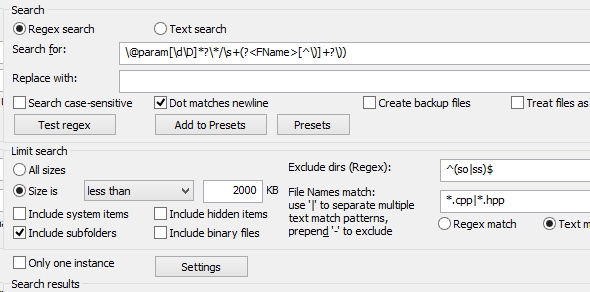
- Objective: is checking, in one simple result window, multi-line matches of method signatures and their Doxygen comments from a multi-module, multi-directory C++ codebase, in order to spot inconsistencies, i.e. where code and documentation are out f synch:
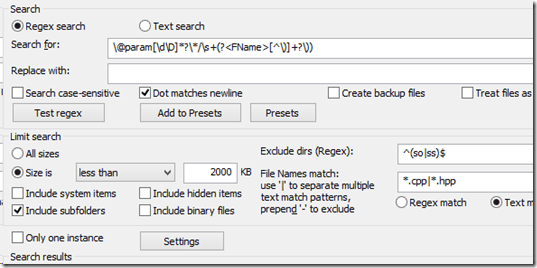

- All this short of having to write a Parser or buying a tool like Atomineer Pro Documentation (which does look like it is “right on the money”, but, as it turned out to my surprise, also far short of getting this to work in Eclipse or on a Bash command line with Grep and Perl, ack (doesn’t do multi-line matches!), ag, or what-not. grepWin is free, has an easy-to-use, versatile interface, and proves, once again, to be a powerful little tool.
- A a sample (in reality not cut off, of course), 2 methods with their comments showing here:

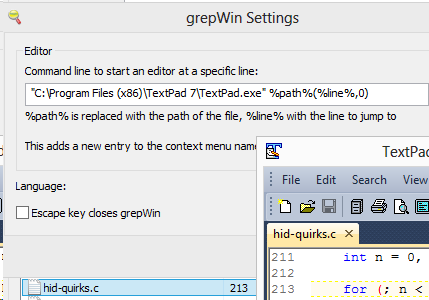
- And I am only a click away from correcting errors I spot in my preferred editor that grepWin can link in “Settings””C:\Program Files (x86)\TextPad 7\TextPad.exe” %path%(%line%,0)

- Some grepWin quirk I do not understand:
- Why does the “Search” button do nothing when I select radio button “Regex” instead of “Text Search”, but does the expected regex match against file and directory name when I select the latter?

- Why does the “Search” button do nothing when I select radio button “Regex” instead of “Text Search”, but does the expected regex match against file and directory name when I select the latter?



Categories: e-infrastructure, service-is-documenting, service-is-programming
ack, bash, doxygen, eclipse, grep, grepwin, Perl, silversearcher, textpad
How to output a list of installed programs on Windows with PowerShell
2015/01/12
Leave a comment
A vanilla script, but including all Win32_Product class properties – a quick search found only a very basic version how to do this in PowerShell:
# to write a installed program listing to a CSV file - just adapt the output dir below
Get-WmiObject -Class Win32_Product |`
foreach{
$AssignmentType = $_.AssignmentType
$Caption = $_.Caption
$Description = $_.Description
$IdentifyingNumber = $_.IdentifyingNumber
$InstallDate = $_.InstallDate
$InstallDate2 = $_.InstallDate2
$InstallLocation = $_.InstallLocation
$InstallState = $_.InstallState
$HelpLink = $_.HelpLink
$HelpTelephone = $_.HelpTelephone
$InstallSource = $_.InstallSource
$Language = $_.Language
$LocalPackage = $_.LocalPackage
$Name = $_.Name
$PackageCache = $_.PackageCache
$PackageCode = $_.PackageCode
$PackageName = $_.PackageName
$ProductID = $_.ProductID
$RegOwner = $_.RegOwner
$RegCompany = $_.RegCompany
$SKUNumber = $_.SKUNumber
$Transforms = $_.Transforms
$URLInfoAbout = $_.URLInfoAbout
$URLUpdateInfo = $_.URLUpdateInfo
$Vendor = $_.Vendor
$WordCount = $_.WordCount
$Version = $_.Version

$Name | Select-Object `
@{n="AssignmentType";e={$AssignmentType}},
@{n="Caption";e={$Caption}},
@{n="Description";e={$Description}},
@{n="IdentifyingNumber";e={$IdentifyingNumber}},
@{n="InstallDate";e={$InstallDate}},
@{n="InstallDate2";e={$InstallDate2}},
@{n="InstallLocation";e={$InstallLocation}},
@{n="InstallState";e={$InstallState}},
@{n="HelpLink";e={$HelpLink}},
@{n="HelpTelephone";e={$HelpTelephone}},
@{n="InstallSource";e={$InstallSource}},
@{n="Language";e={$Language}},
@{n="LocalPackage";e={$LocalPackage}},
@{n="Name";e={$Name}},
@{n="PackageCache";e={$PackageCache}},
@{n="PackageCode";e={$PackageCode}},
@{n="PackageName";e={$PackageName}},
@{n="ProductID";e={$ProductID}},
@{n="RegOwner";e={$RegOwner}},
@{n="RegCompany";e={$RegCompany}},
@{n="SKUNumber";e={$SKUNumber}},
@{n="Transforms";e={$Transforms}},
@{n="URLInfoAbout";e={$URLInfoAbout}},
@{n="URLUpdateInfo";e={$URLUpdateInfo}},
@{n="Vendor";e={$Vendor}},
@{n="WordCount";e={$WordCount}},
@{n="Version";e={$Version}}
}| Export-Csv c:\temp\installed-programs.csv -NoTypeInformation
Output:


Categories: e-infrastructure, service-is-documenting, service-is-programming
imaging, powershell, windows, wmi
VBA script to more easily examine the properties of your Content Control-based forms
2014/10/09
Leave a comment
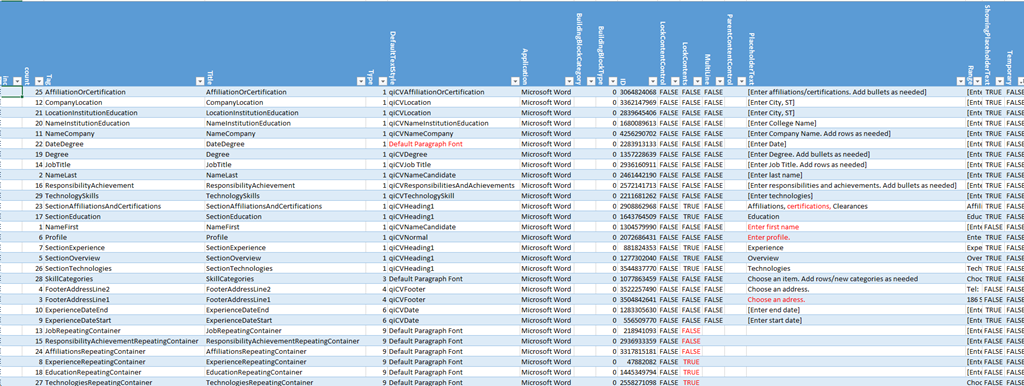
- The routine loops through the Content Controls and outputs properties as text into the VBA-Editor immediate window,
- from where it can be easily converted into an Excel-table which makes it easy t o spot and mark inconsistencies and outright oversights, like so:

Sub ccPropertiesPrint()
On Error Resume Next
Dim strHeadings, strProps As String
Dim count As Integer
Dim response

strHeadings = strHeadings & "~" & "count"
strHeadings = strHeadings & "~" & "Tag"
strHeadings = strHeadings & "~" & "Title"
strHeadings = strHeadings & "~" & "Type"
strHeadings = strHeadings & "~" & "DefaultTextStyle"
strHeadings = strHeadings & "~" & "Application"
strHeadings = strHeadings & "~" & "BuildingBlockCategory"
strHeadings = strHeadings & "~" & "BuildingBlockType"
'strHeadings = strHeadings & "~" & "Checked"
'strHeadings = strHeadings & "~" & "Creator"
'strHeadings = strHeadings & "~" & "DateCalendarType"
'strHeadings = strHeadings & "~" & "DateDisplayFormat"
'strHeadings = strHeadings & "~" & "DateDisplayLocale"
'strHeadings = strHeadings & "~" & "DateStorageFormat"
'strHeadings = strHeadings & "~" & "DropdownListEntries"
strHeadings = strHeadings & "~" & "ID"
strHeadings = strHeadings & "~" & "LockContentControl"
strHeadings = strHeadings & "~" & "LockContents"
strHeadings = strHeadings & "~" & "MultiLine"
'strHeadings = strHeadings & "~" & "Parent"
strHeadings = strHeadings & "~" & "ParentContentControl"
strHeadings = strHeadings & "~" & "PlaceholderText"
strHeadings = strHeadings & "~" & "Range"
strHeadings = strHeadings & "~" & "ShowingPlaceholderText"
strHeadings = strHeadings & "~" & "Temporary"
'strHeadings = strHeadings & "~" & "XMLMapping"
Debug.Print strHeadings
  If ActiveDocument.ContentControls.count > 0 Then
    For Each oCC In ActiveDocument.ContentControls
    'debug
    'If oCC.Type = 9 Then 'debug: repeating
count = count + 1
If count = 50 Then
'dim response = vbmsgboxresponse
    Exit For
End If

' useless cannot access immediate window If count = 15 Then response = MsgBox("paused", vbOKOnly) End If
strProps = "" 'start over
strProps = strProps & "~"
strProps = strProps & count 'CStr(count)
strProps = strProps & "~"
strProps = strProps & CStr(Replace(Replace(oCC.Tag, Chr(13), "#"), Chr(10), "#"))
strProps = strProps & "~"
strProps = strProps & CStr(Replace(Replace(oCC.Title, Chr(13), "#"), Chr(10), "#"))
strProps = strProps & "~"
strProps = strProps & CStr(Replace(Replace(oCC.Type, Chr(13), "#"), Chr(10), "#"))
strProps = strProps & "~"
strProps = strProps & CStr(Replace(Replace(oCC.DefaultTextStyle, Chr(13), "#"), Chr(10), "#"))
strProps = strProps & "~"
strProps = strProps & CStr(Replace(Replace(oCC.Application, Chr(13), "#"), Chr(10), "#"))
strProps = strProps & "~"
strProps = strProps & CStr(Replace(Replace(oCC.BuildingBlockCategory, Chr(13), "#"), Chr(10), "#"))
strProps = strProps & "~"
strProps = strProps & CStr(Replace(Replace(oCC.BuildingBlockType, Chr(13), "#"), Chr(10), "#"))
'strProps = strProps & "~"
'strProps = strProps & CStr(Replace(Replace(oCC.Checked, Chr(13), "#"), Chr(10), "#"))
'strProps = strProps & "~"
'strProps = strProps & CStr(Replace(Replace(oCC.Creator, Chr(13), "#"), Chr(10), "#"))
'strProps = strProps & "~"
'strProps = strProps & CStr(Replace(Replace(oCC.DateCalendarType, Chr(13), "#"), Chr(10), "#"))
'strProps = strProps & "~"
'strProps = strProps & CStr(Replace(Replace(oCC.DateDisplayFormat, Chr(13), "#"), Chr(10), "#"))
'strProps = strProps & "~"
'strProps = strProps & CStr(Replace(Replace(oCC.DateDisplayLocale, Chr(13), "#"), Chr(10), "#"))
'strProps = strProps & "~"
'strProps = strProps & CStr(Replace(Replace(oCC.DateStorageFormat, Chr(13), "#"), Chr(10), "#"))
'strProps = strProps & "~"
'strProps = strProps & CStr(Replace(Replace(oCC.DropdownListEntries.count, Chr(13), "#"), Chr(10), "#"))
strProps = strProps & "~"
strProps = strProps & CStr(Replace(Replace(oCC.ID, Chr(13), "#"), Chr(10), "#"))
strProps = strProps & "~"
strProps = strProps & CStr(Replace(Replace(oCC.LockContentControl, Chr(13), "#"), Chr(10), "#"))
strProps = strProps & "~"
strProps = strProps & CStr(Replace(Replace(oCC.LockContents, Chr(13), "#"), Chr(10), "#"))
strProps = strProps & "~"
strProps = strProps & CStr(Replace(Replace(oCC.MultiLine, Chr(13), "#"), Chr(10), "#"))
'strProps = strProps & "~"
'strProps = strProps & CStr(Replace(Replace(oCC.Parent, Chr(13), "#"), Chr(10), "#"))
strProps = strProps & "~"
strProps = strProps & CStr(Replace(Replace(oCC.ParentContentControl, Chr(13), "#"), Chr(10), "#"))
strProps = strProps & "~"
strProps = strProps & CStr(Replace(Replace(oCC.PlaceholderText, Chr(13), "#"), Chr(10), "#"))
strProps = strProps & "~"
strProps = strProps & CStr(Replace(Replace(oCC.Range, Chr(13), "#"), Chr(10), "#"))
strProps = strProps & "~"
strProps = strProps & CStr(Replace(Replace(oCC.ShowingPlaceholderText, Chr(13), "#"), Chr(10), "#"))
strProps = strProps & "~"
strProps = strProps & CStr(Replace(Replace(oCC.Temporary, Chr(13), "#"), Chr(10), "#"))
'strProps = strProps & "~"
'strProps = strProps & CStr(Replace(Replace(oCC.XMLMapping, Chr(13), "#"), Chr(10), "#"))
Debug.Print vbCrLf & strProps & vbCrLf
'End If 'oCC.Type=9  then 'debug: repeating
 Next
 End If
End Sub
Expanding the Review and Modify Content Control Properties to include Repeating Sections
2014/10/08
Leave a comment
- Greg Maxey provides a lot of useful information on MS-Word content Controls, including a VBA utility to more easily loop through the properties and placeholder text dialogue of Content Controls when building your MS-Word forms.
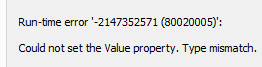
- Unfortunately, the latter bit fails with nested repeating (wdContentControlRepeatingSection):

- The debugger shows that it Errors on non placeholder text of repeating controls set to
- “.txtPHText = oCC.PlaceholderText” which it breaks into, and a watch put on oCC shows:

- The form 1 (display of inbuilt form ) works and is useful also for wdContentControlRepeatingSection, while form 2 has no use for wdContentControlRepeatingSection. So as a workaround, we just do not show form 2 if placeholder text isNothing:
- We have no pretension to redistribute, get the utility from Greg’s website, it is open and you can extend it with above, if you need to.

Sub CCPropertiesReviewModify()
    Dim oFrm As frmCC
    bCancel = False

    If ActiveDocument.ContentControls.Count > 0 Then
        For Each oCC In ActiveDocument.ContentControls
            oCC.Range.Select
            Dialogs(wdDialogContentControlProperties).Show
            Set oFrm = New frmCC

            If Not isNothing(oCC.PlaceholderText) Then 'trp
                With oFrm
                    .Caption = oCC.Title
                    .txtPHText = oCC.PlaceholderText
                    .Show
                End With
           End If
        If bCancel Then Exit For
        Next oCC

        Unload oFrm
        Set oFrm = Nothing
    Else
    MsgBox "This document does not contain any Content Controls.", vbInformation, "Review\Set Content Control Properties"
    End If
lbl_Exit:       Exit Sub
End Sub
Now what about wdContentControlGroup?
How to add control of student sound/recording volume, sidetone, restart, and more to a Sanako Study 1200 environment, using the Launch Program feature and AutoIt
2014/08/22
1 comment
- UPDATE: A Windows7 (and Vista) version – which also uses a simplified deployment mechanism – is in the works, check back for a new post here.
- In refining our Sanako classroom setup, we improved the control, that the Sanako Study 1200 affords the teacher over the student clients in the computerized classroom,
- by extending the built-in Launch Program feature
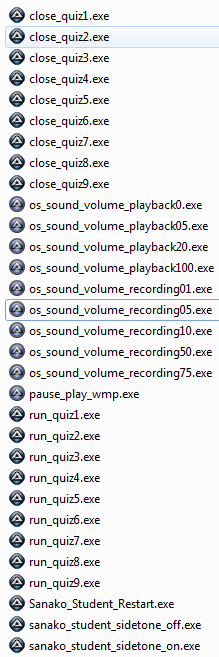
- with custom-made executables (realized in AutoIt V3) that can control the volume (here on Windows XP SP3).
- This it how it works: Launch any of the programs (what each does is in its name) to any individual/group of students or the entire class in order to do any of these things on the student computers that the Sanako out of the box does not allow you to control, and that I often wish I could do when teaching language classes in a Sanako (or other computerized classroom management system) environment, like
- controlling the volume of what the students
- hears
- records
- turning the student sidetone (= echoing back the student microphone into the student headset) on and off
- starting/pausing Windows Media Player
- launching/closing quiz files in MS-Word
- restarting an entire (misbehaving) student applications
- controlling the volume of what the students
- Here is what we have:

- Here is how using what we have looks like:

- You can now request the download of these language lab enhancing programs, including source code, here.

Request to download the digital audio lab classroom audio configuration on the fly, program and source for Windows XP
2014/08/22
Leave a comment
UPDATE: A Windows7 (and Vista) version is in the works, check back for a new post here.


Back to description of reset of classroom audio configuration on the fly program
How to get dkRandomdata to run on 64-bit Excel
2014/08/22
Leave a comment
- Dick Kusleika made this very useful random data generator for Excel (more random data sources I plan to list here).
- To get this to run on 64-bit Excel 2013, I need to make a few quick changes in the source (which will break on 32-bit Excel):
- First, the usual “must be updated for use on 64-bit systems”:
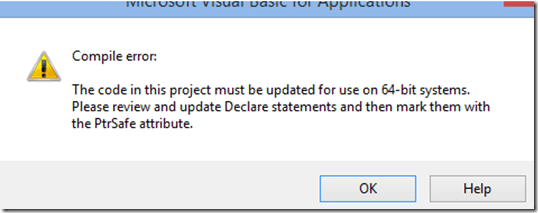 , fixed by this (but note the 1st line):
Private mlParentPtr As LongPtr 'trp:Long
#If VBA7 Then
Private Declare PtrSafe Sub CopyMemory Lib "kernel32" Alias "RtlMoveMemory" _
	(dest As Any, Source As Any, ByVal bytes As Long)
#Else
Private Declare Sub CopyMemory Lib "kernel32" Alias "RtlMoveMemory" _
(dest As Any, Source As Any, ByVal bytes As Long)
#End If
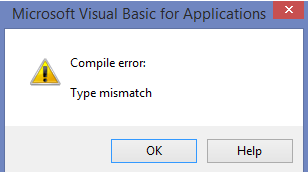
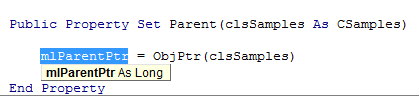
- Then, to fix the various “Type mismatch” errors
 , e.g. at
  , change Lomg into PtrLong: in these locations:
-
above: Private mlParentPtr As LongPtr 'trp:Long
-
Private Function ObjFromPtr(ByVal pObj As LongPtr) As Object
'trp Private Function ObjFromPtr(ByVal pObj As Long) As Object
-
- First, the usual “must be updated for use on 64-bit systems”:
- Then I am finally getting to the xmlDoc As MSXML2.DOMDocument error on Windows 8.1, but that has been solved in the comments here earlier this year (also for Windows 8.1, but apparently with Excel 32-bit): I changed MSXML2.DOMDocument to MSXML2.DOMDocument60 where I could:
-
Dim xmlDoc As MSXML2.DOMDocument60 'trp: Dim xmlDoc As MSXML2.DOMDocument
-
WriteToFile:
-
Dim xmlDoc As MSXML2.DOMDocument60 'here it is already fixed? Dim xmlDoc As MSXML2.DOMDocument6
-
Dim xmlStyle As MSXML2.DOMDocument60
-
Dim xmlOutput As MSXML2.DOMDocument60
-
-
LoadFromFile(): Dim xmlDoc As MSXML2.DOMDocument60
'trp: Dim xmlDoc As MSXML2.DOMDocument
-
testxml() (looks like the XML issue has been worked on since the comments):
-
Dim xmlDoc As MSXML2.DOMDocument60 'trp: Dim xmlDoc As MSXML2.DOMDocument
-
Set xmlDoc = New MSXML2.DOMDocument60 'trp: New MSXML2.DOMDocument
-
-
test_writetofile():
-
Set xmlDoc = New MSXML2.DOMDocument60 'here it is already fixed, and here
-
Set xmlStyle = New MSXML2.DOMDocument60
-
Set xmlOutput = New MSXML2.DOMDocument60
-
-
- Finally, if you have trouble getting the add-in buttons to show in Excel 2013 ribbon, close all workbooks, and you may (but I did not) have to restart Excel (KB2761240):

- Viola. And I sure like me some Seinfeld references in my sample data….



Categories: e-infrastructure, office-software, service-is-programming
64-bit, addins, Dkrandomdata, MS-Excel, VBA


Questions? Read the About. Or just ask me a quick Our Databases: Resources with calendars -- Language learning material Moodle Sites, multimedia files -- films
FAQs for LRC student staff or for students or for teachers. To search our FAQs, in the browser addressbar, add after "https://plagwitz.wordpress.com/feed/?tag=faqs+/" "+TAG1" (from tag cloud below) OR "https://plagwitz.wordpress.com/feed/tag=faqs
&category_name=" "CAT1" (from category hierarchy below). OR search both categories and tags, and multiple TAGs/CATs (connect with "," for OR-search, with "+" for AND-search), like so: https://plagwitz.wordpress.com/feed/?tag=TAG1+TAG2+...TAGn&category_name=CAT1
+CAT2+...CATn"
Other ways to find help
If you cannot find it here, look there: 5,500 Language-Learning Links and Programs for learning or teaching 150 languages
Shortcuts:Our Lists, Our Maps, LRC Staff Moodle Site,LRC Project Moodle Site, 49erexpress, UNCC Moodle, Student Recordings: s:claslcslrcsanakostudent
Learning usage samples: Sanako oral exam, Kaltura webcam presentation, Dictation with speech recognition, Sanako written exam, Chinese and Japanese interactive stroke-order practice
Test the Sanako Installer, Webbrowser Popup Konfigurator for XP, or Windows7, faster LRC TeacherPC Log-in Let MS facilitate diacritics writing by installing for you US-International keyboard layout
This is my personal blog (Google+). The views expressed on these pages are mine alone and not those of my employer. The information in this weblog is provided “AS IS” with no warranties, and confers no rights.
 Thomas' Work Space