Archive
How to download videos from YouTube.com, and other video sites
- Don’t know what this institution recommends – here is a list of software that I have accumulated over time – I stopped a while ago, since there is always something newer coming out - try googling what is currently most popular.
- http://www.viloader.net/addon.htm: You have to click on download, and save the file with the name you want and in the end you have to add .flv that its the video format. Then when the video has been saved to your PC you have to convert the video in a comercial format like wmv, mpg, etc. or download a flv player to be able to see the videos.
- Youtube Catcher can download videos from Youtube, Google Video, Myspace Video, Yahoo video Dailymotion Stage6 Veoh. The downloaded videos can be exported to various formats like MPG,AVI, MP4,3GP, 3G2, WMV, PSP, MOV, FLV with the quality you choose: http://www.teknobites.com/2007/08/23/youtube-catcher-youtube-and-other-video-downloader-tool/
- zamzar.com
- http://userscripts.org/scripts/show/25105,
- http://www.googlewatchblog.de/2008/04/13/youtube-video-als-mp4-herunterladen/
- MPEG Streamclip can download YouTube files. They are always opened or downloaded in MP4 (MPEG-4) format, so they can be used in MPEG Streamclip.
- this works well as of 8/17/2009 1.Go to http://edtech.nwresd.org/?q=node/157 . You will see the words ""download script"" (in blue – a hyperlink). Right click on that text and then on ""Bookmark this link"" (at least that’s what it says using Mozilla Firefox as a browser). You can move this bookmark within your Bookmarks or Favorites Folder wherever you want. 2.Go to YouTube and locate a video you want to save. While the video is actually playing, go to your Bookmarks Folder and click on the ""download script"" link you saved there.3.Next look in the right hand column on the screen – to the right of the video playing. Just below the section that says URL, and EMBED (right below URL) you will see a text that says download as MP4. 4.Right click on that text and then click on SAVE LINK AS. You can choose where you want the file to be saved and you can even rename the file (for me the default name is ""video""). Just to be sure I’d let the video play to the end before checking to see if it actually where you put it.
-
if (document.getElementById(‘download-youtube-video’)==null && !!(document.location.href.match(/http:\/\/[a-zA-Z\.]*youtube\.com\/watch/))) {var yt_mp4_path=’http://www.youtube.com/get_video?fmt=18&video_id=’+swfArgs%5B‘video_id’%5D+’&t=’+swfArgs%5B‘t’%5D; var div_embed=document.getElementById(‘watch-embed-div’);if(div_embed){var div_download=document.createElement(‘div’);div_download.innerHTML=’ <br /><span id="\’download-youtube-video\’"><a href="\”+yt_mp4_path+’\’">Download as MP4</a> ‘+ ((navigator.userAgent.indexOf(‘Safari’)!=-1)?'(control-click and select <i>Download linked file as</i>)’:(‘(right-click and select <i>Save ‘+ (navigator.appName==’Microsoft Internet Explorer’?’target’:’link’) +’ as)</i>’))+’</span>’;div_embed.appendChild(div_download);}}void(0)
-
- Updates for the the 2013/4 academic year:
- YouTube Center, includes download functionality, more on YouTube center here.
- Orbit downloader:
- Claims to be a generic downloader, and looks complicated enough to convince me of that
 .
. - However, I did not have any luck here, at least I did not find a practical (=automated) way to cobbling these clips together (are media outlets, even if they are under non-US legislation and trying so hard, still bound by the fair use legislation?):
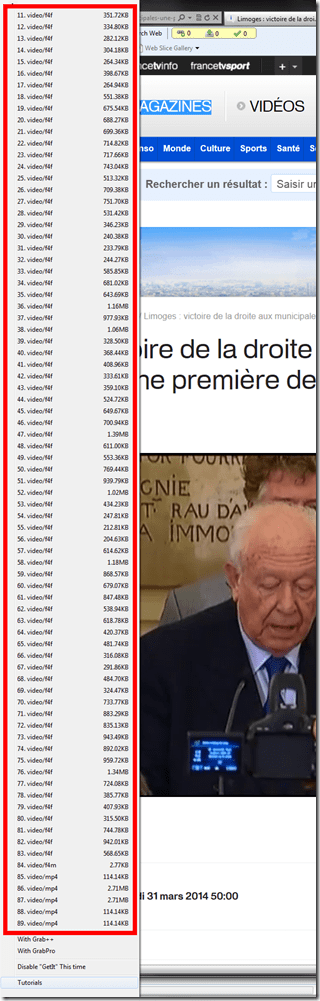
- Also changes your browser home page without asking – I can’t say I like the territory I get myself into with these teacher download requests.
- Claims to be a generic downloader, and looks complicated enough to convince me of that

Examples of Quizzes based on MS-Word template
You can view a series of examples for formative assessments, used during face-to-face teaching (German) settings, in this screencast: .
.
How to use the MS-Word Quiz Template (and the MS-Excel subtitles spreadsheet)
How to make formative assessment quizzes for face-to-face teaching settings like in the examples here?
Part I: quiz_dot_create_excel: Watch a screencast on How to ready target language subtitle source material for the quiz template
|
0,00 |
Working with subtitle material from the source: time coding is not correct
1,40
spreadsheet formulae can fix the subtitle time codes
2,00
why using DVD chapters as learning units
2,20
filtering on chapters in the DVD
3,00
ready to copy paste the filtered learning unit text data into the quiz template
Part II: Watch a screencast on How you can apply your pedagogy with ease to a text and transform the same to a quiz, and how the student benefits from both
|
0,00 |
start quiz from word template (on file share)
0,35
paste text data, e.g. for listening comprehension, e.g. from target language movie subtitles
1,15
create markup from pedagogy
3,14
generate quiz from markup : parenthesis 1 {helpful hint}, parenthesis 2 [correct answer]
3,35
closing and saving the quiz, receiving a summary
3,55
create a backup
4,00
open the quiz to test the quiz from student perspective
4,30
what opening information the student receives
5,00
how the student inputs answers and receives feedback
5,20
language learning lookup menu , after pausing the quiz
6,30
or double-click words to look them up in the default dictionary for the set language
7,10
how the student resumes the quiz
7,20
how the student closes the quiz
Part III: Watch a screencast on How you can revise your pedagogy
|
0,15 |
open the quiz, enable macros
0,30
unprotect the quiz
0,45
office 2003: tools / macros / macros
1,00
now you can edit your pedagogical markup
1,10
regenerated the altered quiz
eRepository: How to manage multimedia learning materials? Maybe with ShareStream
Target language audio and video materials – as well as other textual, multimedia and/or interactive materials – are crucial assets (and should become “reusable learning objects”) in learning centers – how best to manage them?
I have worked for a number of HE institutions, up to the very recent past, that charge their students between $30.000 and $40.000 per year, while their learning materials handling in the learning center consisted of what DVDs and VCR tapes fit into a shoe carton, for a lab assistant to frantically browse through when faced with a learner or teacher request for materials. Not to mention teachers spending inordinate amounts of time scanning stacks of make-believe VCR and DVD “libraries” in the learning center.
I have blogged here before about various solutions that attempt to remedy this: from home-baked stop-gap measures to the introduction of eRepository offerings for digital asset management.
If you are familiar with these issues, you will understand that I am eagerly looking for better help with managing multimedia learning materials. ShareStream claims to provide a turnkey solution addressing these needs. Its architecture – according to the Tulane pilot – consists of a ShareStream server which serves as eRepository and metadata catalogue, a streaming server, and an encoding server (for lecture-capture: YAT (“yet another tag”)). ShareStream also integrates with the Blackboard LMS.
Have a look at the demo of the pilot at Georgetown University which they gave during MAALLT 2010 and which they now also offer workshops on. One interesting thing I figured out during the question period is that they avoid breaking the Digital Millennium Act when digitizing copy-protected DVD materials by capturing to digital only the analog AV output of a DVD – a reminder that a reform of copyright is sorely needed.
How a teacher grades a Blackboard audio recording assignment
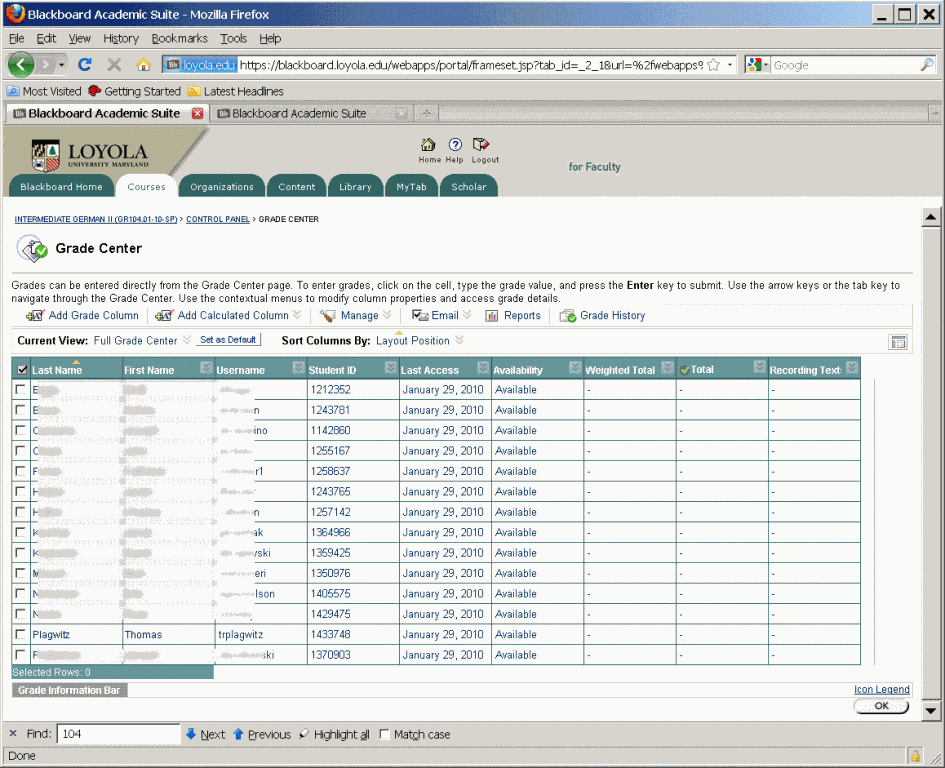
- Switch to interactive view, if your vertical scrollbar does not show up, and thus the assignment column is hidden (or reduce the font size in Firefox, e.g. by holding CTRL and rolling the mouse scroll wheel):
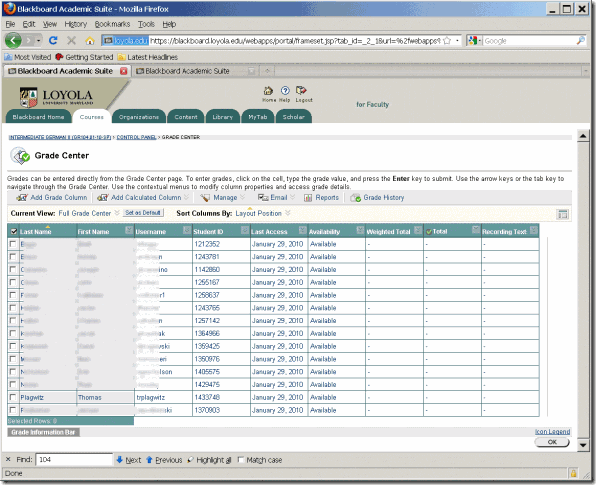
- Once you see the assignment column, you can either download all submissions as a zip file, open it with the built-in zip tools in Windows (XP or newer). This is especially practical if you want to then select all recordings and drag and drop them into an audacity window, for doing easy to comparative grading of student submissions, as described earlier.
- To grade,
- you still need to click next to the green exclamation marks which indicate where there is an assignment to be graded,
![clip_image002[5]](https://thomasplagwitz.com/wp-content/uploads/2016/03/clip_image0025_thumb.gif?w=569&h=465 "clip_image002[5]")
- on the arrow keys which unfold a menu.
![clip_image002[7]](https://thomasplagwitz.com/wp-content/uploads/2016/03/clip_image0027_thumb.gif?w=593&h=483 "clip_image002[7]")
- you still need to click next to the green exclamation marks which indicate where there is an assignment to be graded,
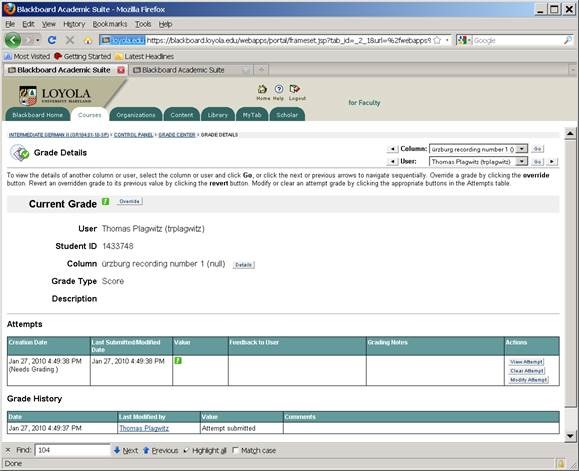
- This gets you to the grade details:
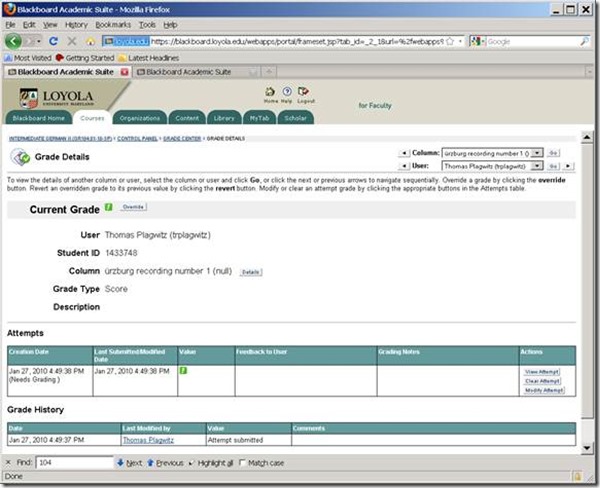
- You can also listen to the student recording submission by clicking on the file linked behind “users; file”.
![clip_image002[5]](https://thomasplagwitz.com/wp-content/uploads/2016/03/clip_image0025_thumb.jpg?w=600&h=488 "clip_image002[5]")
- Fill out your grade comments and grade.
- Instead of doing (only) written comments, you could also oral feedback grade the student recording, and re-upload this new recording.
- Finish by clicking button:”submit”.
- Next in series: How the student reviews a grade Blackboard audio recording assignments: TBA
- First in Series: A better way to do student homework audio recordings in the Sanako LAB 300, using Blackboard:Assignment.
![clip_image002[5]](https://thomasplagwitz.com/wp-content/uploads/2016/03/clip_image0025.gif "clip_image002[5]")
![clip_image002[7]](https://thomasplagwitz.com/wp-content/uploads/2016/03/clip_image0027.gif "clip_image002[7]")
![clip_image002[5]](https://thomasplagwitz.com/wp-content/uploads/2016/03/clip_image0025.jpg "clip_image002[5]")
Subtitling Audio Files with Windows Media Player Enhanced Tag Editor
Working with (target language) subtitles is a common requirement in digital language labs.
While the method demonstrated in the following screencast requires some getting used to – remember to share and reuse the result -, the advantage over Sanako Media Assistant subtitling is that the subtitles get stored in the file and not only linked to in a separate file (links tend to/are bound to break if you try to manage your product in course management systems or erepositories): subtitling-with-windows-media-player-enhanced-tag-editor.wmv.
And then there is this very nice capability of YouTube.com: http://www.google.com/support/youtube/bin/answer.py?answer=100077, if you dare navigate the waters of copyright, data protection and privacy (FERPA).
Create a PowerPoint slide with a timer from template for a timed audio recording exercise
If you require an audio recording exercise, where you allot to students a longer period of time for a free-form response, possibly to a visual cue, here is a demo screencast, based on the teacher.pot powerpoint template collection: powerpoint-timer-slide.wmv.
Presentation on Time-stretched Audio and Personalized Provision in Instructor-led Digital Audio Labs @ Nerallt/Neallt 2009, Yale University, New Haven, CT
The pervasiveness of networked digital media – new delivery forms for digital TV and radio by the traditional media industry, as well as new content providers using pod- and tube-casts -, owing to an ever more powerful, robust and – partially as an overhang of the bubble – abundant technical hard- and software infrastructure, has also revitalized – and poured substantial new resources into the modernization of – the older concept of the language lab. Computerized classrooms with network and multimedia facilities, basic classroom management systems and centralized databases, with some interfacing to serve as learning material repositories or portfolios demonstrating learning outcomes, have become a common underlying fabric for many of the constituents’ learning environments. The recent freezing up of the resource flow can serve as a wakeup call to remind us both of the critical “What is the benefit, or return on investment?” and of the original promise of e-learning: increased efficiency. On the one hand, scaling through crowd-sourced or automated sourcing and reuse of materials has become a pressing need in rapidly expanding second language programs like English and Spanish that new technologies can help meet. On the other hand, widely differing learner proficiency is increasingly a problem when trying to form classes in the shrinking programs of other languages, and personalization of learning provision is increasingly expected in an environment shaped by “long tail”-economies. This paper will evaluate common practices in SLA that have served as workaround, recapitulate a number of different time-stretching algorithms, summarize existing software solutions and introduce a new option which is based on MS-Windows Media Encoder’s time-stretching and pause detection capabilities. Finally, the presentation will exemplify instructor-led utilization of this simplified and/or automated time-stretching of authentic materials, with more teacher-control and a more realistic output than that built into current media players, as a – not exclusive, but valuable – step towards more comprehensible input of level “i+1” in a more personalized language learning provision.
Slide Deck: plagwitz_timestretching_audio_nerallt09.pdf


Questions? Read the About. Or just ask me a quick Our Databases: Resources with calendars -- Language learning material Moodle Sites, multimedia files -- films


FAQs for LRC student staff or for students or for teachers. To search our FAQs, in the browser addressbar, add after "https://plagwitz.wordpress.com/feed/?tag=faqs+/" "+TAG1" (from tag cloud below) OR "https://plagwitz.wordpress.com/feed/tag=faqs
&category_name=" "CAT1" (from category hierarchy below). OR search both categories and tags, and multiple TAGs/CATs (connect with "," for OR-search, with "+" for AND-search), like so: https://plagwitz.wordpress.com/feed/?tag=TAG1+TAG2+...TAGn&category_name=CAT1
+CAT2+...CATn"
Other ways to find help
If you cannot find it here, look there: 5,500 Language-Learning Links and Programs for learning or teaching 150 languages
Shortcuts:Our Lists, Our Maps, LRC Staff Moodle Site,LRC Project Moodle Site, 49erexpress, UNCC Moodle, Student Recordings: s:claslcslrcsanakostudent
Learning usage samples: Sanako oral exam, Kaltura webcam presentation, Dictation with speech recognition, Sanako written exam, Chinese and Japanese interactive stroke-order practice
Test the Sanako Installer, Webbrowser Popup Konfigurator for XP, or Windows7, faster LRC TeacherPC Log-in Let MS facilitate diacritics writing by installing for you US-International keyboard layout
This is my personal blog (Google+). The views expressed on these pages are mine alone and not those of my employer. The information in this weblog is provided “AS IS” with no warranties, and confers no rights.
 Thomas' Work Space