Archive
Archive for the ‘service-is-documenting’ Category
How to use the MS-Office Labs Community Clips Screen Capture Tool
2012/05/31
7 comments
- I seem to remember this initiative of having MS-Office users sharing tips and tricks using screencasts has been faded out – but the screen capture tool is still available, and it is not restricted to recording MS-Office applications.
- After download and install (here on Windows 7),

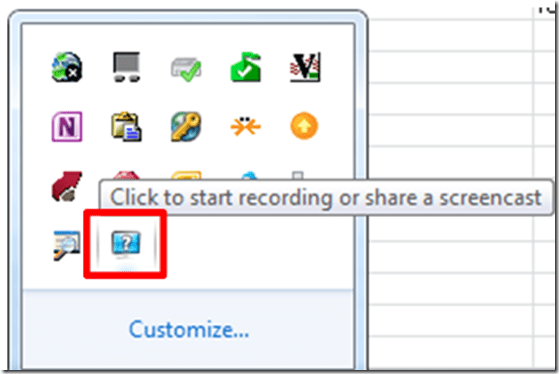
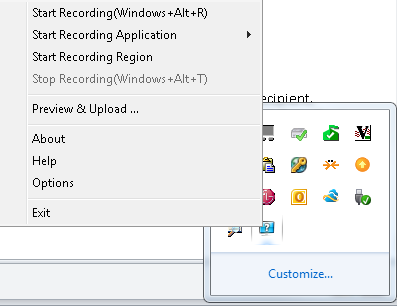
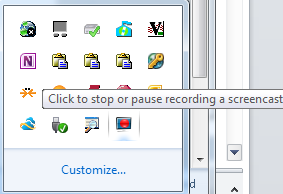
- click the community clips system tray icon to easily start a screen capture:
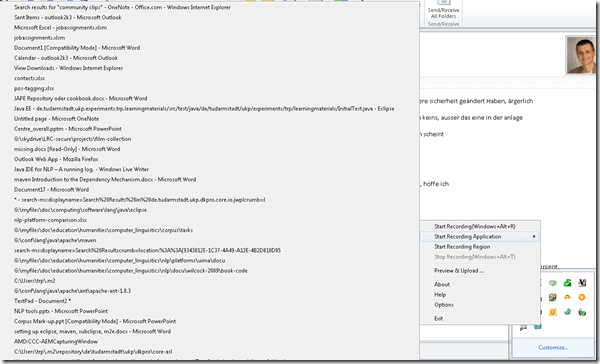
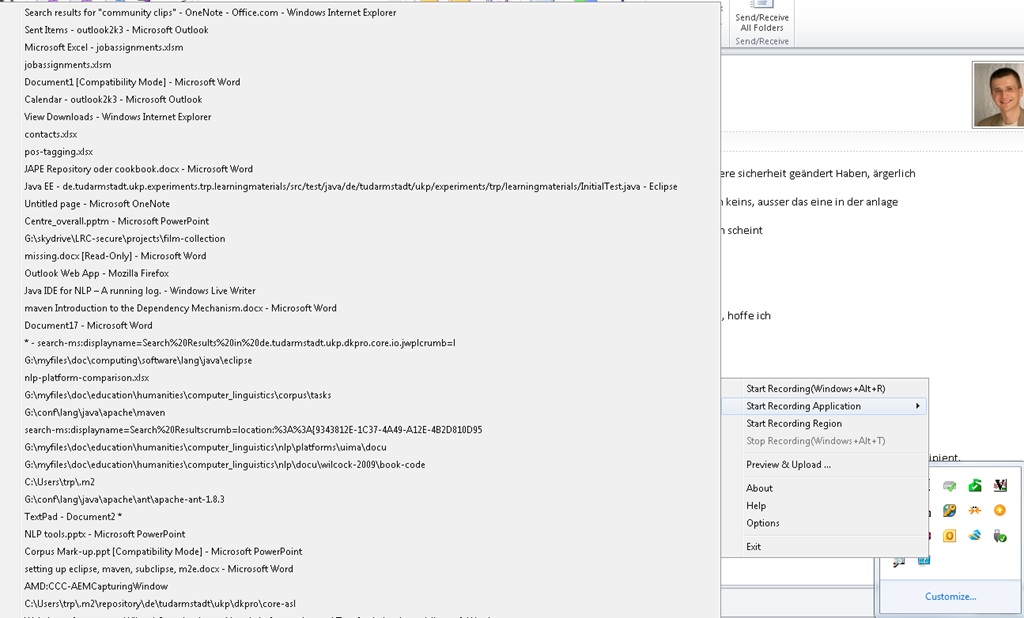
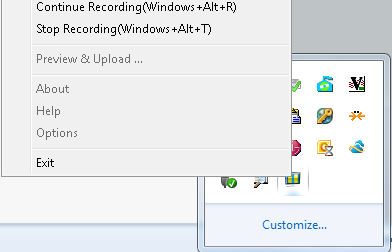
- Or access the context menu with advanced options:

- including restricting recording to specific windows:
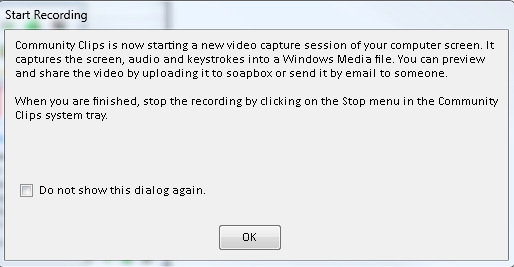
- It does not start up very fast:

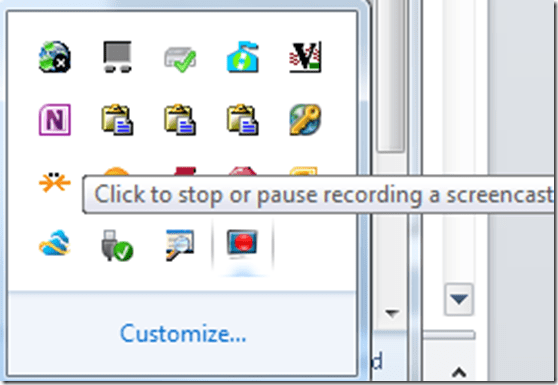
- It flashes a frame around the recorded area.
- This is a test…


- The preview starts automatically:
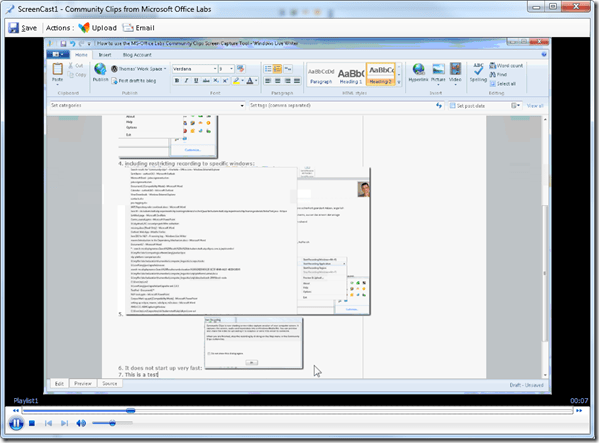
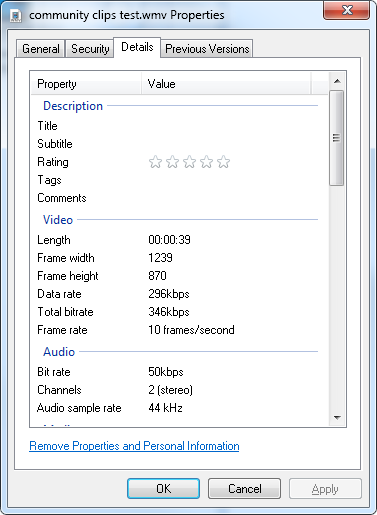
- About the file quality:

- Both the save and the email option
 work, only the built-in upload fails, likely due to the demise of MS-Soapbox:
  , but can be easily uploaded to other services, e.g. MS-SkyDrive
 - Unfortunately, like the Windows Media Encoder clips, it won’t preview without download on SkyDrive – unlike the (newer) MS-PowerPoint 2010-recorded screencasts:

- Still, the MS-Office Labs Community Clips Screen Capture Tool seems to have a friendlier interface than Windows Media Encoder, and is as free.






Categories: audience-is-IT-staff, audience-is-language-learning-center-staff, audience-is-language-learning-center-temp-staff, audience-is-students, audience-is-teachers, e-infrastructure, multimedia-recording, service-is-documenting, service-is-learning-materials-creation, software, Student-Computers
ms-community-clips
Error code 14001 when installing Audacity
2012/04/27
5 comments
- Symptom: Audacity installation seems to complete without error, but attempting to start Audacity at the end of the installation process results in an error about bad environment with the above error code.
- For your reference: It is has been the missing Visual C++ redistributable installation here in the past on staff computers.
- Solution: Download and install the redistributable, then try restarting Audacity: It should start now.
Download WordPress blog post overview into Excel table
2012/03/15
Leave a comment
See what I mean:  Downloading and browsing the full content XML is of course more powerful than this.
Categories: blog, documentation, Screencasts, service-is-documenting
MS-Excel, wordpress
Protected: Moodle streaming video recording assignment glitches 3, 4, 5, 6, 7 & 8: A running log
2012/02/21
Enter your password to view comments.
Wimba Classroom –> Saba Centra: A running log
2012/02/15
Leave a comment
- http://teaching.uncc.edu/ctl-blog/centra-classroom-replace-wimba
- As this pertains to the LRC, more info will be posted here, as it becomes available, and issues and resolutions, as they come up.
LRC demo, troubleshooting and debugging screencasts
2012/02/07
Leave a comment
- The LRC student PC image contains a file C:\temp\screencastfullhighaudio.wme
- Doubleclick or run the file, in the encoder window that comes up, click the green menu button to record your screen.
- When done demonstrating on screen, swtich back to the encoder window and click the red button to stop recording.
- Rename and archive (the student hard drive is “frozen”) the screencast video output file which you will find in c:\temp\screencast.wmv.
LRC Outlook/Exchange 2010 Resource Calendaring: How to alter meeting times in OWA
2012/01/23
Leave a comment
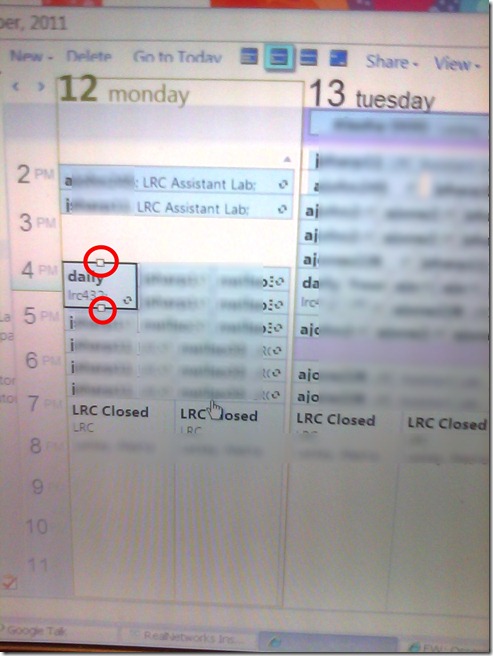
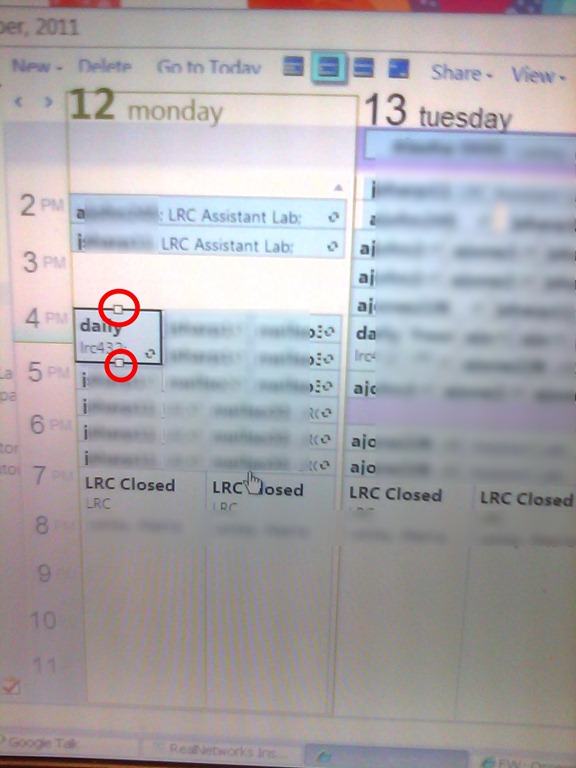
- If you are the meeting organizer (you initiated the meeting request), in your NINERMAIL/OWA calendar, just click on the meeting and drag the meeting start and/or end time with your left mouse button in the desired new location (works like in Outlook), and send updates (this will not affect for the series of a recurring meeting, only the current occurence):
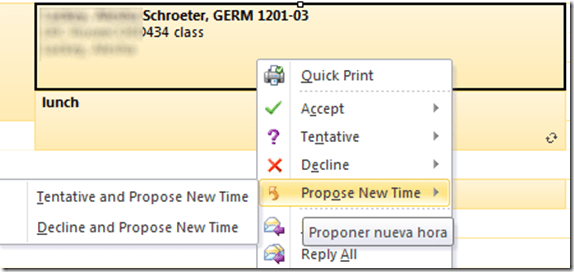
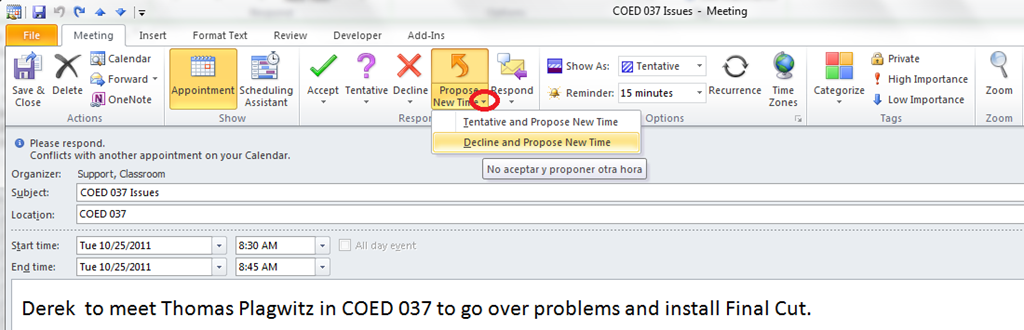
- If you are not the meeting organizer, the meeting organizer, when requesting a meeting with you, may have allowed you to “Request a new time”: use the corresponding button (screenshots are for Outlook):
- in the meeting request:
 .
.
- in the meeting request:
- or in the calendar item context menu

Categories: audience-is-language-learning-center-staff, audience-is-language-learning-center-temp-staff, audience-is-students, audience-is-teachers, e-infrastructure, office-software, service-is-documenting
2007, 2010, 2011, calendaring, changing, meeting-requests, ms-exchange, ms-outlook, resources, scheduling
How to batch convert image files with IrfanView
2012/01/11
Leave a comment
- Had to make a large number of screenshots recently without being able to set the most convenient file format.
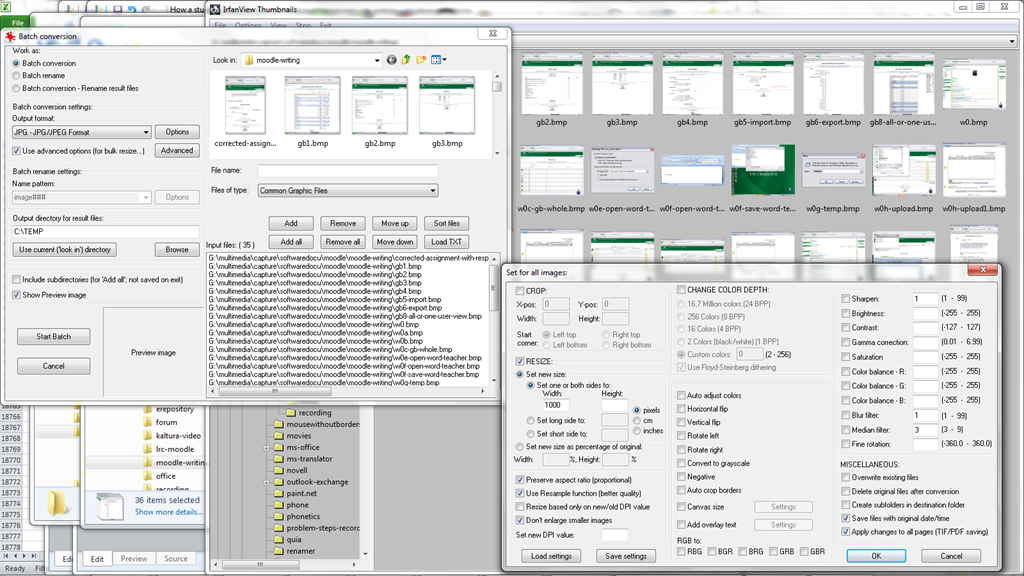
- Fortunately, IrfanView has powerful conversion options:

- and makes batch-converting easy:

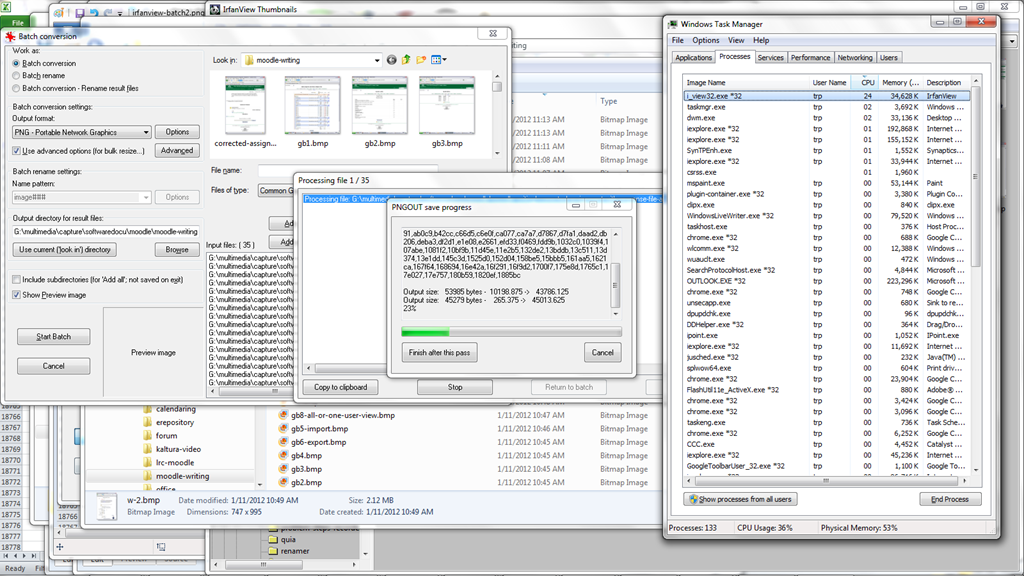
- Limitation: IrfanView uses only one processor core here (Windows7 home):




Questions? Read the About. Or just ask me a quick Our Databases: Resources with calendars -- Language learning material Moodle Sites, multimedia files -- films


FAQs for LRC student staff or for students or for teachers. To search our FAQs, in the browser addressbar, add after "https://plagwitz.wordpress.com/feed/?tag=faqs+/" "+TAG1" (from tag cloud below) OR "https://plagwitz.wordpress.com/feed/tag=faqs
&category_name=" "CAT1" (from category hierarchy below). OR search both categories and tags, and multiple TAGs/CATs (connect with "," for OR-search, with "+" for AND-search), like so: https://plagwitz.wordpress.com/feed/?tag=TAG1+TAG2+...TAGn&category_name=CAT1
+CAT2+...CATn"
Other ways to find help
If you cannot find it here, look there: 5,500 Language-Learning Links and Programs for learning or teaching 150 languages
Shortcuts:Our Lists, Our Maps, LRC Staff Moodle Site,LRC Project Moodle Site, 49erexpress, UNCC Moodle, Student Recordings: s:claslcslrcsanakostudent
Learning usage samples: Sanako oral exam, Kaltura webcam presentation, Dictation with speech recognition, Sanako written exam, Chinese and Japanese interactive stroke-order practice
Test the Sanako Installer, Webbrowser Popup Konfigurator for XP, or Windows7, faster LRC TeacherPC Log-in Let MS facilitate diacritics writing by installing for you US-International keyboard layout
This is my personal blog (Google+). The views expressed on these pages are mine alone and not those of my employer. The information in this weblog is provided “AS IS” with no warranties, and confers no rights.
 Thomas' Work Space