Archive
Our Sanako Study 1200 tutor is “not responding” or crashes
- Update: We have been advised to
- change the Windows Color Scheme to Basic (especially removing the desktop background on both client and teacher) and
- set the Tutor / Preferences / to “Slow WLAN”
- possibly update the video driver on the teacher station, using Windows Update or, preferably, the manufacturer’s version
- try to replicate the problem, but keep the Sanako logs.
- Now we are trying to replicate he issue without the teacher station frozen, so that we have access to the logs.
- change the Windows Color Scheme to Basic (especially removing the desktop background on both client and teacher) and
- 2 hard crashes during one class
- The first one
- on “Autoscanning” (cycling screensharing connections to student PC’s)
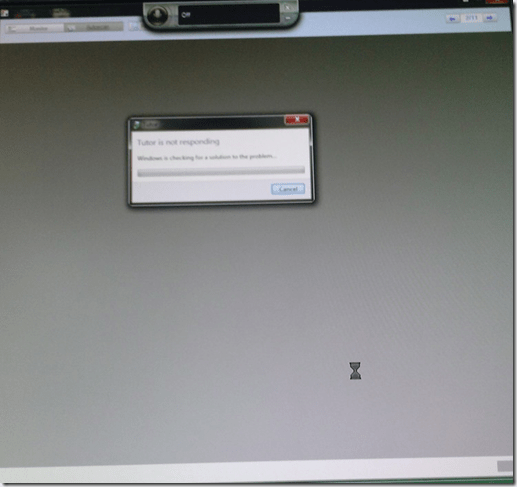
- The first one took me by surprise, the computer hung completely, I could not bring up process manager nor taskkill the tutor, had to power cycle, at considerable interruption to the the class.
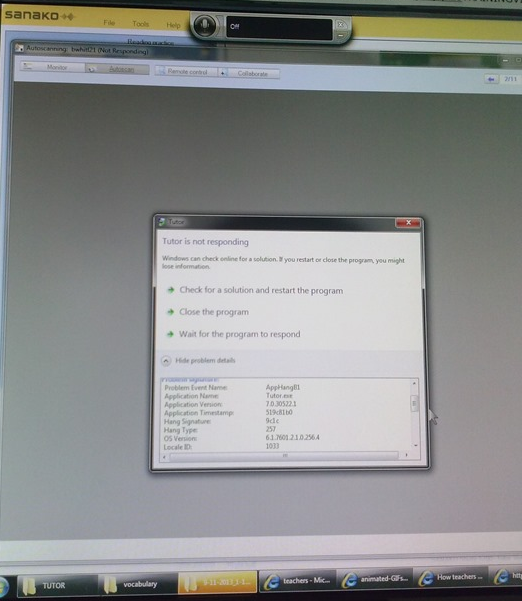
- However, here I got some problem details from windows:

- The first one
- The 2nd one
- also occurred during “Autoscanning”.
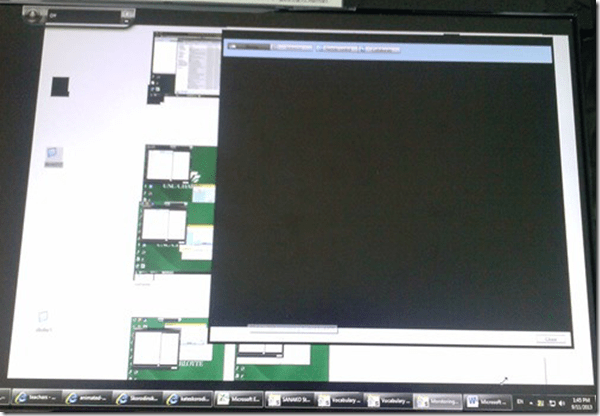
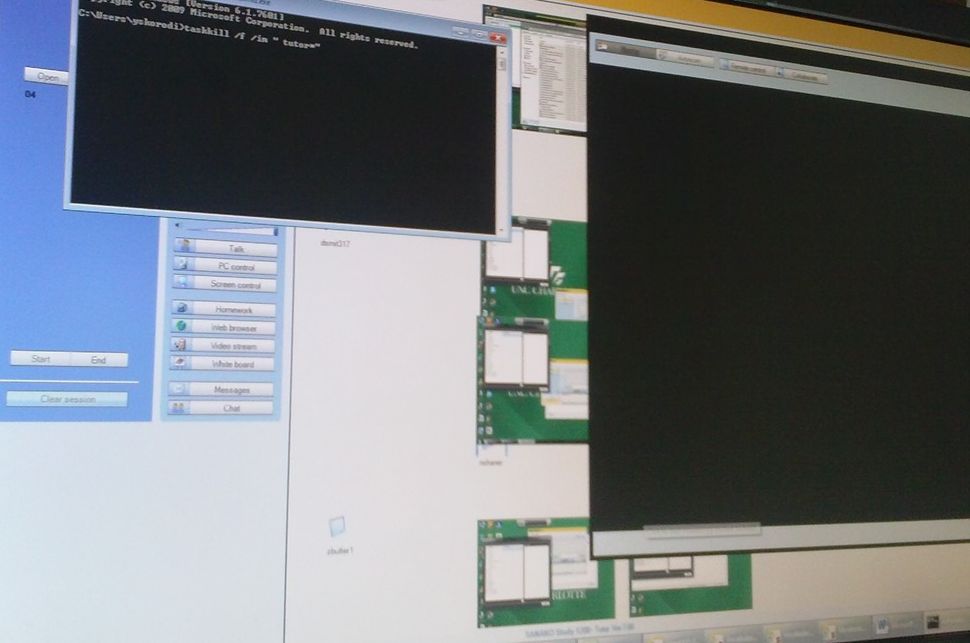
- This time, however, not the Autoscan itself brought the system down, but only when I tried to resize the autoscan window by dragging and dropping the border (video-intensive?).
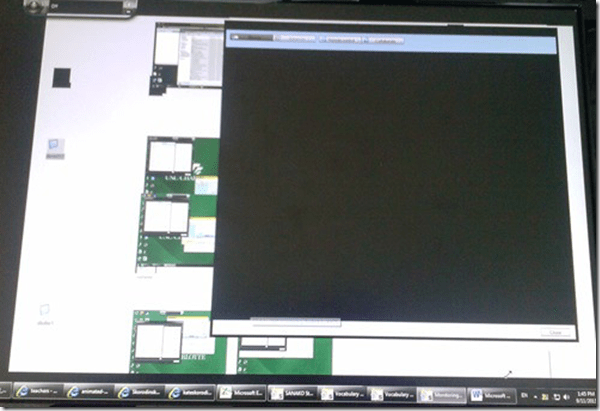
- I got a performance notification from Windows (not legible here, but something to the amount of “your computer is dangerously slow”):
- I managed to task kill the tutor:
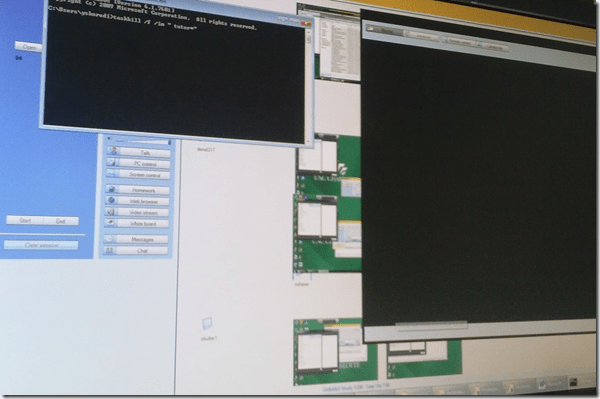
- I got some more diagnostics help from Windows which notified me that my “Windows Color scheme” had to be downgraded to “Basic”:
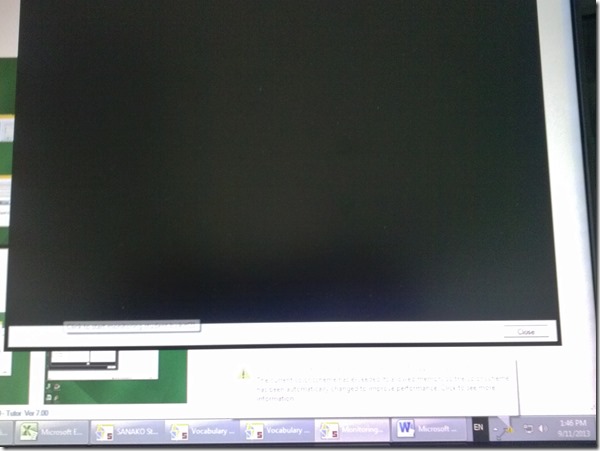
- also occurred during “Autoscanning”.
- Dell Optiplex 760 (B6CCLK1)
- 4GB,
- graphics chip: Y103D Card, Graphics, 256, Loop, OUGA6; original driver Video: AMD Radeon HD3450 256M, v.8.593 WHQL Vista, A05 with DUP (101 MB)
- dual screen (1024*768 secondary, 1920*1080 primary – I remember having hard hangs on this system when attempting to drag Autoscan Windows of Sanako Stuy 1200 Tutor ver. 5.2 across 2 dual screens of the same size on Windows XP )
- Win 7 (64bit).
- No eventvwr or Sanako log data since PC was frozen…

Demo of Puntos de partida on the McGraw-Hill Connect online platform for Hybrid Spanish teachers
- For your review:

- Highlights:
-
Learnsmart: adaptive learning content that asks for and tracks for the teacher and adapts for the student to students metacognitive confidence about her knowledge before testing it
-
In a flipped classroom setting, highest failure areas in the online learning results can be easily seen by the teacher to adapt the next class meeting.
-
How to workaround SkyDrive embed codes not working WordPress.com
- Problem: I cannot seem to get the new embed code that SkyDrive offers now to work on wordpress.com.
- Cause: No idea. Guess somebody did not get the memo? Hope it is not me.

- Workaround:
- Old skydrive embed code still works in wordpress (E.g. https://thomasplagwitz.com/tag/lists+resources/), but is a completely different syntax than what skydrive offers for embedding now (insert office code into [] to try it out):
- office width="750" height="1300" src="http://r.office.microsoft.com/r/rlidExcelEmbed?su=10634757809471938&Fi=SD25C841818181C2!126&kip=1&AllowTyping=True&Item=Table2&wdHideGridlines=True&wdDownloadButton=True"
- However, you can still convert the current embed into the old one:
- by inserting the new parameter values into the old ones:
- "cid" becomes "su" and
- "resid" becomes "Fi" .
- This example successfully embeds into a WordPress.com code now. (insert office code into [] to try it out):
- office width="750" height="1300" src="http://r.office.microsoft.com/r/rlidExcelEmbed?su=4FA3329905D7E1CE&Fi=4FA3329905D7E1CE%2162359&kip=1&AllowTyping=True&Item=Table2&wdHideGridlines=True&wdDownloadButton=True"
- No we seem to have been here before, so we shall see how long this workaround lasts.
PostEditorStorageException when publishing from Windows Live Writer on new DELL
Not always, but more and more often – anybody else seeing this?
Version: 16.4.3508.205
OS Version: Microsoft Windows NT 6.1.7601 Service Pack 1
Runtime version: 2.0.50727.5466
Shutdown started: False
Program: "C:\Program Files (x86)\Windows Live\Writer\WindowsLiveWriter.exe"
Memory Load: 83%
Total Physical: 8146 MB
Available Physical: 1375 MB
Total Page File: 16291 MB
Available Page File: 9137 MB
Total Virtual: 2047 MB
Available Virtual: 1618 MB
Available Extented Virtual: 0 MB
Unexpected Error Occurred
An unexpected error has occurred within the application.
WindowsLive.Writer.PostEditor.PostEditorStorageException: Error Accessing Local Post – Unexpected error occurred while accessing local post (-2147287008)
Share violation–storage may already be opened.
at WindowsLive.Writer.PostEditor.PostEditorFile.SaveCore(IBlogPostEditingContext editingContext, PostEditorFile autoSaveSourceFile, String filePath)
at WindowsLive.Writer.PostEditor.PostEditorFile.SaveBlogPost(IBlogPostEditingContext editingContext)
at WindowsLive.Writer.PostEditor.BlogPostEditingManager.PrePublishHooks(Object sender, PublishEventArgs args)
at WindowsLive.Writer.PostEditor.UpdateWeblogProgressForm.OnShown(EventArgs e)
at System.Windows.Forms.Form.CallShownEvent()
at System.Windows.Forms.Control.InvokeMarshaledCallbackDo(ThreadMethodEntry tme)
at System.Windows.Forms.Control.InvokeMarshaledCallbackHelper(Object obj)
at System.Threading.ExecutionContext.runTryCode(Object userData)
at System.Runtime.CompilerServices.RuntimeHelpers.ExecuteCodeWithGuaranteedCleanup(TryCode code, CleanupCode backoutCode, Object userData)
at System.Threading.ExecutionContext.RunInternal(ExecutionContext executionContext, ContextCallback callback, Object state)
at System.Threading.ExecutionContext.Run(ExecutionContext executionContext, ContextCallback callback, Object state)
at System.Windows.Forms.Control.InvokeMarshaledCallback(ThreadMethodEntry tme)
at System.Windows.Forms.Control.InvokeMarshaledCallbacks()
How faculty can move their local files to the new computer during their office PC upgrade using temporary network space
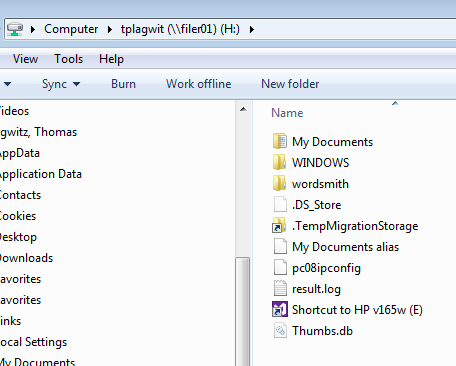
- Go to your H: drive:

- Click on the icon: “TempMigrationStorage”:

- Here is your temporary storage which you should move your files to from your old computer, so that you can move them later to your new computer:

- In this example, I copied my “downloads”folder from my local drive to my network “TempMigrationStorage”. Even when my old computer gets removed, I will be able to access the network from the new computer and download the files from there to the new computer.
- Files on your H: drive do not need to be moved that way. Settings on your old PC cannot be moved that way. Typical candidates for files that should be moved that way include large multimedia files that you could not store on your H: drive. For finding them on your local drive, I recommend examining your C: drive with the free WinDirStat.




Questions? Read the About. Or just ask me a quick Our Databases: Resources with calendars -- Language learning material Moodle Sites, multimedia files -- films


FAQs for LRC student staff or for students or for teachers. To search our FAQs, in the browser addressbar, add after "https://plagwitz.wordpress.com/feed/?tag=faqs+/" "+TAG1" (from tag cloud below) OR "https://plagwitz.wordpress.com/feed/tag=faqs
&category_name=" "CAT1" (from category hierarchy below). OR search both categories and tags, and multiple TAGs/CATs (connect with "," for OR-search, with "+" for AND-search), like so: https://plagwitz.wordpress.com/feed/?tag=TAG1+TAG2+...TAGn&category_name=CAT1
+CAT2+...CATn"
Other ways to find help
If you cannot find it here, look there: 5,500 Language-Learning Links and Programs for learning or teaching 150 languages
Shortcuts:Our Lists, Our Maps, LRC Staff Moodle Site,LRC Project Moodle Site, 49erexpress, UNCC Moodle, Student Recordings: s:claslcslrcsanakostudent
Learning usage samples: Sanako oral exam, Kaltura webcam presentation, Dictation with speech recognition, Sanako written exam, Chinese and Japanese interactive stroke-order practice
Test the Sanako Installer, Webbrowser Popup Konfigurator for XP, or Windows7, faster LRC TeacherPC Log-in Let MS facilitate diacritics writing by installing for you US-International keyboard layout
This is my personal blog (Google+). The views expressed on these pages are mine alone and not those of my employer. The information in this weblog is provided “AS IS” with no warranties, and confers no rights.
 Thomas' Work Space