Archive
Archive for the ‘second-language-acquisition’ Category
Scraping RSS of online actualités for language learning materials production
2013/03/24
Leave a comment
- The capability of RSS-news feed integration of foreign language news may be standard now in most LMS, but was not in 2002 (not even having an LMS was standard, I had to build my own while it took the university a few more years to adopt Blackboard as I had recommended in 2000):

- But RSS-feed display is skin-deep and, even in extensive-reading pedagogies, not sufficient for integration into teaching and learning which requires more post-processing.
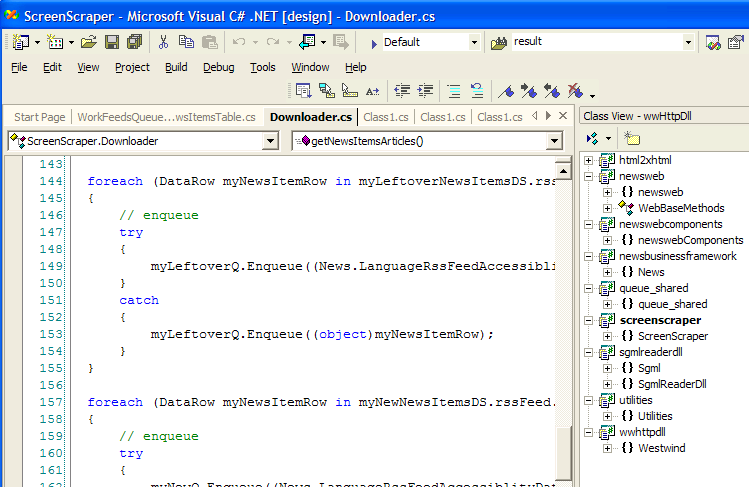
- At a recent Digital Humanities Unconference, I was asked how I had “scraped” (RSS-scraping was chosen since it easier than screen scraping, for RSS is devoid of most markup, as long as it validates) into a SQL-server database. Here are some code-snippets to get you
- from the web
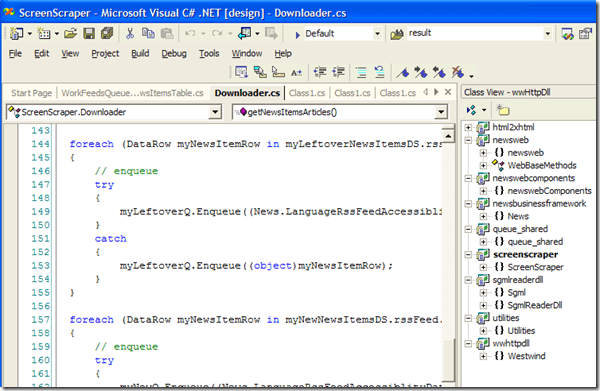
- into the database:
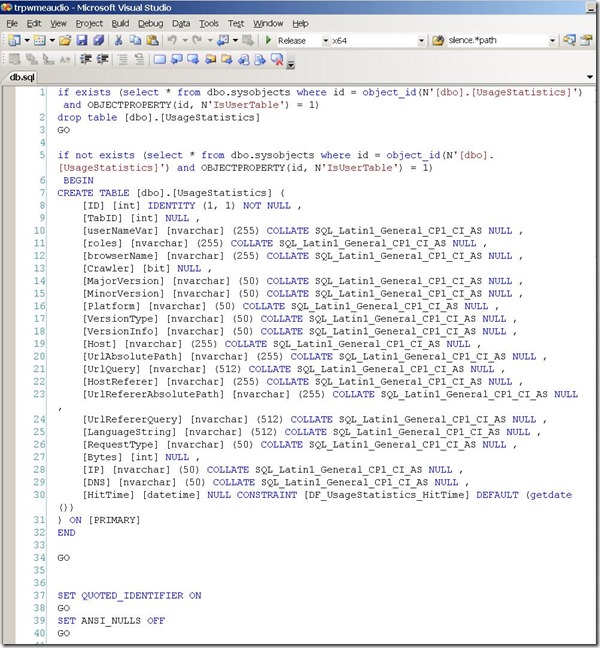


- The scraped plain text in the database can form the foundation for post-processing for SLA-purposes, see e.g. glossing for reading comprehension facilitation or question generation with the trpQuizConverter for
- from the web



Categories: Reading, service-is-learning-materials-creation, service-is-programming
2003, c#, news, rss, SQL, vs.net
Voyant-tools.org
2013/03/22
Leave a comment

Neat encounter at the ThatCamp2013 Digital Humanities Unconference at UNCC today. Certainly a simplification over Wordsmith tools. That’s all the reviewing I have time for right now. 
How a teacher can adapt a Sanako teacher-controlled class recording activity for individual student recordings
2013/03/12
Leave a comment
- Pedagogical need:
- A teacher wants her students to record a presentation,
- but allow the students to move around freely in their recording afterwards, when evaluating it, and submit the best out of 3 tries:
- Technical implementation:
- Using Sanako activity:model imitation of differing for multiple groups
- offers maximum control, least flexibility: students have to speak their presentation linearly
- if you anticipate presentations of considerably different lengths
- first try asking your students – might be useful to them anyway to realize if theirs turns out to be much shorter than others,
- if students are unsure about the length of their presentation,
- conduct the first recording with the entire class and
- have students note what time their recorder time counter is at when they finish, and send you the time as text via the button:envelope
- group your students (grouping step-by-step) into Sessions A-F by incrementing time according to what the student icon bubble shows
- then differentiate class into as many groups as necessary (if <= the 6 “sessions”A-F Sanako Study 1200 offers) end the recording at a different time for each group
- for each group (one or more up to 6),
- choose from dropdown activity: model imitation recording
- and from dropdown: source: none) with more than one group at a time,
- and (optionally) for not more than one group at a time (suggest choosing the biggest group for that) from (dropdown: source: file ) the background noise to play
- and after each group’s allocated time (+ buffer) is up,
- press button:end to end the recording
- after collection of the recordings from students is finished, you can
- press button:replay
 , to let each student listen to her recording (linearly, without control), and
 - press button:free
 , to let students freely move back and forth on the timeline)
 - eventually, press button: clear, to be ready:
- choose from dropdown activity: model imitation recording
- for tries 2 and 3: repeat above steps.
- using Sanako activity: self access:
- provides
- the teacher some control (none over this turning into more of an editing than coherent language practice exercise),
- and students more flexibility (hence requiring prior recording training for students);
- students individually
- record
- move around freely in the file
- replay
- record over prior footage and/or start completely over (menu: File / new)
- press button:envelope to text message the teacher that they are finished and want their (final ) recording to be collected by the teacher
- teacher
- moves signaling students into a group (grouping step-by-step) that is
- dedicated for collecting recordings (TBA:does this not empty their buffer?)
- and button:pc control: locked (= no further or accidental changes)
- once an appropriate (compromise between finished students wanting to leave and teacher not having to collect each recording individually) number of students have been added to this group, presses
- button: end to collect and
- button: clear session to clear the button
- assesses the recordings in the folder that opens with audacity;
- in case of problems, moves students back to the group dedicated to recording
- else lets students leave
- moves signaling students into a group (grouping step-by-step) that is
- provides


Categories: Arabic, assessments, audience-is-teachers, digital-audio-lab, e-languages, English, Farsi, French, German, Greek (modern), Hebrew, Hindi, Italian, Japanese, Korean, Mandarin, multimedia-recording, Polish, Portuguese, Presenter-Computer, Russian, service-is-assessing, Spanish, Speaking, step-by-step-guides, Student-Computers, Swahili, Yoruba
oral-exams, sanako-study-1200
LRC offers generating audio files from your foreign language texts
2013/03/01
2 comments
- Would you like to expose your student to L2 listening materials beyond the audio learning materials that come with your textbook?
- Materials customized to the learning needs of your classes? From current affairs maybe?
- Would you prefer no to send them to internet audio that may be difficult and time consuming to integrate?
- Do you lack the time to record speaking cues, oral exam questions or reading models yourself?
- Do you need audio files that you and your students can rewind/fast forward/replay, edit and record into with voice insert?
- And would you prefer using audio in your classes that comes with aligned text, whether that audio that has been transcribed or vice versa, to create glossaries, captions, multimedia assignments?
- The LRC now offers generating audio files from your foreign language texts in many languages.
- The service is based on the quality voices of Google Translate text-to-speech (better (simpler) than its actual translation portion, let alone its naïve use).
- Unlike Google translate, the service persists longer than 100 character texts to audio files (mp3) that (and the underlying digital text) we can work with further, in your syllabus, the LMS and the digital audio lab.
- Technical background and samples.
- Languages that are available in good quality: See links under this post; other languages: please test with me..
- To request an audio file generation for your class, send the following information to the LRC
- regular reading/listening materials: plain digital text should do;
- SANAKO oral exam cues: please enter the text in this MS-Word table and add information in the additional columns for exam customization.
How to have Microsoft add US-International keyboard layout shortcuts for you automatically
2013/03/01
Leave a comment
Add the United States-International keyboard layout (Microsoft Fix it 50558). Saves you reading and following the rest of the instructions here: http://support.microsoft.com/kb/306560.
Save 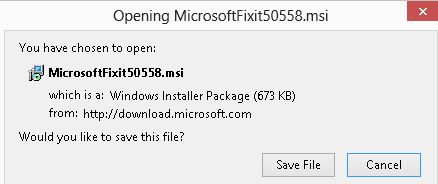 ,open:
  and agree:
 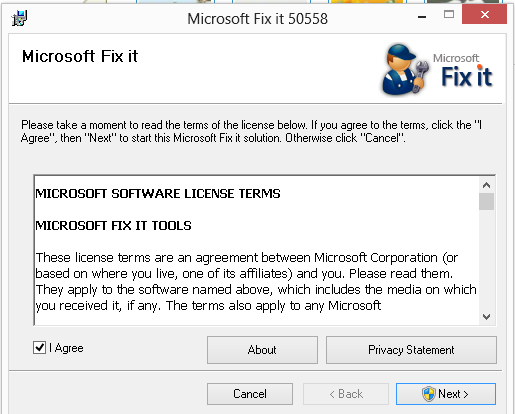 .
.
You will get:
International.
| Press this key | Then press this key | Resulting character |
| ‘(APOSTROPHE) | c, e, y, u, i, o, a | ç, é, ý, ú, í, ó, á |
| "(QUOTATION MARK) | e, y, u, i, o, a | ë, ÿ, ü, ï, ö, ä |
| `(ACCENT GRAVE) | e, u, i, o, a | è, ù, ì, ò, à |
| ~(TILDE) | o, n, a | õ, ñ, ã |
| ^(CARET) | e, u, i, o, a | ê, û, î, ô, â |
For Windows 7, in Windows Vista, and Windows XP. Finally, view this if you are still on Windows 3.1. 
Categories: French, German, Italian, Polish, Portuguese, Spanish, Writing
foreign-language-character-input, ms-windows
Web-based Greek to Roman characters transliteration using Greeklish
2013/02/28
Leave a comment

http://speech.ilsp.gr/greeklish/, 255 characters max. Or 5000 max at http://services.innoetics.com/greeklish/:

Categories: audience-is-students, Greek (modern), Reading, Speaking, websites, Writing
phonetics, transliterating
Automating language learning listening material creation with Google Translate text-to-speech: The technology
2013/02/28
Leave a comment
- A digital audio lab heavily depends on the availability of, but does not usually come with digital learning materials (and recent exceptions are exceptions for a reason) Some digital audio materials that come with your textbook may be adaptable. “Rolling your own” has all kinds of advantages (allows for personalization, for both teachers to express themselves, and for students to learn), but can be a chore.
- Can the LRC find a workaround? Here is one attempt: making Google translate (too often abused by students in its original interface) text-to-speech (unusable for learning material in its original interface since severely crippled) usable for digital audio learning material production, provided you have a source text in the target language.

- GoogleTTS can serve as the gateway to better suiting Google Translate text-to-speech features to the needs of the LRC:
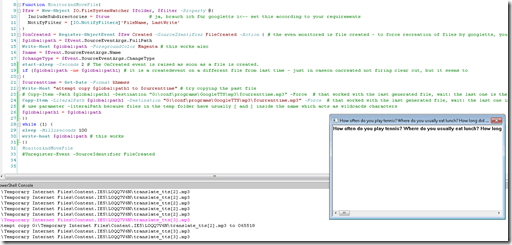 GoogleTTS allows for arbitrary-length input text (it chunks it automatically).
- GoogleTTS produces intermediate local audio files which we can postprocess.
- Google Translate’s automatic language recognition remains a sore point: it is not reliable. Unlike Google Translate, GoogleTTS has no interface to set the language manually when the automatic recognition fails.
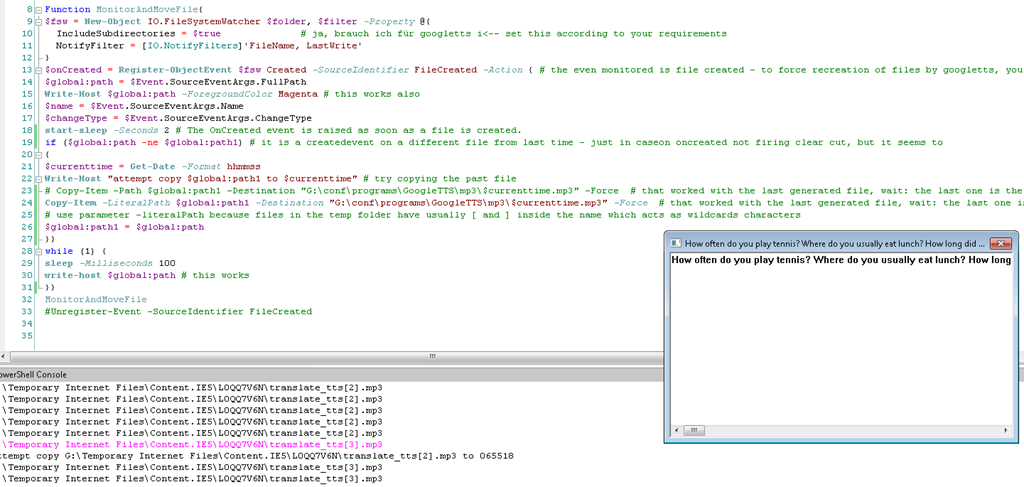
- Batch-download the files from Google Translate, using MS-PowerShell: <
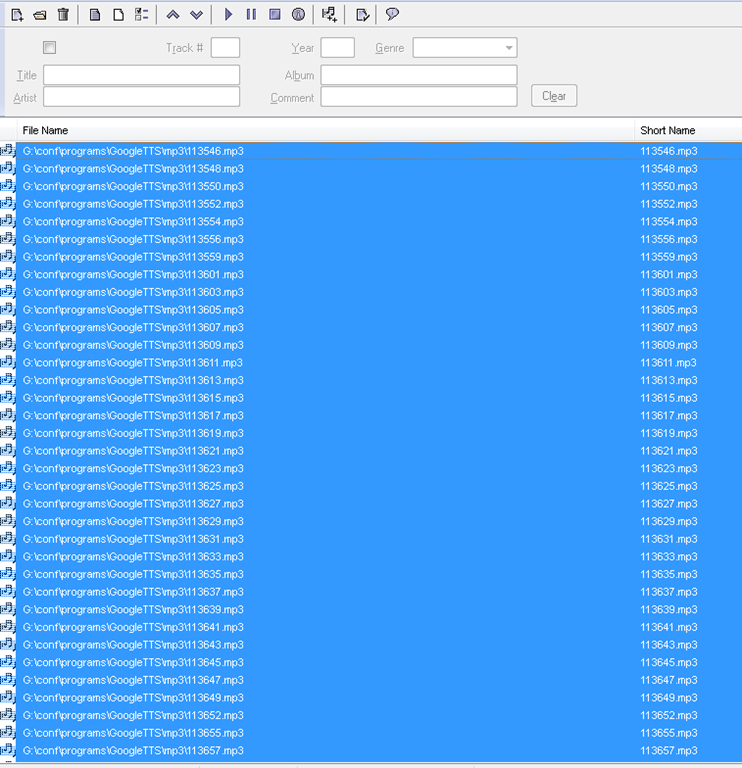
$global:folder = 'G:\Temporary Internet Files\Content.IE5' $filter = '*.mp3' # <-- set this according to your requirements $global:destination = 'G:\conf\programs\GoogleTTS\mp3' $global:path $global:path1 $currenttimeFunction MonitorAndMoveFile{ $fsw = New-Object IO.FileSystemWatcher $folder, $filter -Property @{ IncludeSubdirectories = $true # ja, brauch ich für googletts i<-- set this according to your requirements NotifyFilter = [IO.NotifyFilters]'FileName, LastWrite' } $onCreated = Register-ObjectEvent $fsw Created -SourceIdentifier FileCreated -Action { # the even monitored is file created - to force recreation of files by googletts, you may have to clear watched folder of all mp3 < 100kb first $global:path = $Event.SourceEventArgs.FullPath Write-Host $global:path -ForegroundColor Magenta # this works also $name = $Event.SourceEventArgs.Name $changeType = $Event.SourceEventArgs.ChangeType start-sleep -Seconds 2 # The OnCreated event is raised as soon as a file is created. if ($global:path -ne $global:path1) # it is a createdevent on a different file from last time - just in caseon oncreated not firing clear cut, but it seems to { $currenttime = Get-Date -Format yyyy-MM-dd-hhmmss Write-Host "attempt copy $global:path1 to $cuurrenttime" # try copying the past file # Copy-Item -Path $global:path1 -Destination "G:\conf\programs\GoogleTTS\mp3\$currenttime.mp3" -Force # that worked with the last generated file, wait: the last one is the one that remaisn behind, earlier ones get overwritten Copy-Item -LiteralPath $global:path1 -Destination "G:\conf\programs\GoogleTTS\mp3\$currenttime.mp3" -Force # that worked with the last generated file, wait: the last one is the one that remaisn behind, earlier ones get overwritten # use parameter -literalPath because files in the temp folder have usually [ and ] inside the name which acts as wildcards characters $global:path1 = $global:path }} while (1) { sleep -Milliseconds 100 write-host $global:path # this works }} MonitorAndMoveFile #Unregister-Event -SourceIdentifier FileCreated - Merge the downloaded files (wisely numbered sequentially):
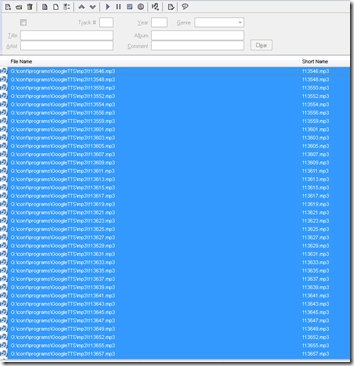
- Fix minor errors in your audio editor:
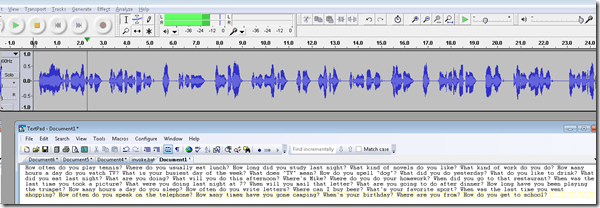
- Done:
- Here I have a lot of questions for a speaking exam in ESL, and with a much better accent than my own.
- Nifty, plus output sounds even better for German than for English. Note, there is no attempt to parse sentences semantically. Some languages chunk better than others (I made some little improvements in this regard to the original program). Other common problems include numbers and in German I find myself, when listening, tending to look up once in a while and shake a high school students by the shoulders, asking him: “Do you actually understand what you are reading?!”
 – which in my eyes is an indicator to the progress made in speech-synthesis.
 - Other examples include French,
- Hindi,
- Italian,
- Spanish.
- So can the LRC relieve teachers from recording their cue files for the digital audio lab listening comprehension and exam? Within limitiations.


Categories: audience-is-language-learning-center-manager, audience-is-teachers, digital-audio-lab, English, French, German, Hindi, Italian, learning-materials, Listening, service-is-applying-learning-tools, service-is-learning-materials-creation, service-is-programming, sourcecode, Spanish
automation, google-translate, powershell, text-to-speech
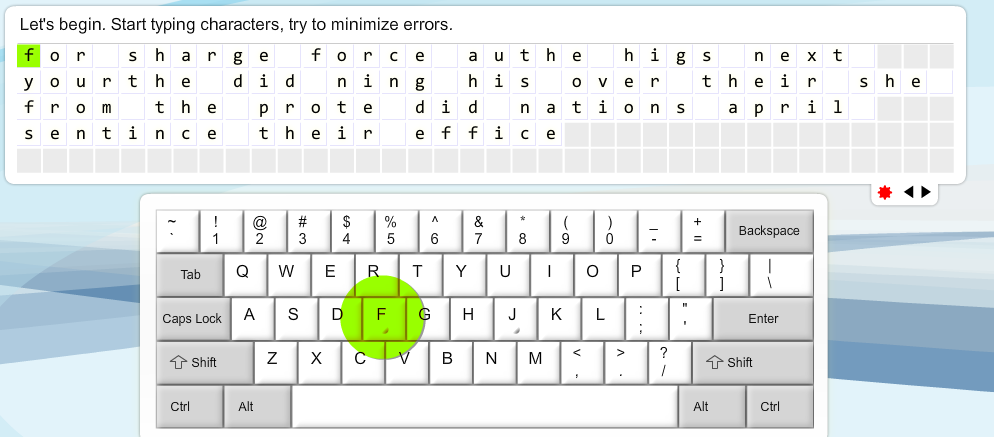
Keyboarding game and Typing tutor for ESL students unfamiliar with Roman letters keyboards
2013/02/27
Leave a comment
- For ESL learners unfamiliar with Roman letters keyboards, the LRC features only a few keyboards with non-Roman character overlays, and otherwise software transliterators integrated into Windows that, while allowing typing in L1 for dictionary lookup and note taking, still require familiarity with the Roman letters keyboards. To help ESL learners getting started, here are a 2 websites I found:
- A typing tutor:
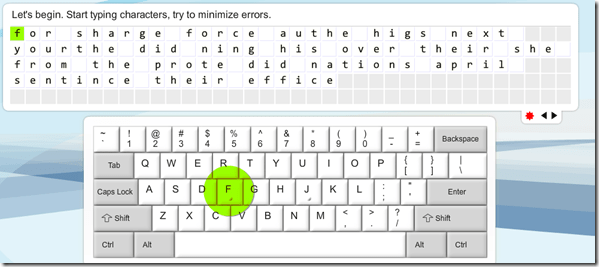
- pros: pedagogically sound: English words are given as cues, and an on screen keyboard that can be operated from the hardware keyboard, but gives hints when needed by highlighting the next letter on the keyboard after a waiting period
- cons: a bit drab.
- An arcade-like keyboarding game (Missile command/Tetris):
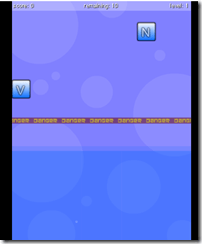
- cons:
- bit too much sound,
- not advertisement free
- letters only, not practice of English words
- pros:
- autostarts and thus can be directly launched for students from the teacher station as a divertissement during slow times in the LRC ,
- reasonably entertaining,
- Levels that start slow, but adaptive.
- cons:



Questions? Read the About. Or just ask me a quick Our Databases: Resources with calendars -- Language learning material Moodle Sites, multimedia files -- films


FAQs for LRC student staff or for students or for teachers. To search our FAQs, in the browser addressbar, add after "https://plagwitz.wordpress.com/feed/?tag=faqs+/" "+TAG1" (from tag cloud below) OR "https://plagwitz.wordpress.com/feed/tag=faqs
&category_name=" "CAT1" (from category hierarchy below). OR search both categories and tags, and multiple TAGs/CATs (connect with "," for OR-search, with "+" for AND-search), like so: https://plagwitz.wordpress.com/feed/?tag=TAG1+TAG2+...TAGn&category_name=CAT1
+CAT2+...CATn"
Other ways to find help
If you cannot find it here, look there: 5,500 Language-Learning Links and Programs for learning or teaching 150 languages
Shortcuts:Our Lists, Our Maps, LRC Staff Moodle Site,LRC Project Moodle Site, 49erexpress, UNCC Moodle, Student Recordings: s:claslcslrcsanakostudent
Learning usage samples: Sanako oral exam, Kaltura webcam presentation, Dictation with speech recognition, Sanako written exam, Chinese and Japanese interactive stroke-order practice
Test the Sanako Installer, Webbrowser Popup Konfigurator for XP, or Windows7, faster LRC TeacherPC Log-in Let MS facilitate diacritics writing by installing for you US-International keyboard layout
This is my personal blog (Google+). The views expressed on these pages are mine alone and not those of my employer. The information in this weblog is provided “AS IS” with no warranties, and confers no rights.
 Thomas' Work Space
