Archive

Foreign language support in LRC MS-Office 2010
- A full set of proofing tools is available, thanks to MS-Office Language Packs installed on the Windows 7 computers, for all non-classical languages studied here:
-
Language Native name Arabic العربية Chinese (Simplified) 中文(简体) Chinese (Traditional) 中文 (繁體) English English French français German Deutsch Greek Ελληνικά Hebrew עברית Hindi हिंदी Italian italiano Japanese 日本語 Korean 한국어 Polish polski Portuguese (Brazil) Português Portuguese (Portugal) português Russian Русский Spanish español - Some languages have only limited features provided by the MS-Language Interface Pack:
-
KiSwahili Kiswahili Persian (Farsi) فارسی Yoruba ede Yorùbá
Keyboard layouts and IME’s on LRC Windows 7 PCs
You can change the input language using the language toolbar which appears next to the notification area in the lower right of the task bar.
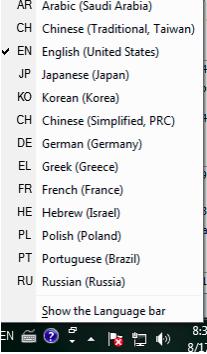
Note that many languages need not be listed since their characters can be typed, Windows-wide, using keyboard shortcuts of the English-US (international extended) keyboard layout.
Some installed input methods benefit from having keyboard overlays which have been installed on some computer. Other input methods allow for drawing characters, e.g. in Japanese or Mandarin, which works better with the Wacom tablet installed on PC01 and PC02 than with a mice.
Many languages have more than one keyboard/input method. After changing to your language on the language toolbar, you can switch from the language’s default keyboard layout to another by clicking on keyboard icon behind the 2-letter language abbreviation.
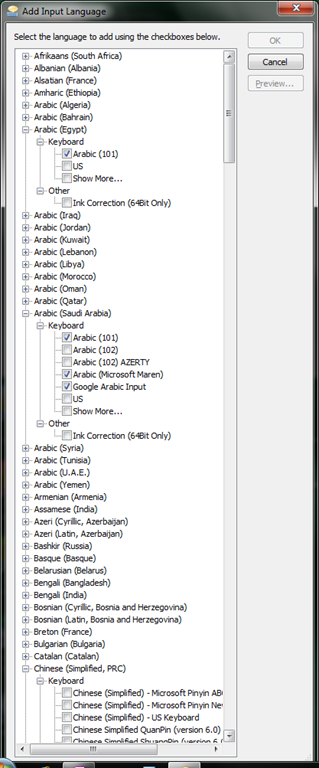
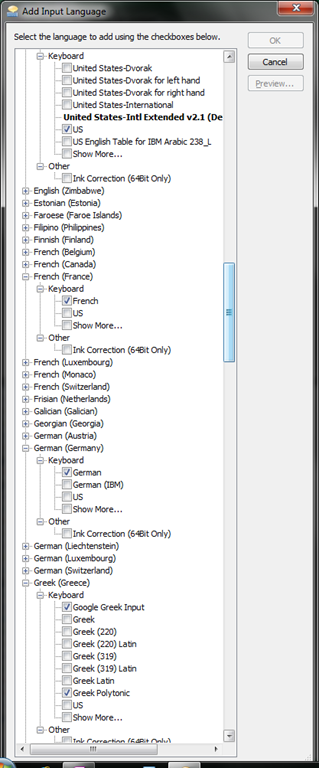
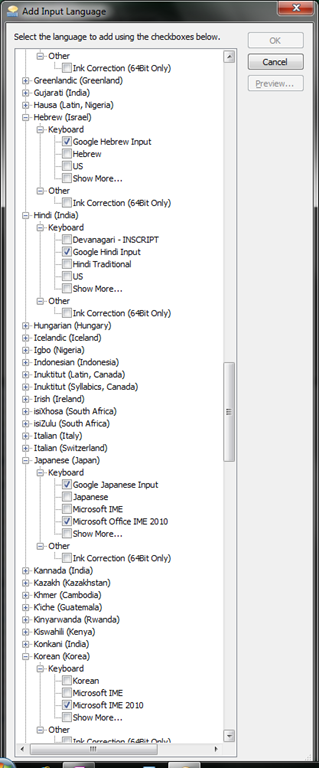
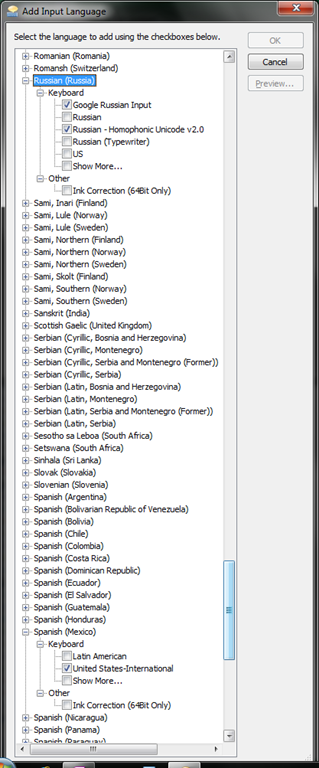
 Below is a comprehensive list of all layouts that are available to you:



How to change the display language and speech recognition language on LRC Windows 7 computers (and which languages are available)
- UPDATE: Since this page seems to be getting a lot of hits, I want to clarify: The step-by-step guide below only applies after you installed (free) language (or language interface) packs (see list here) on Windows 7 Enterprise or Ultimate SKU (others SKUs cannot add multiple language interfaces). UPDATE2: Things got much easier with Windows 8.
- In order to
- view the GUI of Windows and Internet Explorer in a foreign language,
- use the speech recognition in (a subset of the below) foreign languages,
- and also switch the default language of MS-Office
- Double-click the desktop shortcut “Region and language – Keyboards and languages”.
- Select the desired language from the dropdown box, click “OK”.

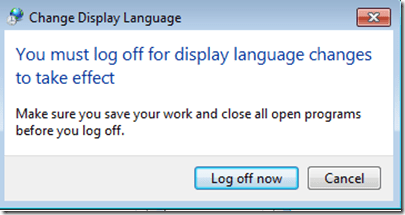
- Click: “Log off now”:
- “Log back in” (without restarting).
- And if you want the available display languages in English,
- here are the fully supported (MS Language packs):
Language Native name Arabic العربية Chinese (Simplified) 中文(简体) Chinese (Traditional) 中文 (繁體) English English French français German Deutsch Greek Ελληνικά Hebrew עברית Italian italiano Japanese 日本語 Korean 한국어 Polish polski Portuguese (Brazil) Português Portuguese (Portugal) português Russian Русский Spanish español - and here the partially supported (MS-Language Interface packs):
Hindi हिंदी KiSwahili Kiswahili Persian (Farsi) فارسی Yoruba ede Yorùbá - And here are the languages that support speech recognition:


Trados translation memory from TMX
- Open Trados studio professional 2011
- choose from the menu: file / new / translation memory
- in the create translation memory dialogue
- choose source and target language (the same as in the file name of the TMX files which follow the source-target naming convention)
- select “Allow multiple translation for the same source segment”
- choose as name for this translation memory the file name of the TMX files you are going to import (some include a year)
- click button: “create”,
- choose from the menu: file / import
- in the “import” dialogue window
- select “large import file”, “keep most recent”, “add to setup”
- click button “ok”
- select “large import file”, “keep most recent”, “add to setup”
- and in the dialogue “open import file”
- select as file type TMX 1.4b, if this does not work, 1.4, if this does not work, 1.1
- browse to C:\Temp\Trados to select one file (after the other)
Using NLP tools to automate production and correction of interactive learning materials for blended learning templates in the Language Resource Center. Presentation Calico 2012, Notre Dame University
View screencast  here.
here.
Farsi phonetic input using Behnevis
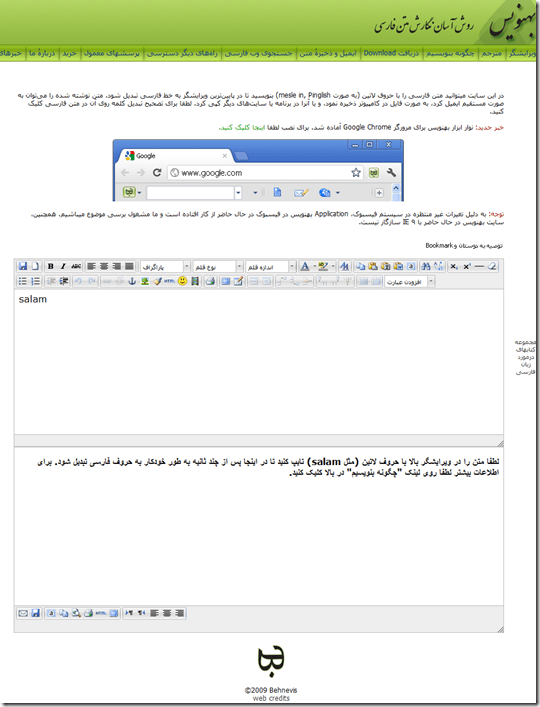
- Behnevis.com (web form or downloadable Google Chrome browser toolbar) offers transliteration of phonetic input in Roman letters into Farsi and is said to be on a par with Google translate (which offers no toolbar) and MS-UIME (which has no toolbar, but can be installed in your browser to alter any web page for users lacking a physical Farsi keyboard (or overlay).



Questions? Read the About. Or just ask me a quick Our Databases: Resources with calendars -- Language learning material Moodle Sites, multimedia files -- films


FAQs for LRC student staff or for students or for teachers. To search our FAQs, in the browser addressbar, add after "https://plagwitz.wordpress.com/feed/?tag=faqs+/" "+TAG1" (from tag cloud below) OR "https://plagwitz.wordpress.com/feed/tag=faqs
&category_name=" "CAT1" (from category hierarchy below). OR search both categories and tags, and multiple TAGs/CATs (connect with "," for OR-search, with "+" for AND-search), like so: https://plagwitz.wordpress.com/feed/?tag=TAG1+TAG2+...TAGn&category_name=CAT1
+CAT2+...CATn"
Other ways to find help
If you cannot find it here, look there: 5,500 Language-Learning Links and Programs for learning or teaching 150 languages
Shortcuts:Our Lists, Our Maps, LRC Staff Moodle Site,LRC Project Moodle Site, 49erexpress, UNCC Moodle, Student Recordings: s:claslcslrcsanakostudent
Learning usage samples: Sanako oral exam, Kaltura webcam presentation, Dictation with speech recognition, Sanako written exam, Chinese and Japanese interactive stroke-order practice
Test the Sanako Installer, Webbrowser Popup Konfigurator for XP, or Windows7, faster LRC TeacherPC Log-in Let MS facilitate diacritics writing by installing for you US-International keyboard layout
This is my personal blog (Google+). The views expressed on these pages are mine alone and not those of my employer. The information in this weblog is provided “AS IS” with no warranties, and confers no rights.
 Thomas' Work Space