Archive
How teachers can use MS-Word Mail merge with filtering and if-then-else to quickly provide personalized feedback based to students depending on grade
- Intelligence is adaptation to feedback. Providing personalized feedback to students depending on their performance could make student development much more successful.
- Intelligence is expensive. How can the teacher provide personalized feedback time-efficiently? Likely by blending artificial intelligence with her own.
- Sounds like Sci-fi? A great practical example, using existing familiar IT infrastructure, you can find here: MS-Word’s (2010; 2007 works the same) mail merge feature, on the basis of a downloaded Moodle gradebook with student results, can customize semi-automatically your reusable feedback email message template to individual recipient’s performance and needs:
- Step-by-step instructions: http://teaching.uncc.edu/moodle/grade-book/how-to/using-mail-merge-grade-book.
- Screencast of the webinar instruction: http://mt202.sabameeting.com/SiteRoots/main/User/GuestAttend.jhtml?pb=true&s_guid=0000018151460000013a0a22cfb39443&domain=/Customers/uncc&domain=/
Sanako Study 1200 StudentRecorder.exe install in the LRC
Here is the screencast recording I made during local installation:  . It includes the install option “static classroom” and (near the end) our classroom name.
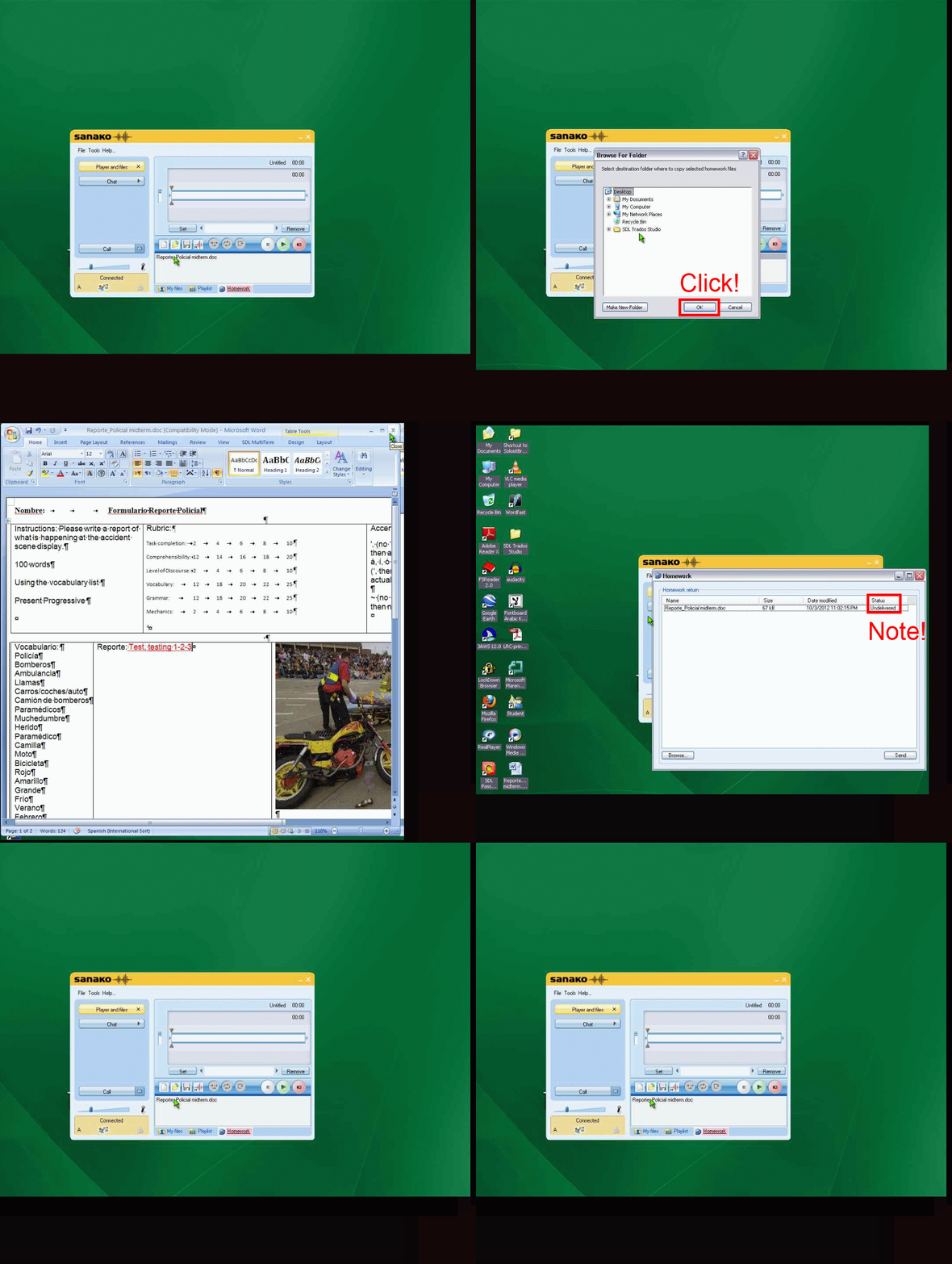
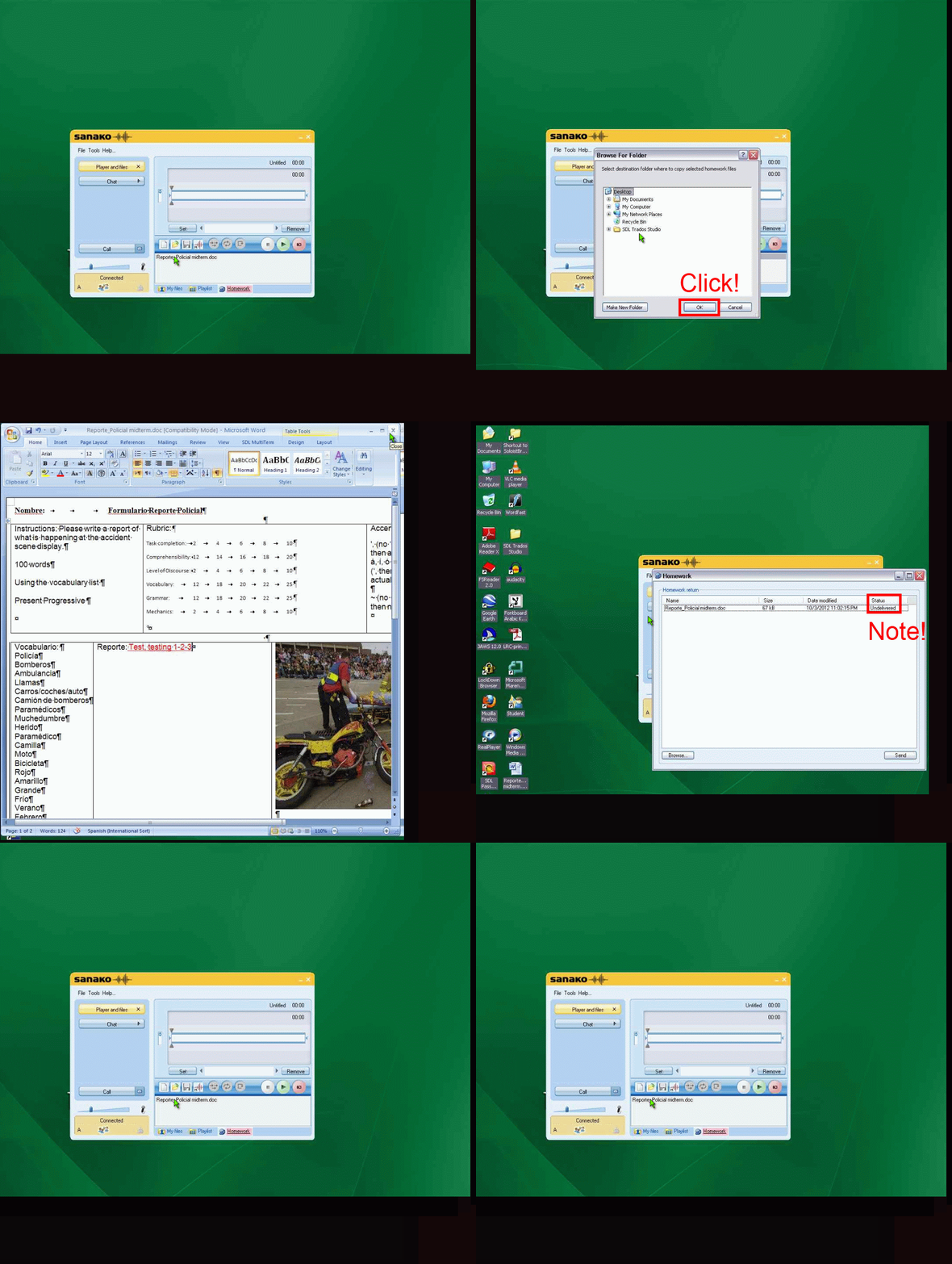
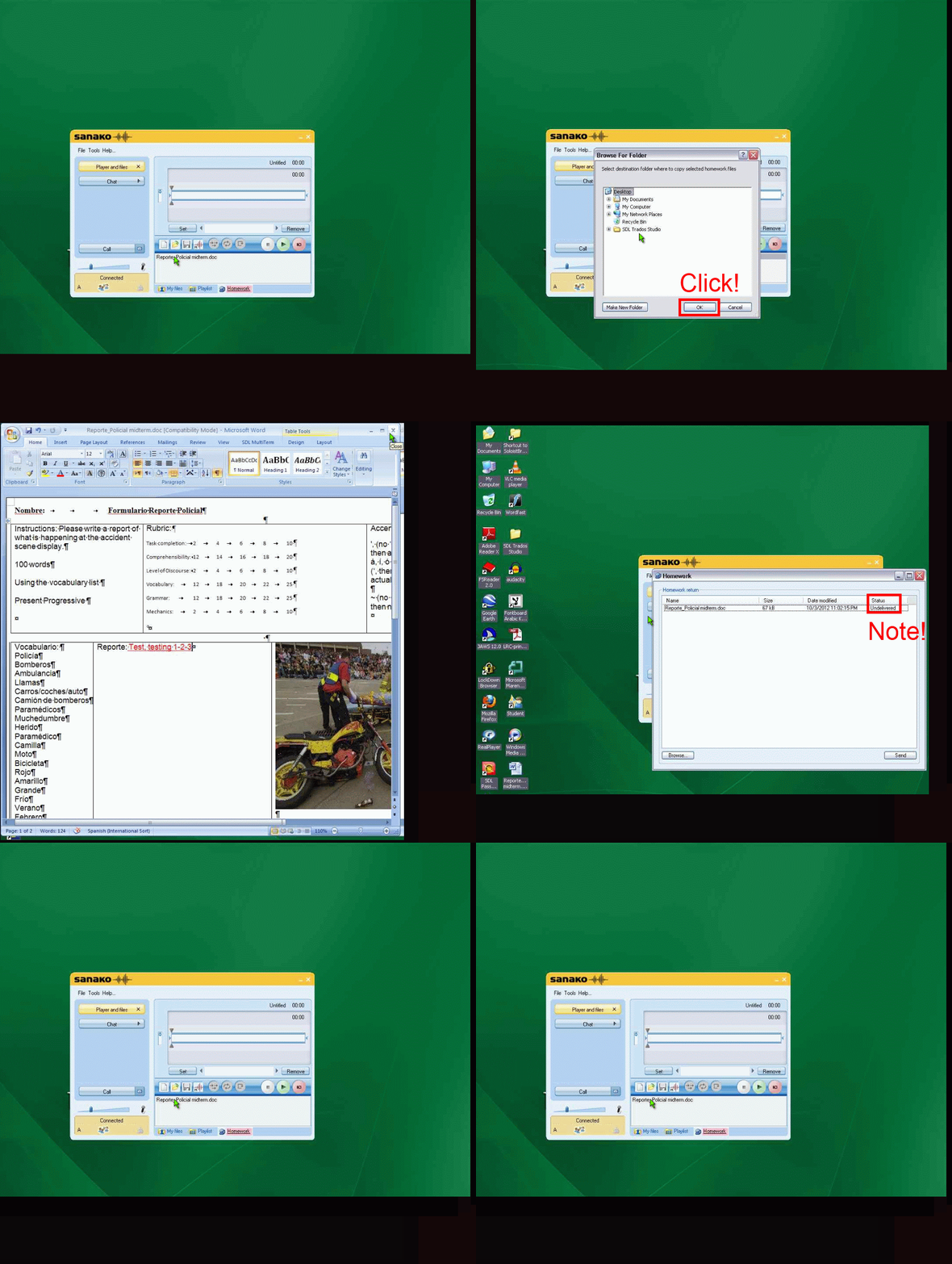
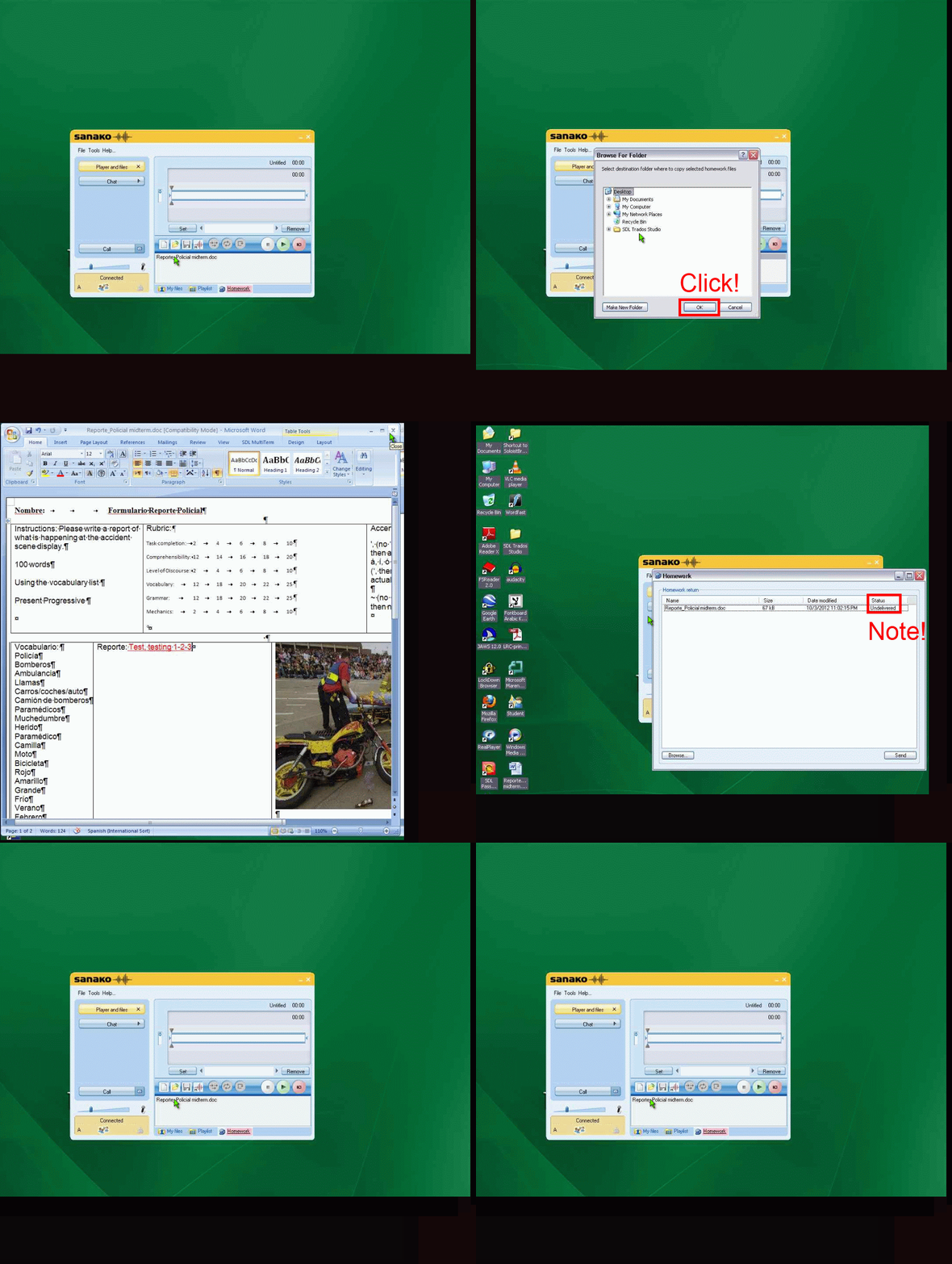
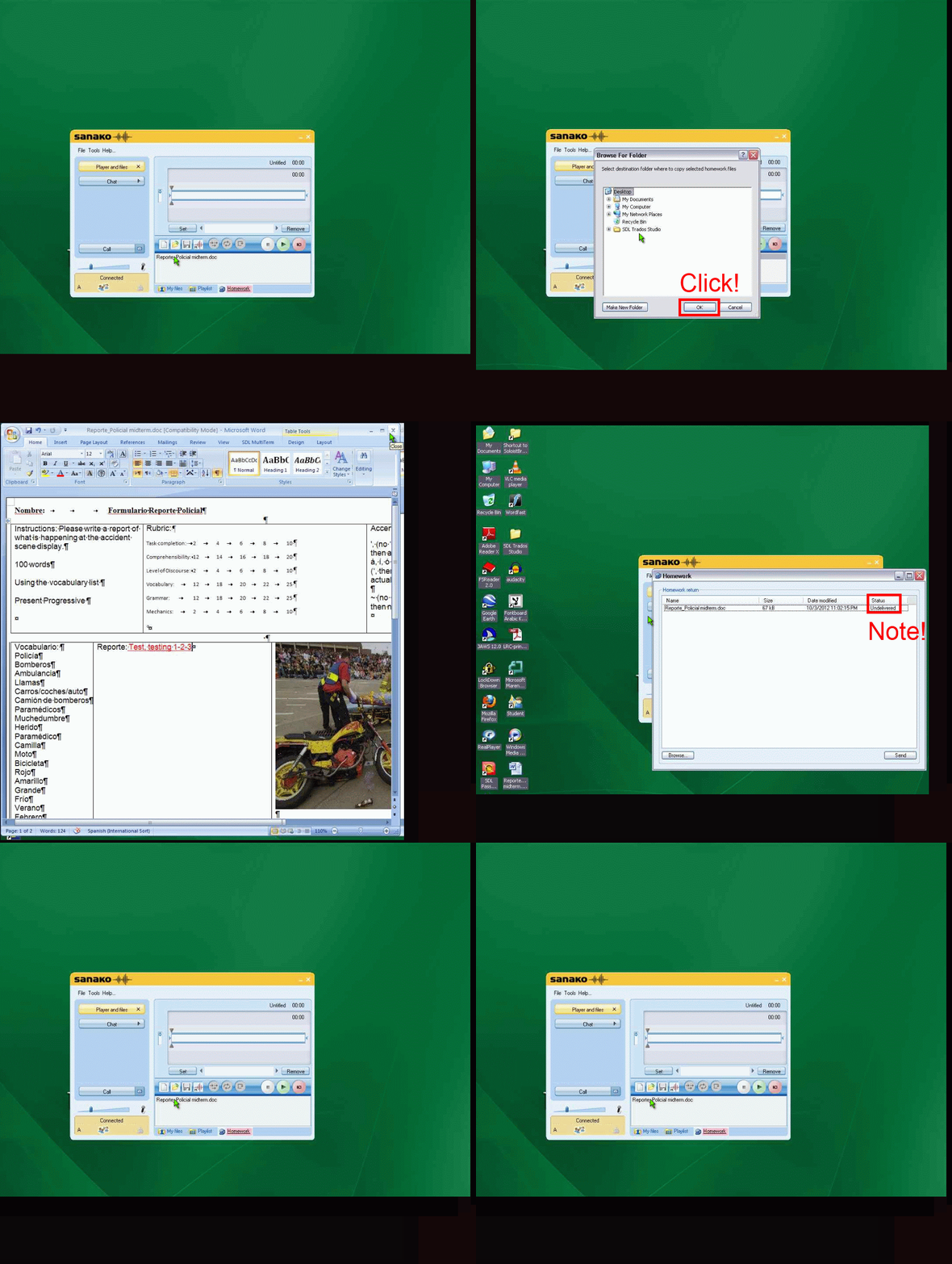
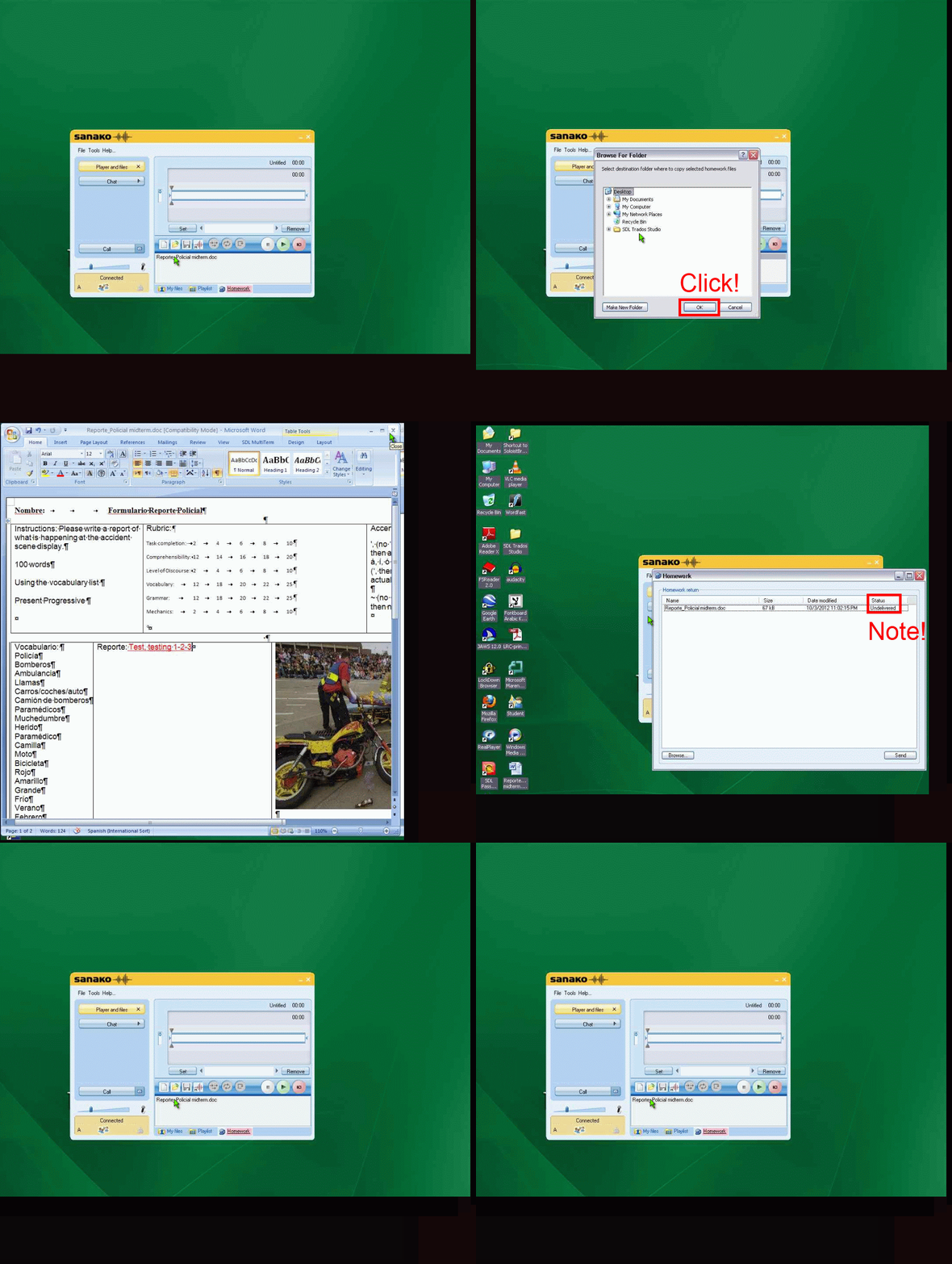
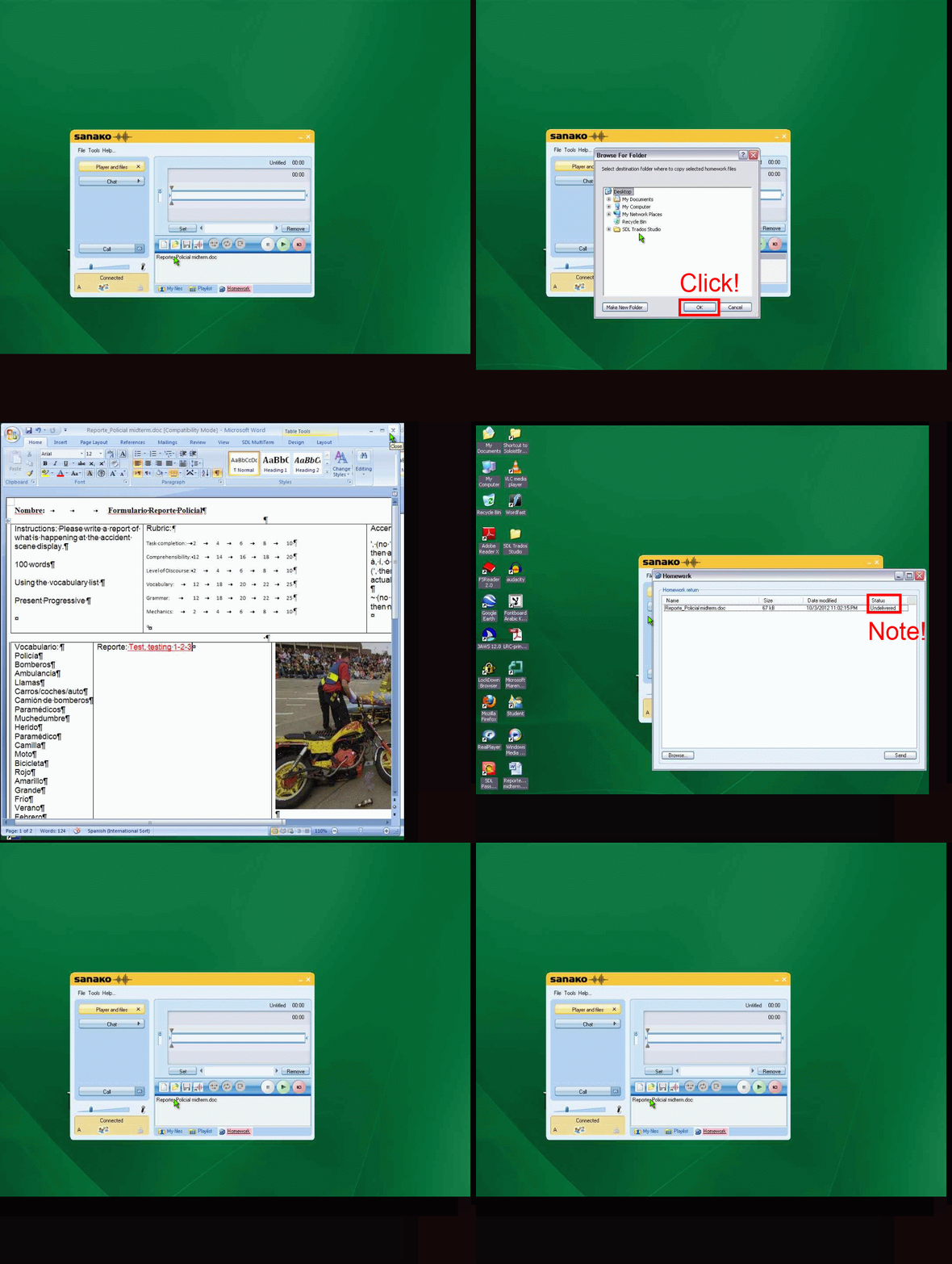
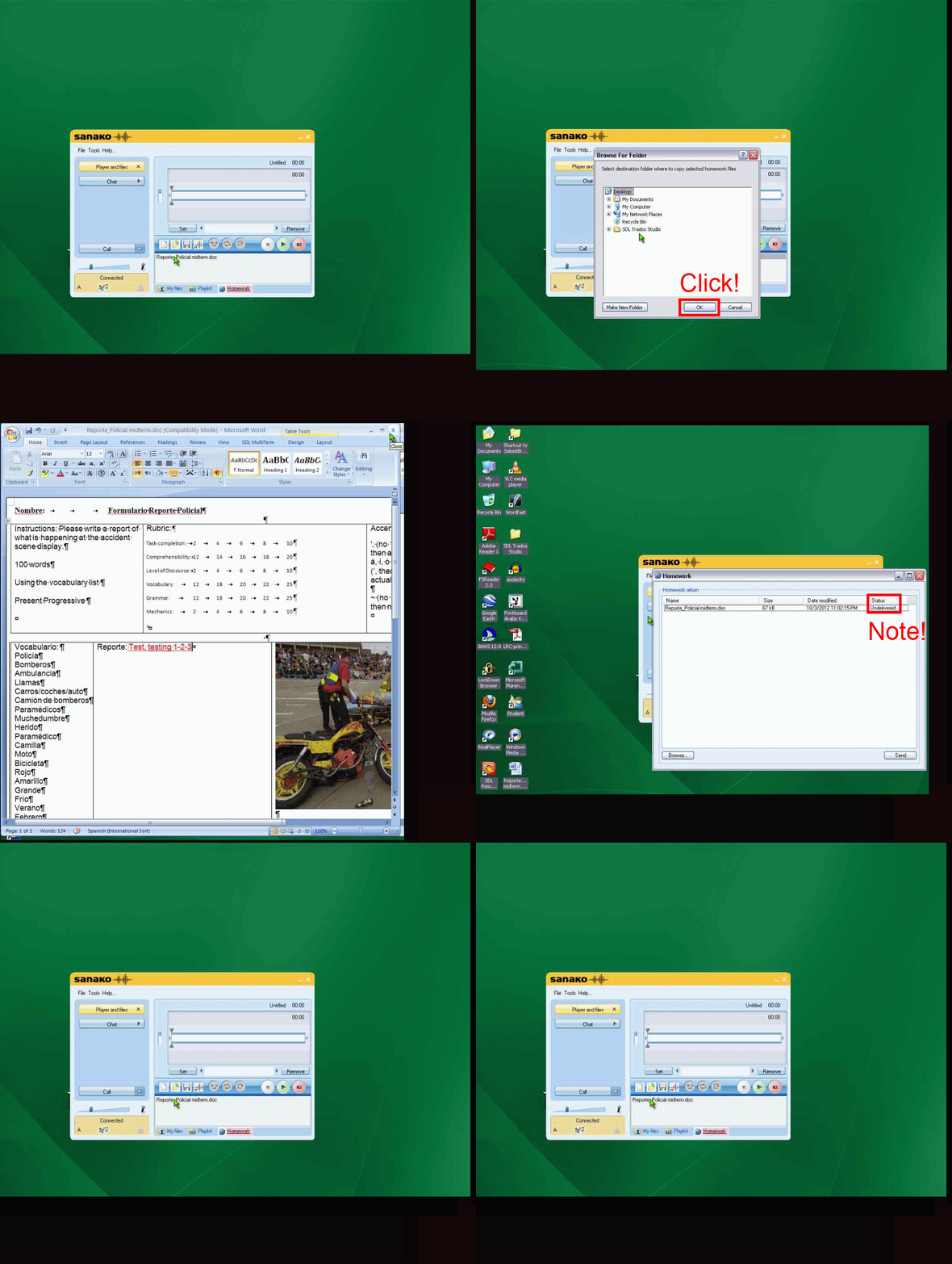
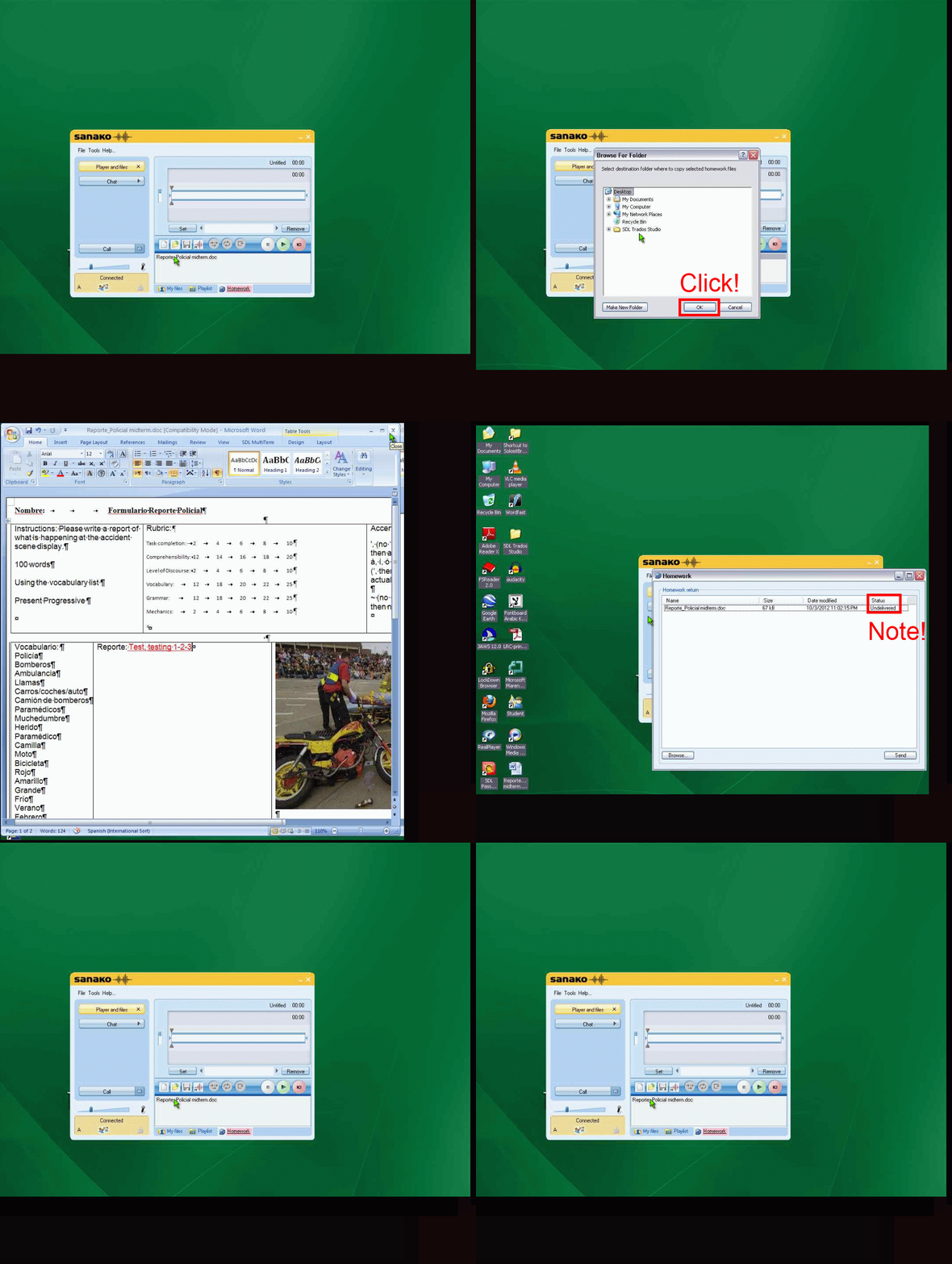
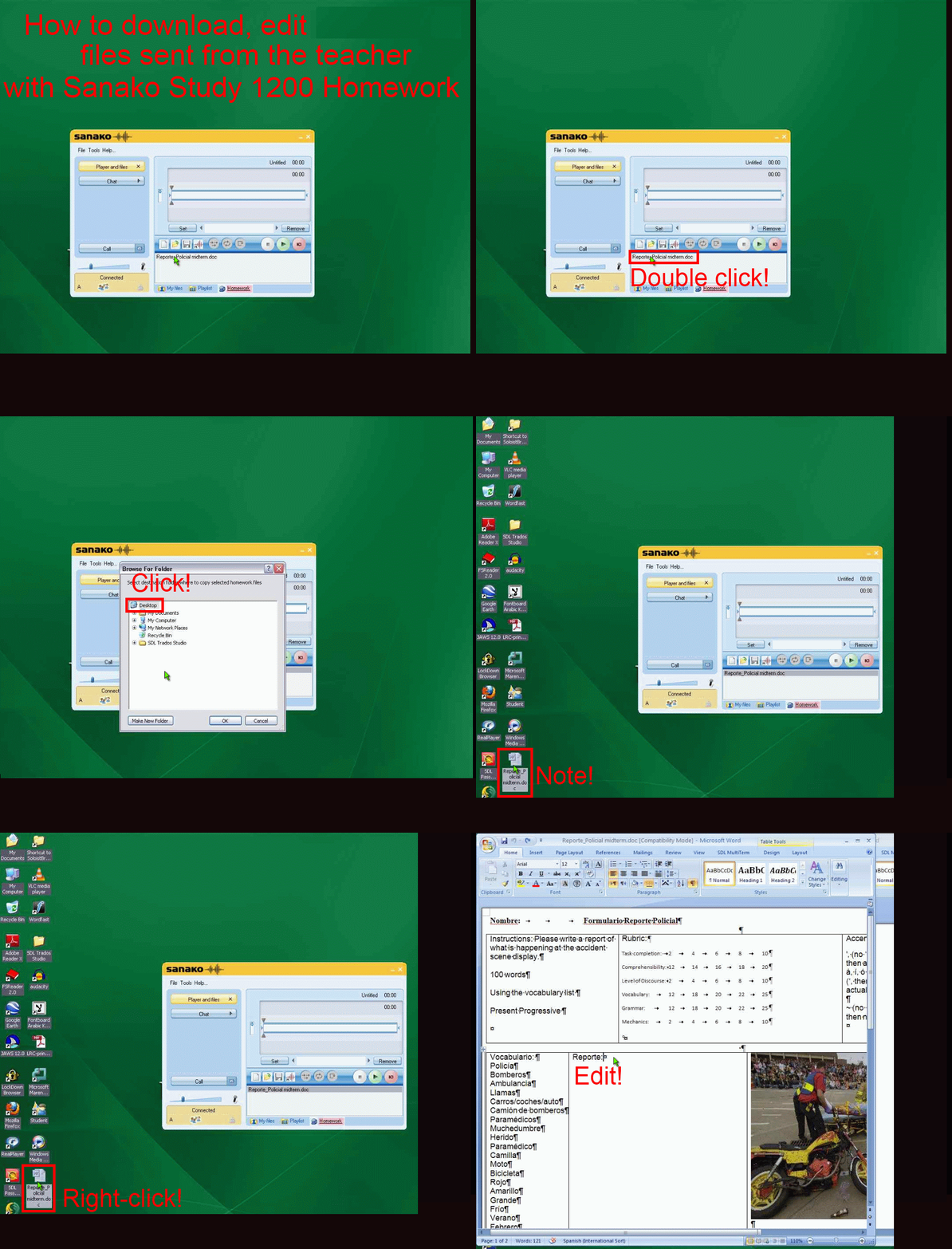
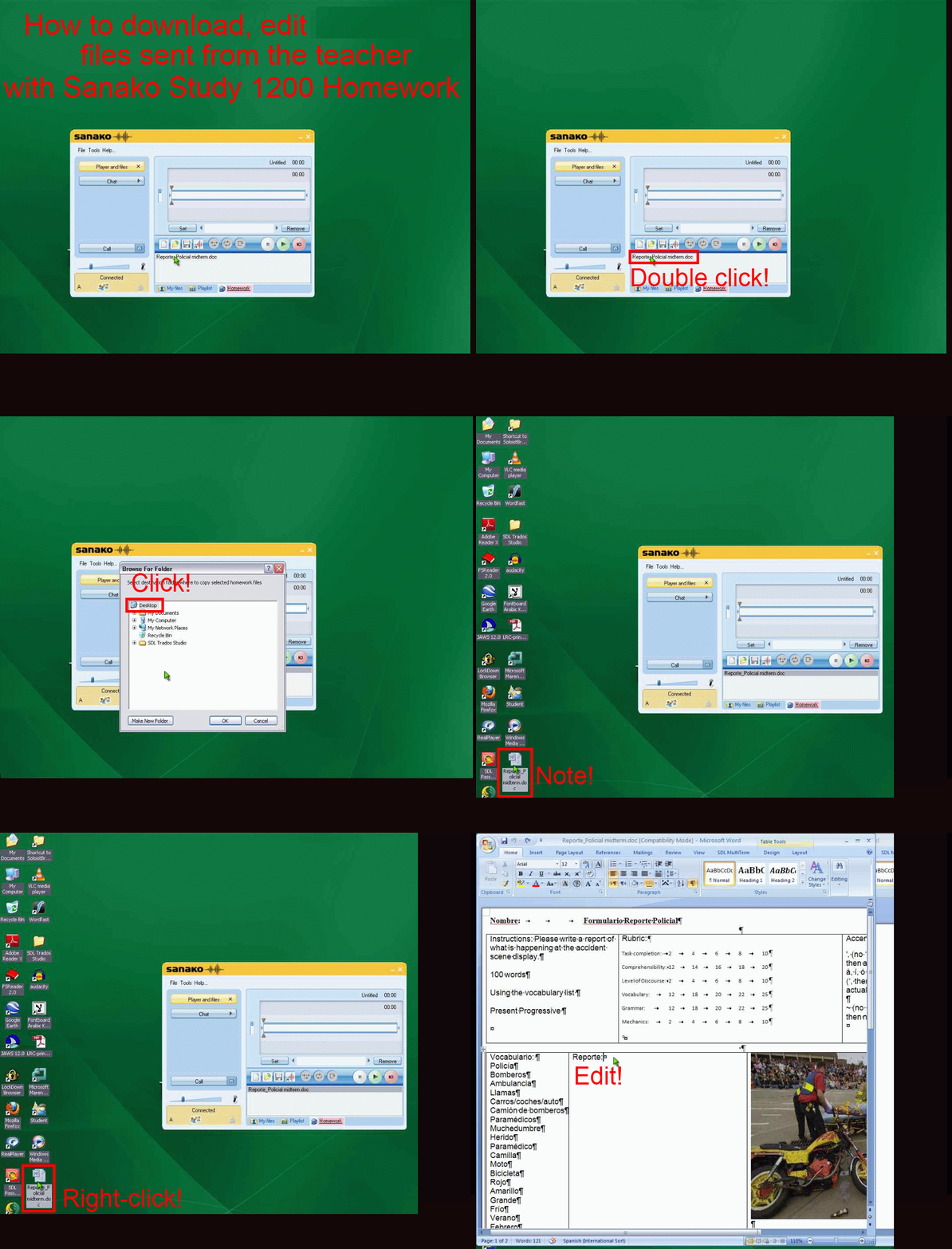
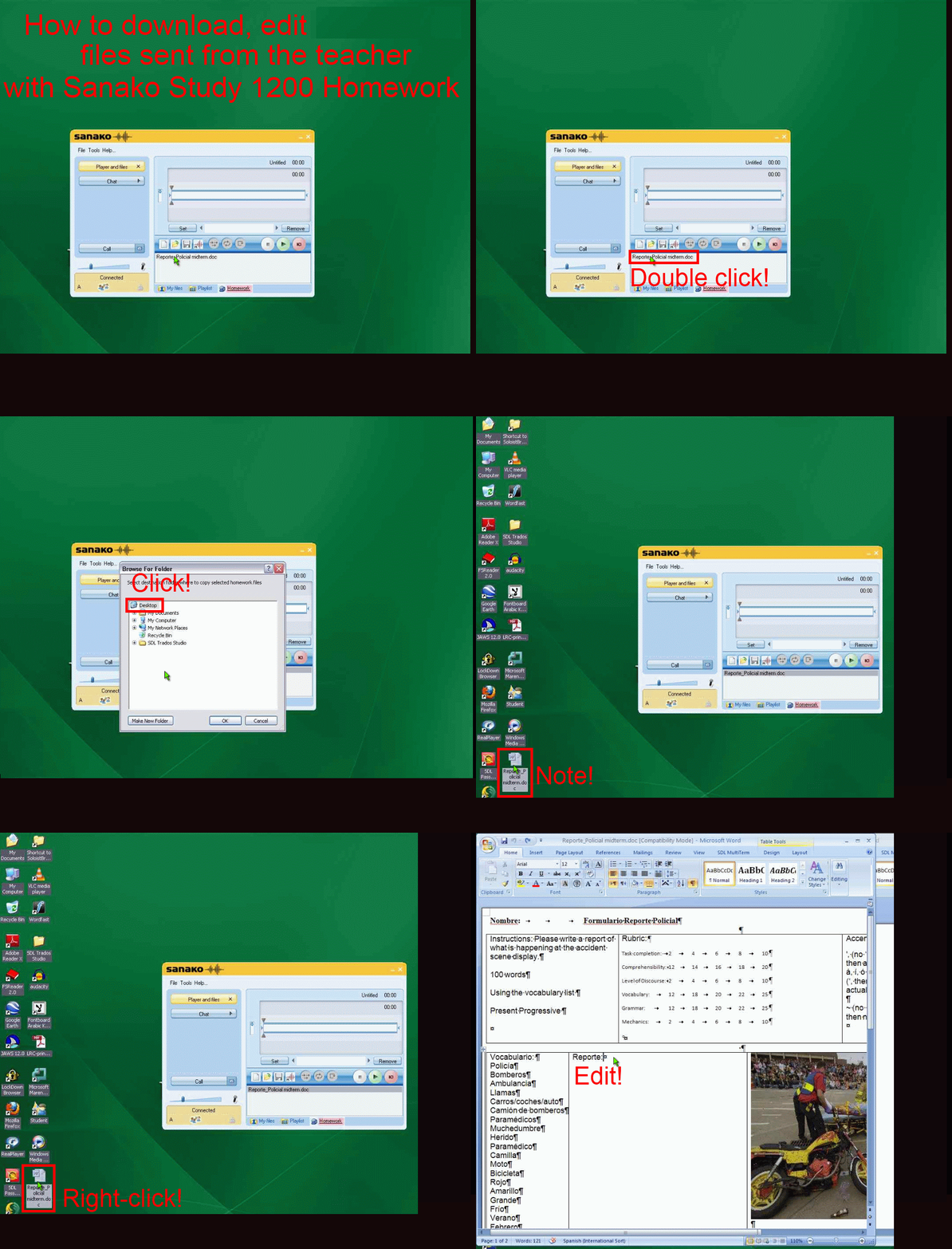
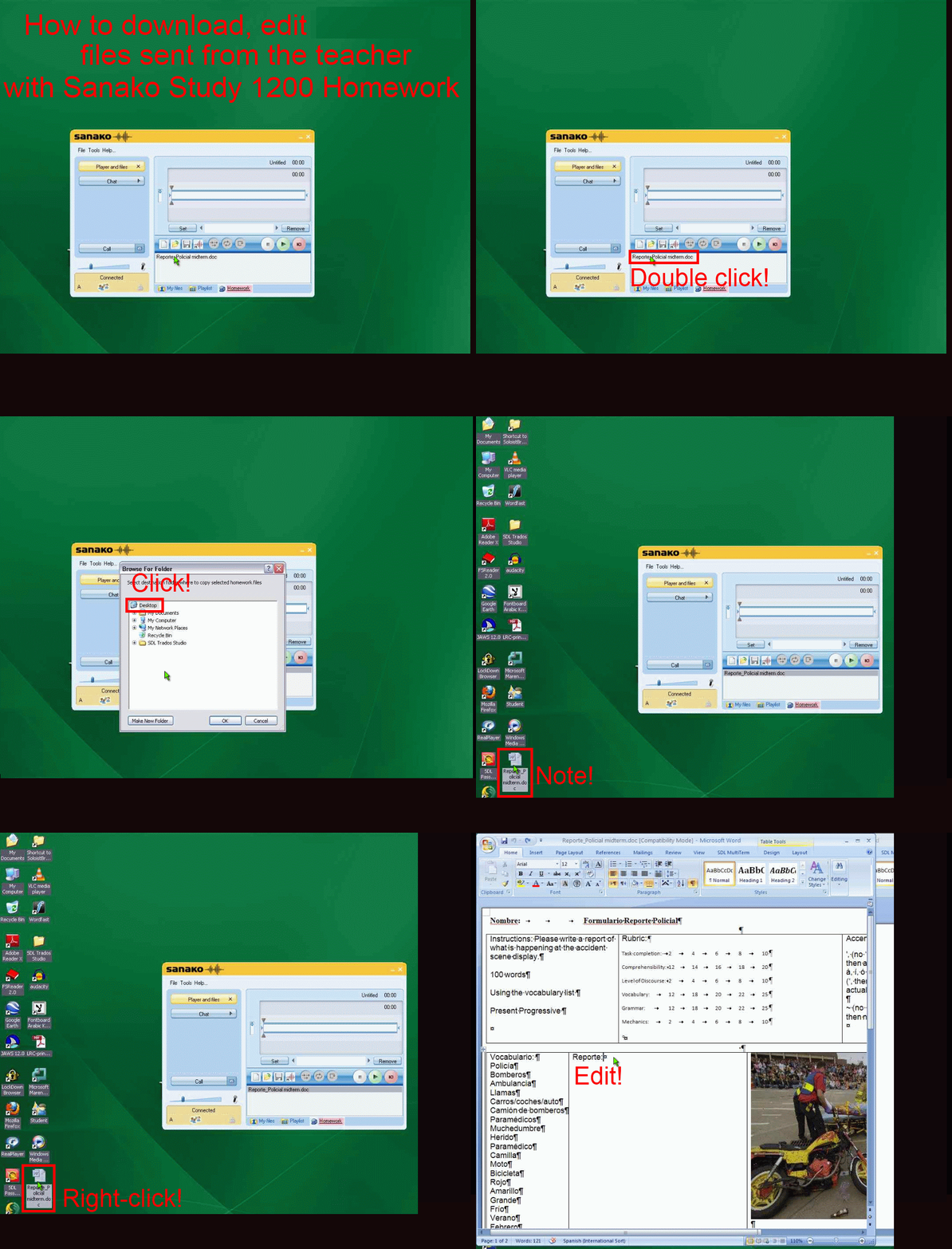
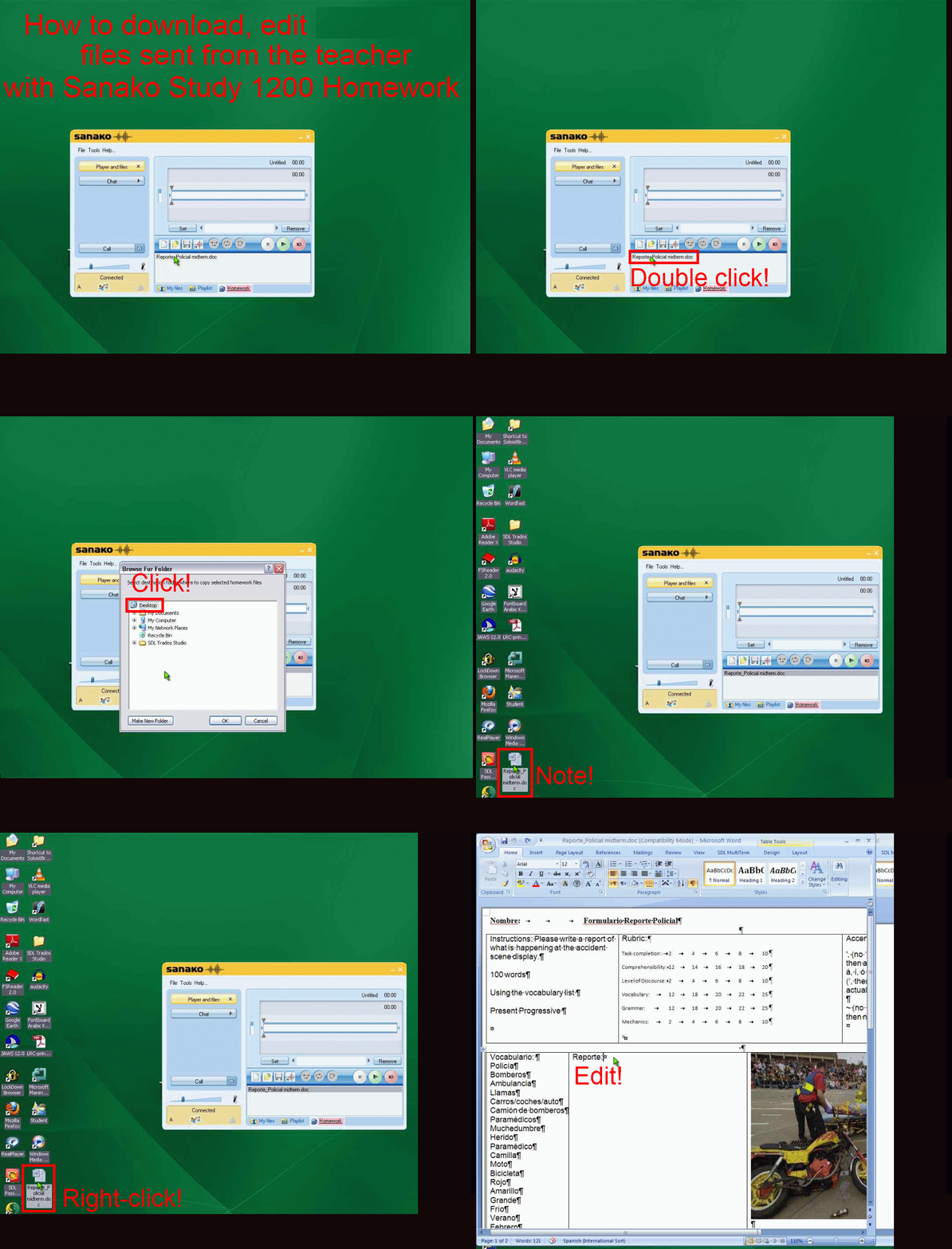
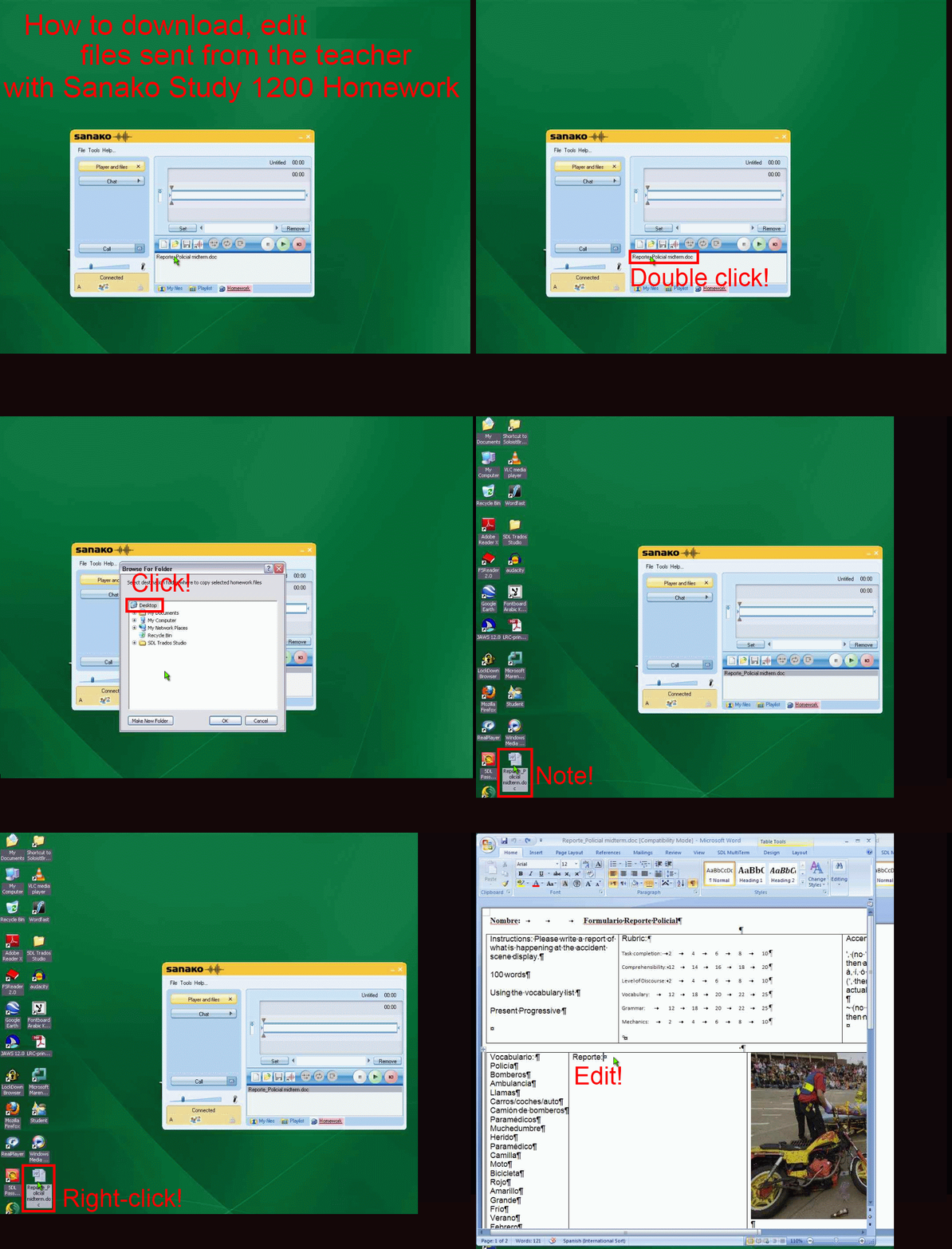
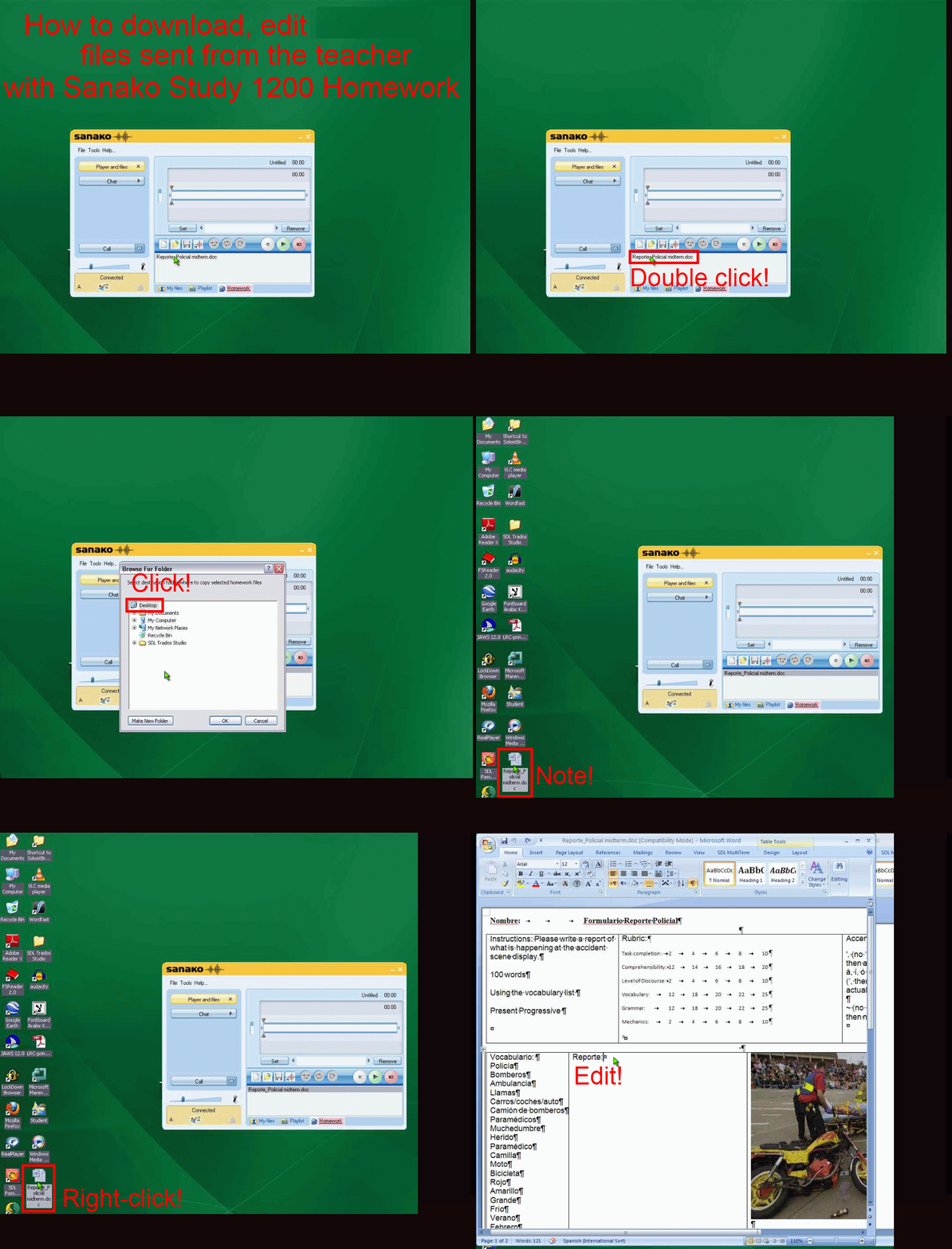
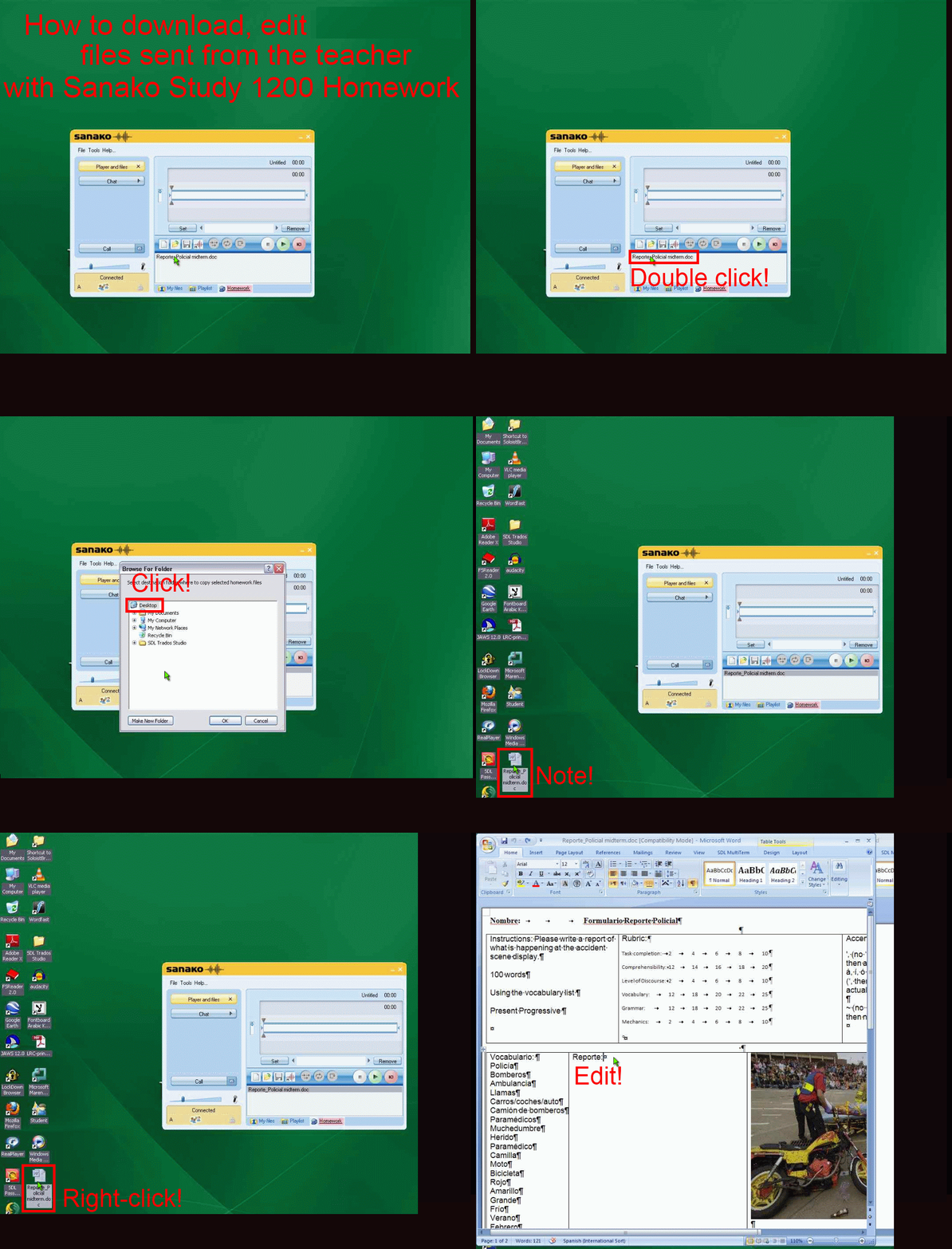
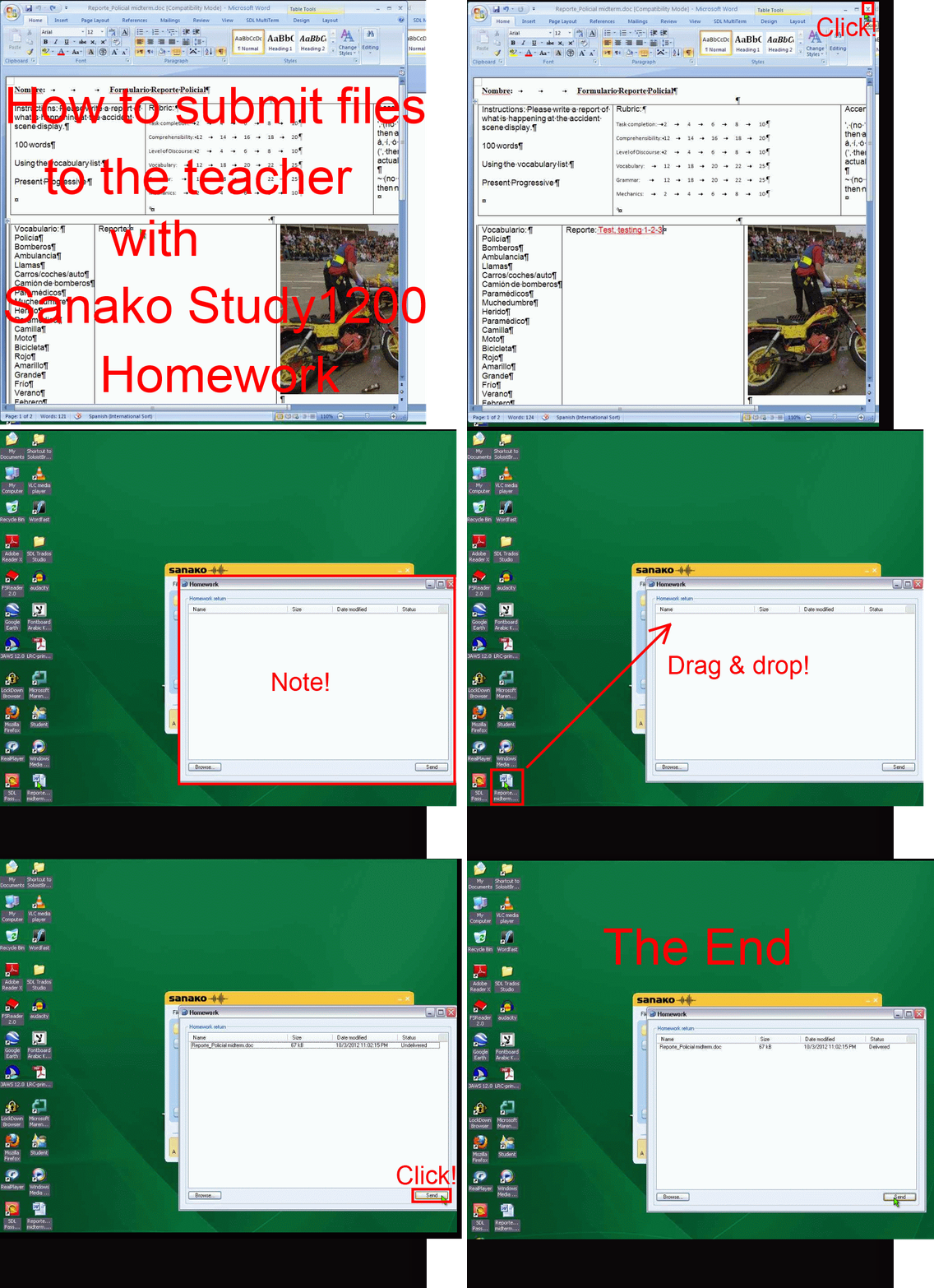
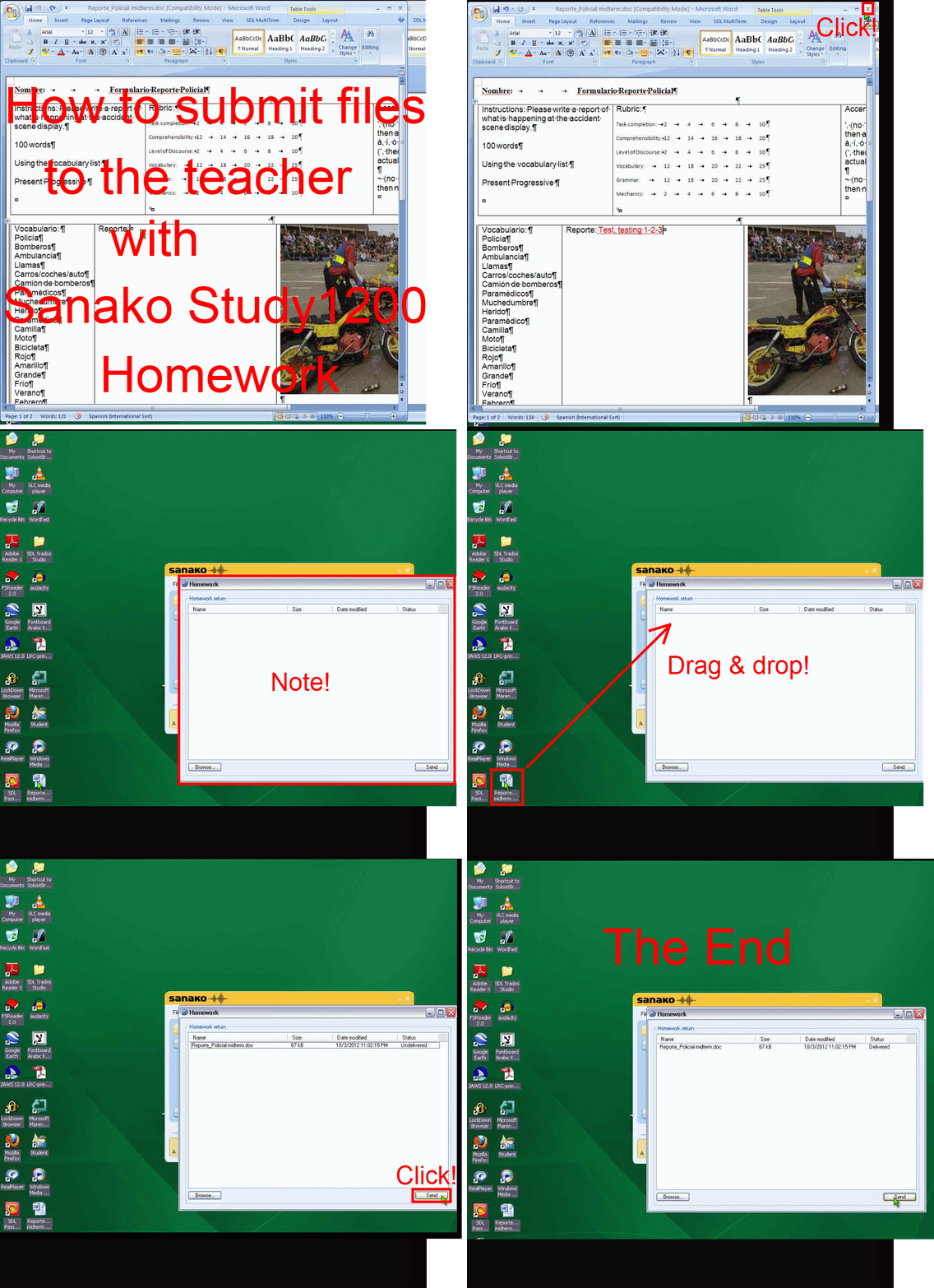
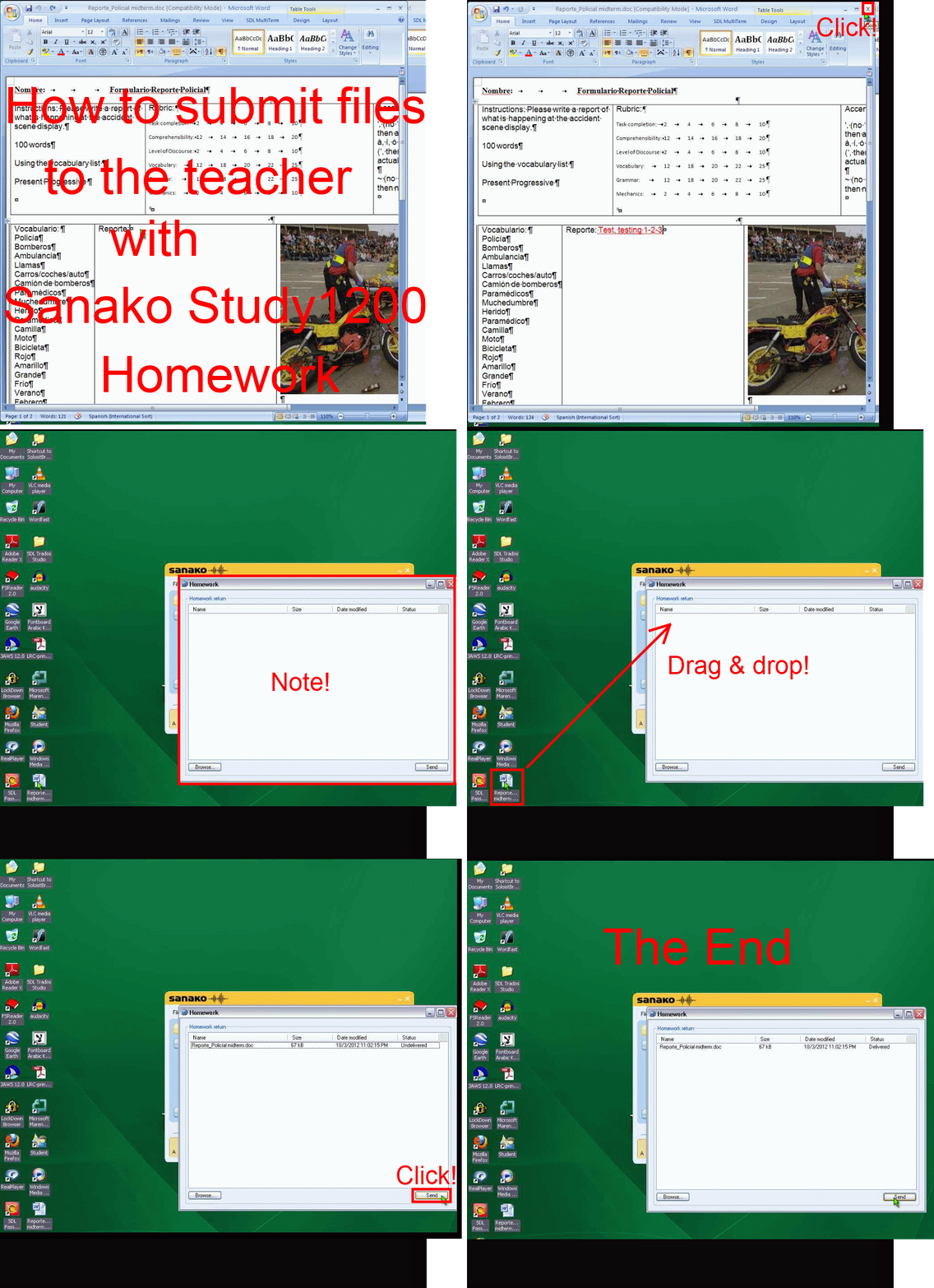
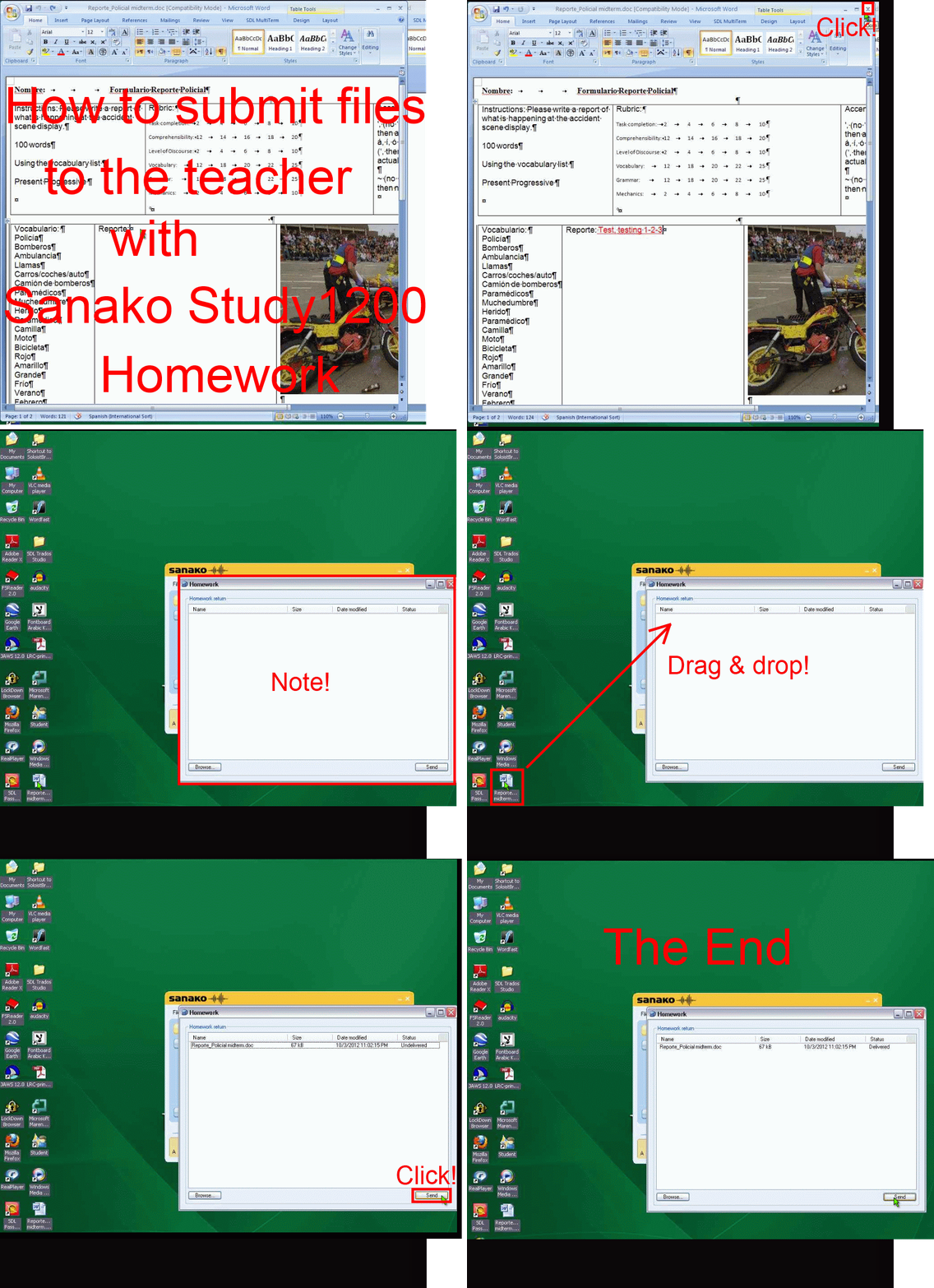
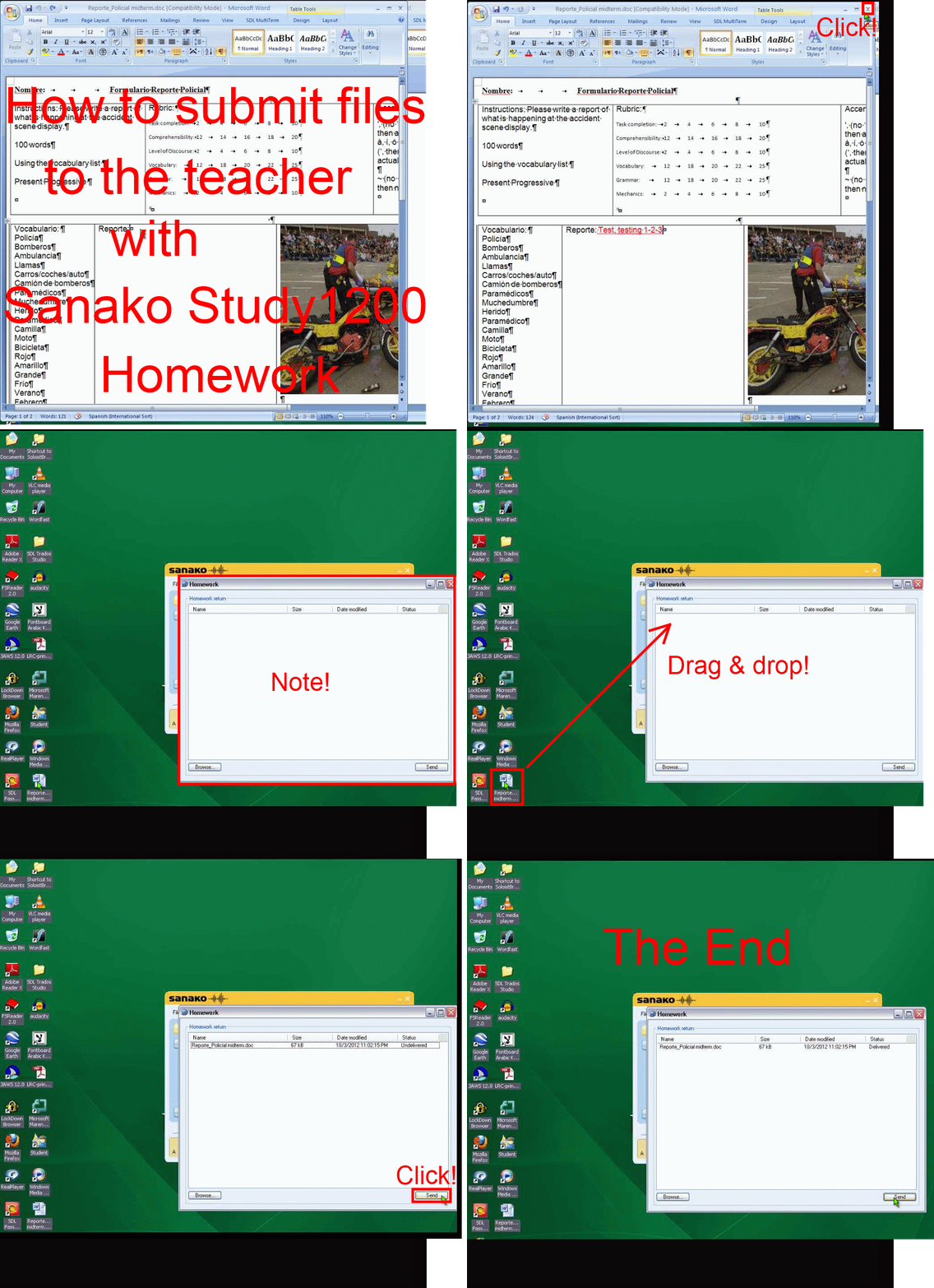
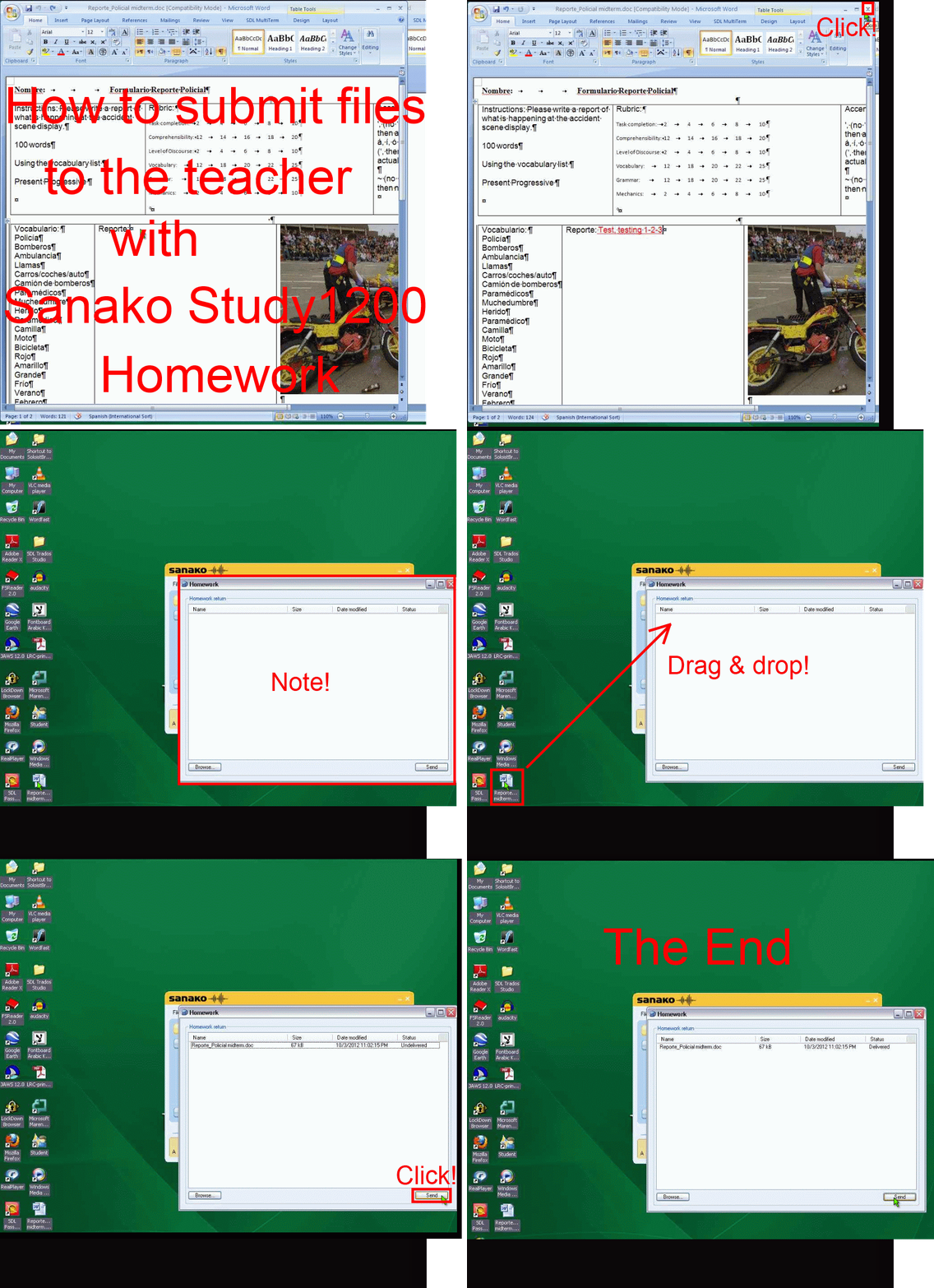
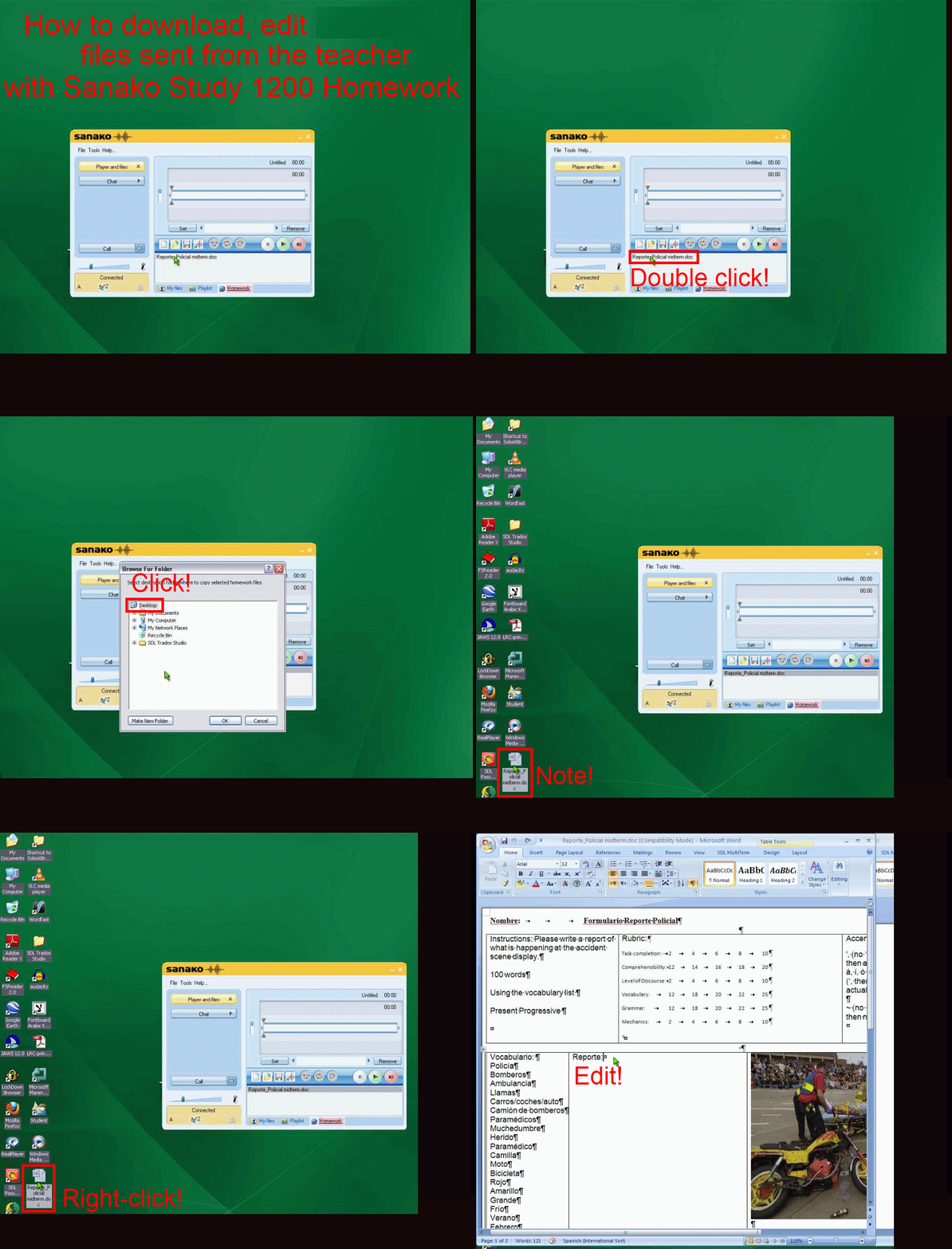
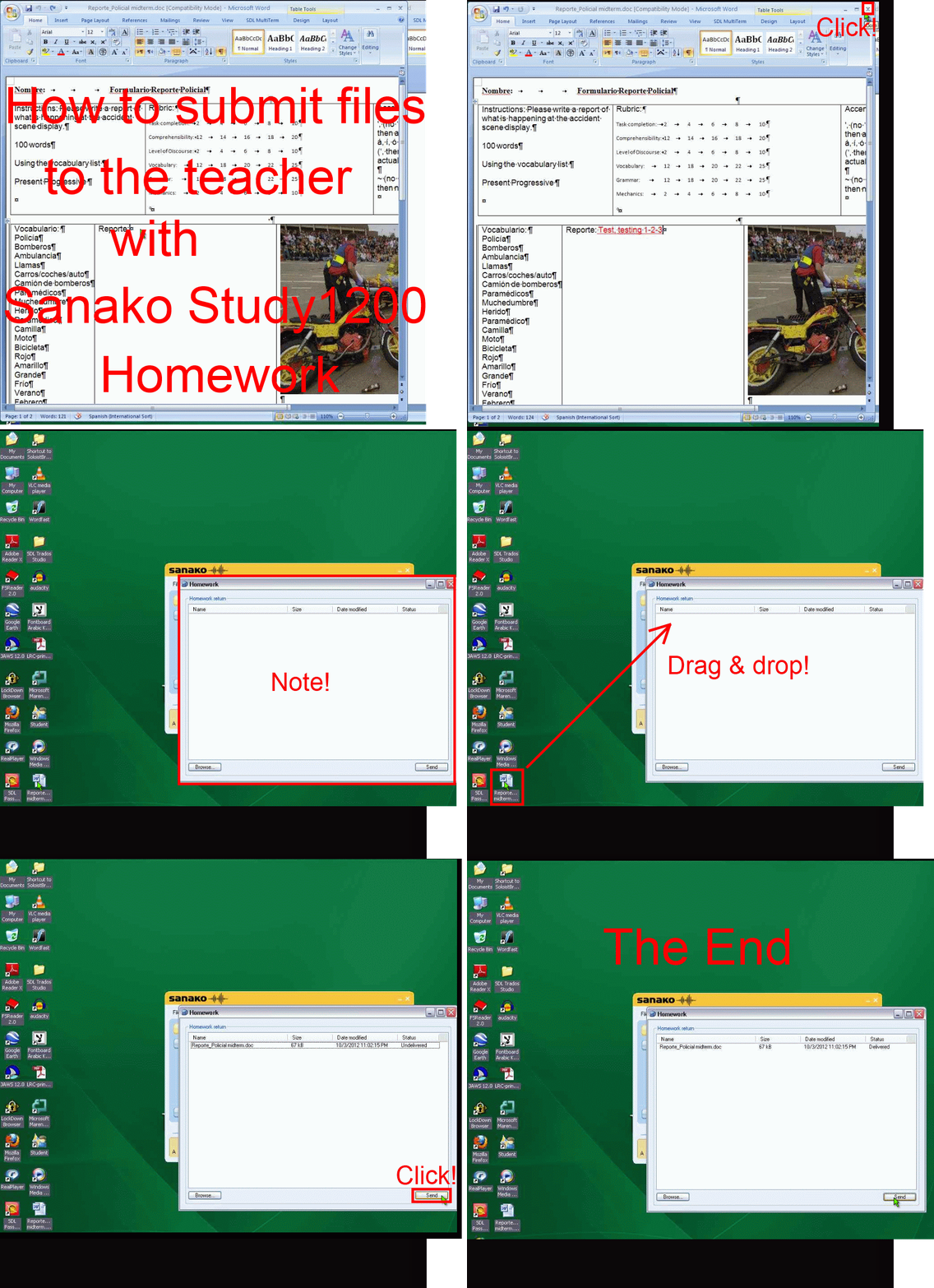
How student downloads, edits and submits files sent from the teacher with Sanako Study 1200 Homework –the ultimate training summary….
…using animated GIFs. (Here are the parts 1+2 that your teacher has to do). Slower? Click , 0.50sec, 0.75sec, 1sec, 2sec, 3sec, 4sec, 5sec, 6sec, 7sec, 8sec, 9sec, 10sec.
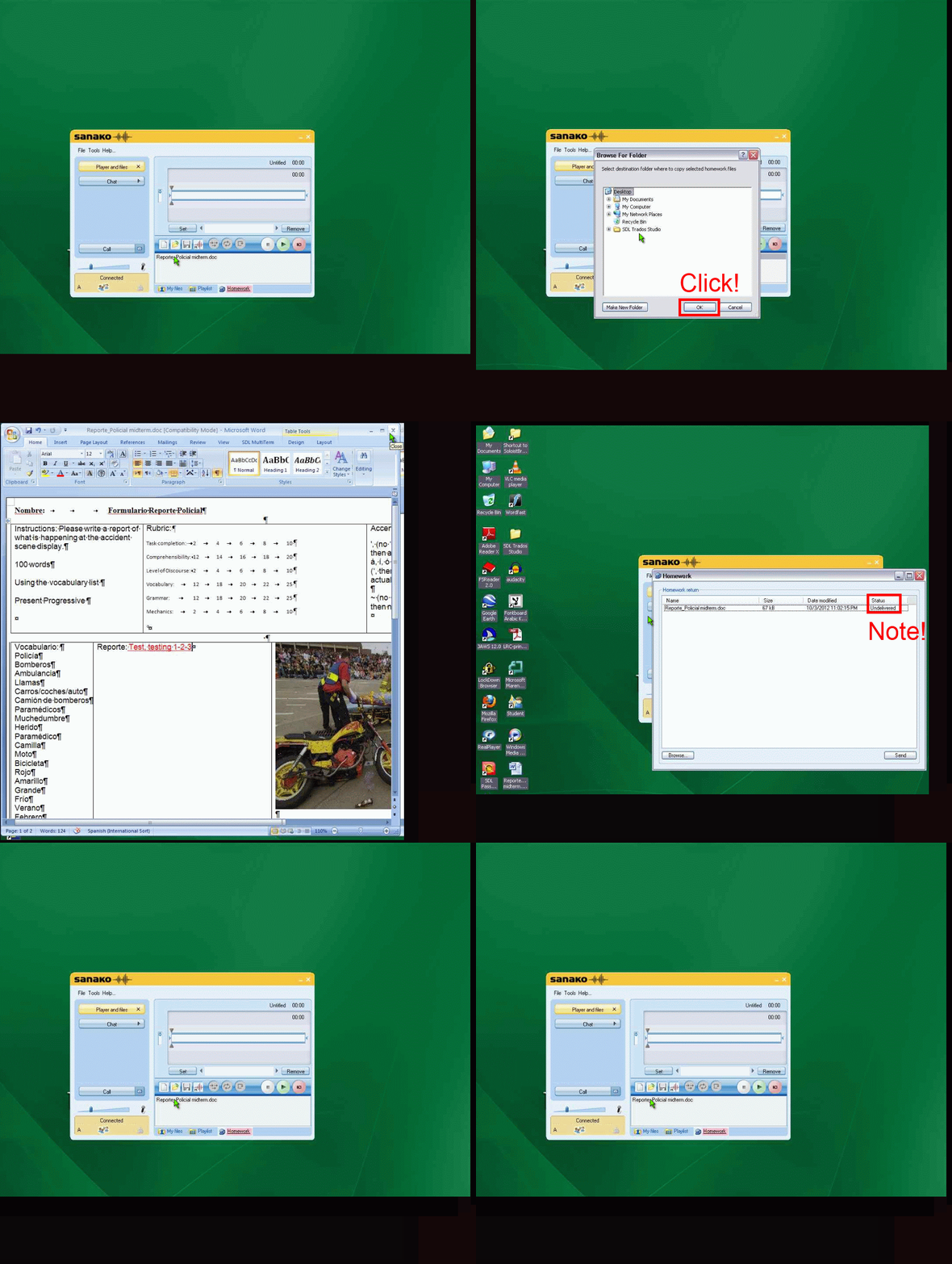
UPDATE: Now also split into
- PART 1: download from teacher (Here are the parts 1+2 that your teacher has to do). Slower? Click , 0.50sec, 0.75sec, 1sec, 2sec, 3sec, 4sec, 5sec, 6sec, 7sec, 8sec, 9sec, 10sec.

- PART 2: submission to teacher(Here are the parts 1+2 that your teacher has to do). Slower? Click , 0.50sec, 0.75sec, 1sec, 2sec, 3sec, 4sec, 5sec, 6sec, 7sec, 8sec, 9sec, 10sec.

How a teachers gives files not meant for writing to students with Sanako Study 1200 Playlist –the ultimate training summary…
…using animated .gifs. Slower? Compact: 0.25sec,0.5sec, 0.75sec, 1sec, 1.5sec, 2sec, 3sec, 4sec, 5sec, 6sec, 7sec, 8sec, 9sec, 10sec. Or including unmarked frames: 0.25sec, 0.5sec, 0.75sec, 1sec, 1.5sec, 2sec, 3sec, 4sec, 5sec, 6sec, 7sec, 8sec, 9sec, 10sec. 1sec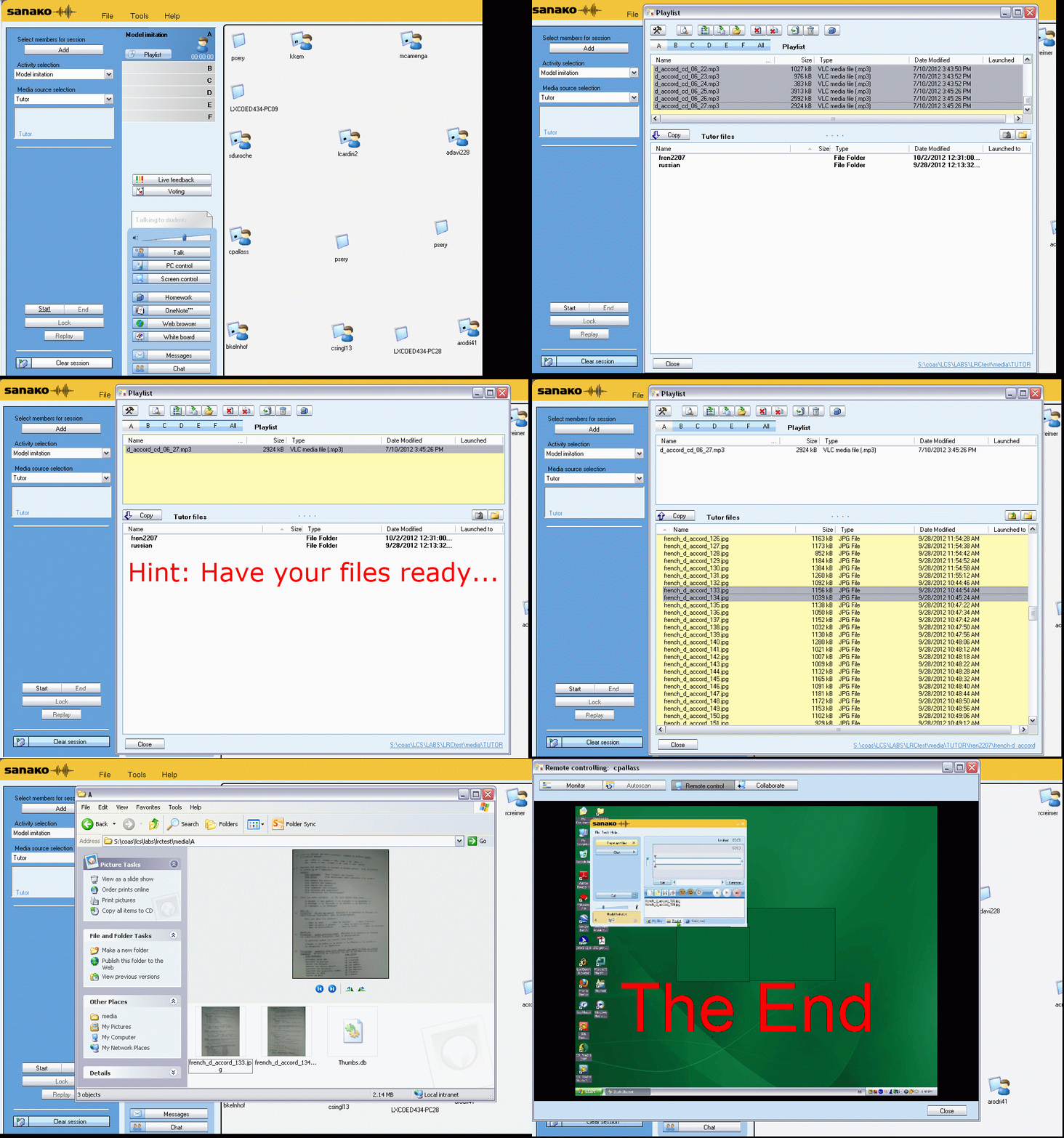
Or proceed manually:


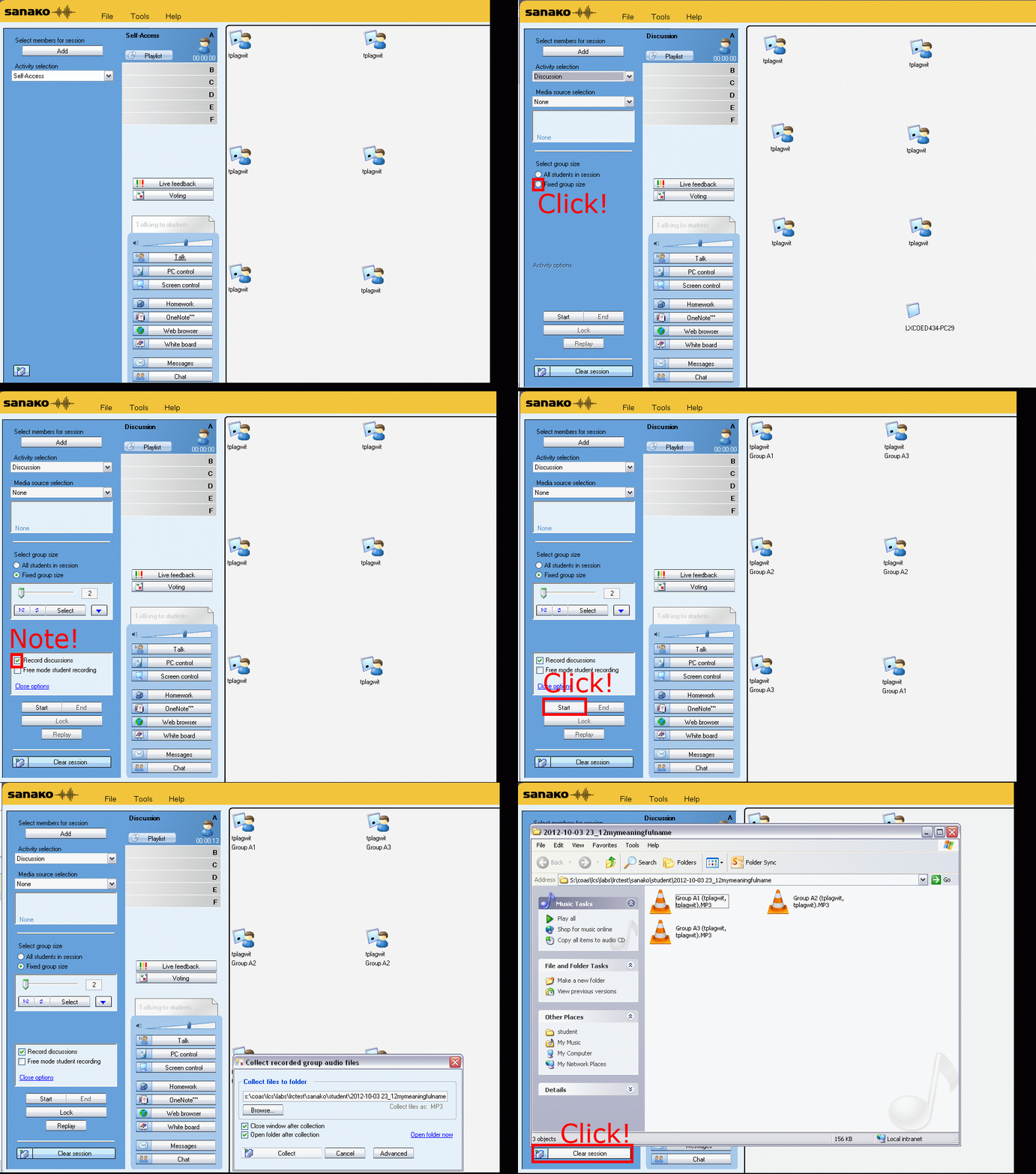
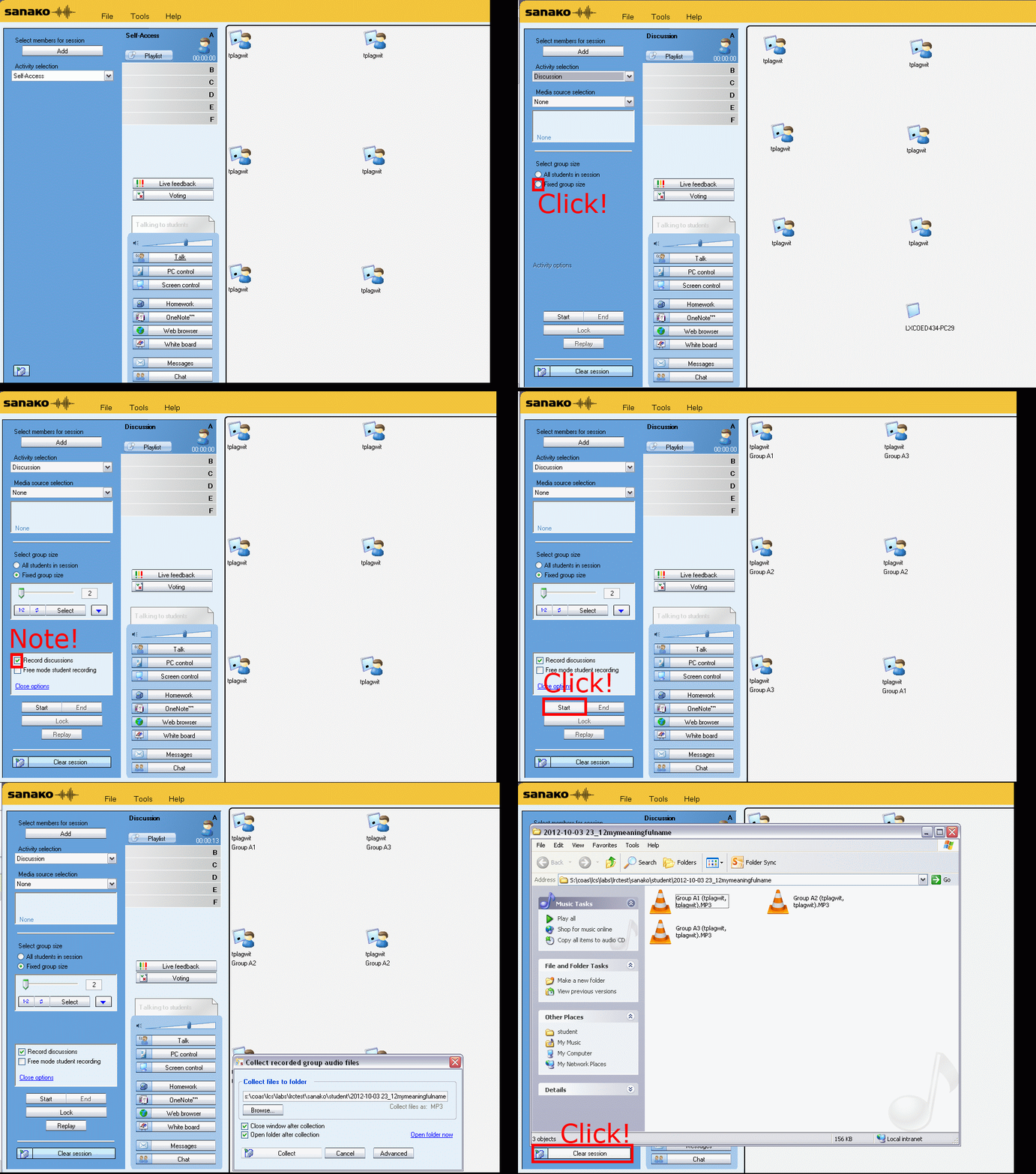
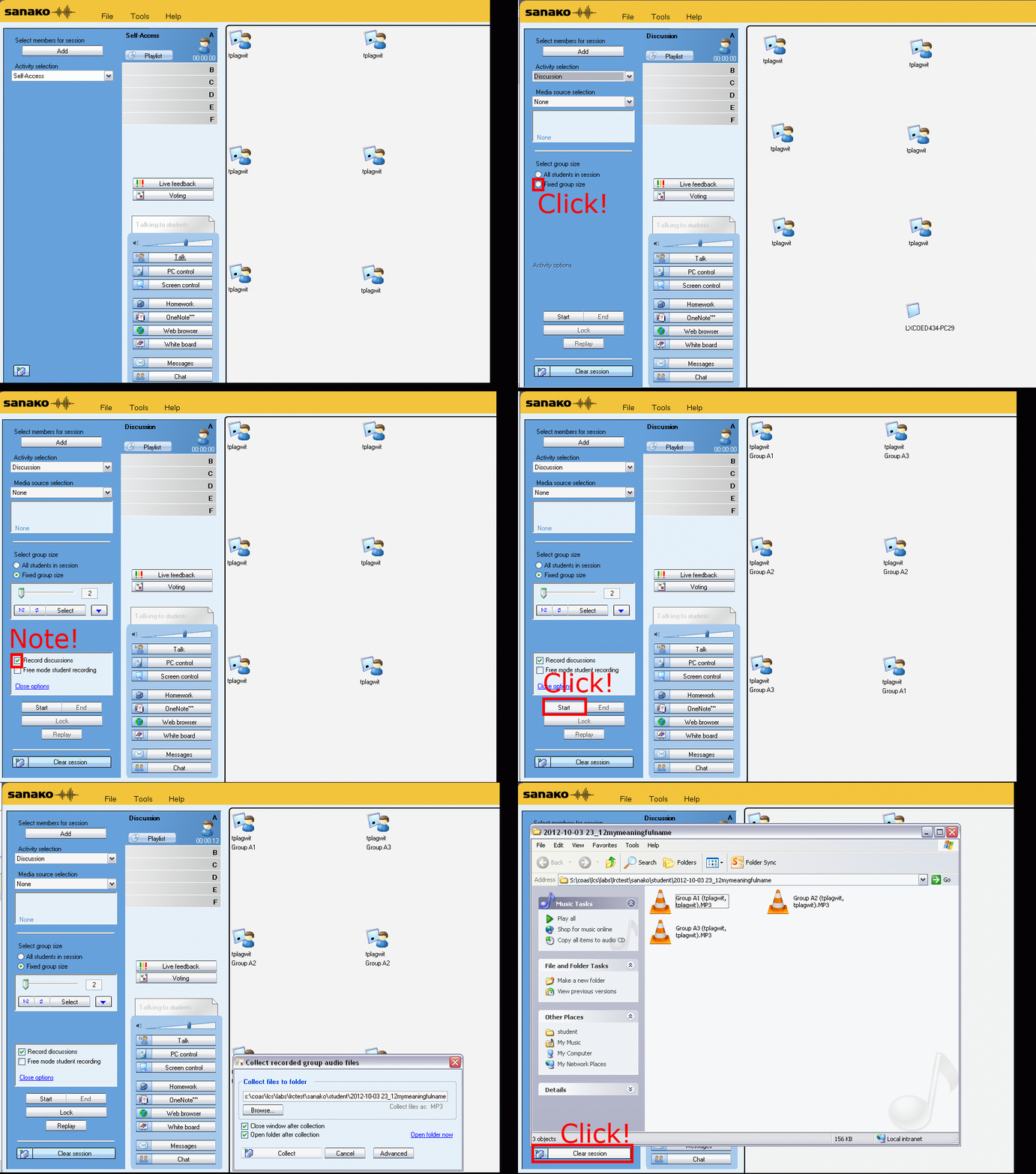
How teachers randomly pair and record students over their headphones with Sanako Study 1200–the ultimate training summary…
…thanks to animated gGIFs. Slower? 050ms, 075ms, 100ms, 200ms, 300ms, 400ms,500ms, 600ms, 700ms, 800ms,900ms, 1000ms. Load the speed of your choosing into the left screen of the teacher station before trying to pair your students, with the window active, press F5 to restart the animation from the beginning at any time:

How to stay up to date by receiving RSS like email newsletters in MS-Outlook– explained in a single screenshot


How to link your LRC tutor calendar and Moodle metacourse from your Moodle course

Animated GIFs workflow using MS-OneNote, MS-Paint, Irfanview and UnFREEZ
- To keep things simple (and, at least in our work environment, free) during smaller Animated GIF projects (larger projects may warrant use of ImageMagick, scriptable image editor), you can use
- MS-OneNote screen clipping (configured right, it seems the fastest way to collect source material)
- Update: I recommend now screenshotcaptor instead, if you do screenshot projects more than occasionally. MS-Paint (or pretty much any image editor) to mark up your images
- IrfanView to batch convert to GIF:

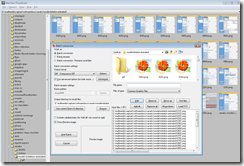
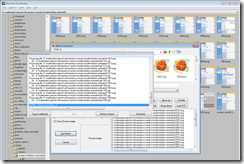
- UnFreez to easily create animated GIFs in differing speeds:

 , which can be automated.




Questions? Read the About. Or just ask me a quick Our Databases: Resources with calendars -- Language learning material Moodle Sites, multimedia files -- films


FAQs for LRC student staff or for students or for teachers. To search our FAQs, in the browser addressbar, add after "https://plagwitz.wordpress.com/feed/?tag=faqs+/" "+TAG1" (from tag cloud below) OR "https://plagwitz.wordpress.com/feed/tag=faqs
&category_name=" "CAT1" (from category hierarchy below). OR search both categories and tags, and multiple TAGs/CATs (connect with "," for OR-search, with "+" for AND-search), like so: https://plagwitz.wordpress.com/feed/?tag=TAG1+TAG2+...TAGn&category_name=CAT1
+CAT2+...CATn"
Other ways to find help
If you cannot find it here, look there: 5,500 Language-Learning Links and Programs for learning or teaching 150 languages
Shortcuts:Our Lists, Our Maps, LRC Staff Moodle Site,LRC Project Moodle Site, 49erexpress, UNCC Moodle, Student Recordings: s:claslcslrcsanakostudent
Learning usage samples: Sanako oral exam, Kaltura webcam presentation, Dictation with speech recognition, Sanako written exam, Chinese and Japanese interactive stroke-order practice
Test the Sanako Installer, Webbrowser Popup Konfigurator for XP, or Windows7, faster LRC TeacherPC Log-in Let MS facilitate diacritics writing by installing for you US-International keyboard layout
This is my personal blog (Google+). The views expressed on these pages are mine alone and not those of my employer. The information in this weblog is provided “AS IS” with no warranties, and confers no rights.
 Thomas' Work Space