Archive
How to use archive.org’s US-English news collection as a language learning corpus with QUIK-like speaking samples
- Much of TV news nowadays seems to amount to not much more than a constant stream of sound bites – however, exactly this brevity,
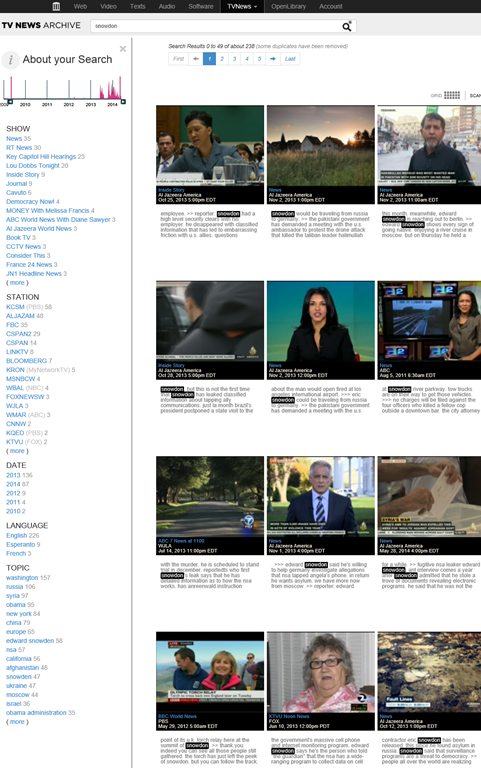
- the large archive and simple search interface:

- the research/browsing capabilities visible on the left here, including the varied sources – of which Arabic and French and other European TV likely provide a somewhat different perspectives on Edward Snowden –
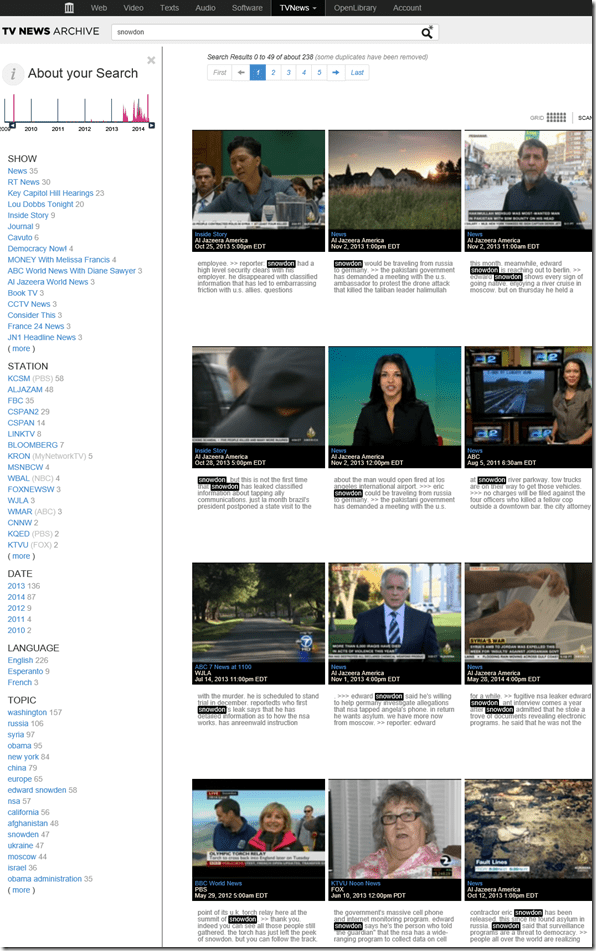
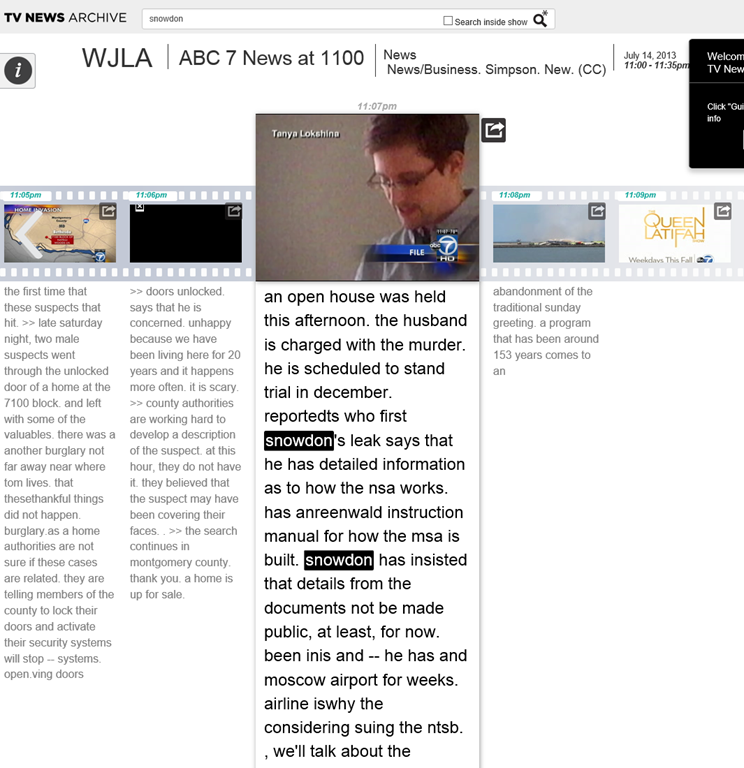
- and the caption-like transcription, make it all the more accessible for intermediate learners of English.

- video clips of only 30 seconds length is hardly enough for instruction, however, you can have students work with corpus-QUIK-like spoken samples, and have them string a news history together if you design webquest-like research assignments – with the major added benefits, that this corpus is spoken and trains listening.
- For more background info on archive.org’s transcribed TV news, consult this NYTimes article.

Video quizzes on Youtube.com in Beta
Video Questions Editor lets channel owners display multiple-choice questions on top of their videos as they play (I see only a “start” in the timeline), offer hints, get results on your feedback page.
But if it supports only summaries, not usernames, it is more a poll than a quiz, which limits it usefulness in foreign language classes as much as that you apparently are limited to your own uploads, and cannot link your questions to the wealth of foreign language video uploaded by others…
Problems with accented characters in Respondus Lockdown Browser
Update: Just click on the menu item “ A” under Respondus titlebar window to bring the floating accents window back.  Problem is only: this menu disappears now also. Anyhow: using below keyboard shortcuts is faster, and MS FixIT can now enable it for you on your home or office PC also.
Respondus Lockdown browser limits the use of modifier keys (e.g. on Windows CTRL, ALT). This prevents the use of certain traditional keyboard shortcuts for entering foreign language accented characters – including the method from times yore: ALT+number code.
Respondus Lockdown browser can work with a floating toolbar for accented characters. Unfortunately, reports are in that the floating toolbar disappears (may be related to a recent Respondus upgrade?).
Fortunately, Windows US-international keyboard – the default in the LRC – is not as much hampered by Respondus – except in t he few cases where US-international keyboard also relies on ALT- and CTRL-modifier: consult this table.
|
Press (, then release) |
then press |
Example Result |
|
` (accent grave) |
any letter that can have this accent, e.g. “a”, also cedilla ç |
à |
|
‘ (apostrophe) |
á |
|
|
^ (caret)- |
â |
Meta-search many historical German dictionaries and encyclopedias using Woerterbuchnetz.de
A meta-search by the University of Trier Center for Digital Humanities may not teach you much German – you need to know it already –, but help prevent you remaining a “one-dimensional man”.
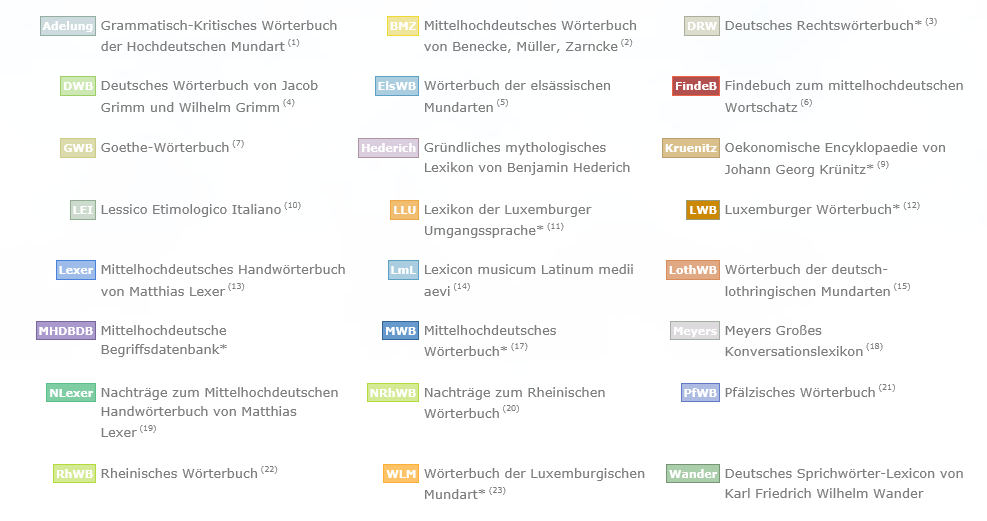
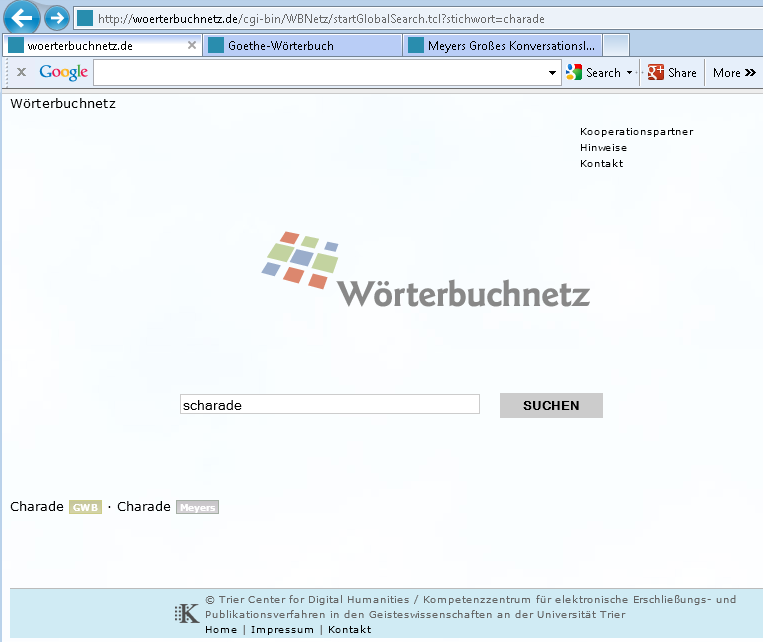
I came to know a lot of those during my own German and history studies a long time ago – – when they still only existed on paper, if not parchment  . Gotta love Digital Humanities, and find other activities for physical exercise. Her is an example search result:
How to get started with Moodle here
- Moodle is the UNCC LMS – it is central to teaching with technology.
- The LRC provides Moodle-information specific to language learning, incuding FAQ’s.
- The CTL (= Center for Teaching and Learning) has oodles of general Moodle help.
- Search the CTL site for Moodle by clicking here, and you will find:
- Moodle specific:
- view Moodle on-demand screencast video tutorials,
- read Moodle FAQ’s (updated).
- sign up for instructor-led (face-to-face or webinars, some of which are archived and available on-demand) training:
- Updated Webinar list, which includes for Moodle (I highlighted the more general ones)
- Avoiding the Moodle Scroll of Death (30 min. Webinar)
- Copying a Moodle Course (30 min. Webinar)
- Find & Embed Videos in Moodle (30-min. Webinar)
- How Do I: Peer Review in Moodle (30 min. Webinar)
- Incorporating Streaming Media into Moodle (30 min. Webinar)
- Making Moodle Beautiful (30 min. Webinar)
- Moodle 2 FAQ (30 min. Webinar)
- Moodle Grade Book and Mail Merge (30-min. Webinar)
- Moodle Under the Hood (30 min. Webinar)
- Using Moodle’s Team Assignment (30 min. Webinar)
- Previous (Moodle 1.9)
- Updated Webinar list, which includes for Moodle (I highlighted the more general ones)
- There is more Moodle-information here, just no way for me to provide a direct, filtered link so just browse the pages:
- the CTL podcasts
- Episode 106 Getting Students to Read Your Syllabus: Quizzing in Moodle
- the CTL podcasts
- Moodle specific:
How to recycle your Moodle Course using backup/restore
Better do this before the first day of classes, but if you need a quick refresher:

A search interface to the EuroParl corpus

(Note the on my IE9, the text in the right column appears “blacked-out” – Select it to view, or use a different webbrowser).
How students upload a video file to Moodle using Kaltura
-
My closest related instruction so far has been for teachers, and the CTL also seems to have only instructions for how teachers upload videos for students. However, instructions for students are very similar, follow these steps:
-
Open the kaltura assignment and click “Add video submission”:

-
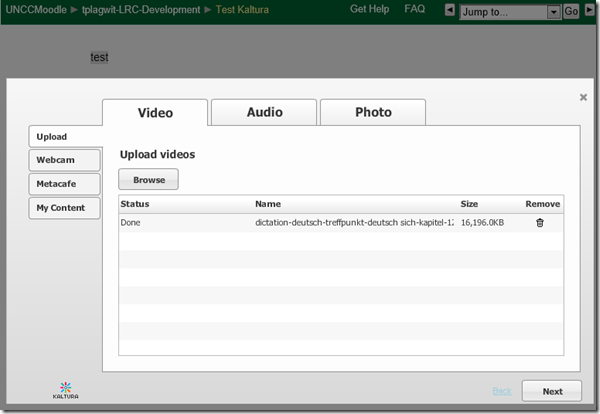
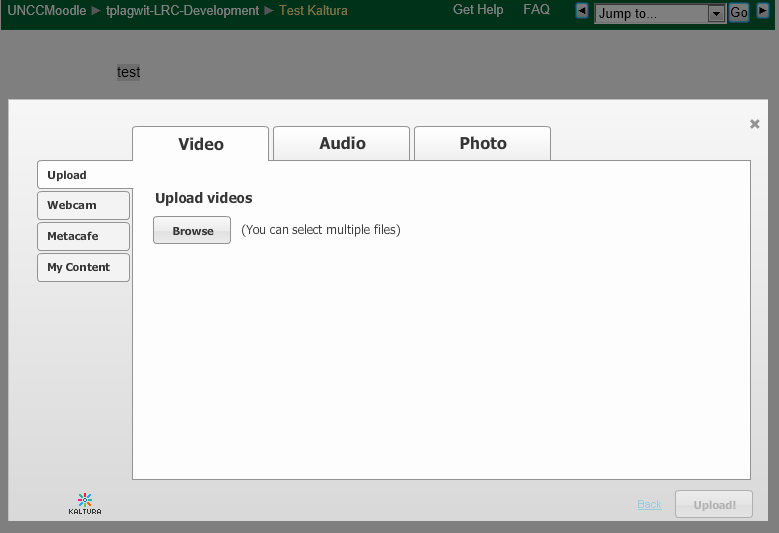
Under left tab “Upload”, Click “Browse”:

-
Browse to your video file (note the “files of type”allow only the upload of certain extensions) and click “Open”:

-
Click “Upload”
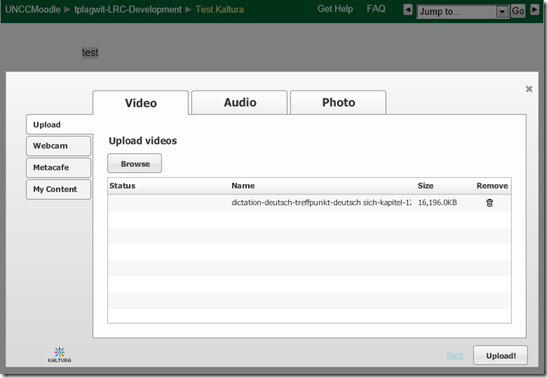
-
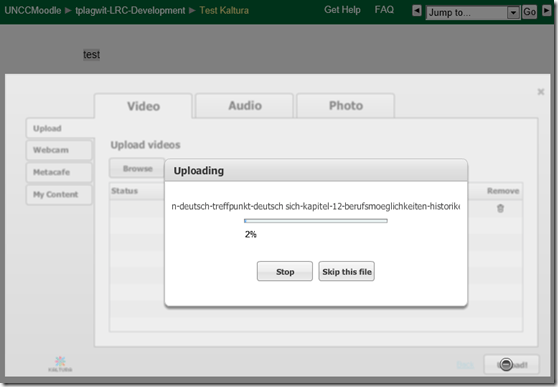
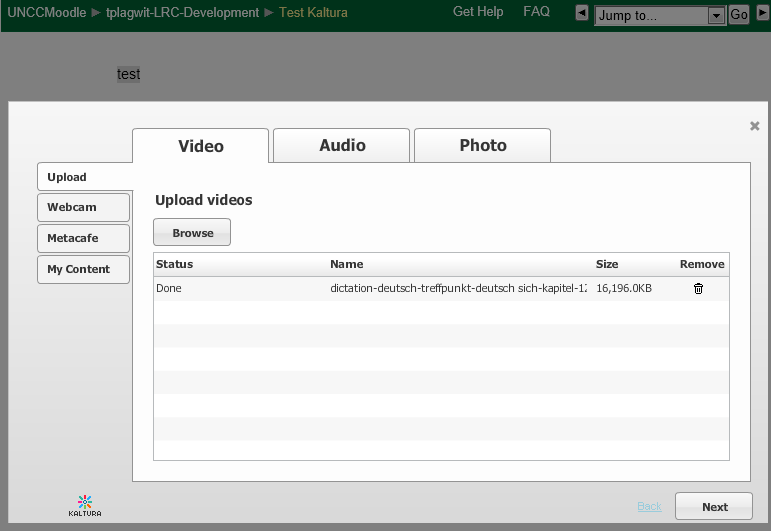
Wait for the upload to complete:
-
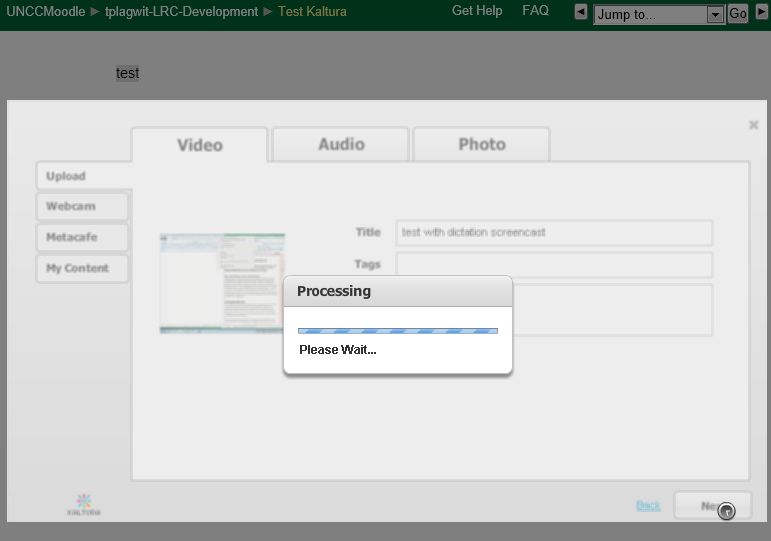
Click “Next” :
-
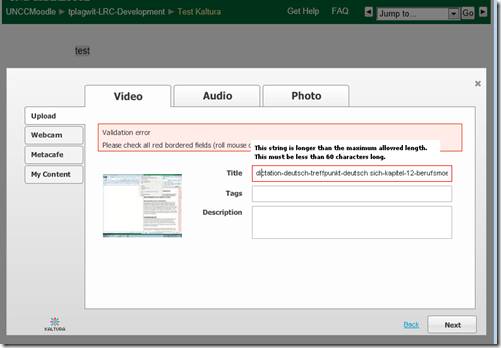
Add at least a “title”, and fix any errors you might get:
-
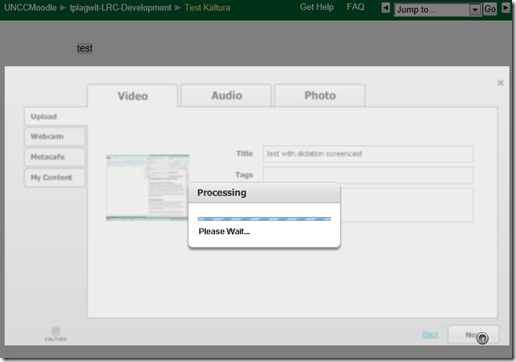
Click “Next”:
-
Click “Submit”:

-
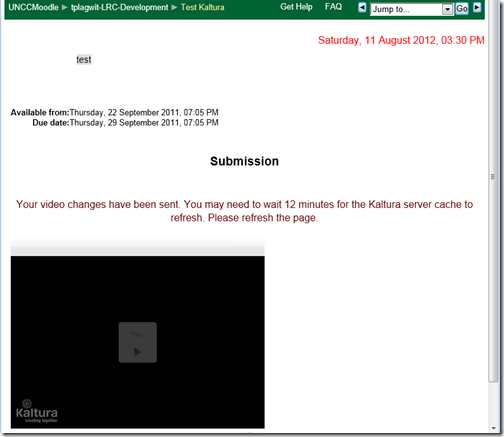
Look for the success message:

-
You will have to wait for the video preview to become available:
-
If you refresh the page, the wait time gets updated, take the amount with a grain of salt. Here I could already view…

-
Be aware that your video resolution will likely be downscaled (my 1280*1024 screencast in this example ended up pretty grainy).








Questions? Read the About. Or just ask me a quick
Your message has been sent

FAQs for LRC student staff or for students or for teachers. To search our FAQs, in the browser addressbar, add after "https://plagwitz.wordpress.com/feed/?tag=faqs+/" "+TAG1" (from tag cloud below) OR "https://plagwitz.wordpress.com/feed/tag=faqs
&category_name=" "CAT1" (from category hierarchy below). OR search both categories and tags, and multiple TAGs/CATs (connect with "," for OR-search, with "+" for AND-search), like so: https://plagwitz.wordpress.com/feed/?tag=TAG1+TAG2+...TAGn&category_name=CAT1
+CAT2+...CATn"
Other ways to find help
If you cannot find it here, look there: 5,500 Language-Learning Links and Programs for learning or teaching 150 languages
Shortcuts:Our Lists, Our Maps, LRC Staff Moodle Site,LRC Project Moodle Site, 49erexpress, UNCC Moodle, Student Recordings: s:claslcslrcsanakostudent
Learning usage samples: Sanako oral exam, Kaltura webcam presentation, Dictation with speech recognition, Sanako written exam, Chinese and Japanese interactive stroke-order practice
Test the Sanako Installer, Webbrowser Popup Konfigurator for XP, or Windows7, faster LRC TeacherPC Log-in Let MS facilitate diacritics writing by installing for you US-International keyboard layout
This is my personal blog (Google+). The views expressed on these pages are mine alone and not those of my employer. The information in this weblog is provided “AS IS” with no warranties, and confers no rights.
 Thomas' Work Space