Archive
Archive for the ‘lms’ Category
Does Respondus-lockdown–browser block when a user attempts to load a Moodle quiz on 2 different computers?
2012/05/08
Leave a comment
- We experienced slowness of Moodle during an exam where about 12 students
- load a Moodle quiz into the Respondus lockdown browser (lockdown browser hangs with message "page loading"),
- but also already when logging into Moodle with a regular browser (hangs on login page).
- Turns out large classes used the Moodle quiz function elsewhere on campus which put lots of load on the Moodle servers.
- What can we do on our end to work around this as smoothly as possible?
- First, be patient while Respondus-lockdown–browser displays “Page loading”
- “Refresh” or “Back/forward” are the next resort once “Page loading” attempt has stopped and the page
- states it cannot be loaded
- displays an error about missing CSS component (likely due to incomplete load before timeout)
- says it “can be loaded only in Respondus-lockdown–browser” while you are in Respondus-lockdown–browser (Huh?).
- Keep calm and carry on, i.e. on your current computer.
- In general, trying on additional “fallback” computers is likely to make matters only worse, since even more load is put on the Moodle server system.
- Specifically, however, does Respondus-lockdown–browser block when a user attempts to load a Moodle quiz in Respondus-lockdown–browser on 2 different computers simultaneously? One student kept getting “can be loaded only in Respondus-lockdown–browser” consistently, until closing Respondus-lockdown–browser on this computer. Then the quiz would finally load in Respondus-lockdown–browser where she was logged in on another computer (can this being tracked by the Respondus-lockdown–browser security layer that checks whether a page is loaded within Respondus-lockdown–browser? Why then no more helpful error message, or is this “Security by obscurity”? Data seems inconclusive).
- Additional tips for takers (and authors) of Moodle exams are available.
How to stream video clips to students in classroom and at home, using Moodle Kaltura
2012/05/02
Leave a comment
- DVDs are getting a bit long in the tooth, not to mention VHS, and can form a real obstacle or time-consuming distraction in an educational setting, from handling the media to finding compatible software and/or hardware players for the media.
- Fortunately, there is a now a better way to make video clips available to students than uploading them to YouTube.com:
- university-supported,
- more compliant with copyright and fair use restrictions (which still apply)
- also requiring only a web browser (available on all campus computers, including teacher computers in classrooms, including those that have no (region-free) DVD-player installed)
- and a course enrolment. But access to a Moodle course can now be considered a given, both for teachers and students.
- Moodle Kaltura allows for easy
- uploading of a video file by the teacher
- viewing by the student (streamed – Flash required, not different from YouTube.com).
- View a screencast example how easy it is with Moodle Kaltura to upload and playback a video clip from a movie DVD.

- Not different from YouTube.com, you still need to edit out the segment from the DVD that you want to show in your class, uploading a full DVD I do not intend to test.
- From this example, you can also get an idea how long the server-side encode takes before the video an be streamed back to students: the short clip of a few minutes here starts playing back at 12:40. Naturally, a teacher would prepare their course, including all video uploads, before the term starts or possibly before the week starts, or, in extremis, before the class starts – in practice, only the – extremely unlikely – scenario where the teacher would try and upload the video during the class is not supported.
How a teacher uploads a video resource to Moodle using Kaltura
2012/03/20
Leave a comment
- Moodle Kaltura facilitates making segments of video (created from e.g. source DVD with the video editor of your choice) available for film studies classes, within the bounds of Fair Use and the Teach Act, since it makes video
- easily available (streamed to anywhere where Adobe-Flash runs),
- but only to those who have an account in the Moodle installation and are registered for the course
- In addition, access to the video segments can be restricted further (by choosing from the management options that Moodle affords),
- only to the teacher, for display during face-to-face teaching)
- only during a time window, for timed assignments.
- Here is a (somewhat longwinded, but authentic) demonstration of how to make a Kaltura video resource available through a Moodle course.
- The demonstration includes the server-side encoding which happens only once during teacher upload – you do not have to wait for it to finish, just if you want to check immediately, like I do on the example whether your upload went through.
Categories: documentation, e-learning, Film-studies, lms, Screencasts, service-is-evaluating-learning-tools
adobe-flash, kaltura, moodle, videos
Moodle Kaltura teacher and student video uploads combined
2012/03/16
Leave a comment
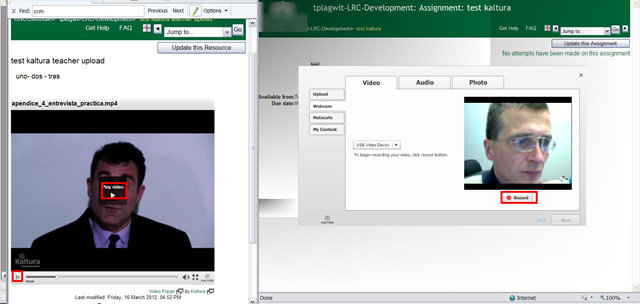
- You can combine
- a Model/Question video, uploaded by the teacher as a video resource
- with an Imitation/Response video captured by the student.

- Cons:
- When viewing the teacher upload video models/questions, the student has to alternate between pause/play (which are not even on the same button).
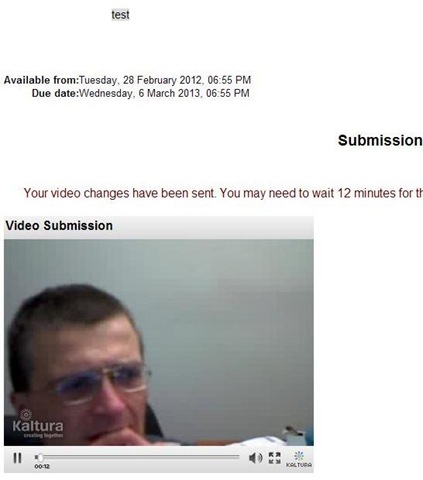
- Student does not have to also handle pausing/restarting the video recording, but that may be another con: The student cannot pause her video, so the grader will have to skip over pauses in his recording.
- Pros: Looks like a video recording can peacefully coexist with a simultaneous video playback (XP, IE8):

Moodle streaming video recording assignment glitch 9
2012/03/16
Leave a comment
- Are all things Moodle Kaltura on Windows better than on iMacs?
- I don’t think so (Windows 7, IE9): Webcamera cannot be activated, hourglass. Looks like the Flash security dialogue does not make it into the foreground.




Questions? Read the About. Or just ask me a quick Our Databases: Resources with calendars -- Language learning material Moodle Sites, multimedia files -- films


FAQs for LRC student staff or for students or for teachers. To search our FAQs, in the browser addressbar, add after "https://plagwitz.wordpress.com/feed/?tag=faqs+/" "+TAG1" (from tag cloud below) OR "https://plagwitz.wordpress.com/feed/tag=faqs
&category_name=" "CAT1" (from category hierarchy below). OR search both categories and tags, and multiple TAGs/CATs (connect with "," for OR-search, with "+" for AND-search), like so: https://plagwitz.wordpress.com/feed/?tag=TAG1+TAG2+...TAGn&category_name=CAT1
+CAT2+...CATn"
Other ways to find help
If you cannot find it here, look there: 5,500 Language-Learning Links and Programs for learning or teaching 150 languages
Shortcuts:Our Lists, Our Maps, LRC Staff Moodle Site,LRC Project Moodle Site, 49erexpress, UNCC Moodle, Student Recordings: s:claslcslrcsanakostudent
Learning usage samples: Sanako oral exam, Kaltura webcam presentation, Dictation with speech recognition, Sanako written exam, Chinese and Japanese interactive stroke-order practice
Test the Sanako Installer, Webbrowser Popup Konfigurator for XP, or Windows7, faster LRC TeacherPC Log-in Let MS facilitate diacritics writing by installing for you US-International keyboard layout
This is my personal blog (Google+). The views expressed on these pages are mine alone and not those of my employer. The information in this weblog is provided “AS IS” with no warranties, and confers no rights.
 Thomas' Work Space