Archive
Archive for the ‘software’ Category
Use CTRL+TAB to switch between tabs in Chrome kiosk fullscreen mode
2013/11/15
Leave a comment
- On the reception desk, when you open the NINERMAIL after logging into 49erexpress, Chrome opens NINERMAIL in another full screen tab (which hides the 49erexpress tab) – unlike full screen Internet Explorer, which opened NINERMAIL in a new window, but which we had to abandon with the introduction of offfice365.
- The 49erepxress tab is hidden, but still there, and you can switch between full screen tabs wit hthe keyboard shortcut CTRL+TAB (hold CTRL and pressing TAB repeatedly will cycle through all open Chrome tabs).
- So when a client is finished with NINEMAIL (meeting request), have them not only log out of NINERMAIL, but also CTRL+TAB back to the 49erexpress tab to log them out of 49express (and browse from the result window to the Sign-in link to be ready for the next client).
- No need to close the NINERMAIL tab. Next time somebody logs in to 49erexpress tab, Chrome will recycle the previous NINERMAIL tab.
How to compare two MS-Word documents for plagiarism detection
2013/11/14
2 comments
- You could start with the document properties
- some students leave even the author and editing time in. However, author does not prove any wrong doing, a student may have borrowed a laptop, including its MS-word installation, to author a document and submit it
- It may actually be more of an indicator of something illicit if document properties are empty.
- Students have likely used the “Document inspector”:
- (1): File / (2) Info, (3) view the properties (this document looks like it had its privacy information removed), you can use (4) to view even more.
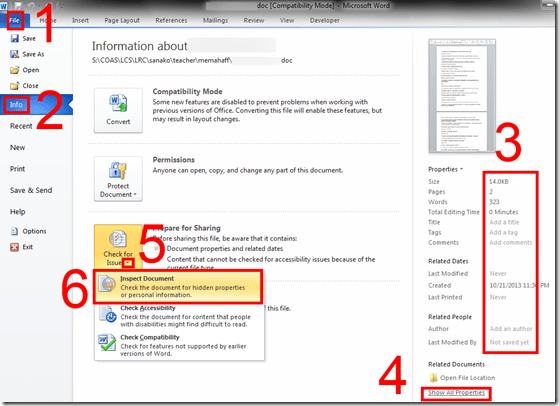
- to remove all privacy relevant information, like so: (5) unfold “check for issues”, (6) “inspect document””,
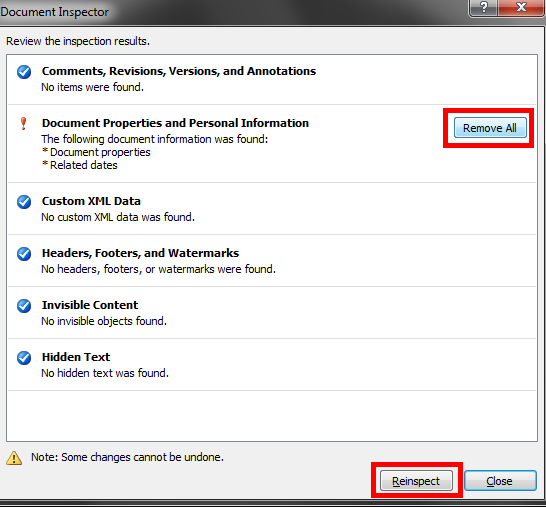
- in the window: “document inspector”, click
 , you will be given the option to “remove all”personal information:
- (1): File / (2) Info, (3) view the properties (this document looks like it had its privacy information removed), you can use (4) to view even more.
- However, removing personal information can be perfectly legitimate, unless something else was assigned. And it does not help plagiarizers cover their tracks anyway, for…
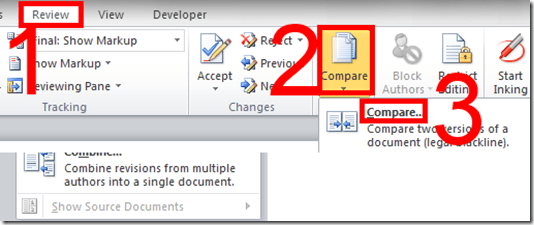
- …there is the more substantial “compare” documents feature which (even though it was developed for the legal profession, as blackline) tracks what really counts: content changes.
- Access it form the ribbon’s “review” tab:
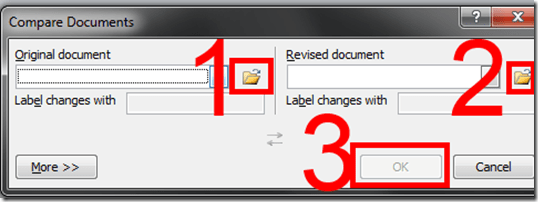
- point the tool to your 2 documents:
- make your life easier by selecting on the “review” tab to view only content changes (formatting comparisons is noise for plagiarism detection):

- You get a handy (here blurred, but still demonstrating the amount of similarity (=black), compared with changes (= blue), between the 2 documents ) overview of (from the left)
- list of changes
- view of changes in a merged document (which you can save)
- original document
- secondary (likely plagiarized) document:

- The feature is nice, but only moderately intelligent (see the first match, I would obviously not count that as substantially different) and best used with discretion, to make it easier for a teacher to decide how likely it is that these similarities are accidental.
- In this instance, even if the teacher questions are not counted, it seems obvious that only minor alterations were made to the original document and many responses, including quite lengthy sentences, are entirely the same.
- While this *is* an instructional use, you can find happier instructional uses of MS-Word’s reviewing/tracking changes feature here.
- Access it form the ribbon’s “review” tab:



Categories: audience-is-teachers, e-learning, office-software, service-is-assessing, Writing
comparing, FAQs, MS-Word, plagiarism, reviewing, track-changes
How to create screencasts of student presentations for the language learner ePortfolio in the digital audio lab
2013/11/08
Leave a comment
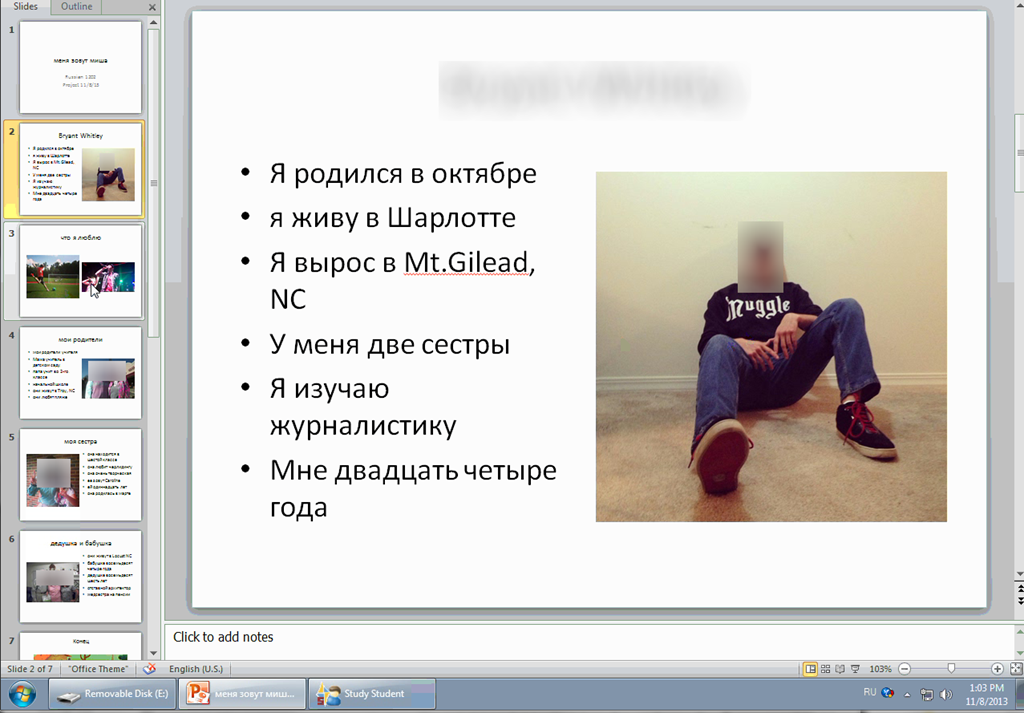
- Students can now easily video-record their own screens during class presentations – not only when using PowerPoint; instead students could demo a website, like their Facebook page.
- Last year, we were limited to PowerPoint’s record slideshow with timing and narration feature, and either send the PPSX (small, but requires the PowerPoint viewer) or the “Save as” video (new in PowerPoint 2010; computing intensive and large file size).
- Now with MS-Community Clips, screencasts are
- minimal effort to create (keyboard shortcut WIN+ALT+R or T; save on desktop; drag/drop into Sanako homework folder)
- and little effort to distribute:
- Students could have uploaded to a Moodle’ file upload assignment (default file size limit: 64MB) or Kaltura file upload assignment (not sure whether there is a size limit). This seems more suitable for assignments with screencasts recordings.
- In this instance
- Sanako collected the Homework files to the Sanako share,
- my langlabemailer emailed them as attachment (so far tested to allow for 25MB attachment size, the equivalent of 7-8 minute screencast, a hefty space to fill in L2! We also established: 45MB is too much…
 ) to the originating student and teacher, for review, grading –
- and – provided it passes muster as an attractive and significant piece – possibly for re-use in the student’s language learner ePortfolio.
- In addition,
- Before the presentations, the teacher easily collaborated on proof-reading the slide decks of individual students, by using the Sanako Remote control screen sharing feature.
- During the presentation, students followed more closely – which seemed to increase their attention and comprehension -, thanks to audio and screen being shared to them from the presenter, using the Sanako’s “Model student” feature.
Categories: Arabic, audience-is-teachers, digital-audio-lab, e-languages, English, eportfolio, Farsi, French, German, Greek (modern), Hindi, Italian, Japanese, learning-usage-samples, Mandarin, multimedia-recording, office-software, Portuguese, presentations, Presenter-Computer, Russian, Spanish, Speaking, Student-Computers
file-upload, homework-activity, kaltura, langlabemailer, model-student, moodle, ms-community-clips, ms-powerpoint, sanako-study-1200, screensharing, videos
How a teacher can easily grade a NanoGong audio recording assignment in Moodle
2013/10/17
Leave a comment
- Similar to grading video recording assignments with Moodle Kaltura, You can enter in 2 ways:
- By clicking on the assignment like your students:
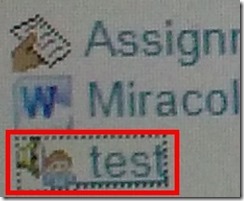
- Or by clicking on Activities: NanoGong Voices
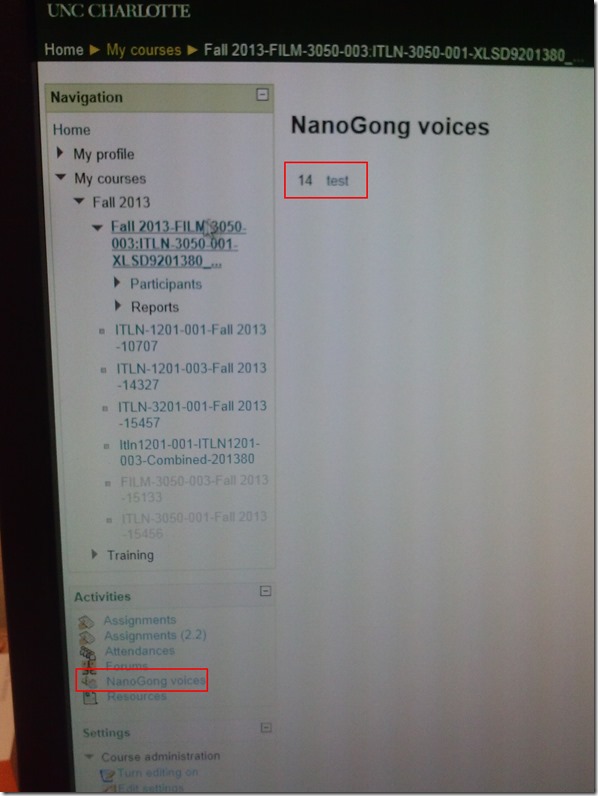
- By clicking on the assignment like your students:
- Before you make it to the assignment page and can see the NanoGong plugin, you may have to bypass some Java warning dialogues.
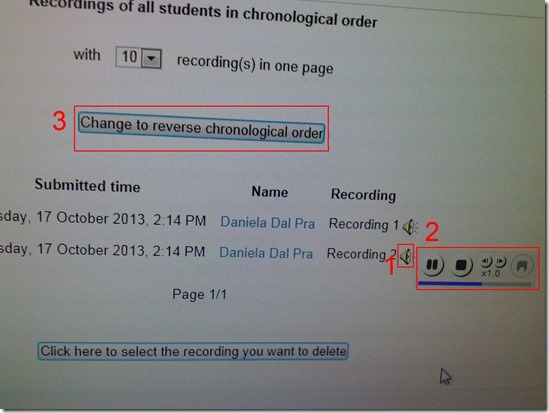
- On the assignment page:
- Click (1) speaker symbol for the recorder control to show up.
- You can also
- enter (1) feedback
- or (2) re-sort the submissions – we had to click this once for the recordings to actually shows up (seems to refresh the page).

- I have not had the chance to see the results in the Gradebook, but here are some screenshots from blogs of users that have:

- Click (1) speaker symbol for the recorder control to show up.


Categories: assignments, audience-is-teachers, grading, lms, multimedia-recording, recording-software
audio, gradebook, moodle, nanogong
How a teacher can use NanoGong’s plugin for the HTML editor to easily send their own audio to students
2013/10/17
Leave a comment
- The rich HTML editor recorder plug-in is supposed to make it easier for the teacher (than other recorders that require the teacher to save to file and upload the file to a Moodle activity). Here is how it can work:
- Add an activity which includes the rich HTML editor plugin, e.g. a page.
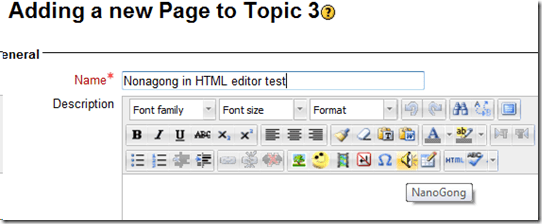
- Click on the loudspeaker icon denotes NanoGong among the editor tools.
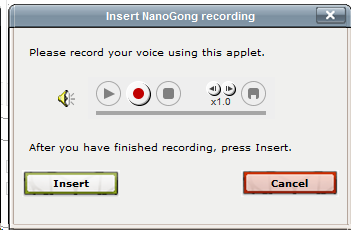
- A window will open that includes the recorder JAVA applet (you may have to bypass Java warnings):

- Click the red record button and speak.
- When done, click insert.
- Result:
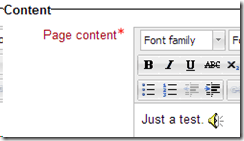
- Note, however, that so far I have run into issues actually displaying this teacher-added NanoGong recorder content.


Categories: audience-is-teachers, documentation, e-languages, Listening, lms, multimedia-recording, recording-software
audio, moodle, nanogong
Troubleshooting NanoGong recorder assignments for students and rich HTML editor content creation by teachers
2013/10/17
Leave a comment
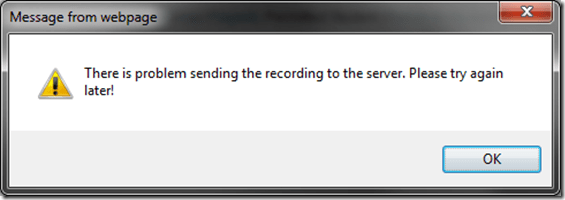
- Once, when submitting, I got this error? But other teachers managed to test the NanoGong recording assignment application successfully when working as a “permitted student”? That may be related to using a project site.
- If you try to use NanoGong in a browser not fully supportive of Java, you can get easily stuck:
- Firefox which has not been explicitly configured to allow JAVA applets – you will get stuck w/o the option to bypass warning dialogues.

- Chrome is not very forgiving either (here for the HTML editor plug-in):
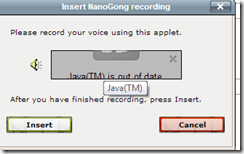 , but you can get past it:
  .
. - I am running into more problems using the rich HTML editor recorder plug-in which I supposed to make it easier for the teacher to provide their own audio to their students:
- IE8 does not display the content at all.
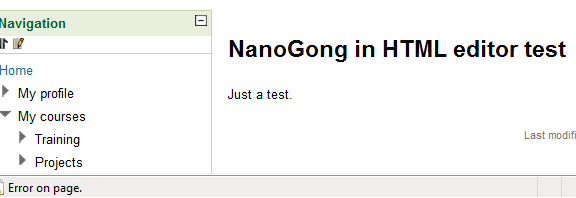
- Chrome 30 spits out raw code, and when you locate and click on the loudspeaker icon, I only get this :
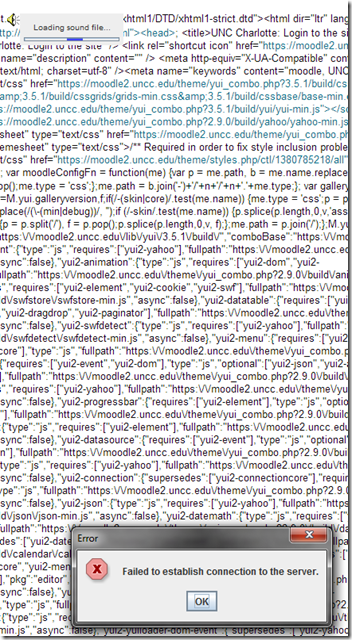 .
. - IE8, on the other hand, draws a blank:


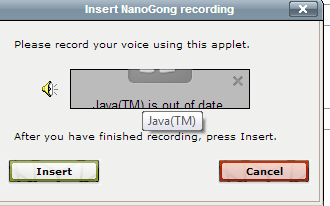

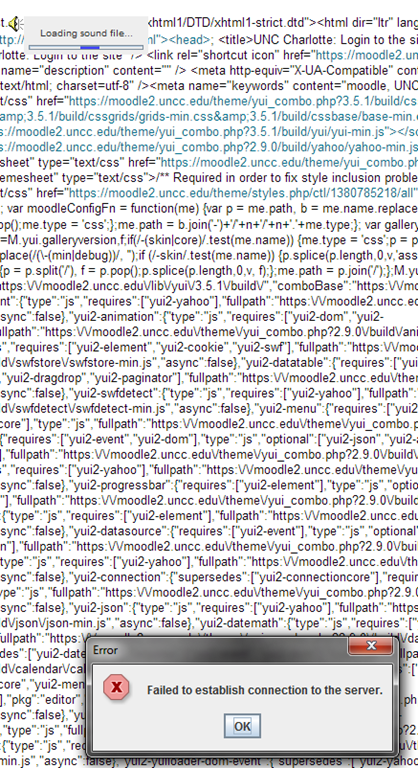
How to use NanoGong in your Moodle course as an audio file recorder
2013/10/17
Leave a comment
- NanoGong is primarily meant for submitting audio recordings to the teacher and fellow students.
- However, it can also serve as a simple audio recorder that can save a recording to a files:
- accessible anywhere where you have internet access (on a JAVA-capable device. I have not tested NanoGong’s compatibility with smartphones or tablets, though) and a microphone – provided you/your teacher have added a NanoGong activity to the Moodle Course.
- Might be useful for collecting recordings as pieces for your language learner ePortfolios.
- To use NanoGong as an audio recorder: Instead of (or on top of/before) submitting your recording to the course, click the rightmost button:
 :
:
- and you can save your recording to a file
![image_thumb[17]_thumb[1]](https://thomasplagwitz.com/wp-content/uploads/2013/10/image_thumb17_thumb1_thumb.png?w=600&h=530 "image_thumb[17]_thumb[1]") ,
,- in a variety of formats (compressed WAV is likely most compatible),
- including in the different speeds:
![image_thumb[18]_thumb](https://thomasplagwitz.com/wp-content/uploads/2013/10/image_thumb18_thumb_thumb.png?w=244&h=68 "image_thumb[18]_thumb") that you de/increased the playback speed here:
that you de/increased the playback speed here: ![image_thumb[15]_thumb](https://thomasplagwitz.com/wp-content/uploads/2013/10/image_thumb15_thumb_thumb.png?w=129&h=103 "image_thumb[15]_thumb") .
.

![image_thumb[17]_thumb[1]](https://thomasplagwitz.com/wp-content/uploads/2013/10/image_thumb17_thumb1.png "image_thumb[17]_thumb[1]")
![image_thumb[18]_thumb](https://thomasplagwitz.com/wp-content/uploads/2013/10/image_thumb18_thumb1.png "image_thumb[18]_thumb")
![image_thumb[15]_thumb](https://thomasplagwitz.com/wp-content/uploads/2013/10/image_thumb15_thumb1.png "image_thumb[15]_thumb")
Categories: Arabic, audience-is-students, audience-is-teachers, documentation, English, eportfolio, Farsi, French, German, Greek (modern), Hebrew, Hindi, Italian, Japanese, Korean, Mandarin, multimedia-recording, Polish, Portuguese, recording-software, Russian, Spanish, Speaking, Swahili, Yoruba
audio, moodle, nanogong
JAVA warning dialogues to bypass during NanoGong activities
2013/10/17
Leave a comment
- You may be prompted to update JAVA – likely a not a bad idea:
![java outdated warning_thumb[1]](https://thomasplagwitz.com/wp-content/uploads/2013/10/java-outdated-warning_thumb1_thumb1.png?w=560&h=354 "java outdated warning_thumb[1]")
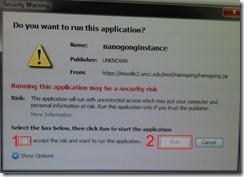
- Click “RUN”:
![image_thumb[8]_thumb[1]](https://thomasplagwitz.com/wp-content/uploads/2013/10/image_thumb8_thumb1_thumb1.png?w=461&h=542 "image_thumb[8]_thumb[1]")
- Check (1) “Accept”and Click (2) “Run”:

- Click “Don’t Block”:
![CAM03106_thumb[1]](https://thomasplagwitz.com/wp-content/uploads/2013/10/cam03106_thumb1_thumb1.jpg?w=556&h=294 "CAM03106_thumb[1]")
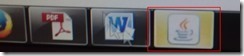
- Even more annoying when warning dialogues do not come to the foreground, and your computer/web browser simply seems to be stuck. Check your task bar/dock for blinking/jumping JAVA notifications, like here:
 .
. - You have to bypass these dialogues only once – per session (lab) or possibly per computer. Choose the right answer, for university assignments, it is safe to “Allow! Allow! Allow! (“run”, “don’t block:”, update”, what ever – use common sense).
- Remember, thinks could be worse, – like if you try to use NanoGong in a Firefox that has not been explicitly configured to allow JAVA applets – read more on our troubleshooting NanoGong page.
![java outdated warning_thumb[1]](https://thomasplagwitz.com/wp-content/uploads/2013/10/java-outdated-warning_thumb11.png "java outdated warning_thumb[1]")
![image_thumb[8]_thumb[1]](https://thomasplagwitz.com/wp-content/uploads/2013/10/image_thumb8_thumb11.png "image_thumb[8]_thumb[1]")
![CAM03106_thumb[1]](https://thomasplagwitz.com/wp-content/uploads/2013/10/cam03106_thumb11.jpg "CAM03106_thumb[1]")


Questions? Read the About. Or just ask me a quick Our Databases: Resources with calendars -- Language learning material Moodle Sites, multimedia files -- films


FAQs for LRC student staff or for students or for teachers. To search our FAQs, in the browser addressbar, add after "https://plagwitz.wordpress.com/feed/?tag=faqs+/" "+TAG1" (from tag cloud below) OR "https://plagwitz.wordpress.com/feed/tag=faqs
&category_name=" "CAT1" (from category hierarchy below). OR search both categories and tags, and multiple TAGs/CATs (connect with "," for OR-search, with "+" for AND-search), like so: https://plagwitz.wordpress.com/feed/?tag=TAG1+TAG2+...TAGn&category_name=CAT1
+CAT2+...CATn"
Other ways to find help
If you cannot find it here, look there: 5,500 Language-Learning Links and Programs for learning or teaching 150 languages
Shortcuts:Our Lists, Our Maps, LRC Staff Moodle Site,LRC Project Moodle Site, 49erexpress, UNCC Moodle, Student Recordings: s:claslcslrcsanakostudent
Learning usage samples: Sanako oral exam, Kaltura webcam presentation, Dictation with speech recognition, Sanako written exam, Chinese and Japanese interactive stroke-order practice
Test the Sanako Installer, Webbrowser Popup Konfigurator for XP, or Windows7, faster LRC TeacherPC Log-in Let MS facilitate diacritics writing by installing for you US-International keyboard layout
This is my personal blog (Google+). The views expressed on these pages are mine alone and not those of my employer. The information in this weblog is provided “AS IS” with no warranties, and confers no rights.
 Thomas' Work Space
