Archive
Archive for the ‘software’ Category
Full lifecycle for authoring and collecting a poll in surveyshare. A walk-through
2012/04/13
Leave a comment
- A list of your surveys is also available on the start page:
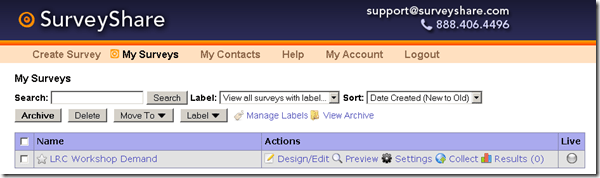
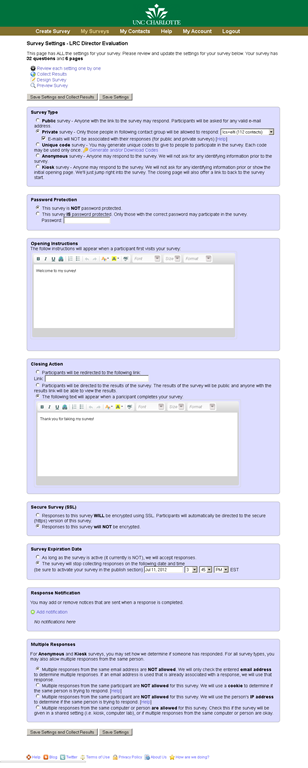
- Choose your general settings:
 Once you started a survey: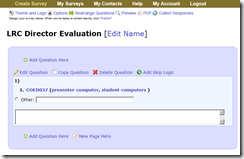
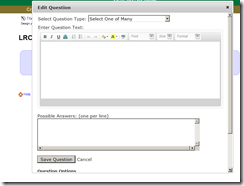
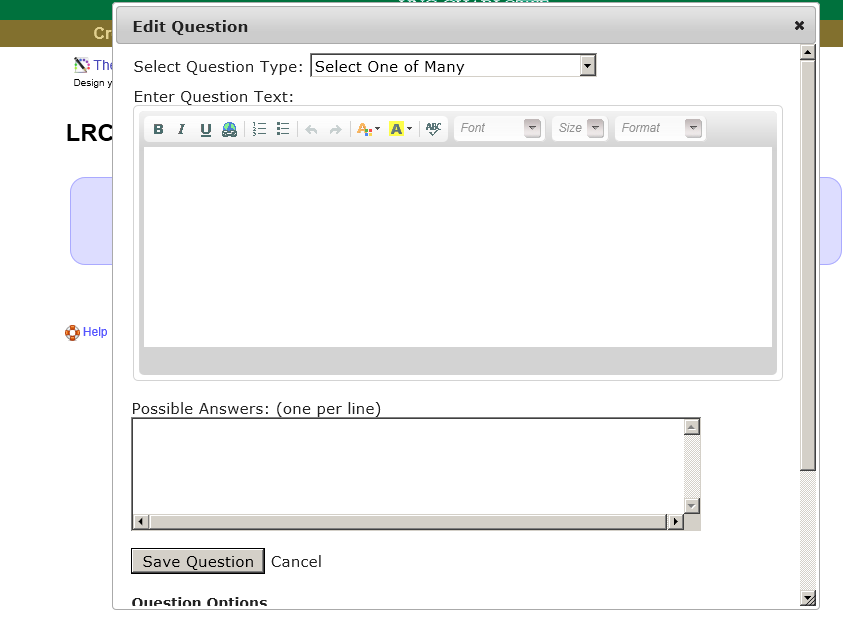
- Add questions to it 1 by 1, using a variety of question types:


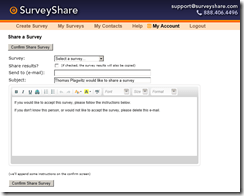
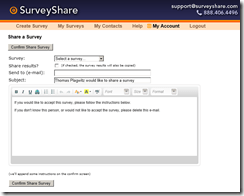
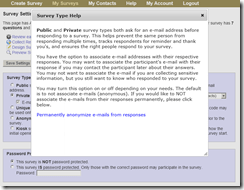
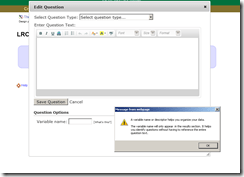
- An internal variable can be useful for managing results:
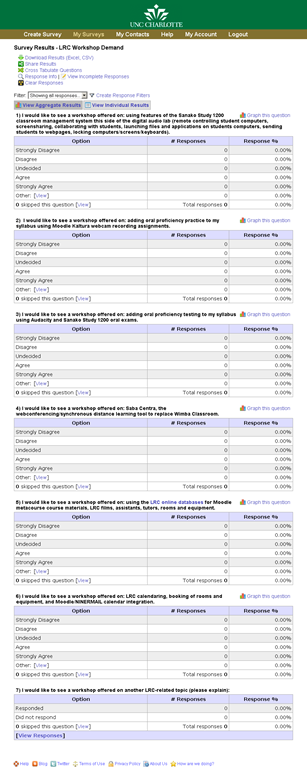
- Overview:

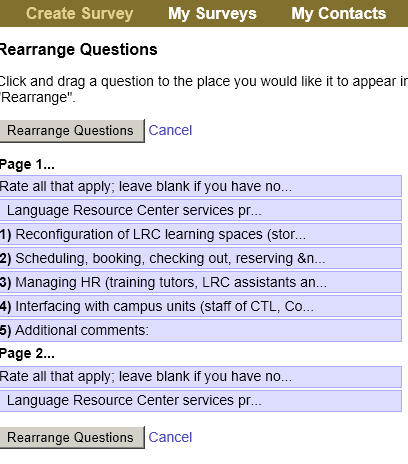
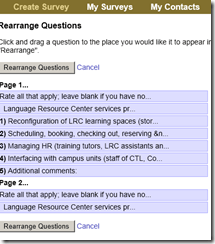
- Changing sequence of questions:
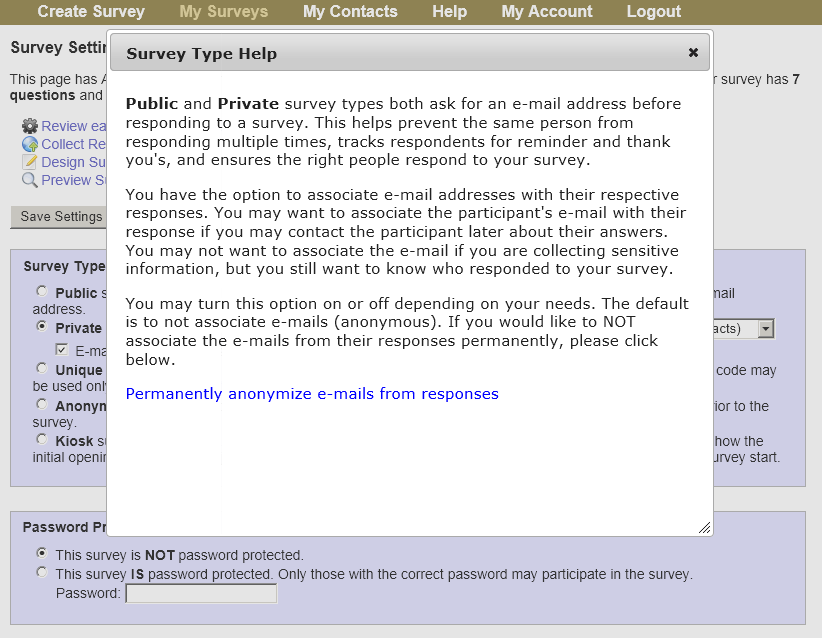
- Settings overview:

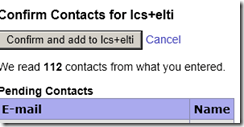
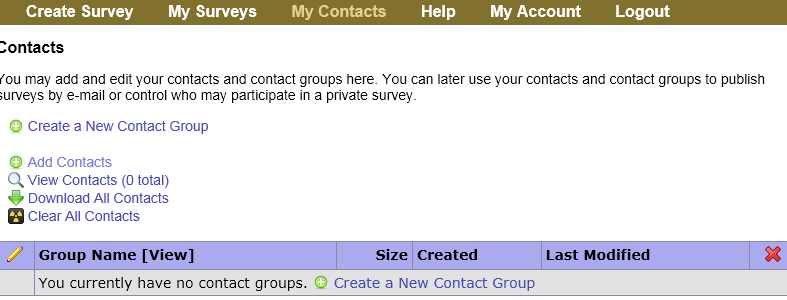
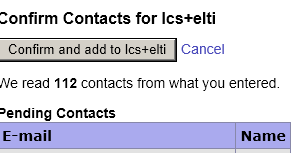
- Adding recipient contacts for a private survey:

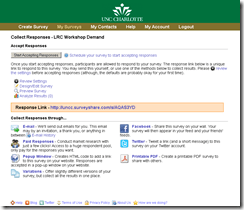
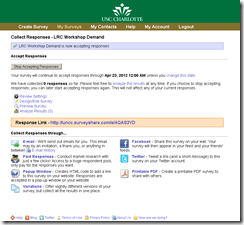
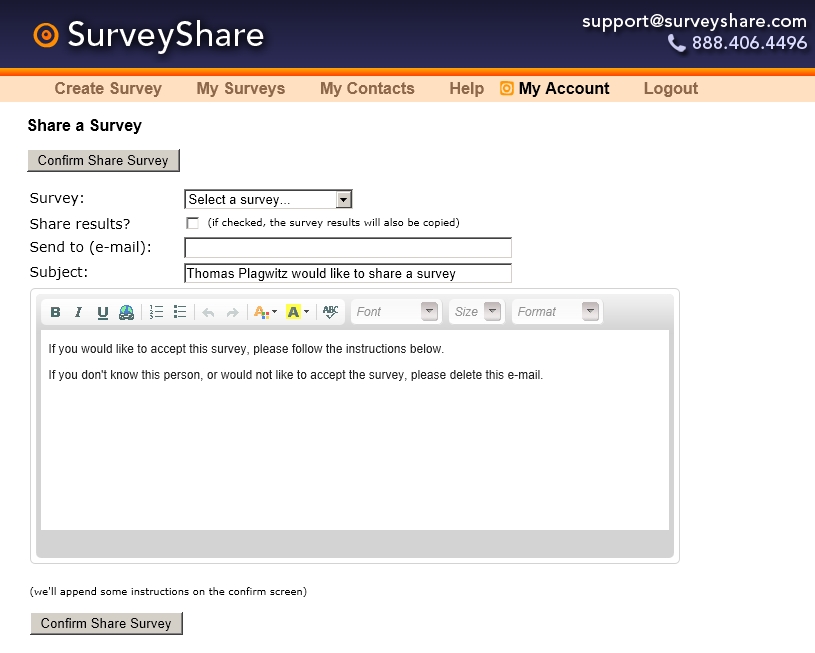
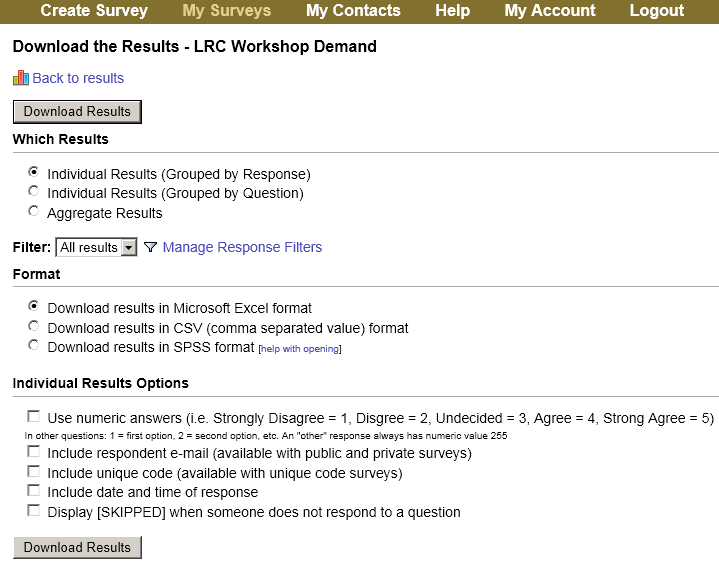
- Publishing and collecting







Categories: e-infrastructure, Polls
surveyshare.com
How to troubleshoot network share and thumb drive disk space issues with WinDirStat
2012/04/13
Leave a comment
- There are many such tools, but WinDirStat has served me well, and it is free.
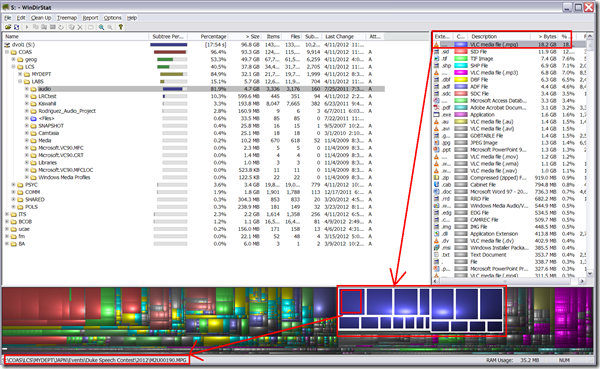
- Especially useful seems the treemap visualization and that you can drill in per file type, from the upper right pane, and to a file location from the tree map,. like so:
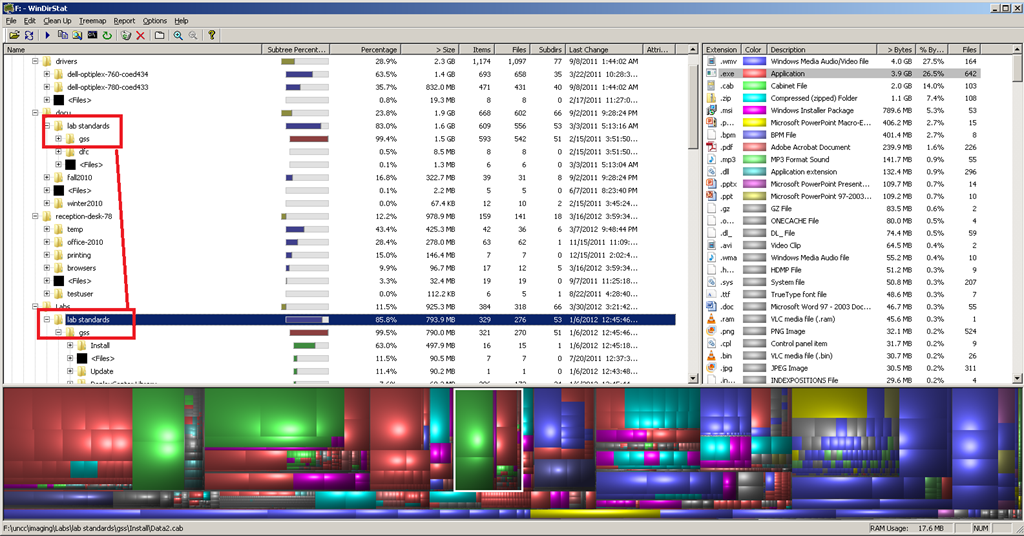
- Similarly useful on not-shared, but limited-storage drives, e.g. for deduplicating, like so:

- This detailed tutorial (which, incidentally, uses WinDirStat, can give you a list of ideas/folders where it is worthwhile checking the WinDirStat results (although one of the nice features of WinDirStat is that it sorts folders and an aggregate of the files in a folder by size).

Categories: audience-is-IT-staff, e-infrastructure, software
windirstat
Final Cut Pro Introduction
2012/04/13
Leave a comment
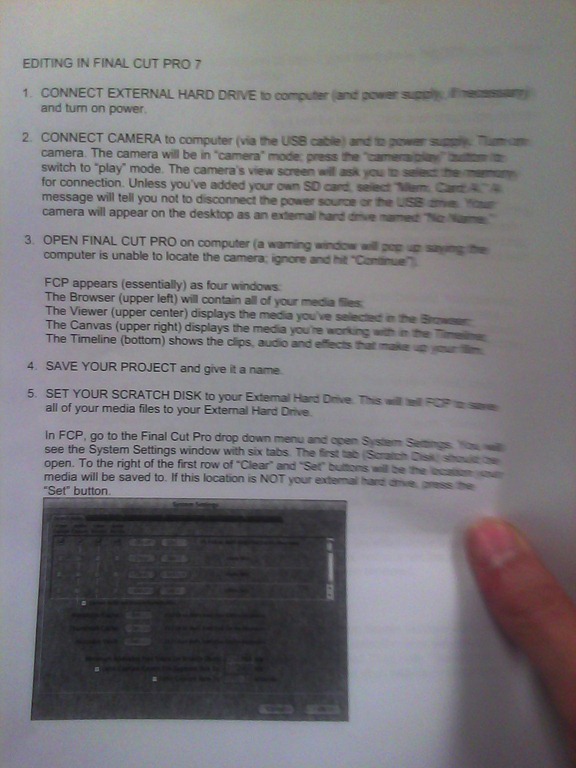
(A handout from the Film Studies program – click on photo for larger view)


Installing support for non-western languages in Windows XP
2012/04/06
Leave a comment
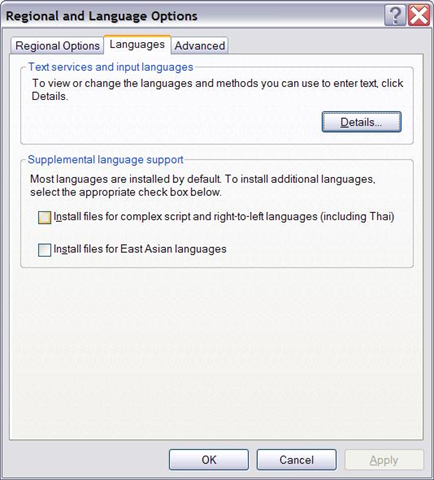
- You do not have them if your control panel / regional and language options looks unchecked like this:

- you need your Windows XP install disk
- The installer is not smart enough to find the i386 folder, nor to find all files around it.
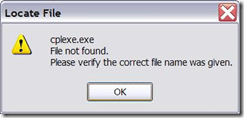
- Just point the installer to the directory manually where you located the file in question.

- The initial directory it is lookiong for is /i386/lang. The 2nd directory it is looking for is /i386.
- Additional complication: files in the install source are compressed, and their filename is altered (e.g. “.ex_” instead of “.exe”). So it is “Go figure”.
- Hm, I could have sworn this was the first thing I did here. Are downgrades being slipstreamed? I hope I did this now for the last time. Update: No, I did not…


Categories: Arabic, e-languages, Hebrew, Japanese, Korean, Mandarin, Operating-system
Basic software to troubleshoot end-user videos
2012/04/05
Leave a comment
- Having problems with (source – target) end-user video compatibility issues? If you just need to “git r done”, the following software has helped us for years nip those in the bud and overcome the limited built-in support for video display and troubleshooting on the MS-Windows and Mac OS X platform:
- VideoLan, an open-source project that amounts to much more than a player which out of the box understands most codecs, going strongly into version 2 recently. Download for Windows or Mac OS X.
- Still won’t play? Diagnose codec and other information from video files, so that you do not need to set your hopes into the download of dubious codec packs.
Categories: software
codecs, gspot, video, vlc-player
How to display Furigana phonetic guide for Japanese Kanji in MS-Word 2010
2012/02/21
1 comment
- Furigana uses Kana (usually Hiragana) to phonetically transcribe Kanji, above (for horizontally written Kanji) or to the right (if in vertical writing mode), for special characters or audiences (children and second language learners).
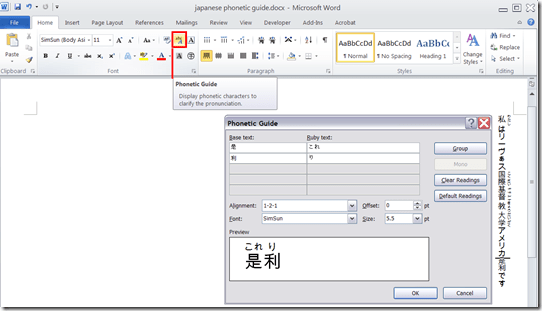
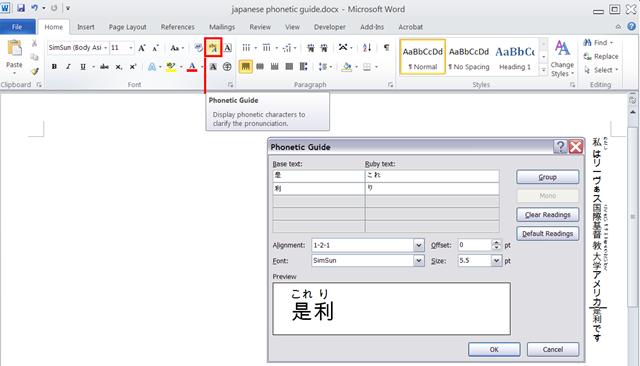
- In MS-Office, if you have a Japanese Input Method Editor selected in MS-Windows, select some Kanji and in the ribbon, under tab: home, section: font; click on the Phonetic guide, to bring up a dialogue that attempts to auto detect the furigana.
- You can make adjustments there, click “OK “to insert. Like so:
How a student uses the Sanako Recorder Voice Insert mode for Moodle comparative recording exercises
2012/01/25
2 comments
- to load a file
- from Moodle:
- Find your assignment with the model audio file, presumably in your Moodle course.
- download the model audio file
- open the Sanako Student Recorder (introduction).
- go to menu: file / open, and open the file you downloaded
- from student recorder playlist: double-click the file.
- from Moodle:
- enable voice insert:
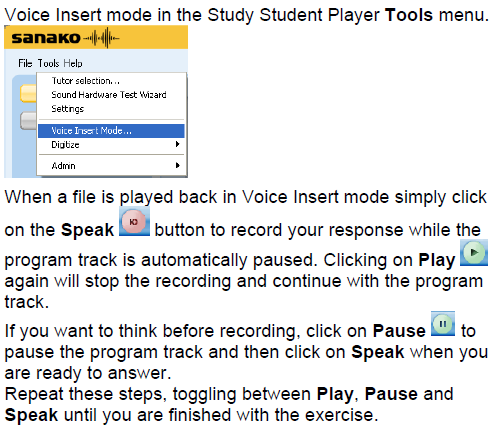
- To activate voice insert (which is a toggle that changes the behavior of the other buttons)
- either go to tools/ voice insert mode
- or click the voice insert button
 (darker shade of brown = OFF; tooltip should say “Toggle Voice Insert OFF”, meaning: it is ON now)
- To activate voice insert (which is a toggle that changes the behavior of the other buttons)
- press the green play button to listen until you reach the point (your teacher may have inserted a pause or aural cue) where you can repeat or respond.
- Then click the red speak-button
 to repeat after/respond to the source/teacher
 - When you are done repeating/responding, press the green play-button.
- At the end, press the blue stop-button.
- Rewind and review your recording (e.g. compare your pronunciation with the teacher’s model).
- When done, click file / save as and save only your, the student track, as mp3 or wma.
- Additional notes:
- TBA: you can overwrite your pronunciation where you deem necessary.
- Fixed in Sanako 7:
you cannot show the voice graph when in Voice insert mode – both are incompatible. - To see in action how to record with voice insert and save the student track, view
- The previous is just a step-by-step for our environment based on the Sanako Study 1200 documentation which follows here:


How a teacher creates audio recordings for use with Sanako Student Voice Insert mode
2012/01/24
Leave a comment
- One of the Sanako Student player’s useful features geared toward language learning activities, is that it can save the teacher the time and effort for inserting pauses into their audio recordings, so that students can record responses into them.
- Meaning the teacher can just press the red speak button
 and record through the entire file in one sitting.
 - The teacher can still help students finding their way around the file, especially where to insert their own audio recording responses, by adding aural cues.
- This can be done in minimal time: I once saw a teacher use a bicycle bell – and why not, if it saves time.
- A spoken instruction “Respond”/”Answer in 10 seconds” is not more difficult to spot (unless only the voice graph is being browsed) and might be even better.
- If you have spare time:
- You can post-edit the file with audacity, generating and inserting sinus tones.
- You can use the Sanako player to insert bookmarks instead of cues.
- Meaning the teacher can just press the red speak button
- As long as students have been instructed to how to use voice insert recording mode with the Sanako student recorder.
- This is for self access of students to teacher recorded files – be it during class or homework.
- If you want to record students under exam conditions, a similar insert recording feature is available within the activity: Model imitation, but not with a pre-recorded file, only when the live teacher is the program source students listen to for cues.

Categories: Arabic, audience-is-teachers, documentation, English, Farsi, French, German, Greek (modern), Hindi, Italian, Japanese, Korean, Listening, Mandarin, Polish, Portuguese, presenter-computer, Russian, service-is-learning-materials-creation, software, Spanish, Speaking, Student-Computers, Swahili, Yoruba
audio, recording, sanako-study-1200, student.exe, voice-insert


Questions? Read the About. Or just ask me a quick
Thank you for your response. ✨

FAQs for LRC student staff or for students or for teachers. To search our FAQs, in the browser addressbar, add after "https://plagwitz.wordpress.com/feed/?tag=faqs+/" "+TAG1" (from tag cloud below) OR "https://plagwitz.wordpress.com/feed/tag=faqs
&category_name=" "CAT1" (from category hierarchy below). OR search both categories and tags, and multiple TAGs/CATs (connect with "," for OR-search, with "+" for AND-search), like so: https://plagwitz.wordpress.com/feed/?tag=TAG1+TAG2+...TAGn&category_name=CAT1
+CAT2+...CATn"
Other ways to find help
If you cannot find it here, look there: 5,500 Language-Learning Links and Programs for learning or teaching 150 languages
Shortcuts:Our Lists, Our Maps, LRC Staff Moodle Site,LRC Project Moodle Site, 49erexpress, UNCC Moodle, Student Recordings: s:claslcslrcsanakostudent
Learning usage samples: Sanako oral exam, Kaltura webcam presentation, Dictation with speech recognition, Sanako written exam, Chinese and Japanese interactive stroke-order practice
Test the Sanako Installer, Webbrowser Popup Konfigurator for XP, or Windows7, faster LRC TeacherPC Log-in Let MS facilitate diacritics writing by installing for you US-International keyboard layout
This is my personal blog (Google+). The views expressed on these pages are mine alone and not those of my employer. The information in this weblog is provided “AS IS” with no warranties, and confers no rights.
 Thomas' Work Space