Archive
Archive for the ‘software’ Category
Remember to switch to a 32-bit web browser if your SkyDrive online documents fail to open in MS-Office 2010.
2012/06/22
Leave a comment
- I would have thought that in this day and age, usage metrics data would have prompted MS to put that problem root and resolution – open the web page and the “Open in [Excel/Word/PowerPoint]" in a 32-bit browser - more prominently in the error messages .
- Instead, if using a 64-bit browser, you may be seeing
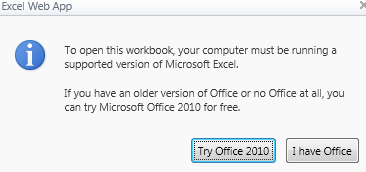
- this:
 (“To open this workbook, your computer must be running a supported version of Microsoft Excel. If you have an older version of Office or no Office at all, you can try Microsoft Office 2010 for free")
 - or this
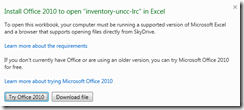 (“Install Office 2010 to open [your filename] in Excel. To open this workbook your computer must be running a supported version of Microsoft Excel and a browser that supports opening files directly from SkyDrive. Learn more about the requirements If you don’t currently have Office or are using an older version, you can try Microsoft Office 2010 for free. Learn more about trying Microsoft Office 2010. ”)
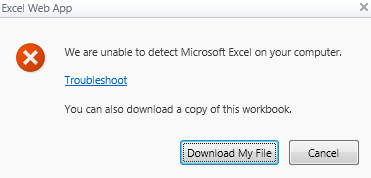
 - or this
 ("We are unable to detect Microsoft Excel on your computer. Troubleshoot You can also download a copy of this workbook).
 - If e.g. you `run this browser:
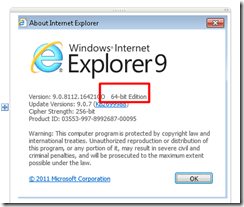
- Only if you follow the troubleshoot link, you find the 64-bitness of the browser mentioned.


Categories: e-infrastructure, office-software
2010, ms-office
How to fix inability to open notebook from web in MS-OneNote
2012/06/21
2 comments
- A lot of people seem to experience this problem, where the menu item “Open in OneNote” in the OneNote webapp results in the error: “To open this notebook your computer must be running a supported version of Microsoft OneNote and a browser that supports opening files directly from the Office Web Apps.”
- Here is what seems to have solved it for me (it only started to work when owssupp.dll was reinstalled. However, some of the earlier steps may also be necessary, notably adding to the “trusted sites”).
- To open from OneNote desktop, as opposed to form the webapp, I tried to find out the URL of OneNote notebook
- Easiest way is subtracting the edit.aspx portion from the OneNote webapp URL you are viewing.
- Or if you can open the notebook on a different computer in OneNote, right-click on the notebook in the left tree and choose properties, or hover over one of its section headers above it to read the tooltip).
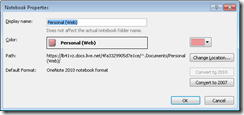
- Then in OneNote on the offending computer, menu:file/open/ instead of browsing, paste the URL. This failed without providing any feedback:

- Then I tried following the tips under the link “troubleshooting” in the error message.
- However, Firefox had the office plugin already enabled:
- I made sure you I was not not running Internet Explorer IE 64-bit.
- In IE 32-bit: Enable the SharePoint OpenDocuments Class add-on in “Tools”/”Manage Add-ons”: Display the list of add-ons, Dropdown “Show” / “All add-ons” / SharePoint OpenDocuments Class, “Enable”, this had also already been the case.

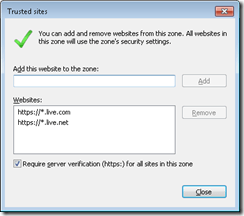
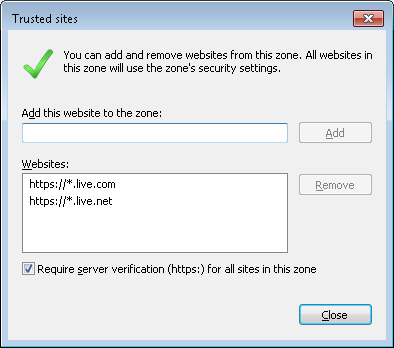
- I added in IE trusted sites (these were missing – did it matter?): Tools / Internet Options./ Security / Trusted sites/ Level needs to be lower than High, Sites, Add this website to this zone box, added liv e.com and live.net (IE adds the asterisk) :
- I then followed the MS Answers forum instructions to reinstall MS-Office, or rather remove and reenable the owssupp.dll:
- before:
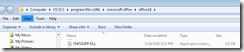 , then rename extension to “old”.
 - In control panel / programs and features / office 2010 professional plus / configure / office tools / Microsoft SharePoint Foundation support, run from my computer, to re-add the SharePoint plugin:
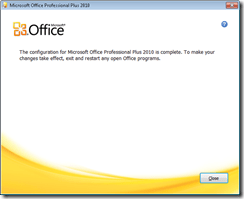
- after:
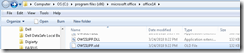
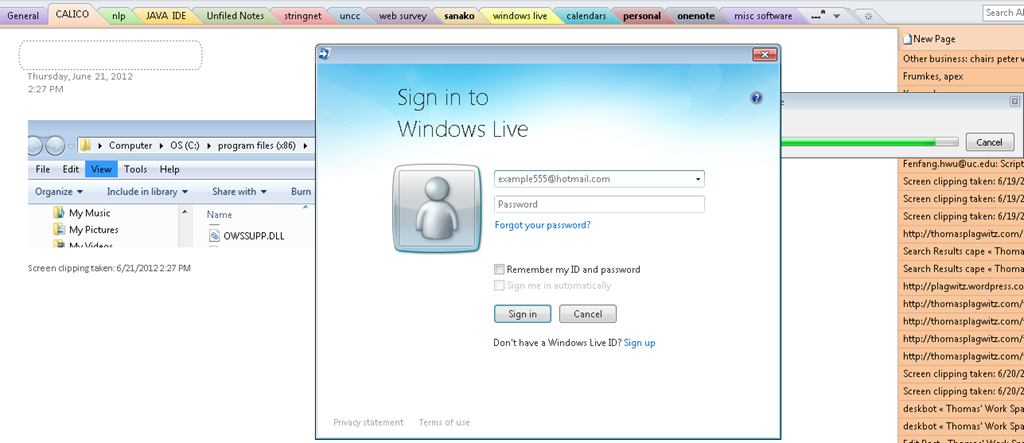
- Voilà: Now I could open in OneNote from OneNote webapp:

- before:
- Here is wishing that this were easier.., but now I can also open from OneNote / File / Open, and give the URL on live.net (giving the URL does not open directly, I have to press open again to open the OpenNotebook.onetoc2):






Categories: e-infrastructure, Glitches&Errors, office-software
ms-onenote
Using NLP tools to automate production and correction of interactive learning materials for blended learning templates in the Language Resource Center. Presentation Calico 2012, Notre Dame University
2012/06/13
Leave a comment
View screencast  here.
here.
How to use the MS-Office Labs Community Clips Screen Capture Tool
2012/05/31
7 comments
- I seem to remember this initiative of having MS-Office users sharing tips and tricks using screencasts has been faded out – but the screen capture tool is still available, and it is not restricted to recording MS-Office applications.
- After download and install (here on Windows 7),

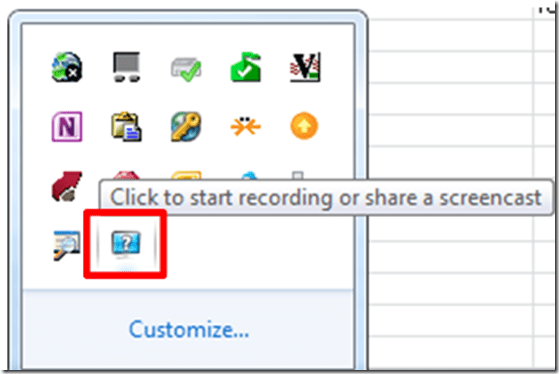
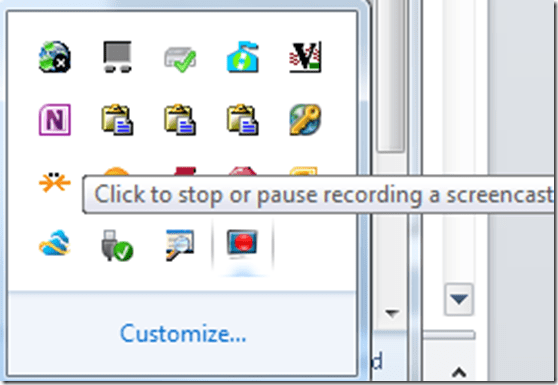
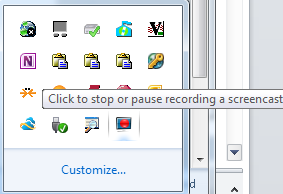
- click the community clips system tray icon to easily start a screen capture:
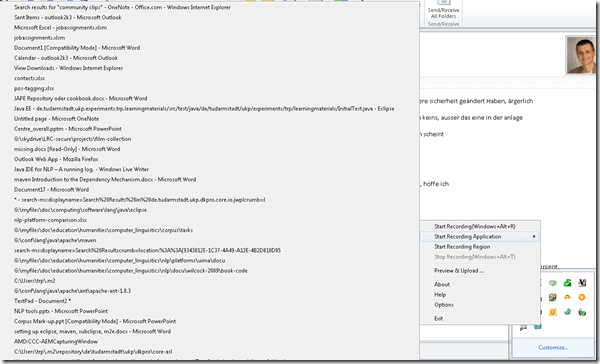
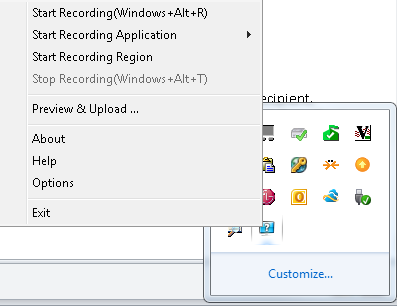
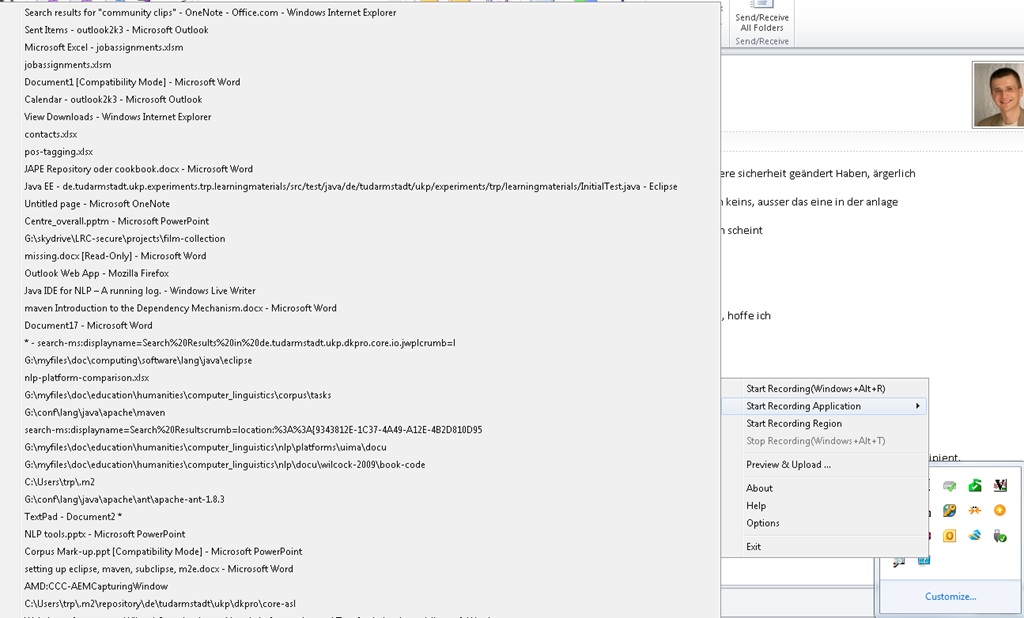
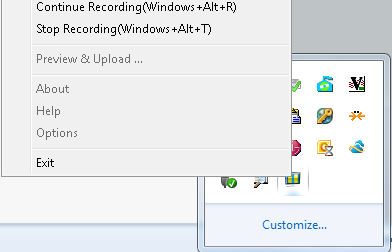
- Or access the context menu with advanced options:

- including restricting recording to specific windows:
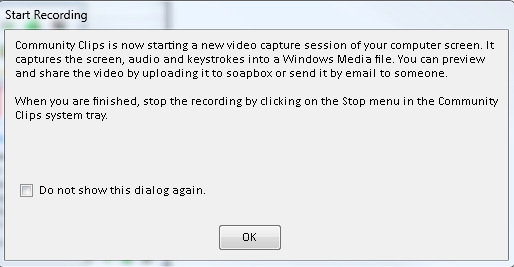
- It does not start up very fast:

- It flashes a frame around the recorded area.
- This is a test…


- The preview starts automatically:
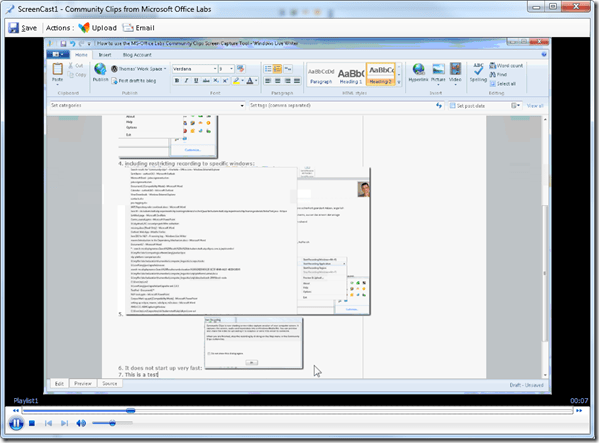
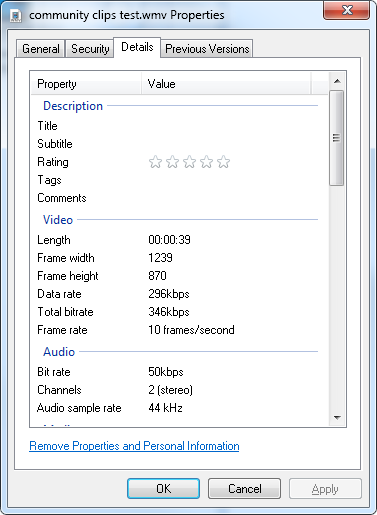
- About the file quality:

- Both the save and the email option
 work, only the built-in upload fails, likely due to the demise of MS-Soapbox:
  , but can be easily uploaded to other services, e.g. MS-SkyDrive
 - Unfortunately, like the Windows Media Encoder clips, it won’t preview without download on SkyDrive – unlike the (newer) MS-PowerPoint 2010-recorded screencasts:

- Still, the MS-Office Labs Community Clips Screen Capture Tool seems to have a friendlier interface than Windows Media Encoder, and is as free.






Categories: audience-is-IT-staff, audience-is-language-learning-center-staff, audience-is-language-learning-center-temp-staff, audience-is-students, audience-is-teachers, e-infrastructure, multimedia-recording, service-is-documenting, service-is-learning-materials-creation, software, Student-Computers
ms-community-clips
How to easily merge MP3 files
2012/05/11
Leave a comment
- There are many ways, including many that are easier than doing it manually in Audacity.
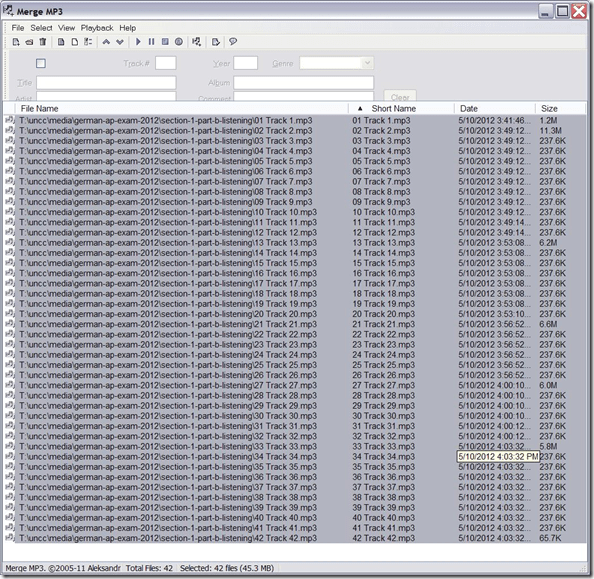
- MergeMP3 is a free and easy one that worked here:
Setting up European Union translation memories and document corpora for SDL-Trados
2012/05/10
Leave a comment
-
SDL-Trados installation allows the translation program to teach this industry-standard computer-aided translation application . So far, however, we had no actually translation memory loaded into this translation software.
-
The European Union is a powerhouse for translation and interpreting – at least for the wide range of their member languages many of which are world languages – , and makes some of their resources – which have been set up for translation and interpreting study use here before – available to the community free of charge as reported during a variety of LREC’s.
-
This spring, the Language Technology Group at the Joint Research Centre of the European Union this spring updated their translation memory offer DTG-TM can fill that void at least for the European Languages that have a translation component at UNC-Charlotte.
-
We download on demand (too big to store: http://langtech.jrc.ec.europa.eu/DGT-TM.html#Download)
-
Is the DGT-TM 2011 truly a superset of the 2007, or should both be merged? probably too much work?
-
-
and extract only the language pairs with English and the language only the languages “1”ed here : “G:\myfiles\doc\education\humanities\computer_linguistics\corpus\texts\multi\DGT-tm\DGT-tm_statistics.xlsx” (using “G:\myfiles\doc\education\humanities\computer_linguistics\corpus\texts\multi\DGT-tm\TMXtract.exe”)
-
and convert
-
English is the source language by default, but should be the target language in our programs,
-
The TMX format this translation memory is distributed provided in, should be “upgradeable ” to the SDL Trados Studio 2011/2011 SP1 format in the Upgrade Translation Memories wizard”.,
-
TBA:where is this component?
-
-
-
configure the Trados to load the translation memory
-
how much computing resources does this use up?
-
how do you load a tm?
-
can you load in demand instead of preload all?
-
- Here are the statistics for the translation memories for “our” languages
-
uncc Language Language code Number of units in DGT – release 2007 Number of units in DGT – release 2011 1 English EN 2187504 2286514 1 German DE 532668 1922568 1 Greek EL 371039 1901490 1 Spanish ES 509054 1907649 1 French FR 1106442 1853773 1 Italian IT 542873 1926532 1 Polish PL 1052136 1879469 1 Portuguese PT 945203 1922585 Total 8 8 7246919 15600580
-
-
Would it be of interest to have the document-focused jrc-acquis distribution of the materials underlying the translation materials available on student/teachers TRADOS computers so that sample texts can be loaded for which reliable translation suggestions will be available – this is not certain for texts from all domains – and the use of a translation memory can be trained in under realistic conditions?
-
“The DGT Translation Memory is a collection of translation units, from which the full text cannot be reproduced. The JRC-Acquis is mostly a collection of full texts with additional information on which sentences are aligned with each other.”
-
It remains to be seen how easily one can transfer documents from this distribution into Trados to work with the translation memory
-
Here is where to download:
-
uncc
lang
inc
1
de
1
en
1
es
1
fr
1
it
1
pl
1
pt
-
The JRC-Acquis comes with these statistics:
-
-
uncc
Language ISO code
Number of texts
Total No words
Total No characters
Average No words
1
de
23541
32059892
232748675
1361.87
1
en
23545
34588383
210692059
1469.03
1
es
23573
38926161
238016756
1651.3
1
fr
23627
39100499
234758290
1654.91
1
it
23472
35764670
230677013
1523.72
1
pl
23478
29713003
214464026
1265.57
1
pt
23505
37221668
227499418
1583.56
Total
7
164741
247374276
1588856237
10509.96
-
- What other multi corpora are there (for other domains and other non-European languages)?
LRC Workshop Demand Survey Results
2012/04/24
Leave a comment
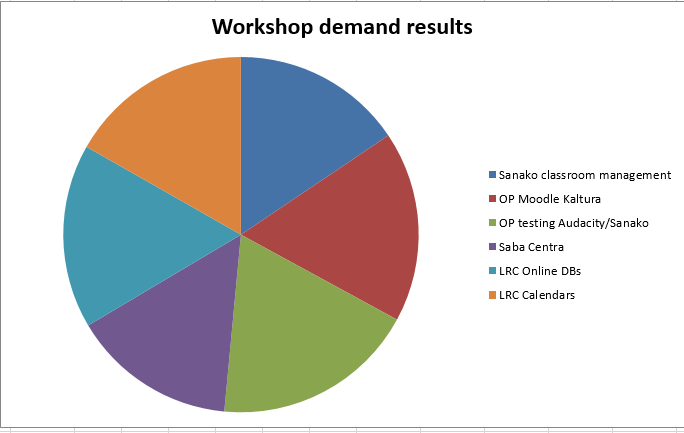
7 responded, 1 commented. OP=Oral Proficiency.
Categories: audience-is-teachers, Charts, e-infrastructure, e-languages, e-learning, Media, Polls, Visualizations, workshops
audacity, calendaring, kaltura, moodle, saba-centra


Questions? Read the About. Or just ask me a quick
Thank you for your response. ✨

FAQs for LRC student staff or for students or for teachers. To search our FAQs, in the browser addressbar, add after "https://plagwitz.wordpress.com/feed/?tag=faqs+/" "+TAG1" (from tag cloud below) OR "https://plagwitz.wordpress.com/feed/tag=faqs
&category_name=" "CAT1" (from category hierarchy below). OR search both categories and tags, and multiple TAGs/CATs (connect with "," for OR-search, with "+" for AND-search), like so: https://plagwitz.wordpress.com/feed/?tag=TAG1+TAG2+...TAGn&category_name=CAT1
+CAT2+...CATn"
Other ways to find help
If you cannot find it here, look there: 5,500 Language-Learning Links and Programs for learning or teaching 150 languages
Shortcuts:Our Lists, Our Maps, LRC Staff Moodle Site,LRC Project Moodle Site, 49erexpress, UNCC Moodle, Student Recordings: s:claslcslrcsanakostudent
Learning usage samples: Sanako oral exam, Kaltura webcam presentation, Dictation with speech recognition, Sanako written exam, Chinese and Japanese interactive stroke-order practice
Test the Sanako Installer, Webbrowser Popup Konfigurator for XP, or Windows7, faster LRC TeacherPC Log-in Let MS facilitate diacritics writing by installing for you US-International keyboard layout
This is my personal blog (Google+). The views expressed on these pages are mine alone and not those of my employer. The information in this weblog is provided “AS IS” with no warranties, and confers no rights.
 Thomas' Work Space