Archive
Archive for the ‘office-software’ Category
“I can haz all my online appointment and schedule information in one merged calendar in NINERMAIL?”
2013/09/06
Leave a comment
- Yes, you can! Overlay calendars, a much needed feature from Outlook Desktop (as we mentioned earlier) has finally made it into the web version of Outlook (in Office365 the migration of which from live@edu will be finished by the end off the month), as was announced today: “Users can have multiple calendars in a merged view.”
- Example: In Outlook Desktop (not available to students), you can not only add a calendar like, icsexport.ics to the right, but, if you click on the (1) little black arrow, add/merge icsexport.ics to the (2) already overlaid calendars on the left, which is much more usable if you need to aggregate content from different sources:

- And now also in OFFICE365 NINERMAIL:

- This should make the sharing of calendar information much easier, not only for the about 100 LRC resource calendars, but also for other useful calendars that are published on campus:
- the new LCS calendar
- the registrar’s academic calendar
- the campus-wide faculty calendar
- last not least: your Moodle calendar (view all your moodle assignment deadlines in one place, the same place you check your email)
- And more… ? Do you know of other calendars, and/or a way to discover them?
- The details
- yet need to be panned out. We assume the feature will “just work” like above in Outlook Desktop when you
- We’ll provide more information and examples once we see this feature… TBA

Categories: audience-is-language-learning-center-staff, audience-is-language-learning-center-temp-staff, audience-is-students, audience-is-teachers, e-infrastructure, Institution-is-University-of-North-Carolina-Charlotte, office-software
calendaring, live@edu, ms-exchange, office365, outlook, outlook-live, resources, scheduling, sharing, subscribing
How to share your calendar from Outlook (desktop)
2013/08/15
Leave a comment
- Click “Share Calendar”:

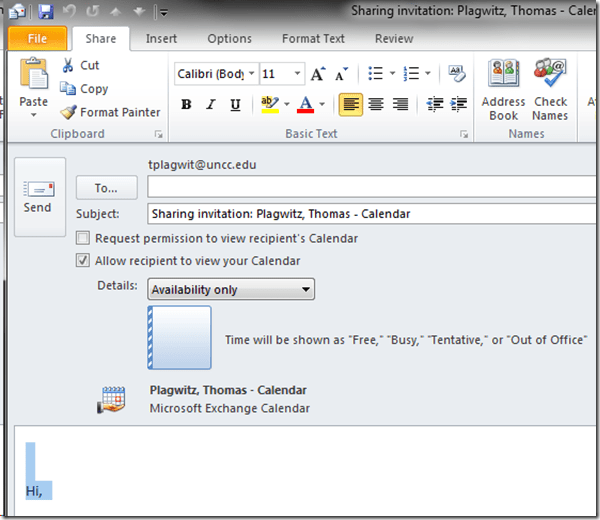
- Choose your settings, then click “Send”:
- Or you could just rely on the campus default and have colleagues use the “scheduling assistant” in the “meeting request”,
- After adding participants

- their calendars can be seen – in timeline format, good for comparing availability of multiple meeting participants –after you click on ribbon item: “scheduling assistant”.

- In current OWA., “meeting request” and “scheduling assistant” look a bit different from/reduced (including permissions) compared to Outlook, as you can see here e.g..


Categories: audience-is-teachers, e-infrastructure, office-software
calendaring, ms-exchange, outlook, scheduling, sharing
How to fix Sync Error code: 0xE0000793 in Microsoft OneNote 2010
2013/07/03
Leave a comment
That did it:
1.Close all notebooks (will delete the corrupted cache)
2.Open them with the Office Web App using your browser
3.Open them from within the browser using "Open in OneNote" (the cache is rebuild)
Categories: e-infrastructure, Glitches&Errors, office-software
2010, ms-onenote
How to easily view resource mailboxes calendar free/busy using Outlook calendar groups
2013/05/29
Leave a comment
- Display all items in a category with a single click on the checkbox I front of the calendar group
-
Display any portion of the time line in " scheduling view" by
-
Selecting the days in the square calendar sheet in the upper left
-
Navigate the time line with the bottom horizontal scrollbar
-
Note the additional helpful "from [start date]" indicator in a mailboxes booking that is not displayed completely
-


How to quickly add resource mailbox calendars as an Outlook calendar group
2013/05/29
Leave a comment
- Right-click the left calendar tree.
-
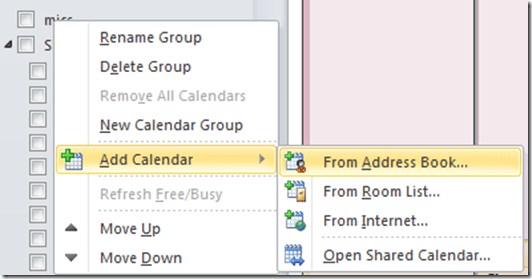
Choose context menu item: add calendar group / from address list:
-
-
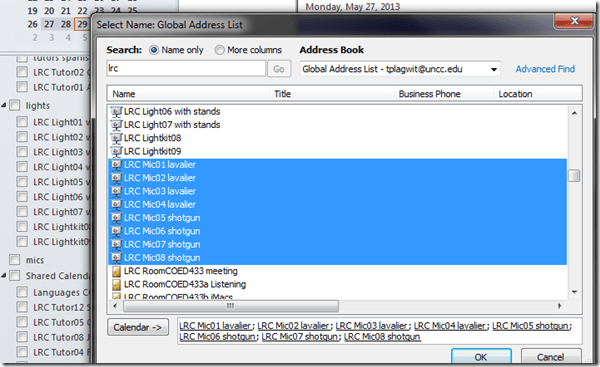
Type " LRC" to search – or the consistent naming scheme you implemented (I hope!).
-
Select all relevant calendars to add.
-
Click on button: "calendar".
-
Click on button: "ok":
-
-
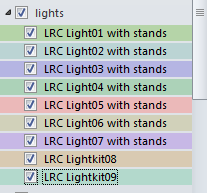
Done:
-


How to organize your email by creating an Inbox rule in OWA
2013/05/28
Leave a comment
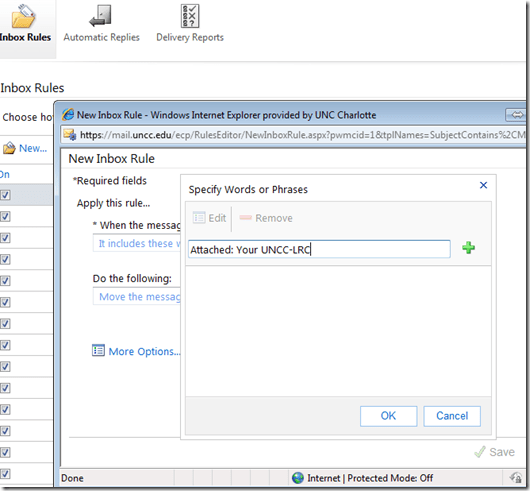
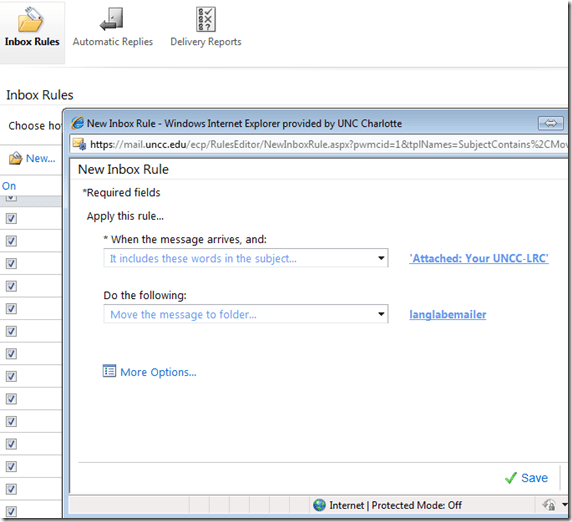
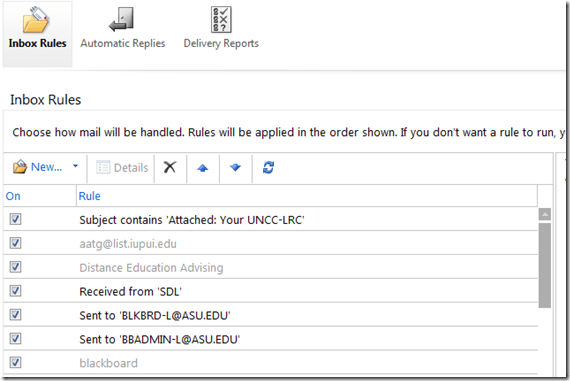
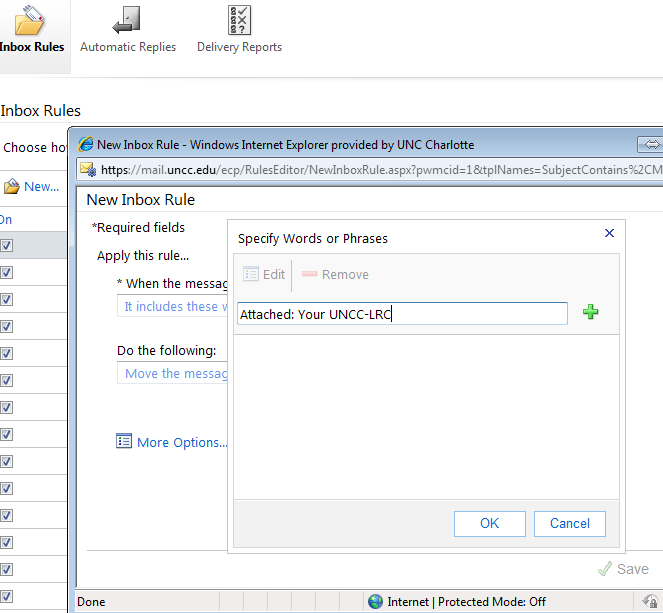
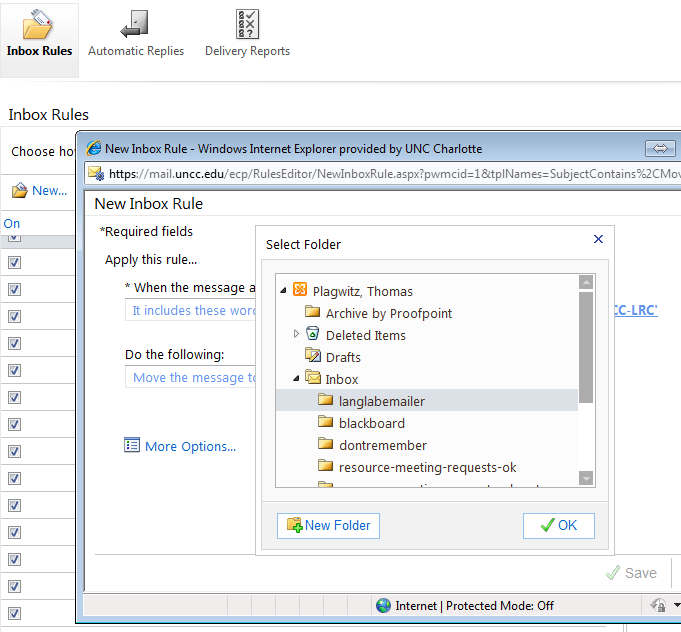
- This step-by-step GUIDE was written for filtering emails from our langlabemailer program (they happen to have “Your UNCC-LRC” in the subject) into a separate folder so that users of the LRC keep the overview:
- students (longitudinally, for their language learner ePortfolios) ,
- but especially teachers (of classes with up to 36 students, throughout the term).
- But you can easily adapt the guide to any other email purpose.
- Including other LRC workflows based on emails: LRC resource booking also relies on OWA emails. All email sent from LRC resource mailboxes have “LRC” at the beginning of the user name and email address.
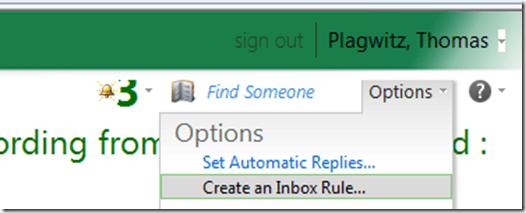
- In short: Options / Create an Inbox Rule / Click “ new” / choose a type / choose keywords / choose folder to sort the email into when it arrives. Or graphically:
-
-

-
-
-
-

-
-

-
-

-
-
-
“
-








Questions? Read the About. Or just ask me a quick Our Databases: Resources with calendars -- Language learning material Moodle Sites, multimedia files -- films


FAQs for LRC student staff or for students or for teachers. To search our FAQs, in the browser addressbar, add after "https://plagwitz.wordpress.com/feed/?tag=faqs+/" "+TAG1" (from tag cloud below) OR "https://plagwitz.wordpress.com/feed/tag=faqs
&category_name=" "CAT1" (from category hierarchy below). OR search both categories and tags, and multiple TAGs/CATs (connect with "," for OR-search, with "+" for AND-search), like so: https://plagwitz.wordpress.com/feed/?tag=TAG1+TAG2+...TAGn&category_name=CAT1
+CAT2+...CATn"
Other ways to find help
If you cannot find it here, look there: 5,500 Language-Learning Links and Programs for learning or teaching 150 languages
Shortcuts:Our Lists, Our Maps, LRC Staff Moodle Site,LRC Project Moodle Site, 49erexpress, UNCC Moodle, Student Recordings: s:claslcslrcsanakostudent
Learning usage samples: Sanako oral exam, Kaltura webcam presentation, Dictation with speech recognition, Sanako written exam, Chinese and Japanese interactive stroke-order practice
Test the Sanako Installer, Webbrowser Popup Konfigurator for XP, or Windows7, faster LRC TeacherPC Log-in Let MS facilitate diacritics writing by installing for you US-International keyboard layout
This is my personal blog (Google+). The views expressed on these pages are mine alone and not those of my employer. The information in this weblog is provided “AS IS” with no warranties, and confers no rights.
 Thomas' Work Space