Archive
Archive for the ‘Learning-Tool-is-any’ Category
How to enforce deadlines on your language syllabus using Moodle
2012/01/23
1 comment
- Experience seems to make teachers much prefer if students “try and fight with the computer over deadlines”, or rather spend their time studying instead of arguing about excuses why not study (“Dog ate my homework"- syndrome).
- When you create a Moodle assignment, in each assignment type you will find a fields that allow you to create a time window
- before
- and after which the assignment is not available to students.
- For easier remembering, assignments with deadlines
- automatically appear in the Moodle Calendar
- and can be made to automatically show in the NINERMAIL calendar
- Hint: provide some extra credit to ease the pain of learning how to meet deadlines which are a requirement for progression in learning a language, especially when not doing independent study, but interacting within a cohort.
- Suggested: “Best 3 out of 5” for first-time users, “4 out of 5” for tech-savvy.
Categories: audience-is-teachers, e-languages, lms
calendaring, moodle, syllabus
LRC Outlook/Exchange 2010 Resource Calendaring: How to alter meeting times in OWA
2012/01/23
Leave a comment
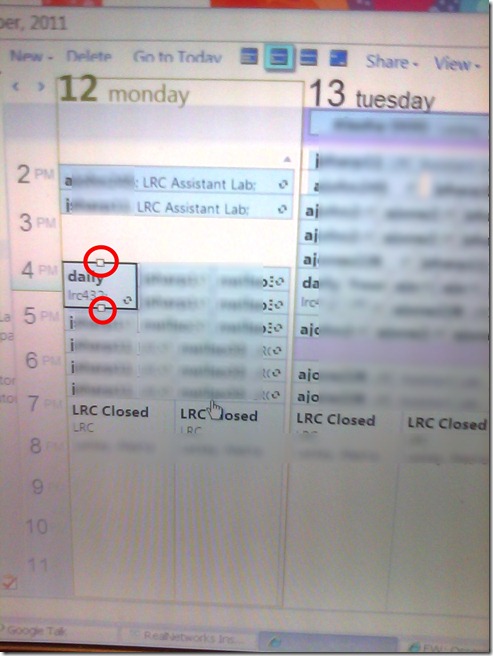
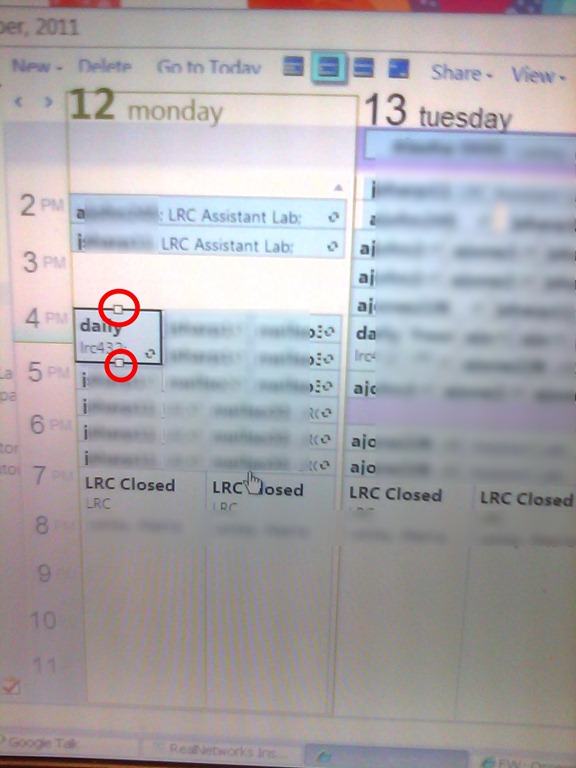
- If you are the meeting organizer (you initiated the meeting request), in your NINERMAIL/OWA calendar, just click on the meeting and drag the meeting start and/or end time with your left mouse button in the desired new location (works like in Outlook), and send updates (this will not affect for the series of a recurring meeting, only the current occurence):
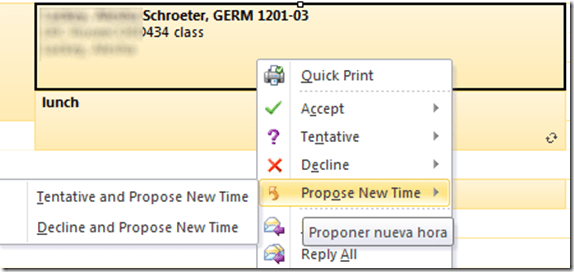
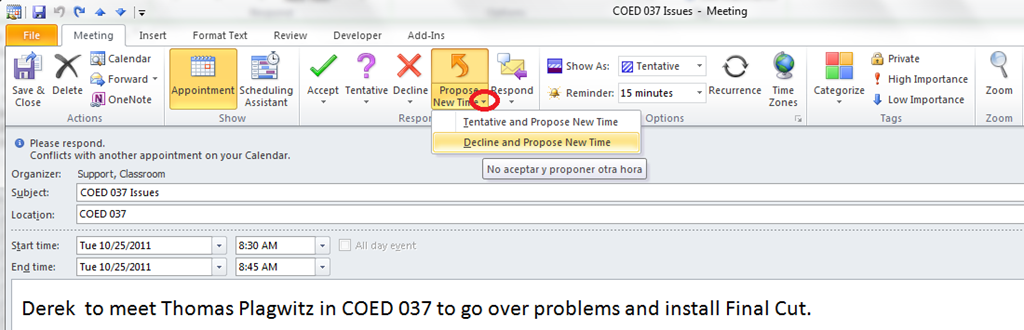
- If you are not the meeting organizer, the meeting organizer, when requesting a meeting with you, may have allowed you to “Request a new time”: use the corresponding button (screenshots are for Outlook):
- in the meeting request:
 .
.
- in the meeting request:
- or in the calendar item context menu

Categories: audience-is-language-learning-center-staff, audience-is-language-learning-center-temp-staff, audience-is-students, audience-is-teachers, e-infrastructure, office-software, service-is-documenting
2007, 2010, 2011, calendaring, changing, meeting-requests, ms-exchange, ms-outlook, resources, scheduling
How to do writing assignments in Moodle with deadlines, file and response file upload and MS-Word tracked changes
2012/01/20
Leave a comment
- Benefits
- Keep the cohort in shape and focus it on studying by enforcing deadlines.
- You can have students automatically receive reminders of the upcoming deadlines from their calendar (in NINERMAIL, no need to even look at the Moodle Calendar)
- You can save time managing the assignment.
- Moodle does it for you; you will save even more time once you begin recycling your assignment across terms) and rather provide more timely feedback, and improve changes that your feedback arrives during a teachable moment.
- Automatic email notifications, which are available in Moodle for teachers (if you do not prefer to grade student submissions in a batch) and students to (automatic correction and grading is not ready for prime-time when it comes to essay writing; you may however consider teaching some more basic writing skills using it with close-exercises in Moodle).
- Costs
- You need to TBA:create a Moodle file upload assignment for writing (once)
- You need to grade a Moodle file upload assignment for writing (any time you assign; depending on your preference as submissions arrive or conveniently as a batch from the gradebook past the deadline)
- I prefer the MS-Word reviewing features for grading writing assignments,
- but other tools have other affordances, e.g. like recently described here for Adobe Acrobat Professional.
- Moodle does not automatically add unique usernames to student submitted files like Blackboard. It also does not afford the TBA:convenience of a shared network storage that the WebDAV-based Blackboard Content system provides. However, as long as you do not need to maintain a local archive of student submissions, you can rely on the Moodle gradebook managing the archive of assignment files (student submissions and teacher response files).
- How? These 4 posts guide you through the entire workflow from teacher to student back to teacher to student:
Categories: assignments, audience-is-teachers, e-languages, lms, office-software, Writing
1.9, gradebook, moodle, MS-Word, reviewing, simple-file-upload
How a teacher grades a Moodle MS-Word file upload assignment for writing
2012/01/18
1 comment
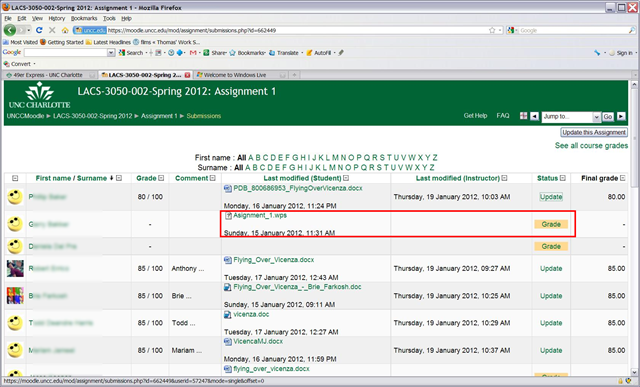
- Where students have submitted MS-Word files in the Gradebook, click (1) button “Grade”:
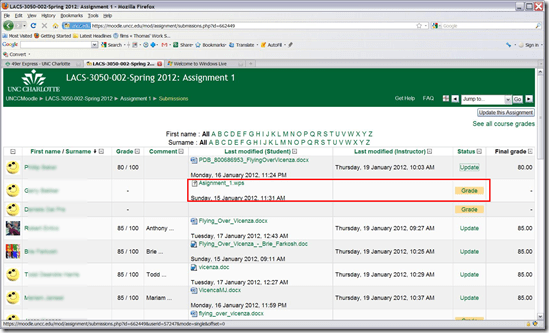
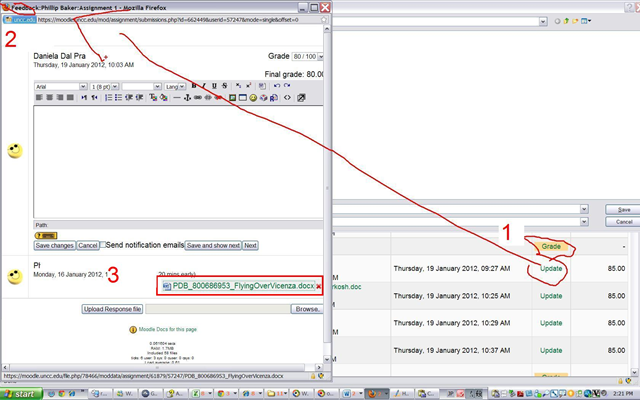
- This opens the (2) Feedback window, with the (3) student MS-Word submission:

- Download the student MS-Word submission by clicking on the link:

- open with MS-Word:

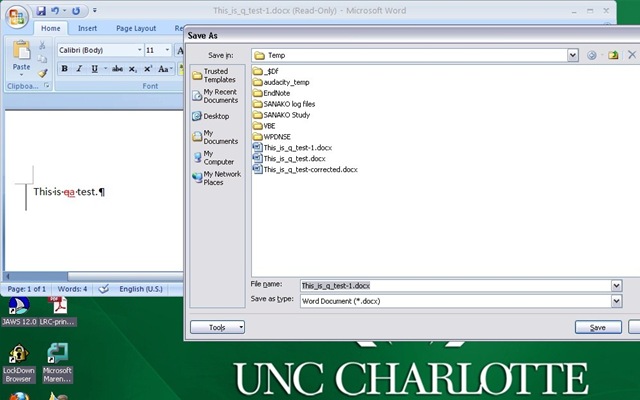
- Correct with track changes turned on (CTRL+SHIFT+E), and save:
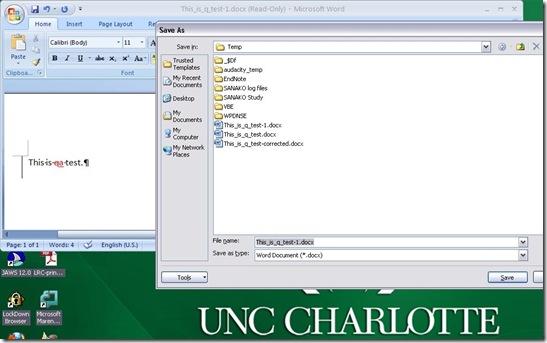
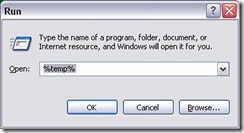
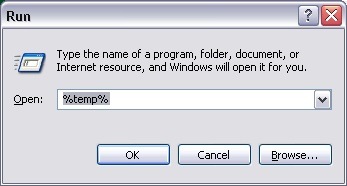
- YOU WILL SAVE under a different filename (suggest adding “_corrected”at the end) INTO YOUR DEFAULT TEMP DIRECTORY, here is a shortcut to get to it: key-combination WIN+R, %temp%, “ “OK”:
- Back in Moodle, select your response file from the temporary directory:
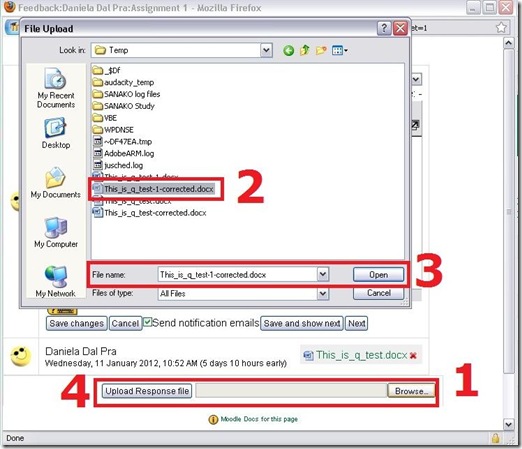
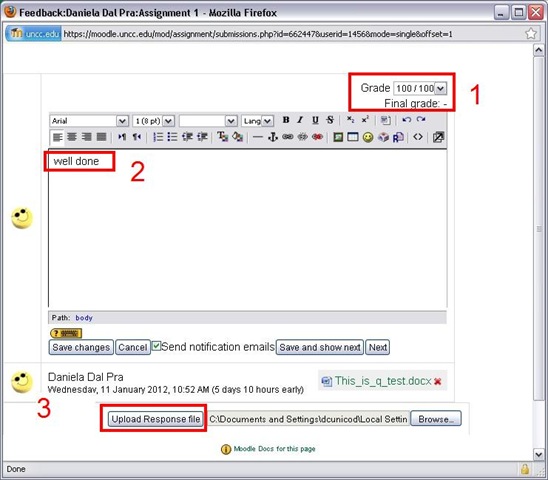
- Provide (1) Grade and (2) comment, then (3) upload the file:

- Done, you can move to “ Next”

- Which is where you are here: now repeat as above (provided student has submitted his file already)

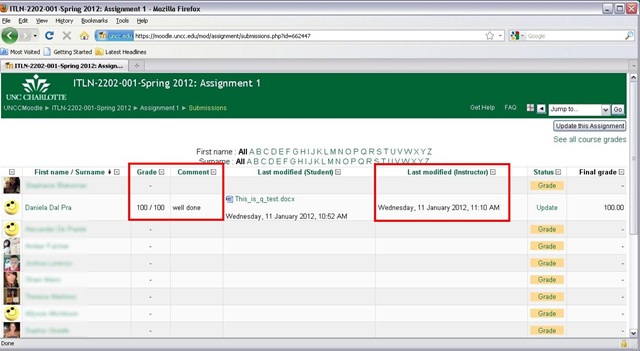
- Or view the gradebook, where your results are visible,

- including to the student.
- Instead of using the Moodle Response File feature, can I just make my corrections in MS-Word and copy/paste the resulting track changes markup into the Moodle Feedback Window Comment textbox? I would not try this. This way, you are not giving the students the full functionality of the track changes feature in MS-Word for them to continue working with the file. Moreover, whether the basic coloring of track MS-Word’s changes get preserved, will likely depend on how the web browser that you (and possibly the student later) uses supports the rich edit control of the comment textbox. If you just want to preserve the colors, I would instead try and Save as PDf from MS-Word 2007 and up, and send the PDF as a Response File.





Categories: all-languages, audience-is-teachers, lms, Writing
moodle, MS-Word, track-changes
How to view all assignments per student in a Moodle course
2012/01/18
Leave a comment
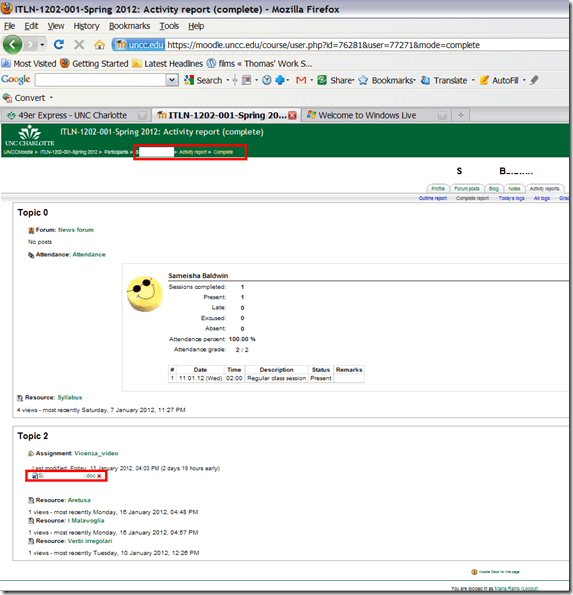
- follow the screencast from the gradebook, clicking on a student name in the row headers, “ activity reports”, “complete report” (plays in Windows media player on Windows).
- to get this (note the breadcrumbs on top pointing to “ Reports” / “ Complete” )):

Categories: audience-is-teachers, lms
1.9, gradebook, moodle
Students get an error when trying to open links from MS-Word file
2012/01/18
Leave a comment
- Error reads: “”this operation has been cancelled due to restrictions in effect on this computer”.
- Immediate workaround:
- right-click on the link, choose copy, open a web browser window
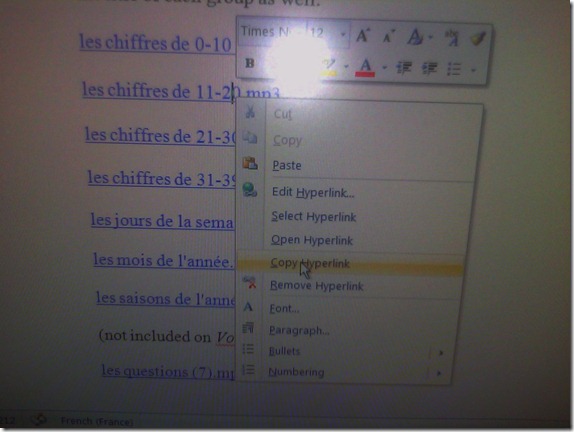 and paste the link into the address bar, browse to it from there.
 - File / Save as / Web page. From where you saved the web page, double click to open it in the your web browser, click the links form within there.

- Have you tried saving your MS-Word files to the new SkyDrive.live.com (login with your NINERNET password) yet? Students can choose to open MS-Word documents in either MS-Word or their web browser which should also bypass the problem.
- right-click on the link, choose copy, open a web browser window
- Solution: Investigating. Seems related to no “default browser set” in XP Control Panel / Internet options. If you cannot live with the workaround, do ask your System Administrator. Or stay tuned

Sanako comparative recording exercises using Moodle
2012/01/13
Leave a comment
- Comparative recordings are one of the best-established practices in SLA with technology. We can implement them here using:
- The Sanako Study 1200 language lab software installed in LRCRoomCoed434 facilitates comparative recordings by students, based on a teacher-provided model audio, with its student dual track recorder software.
- Moodle’s Simple file upload assignment aids in managing the workflow,
- from delivering the audio file with the model recording to the student
- to organizing, assessing and grading the student input.
- For the teacher
- to create such an exercise, she
- creates an audio recording that serves as a model for the student pronunciation – a special application of our Audacity recording introduction. It is advised, however, to insert clear cues for the student to start his repetition.
- creates a Moodle’s Simple file upload assignment to which she attaches the audio recording
- continue with How a teacher grades a Moodle simple file upload assignment
- to create such an exercise, she
-
For the students to take such an exercise:
- How a student takes a Moodle Simple file upload assignment
- TBA: Sanako Student Recorder
Categories: Absolute-Beginner, Arabic, audience-is-teachers, Beginner, documentation, e-languages, English, Farsi, French, German, Greek (modern), Intermediate, Italian, Japanese, Korean, Mandarin, Polish, Portuguese, Russian, software, Spanish, Speaking, Student-Computers, Yoruba
moodle, sanako-study-1200, student.exe
How a student takes a Moodle Single file upload assignment
2012/01/13
2 comments
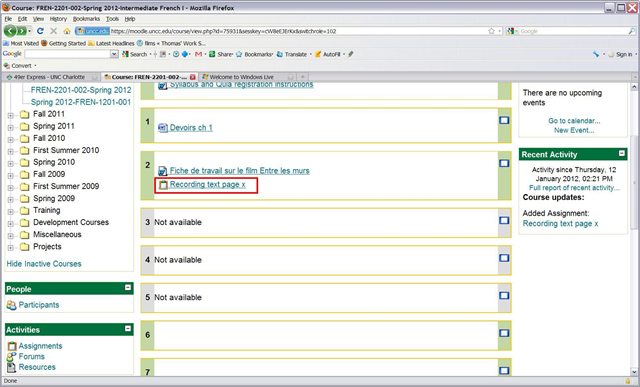
- Find your assignment:

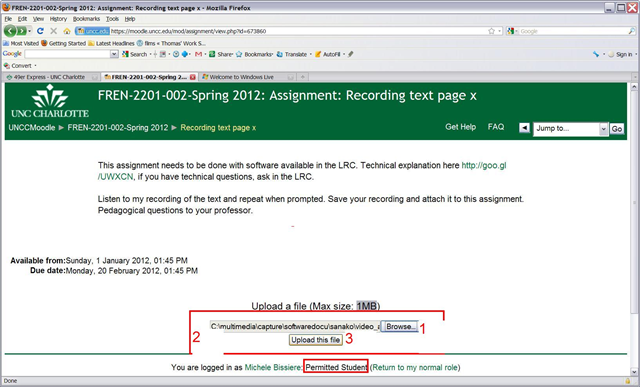
- read the assignment text:

- Create the file locally, according to the assignment text
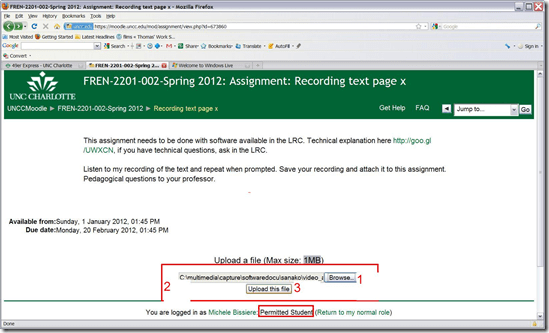
- Click the browse box and upload your file from your hard drive:
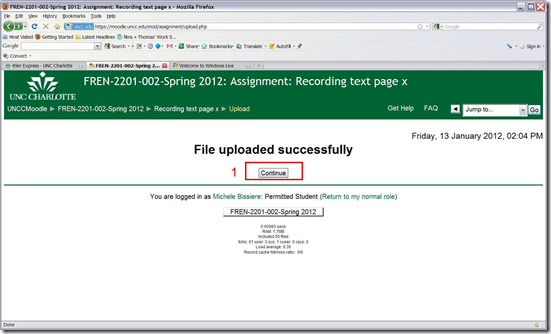
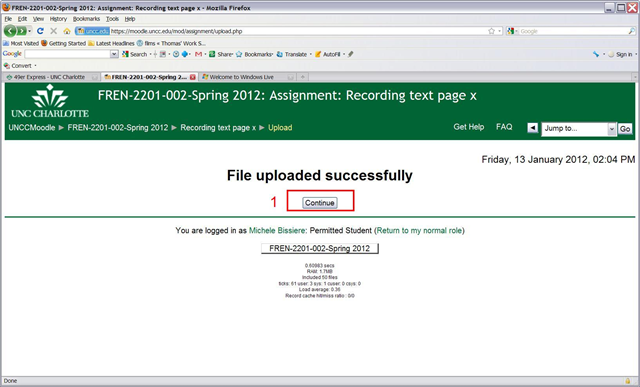
- Once the upload finishes, click: “ Continue”
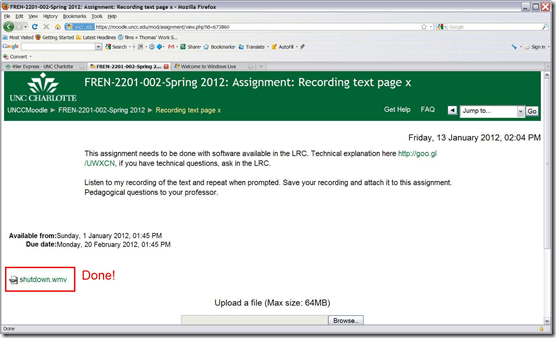
- You are done:
- Now wait for your grade.


Categories: assignments, audience-is-students, e-learning, lms
moodle, single-file-upload


Questions? Read the About. Or just ask me a quick Our Databases: Resources with calendars -- Language learning material Moodle Sites, multimedia files -- films


FAQs for LRC student staff or for students or for teachers. To search our FAQs, in the browser addressbar, add after "https://plagwitz.wordpress.com/feed/?tag=faqs+/" "+TAG1" (from tag cloud below) OR "https://plagwitz.wordpress.com/feed/tag=faqs
&category_name=" "CAT1" (from category hierarchy below). OR search both categories and tags, and multiple TAGs/CATs (connect with "," for OR-search, with "+" for AND-search), like so: https://plagwitz.wordpress.com/feed/?tag=TAG1+TAG2+...TAGn&category_name=CAT1
+CAT2+...CATn"
Other ways to find help
If you cannot find it here, look there: 5,500 Language-Learning Links and Programs for learning or teaching 150 languages
Shortcuts:Our Lists, Our Maps, LRC Staff Moodle Site,LRC Project Moodle Site, 49erexpress, UNCC Moodle, Student Recordings: s:claslcslrcsanakostudent
Learning usage samples: Sanako oral exam, Kaltura webcam presentation, Dictation with speech recognition, Sanako written exam, Chinese and Japanese interactive stroke-order practice
Test the Sanako Installer, Webbrowser Popup Konfigurator for XP, or Windows7, faster LRC TeacherPC Log-in Let MS facilitate diacritics writing by installing for you US-International keyboard layout
This is my personal blog (Google+). The views expressed on these pages are mine alone and not those of my employer. The information in this weblog is provided “AS IS” with no warranties, and confers no rights.

