Archive
Archive for the ‘hardware’ Category
How to conduct a Sanako Study 1200 functionality test before oral exams
2012/10/30
Leave a comment
- Why? Before high-stakes oral assessments, it is best practice to test the functionality of all computers in the digital audio lab.
- How?
- Log into 2 computers with your own account (these will serve as a backup computers. Should you need backup computers later, there will be no delay waiting for them to start up and become operational).
- Change Sanako classroom layout names to computer or position name (whatever makes it easier for you to identify any non-functioning machines).
- If you are doing this for a first time with a class, load your test exam audio into Audacity and display the voice graph to students on a projector. This way you make sure that students understand from the voice graph that they are supposed to
- hear an instruction over the headphones and
- respond to the instruction by saying their names into their microphones.
- Perform a name-test recording using Sanako activity:”Model imitation”and examine the results:
- Make sure the Sanako collection folder opens – meaning all student recordings could be collected. If not, identify the offending positions from the Sanako collection dialogue and open the folder with the remaining collected recordings manually from the Sanako collection dialogue
- Drag the recorded files into an empty Audacity window and examine the collected recordings visually, plus, where in doubt, aurally, by clicking “solo” and play on the track in question.
- React accordingly:
- If some positions show problems, move students to one of the backup machines that you logged into earlier.
- move backup machines not needed to a different session by right-clicking on their classroom layout icon.
- if more than one backup machine is indeed needed, Sanako – since it is you who are logged in on both – will ask you later for permission to number collected files for duplicate students sequentially. Allow that and rename the files manually.
- Don’t forget to change Sanako classroom layout names back to student login name.
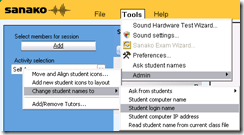 . Or else here is how you can later recover student recordings by student login names.
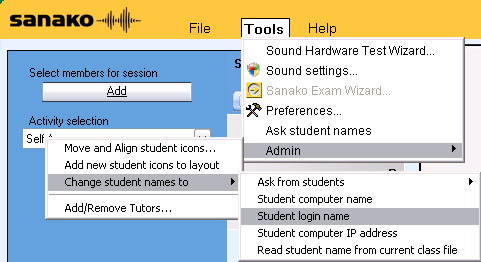
How to fix “no audio” on the computers with black Sanako headsets
2012/10/10
Leave a comment
- First, show the Sanako student application (e.g. from button:Start / Student).
- Is the Volume Control slider set to 0? Move it up where it says “Adjust volume”:

- Still hear no audio playing on the black Sanako headsets? Then the volume slider was likely moved to 0 since the headset was not detected: On the rear of the computer, check the connection
- of the blue headset plug into the USB extension cord, and
- of the extension cord into the rear of the computer.

SOLVED: How to record, in Adobe-Flash, video from my built-in iSight web camera on an 2010 iMac, combined with sound from an external cs100 PnP USB audio device
2012/07/13
Leave a comment
- Problem : Our new campus-wide Moodle Kaltura installation enables authentic oral proficiency examinations (we have no other Moodle Plugin for audio recordings). However, we still have no webcams on our mainstay PCs. We do have a few iMacs with built-in iSight webcams, but for providing students more privacy during their assignments in the language resource center, we need headphones. We have for spare some old headphones which we would like to use up, but they are analogue. These iMacs do not have an analog headset connector, only a line-in which would require a preamp. We have good sturdy USB headsets from Sanako, but these are too expensive to purchase for the iMacs that have no ways to secure them and little other specialized language learning use which we do not already get from the PCs (and more…).
- Workaround :
- Try an inexpensive USB audio device that has 3.5mm analog headset inputs.
- On my iMac 2010
- If in system preferences / sound/ I direct input and output to the USB PnP device
- test passes playing system sounds
- in audacity (if you CRANK the microphone sensitivity to the max!)
- recording test passes: The headset loudspeakers and micro work (not well, but they work, as a tab on the microphone indicate: there is static, and the recording volume is still softish, but better than the built in webcam microphone)
- in Kaltura,
- Flash only brings up the security dialogue (in Safari 5 and current Firefox ESR and Chrome) for allowing the web application accessing to the built-in iSight web camera, but no options to choose a separate audio device
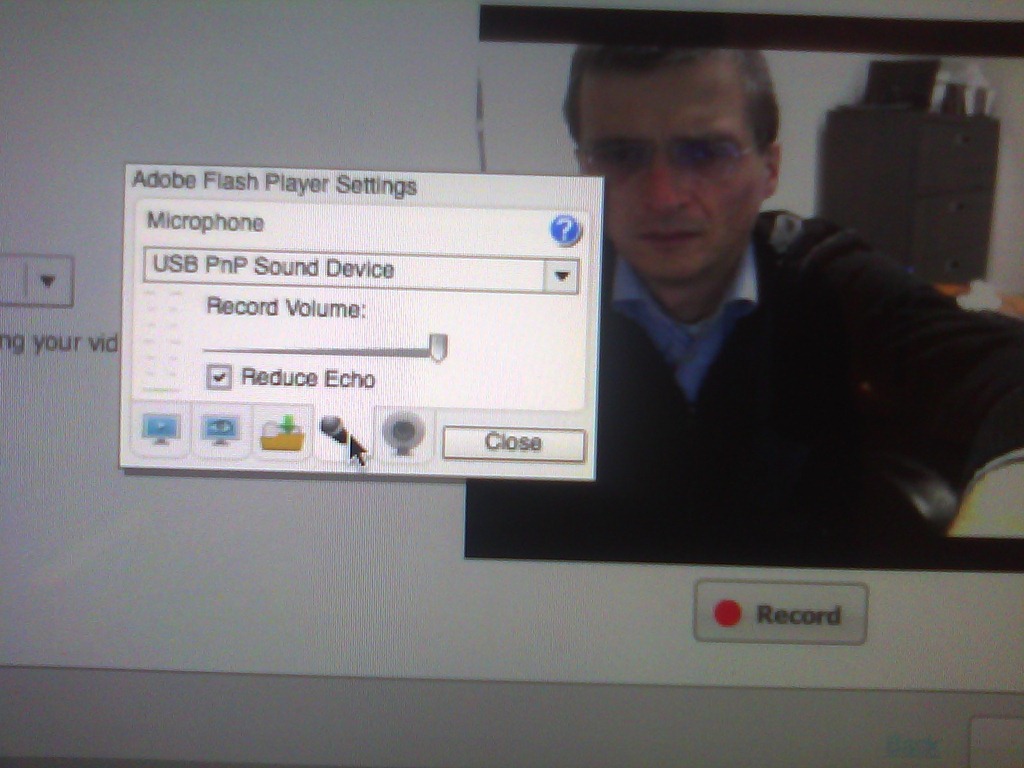
- However, if you control-click on Flash’s a video preview window for the web camera, and click on “settings” (not “global settings”, although that is useful for always allowing access from certain URLs like your LMS) .
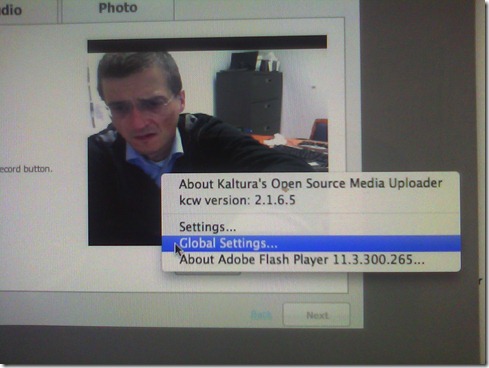
- Click on the microphone icon :

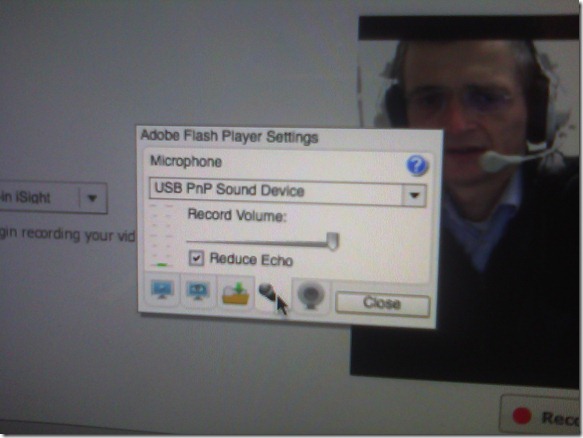
- Make sure the USB PnP device is selected.

- You can bring up the settings dialogue, make sure the USB PnP device is chosen for audio and CRANK up the microphone input sensitivity! Then test the volume levels with the built-in volume meter (should show lots of green bars when you speak. You may have to adjust the Califone headset microphone arm so that the microphone is very close in front of your mouth. ) Unlike in the picture, do not choose “reduce echo ”.
- Remaining
- Questions :
- Can this sensitivity setting be permanently stored for all users in the iMac software image, or do our students always have to adjust the microphone sensitivity?
- It remains to be seen whether this inexpensive and unsecurable device survives long when being used by our student population.
- Problem : The review video function of the Moodle Kaltura Flash video remains very temperamental on the Mac OS X (In my testing, one of the numerous problems we had with Moodle Kaltura on the iMacs popped up again: when starting to review the recording, the time counter goes, but the video stalls for a few seconds – afterwards everything seems to play fine, but this is enough to confuse the heck out of my users) . While we made another small step of progress towards enabling Moodle Kaltura webcam recordings in the language resource center, it seems easier to just get web cameras for the PCs.
- Questions :



Mac Mini (Mid 2010) Overview
2012/06/21
Leave a comment
Just trying to make the basic troubleshooting information more accessible from the field:

 Taken from: http://manuals.info.apple.com/en_US/Mac_mini_Mid2010_User_Guide.pdf
Bad experience with Hard drive WD20-ears00mvwb0
2012/06/18
Leave a comment
This one contained most of the digital photos I made since 1999, and only a few are backed up on MS-Skydrive, or anywhere else. Bad timing…

Categories: hardware, mental-notes
hard-drives, western-digital
Check out this web page…
2012/05/26
Leave a comment
Ds sitze ich um Mitternacht in einem gottverlassenen campsite im 3400ft hohen nirgendwo neben dem blue ridge parkway und lese matte glossen über germanisten auf meinem hp touchpad über verizon, and cannot help but thinking that these are two great engineering companies. Here’s a website I think you’ll like: Martenstein: “Der sibirische Tiger ist weniger bedroht als das Komma” | Gesellschaft | ZEIT ONLINE
Categories: Personal, tablets
hp-touchpad
How to use Sony PMB software and a Rosewill memory card reader to read your Sony MS-PRO (and bring Windows-XP to its knees)
2012/04/11
Leave a comment
- The Rosewill rcr-ic001 card reader seems temperamental – you need to try several times to insert the card for the reader light to reliably flash.
- It seems you need the Sony-provided software installed to have Windows recognize the drive:
 .
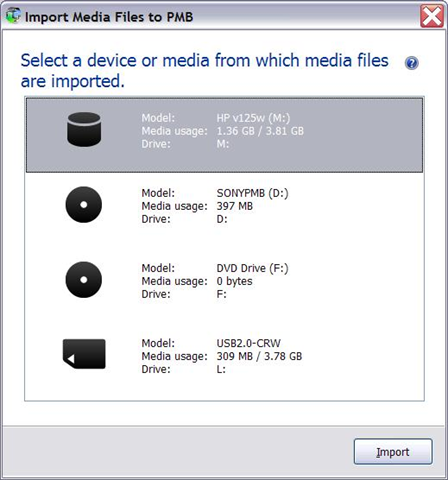
. - And offer an import:

- However, the import of videos fails for me (only images get imported)
 .
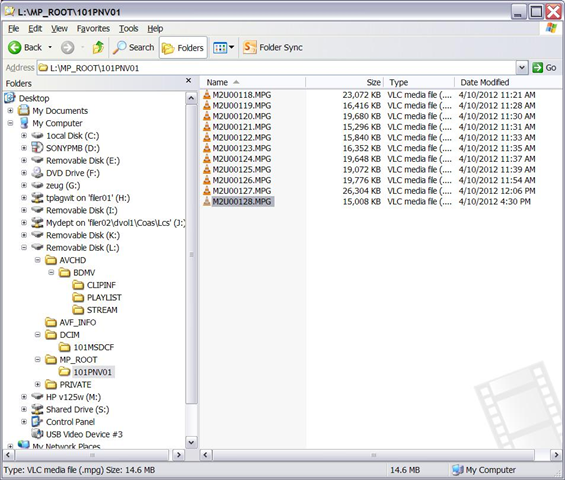
. - But at least I can access the videos through Windows, from here (for non-HD):
-
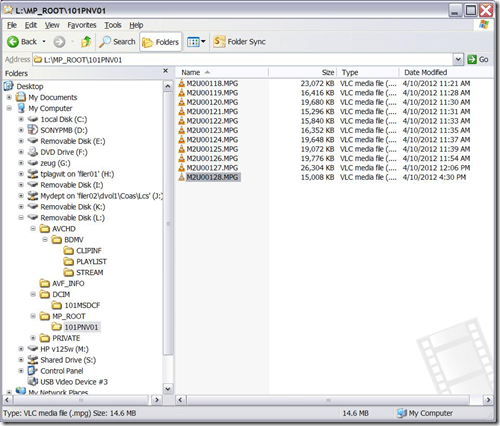
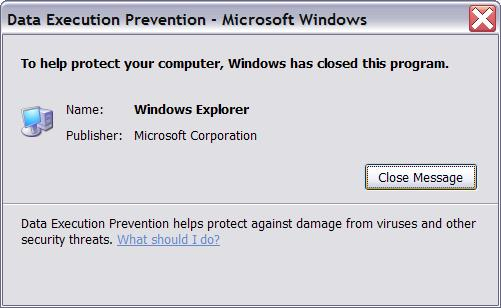
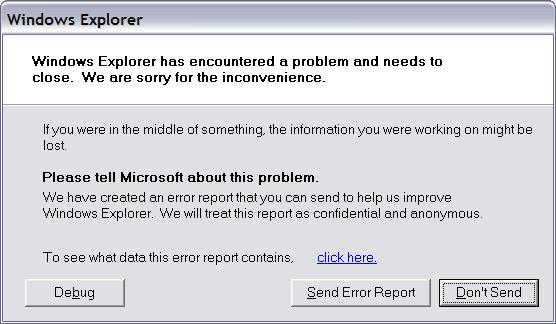
- Until things go bad (computer slows to a crawl, then explorer crashes):

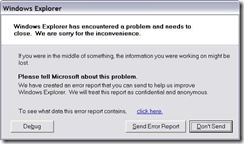


Categories: e-infrastructure, Glitches&Errors, hardware
cameras
Replace clickers with students’ phones using PollEverywhere.com
2012/02/29
Leave a comment
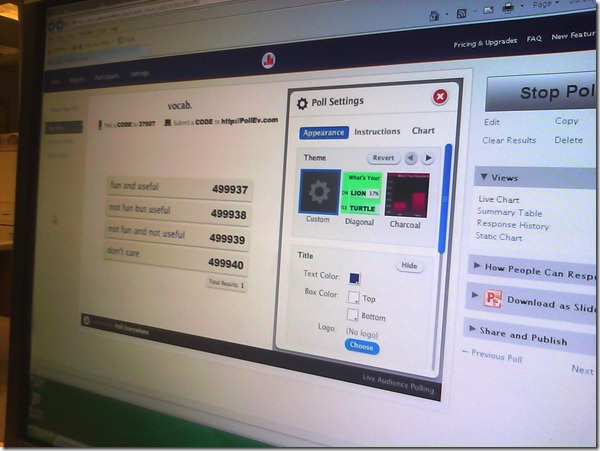
- PollEverywhere.com allows teachers to set up polls with answer options that students choose by sending a number code as text message.
- Pro’s
- Freemium.
- Low- to No- university infrastructure requirements. Best-used in a non-computerized classroom or during startup time of students’ computers.
- Content can be managed online.
- Con’s
- Freemium:
- “You get what you pay for”. “You may be the business”. What happens with your data
- Not free for students unless you consider a phone plan that comes with unlimited texts free. With increasing use of other messaging options over SMS, that may be not a given even if you deal mostly with an affluent student population.
- Low- to No- university infrastructure requirements:
- you are relying on students providing the infrastructure. Are they better keeping their phones in service (on them, charged, turned on) than we are keeping our computer labs up and running?
- you are relying on mobile network operators, including the choices of operator that your students made.
- Anonymous: Not useful for assessment purposes.
- The number codes are long (6 digits, while 1 could be sufficient).
- Freemium:
- Competitors
- The university has a clicker infrastructure which is partially outsourced to students (purchase and bring).
- The LRC has a Classroom Management system infrastructure which supports clicker-like activities.
- Sanako Study 1200 comes with Live Feedback and Voting.
- NetOp School comes with an examination/polling feature also.



Questions? Read the About. Or just ask me a quick Our Databases: Resources with calendars -- Language learning material Moodle Sites, multimedia files -- films


FAQs for LRC student staff or for students or for teachers. To search our FAQs, in the browser addressbar, add after "https://plagwitz.wordpress.com/feed/?tag=faqs+/" "+TAG1" (from tag cloud below) OR "https://plagwitz.wordpress.com/feed/tag=faqs
&category_name=" "CAT1" (from category hierarchy below). OR search both categories and tags, and multiple TAGs/CATs (connect with "," for OR-search, with "+" for AND-search), like so: https://plagwitz.wordpress.com/feed/?tag=TAG1+TAG2+...TAGn&category_name=CAT1
+CAT2+...CATn"
Other ways to find help
If you cannot find it here, look there: 5,500 Language-Learning Links and Programs for learning or teaching 150 languages
Shortcuts:Our Lists, Our Maps, LRC Staff Moodle Site,LRC Project Moodle Site, 49erexpress, UNCC Moodle, Student Recordings: s:claslcslrcsanakostudent
Learning usage samples: Sanako oral exam, Kaltura webcam presentation, Dictation with speech recognition, Sanako written exam, Chinese and Japanese interactive stroke-order practice
Test the Sanako Installer, Webbrowser Popup Konfigurator for XP, or Windows7, faster LRC TeacherPC Log-in Let MS facilitate diacritics writing by installing for you US-International keyboard layout
This is my personal blog (Google+). The views expressed on these pages are mine alone and not those of my employer. The information in this weblog is provided “AS IS” with no warranties, and confers no rights.
 Thomas' Work Space