Archive
Protected: Client computer tag
How to fix a crash of the teacher station control panel
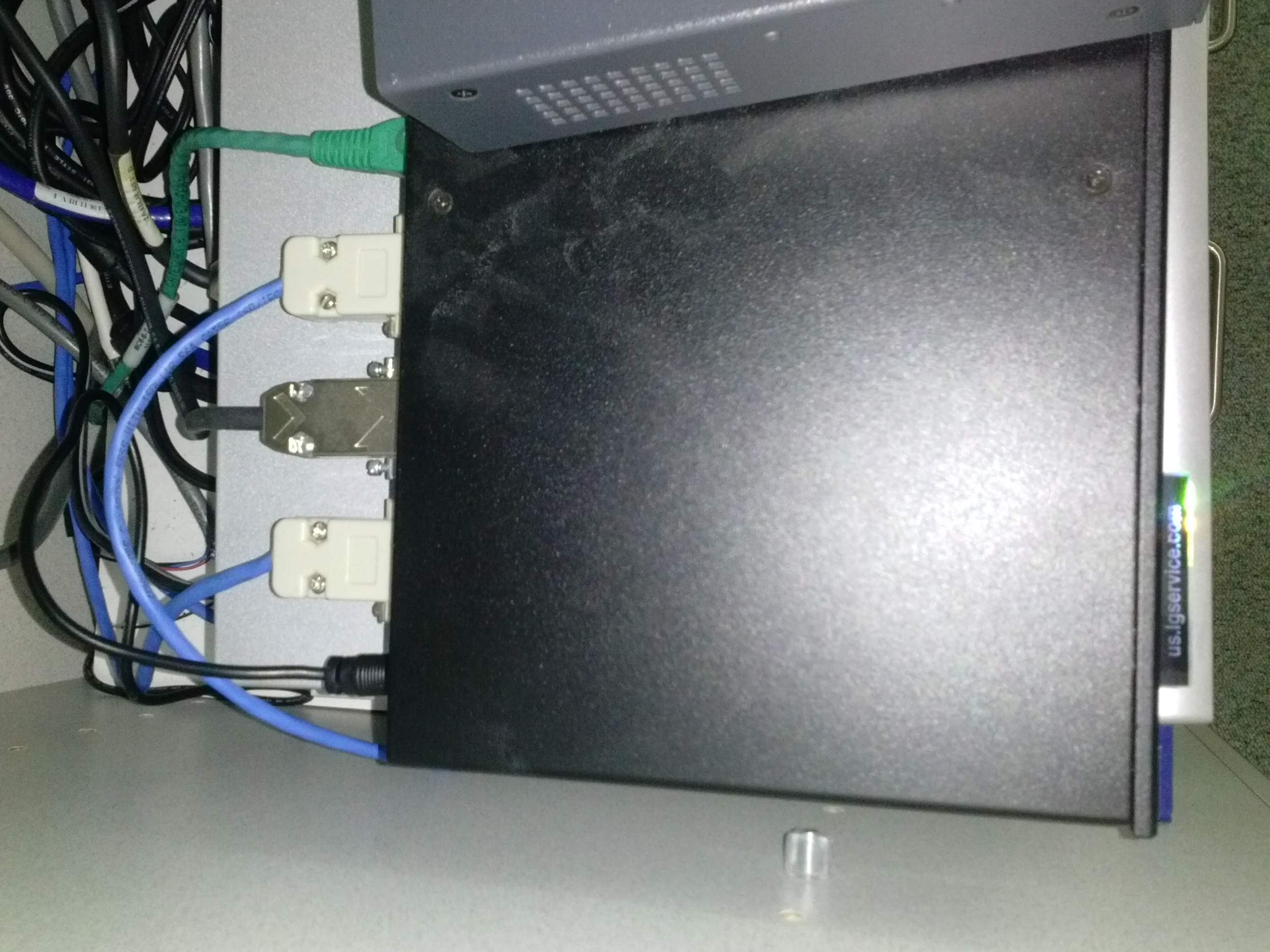
- Problem: control panel on the teacher station unresponsive (both hardware and software buttons). No AV and on/off switching.
- Cause: Octo switch in the AV cabinet crashed (it needs replacing).
- Resolution: Open the door to the AV cabinet and powercycle the switch (= unplug and replug the lower thin black cable in the 1st or top rightmost thin black cable in the 2nd photo). Or use the call button (still functional) and wait for help.


How to quickly check if onboard audio is disabled on student PCs with Sanako headsets
- Sanako Study 1200 works best with its own Sanako SLH-07 headsets (they include a USB soundcard). When using these, it is best to completely disable the analog or other sound chip/card that came with your system (onboard). Usually, you can do this in the BIOS.
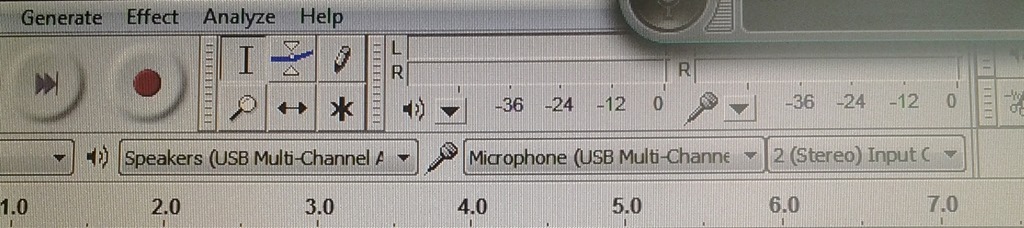
- Before you venture in there, an easy check on which computers is necessary is possible thanks to Audacity displaying the sound card options: Start Audacity form the desktop and look in the dropdowns under the top menu which sound devices Audacity has detected on the system:
- This example is form a PC where I had to fix it:
 . Audacity should not see the SoundMax if it has been disabled in the BIOS.
 - And this is what audacity should see (the USB sound card that comes with the Sanako SLH-07):
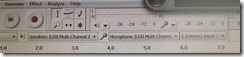
- This example is form a PC where I had to fix it:

LRC Teacher podium AV switch
- Even though we may soon swap the switch, here is how the AV switch needs to be connected for the teacher computer’s left screen to get projected to the dual projector screens:


Make life simpler in the language lab by disabling extra audio panels
- Problem: Having multiple audio panels enabled can led to too many options = sources of errors and confusion.
- Software (e.g. Saba Centra) may defaults to different audio panels (front “Microphone” preferred over a “Rear Input” that can be used as a Microphone and is the preferred device in your lab (for security, safety and ergonomic reasons).
- Students may make erroneous assumptions and try to reconfigure the PC audio by plugging cables into a different outlet.
- ESP Panel software detects plugging in of devices and asks users to identify whether microphone or line-in device has been plugged into rear input which confuses our users even more.
- Software configuration: On Dell Optiplex 760 under Windows 7 , you can
- run mmsys.cpl,
- go to tab:“recording” devices
- to disable the front panel input microphone:
- select “microphone”(that is the front input)
- right-click and choose “disable”:

- result:

- right-=click and uncheck “show disabled devices”
- to configure the “rear input”:
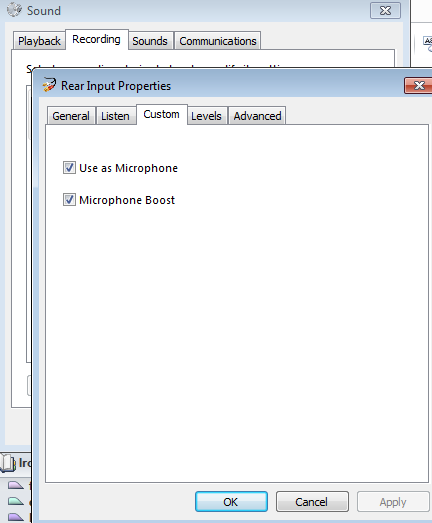
- select and click “properties”

- go to tab “custom” (may require having an add-on driver installed, consult the DELL driver update utility)
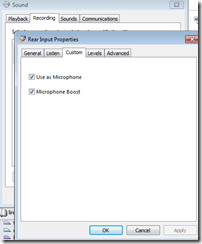
- check “use as microphone”
- check (optional, recommended): “microphone boost”
- select and click “properties”
- “Ok” out of all mmsys.cpl dialogues and (for good measure) restart computer.
- Test your software configuration to work (listening, recording) with the applications used in your lab:
- Sanako student recorder
- Saba Centra
- Audacity
- Voicethread
- Moodle: Audio and Kaltura (even though no webcam)
- Etc.?
- Hardware configuration
- Plug your headset microphone and speaker into the rear audio panel. Tie the microphone cable down with a cable tie. Students have managed to pull the cable through the cable tie, so tie the cable into a knot around the cable tie to prevent that
- Tape (plastic that student cannot push a plug through easily) over the front audio panel and put a label on top: “Do not use! Get help at desk!”. Instruct your help desk student staff.


My iMac hard drive qualifies for the Apple recall
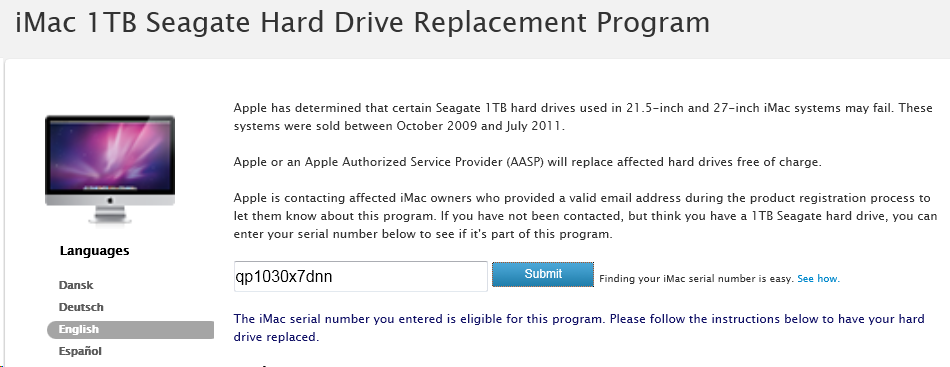
Yay! (I guess…?)
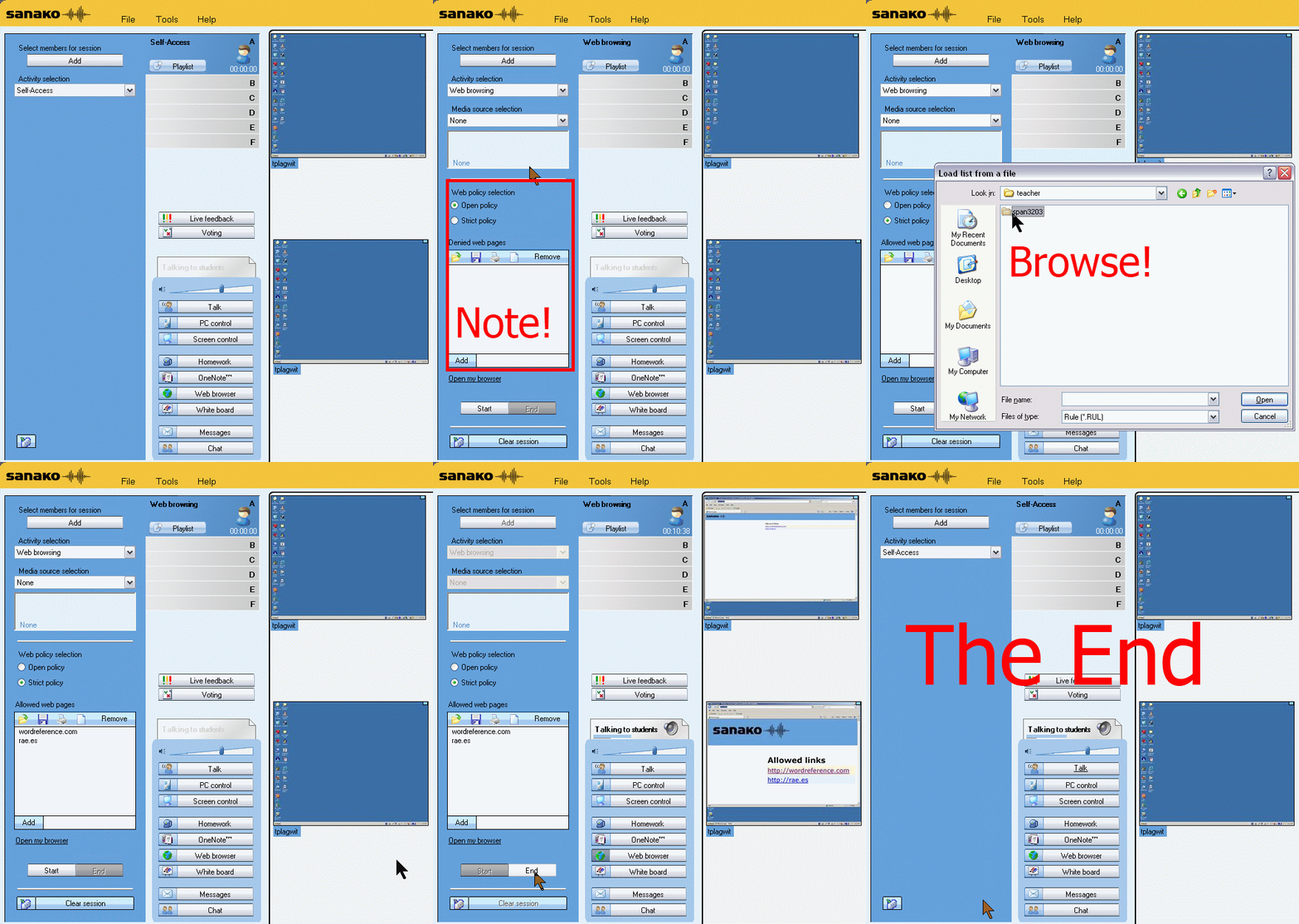
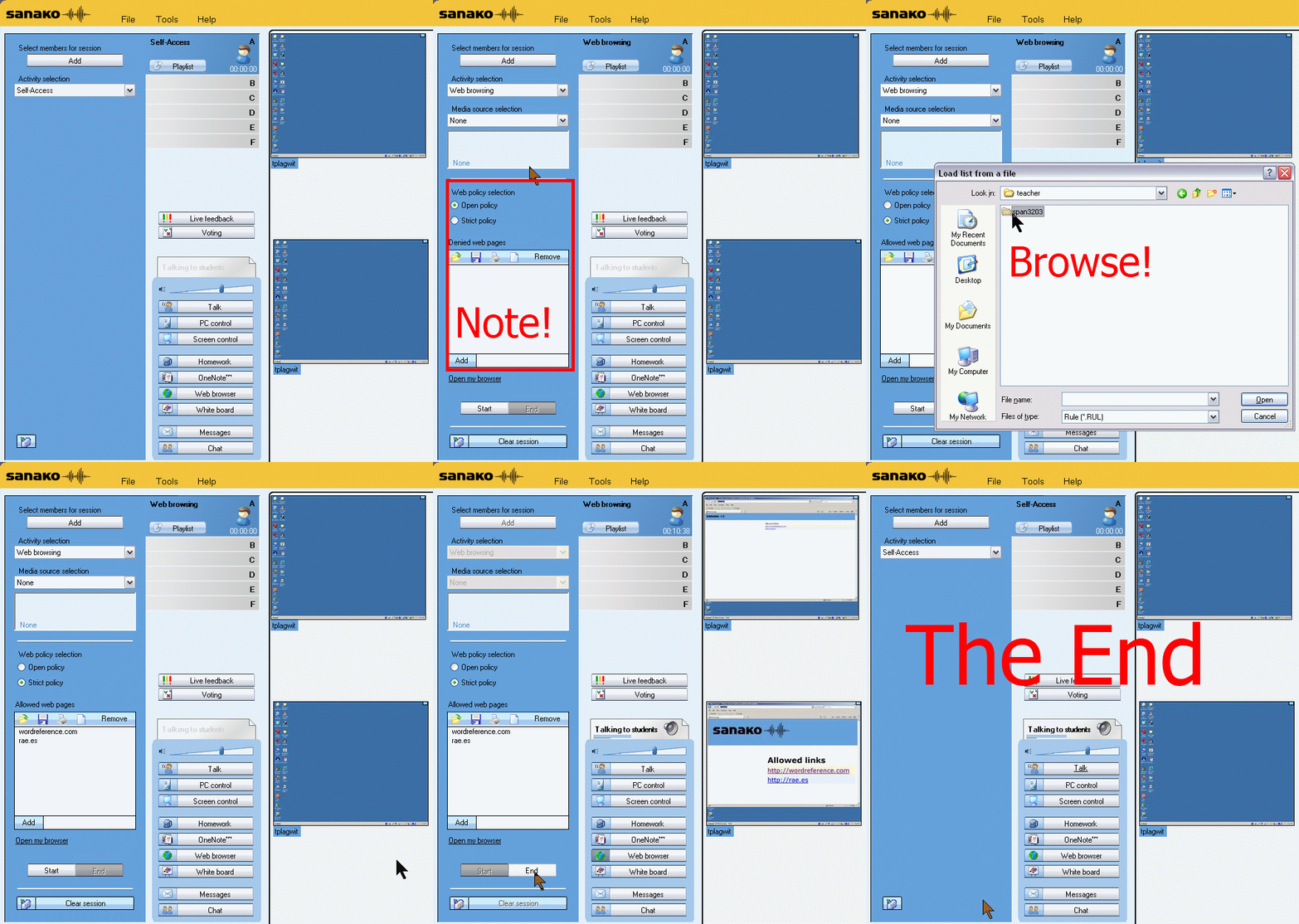
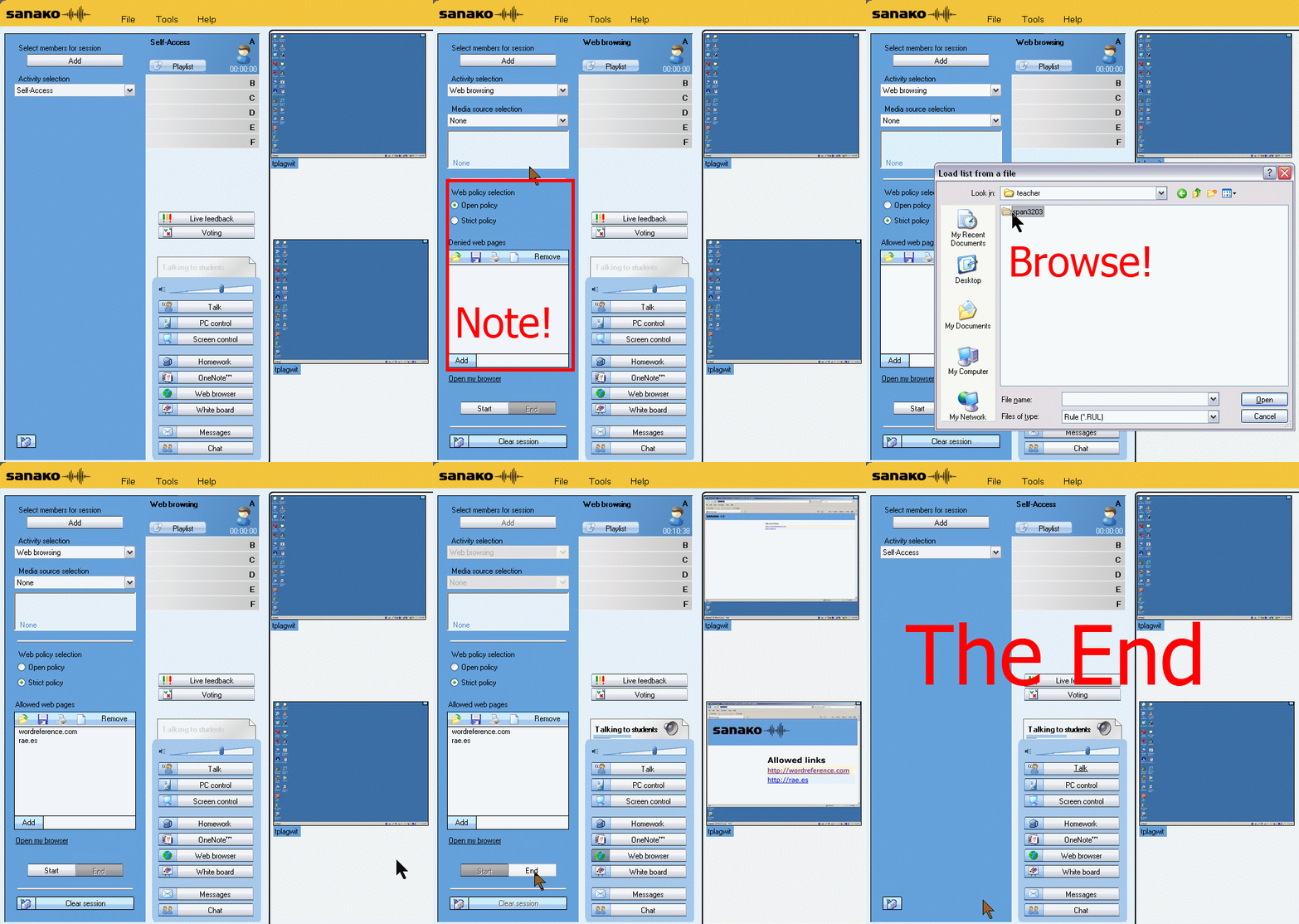
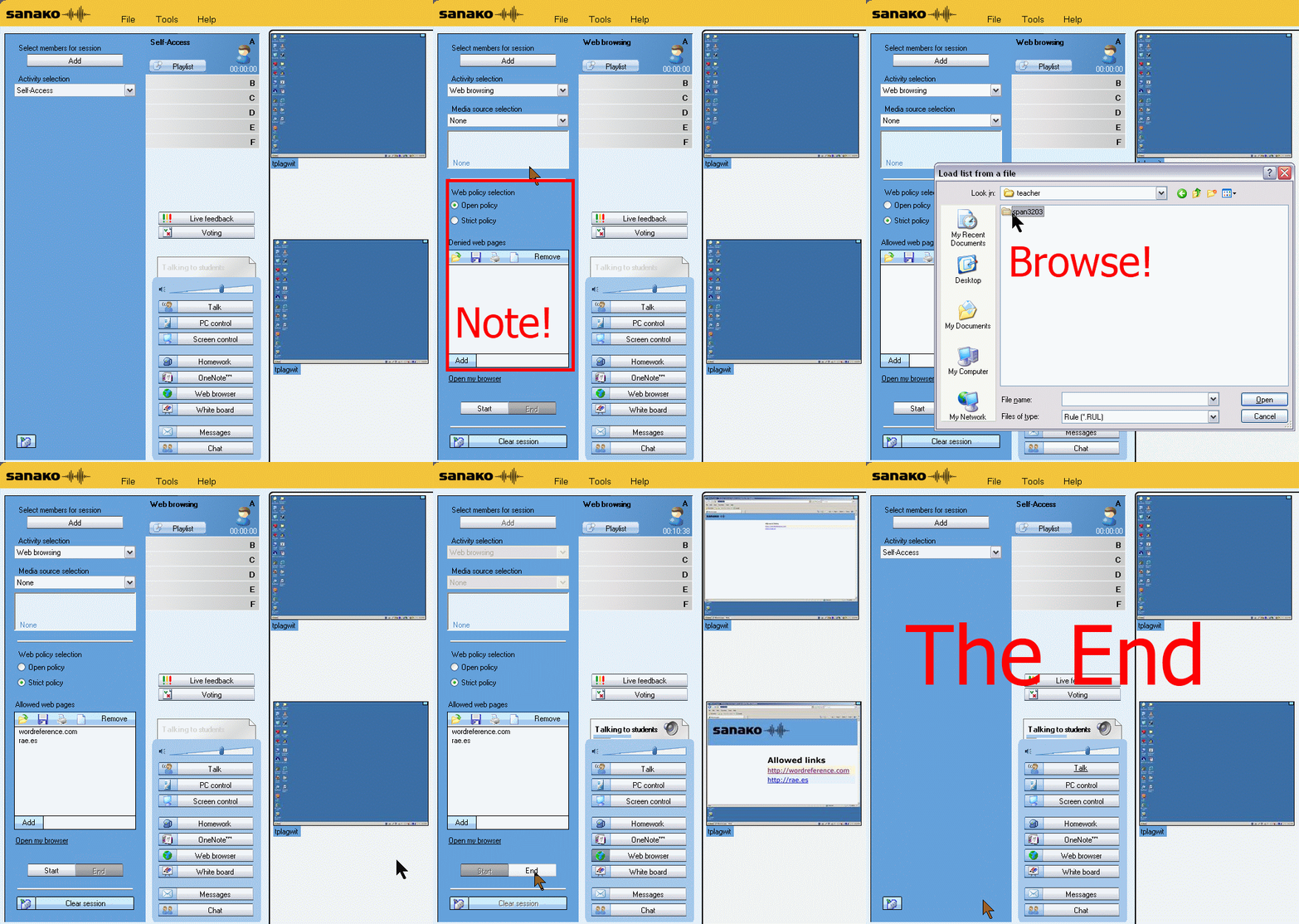
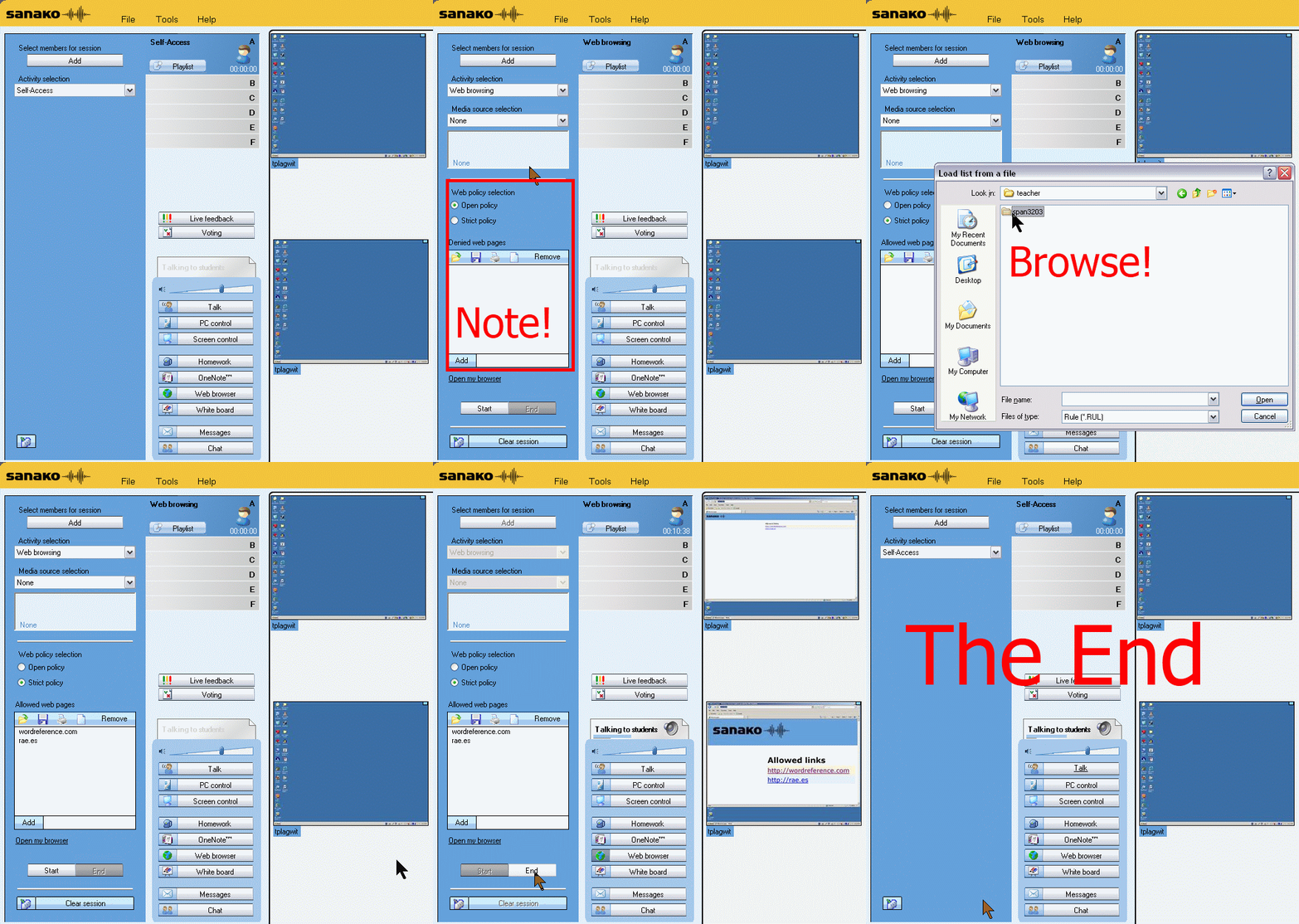
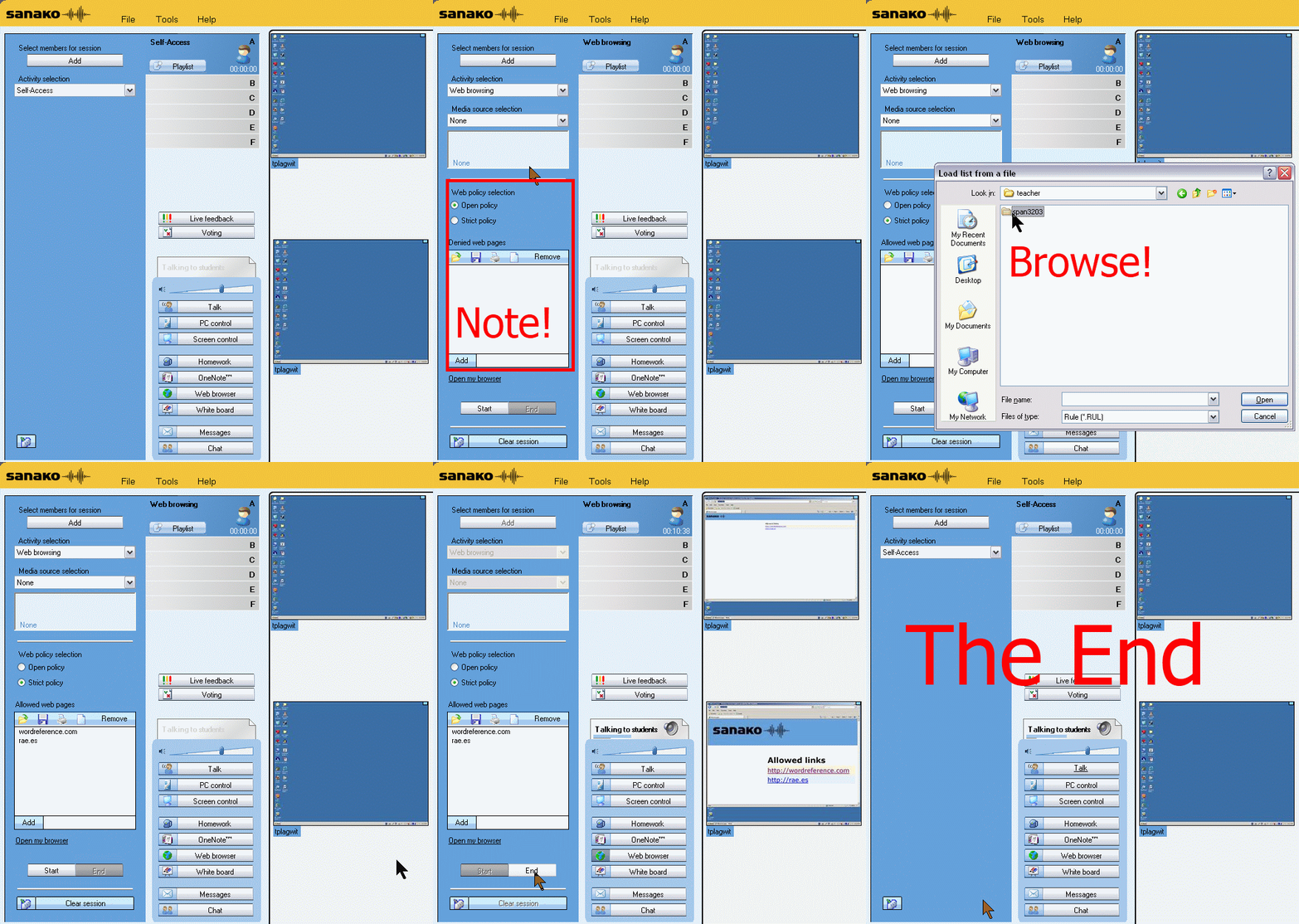
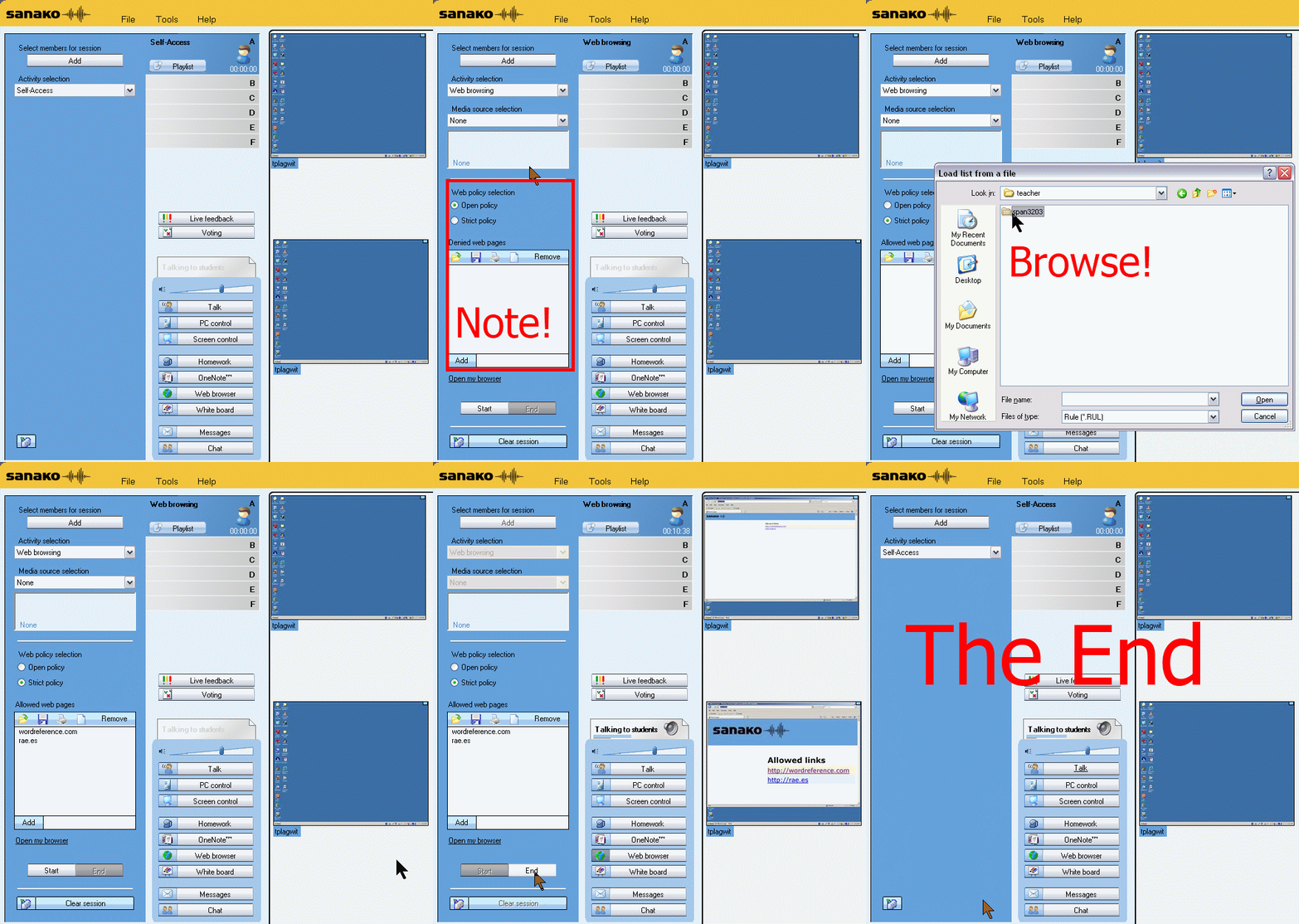
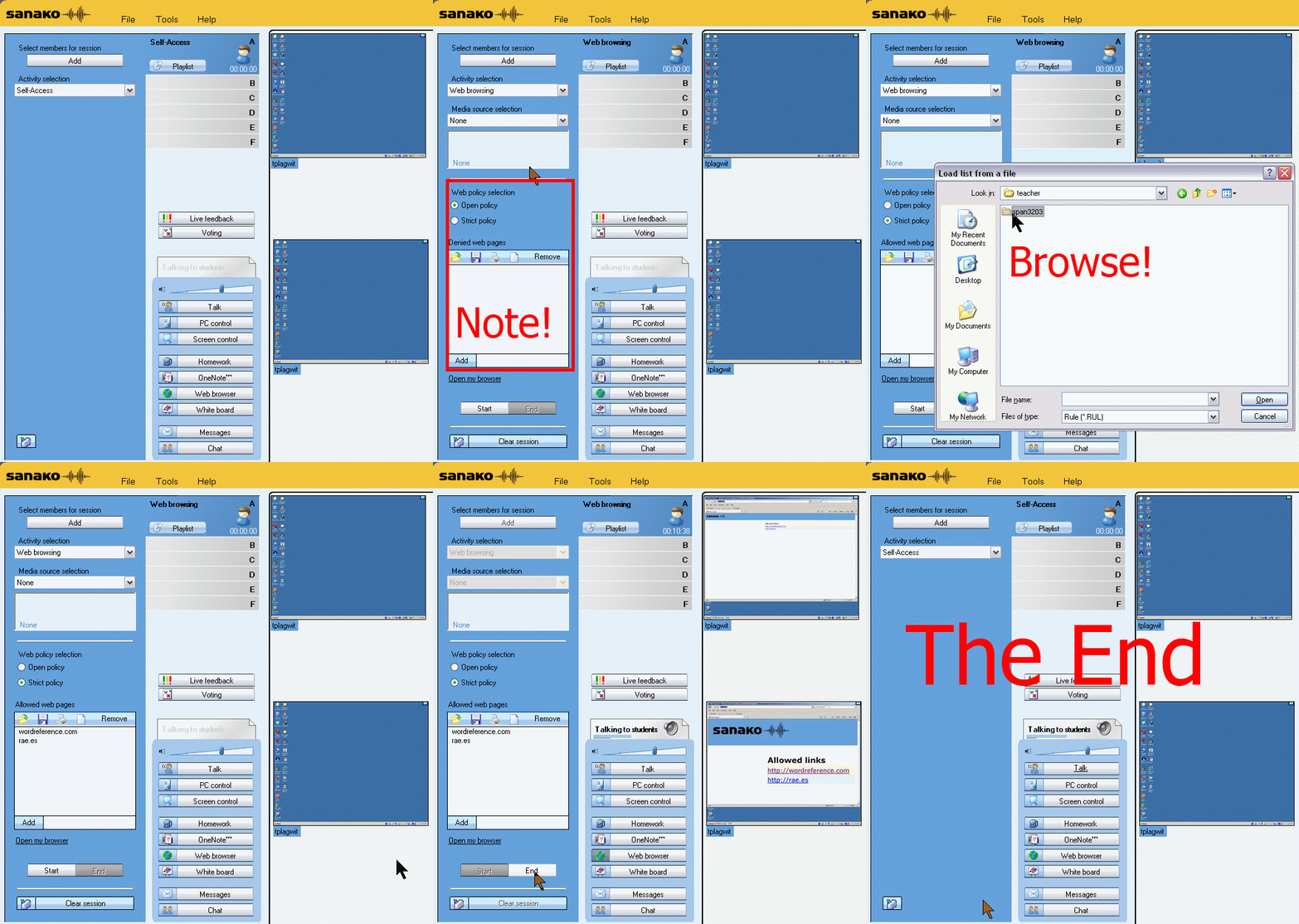
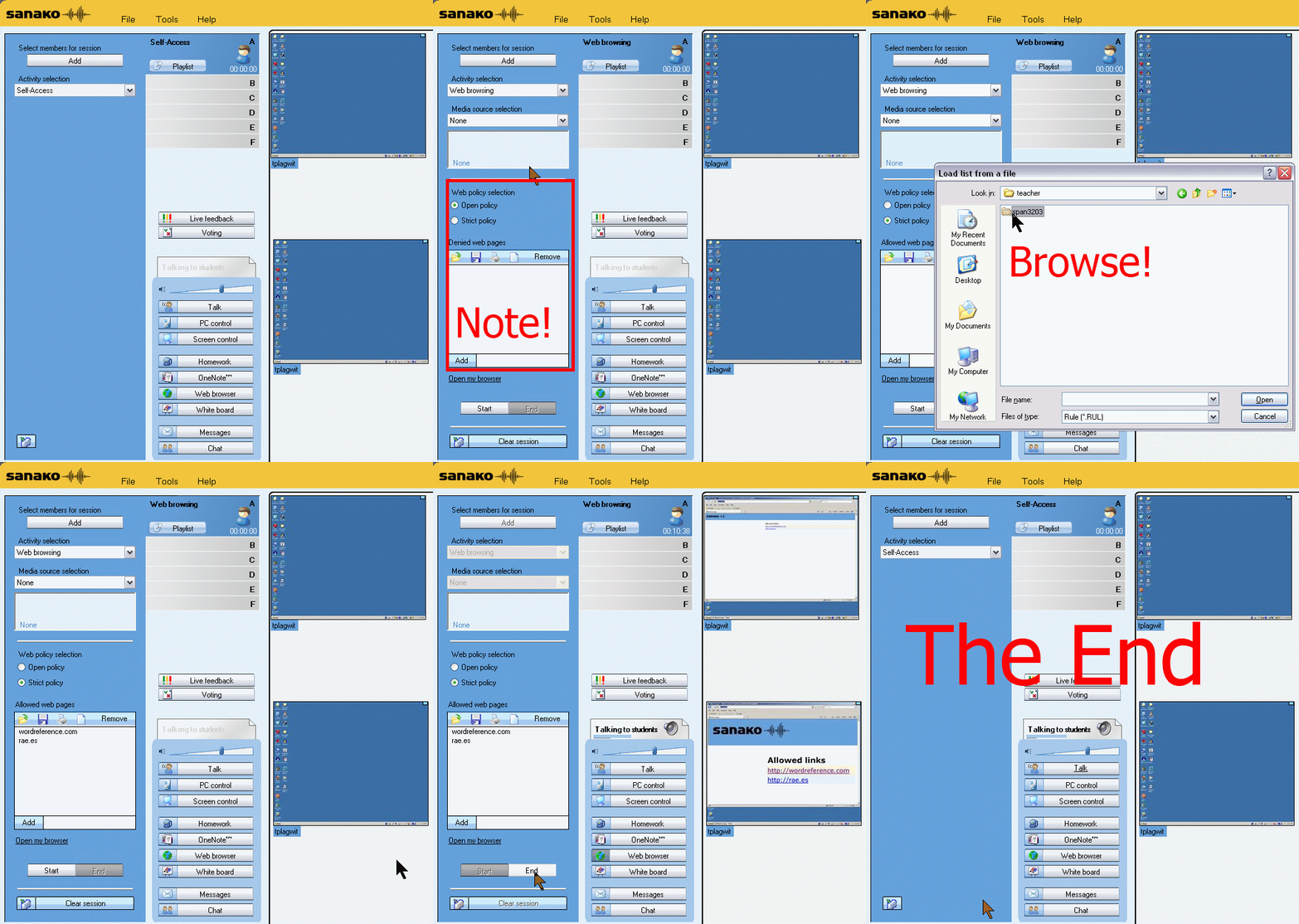
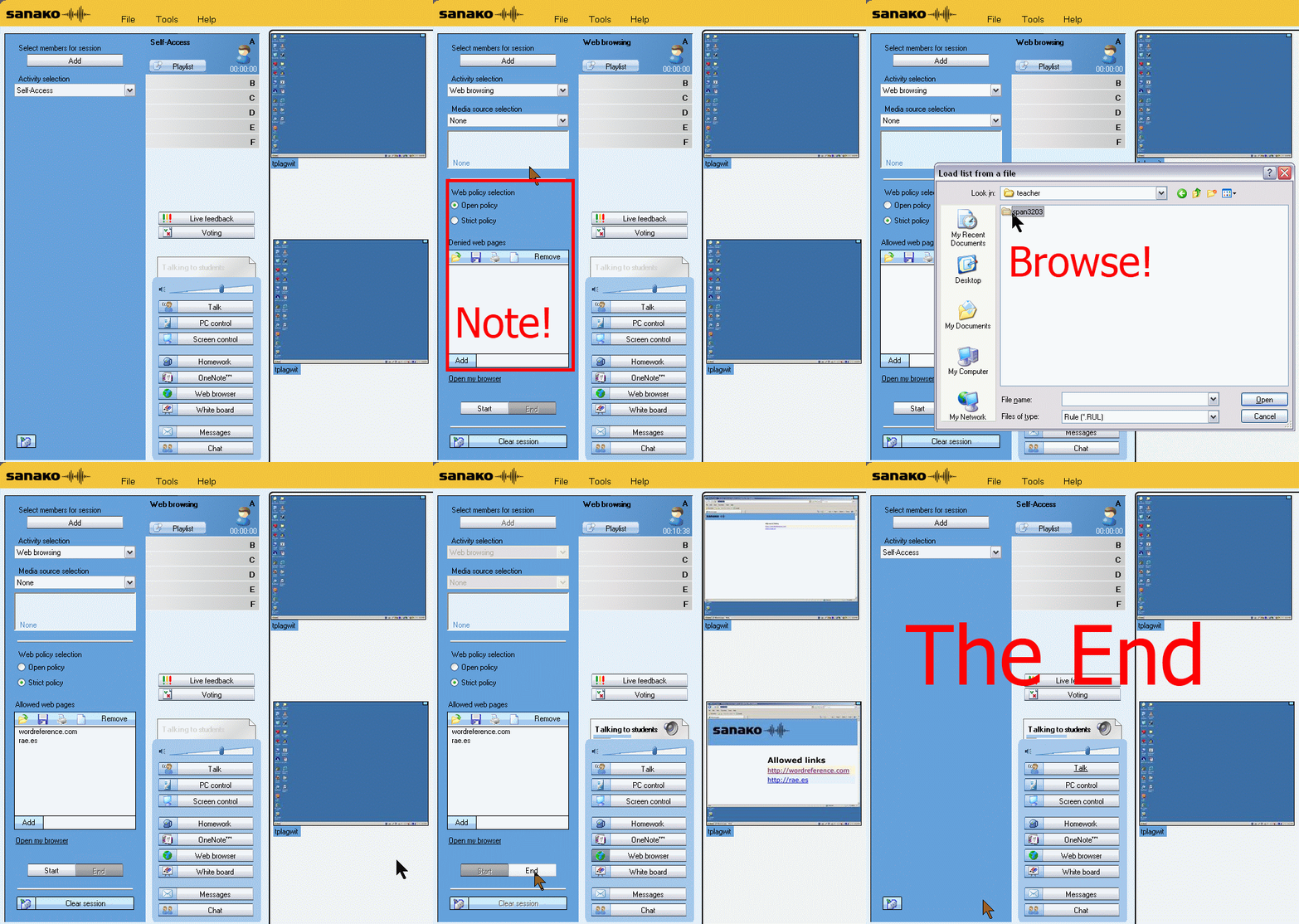
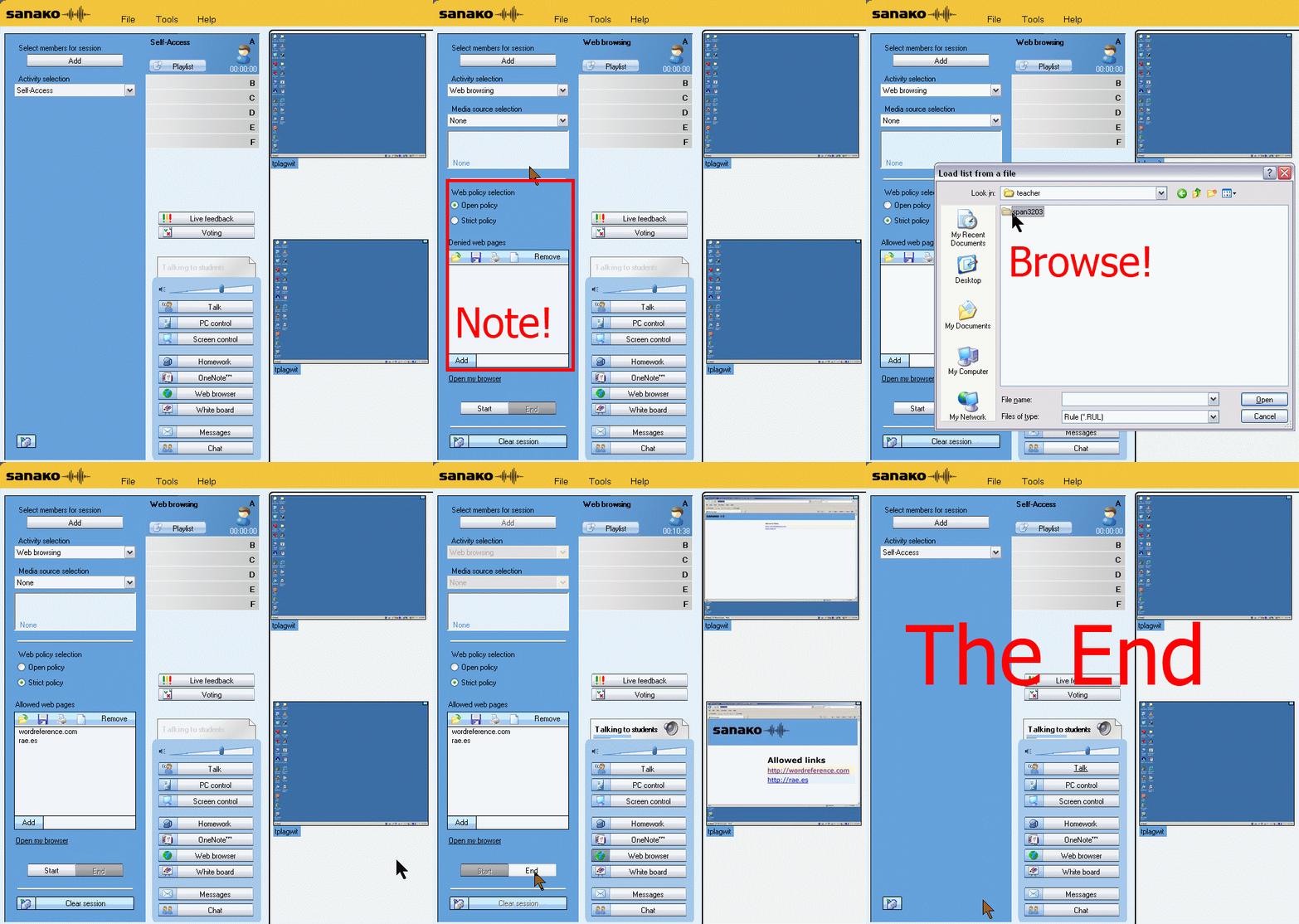
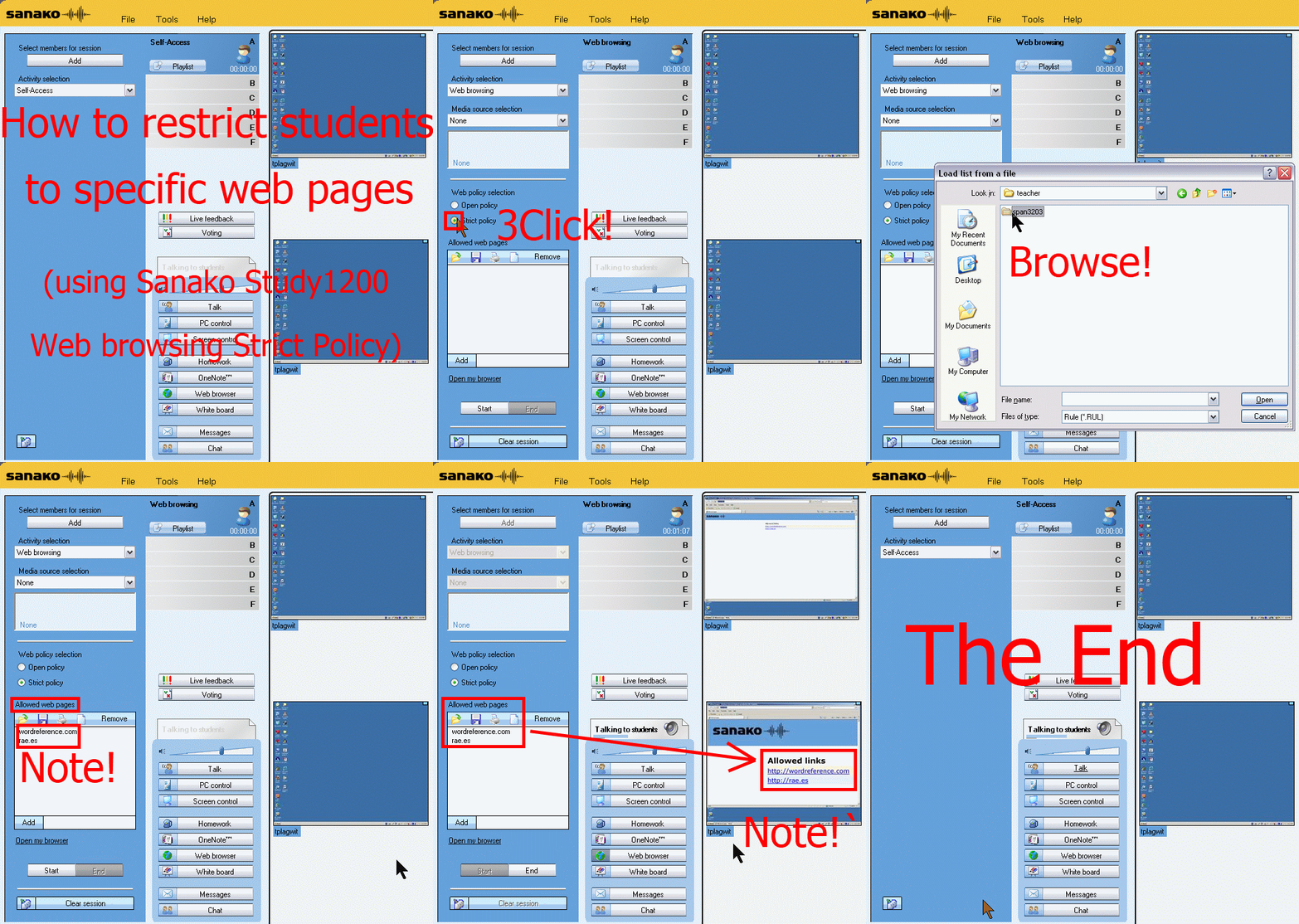
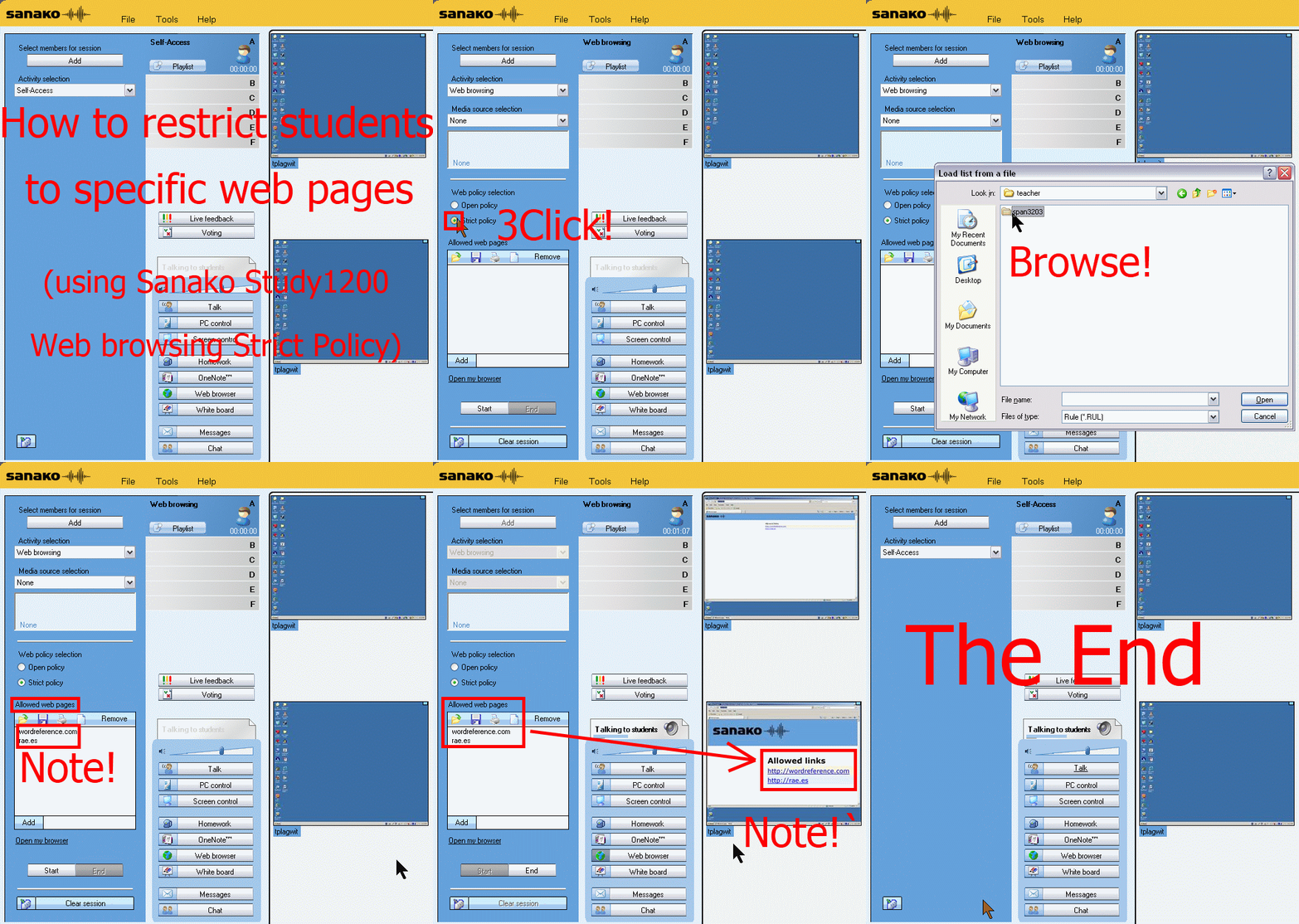
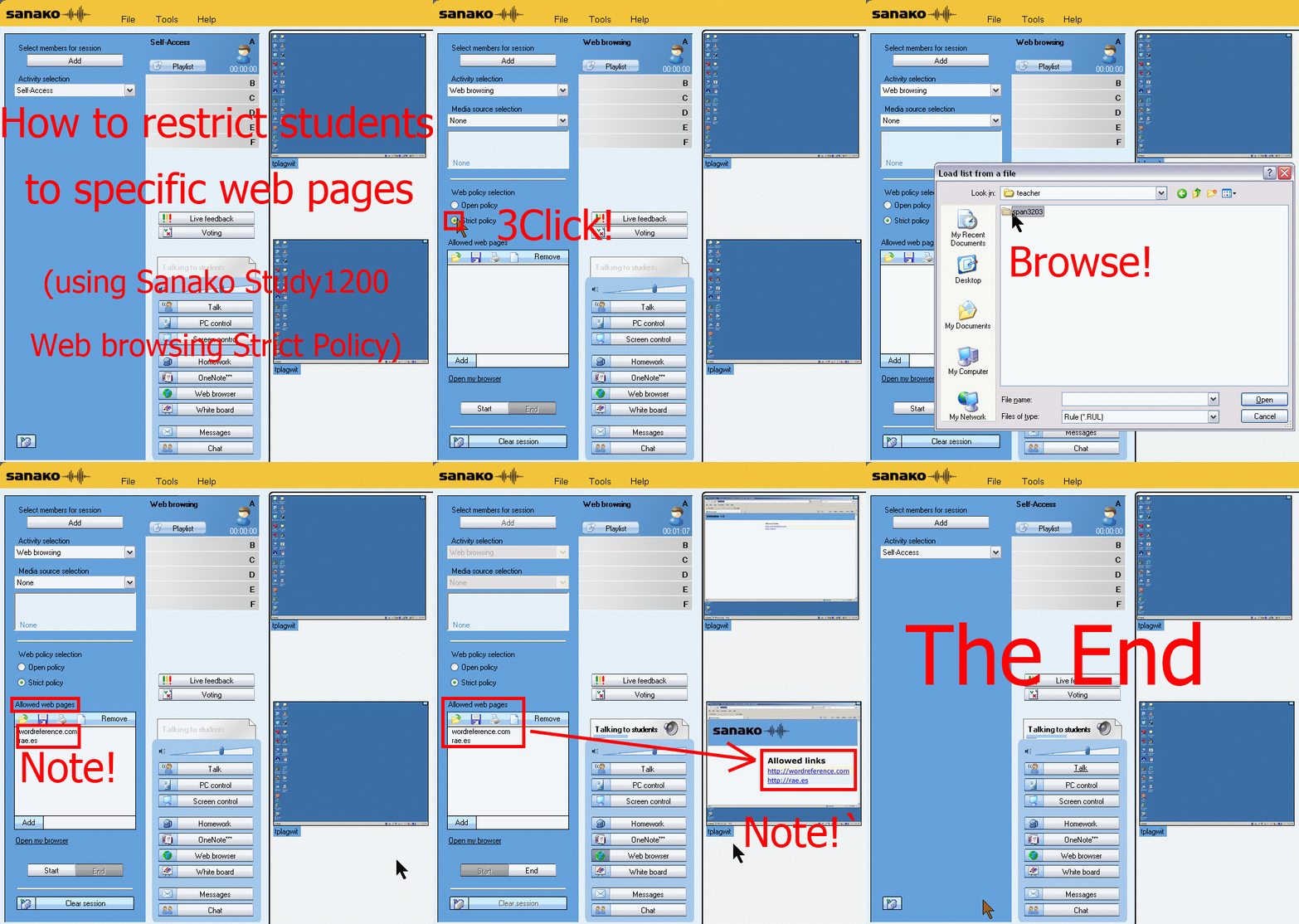
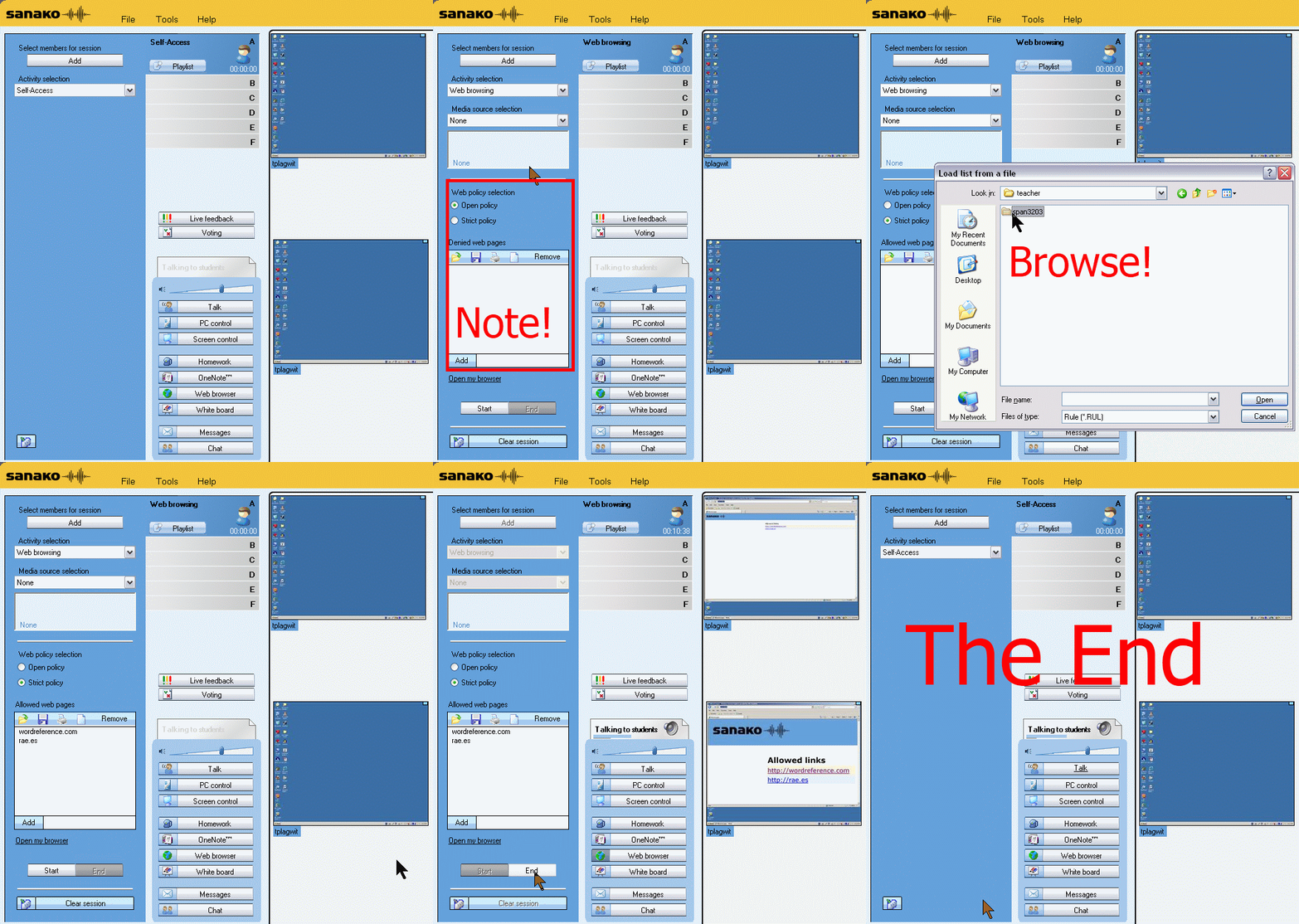
How teachers restrict students to allowed web pages with Sanako Study 1200 web browsing (strict) activity–the ultimate training summary
…using animated GIFs. Load the speed of your choosing (or several, use CTRL-Click to open links in a new tab) into the left screen of the teacher station before administering an oral exam, with the window active, press F5 in your web browser to restart the animation from the beginning:0.50sec,0.75sec,1sec,2sec,3sec,4sec,5sec,6sec,7sec,8sec,9sec,10sec
 .
.
Condensed (instructions only) for recap: 100cs, 200cs, 300cs, 400cs, 500cs, 600cs, 700cs, 800cs, 900cs, 1000cs. And if you need to pause:


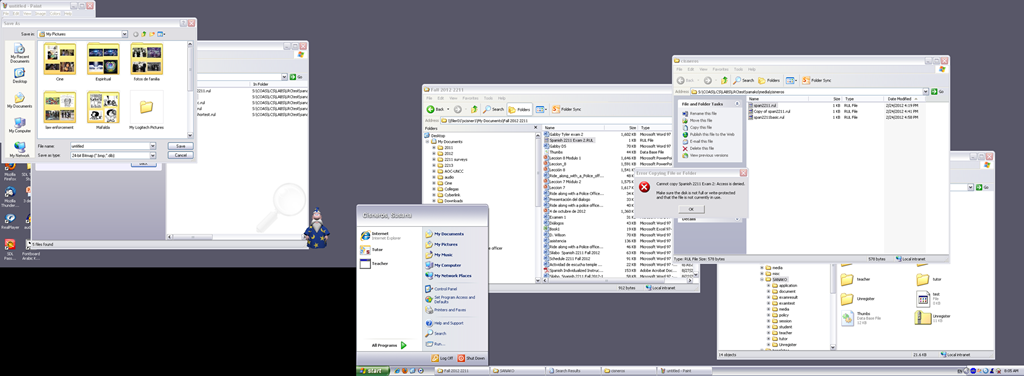
LRC teacher screen new and improved

The above screenshot (taken from a screencast) does not do the new screen justice: Teachers can actually read all the ongoing student work, and, with two clicks, intervene surgically, where necessary.
On the right screen of the teacher PC in the main LRC classroom, we went from WXGA to HD1080, gaining almost 60% more screen real estate (=(1920*1080)/(1280*1024)), a crucial improvement for displaying all the information the Sanako Study 1200 provides the teacher with.
Or in more graphical terms (thanks to Wikipedia), we went from 2nd lower left to 3rd upper right:
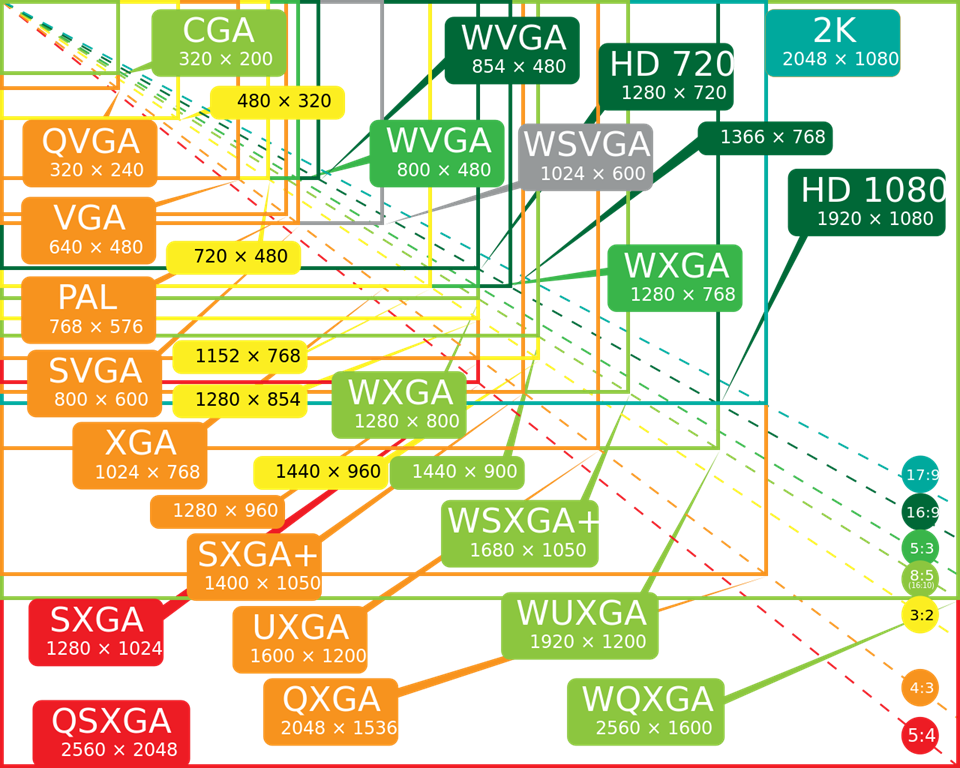
To fit the actual classroom layout into the display, we would however need the bottom lower right resolution (WQXGA). We still have to split the classroom you see into 2 halves and tilt those by 90 degrees clockwise to fit them onto the right teacher screen.
Since our left screen is still the original 1024*768 (and will be until not only the screen, but the switch and projector get upgraded), you have to work (= move your mouse pointer) around the “wall” formed by the black block in the lower right of this screenshot.


Questions? Read the About. Or just ask me a quick Our Databases: Resources with calendars -- Language learning material Moodle Sites, multimedia files -- films


FAQs for LRC student staff or for students or for teachers. To search our FAQs, in the browser addressbar, add after "https://plagwitz.wordpress.com/feed/?tag=faqs+/" "+TAG1" (from tag cloud below) OR "https://plagwitz.wordpress.com/feed/tag=faqs
&category_name=" "CAT1" (from category hierarchy below). OR search both categories and tags, and multiple TAGs/CATs (connect with "," for OR-search, with "+" for AND-search), like so: https://plagwitz.wordpress.com/feed/?tag=TAG1+TAG2+...TAGn&category_name=CAT1
+CAT2+...CATn"
Other ways to find help
If you cannot find it here, look there: 5,500 Language-Learning Links and Programs for learning or teaching 150 languages
Shortcuts:Our Lists, Our Maps, LRC Staff Moodle Site,LRC Project Moodle Site, 49erexpress, UNCC Moodle, Student Recordings: s:claslcslrcsanakostudent
Learning usage samples: Sanako oral exam, Kaltura webcam presentation, Dictation with speech recognition, Sanako written exam, Chinese and Japanese interactive stroke-order practice
Test the Sanako Installer, Webbrowser Popup Konfigurator for XP, or Windows7, faster LRC TeacherPC Log-in Let MS facilitate diacritics writing by installing for you US-International keyboard layout
This is my personal blog (Google+). The views expressed on these pages are mine alone and not those of my employer. The information in this weblog is provided “AS IS” with no warranties, and confers no rights.
 Thomas' Work Space