Archive
How to get started with clicker use in your course by downloading & installing Turningpoint
-
Just in case you get stuck already with your local computer: You can download the software from Moodle:

-
If you do not see this menu (you are supposed the CTL workshop first), contact the help desk.
-
To download, I entered my institutional info and had no problem downloading and installing the pc [not non-] install version of the software.
-
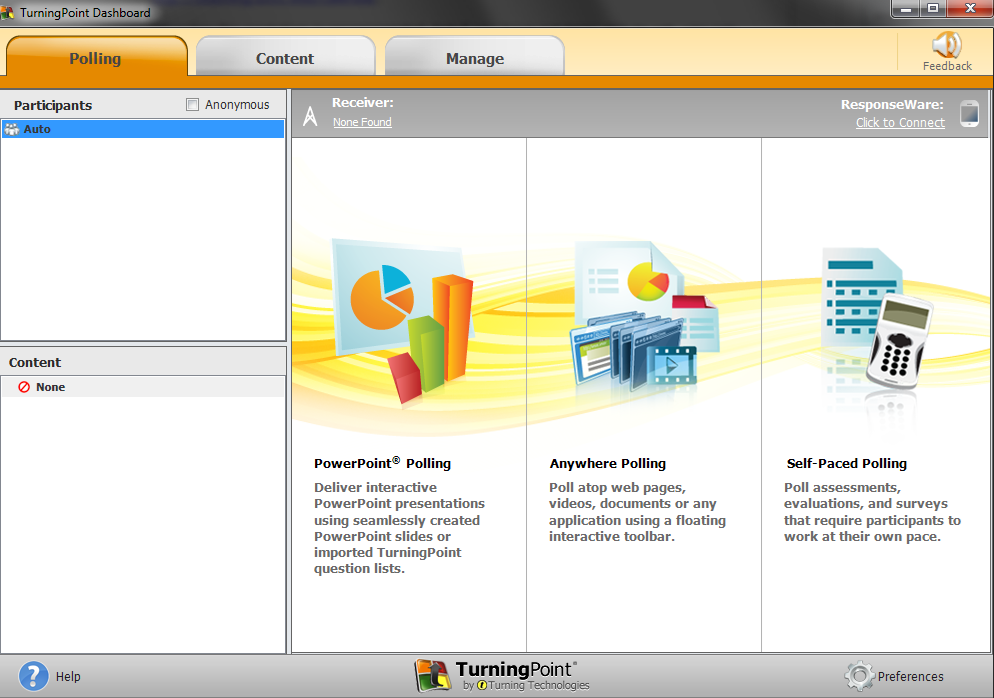
After the install, when you open ppt (from the “Turningpoint dashboard”: “PowerPoint Polling”),
-
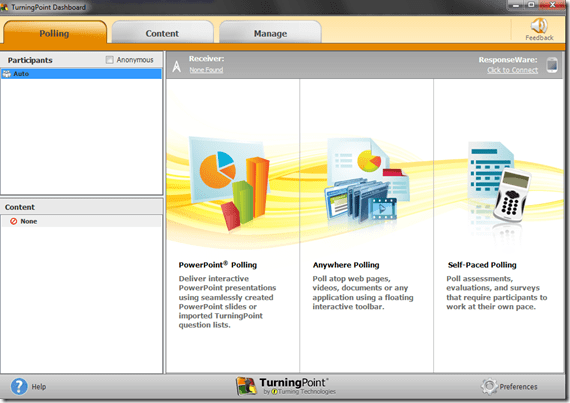
-
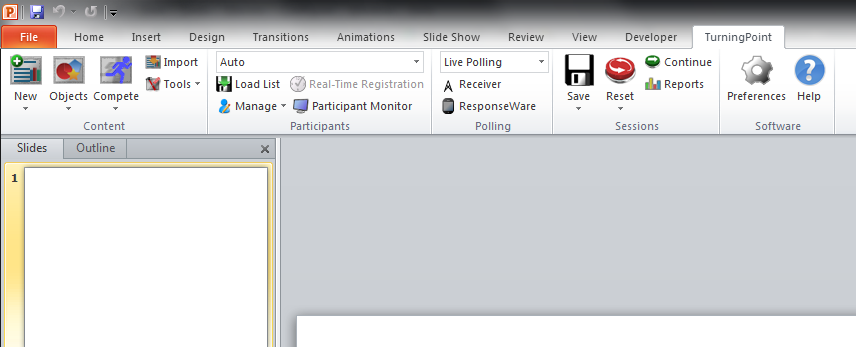
The Turningpoint plugin opens its own ribbon menu which you can use to add clicker exercises.
-

-
From here, there is more help available from
-
the vendor and
-

Mimicking the annual “All-Japan Phone-Answering Competition” in the digital audio lab?

One of my first endeavors in a digital audio lab was pairing distant students over the headphones to have them practice doing business over the phone in Spanish. Today’s New York Times article on the annual “All-Japan Phone-Answering Competition” made me wonder whether a digital audio lab could not mimic this also (especially since the digital audio lab is quite conducive to “drilling in” rules and – as the competition does, too – focusing on intonation and articulation).
“Formal phone answering is serious business in Japan, with many rules intended to head off offensive or awkward moments. A search on Amazon’s Japanese website found more than 60 books specifically on phone manners, and dozens more on business etiquette in general. Most appeared to be aimed at women, like “How to Talk Like a Workplace Beauty.”
A polite office worker picks up calls during the first or second rings; if, for unavoidable reasons, the caller is left waiting for three rings or more, an apology is in order. The conversation itself is carried out in a formal, honorific spoken form of language — peppered with exclamations like “I’m horrified to ask this request, but …” At the end of the call, the receptionist must listen for the caller to hang up before putting down the receiver. Hanging up first is a serious faux pas. (…)Each contestant runs through a three-minute conversation. Judges scrutinize the conversations for impeccable Japanese phone etiquette: good tone, volume, speed, pronunciation, articulation and use of words. A strong contestant takes appropriate pauses between phrases, and stays friendly, but not overly friendly. Throughout, proper exclamations to signal attention and empathy must be used.”
The latter scrutinization could possibly be conducted as a peer evaluation.
The Times article seems highly critical of the traditional, clerical role of women who still dominate these competitions. However, in the reader commentaries, there is an interesting backlash from people who have experienced, enjoyed and brought back Japanese culture to this country.
So the lesson plan sounds like it could quite easily transcend the above digital audio lab utilization into the intercultural realm and lead to interesting comparisons and discussions.
Sanakoaudioconfigonthefly software utilities updated for Vista/Windows7
- (Shortcut to download – now fixed) The reason why a colleague’s signature reads: “Worrying about a large institution, especially when it has computers, is like worrying about a large gorilla, especially when it’s on fire" (Bruce Sterling) might just be that a multimedia-capable fully computerized classroom – think 30 PCs and 30 students trying not only to listen to, but record responses to exam audio – is a notoriously difficult beast to control, and all too easily spins out of the same (a classroom humming in an endless audio feedback loop is neither a pleasant nor an unfamiliar sight).
- The Sanako Study 1200 is a digital audio lab software that facilitates the use of personal computers in face-to-face class settings. However, while the Sanako Study 1200 features many ways for the teacher to control and manage the student PCs, the students’ audio settings cannot be controlled on the fly.
- Enter these little sanakoaudioconfigonthefly utilities (written in AutoIt) for Windows 7 and Vista (old Windows PX version still available here) that extend the Sanako Study 1200.
- We now use (as it is completely adequate and actually superior to to the seemingly more applicable PC control / Launch programs features which is requires the program executable to reside under the same path on student and tutor computer) Playlist / copy and launch (folder icon) and the Sanako grouping feature to send a program with your choice of action to the student PCs of your choice. In this example,
- click playlist,

- and in the window that opens, click (1) to send to “all”, then click (2) to select which program to send:
![image_thumb[3]](https://thomasplagwitz.com/wp-content/uploads/2013/12/image_thumb3_thumb.png?w=341&h=244 "image_thumb[3]")
- Files included in this release (each for 64-bit, and as source code, so that you can compile your own if you are still on MS-Vista/MS-Windows-732-bit platform):
- Change student recording levels (microphone sensitivity).
- Toggle student sidetone ( in Sanako = “listen” to this device in Windows)
- Control student playback level (headphone volume).
- Likely these programs can be adapted beyond Sanako Study 1200, but I do not remember (helpful comments appreciated)
-
- whether other digital audio lab platforms (Sony Virtuoso, Robotel SmartClass) allow for changing the student audio config on the fly
- and what mechanism (if any – but likely) they (and Sanako Lab300) provide to launch programs on the students’ computers
- Prerequisites:
- None other than your digital audio lab software and the utilities you can download below. In particular, it is not required to install AutoIt on teacher or student computers.
- However, there should be only 1 microphone/speaker per student computer in the digital audio lab. If you have more, you likely have bigger problems to solve first, but you also need to alter the source code (included) to select the microphone you want to work with (should be easy; note however, that I have not tested this scenario, for: “There should be only 1 microphone/speaker per student computer in the digital audio lab”

- Request here to download these utilities.

![image_thumb[3]](https://thomasplagwitz.com/wp-content/uploads/2013/12/image_thumb31.png "image_thumb[3]")
Request to download the digital audio lab classroom audio configuration on the fly, program and source for Windows 7


Testing and semi-automatically changing the Sanako student audio configuration
- Problem
- We have had teacher complaints about too much background noise from neighboring students being recorded in our Sanako Study 1200, with SLH-07 headsets.
- In addition, upon looking through some recordings as samples for a workshop, I found cases of clipping audio, especially in pair recordings.
- We are using the default settings for the Sanako SLH-07 headset. However, the default recording level (67) seems high.
- Solution approach
- We need to test
- many other settings quickly for these recording levels. We use my sanakoaudioconfigonthefly utility for this
- in an acoustically realistic environment: 5 Lab assistants site in tight lab area and read out sample English text during a Sanako reading activity
- Reading practice
- Todo: Pairing
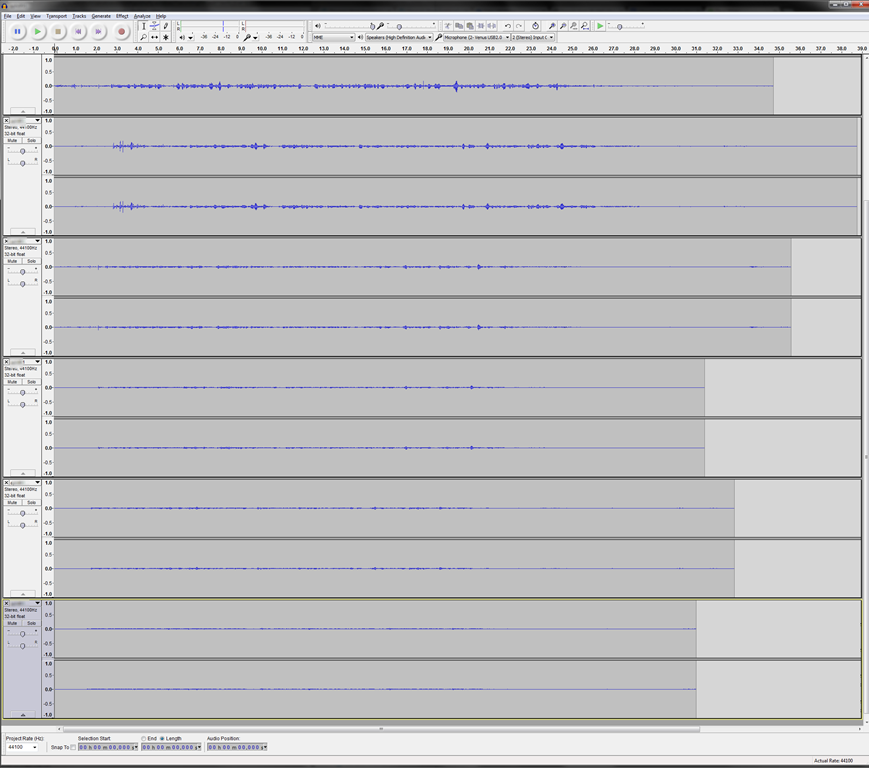
- Here is a “window” into the recorded results set, a student’s audio recording shown in Audacity at various (but all lowered) recording levels from (visible) 30 to 5, you can see the diminishing waveform amplitude.

- The waveform per se is not conclusive. You will have to listen in and compare, especially to evaluate background noise (the original complaint – we have no and will not be able to go back to language lab carrels). The Sanako SLH-07 headset microphones are supposed to be highly directional. However, our students to not always wear the headsets properly. And our acoustics is marred by large (almost 50%) window spaces and a tight positioning of the student seats.
- Any test recording is only as good as it can mimic the acoustics during an actual class session which we did as much as we could with only 6 concurrent LRC staff. This means unfortunately some more testing will have to spill into actual classes, but this test is a start.
- We need to test
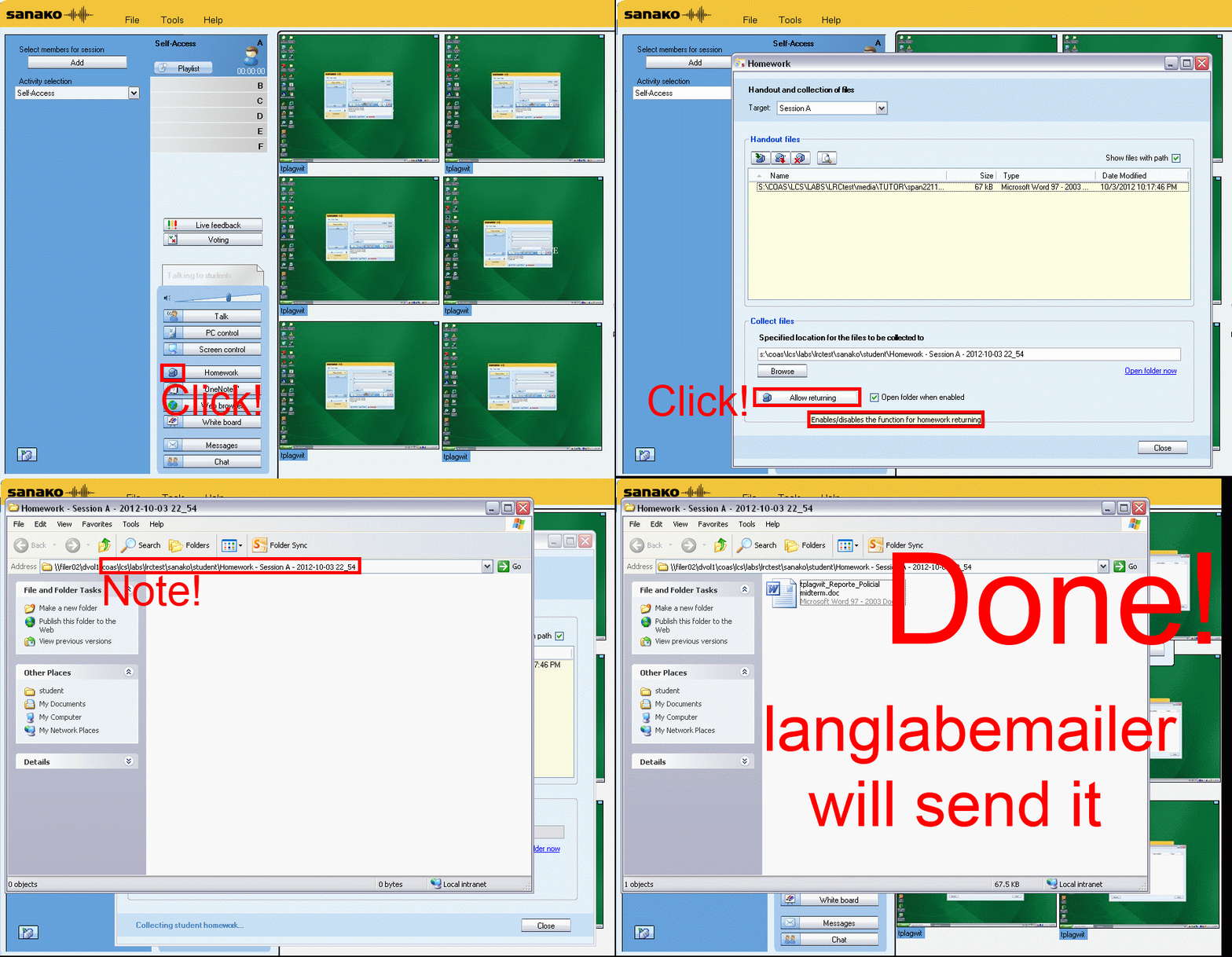
How teachers can collect any file from students’ computers with Sanako Study 1200 homework–the ultimate training…
How to control students’ access to internet and local apps with Sanako Study 1200


Straight from the documentation, straight under your fingertips in the tutor interface, and most useful during assessments, but also for individual students that won’t stay on task.


Questions? Read the About. Or just ask me a quick Our Databases: Resources with calendars -- Language learning material Moodle Sites, multimedia files -- films
FAQs for LRC student staff or for students or for teachers. To search our FAQs, in the browser addressbar, add after "https://plagwitz.wordpress.com/feed/?tag=faqs+/" "+TAG1" (from tag cloud below) OR "https://plagwitz.wordpress.com/feed/tag=faqs
&category_name=" "CAT1" (from category hierarchy below). OR search both categories and tags, and multiple TAGs/CATs (connect with "," for OR-search, with "+" for AND-search), like so: https://plagwitz.wordpress.com/feed/?tag=TAG1+TAG2+...TAGn&category_name=CAT1
+CAT2+...CATn"
Other ways to find help
If you cannot find it here, look there: 5,500 Language-Learning Links and Programs for learning or teaching 150 languages
Shortcuts:Our Lists, Our Maps, LRC Staff Moodle Site,LRC Project Moodle Site, 49erexpress, UNCC Moodle, Student Recordings: s:claslcslrcsanakostudent
Learning usage samples: Sanako oral exam, Kaltura webcam presentation, Dictation with speech recognition, Sanako written exam, Chinese and Japanese interactive stroke-order practice
Test the Sanako Installer, Webbrowser Popup Konfigurator for XP, or Windows7, faster LRC TeacherPC Log-in Let MS facilitate diacritics writing by installing for you US-International keyboard layout
This is my personal blog (Google+). The views expressed on these pages are mine alone and not those of my employer. The information in this weblog is provided “AS IS” with no warranties, and confers no rights.
 Thomas' Work Space