Archive
Archive for the ‘Classroom-technology’ Category
How to use visual instead of aural cues during a Sanako oral proficiency exam
2012/04/26
Leave a comment
- This exam file has been authored with the Sanako Study 1200 TBA:authoring tool. It is displayed from the Sanako tutor application:
- images on a projection screen connected to the teacher computer,
- aural portion through the tutor-controlled Sanako student player and headsets.
- To protect the integrity and allow for reuse of the exam, only the initial instruction, example and collection of the results of an exam with visual cues are shown in this screencast
 .
.
How a teacher can use Sanako voice insert to easily add spoken comments to students’ Sanako oral proficiency exams
2012/04/25
Leave a comment
- All other things equal (given a limited amount of time), teachers can provide more and better corrective feedback on student oral proficiency recordings if, during their grading, they could easily insert their own oral comments into the students’ recordings (delivered as MP3 files to teachers’ desktops after Sanako oral exams).
- Both the Sanako Tutor and Student Player have a voice insert mode that is much easier and quicker to use than (albeit not free as) editing the student audio in Audacity (which we still recommend for bare-bone viewing/listening because of Audacity’s capability of loading and displaying multiple tracks simultaneously).
- Fortunately, Sanako tutor/student player are available on the teacher/student station PCs in the LRC (the latter’s insert function is available when the PC connected to the running Sanako Tutor on the teacher station).
- How easy and fast is it to use this? As you can see in this demo screencast on how to use Sanako voice insert to add spoken comments into your students’ Sanako oral exams
 , voice insert only requires:
 - a click on the voice insert button in the center, whenever a user wants to speak during listening,
- and, from the top left menu, a “file”/ “save as” at the end.
- In a next step – not only during the grading process –, how easy is it to distribute student recordings made with Sanako to students? That is TBA:a different story.
Protected: Sanako Study 1200 Final oral exam for advanced Business Spanish: A Job interview
2012/04/19
Enter your password to view comments.
Categories: Advanced, Arabic, audience-is-teachers, classroom-management-system, English, Farsi, French, German, Greek (modern), Hindi, Italian, Japanese, Korean, learning-usage-samples, Listening, LRCRoomCoed434, Mandarin, multimedia-recording, Photos, Polish, Portuguese, Presenter-Computer, Russian, Screencasts, Spanish, Speaking, step-by-step-guides, Student-Computers, Swahili, Videos, Yoruba
oral-exams, sanako-study-1200
Sanako Study 1200 controlled web browsing–strict policy
2012/04/18
Leave a comment
- View an
 80-seconds screencast showing how a teacher can set up a student activity where students are only allowed to access on web site.
 - In this example, the website is a common dictionary: http://www.dict.cc which the student will be allowed to access during an exam (in lieu of a paper dictionary policy).
- Never mind that the voiceover is partially in German – the video should be self-explanatory. If not, here is a written step-by-step on Sanako controlled webbrowsing.
A template for Digital audio lab model-imitation/question-response oral exams
2012/04/11
Leave a comment
Sanako Study 1200 student in-class web browsing activity caveats, errors&glitches
2012/03/01
Leave a comment
- If we put the full URI of the website (e.g. http://www.dict.cc), we experience the student web browser not opening up (either hanging at "verifying access" dialogue or empty browser window and definitely no table of contents browser window). Workaround: put just e.g. http://www.dict.cc.
- CAVEAT: make sure you actually know which sub-pages will be loaded (and thus need to be allowable) during your web browsing activity
- the address-bar is misleading when a your pages are loaded within a frameset. like in this example:
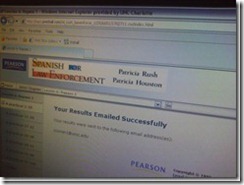 . In this example, allow all links in the left menu.
 - your list of allowable pages should cover the entire workflow, including feedback pages that the student may receive
- TBA: it is sufficient for a web page to be allowed/blocked if its URL string contains your listed URL as a substring
- the address-bar is misleading when a your pages are loaded within a frameset. like in this example:
- We have observed `the following issues:
- that the sanako web browser may hang, on startup or later, but a common workaround is closing a hanging sanako web browser which will reopen it on the table of contents page.
- that the “verifying access rights” window can disappear quickly, but may delay web browsing for a considerable time before your students are allowed to browse to a web page – please allow time for that (we are investigating whether the size of the class or the type of allow/deny list or individual allow/deny links cause this delay).
![sanako-webbrowsing-strict-policy_thumb[1]](https://thomasplagwitz.com/wp-content/uploads/2012/03/sanako-webbrowsing-strict-policy_thumb1_thumb.jpg?w=244&h=185 "sanako-webbrowsing-strict-policy_thumb[1]")
- that the sanako web browser on some computers (despite them have identical software images?) arbitrarily opening new windows which muddies the waters considerably – and also seems to require more time for the verifying –, but does not make the exercise fail:

![sanako-webbrowsing-strict-policy (1)_thumb[2]](https://thomasplagwitz.com/wp-content/uploads/2012/03/sanako-webbrowsing-strict-policy-1_thumb2_thumb1.jpg?w=600&h=451 "sanako-webbrowsing-strict-policy (1)_thumb[2]")

![sanako-webbrowsing-strict-policy_thumb[1]](https://thomasplagwitz.com/wp-content/uploads/2012/03/sanako-webbrowsing-strict-policy_thumb1.jpg "sanako-webbrowsing-strict-policy_thumb[1]")

![sanako-webbrowsing-strict-policy (1)_thumb[2]](https://thomasplagwitz.com/wp-content/uploads/2012/03/sanako-webbrowsing-strict-policy-1_thumb21.jpg "sanako-webbrowsing-strict-policy (1)_thumb[2]")
Protected: Mock exam for Spanish combines various learning technologies in the LRC
2012/03/01
Enter your password to view comments.
Categories: audience-is-teachers, classroom-management-system, e-languages, iMacs, learning-usage-samples, Listening, Listening-Stations, lms, LRCRoomCoed434, marketing, multimedia-recording, Photos, Practice&Demos, Reading, service-is-assessing, Spanish, Speaking, Vocabulary
kaltura, moodle, sanako-study-1200, web-browsing-activity


Questions? Read the About. Or just ask me a quick Our Databases: Resources with calendars -- Language learning material Moodle Sites, multimedia files -- films


FAQs for LRC student staff or for students or for teachers. To search our FAQs, in the browser addressbar, add after "https://plagwitz.wordpress.com/feed/?tag=faqs+/" "+TAG1" (from tag cloud below) OR "https://plagwitz.wordpress.com/feed/tag=faqs
&category_name=" "CAT1" (from category hierarchy below). OR search both categories and tags, and multiple TAGs/CATs (connect with "," for OR-search, with "+" for AND-search), like so: https://plagwitz.wordpress.com/feed/?tag=TAG1+TAG2+...TAGn&category_name=CAT1
+CAT2+...CATn"
Other ways to find help
If you cannot find it here, look there: 5,500 Language-Learning Links and Programs for learning or teaching 150 languages
Shortcuts:Our Lists, Our Maps, LRC Staff Moodle Site,LRC Project Moodle Site, 49erexpress, UNCC Moodle, Student Recordings: s:claslcslrcsanakostudent
Learning usage samples: Sanako oral exam, Kaltura webcam presentation, Dictation with speech recognition, Sanako written exam, Chinese and Japanese interactive stroke-order practice
Test the Sanako Installer, Webbrowser Popup Konfigurator for XP, or Windows7, faster LRC TeacherPC Log-in Let MS facilitate diacritics writing by installing for you US-International keyboard layout
This is my personal blog (Google+). The views expressed on these pages are mine alone and not those of my employer. The information in this weblog is provided “AS IS” with no warranties, and confers no rights.
 Thomas' Work Space