Archive
Archive for the ‘Learning-activity-is-any’ Category
How a teacher can easily grade a NanoGong audio recording assignment in Moodle
2013/10/17
Leave a comment
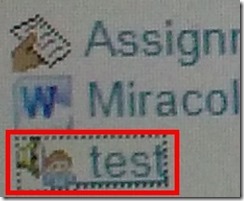
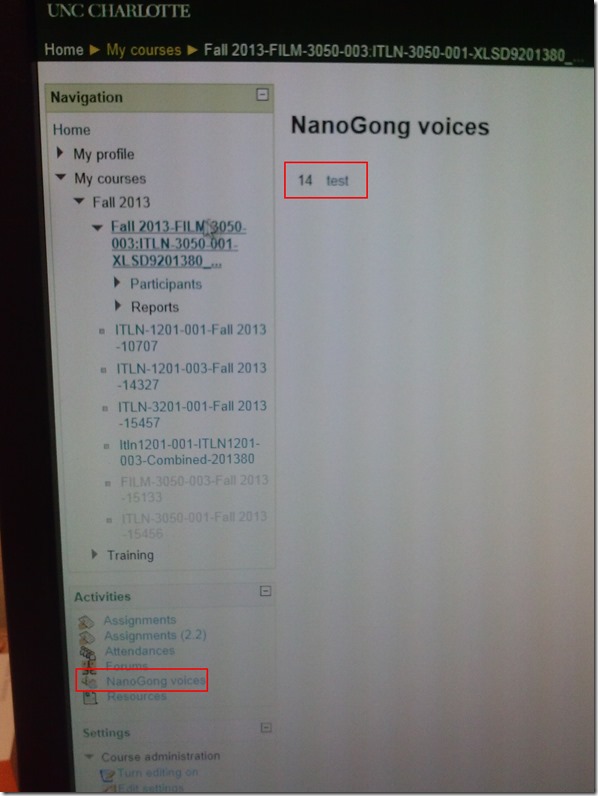
- Similar to grading video recording assignments with Moodle Kaltura, You can enter in 2 ways:
- By clicking on the assignment like your students:
- Or by clicking on Activities: NanoGong Voices
- By clicking on the assignment like your students:
- Before you make it to the assignment page and can see the NanoGong plugin, you may have to bypass some Java warning dialogues.
- On the assignment page:
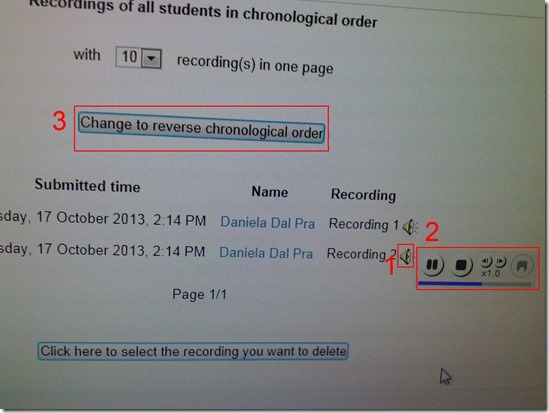
- Click (1) speaker symbol for the recorder control to show up.
- You can also
- enter (1) feedback
- or (2) re-sort the submissions – we had to click this once for the recordings to actually shows up (seems to refresh the page).

- I have not had the chance to see the results in the Gradebook, but here are some screenshots from blogs of users that have:

- Click (1) speaker symbol for the recorder control to show up.


Categories: assignments, audience-is-teachers, grading, lms, multimedia-recording, recording-software
audio, gradebook, moodle, nanogong
JAVA warning dialogues to bypass during NanoGong activities
2013/10/17
Leave a comment
- You may be prompted to update JAVA – likely a not a bad idea:
![java outdated warning_thumb[1]](https://thomasplagwitz.com/wp-content/uploads/2013/10/java-outdated-warning_thumb1_thumb1.png?w=560&h=354 "java outdated warning_thumb[1]")
- Click “RUN”:
![image_thumb[8]_thumb[1]](https://thomasplagwitz.com/wp-content/uploads/2013/10/image_thumb8_thumb1_thumb1.png?w=461&h=542 "image_thumb[8]_thumb[1]")
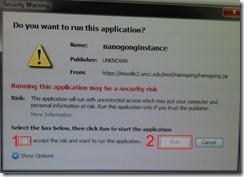
- Check (1) “Accept”and Click (2) “Run”:

- Click “Don’t Block”:
![CAM03106_thumb[1]](https://thomasplagwitz.com/wp-content/uploads/2013/10/cam03106_thumb1_thumb1.jpg?w=556&h=294 "CAM03106_thumb[1]")
- Even more annoying when warning dialogues do not come to the foreground, and your computer/web browser simply seems to be stuck. Check your task bar/dock for blinking/jumping JAVA notifications, like here:
 .
. - You have to bypass these dialogues only once – per session (lab) or possibly per computer. Choose the right answer, for university assignments, it is safe to “Allow! Allow! Allow! (“run”, “don’t block:”, update”, what ever – use common sense).
- Remember, thinks could be worse, – like if you try to use NanoGong in a Firefox that has not been explicitly configured to allow JAVA applets – read more on our troubleshooting NanoGong page.
![java outdated warning_thumb[1]](https://thomasplagwitz.com/wp-content/uploads/2013/10/java-outdated-warning_thumb11.png "java outdated warning_thumb[1]")
![image_thumb[8]_thumb[1]](https://thomasplagwitz.com/wp-content/uploads/2013/10/image_thumb8_thumb11.png "image_thumb[8]_thumb[1]")
![CAM03106_thumb[1]](https://thomasplagwitz.com/wp-content/uploads/2013/10/cam03106_thumb11.jpg "CAM03106_thumb[1]")
How a student can easily complete an audio recording assignment in Moodle, using the new NanoGong plugin
2013/10/17
Leave a comment
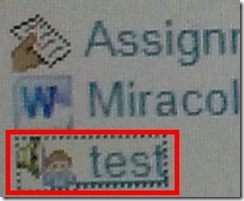
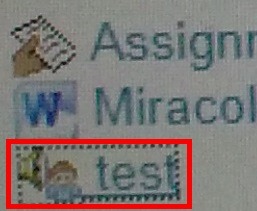
- Open your assignment (note the loudspeaker/dummy icon for NanoGong assignments/) from the Moodle landing page.
- Unfortunately, there are a considerable number JAVA warning dialogues to bypass during NanoGong activities before you can even see the recorder plugin on the page, and may be more when you try to submit.
- Once you are on the NanoGong assignment page: click red button to record,
![image_thumb[10]](https://thomasplagwitz.com/wp-content/uploads/2013/10/image_thumb10_thumb.png?w=400&h=278 "image_thumb[10]")
- Make sure the volume meter shows input when speaking (loud enough) or playing back:
![image_thumb[13]](https://thomasplagwitz.com/wp-content/uploads/2013/10/image_thumb13_thumb1.png?w=506&h=364 "image_thumb[13]")
- After recording, submit:

- After submitting,
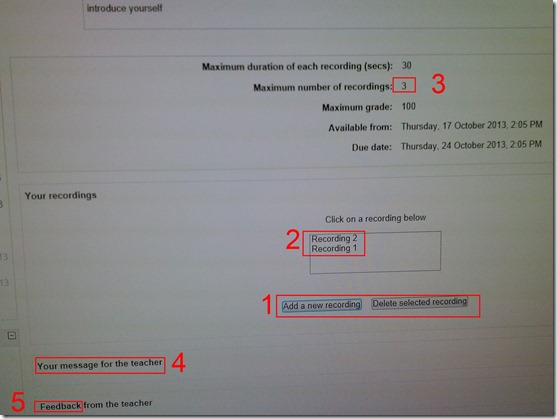
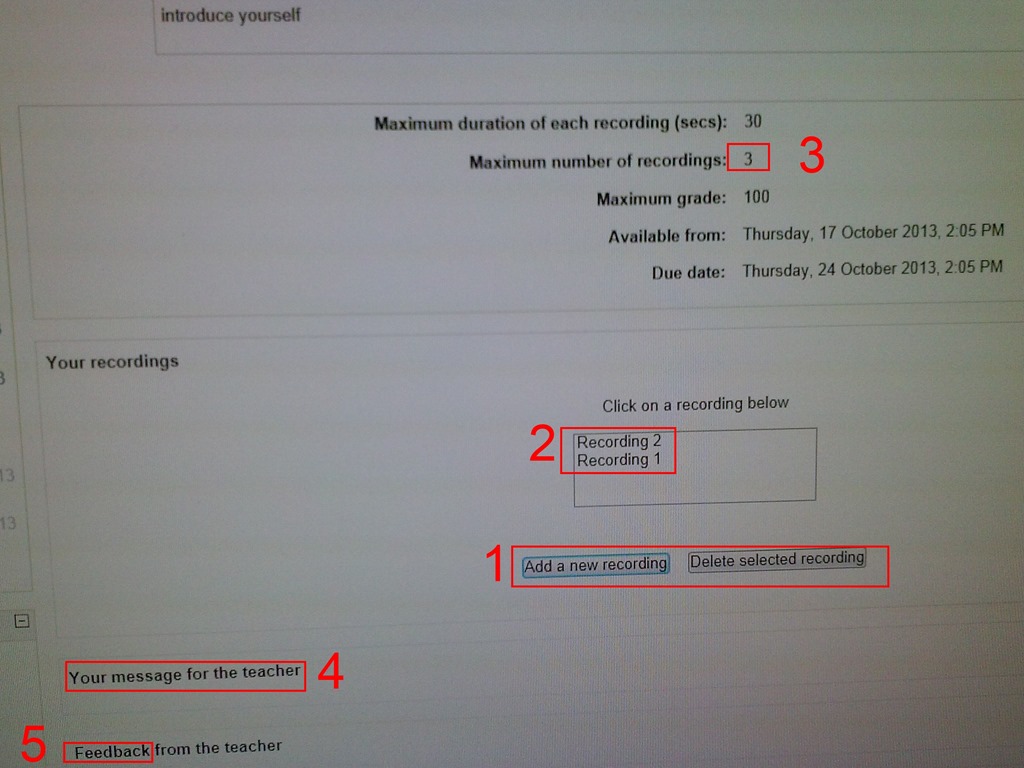
- You can still edit your submission, by
- (1) deleting your recording or
- re-adding – or (provided your teacher’s assignment allows for (3) multiple recordings) just adding – (2) your recordings
- or adding a (4) message to the teacher
- you can also revisit this page to read (5) feedback the teacher gives you about your recording:
- You can still edit your submission, by
- Experiencing issues? Check troubleshooting page here.
![image_thumb[10]](https://thomasplagwitz.com/wp-content/uploads/2013/10/image_thumb101.png "image_thumb[10]")
![image_thumb[13]](https://thomasplagwitz.com/wp-content/uploads/2013/10/image_thumb132.png "image_thumb[13]")

Categories: Arabic, assignments, audience-is-students, English, Farsi, French, German, Greek (modern), Hebrew, Hindi, Italian, Japanese, Korean, lms, Mandarin, multimedia-recording, Polish, Portuguese, Russian, Spanish, Speaking, Swahili, Yoruba
moodle, nanogong
How a teacher can easily assign an audio recording in Moodle, using the new NanoGong plugin
2013/10/17
Leave a comment
- We are back in business with easy audio recording assignments in the LMS, thanks to NanoGong – the free recorder I recommended when first starting here – now being available in MOODLE (presumably with the Upgrade to Moodle 2, I almost missed that….)
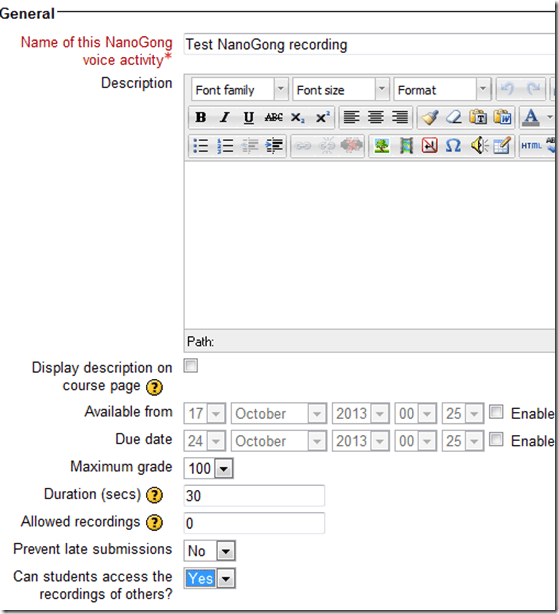
- To assign, click “turn editing on”, “Add activity or resource”, select “NanoGong voice activity”, as pictured below:

- There are a few interesting options:
- you can limit the duration
- you can limit the number of recordings (attempts?) allowed (0 is unlimited)
- You can let students listen to each other recordings. (Is there a rating feature that can be combined with this?)
- And this is what
- you will see (TBA:read on for how to listen to student submissions, give feedback and grade.)

- you will see (TBA:read on for how to listen to student submissions, give feedback and grade.)
- your students will see…


Categories: Arabic, assignments, audience-is-teachers, e-languages, English, Farsi, French, German, Greek (modern), Hebrew, Hindi, Italian, Japanese, Korean, lms, Mandarin, multimedia-recording, Polish, Portuguese, Russian, Spanish, Speaking, Swahili, Yoruba
moodle, nanogong
Demo of Puntos de partida on the McGraw-Hill Connect online platform for Hybrid Spanish teachers
2013/08/17
Leave a comment
- For your review:

- Highlights:
-
Learnsmart: adaptive learning content that asks for and tracks for the teacher and adapts for the student to students metacognitive confidence about her knowledge before testing it
-
In a flipped classroom setting, highest failure areas in the online learning results can be easily seen by the teacher to adapt the next class meeting.
-
Example 6: How even a false beginner can work with foreign language Speech recognition on Windows 7 Enterprise
2013/08/14
Leave a comment
- Executive summary: Don’t let initial poor speech recognition results discourage your from using this feature. Results will much improve if you go through a few minutes of the built-in voice training for speech recognition. Like in the last 30 seconds of this video.
- With the upgrade to Windows 7 Enterprise in the LRC – and the continued availability of high-quality Sanako headphones on the majority of LRC PCs – , we can now offer speech recognition in a number of foreign languages – including French.
- This feature can be used for language learning exercises, including dictation, like in this example. How robust is windows 7 speech recognition?
- You can expose yourself to some embarrassingly bad French in this screencast – and that is the point. (My French is limited to a mere 2 high school years of 3-hour per week voluntary French studies, more than 30 years ago, no practice since).
- The screencast shows how even a (false) beginner can,
- 0:00-1:00: from terrible initial results,
- 11:45-12:10: considerably improve (not make perfect!) the foreign language (here French) speech recognition on Windows 7,
- 1:00-10:40: by going through the built-in voice training.
- The LRC computers are “frozen”between reboots, but students still need to train them only once, since they can back up and restore their training data easily.

- (This is not proof of the overall validity of the recognition – for that, you are better off watching this screencast with Windows 7 Enterprise speech recognition in German).
Protected: How to configure the LangLabEmailer for your school, and share back
2013/06/07
Enter your password to view comments.
Categories: Arabic, assessments, assignments, audience-is-language-learning-center-manager, compiledcode, digital-audio-lab, e-languages, English, Farsi, French, German, Greek (modern), Hebrew, Hindi, Italian, Japanese, Latin, Mandarin, Polish, Portuguese, Russian, service-is-programming, Spanish, Speaking, Swahili, Writing, Yoruba
configuring, langlabemailer
How to update the LangLabEmailer
2013/06/06
Leave a comment
- LangLabEmailer updates automatically if an update is available when you start it.
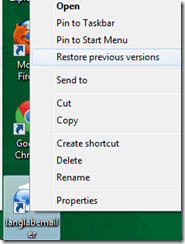
- Your langlabemailer.exe.config should not be affected by an update. you can access and back up the previous version by restoring, the previous version from the context menu of the desktop shortcut:
 .
. - You may need to reapply changes after an update (automatic on application run that need not, but may overwrite your local settings, but will keep a backup (look for ".pre" files in a subdirectory of the data directory (= directory with the langlabmailer.exe.config and without the many other (MANIFEST, DLL) files).
- Next: uninstalling. Or up Langlabemailer (table of contents)



Questions? Read the About. Or just ask me a quick Our Databases: Resources with calendars -- Language learning material Moodle Sites, multimedia files -- films


FAQs for LRC student staff or for students or for teachers. To search our FAQs, in the browser addressbar, add after "https://plagwitz.wordpress.com/feed/?tag=faqs+/" "+TAG1" (from tag cloud below) OR "https://plagwitz.wordpress.com/feed/tag=faqs
&category_name=" "CAT1" (from category hierarchy below). OR search both categories and tags, and multiple TAGs/CATs (connect with "," for OR-search, with "+" for AND-search), like so: https://plagwitz.wordpress.com/feed/?tag=TAG1+TAG2+...TAGn&category_name=CAT1
+CAT2+...CATn"
Other ways to find help
If you cannot find it here, look there: 5,500 Language-Learning Links and Programs for learning or teaching 150 languages
Shortcuts:Our Lists, Our Maps, LRC Staff Moodle Site,LRC Project Moodle Site, 49erexpress, UNCC Moodle, Student Recordings: s:claslcslrcsanakostudent
Learning usage samples: Sanako oral exam, Kaltura webcam presentation, Dictation with speech recognition, Sanako written exam, Chinese and Japanese interactive stroke-order practice
Test the Sanako Installer, Webbrowser Popup Konfigurator for XP, or Windows7, faster LRC TeacherPC Log-in Let MS facilitate diacritics writing by installing for you US-International keyboard layout
This is my personal blog (Google+). The views expressed on these pages are mine alone and not those of my employer. The information in this weblog is provided “AS IS” with no warranties, and confers no rights.
 Thomas' Work Space