Archive
Archive for the ‘Learning-activity-is-any’ Category
Overview over speech recognition assignment possibilities in the LRC–from beginning to end
2014/01/21
1 comment
- UPDATE: now with more videos to watch.
- First switch languages, once you are in the right language:
- The speech recognition loads at startup with this window:

- or can be started from the desktop shortcut:

- To activate = make it start/stop listening, click on the microphone

- create and save individualized voice training data (only the first time you use speech recognition in the LRC),
- Watch how to train (for English, short 5 minutes);
- Watch how to back up/restore;
- beginner voice training example (long, before/after effect in speech recognition),
- homework assignment exercise design,
- Watch how (for English, with correction in MS-Word)
- dictation example.



Categories: assignments, e-languages, English, French, German, Japanese, Mandarin, os, Spanish, Speaking
7, ms-windows, speech-recognition
Trying to reduce Attempt abandoned in Hot Potato Hot Pot Moodle quizzes
2013/12/20
Leave a comment
- The Hot Potatoes quiz activity per se does not seem to have a submit button, since it is auto-grading, per question.
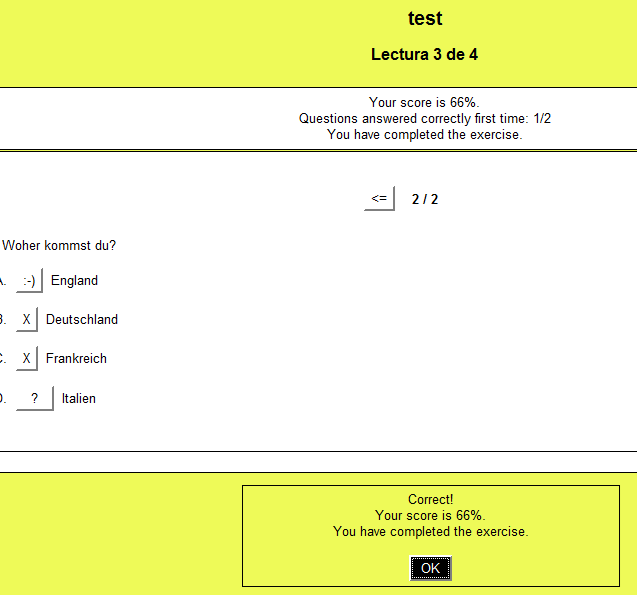
- . When the quiz is completed, the string in ExerciseCompleted (usually: “You have complete the exercise” )appears in a modal dialogue and on top.

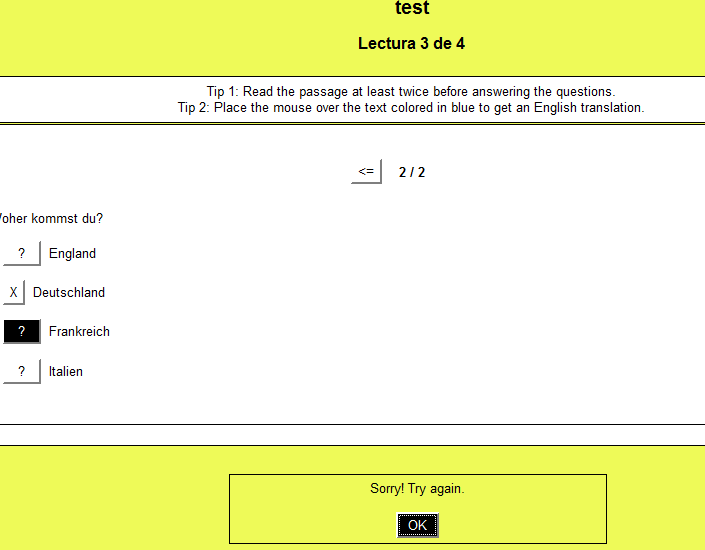
- Before Exercise is complete, the instructions now remain, since I have turned off ShowCompleteSoFar:
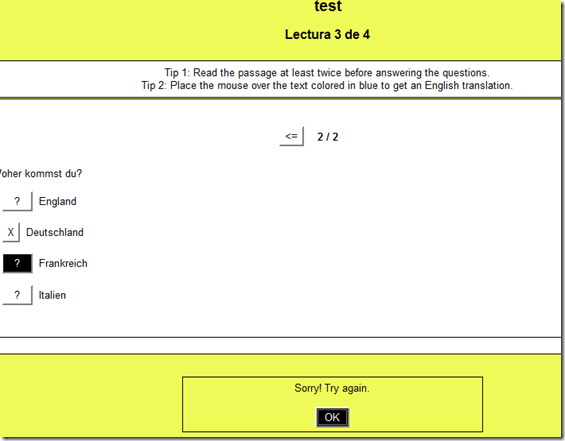
- One could make ExerciseCompleted much more visible (like with ShowCompleteSoFar permanently in a Hot Potatoe inhstallation), if looking out for this message would help the students not abandoning the quiz early:


How to get rid of “Questions completed” feedback in Hot Potatoes quizzes
2013/12/20
Leave a comment
- If you dig into the JavaScript in the HTML, looking for the default feedback t4ext (“Questions completed so far”), you see (as I have done here manually; this could be relatively easily done also for an entire batch of course quizzes with a global replacement) that you turn this option off:
- var CompletedSoFar = ‘Questions completed so far: ‘;
- var ShowCompletedSoFar = false;
- But that does not get rid of the #/# being displayed.
- There is an option to get rid of the Feedback text:
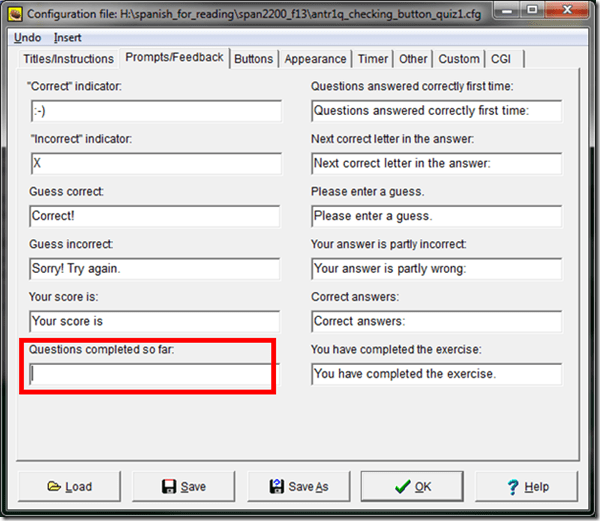
- If I read the options correctly, there is no such setting (we tried the obvious suspects here):

-
function CheckQuestionsCompleted(){ // trp: trying to disable showing to student QuestionsCompleted // (entire function even if somebody changes the variable ShowCompletedSoFar) // if i understand correctly, what users really do not want to show // is a misleading completed correctly for completed // (which leads to students not know that they have finished?) - \ // is there no better way? // was: if (ShowCompletedSoFar == false )){return '';} // trp: cannot find a gui to set ShowCompletedSoFar to false var QsCompleted = 0; for (var QNum=0; QNum<State.length; QNum++){ if (State[QNum] != null){ if (State[QNum][0] >= 0){ QsCompleted++; } } } //Fixes for 6.2.2.2 if (QsCompleted >= QArray.length){ return ExerciseCompleted; } else{ return ''; // trp: CompletedSoFar + ' ' + QsCompleted + '/' + QArray.length + '.'; } } - Since you can edit the sourcefiles of a HotPotatoes installation, you can turn it also off for a machine permanently:
- If this variable is there in the underlying code, shouldn’t there be also an option in the GUI (not necessarily, maybe was never implemented – or maybe I just have not found it…).
- For what the output will look like, see here.


Categories: assessments, Authoring-tools, e-learning, sourcecode
hot-potatoes, javascript
How to change your button text in Hot Potatoes activities
2013/12/19
Leave a comment
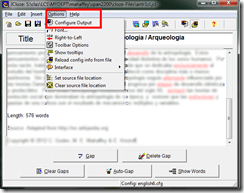
- In Hot Potatoes, use the “options”/ “configure output”:
- Tab: “Buttons”:

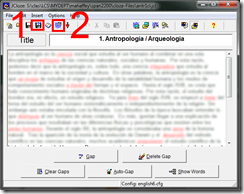
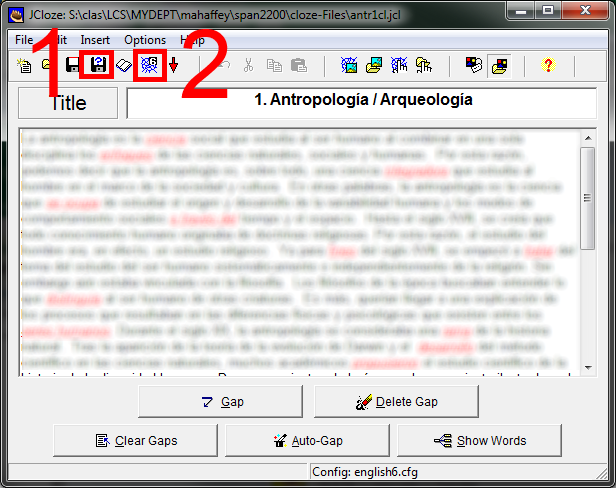
- Save and regenerate the html file:
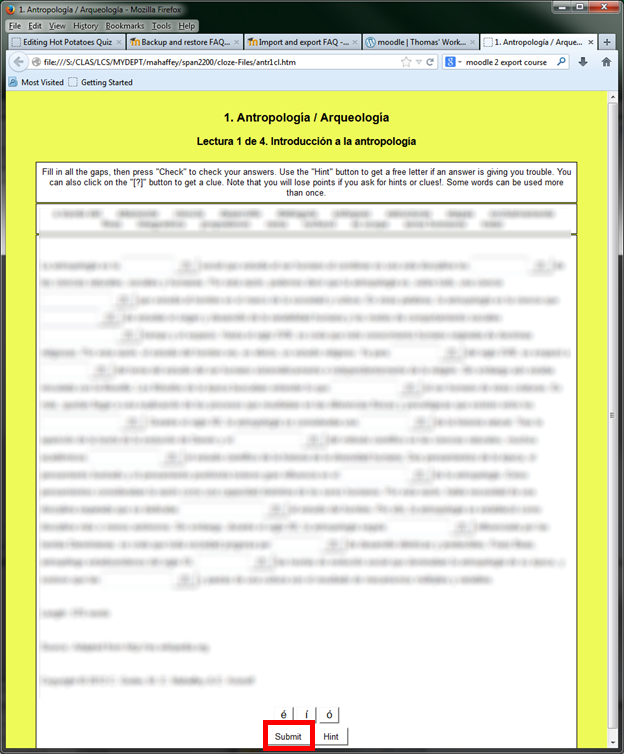
- Voilà:


Categories: assessments, e-learning
hot-potatoes, quizzes
How to record screencasts with Kaltura in Moodle 2
2013/11/18
Leave a comment
- Go to your video assignment in Moodle:
 .
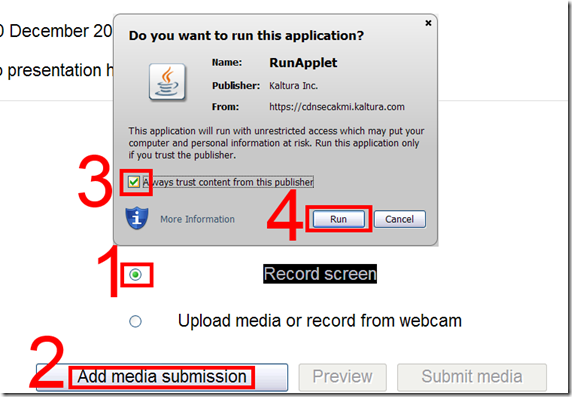
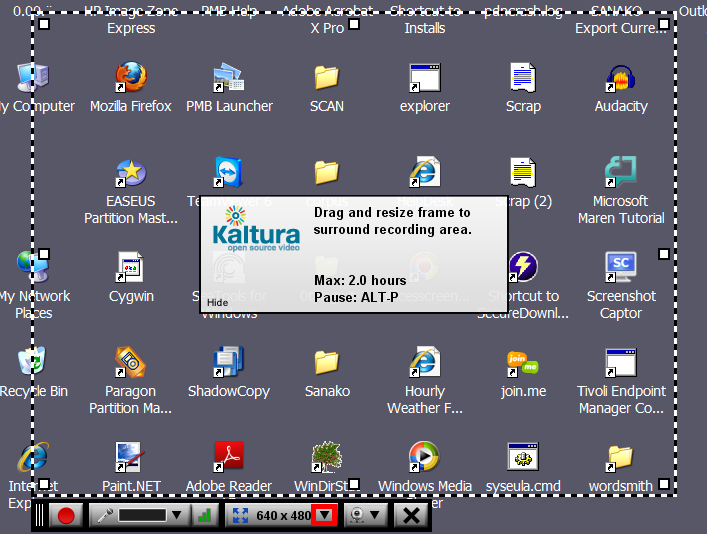
. - Click “Record screen”, “Add”, and pass the Java security Dialogues:
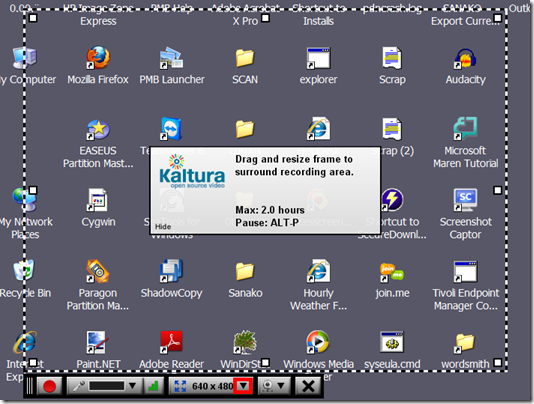
- The default video resolution is 640*480, but you can change this by unfolding the drop down menu:
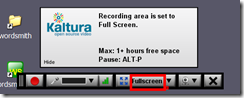
- Full screen is recommended for a Slideshow:
- To start, click the red record button:
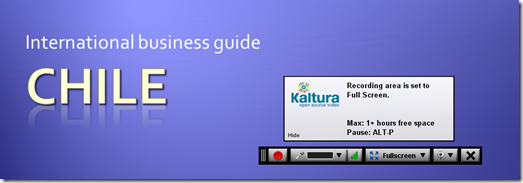
- You will get a few seconds to collect your thoughts:

- After finishing your slide show, stop the recording from the taskbar icon, and stop the recording:
 .
. - From the video window that opens:
- You can preview it
![clip_image001[4]](https://thomasplagwitz.com/wp-content/uploads/2013/11/clip_image0014_thumb1.png?w=541&h=373 "clip_image001[4]")
And upload it which includes encoding which takes a bit of time (but not as much as encoding of webcam footage).
![clip_image002[4]](https://thomasplagwitz.com/wp-content/uploads/2013/11/clip_image0024_thumb1.png?w=548&h=385 "clip_image002[4]")
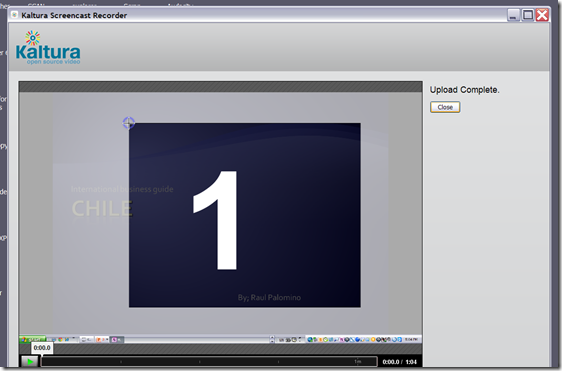
- You can preview it
- Finally,
- you can see the result in your media library
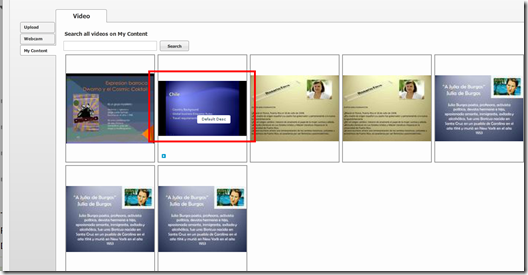
- preview it once more:
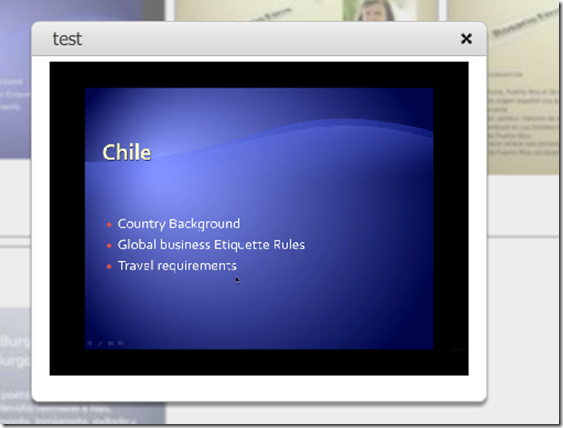
- and submit your video content from the media library.
- Kaltura screencasts can be used from any Java-compatible device. In the LRC, however, you can also record screencasts to files, using MS-Community Clips which you can still upload to Kaltura – extra step, though –, while maintaining compatibility with Mahara.



![clip_image001[4]](https://thomasplagwitz.com/wp-content/uploads/2013/11/clip_image00141.png "clip_image001[4]")
![clip_image002[4]](https://thomasplagwitz.com/wp-content/uploads/2013/11/clip_image00241.png "clip_image002[4]")


Categories: assignments, audience-is-students, lms, multimedia-recording, Screencasts
kaltura, moodle
How to control students’ access to internet and local apps with Sanako Study 1200
2013/11/18
Leave a comment


Straight from the documentation, straight under your fingertips in the tutor interface, and most useful during assessments, but also for individual students that won’t stay on task.
How to create screencasts of student presentations for the language learner ePortfolio in the digital audio lab
2013/11/08
Leave a comment
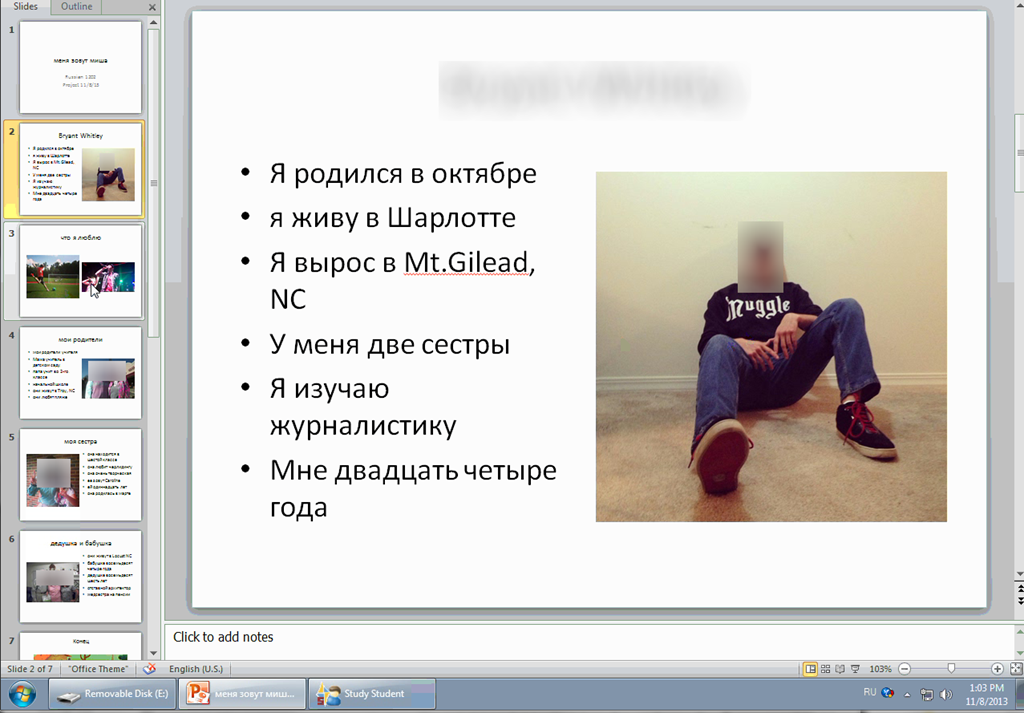
- Students can now easily video-record their own screens during class presentations – not only when using PowerPoint; instead students could demo a website, like their Facebook page.
- Last year, we were limited to PowerPoint’s record slideshow with timing and narration feature, and either send the PPSX (small, but requires the PowerPoint viewer) or the “Save as” video (new in PowerPoint 2010; computing intensive and large file size).
- Now with MS-Community Clips, screencasts are
- minimal effort to create (keyboard shortcut WIN+ALT+R or T; save on desktop; drag/drop into Sanako homework folder)
- and little effort to distribute:
- Students could have uploaded to a Moodle’ file upload assignment (default file size limit: 64MB) or Kaltura file upload assignment (not sure whether there is a size limit). This seems more suitable for assignments with screencasts recordings.
- In this instance
- Sanako collected the Homework files to the Sanako share,
- my langlabemailer emailed them as attachment (so far tested to allow for 25MB attachment size, the equivalent of 7-8 minute screencast, a hefty space to fill in L2! We also established: 45MB is too much…
 ) to the originating student and teacher, for review, grading –
- and – provided it passes muster as an attractive and significant piece – possibly for re-use in the student’s language learner ePortfolio.
- In addition,
- Before the presentations, the teacher easily collaborated on proof-reading the slide decks of individual students, by using the Sanako Remote control screen sharing feature.
- During the presentation, students followed more closely – which seemed to increase their attention and comprehension -, thanks to audio and screen being shared to them from the presenter, using the Sanako’s “Model student” feature.
Categories: Arabic, audience-is-teachers, digital-audio-lab, e-languages, English, eportfolio, Farsi, French, German, Greek (modern), Hindi, Italian, Japanese, learning-usage-samples, Mandarin, multimedia-recording, office-software, Portuguese, presentations, Presenter-Computer, Russian, Spanish, Speaking, Student-Computers
file-upload, homework-activity, kaltura, langlabemailer, model-student, moodle, ms-community-clips, ms-powerpoint, sanako-study-1200, screensharing, videos
How to record your screen with MS-Community Clips
2013/11/06
Leave a comment
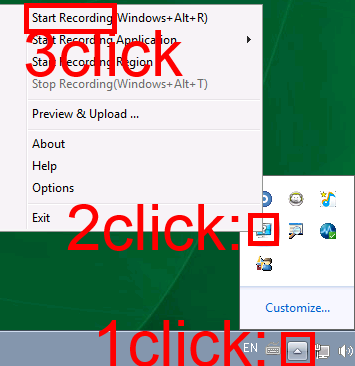
- During presentations, when creating demonstrations etc., it can be useful to record your screen (and your voice, if you speak into the headphone microphone). In the LRC, we have MS Community Clips pre-installed for this purpose. To start recording:
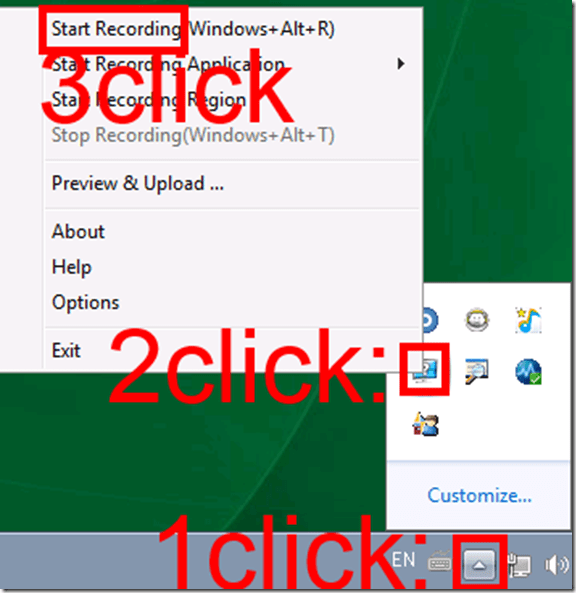
- To stop recording, follow the same steps, but in step 3 choose “stop”.
- Or forget about the menus and remember the keyboard shortcuts: WIN+ALT+R or T.
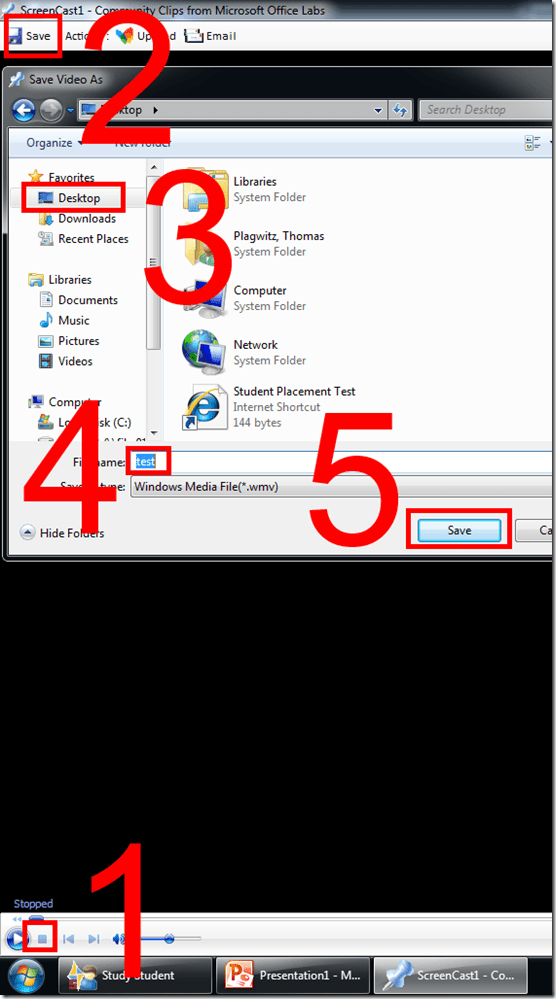
- The video will play automatically. Click stop, menu: Save, Save your recording where you need it (e.g. Desktop).
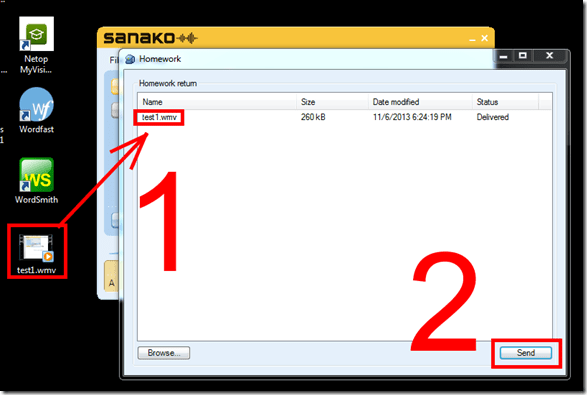
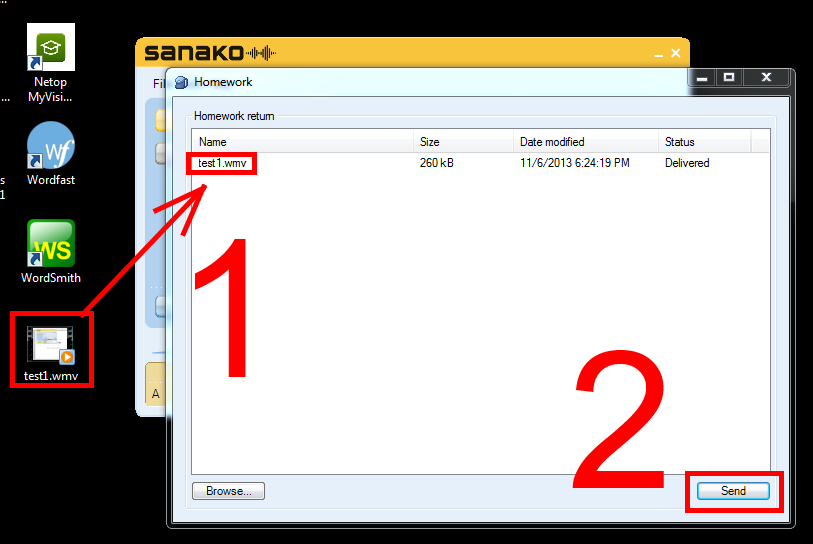
- If your teacher wants you to submit your recording, in the LRC you can drop it into the Sanako Homework window and “send” it:



Questions? Read the About. Or just ask me a quick Our Databases: Resources with calendars -- Language learning material Moodle Sites, multimedia files -- films


FAQs for LRC student staff or for students or for teachers. To search our FAQs, in the browser addressbar, add after "https://plagwitz.wordpress.com/feed/?tag=faqs+/" "+TAG1" (from tag cloud below) OR "https://plagwitz.wordpress.com/feed/tag=faqs
&category_name=" "CAT1" (from category hierarchy below). OR search both categories and tags, and multiple TAGs/CATs (connect with "," for OR-search, with "+" for AND-search), like so: https://plagwitz.wordpress.com/feed/?tag=TAG1+TAG2+...TAGn&category_name=CAT1
+CAT2+...CATn"
Other ways to find help
If you cannot find it here, look there: 5,500 Language-Learning Links and Programs for learning or teaching 150 languages
Shortcuts:Our Lists, Our Maps, LRC Staff Moodle Site,LRC Project Moodle Site, 49erexpress, UNCC Moodle, Student Recordings: s:claslcslrcsanakostudent
Learning usage samples: Sanako oral exam, Kaltura webcam presentation, Dictation with speech recognition, Sanako written exam, Chinese and Japanese interactive stroke-order practice
Test the Sanako Installer, Webbrowser Popup Konfigurator for XP, or Windows7, faster LRC TeacherPC Log-in Let MS facilitate diacritics writing by installing for you US-International keyboard layout
This is my personal blog (Google+). The views expressed on these pages are mine alone and not those of my employer. The information in this weblog is provided “AS IS” with no warranties, and confers no rights.
 Thomas' Work Space