Archive
Archive for the ‘assessments’ Category
Protected: How to configure the LangLabEmailer for your school, and share back
2013/06/07
Enter your password to view comments.
Categories: Arabic, assessments, assignments, audience-is-language-learning-center-manager, compiledcode, digital-audio-lab, e-languages, English, Farsi, French, German, Greek (modern), Hebrew, Hindi, Italian, Japanese, Latin, Mandarin, Polish, Portuguese, Russian, service-is-programming, Spanish, Speaking, Swahili, Writing, Yoruba
configuring, langlabemailer
How to update the LangLabEmailer
2013/06/06
Leave a comment
- LangLabEmailer updates automatically if an update is available when you start it.
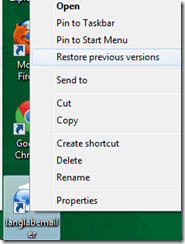
- Your langlabemailer.exe.config should not be affected by an update. you can access and back up the previous version by restoring, the previous version from the context menu of the desktop shortcut:
 .
. - You may need to reapply changes after an update (automatic on application run that need not, but may overwrite your local settings, but will keep a backup (look for ".pre" files in a subdirectory of the data directory (= directory with the langlabmailer.exe.config and without the many other (MANIFEST, DLL) files).
- Next: uninstalling. Or up Langlabemailer (table of contents)

“Clickonce” to download Langlabemailer (BETA)
2013/04/26
Leave a comment
After receiving the response to your request for a download link, click the link in the response to go the download page, and on that page click the button: “Install”.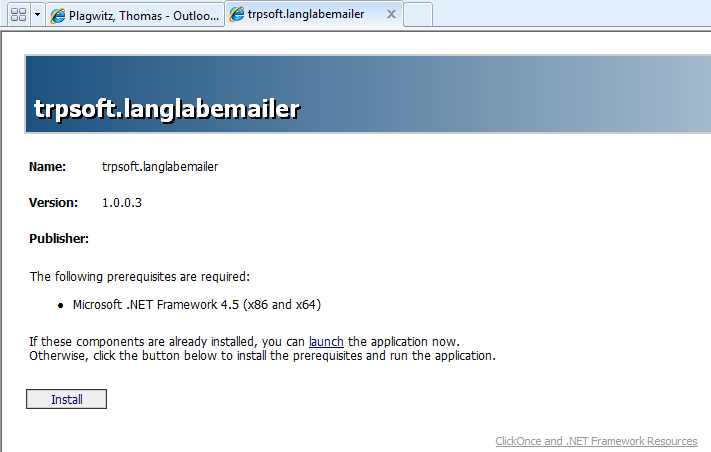
Next:Install. Or Langlabemailer (table of contents).
How a teacher can adapt a Sanako teacher-controlled class recording activity for individual student recordings
2013/03/12
Leave a comment
- Pedagogical need:
- A teacher wants her students to record a presentation,
- but allow the students to move around freely in their recording afterwards, when evaluating it, and submit the best out of 3 tries:
- Technical implementation:
- Using Sanako activity:model imitation of differing for multiple groups
- offers maximum control, least flexibility: students have to speak their presentation linearly
- if you anticipate presentations of considerably different lengths
- first try asking your students – might be useful to them anyway to realize if theirs turns out to be much shorter than others,
- if students are unsure about the length of their presentation,
- conduct the first recording with the entire class and
- have students note what time their recorder time counter is at when they finish, and send you the time as text via the button:envelope
- group your students (grouping step-by-step) into Sessions A-F by incrementing time according to what the student icon bubble shows
- then differentiate class into as many groups as necessary (if <= the 6 “sessions”A-F Sanako Study 1200 offers) end the recording at a different time for each group
- for each group (one or more up to 6),
- choose from dropdown activity: model imitation recording
- and from dropdown: source: none) with more than one group at a time,
- and (optionally) for not more than one group at a time (suggest choosing the biggest group for that) from (dropdown: source: file ) the background noise to play
- and after each group’s allocated time (+ buffer) is up,
- press button:end to end the recording
- after collection of the recordings from students is finished, you can
- press button:replay
 , to let each student listen to her recording (linearly, without control), and
 - press button:free
 , to let students freely move back and forth on the timeline)
 - eventually, press button: clear, to be ready:
- choose from dropdown activity: model imitation recording
- for tries 2 and 3: repeat above steps.
- using Sanako activity: self access:
- provides
- the teacher some control (none over this turning into more of an editing than coherent language practice exercise),
- and students more flexibility (hence requiring prior recording training for students);
- students individually
- record
- move around freely in the file
- replay
- record over prior footage and/or start completely over (menu: File / new)
- press button:envelope to text message the teacher that they are finished and want their (final ) recording to be collected by the teacher
- teacher
- moves signaling students into a group (grouping step-by-step) that is
- dedicated for collecting recordings (TBA:does this not empty their buffer?)
- and button:pc control: locked (= no further or accidental changes)
- once an appropriate (compromise between finished students wanting to leave and teacher not having to collect each recording individually) number of students have been added to this group, presses
- button: end to collect and
- button: clear session to clear the button
- assesses the recordings in the folder that opens with audacity;
- in case of problems, moves students back to the group dedicated to recording
- else lets students leave
- moves signaling students into a group (grouping step-by-step) that is
- provides


Categories: Arabic, assessments, audience-is-teachers, digital-audio-lab, e-languages, English, Farsi, French, German, Greek (modern), Hebrew, Hindi, Italian, Japanese, Korean, Mandarin, multimedia-recording, Polish, Portuguese, Presenter-Computer, Russian, service-is-assessing, Spanish, Speaking, step-by-step-guides, Student-Computers, Swahili, Yoruba
oral-exams, sanako-study-1200
How to create a visual cue exam file using Insert Photo album in PowerPoint
2012/12/18
Leave a comment
Once you have found (e.g. with a Google advanced image search) your desired images and saved them in a folder, open PowerPoint (e.g. by clicking “start”/ “run”/ typing “powerpnt”, click “OK”) and do this: 

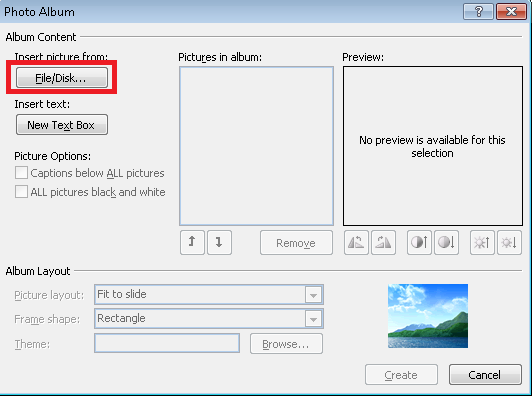

Result: an easy displayable list of images (you may want to drag&drop the slide thumbnails on the left in to a different sequence if you did not get the sequence right in the above “PhotoAlbum” dialogue: 
How to retrieve students’ recordings under student login name if you saved under position or computer name in Sanako Study 1200
2012/10/30
Leave a comment
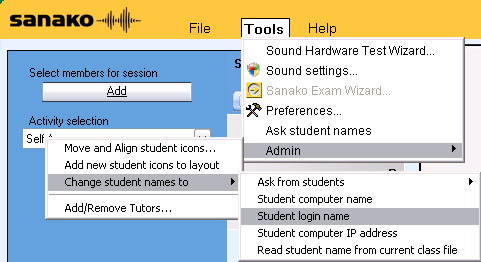
- Why? Most (though not all) times you will find it easier to manage student files if their names contain the student login names
- How?
- Change the classroom layout naming scheme from menu:”Tools”/ “Admin”/ “Change student names to” / “Student login name”
 and
and - collect or repeat a prior collection of the student recorder buffer by using the activity pane: files icon
 (this requires that you have not yet used activity pane:button:”clear session”).
- Change the classroom layout naming scheme from menu:”Tools”/ “Admin”/ “Change student names to” / “Student login name”


Categories: assessments, audience-is-teachers, digital-audio-lab
FAQs, sanako-study-1200
How to conduct a Sanako Study 1200 functionality test before oral exams
2012/10/30
Leave a comment
- Why? Before high-stakes oral assessments, it is best practice to test the functionality of all computers in the digital audio lab.
- How?
- Log into 2 computers with your own account (these will serve as a backup computers. Should you need backup computers later, there will be no delay waiting for them to start up and become operational).
- Change Sanako classroom layout names to computer or position name (whatever makes it easier for you to identify any non-functioning machines).
- If you are doing this for a first time with a class, load your test exam audio into Audacity and display the voice graph to students on a projector. This way you make sure that students understand from the voice graph that they are supposed to
- hear an instruction over the headphones and
- respond to the instruction by saying their names into their microphones.
- Perform a name-test recording using Sanako activity:”Model imitation”and examine the results:
- Make sure the Sanako collection folder opens – meaning all student recordings could be collected. If not, identify the offending positions from the Sanako collection dialogue and open the folder with the remaining collected recordings manually from the Sanako collection dialogue
- Drag the recorded files into an empty Audacity window and examine the collected recordings visually, plus, where in doubt, aurally, by clicking “solo” and play on the track in question.
- React accordingly:
- If some positions show problems, move students to one of the backup machines that you logged into earlier.
- move backup machines not needed to a different session by right-clicking on their classroom layout icon.
- if more than one backup machine is indeed needed, Sanako – since it is you who are logged in on both – will ask you later for permission to number collected files for duplicate students sequentially. Allow that and rename the files manually.
- Don’t forget to change Sanako classroom layout names back to student login name.
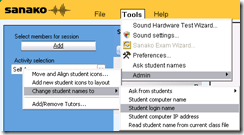 . Or else here is how you can later recover student recordings by student login names.


Questions? Read the About. Or just ask me a quick Our Databases: Resources with calendars -- Language learning material Moodle Sites, multimedia files -- films


FAQs for LRC student staff or for students or for teachers. To search our FAQs, in the browser addressbar, add after "https://plagwitz.wordpress.com/feed/?tag=faqs+/" "+TAG1" (from tag cloud below) OR "https://plagwitz.wordpress.com/feed/tag=faqs
&category_name=" "CAT1" (from category hierarchy below). OR search both categories and tags, and multiple TAGs/CATs (connect with "," for OR-search, with "+" for AND-search), like so: https://plagwitz.wordpress.com/feed/?tag=TAG1+TAG2+...TAGn&category_name=CAT1
+CAT2+...CATn"
Other ways to find help
If you cannot find it here, look there: 5,500 Language-Learning Links and Programs for learning or teaching 150 languages
Shortcuts:Our Lists, Our Maps, LRC Staff Moodle Site,LRC Project Moodle Site, 49erexpress, UNCC Moodle, Student Recordings: s:claslcslrcsanakostudent
Learning usage samples: Sanako oral exam, Kaltura webcam presentation, Dictation with speech recognition, Sanako written exam, Chinese and Japanese interactive stroke-order practice
Test the Sanako Installer, Webbrowser Popup Konfigurator for XP, or Windows7, faster LRC TeacherPC Log-in Let MS facilitate diacritics writing by installing for you US-International keyboard layout
This is my personal blog (Google+). The views expressed on these pages are mine alone and not those of my employer. The information in this weblog is provided “AS IS” with no warranties, and confers no rights.
 Thomas' Work Space