Archive
Protected: LRC Outlook/Exchange Resource mailboxes update for Winter 2012
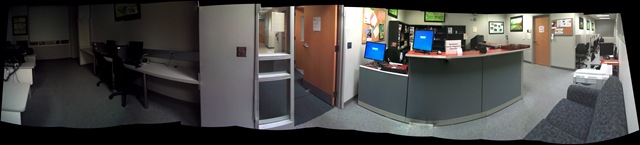
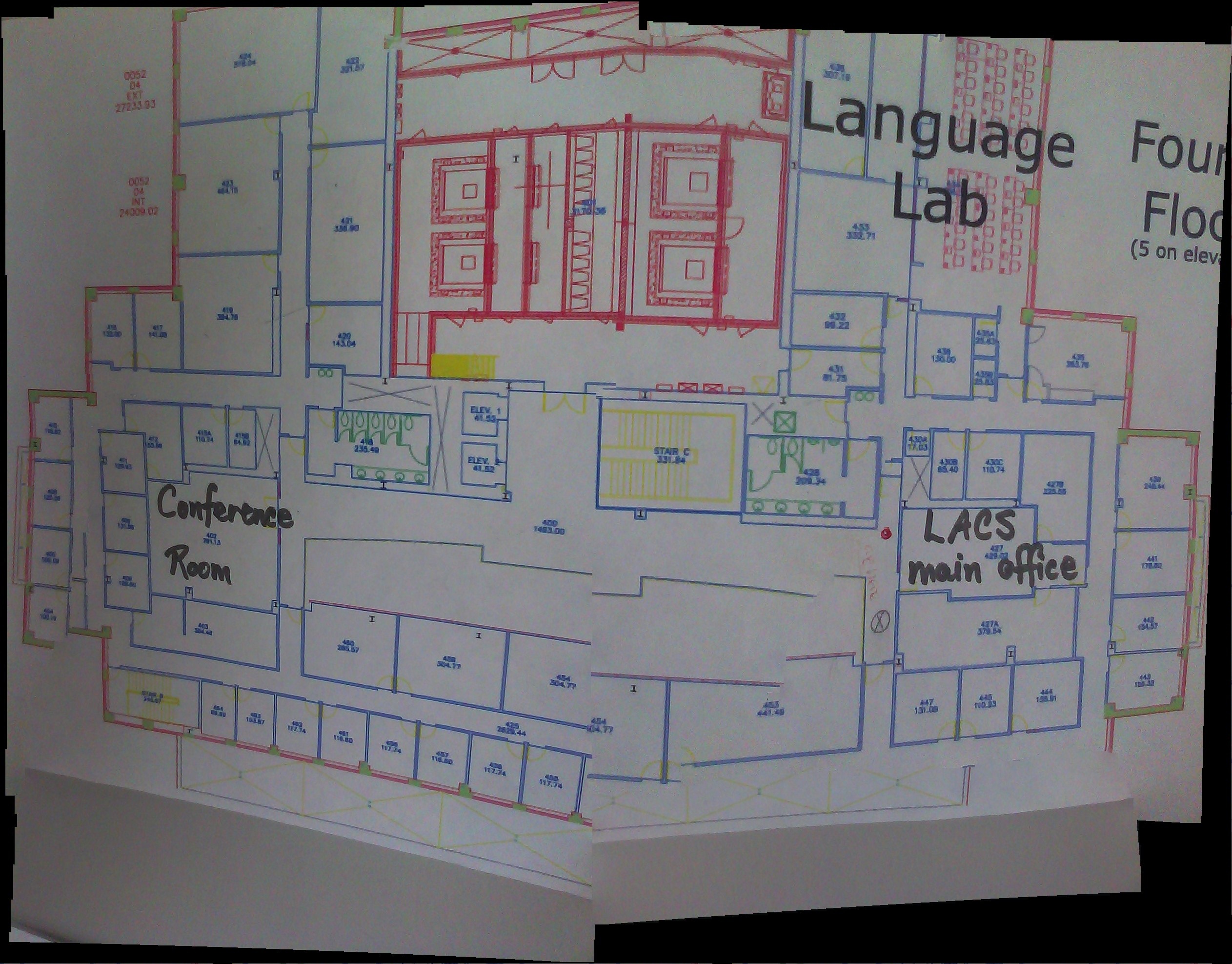
Location of the Language Resource Center (LRC) on the UNCC Campus Map

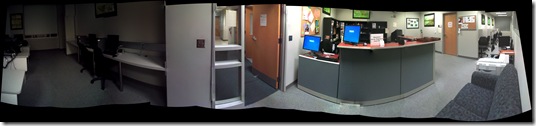
We are across from Student Union, in the COED building with Languages and Culture Studies (LCS), top floor – look for the banners on the wall.
How we provide more computer support for walk-up clients at the LRC reception desk
- We have set up 3 PCs at the reception desk. They all contain an exactly identical software configuration (based on Symantec Ghost imaging and Faronics Deepfreeze).
- Except that two (we could not get hold of another monitor) have a secondary screen connected that can extend the Windows Desktop, or mirror it (use CTRL-ALT-F11 and CTRL-ALT-F10 to switch between the modes of the )

- To aid in this communication over the counter, press CTRL-2 to freeze and on the screen (uses MS-ZoomIt) which helps when pointing out screen elements.
- So that LRC staff and clients can both use the university’s most important web applications, the computers have been configured to automatically launch a number of web browsers on startup, and within each browser, open a number of home pages with(LRC website, Moodle, NINERNET, faculty&staff Mail, WordPress, Excel Web App with he LRC databases for hardware, software, media and learning materials inventories). (When done, instead of closing the browser, use the “sign out” link of each web application).
- As a reminder, the most basic instructions (with keyboard shortcuts) have been posted on both primary and secondary monitor.
- Can we also implement a screen sharing solution allowing for MS-remote assistance, to enable reception desk LRC staff to escalate client questions they cannot resolve, like our IT department?

How teachers can grade student recordings done with the LRC Sanako Study-1200 in their Office
-
Teacher on their office PC (MAC users talk to http://helpdesk.uncc.edu) can press
 windows-key+e, and in the window, that opens,
 -
browse to the student mp3 recordings with date and time in the folder name on s:\coas\lcs\labs\lrctest\sanako\student (no S: drive on office PC? talk to http://helpdesk.uncc.edu, but in the meantime, trywindows-key+r, paste = \\DATASERV1\DVOL1\coas\lcs\labs\lrctest\sanako\student”, click “OK”),
-
open the student recording file, either by double-clicking to, presumably, open it in Windows Media Player, or, preferably, by selecting multiple files, right-clicking and choosing “Open with” to open them for comparative grading (read some tips) in Audacity.

The Language Resource Center within the Department of Languages and Cultural Studies in the College of Education building
Sanako Study 1200: Student Basics II: The Screencast
This screencast covers the basics of Study 1200 for students
For a quick guide to the Student interface, see Student Basics I: The Screenshots
Computer Lab Imaging with Ghost Console and Deepfreeze Console
0. As of Winter 2011 Novell – AD and Deepfreeze 7 upgrade, flagged for updating: TBA.
1. DEEPFREEZE console
1.1. Unfreeze the image source client
2. Client PREPARE THE IMAGE
2.1. Login as labadmin,
2.1.1.NAL [tba], labtools, icon Microsoft Update (be sure to use icon in launcher it will disable policies that won’t allow it otherwise use windowsupdate.com
2.1.2 Remove the machine from the domain: My Computer / System Properties / Computer Name / Button: Change / Member of: Workgroup: LRC (if it asks for a user/pwd, leave both blank and click OK), restart as prompted using Ghost Console / Add to workgroup
2.2. Login as ITSadmin (work station only)
2.2.1.Create user testuser (Administrator), will be based on past default user template
2.3. Log in as testuser
2.3.1.Document what you are doing by running c:\temp\labscreencastfullhighaudio.wme / menu button: start encoding / when done, menu button: stop encoding, rename output file to not overwrite existing output,
2.3.2.Make changes ß centre_image_request_list_allda
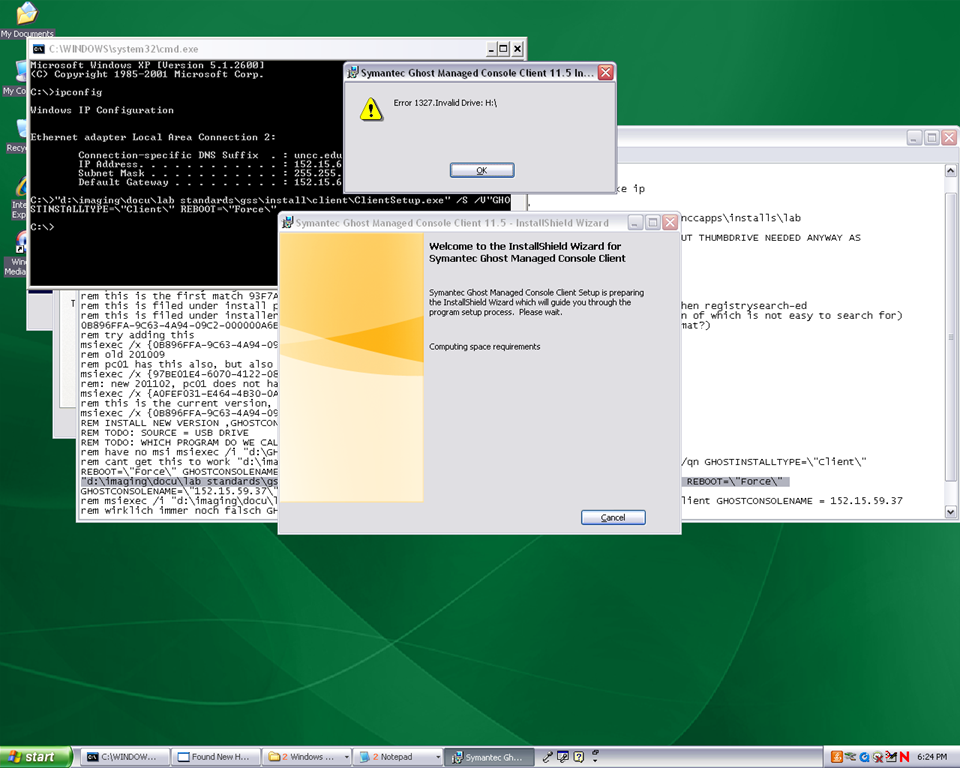
2.3.2.1 if software installs complain about missing H: (home) drive, plug in a thumbdrive and change its driveletter to H:
2.3.3.Clean before making testuser default user:
2.3.3.1. control / internet options / clean history and temp files
2.3.3.2. recycling bin: empty
2.3.3.3. right-click start button: / menu item:properties / button:customize / tab:general / button:clear list + tab:advanced: clear list
2.3.3.4. C: / properties /disk cleanup, all, except: “Compress old files”, “cached installers”, “Office setup files”
2.3.3.5 Firefox: menu: tools / clear recent history / time range: “everything”/ check everything and click button “clear now:” 
2.4. Log in as itsadmin
2.4.1.Document what you are doing by running c:\temp\labscreencastfullhighaudio.wme / start encoding / rename to not overwrite existing output,
2.4.2.Manage testuser – default user transition
2.4.2.1. USERS
2.4.2.1.1. Make testuser default user:
2.4.2.1.1.1. Unhide: explorer / tools / folder options / tab:view / show hidden files and folder, unhide protected operating system files
2.4.2.1.1.1.1. make a backup of old documents and settings/default user (entire directory, not only ntuser.dat): zip onto thumbdrive with date/version number )
2.4.2.1.1.2. xp copy profile windowskey+pause/break /tab:advanced / section:user profiles / button:settings, select the profile [you cannot copy the active profile, so log in as itsadmin], button: copy to, new window: copy to, section:copy profile to, button:browse, select c:\documents and settings\default user, button:ok
2.4.2.1.1.3. [not even the ntuser.dat seems necessary, since even the ntuser.dat gets updated by copy profile] c:\document and settings\testuser\ntuser.dat [+dolater:subfolders?]: back up ntuser.dat to ntuser.old, then copy into default user
2.4.2.1.1.4.Re-hide: explorer / tools / folder options / tab:view / do not show hidden files and folder, hide protected operating system files
2.4.2.1.2. Remove other accounts:
2.4.2.1.2.1. system / advanced / user profiles / clean profiles: delete all accounts except default user (it if shows) and itsadmin
2.4.2.1.2.2. administrative tools / computer management / treenode:local users and groups management / delete non built-in users and non-administrative users
2.4.3.Uninstall deepfreeze (by re-running the installer from unccapps/installs / df#wks.exe) (this will restart the computer; log in again as itsadmin)
2.4.4.delete c:\nalcache
2.4.5.backup the c:\temp \*.wmv screencasts onto a thumbdrive
2.4.6.do this as last step: run c:\windows\system32\trend\ImgSetup.exe, which gives a message: “this program has been configured to start whenever the system is restarted.”
2.4.7.if sysprep required (deploying to non-uniform hardware, e.g. dell optiplex 760 vs 780), run
2.4.8.Reboot to login screen
3. Ghost console configuration
3.1. Ghost console: upload/backup and download/deploy/clone the image
3.1.1. configuration resources / images / right-click: new / image pointing to a file with the NAME that includes today’s date in the format MMDDYY
3.1.2 task: “CAPTURE IMAGE” (not run): open
3.1.1.1. ISource machine: set to machine you have created the image on
3.1.1.2. Image: set to config resource that you have just created
3.1.1.3. [IF NOT CHECKED]check tab:general /checkbox: Remove machine from Domain before taking an image. You must remove the computer from its domain if you are going to roll out the image file to a number of computers. [except if using sysprep].
3.1.1.4 button: save, button:execute

4. DEEPFREEZE console
4.1. UNFREEZE ALL CLIENTS [LRC must be closed]
5. Ghost console configuration
5.1. Deploy task:
5.1.1.“DEPLOY IMAGE TEST”:
5.1.1.1. [ITEM IS ONLY FYI]tab:general / check: clone, but uncheck: configuration [tba: NOT unchecked now?] , refresh configuration, refresh inventory [tba: why?]
5.1.1.2. [ITEM IS ONLY FYI]tab: clone: check “use Ghost walker to perform a sid change”
5.1.2.configuration task “ADD TO DOMAIN”
5.1.2.1. [ITEM IS ONLY FYI] Alternative individually: ghost console / default configuration / right click computer / properties/ configuration / edit default configuration / tree: workgroup/domain membership
5.1.2.2. [ITEM IS ONLY FYI]alternative via batch configuration template: task “Add to AD group” to add to AD [for lcs? Is this why we do this separately from the domain?]: tab:general, check configuration , target machine group: browse for your default group / coed434, tab;configuration: browse for “add machines to ad” – based on template “add machines to ad”, check allow template settings, tree: workgroup/domain membership / check apply member of , check uncheck computer name which is already set, no description , workgroup/domain: its.uncc.edu, container:unccharlotte / labs / clas / lcs / workstations, uncheck: Move computers that are currently in a container.
6. Ghost console: TEST DEPLOY/ADD AD with 2 computers:
6.1. Test: template task: download/deploy to 2 clients
6.2. Test: on client:
6.2.1.Are clients joined to domain [cannot log in with domain account if not; global test: tba]
6.2.2.logging in (creating profiles based on default user) as staff and labstudent: language & translation apps coming up?
7. Ghost console : PRODUCTION DEPLOY/ADD AD
7.1. checks: are you deploying the right image? Are all computers turned on? Cancelling a Ghost deploy task is a pain, if it does not reboot to the login screen, run a token task like deepfreeze-boot-unfrozen
7.2. Clone/Download, Add to Domain/AD
7.3. Test the clients are joined to domain
7.3.1.For all: ghost console / default configuration / right click computer / properties/ configuration
8. Clients
8.1. Login as labadmin staff account (domain account ß uncheck “workstation only”, to freeze with this default)
8.2. DEEPFREEZE: install from novell-delivered application, from Ghost console: deepfreeze7-install, reboot to frozen install: from Ghost console:deepfreeze7-bootfrozen
9. DEEPFREEZE console
9.1. Test the clients are frozen (exclamation point denotes "not sure")
9.2 Add your scheduled maintenance window, again, to avoid domain trust issues .
GoogleApps.uncc.edu
Symptoms: When clicking on a a sharing link from a GoogleApps document, the recipients may be redirected to the standard Google login page, with their personal Google account user name. Even if they change this user name to their UNCC user name, they cannot log in (Error: wrong password).

Resolution: Do not click on the sharing link in the email. Rather, go to http://googleapps.uncc.edu and log in there. Find the new document shared with you in your documents list.


Questions? Read the About. Or just ask me a quick Our Databases: Resources with calendars -- Language learning material Moodle Sites, multimedia files -- films


FAQs for LRC student staff or for students or for teachers. To search our FAQs, in the browser addressbar, add after "https://plagwitz.wordpress.com/feed/?tag=faqs+/" "+TAG1" (from tag cloud below) OR "https://plagwitz.wordpress.com/feed/tag=faqs
&category_name=" "CAT1" (from category hierarchy below). OR search both categories and tags, and multiple TAGs/CATs (connect with "," for OR-search, with "+" for AND-search), like so: https://plagwitz.wordpress.com/feed/?tag=TAG1+TAG2+...TAGn&category_name=CAT1
+CAT2+...CATn"
Other ways to find help
If you cannot find it here, look there: 5,500 Language-Learning Links and Programs for learning or teaching 150 languages
Shortcuts:Our Lists, Our Maps, LRC Staff Moodle Site,LRC Project Moodle Site, 49erexpress, UNCC Moodle, Student Recordings: s:claslcslrcsanakostudent
Learning usage samples: Sanako oral exam, Kaltura webcam presentation, Dictation with speech recognition, Sanako written exam, Chinese and Japanese interactive stroke-order practice
Test the Sanako Installer, Webbrowser Popup Konfigurator for XP, or Windows7, faster LRC TeacherPC Log-in Let MS facilitate diacritics writing by installing for you US-International keyboard layout
This is my personal blog (Google+). The views expressed on these pages are mine alone and not those of my employer. The information in this weblog is provided “AS IS” with no warranties, and confers no rights.
 Thomas' Work Space